

How To Train Your Chatbot Using Freshdesk
This guide will show a step-by-step process on how to train your chatbot using the data from your Freshdesk CRM.
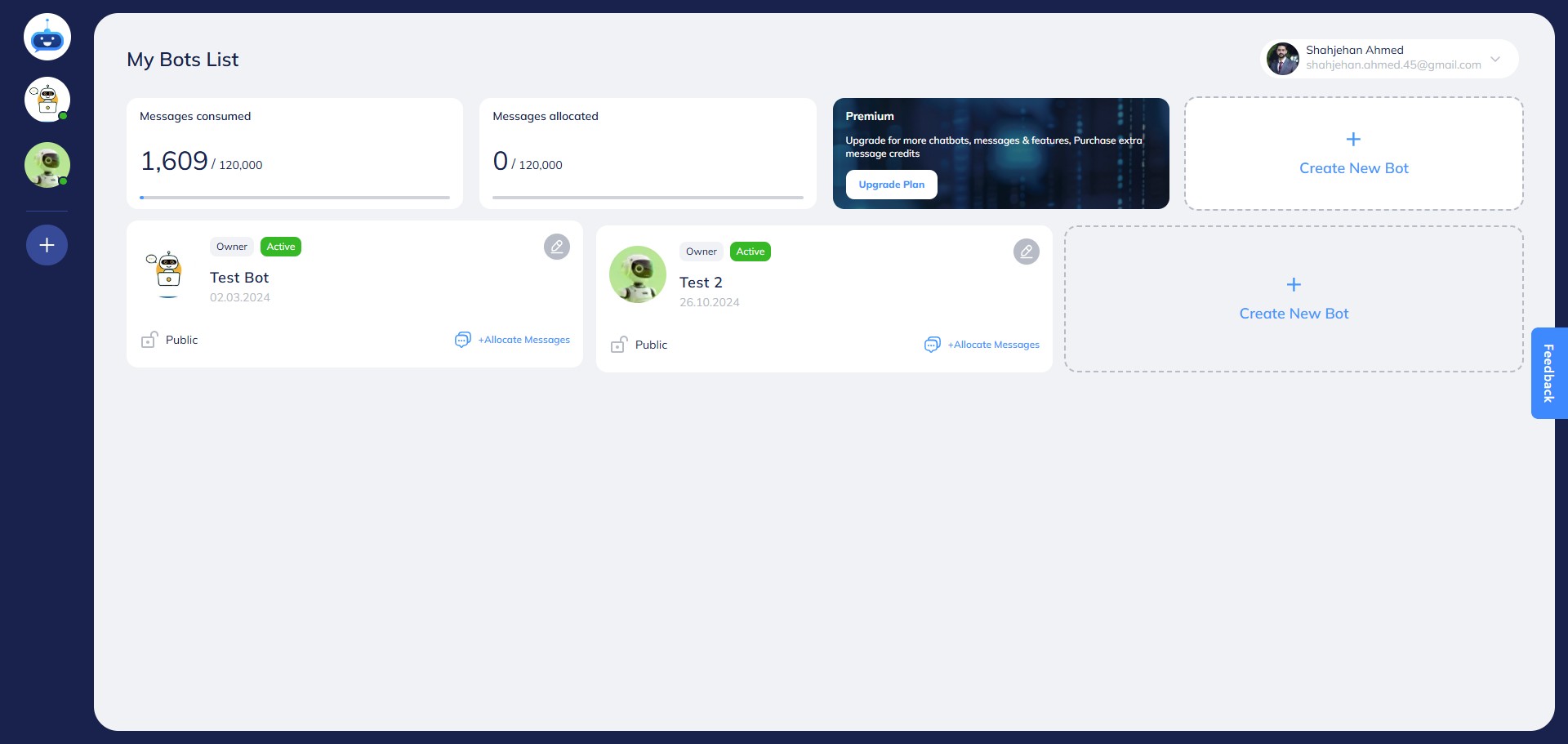
Navigate to https://app.fastbots.ai/
Click on the Chatbot that you want to open.

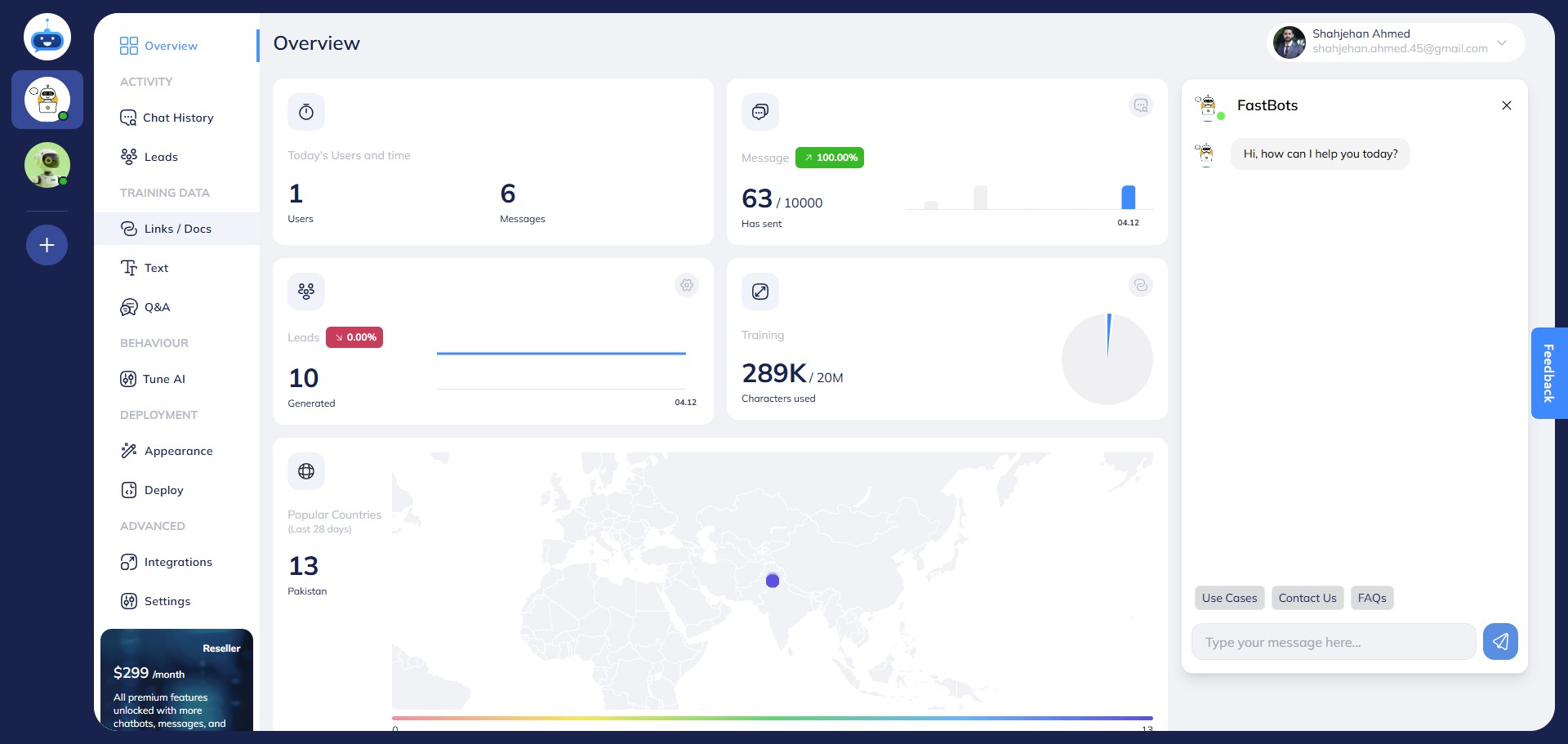
Click on "Links / Docs" to open this page.
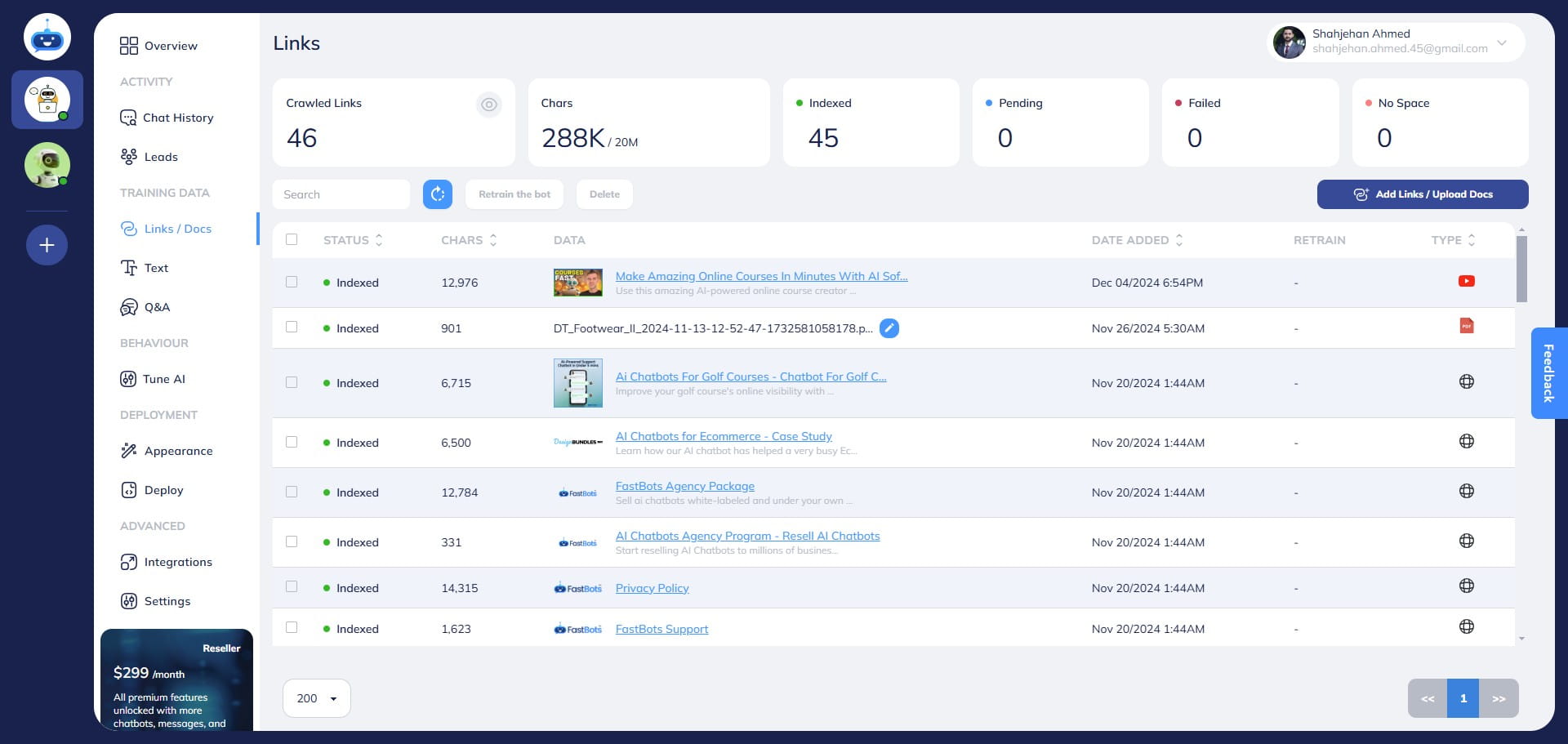
Click on the "Add Links/Upload Docs" button.
Click on the "Freshdesk" to select this option.
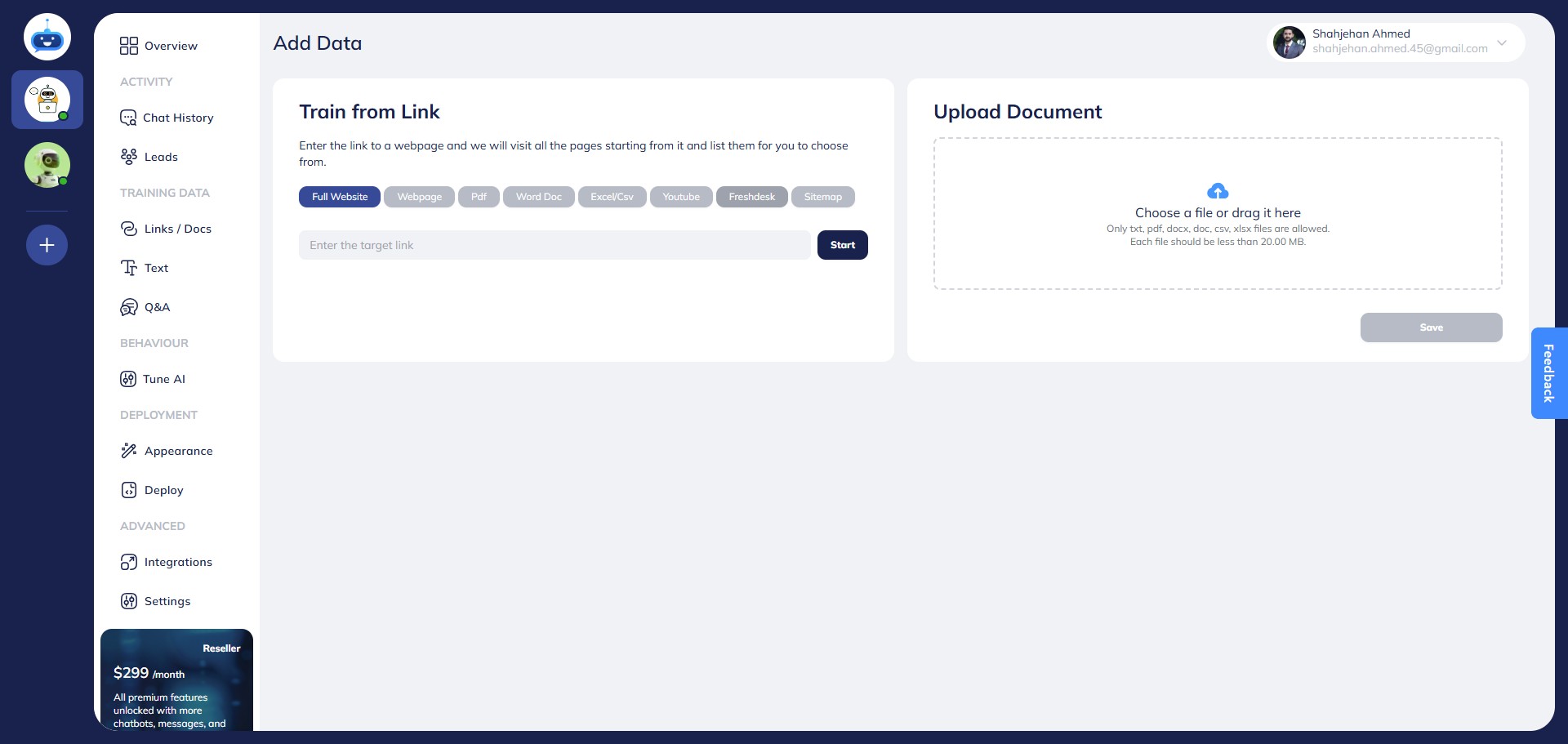
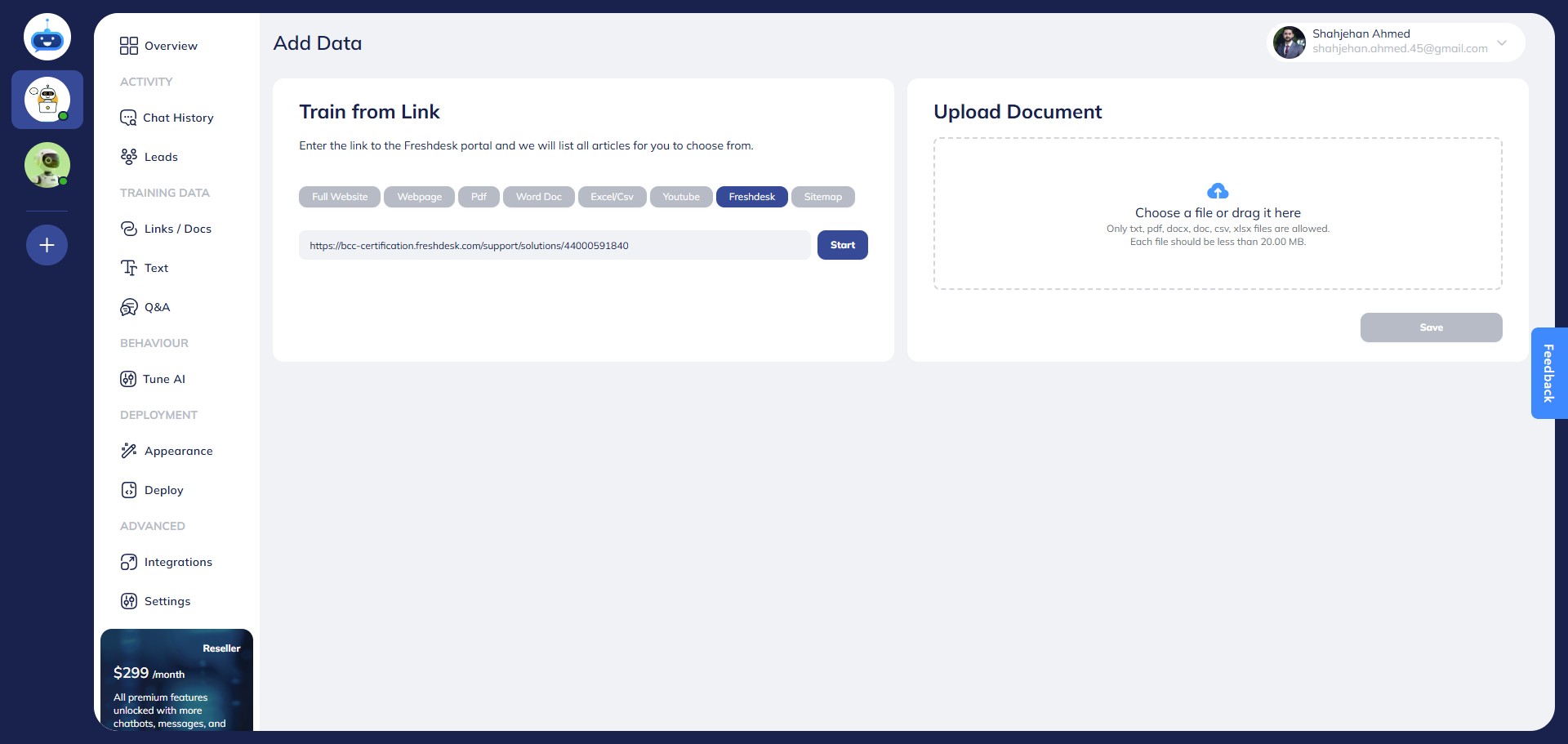
Enter the URL of the Fresh document that you want to add to the chatbot training.
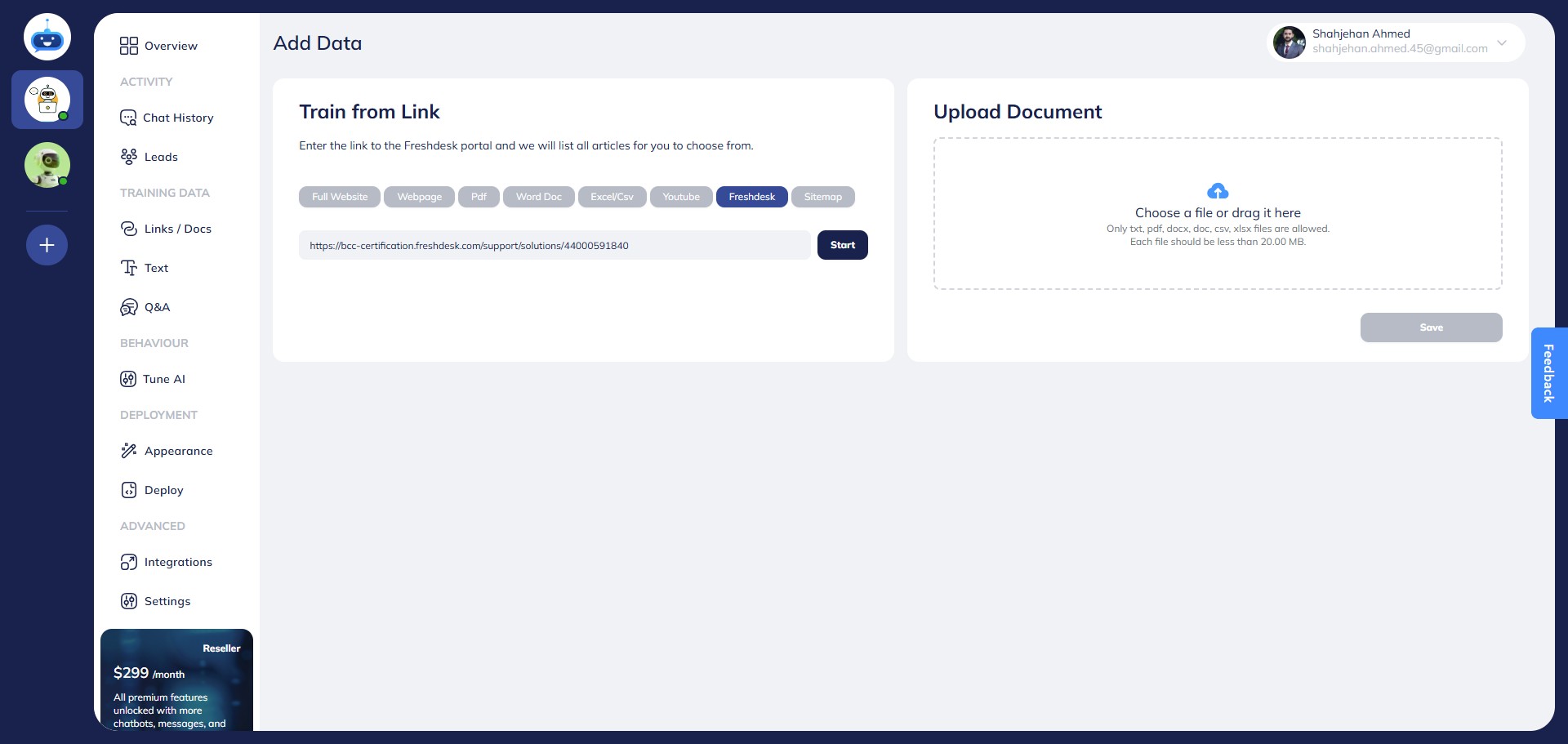
Click on "Start"
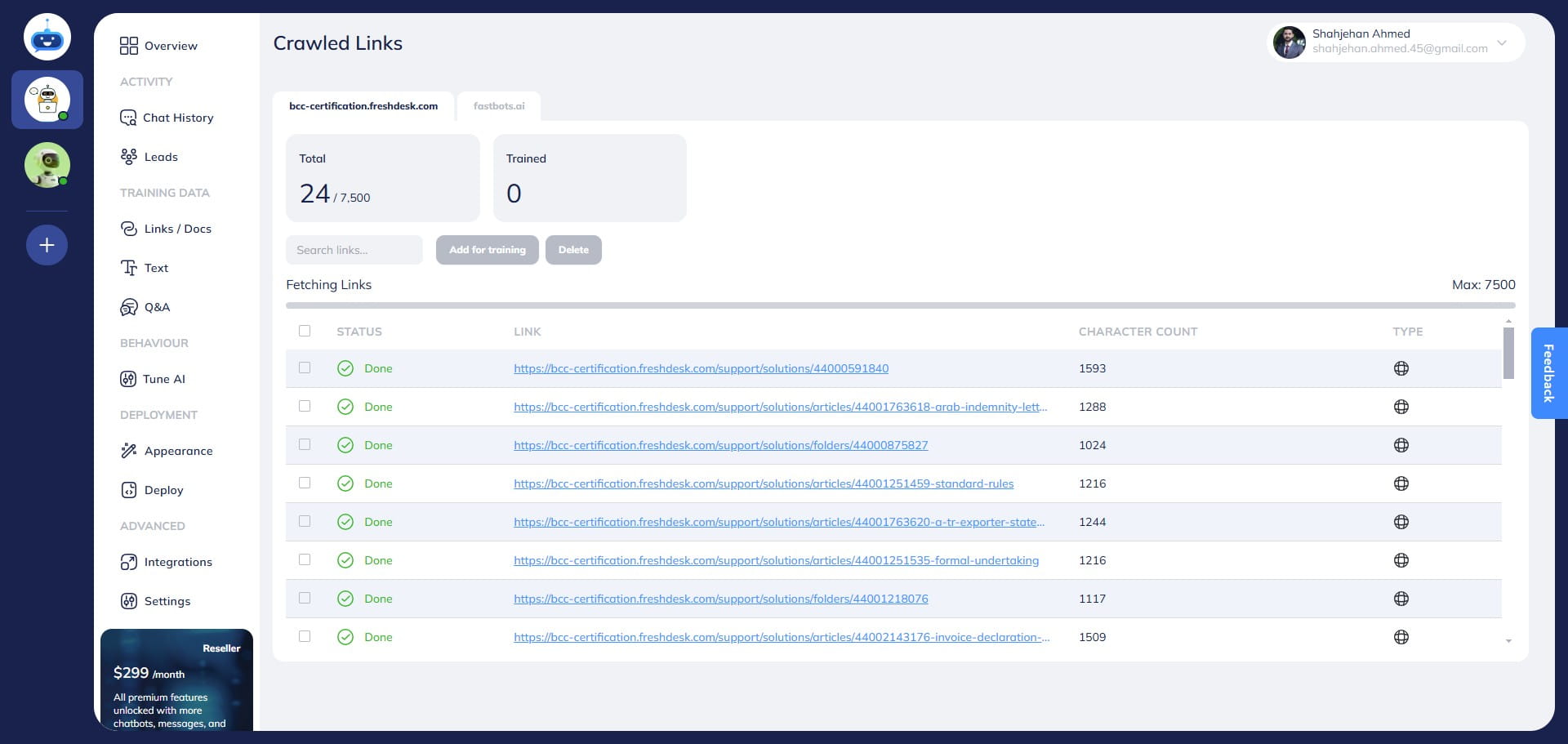
After you click on Start, the Fastbots crawler will scrape the provided Freshdesk link and list out all the URLs. You can see the total number of crawled links in the "Total" section.
Once the chatbot has completed the crawling, select all the links by using the checkbox.
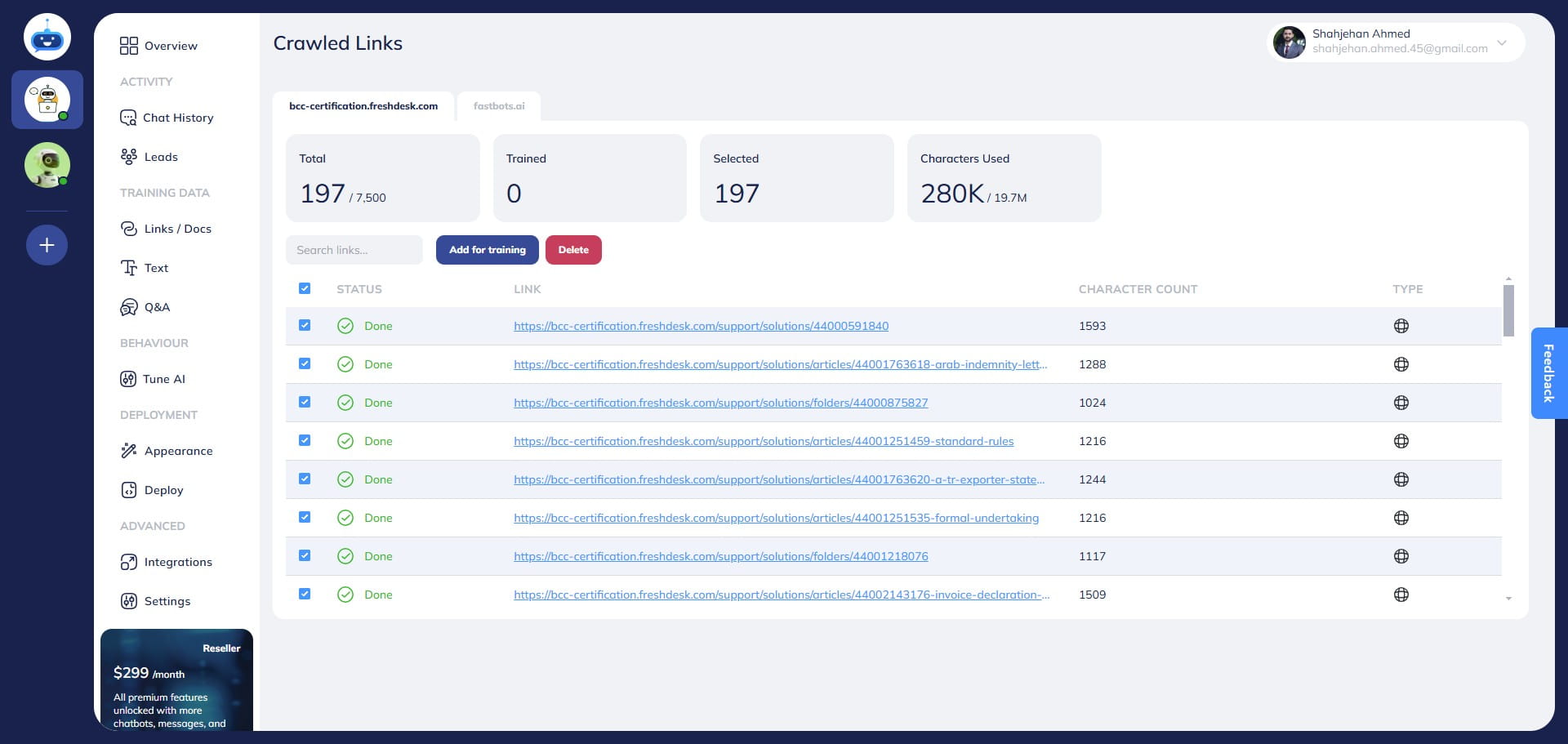
Click on "Add for training" to add all the selected URLs to chatbot training.
Here you can see the Status of new URLs added. At first, it will show "Pending" status. Once the URLs are successfully, added the status will change to "Indexed".
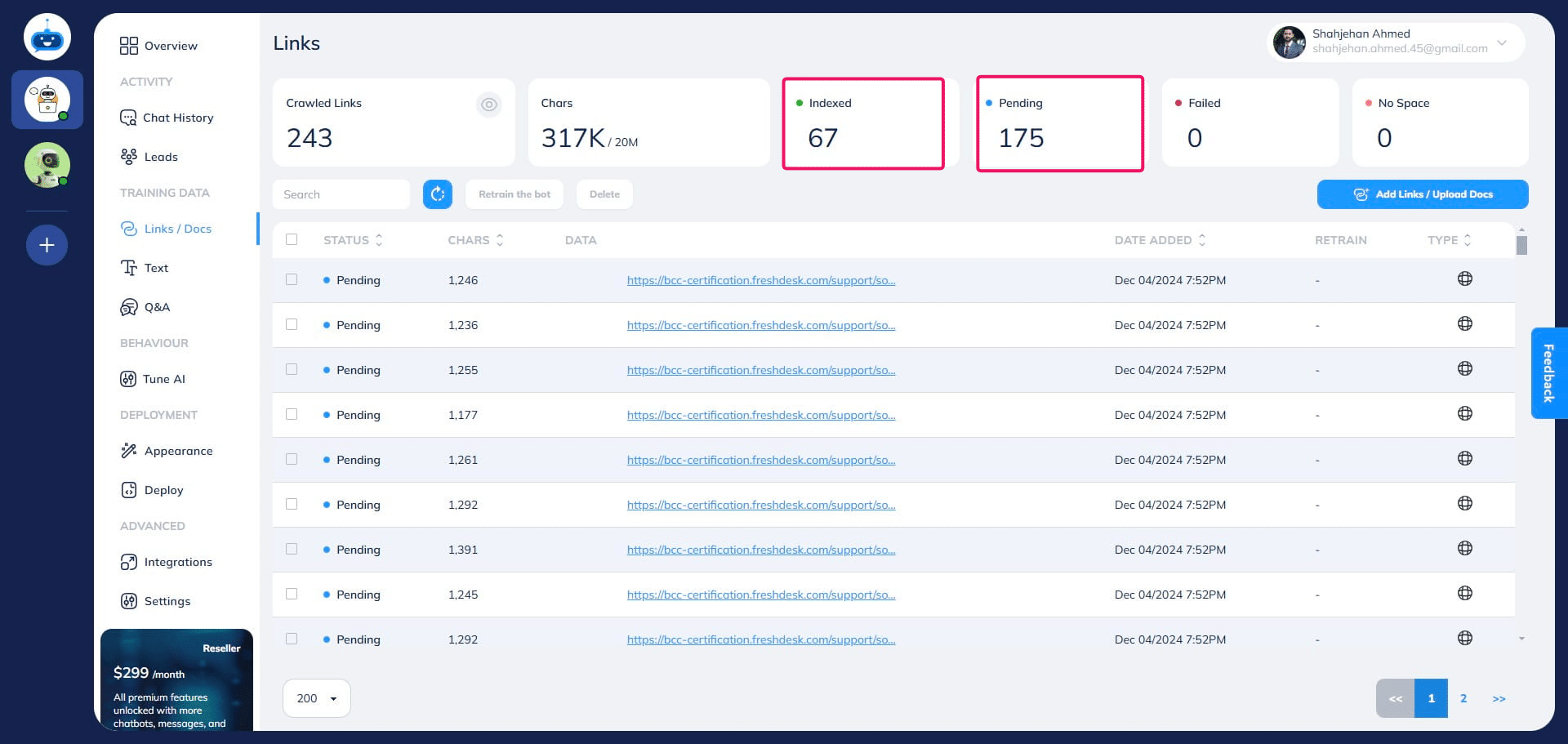
Refresh the app and make sure all the newly added URLs are indexed and showing a Green Dot under the status column.
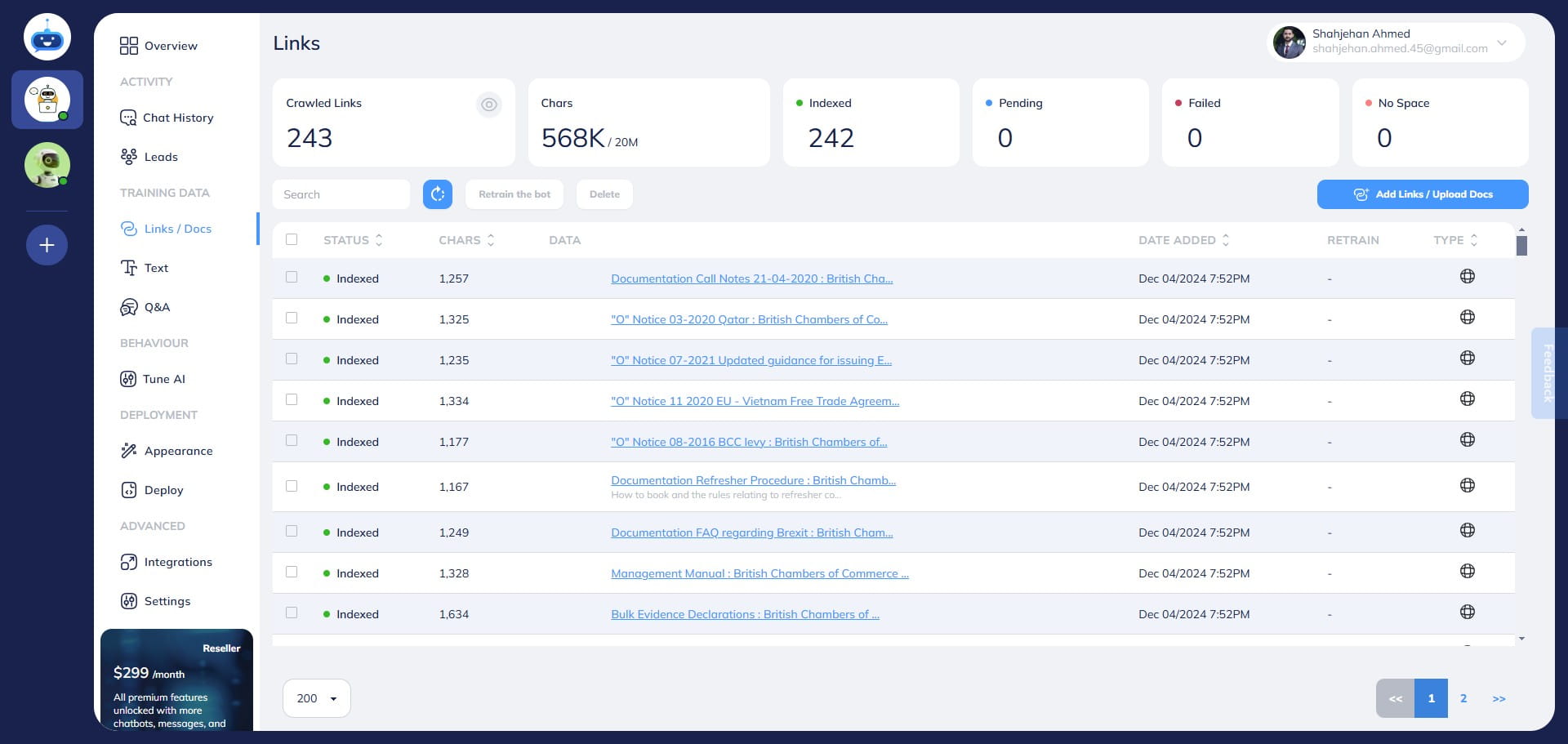
Done 🚀 You have successfully trained your chatbot on your Freshdesk data.