

How To Export Chats
Learn how to export conversations of your chatbot in a PDF.
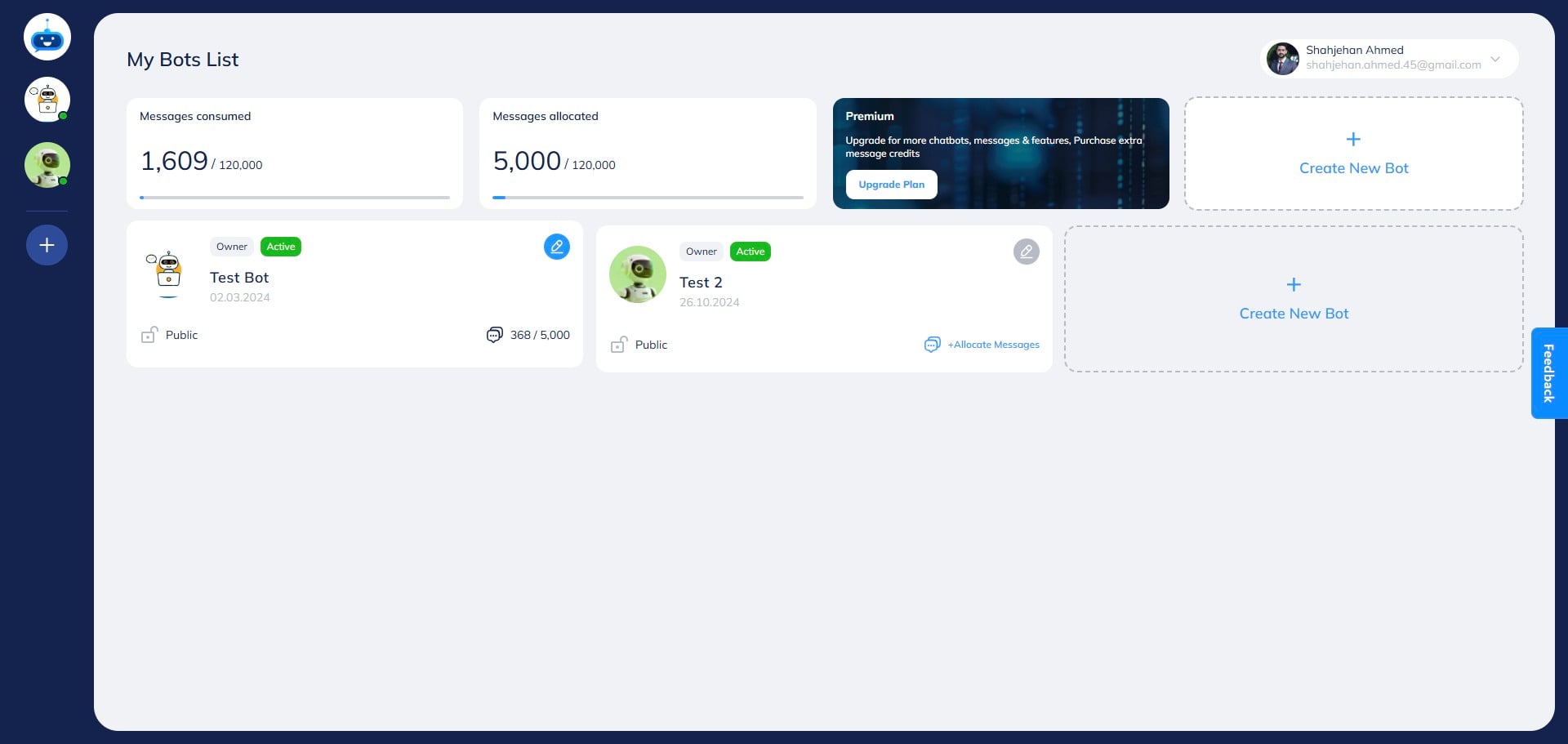
Voice calls in Chat History Voice conversations are saved as written transcripts in Chat History alongside text chats. FastBots stores the transcript, not an audio recording of the call. Use the conversation-type indicator to distinguish Text, Voice and Text & Voice conversations. Navigate to https://app.fastbots.ai/
Click on the Chatbot to open it.

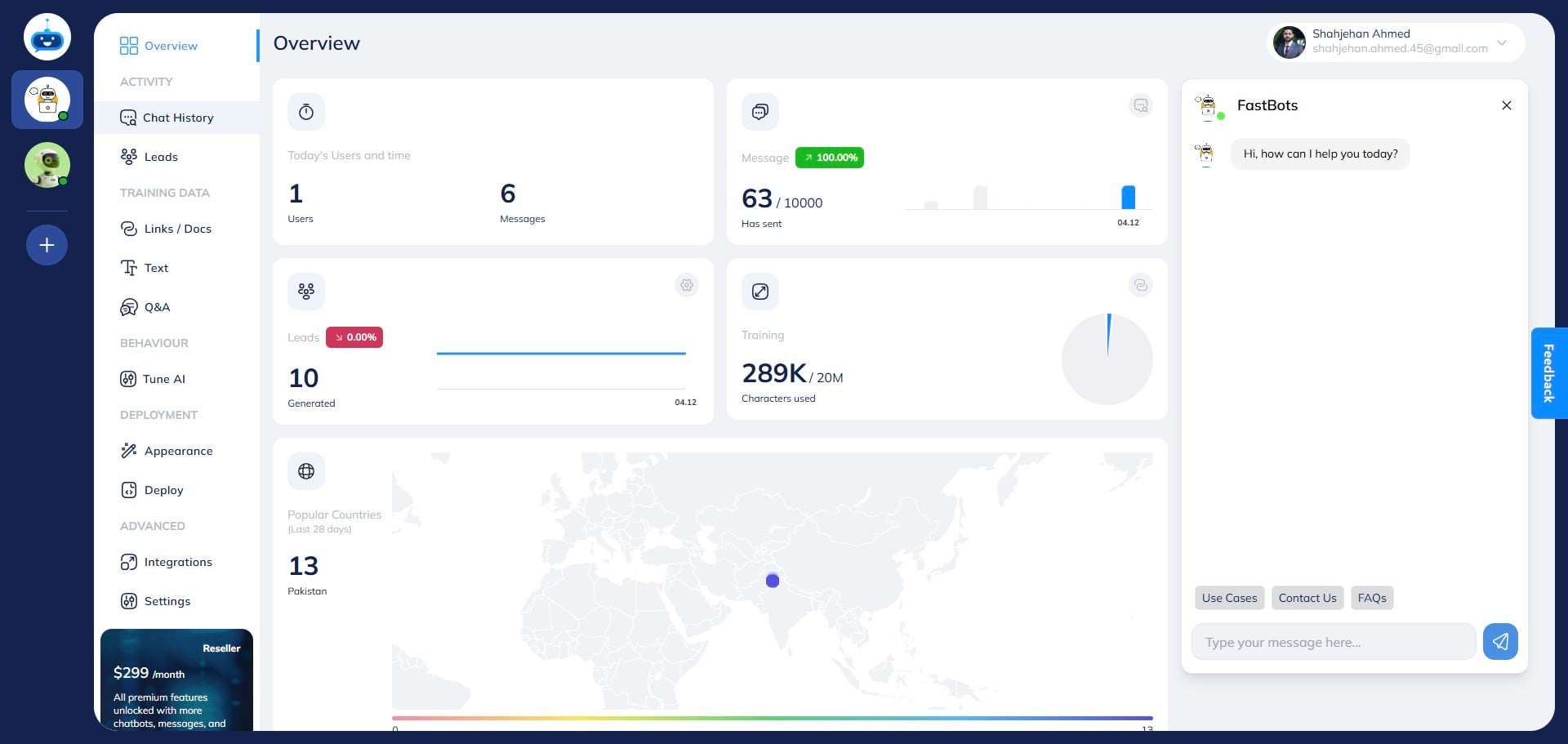
Click on "Chat History" to open the chat history page.
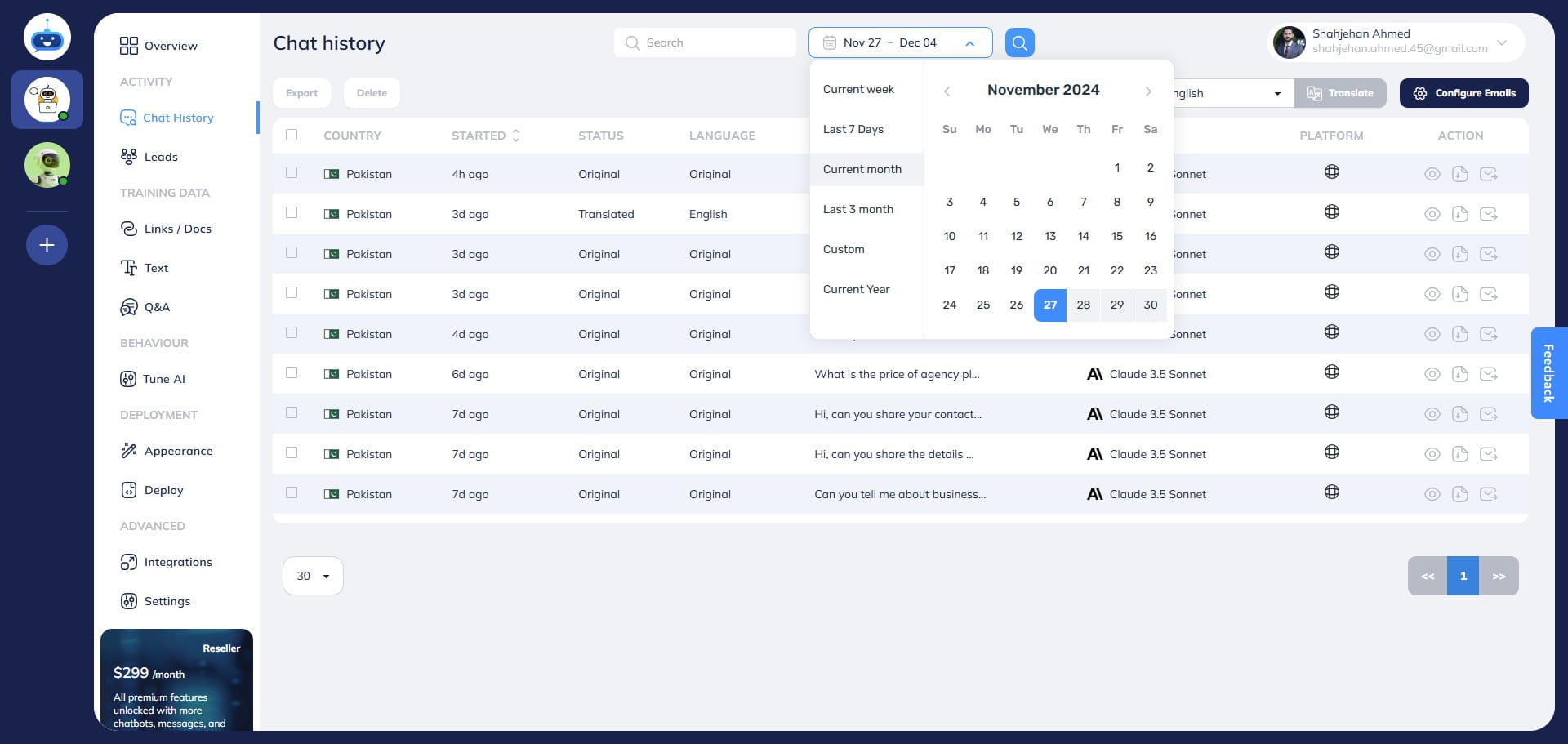
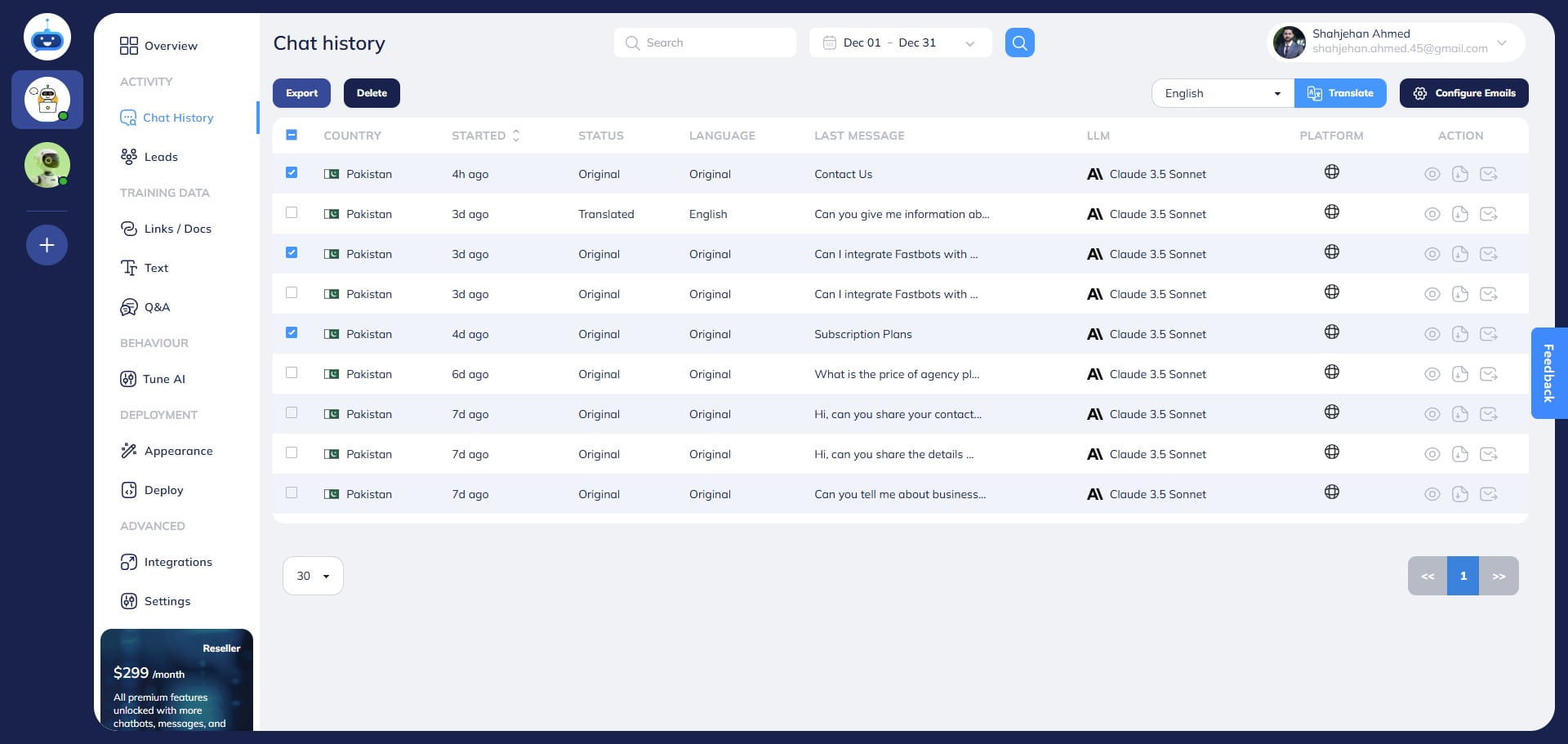
Select the dates for which you want to export the leads and then click on the Search icon to apply it.
Select the Chats that you want to export.
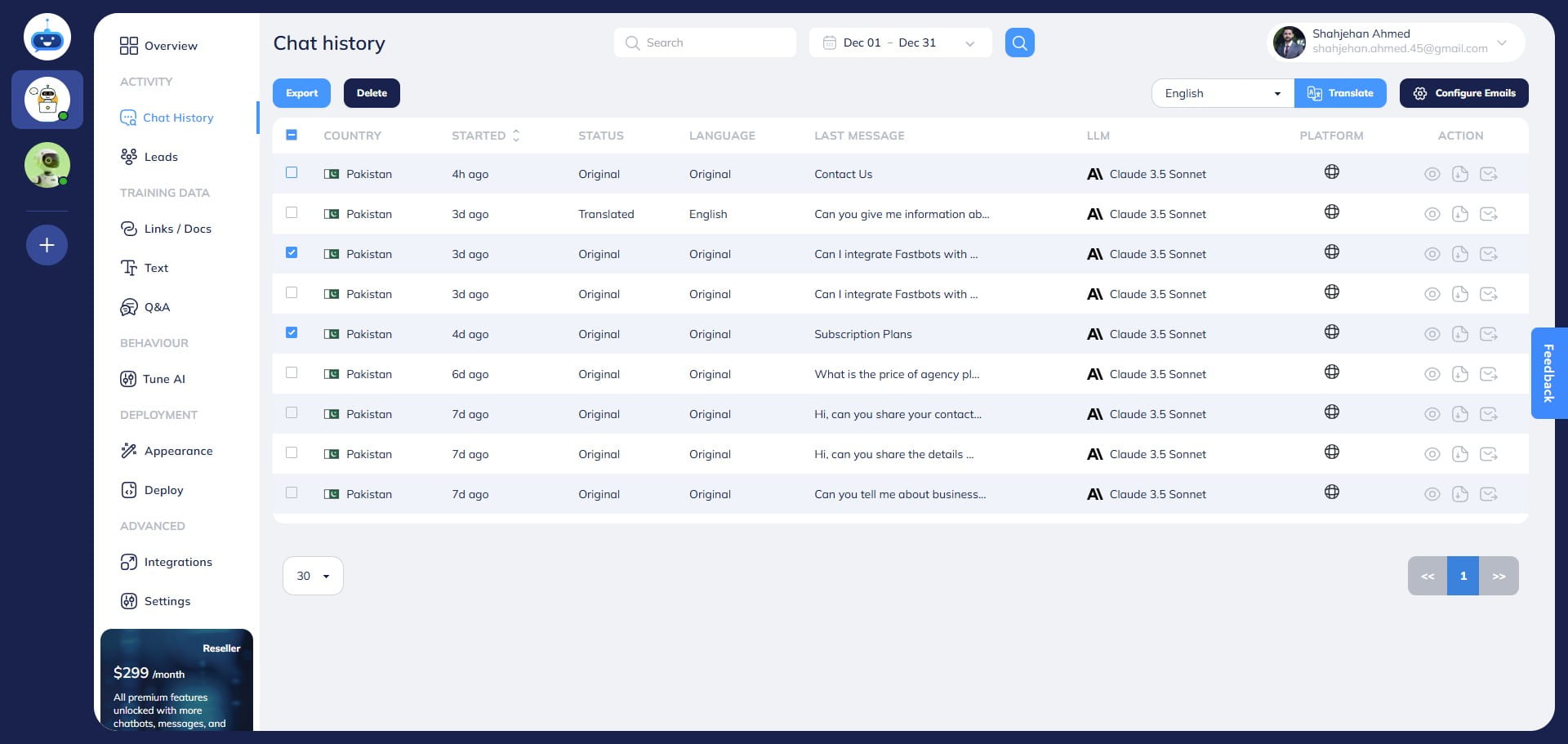
After selecting the chats, click on the "Export" button and it will download the conversation in a PDF on your computer.
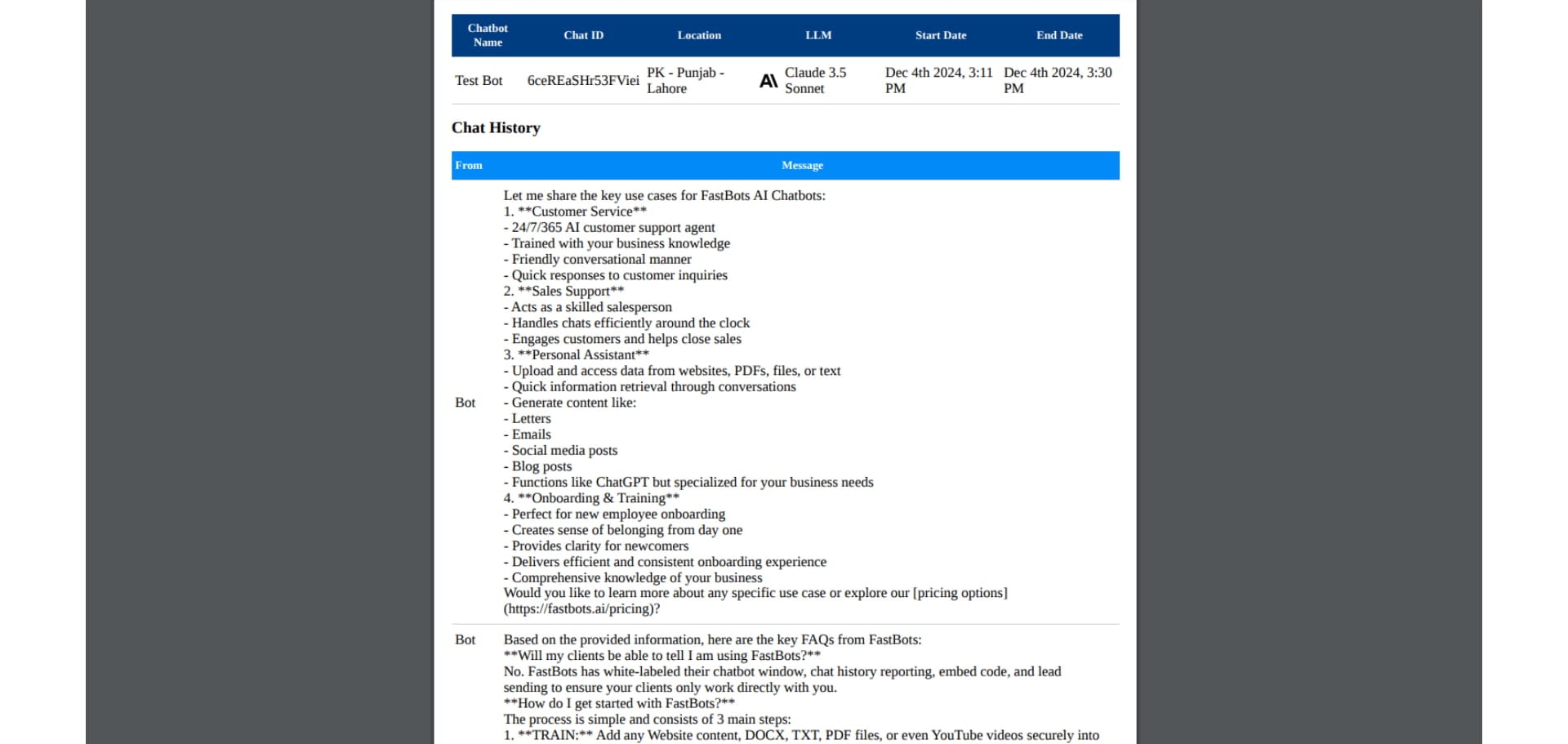
Here is the PDF format that shows the exported chat history.
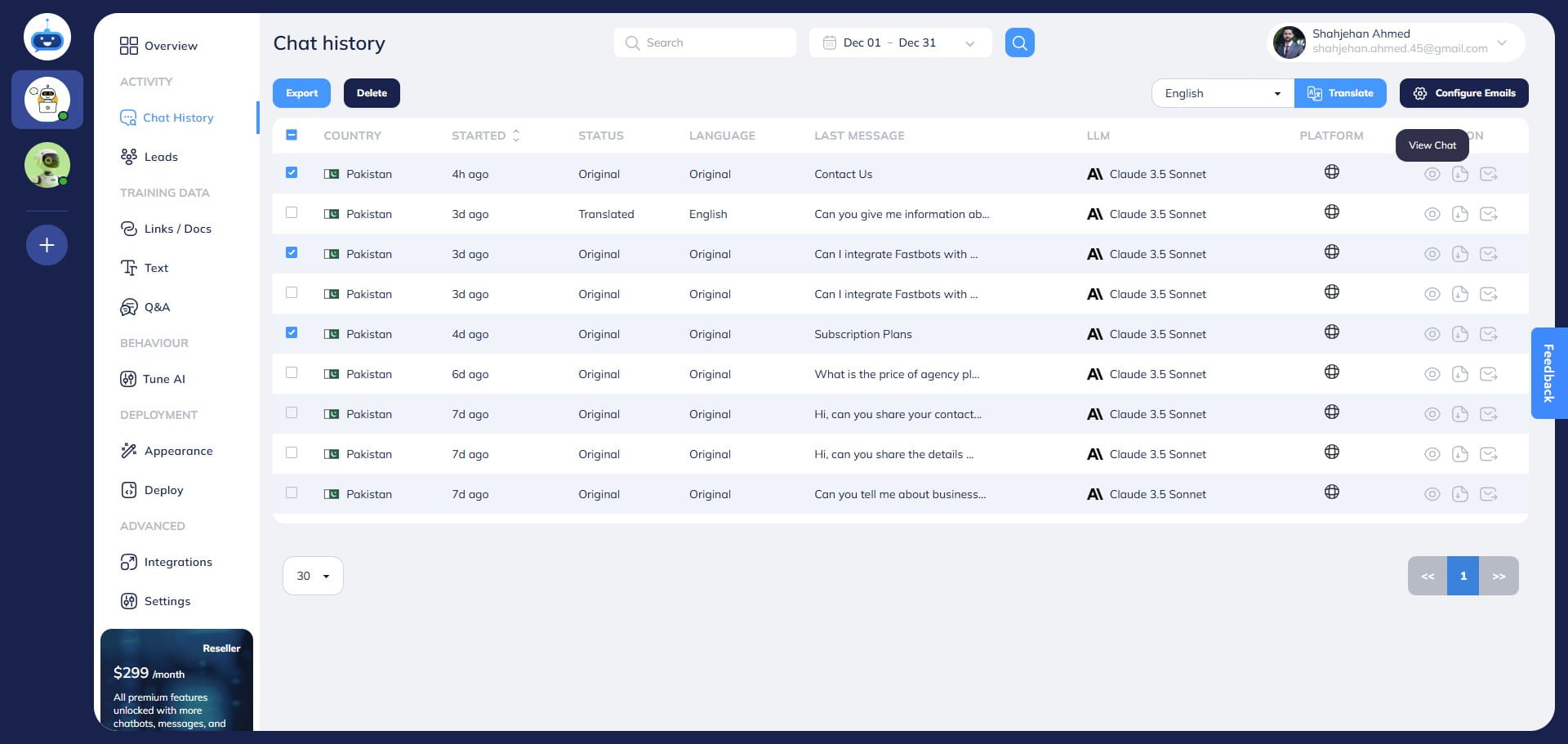
You can also click on the "View Chat" button to open the Chat.
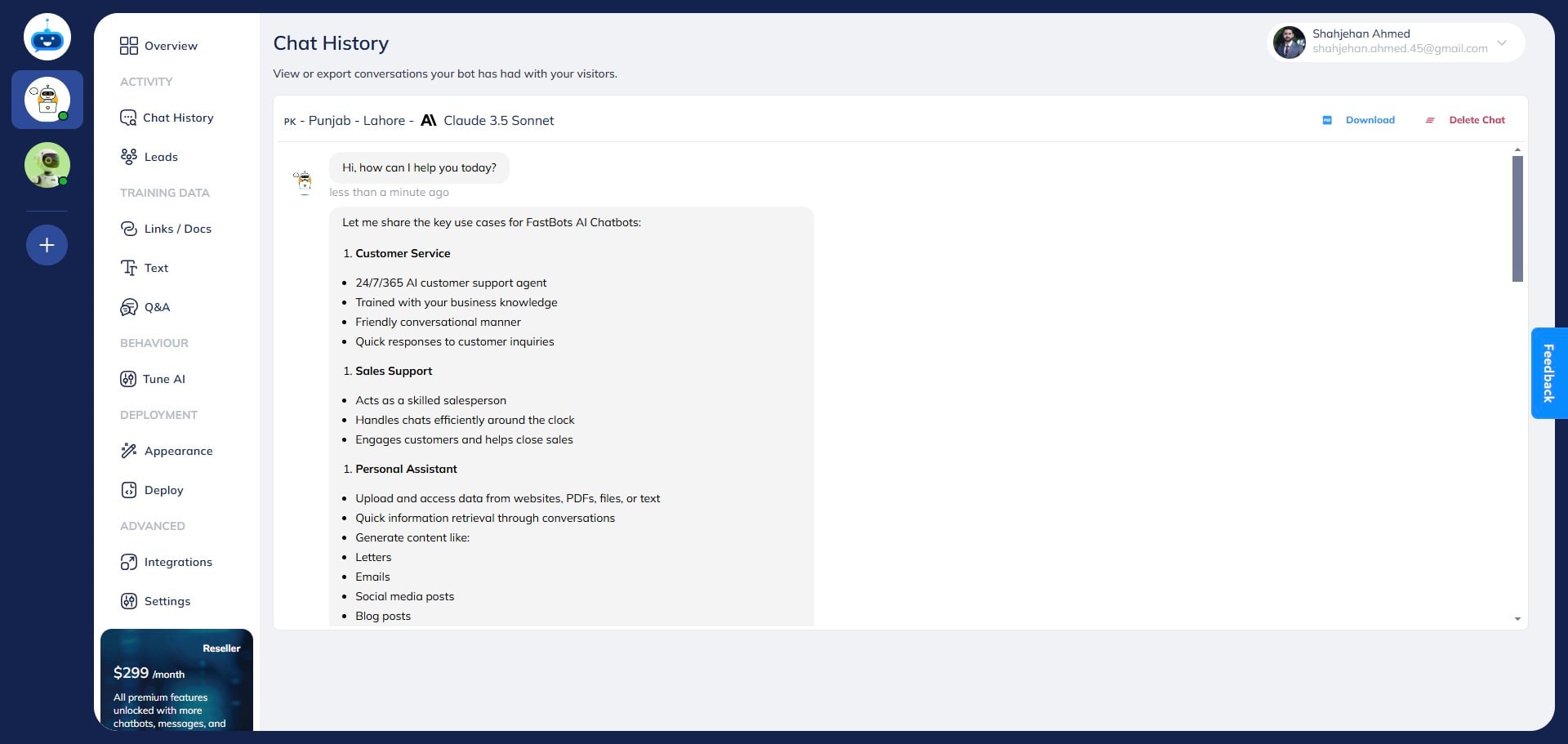
Once the chat is opened, you can just click on the "Download" button to export the chat in PDF format.
Done 🚀