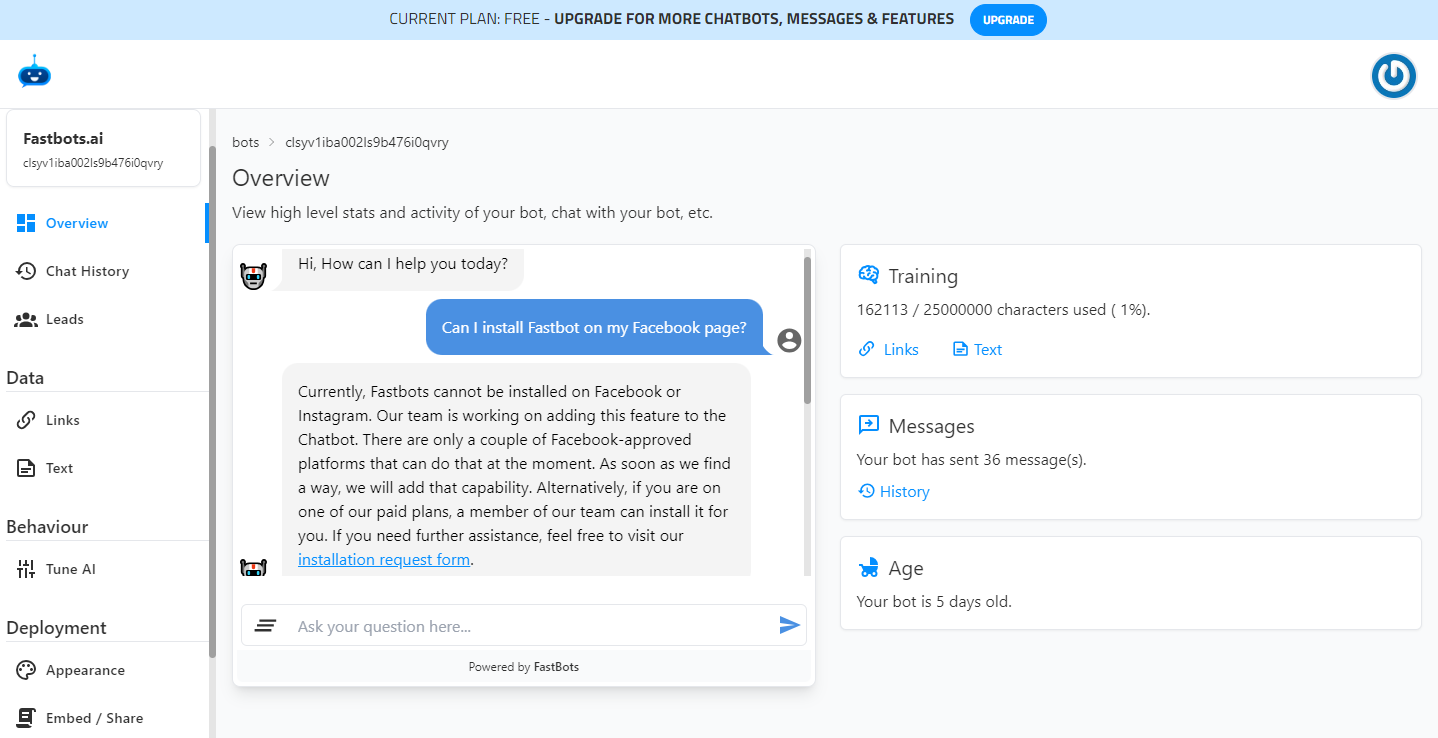
How To Find The Conversations In Which Chatbot Could Not Provide An Answer To User
Learn how to find the questions for which the chatbot could not provide an answer and use these questions to retrain the chatbot.
Navigate to https://app.fastbots.ai/
Open your Chatbot
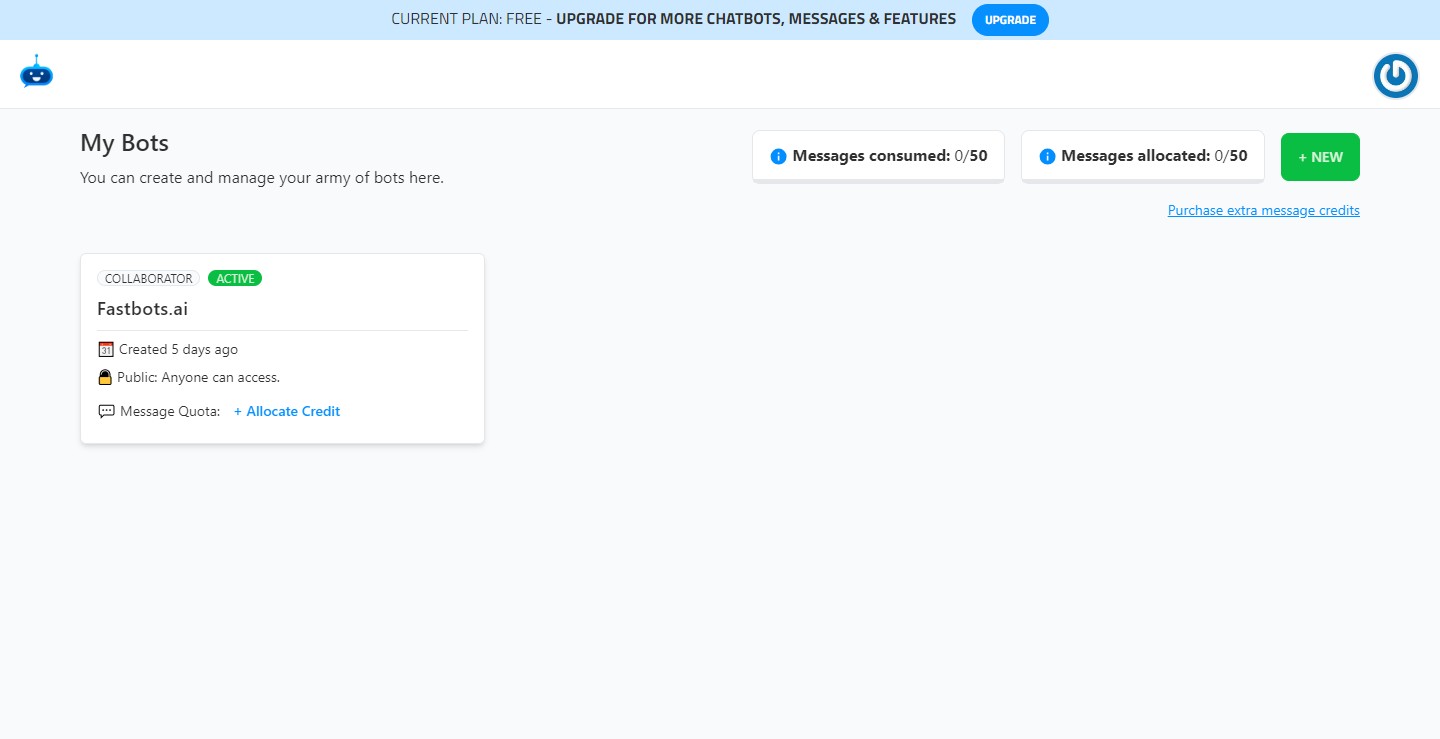

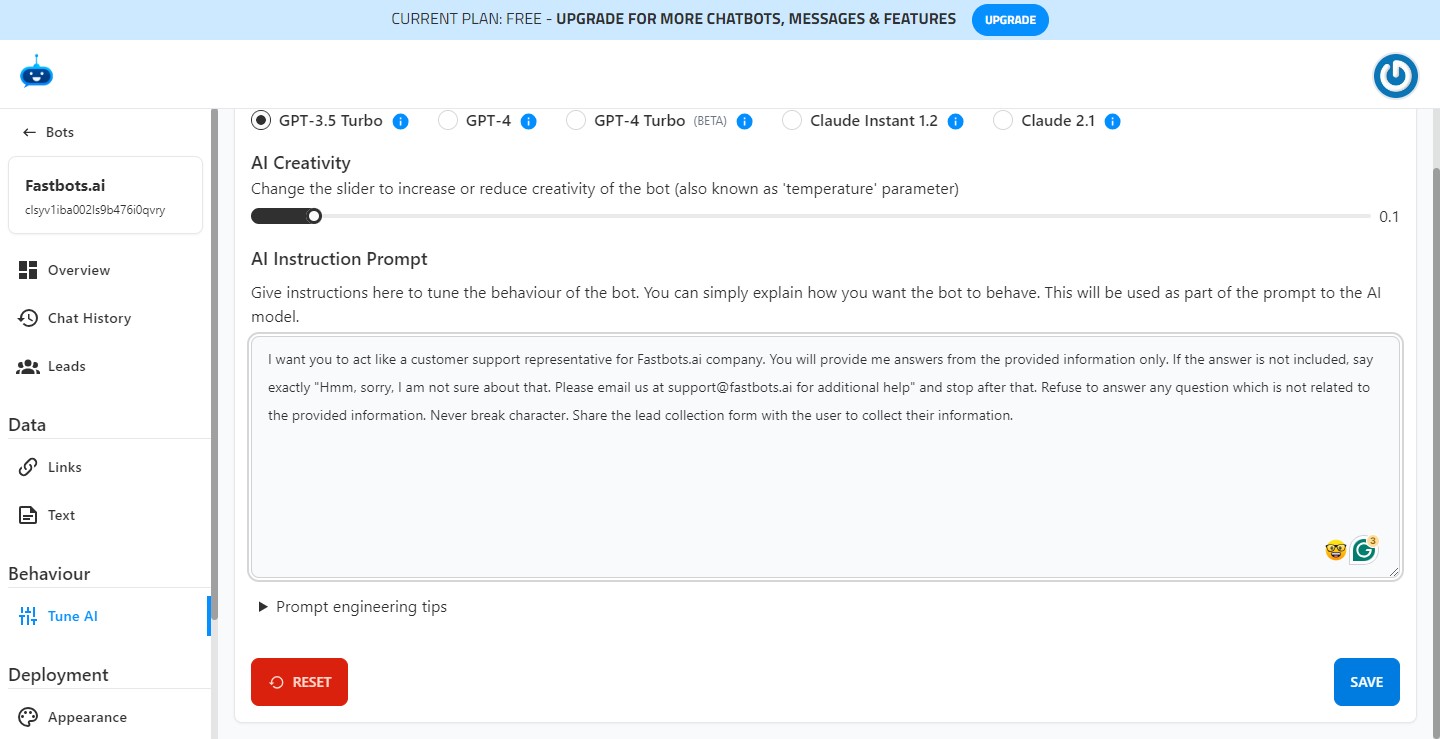
Click on "Tune AI" to open the tune AI page.
Add specific instructions for the Chatbot to reply to any questions for which the information/training has not been provided. Add those instructions in the "AI Instruction Prompt" to train the Chatbot
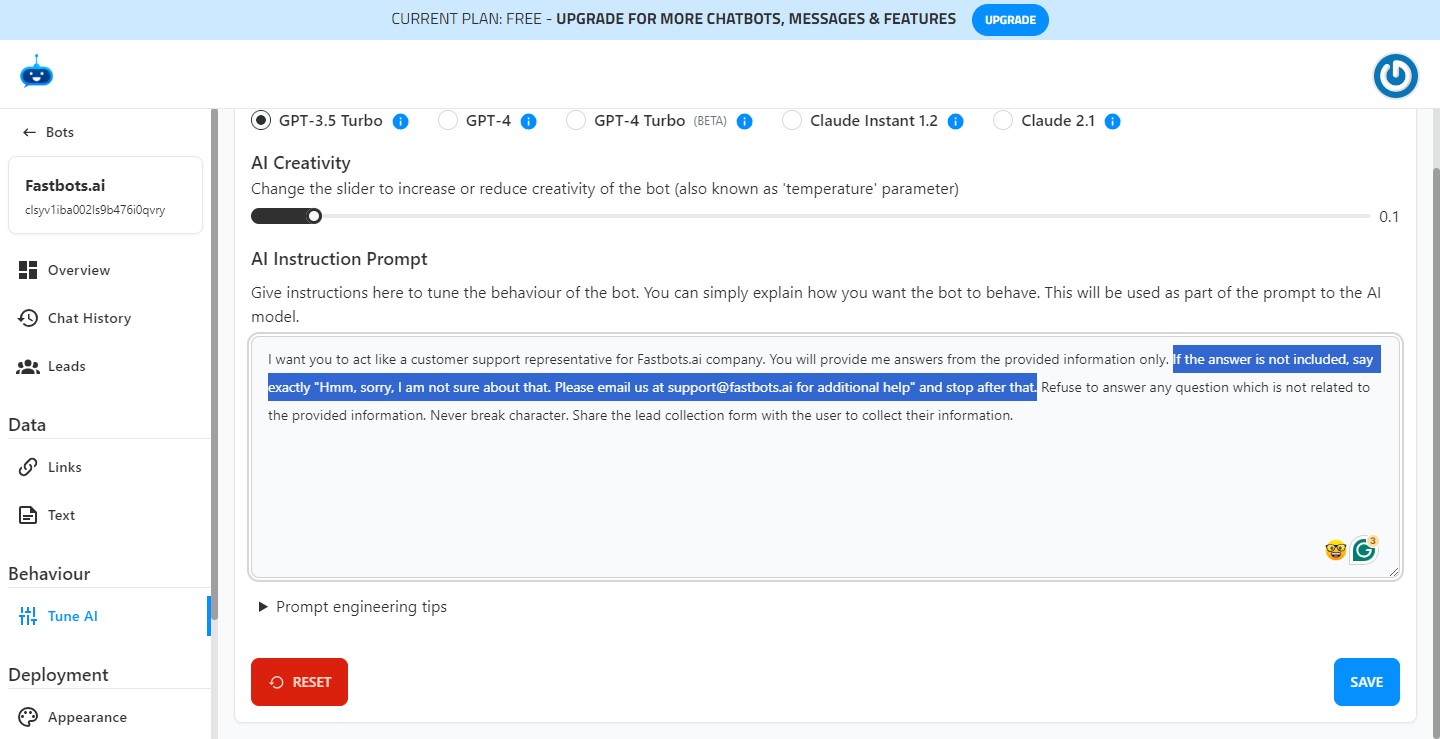
After adding the instructions click on "Save". Now, if your Chatbot does not have an answer to a question, it will reply with the exact instructions provided by you in the "AI Instruction Prompt".
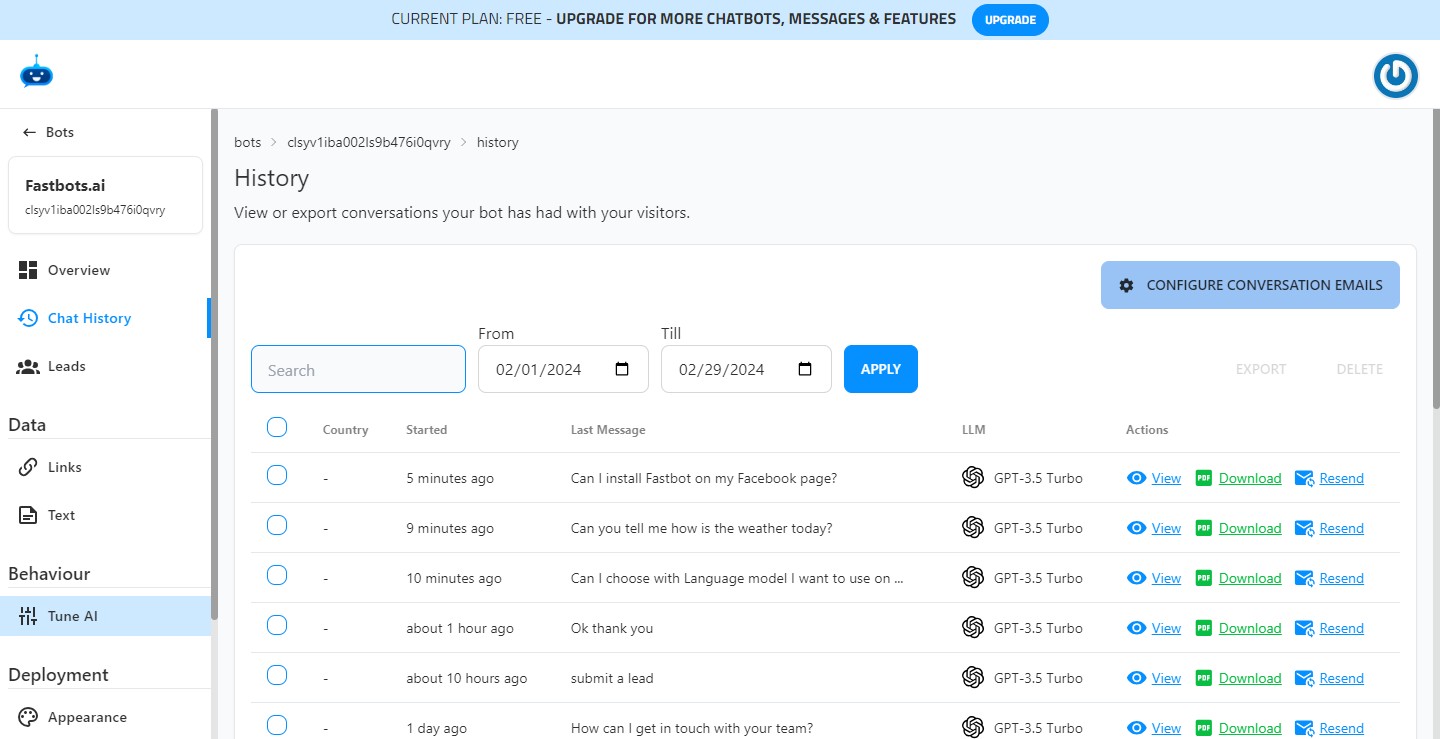
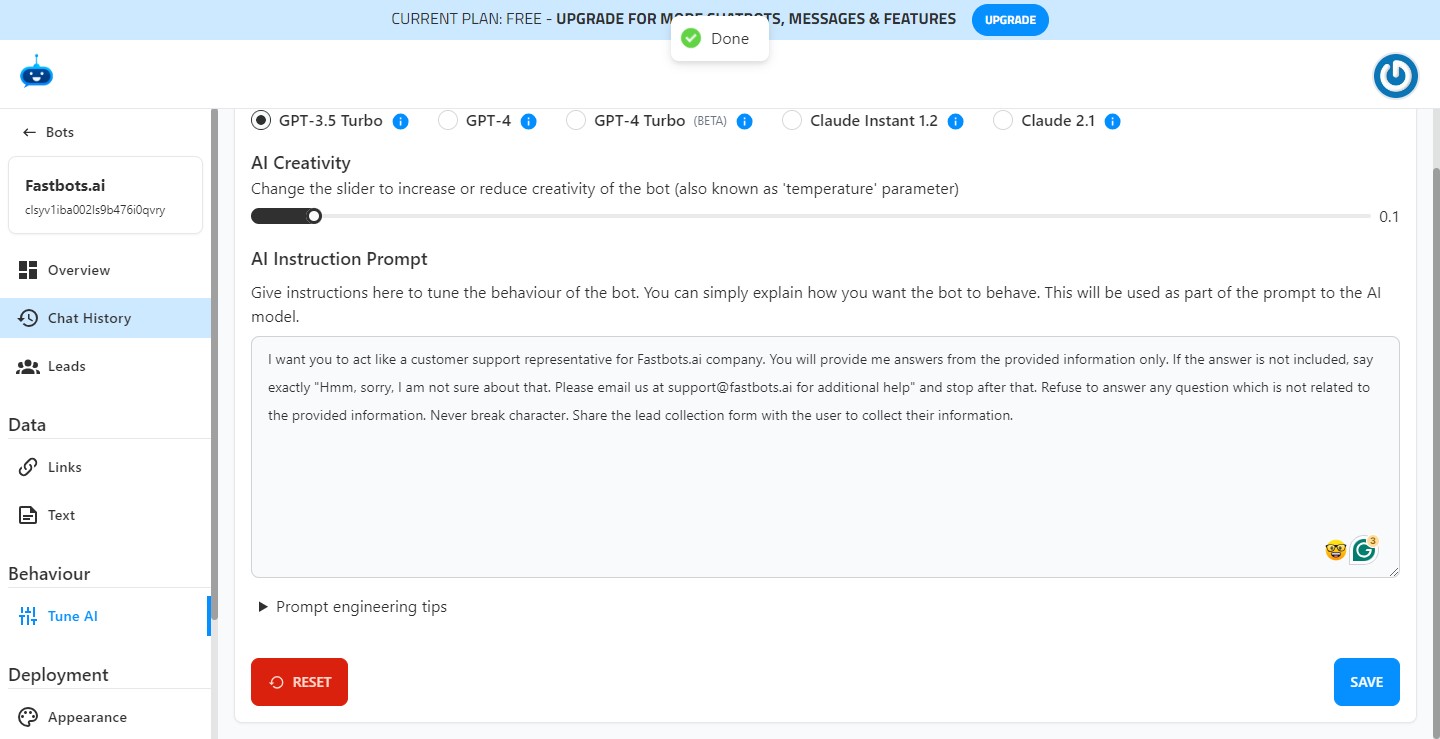
Click on "Chat History" to open the Chat history page.
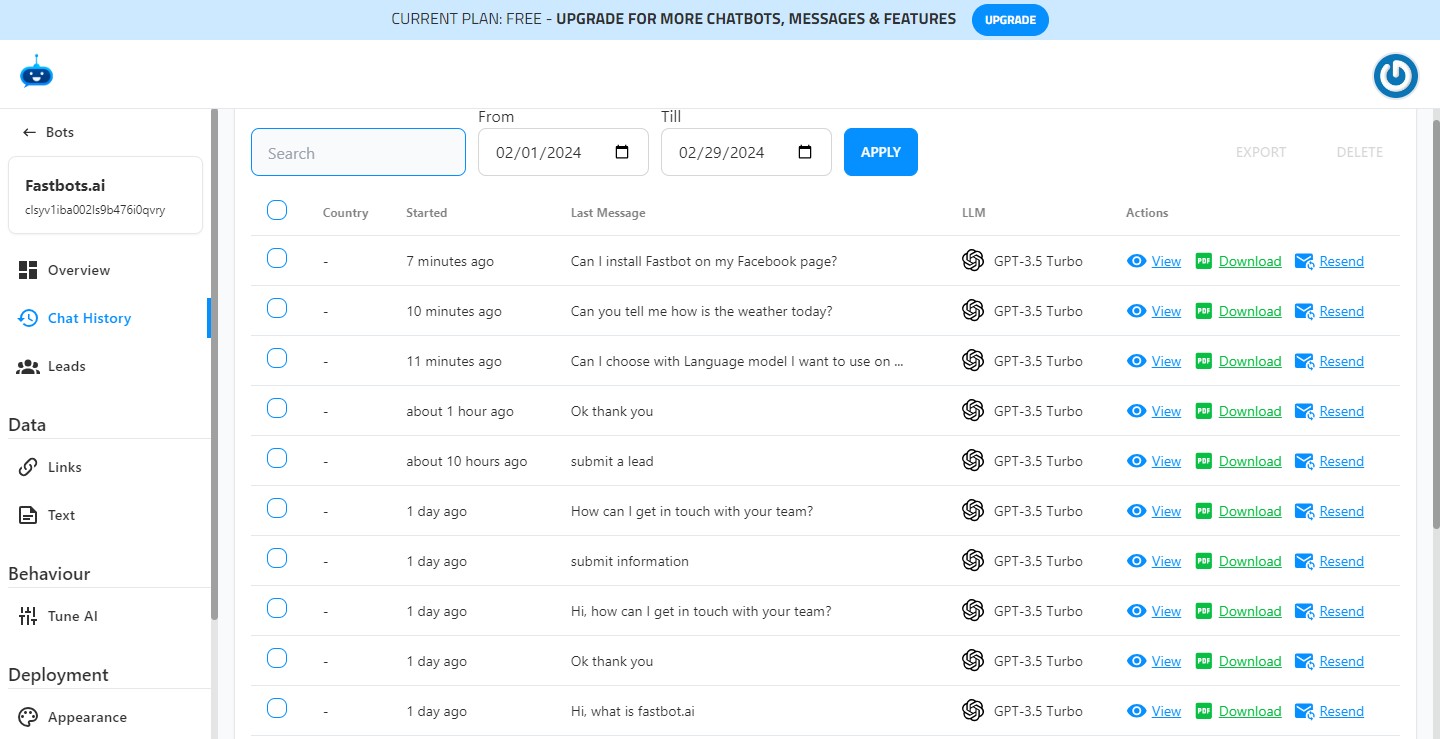
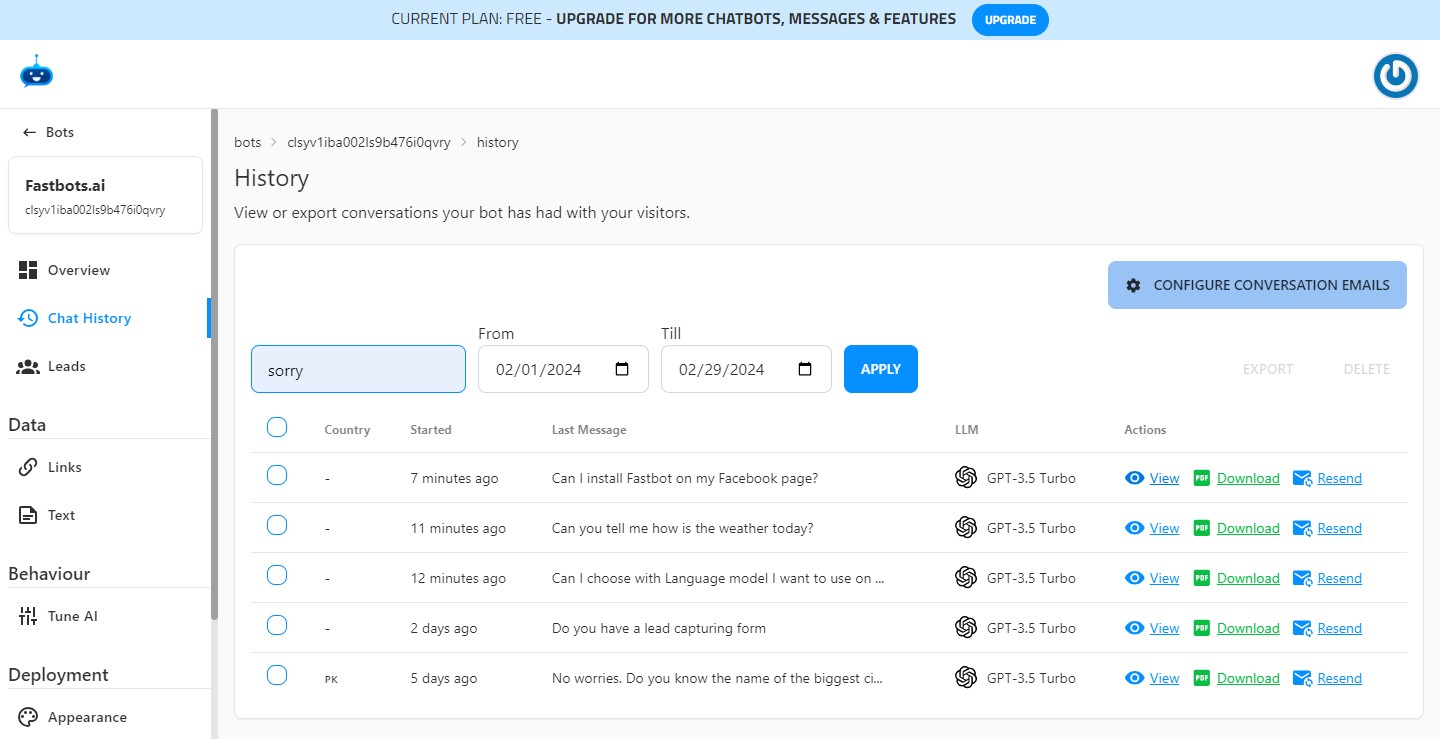
In the "Search" bar type a keyword that you added in the AI Instruction Prompt.
In this case, we will search using the word Sorry and then click on the "Apply" button.
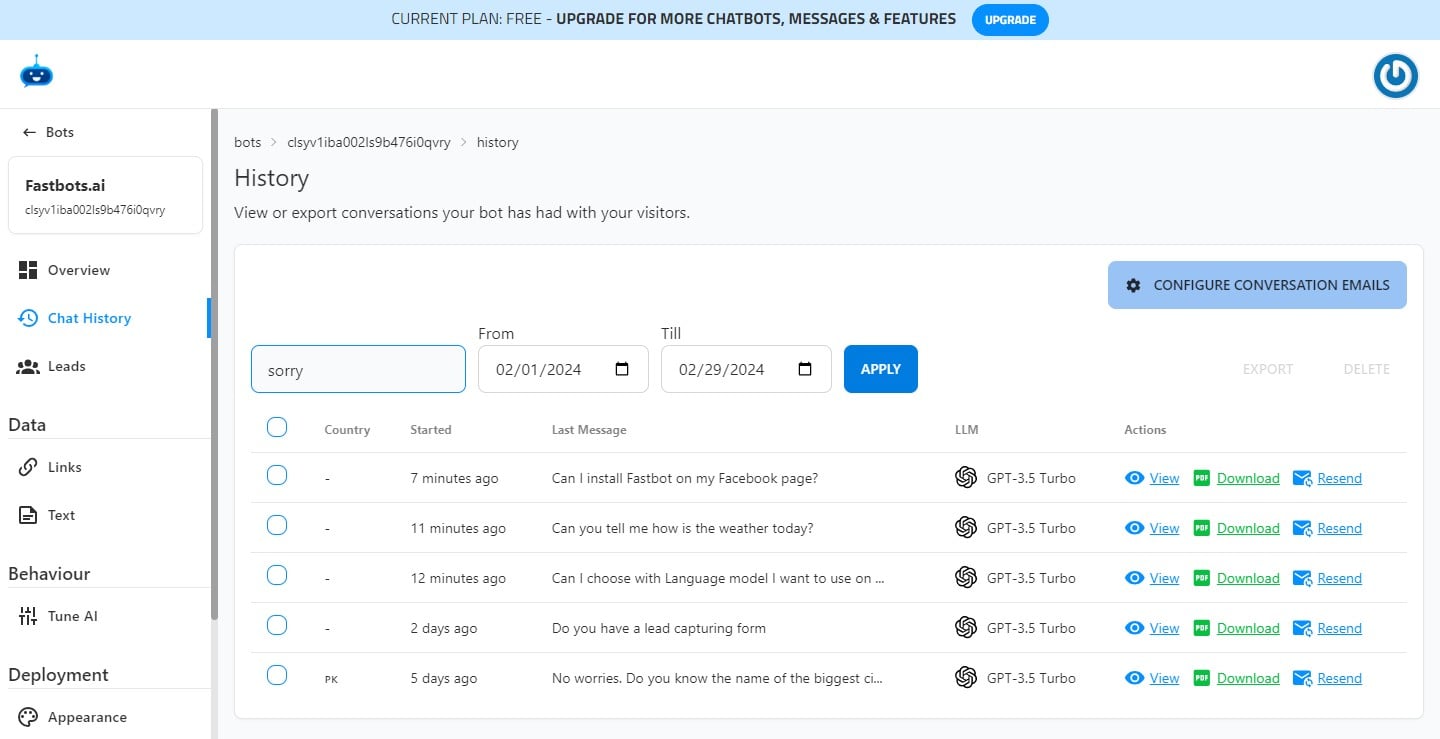
It will filter out all the conversations in which the Chatbot has used the word Sorry to answer a question. So, these are the conversations for which the Chatbot was not able to provide an answer.
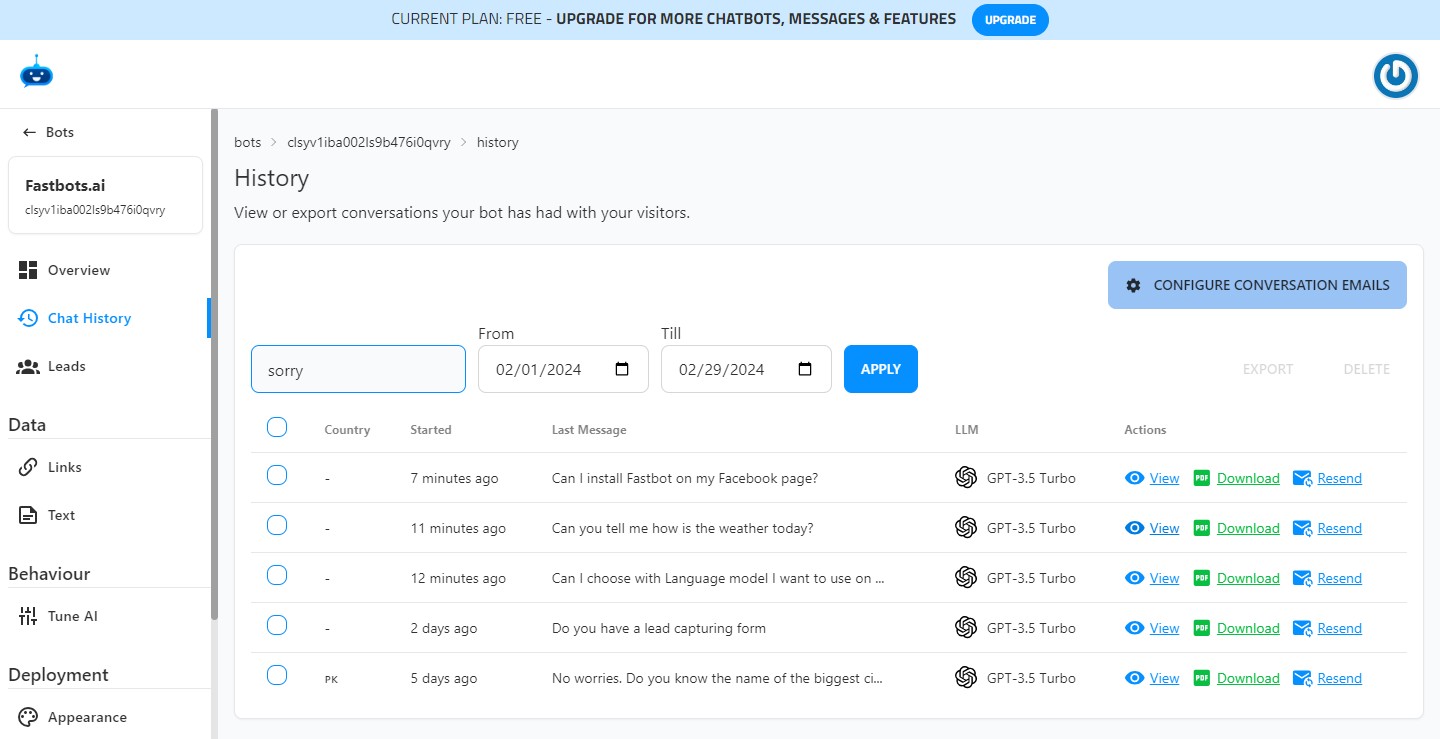
Click on the "View" button to open the transcript of the conversation.
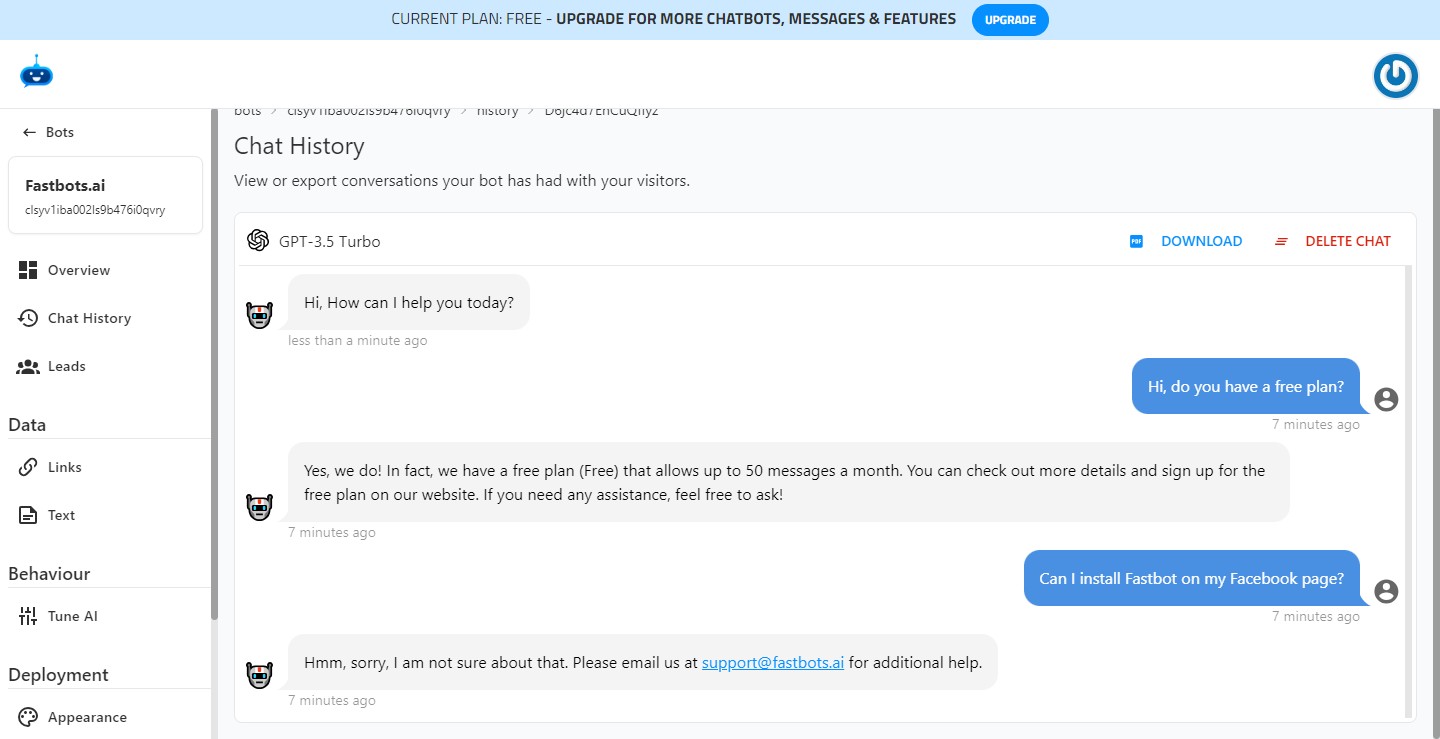
Here you can see the complete conversation and that specific question for which the Chatbot was not able to provide an answer.
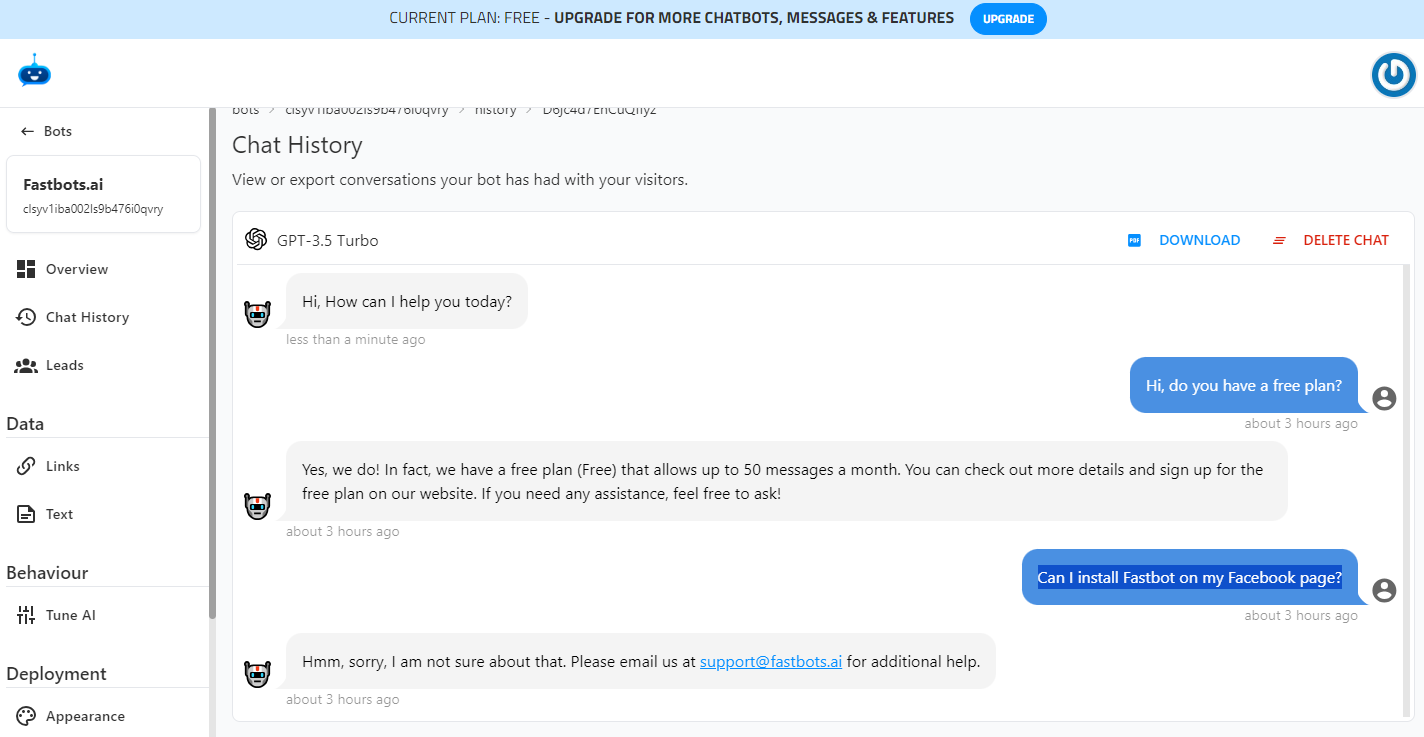
You can train your chatbot based on these inputs so it can provide an answer to this question if asked again. To do so, just copy the questions from the conversation.
Click on "Text" to open the text training page.
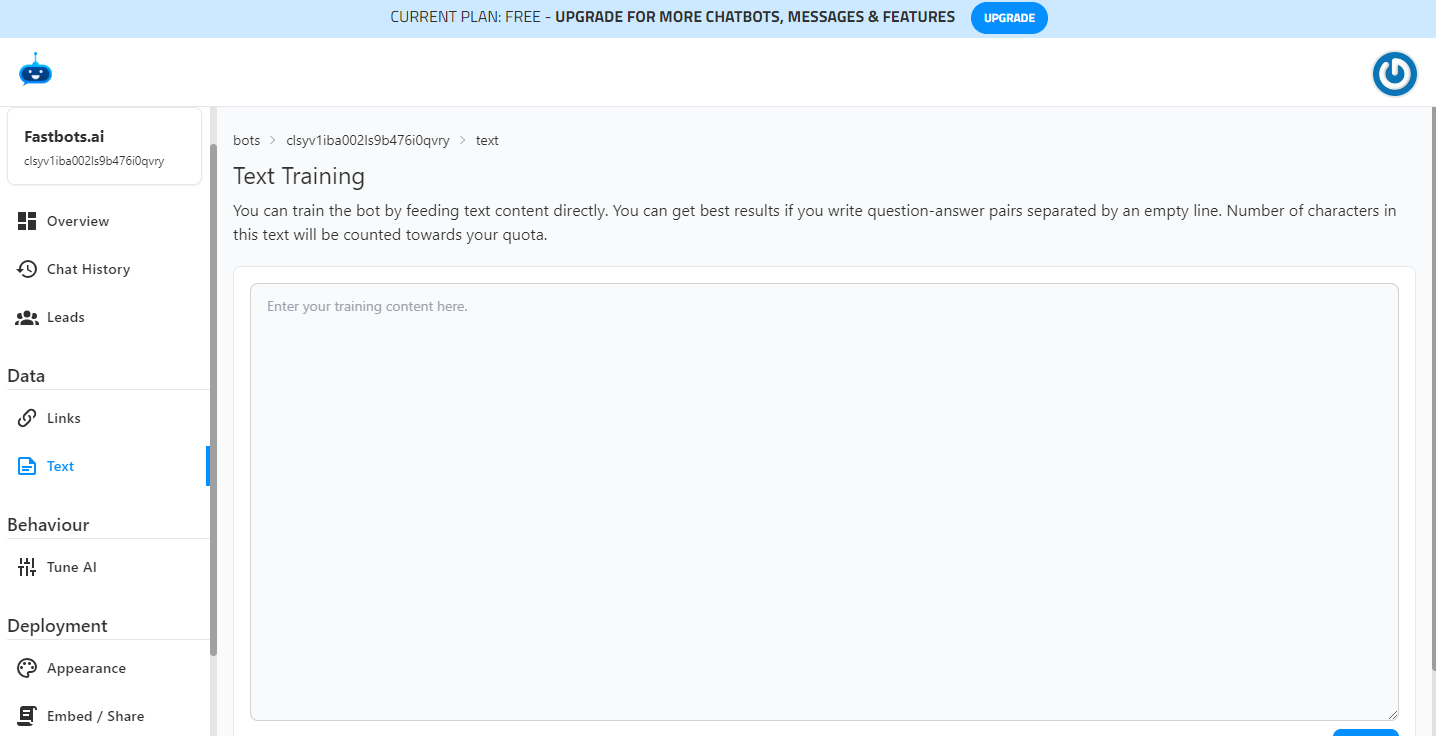
In the text training area, paste the question and also add the answer that you would like the bot to provide when this question is asked. After adding the text, click on "Save" button.
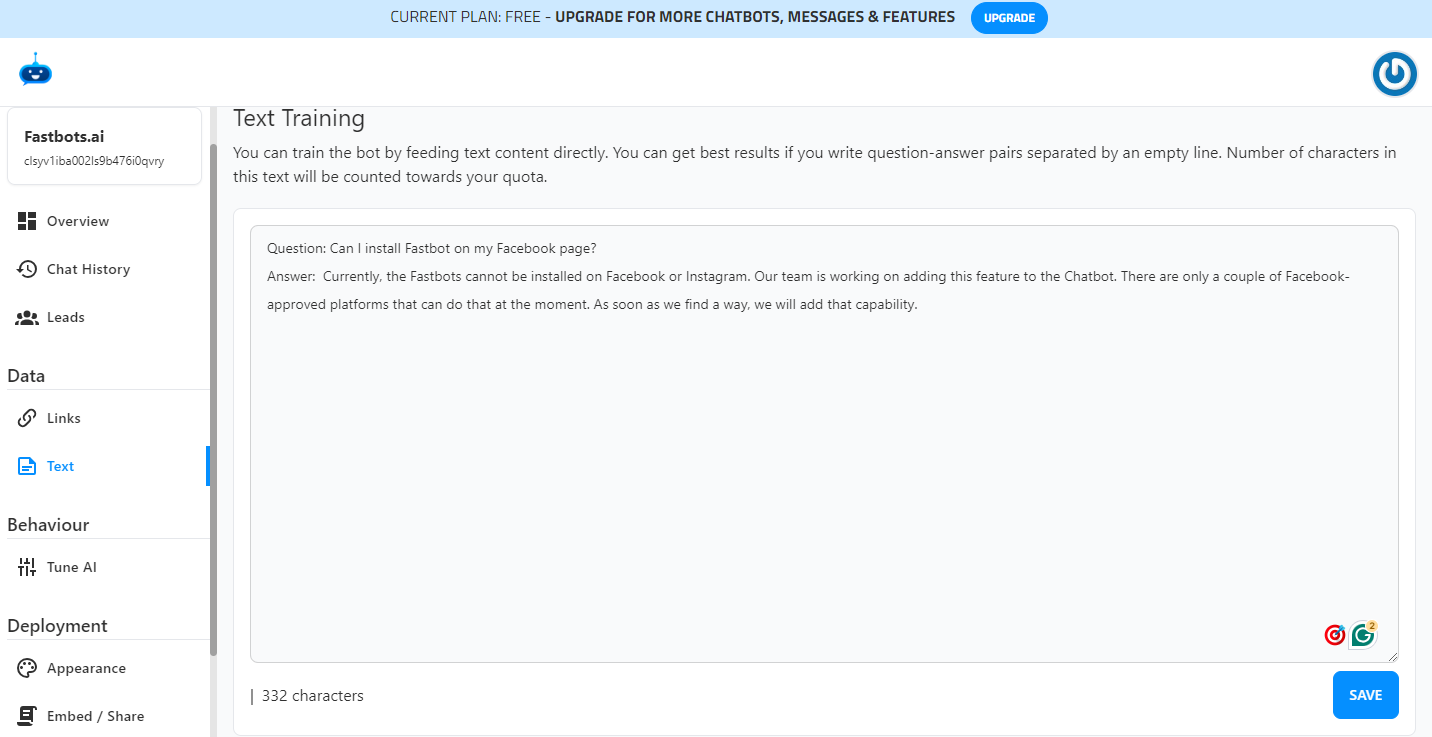
Now, your Chatbot is trained to provide the answer to that specific question. To test it, go to the "Overview" page and ask the same questions again, it should reply with your provided answer. Check the example below.