

How to Clone a Bot in FastBots
Learn bot cloning in FastBots: clone a bot in your own account or send a copy to another user. Choose settings only or include trained knowledge from websites, PDFs and other uploaded files, then review the new bot before using it.
Reuse your setup without starting again. Your original bot stays in your account and is not changed.
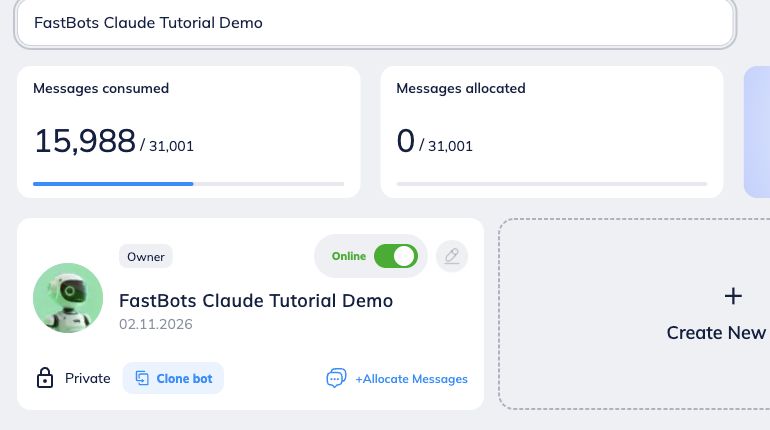
Find the bot you want to copy
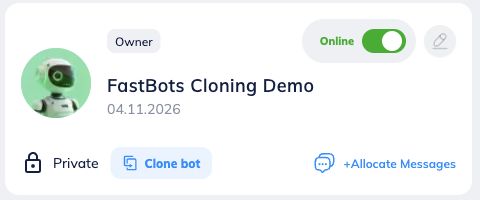
Open My Bots List and find a bot you own. The bot you are copying must have its status set to Online. Its knowledge can include uploaded files, PDFs and website content. Click Clone bot on its card.
Choose My account
Select My account to add a copy to your own account. To send a copy to someone else, follow the Another account steps below.
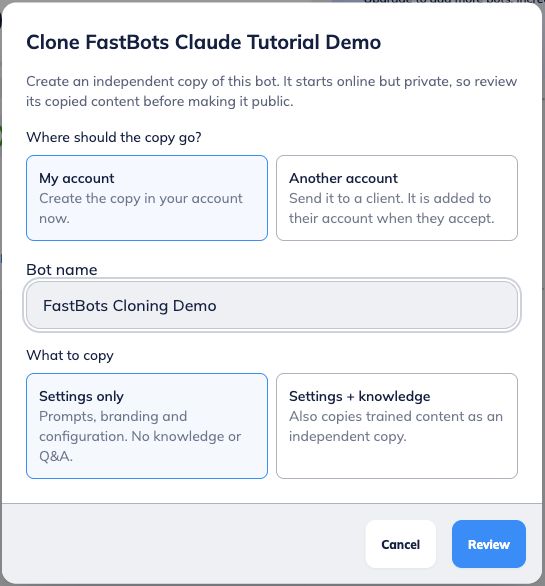
Name the new bot
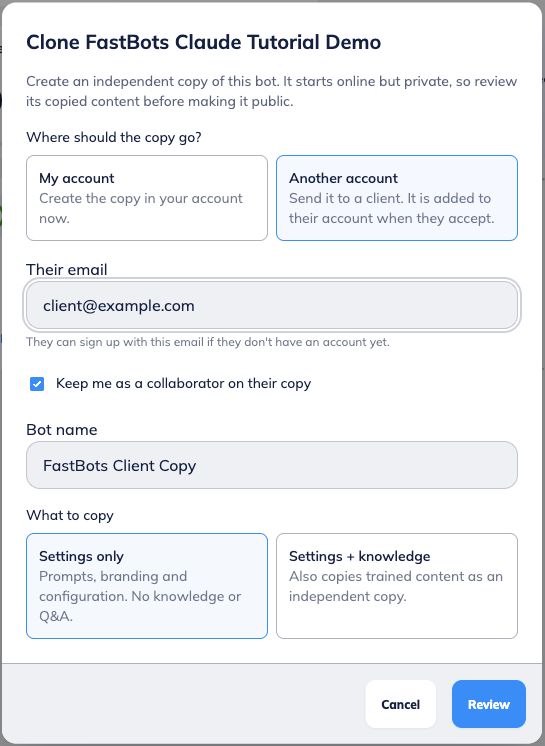
Enter a Bot name between 5 and 32 characters. Use a name that helps you tell the copy apart from the original.

Choose what to copy
Settings only copies prompts, branding and configuration, with no knowledge or Q&A.
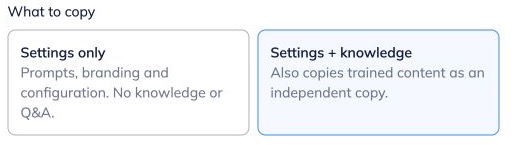
Settings + knowledge: also copies available trained content from websites and uploaded files, including PDFs, plus Q&A.
Choose Settings only as a starting point for a new bot, or Settings + knowledge when the new bot should start with the same information. Review copied client details before using either copy.
For the example below, select Settings + knowledge.
Review the copy
Click Review. Check the copy mode, bot allowance and warnings. Open View details to see what needs attention.
The copy uses one bot slot in the destination account. Its knowledge must fit that account’s per-bot character allowance.
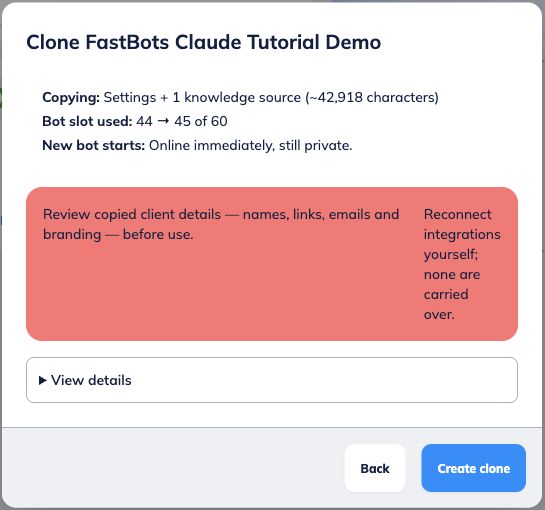
Create and open your clone
Click Create clone, then Open bot when available. The new bot starts Online and Private.
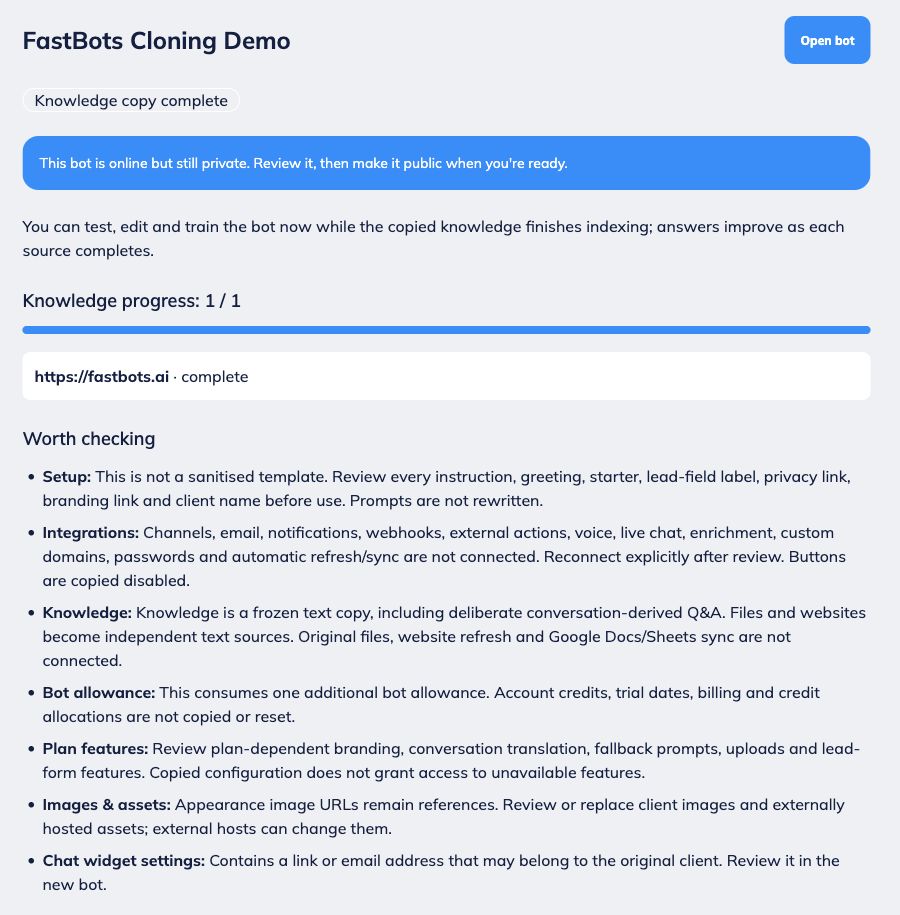
If you included knowledge, copying and indexing continue in the background. Check progress before relying on all its answers.
Check knowledge progress
Wait for Knowledge copy complete. Review items under Worth checking. If sources fail, use Retry failed sources.
If your connection drops, the copy continues. Reload to reconnect. Unavailable or still-training sources may need to be added separately.
Choose Another account
Return to the original bot, click Clone bot, then select Another account.
This sends an independent copy. Your original bot stays in your account.
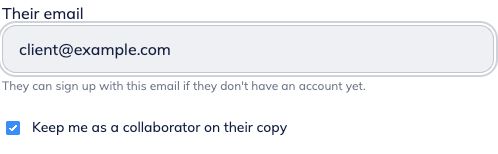
Enter their email
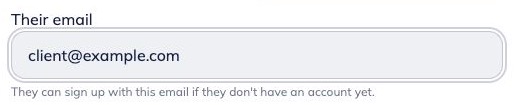
Enter the recipient’s address in Their email. They must accept while signed in with that exact email. They can create a FastBots account with it if needed.
To copy a bot to your own email, use My account instead.
Choose whether to stay a collaborator
Keep me as a collaborator on their copy is selected by default.
Leave it selected if you need full access to help manage their bot. Untick it if you do not. The recipient owns the copy and can remove your collaborator access later in the bot’s settings.
Review and send the copy
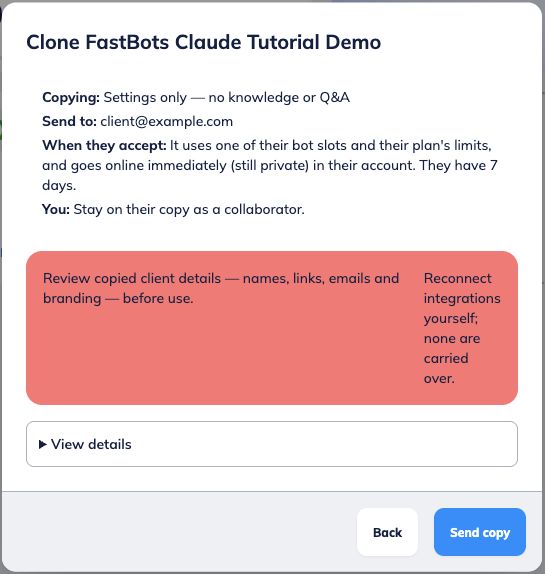
Choose the Bot name and What to copy, then click Review. Check the recipient, options and warnings, then click Send copy.
No bot is added until the recipient accepts. Their plan and bot allowance apply. Copying starts when they accept. Sending an invitation does not freeze the original content.
Accept a copy someone sends you
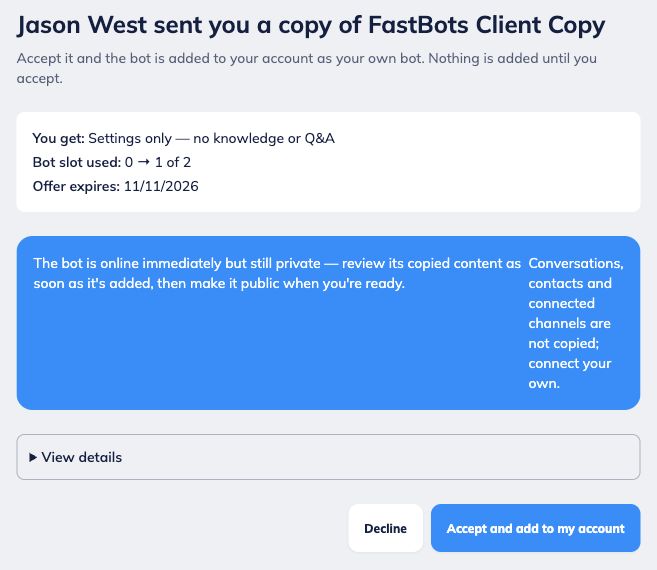
Open Review and accept in the invitation email, or Review & accept on your FastBots dashboard.
Sign in with the invited email. Review the bot details, allowance, warnings and whether the sender will remain a collaborator. Click Accept and add to my account, or choose Decline.
Finish setting up the received bot
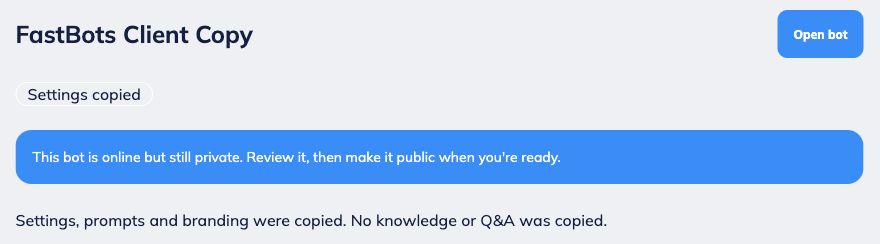
Open your new bot. If you included knowledge, check the knowledge-copy progress. It starts Online and Private.
The copied settings and knowledge are independent. Changes to one bot do not automatically update the other.
Manage pending invitations
Open Clone bot on the original bot and find Waiting to be accepted. Check the expiry or click Cancel to withdraw a pending invitation.
Invitations expire after 7 days. You can have up to 20 pending invitations. Sending the same bot to the same email again refreshes the pending invitation and its options.

Review the bot before using it
Check prompts, greeting, client names, contact details, links, lead-form labels and branding.
Reconnect integrations and channels you need. Review the copied buttons, which start disabled, before enabling them.
Test answers, then publish or embed the bot when ready.
Frequently Asked Questions
- What is included in a copy?
Both modes copy supported prompts and configuration, an available AI model, creativity, appearance, greeting, suggestions, lead-form settings, share-page title, links and buttons. Buttons start disabled. Branding and translation depend on the destination plan; an unavailable model is replaced with an allowed model. Review warnings for the exact copy.
Settings + knowledge includes available trained content from websites and uploaded files, including PDFs, plus Q&A. It copies the extracted knowledge as a separate saved text snapshot. This does not necessarily include a duplicate of the original downloadable PDF or other file. Automatic website refresh and document sync do not carry over. Retraining reindexes the saved text; add the website or re-upload the file if you need fresh content.
- What needs to be set up again?
Conversation history, contacts, connected channels/integrations, email delivery, notifications, webhooks, external actions, voice, live chat, enrichment, custom domains, passwords and API keys are not copied. Automatic website refresh and Google Docs/Sheets sync do not carry over. Existing collaborators are not copied, except the sender if that option is selected.
Credits, trial dates, billing and credit allocations stay with their accounts. Appearance images can retain original image URLs; check these remain available.
- Why can’t I clone or accept a bot?
Only the bot owner can clone it. The bot being copied must have its status set to Online; this requirement does not limit the copy to website content.
Check the 5–32-character name, destination bot slots and character allowance. Accept using the exact invited email before expiry. If the source is deleted or unavailable, ask the sender to check it and send again.