

How To Export Leads
Learn how to export your inbound leads in a PDF document.
Navigate to https://app.fastbots.ai/
Open your Chatbot.
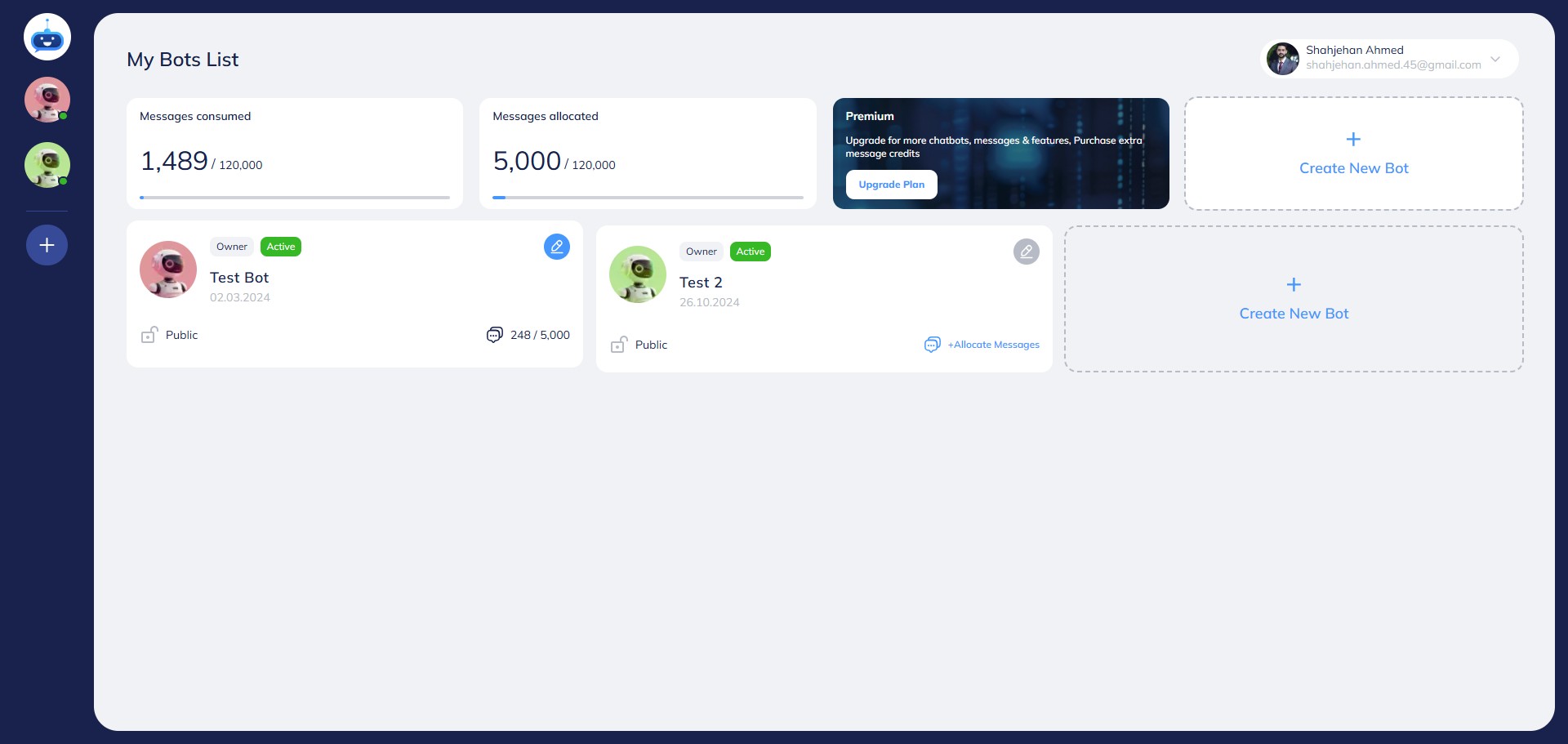

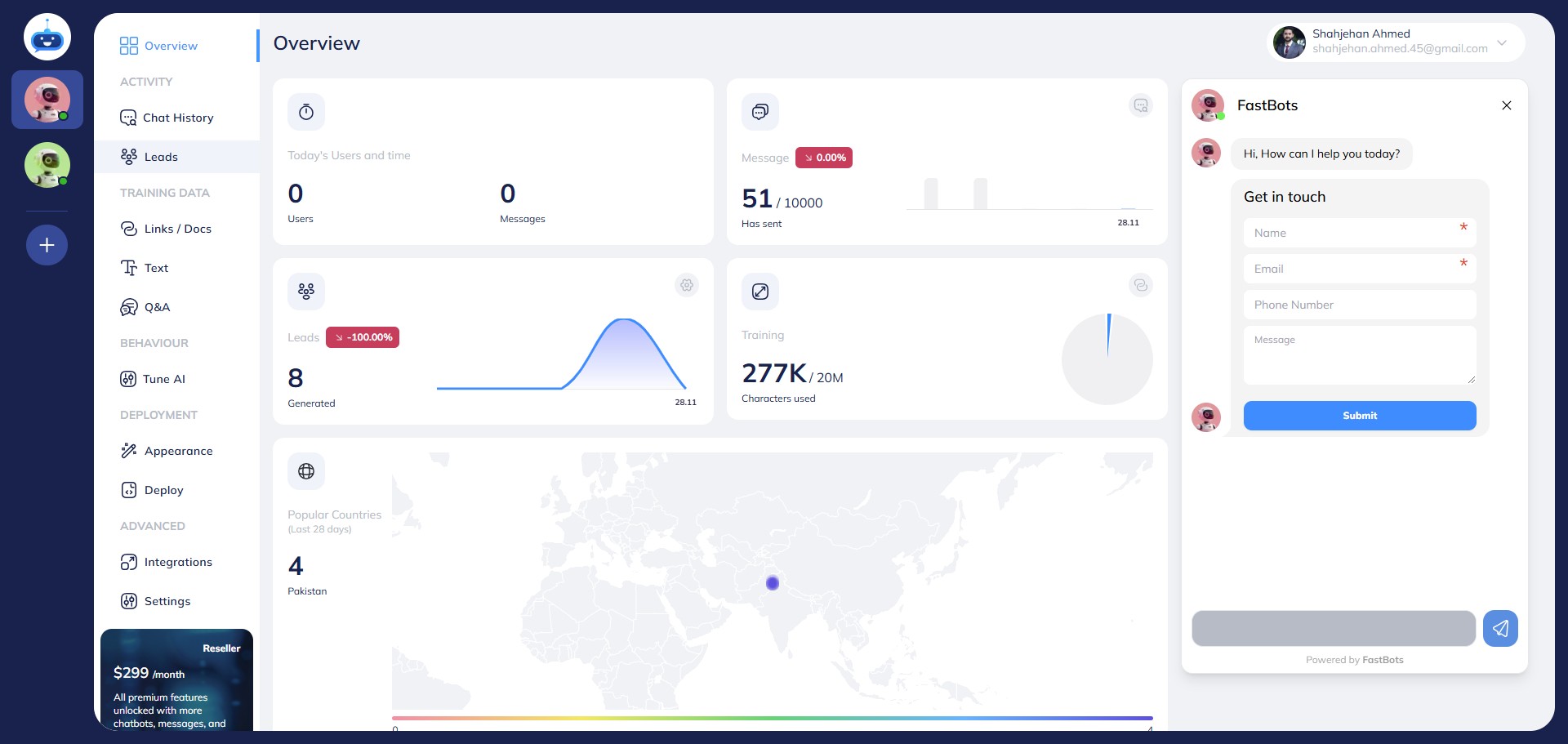
Click on "Leads" to open the leads page.
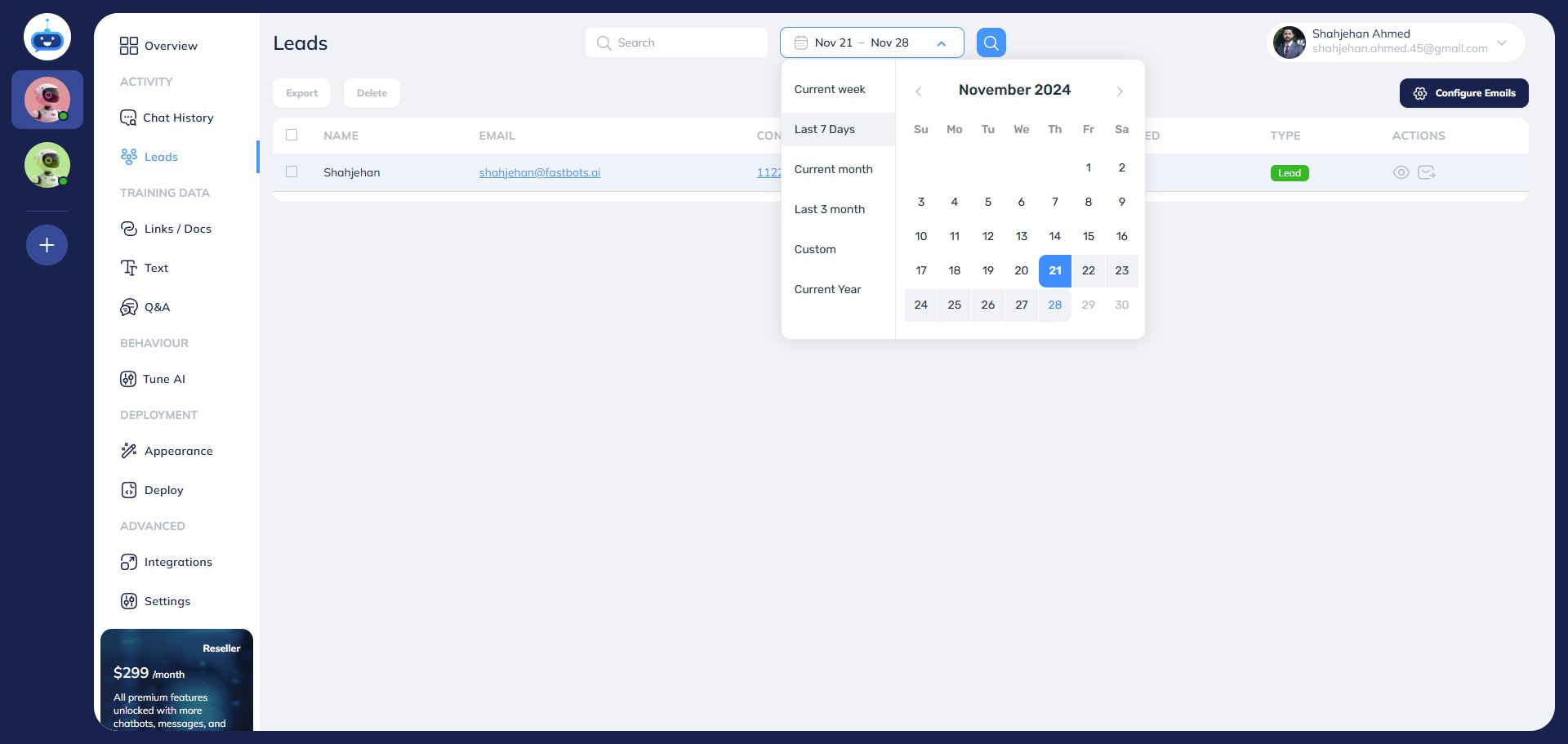
You can use the date filter to select the dates for which you want to export the leads.
After selecting the dates, click on the Search icon. It will filter all the leads for these dates.
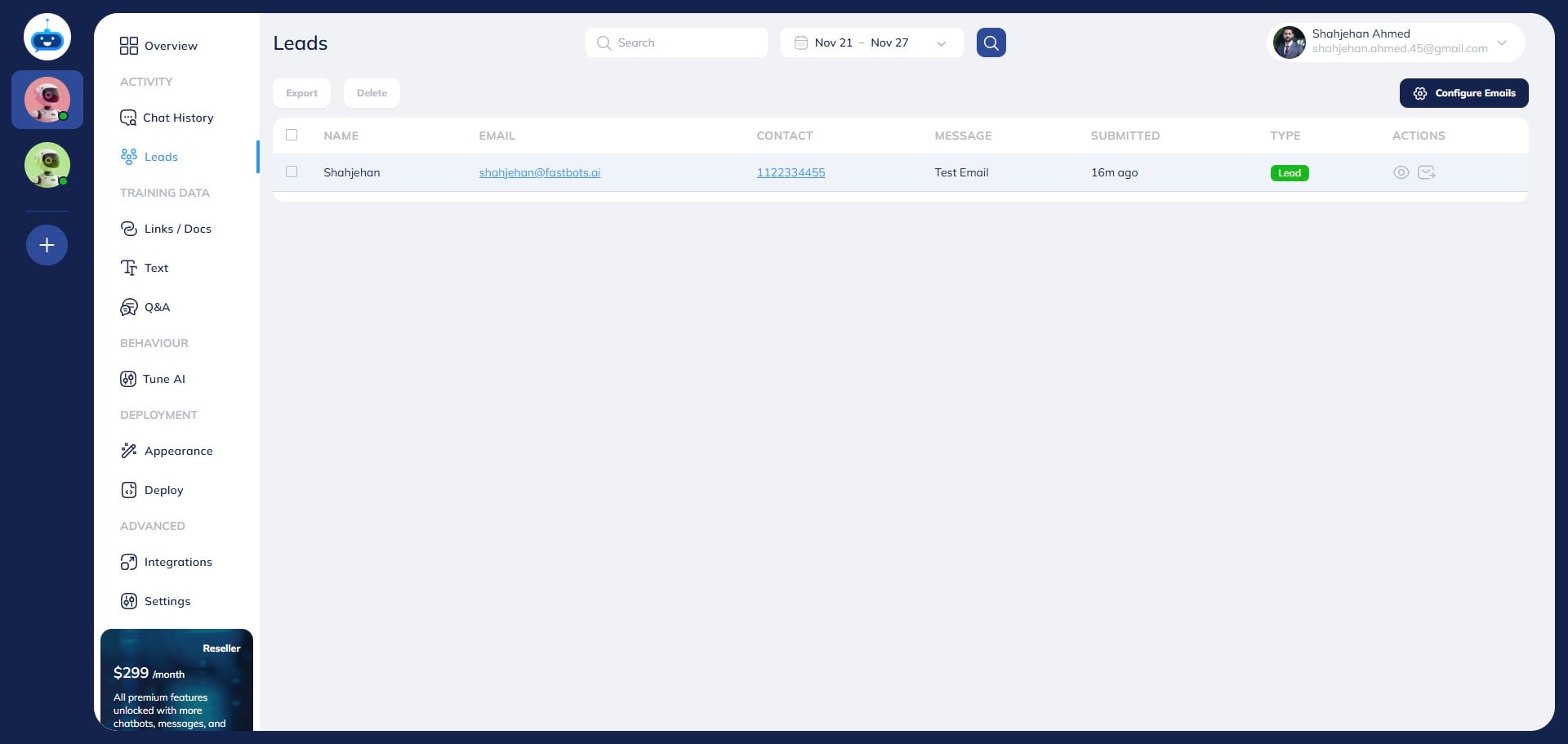
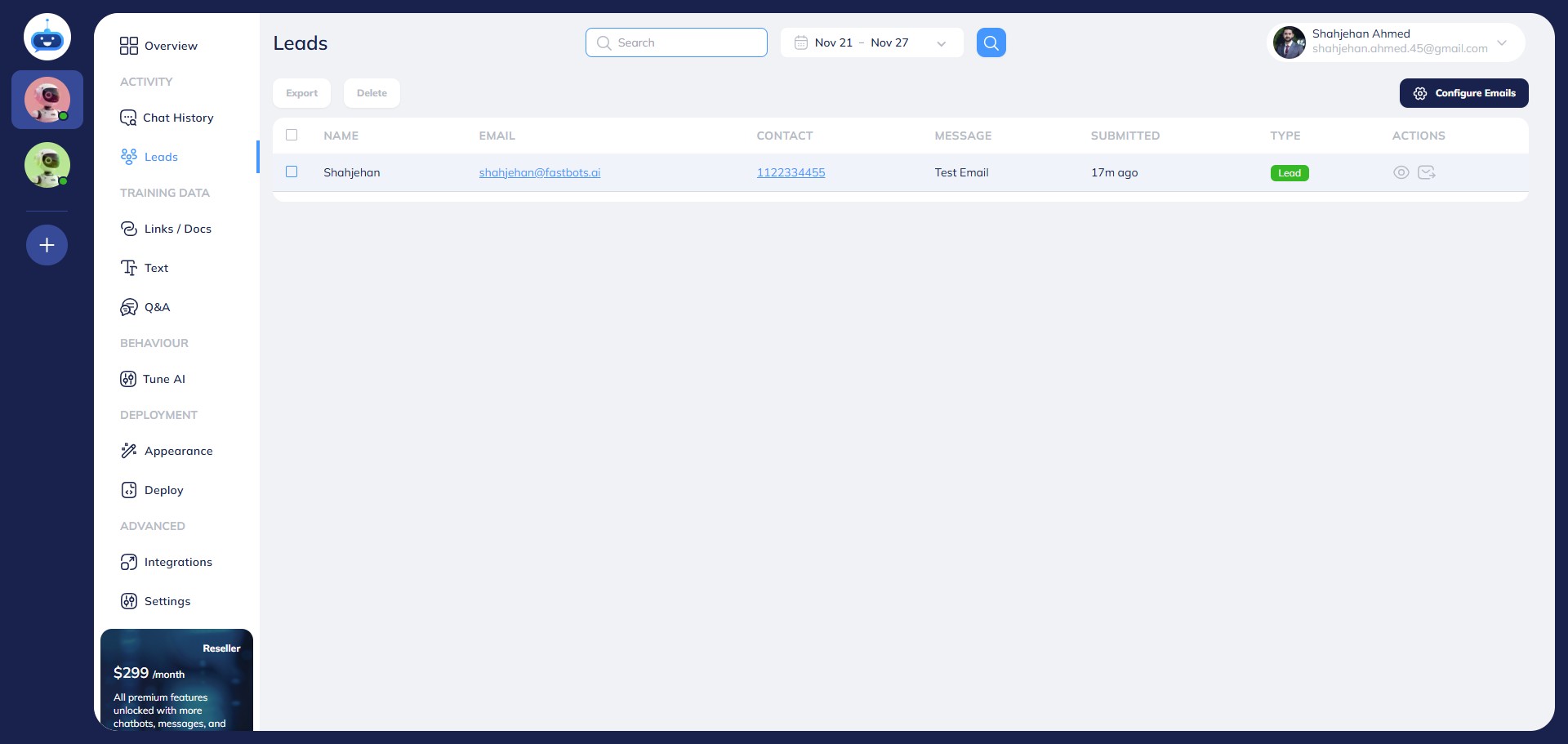
You can also search the leads by using the "Search" functionality.
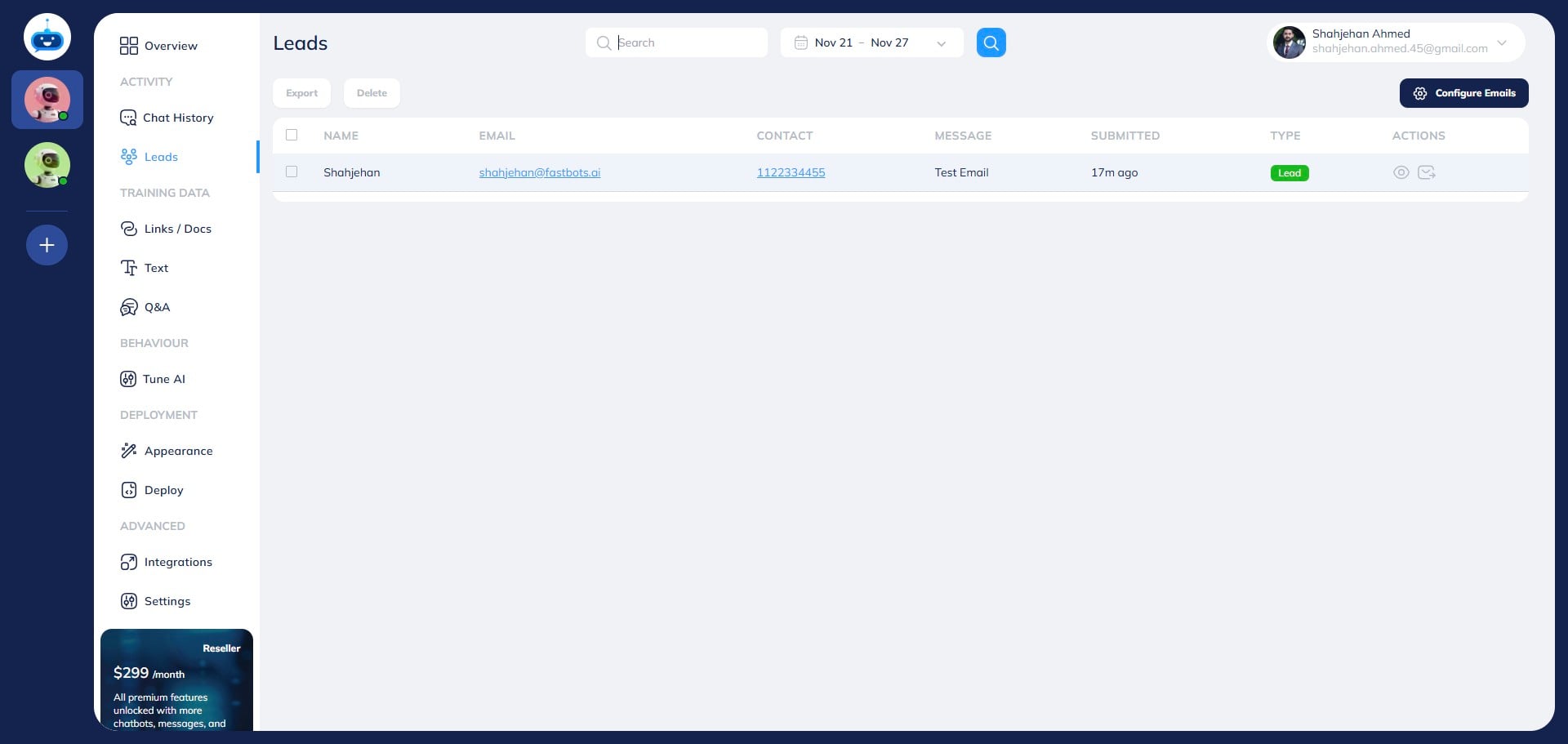
Select the lead that you want to export by clicking on the "Checkbox"
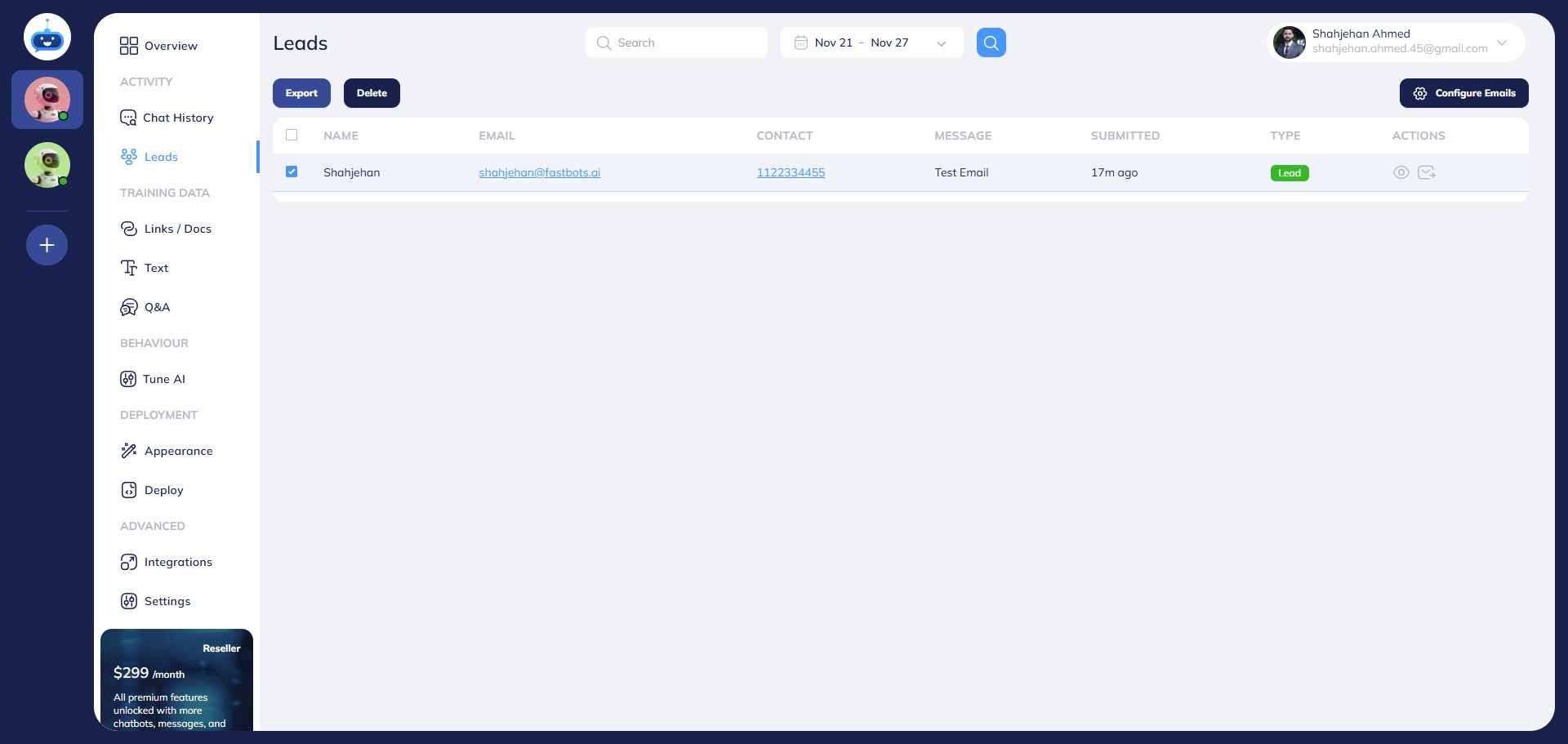
After selecting the lead, click on the "Export" button to export the lead in PDF format.
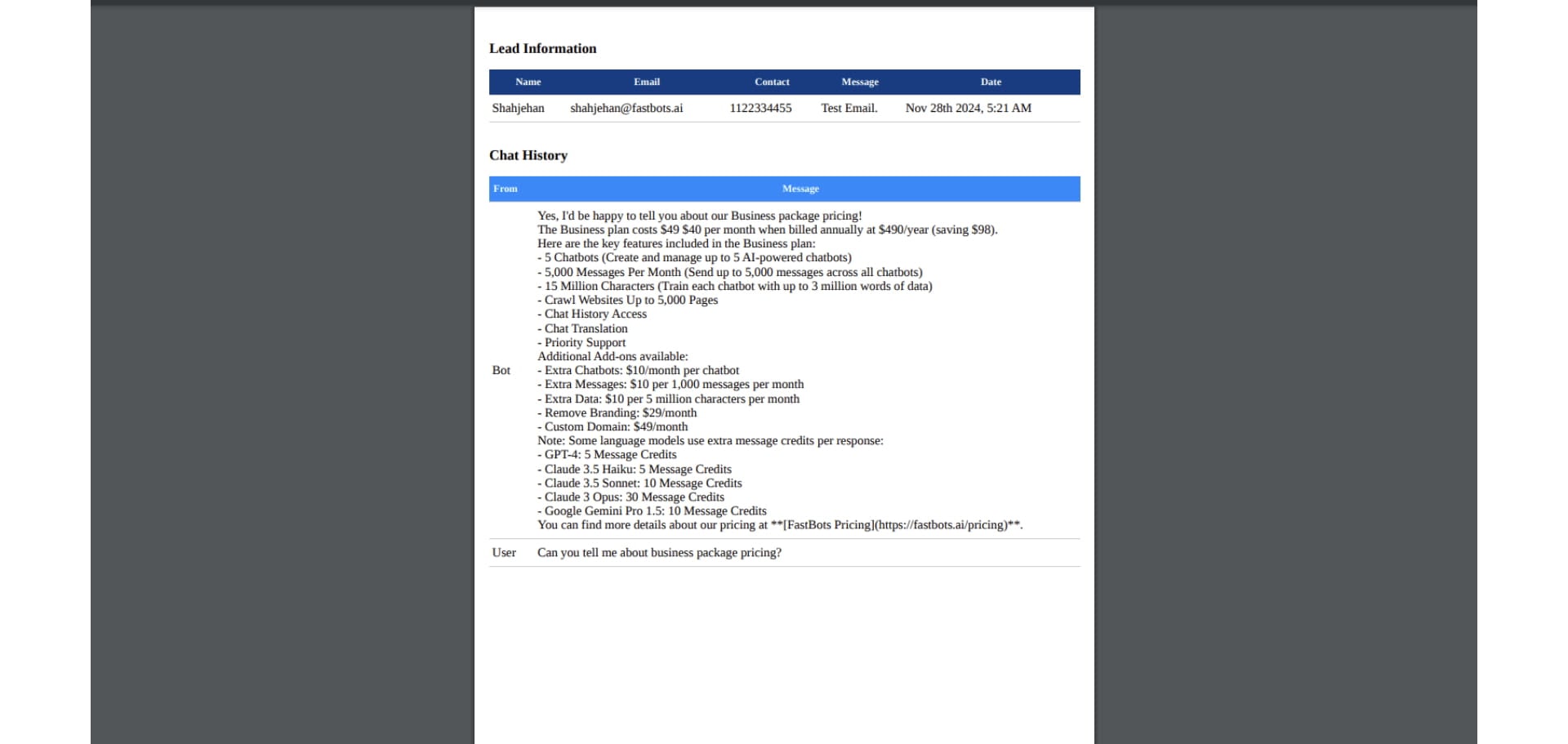
Clicking on "Export" will download a PDF on your computer. You should also be able to see the chat history in the PDF along with the lead details. Here is the PDF format.
Congratulations!! You've successfully exported the lead 🚀