

How To Turn On File Upload Option
Files in text chats and voice calls Open your chatbot and go to Deployment → Chat Widget → File Uploads. These settings control uploads in both text chats and voice calls. Visitors can upload a file during a voice call. Shared files appear underneath the call in the widget. Allowed formats and upload limits still apply; documents need to finish processing before the bot can read them.
Click on the chatbot to open it.
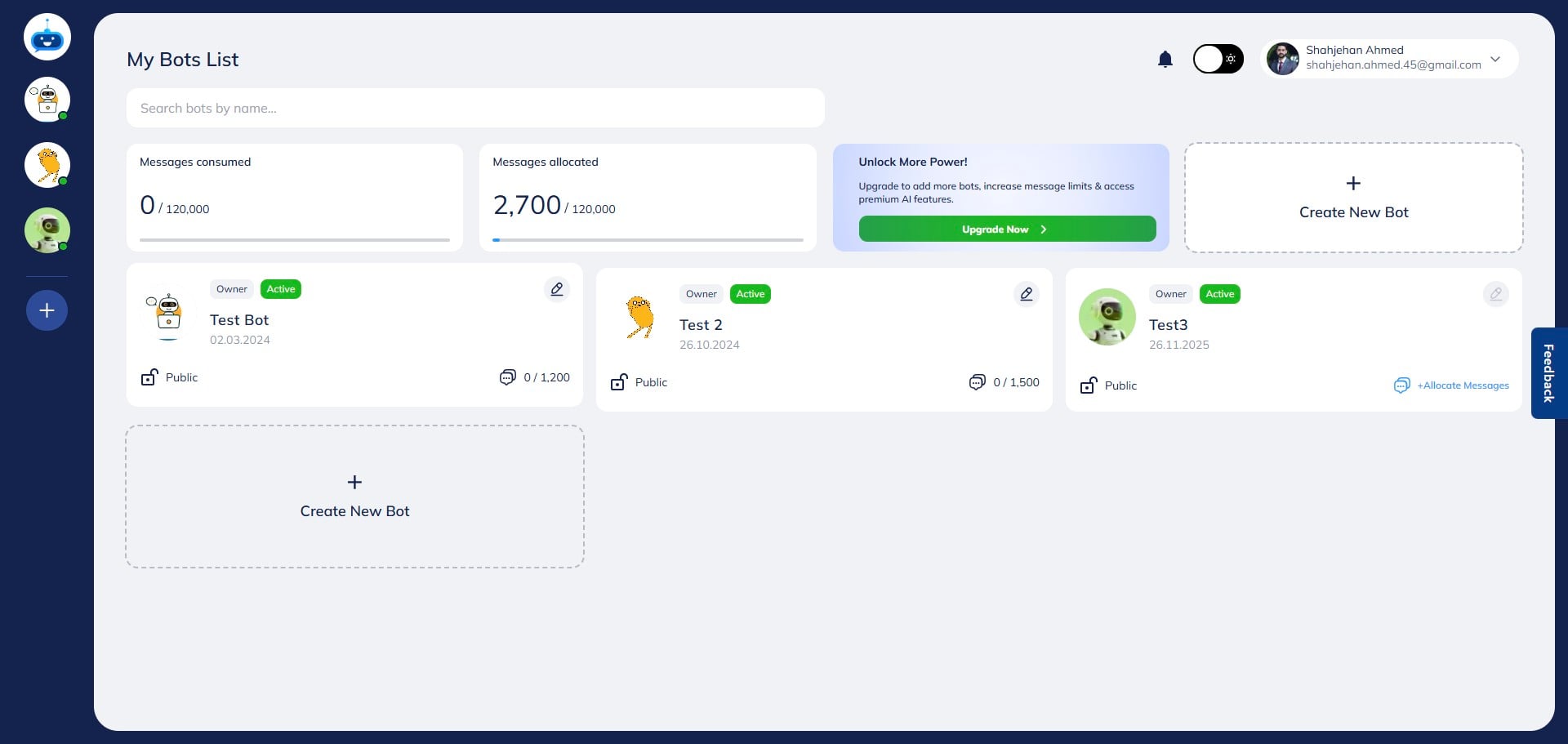

Open Deployment → Chat Widget → File Uploads.
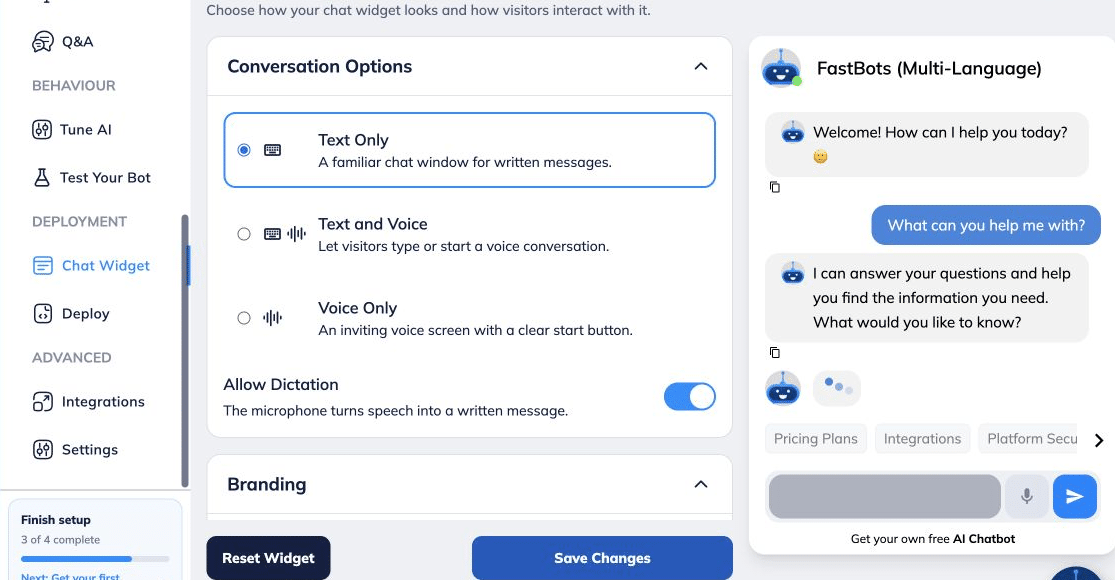
Open Deployment → Chat Widget → File Uploads.
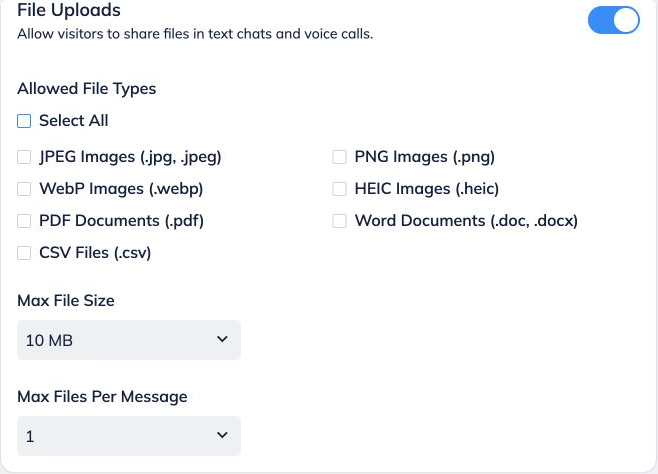
Select the supported file types visitors may upload. Select All enables every listed supported format.
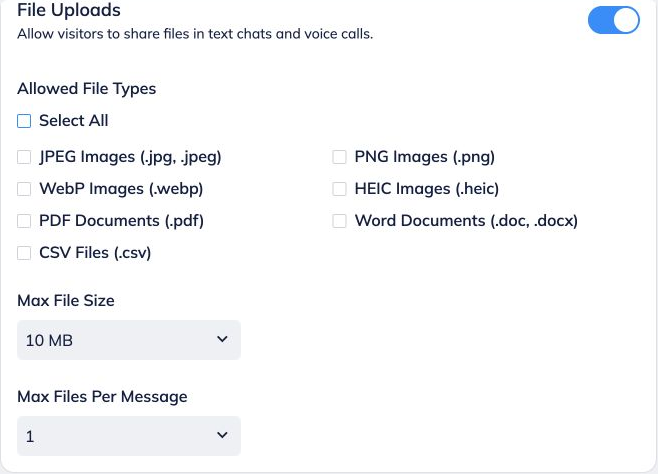
Here, select the maximum number of files a user can upload in one message. The maximum limit is upto 5 files per message.
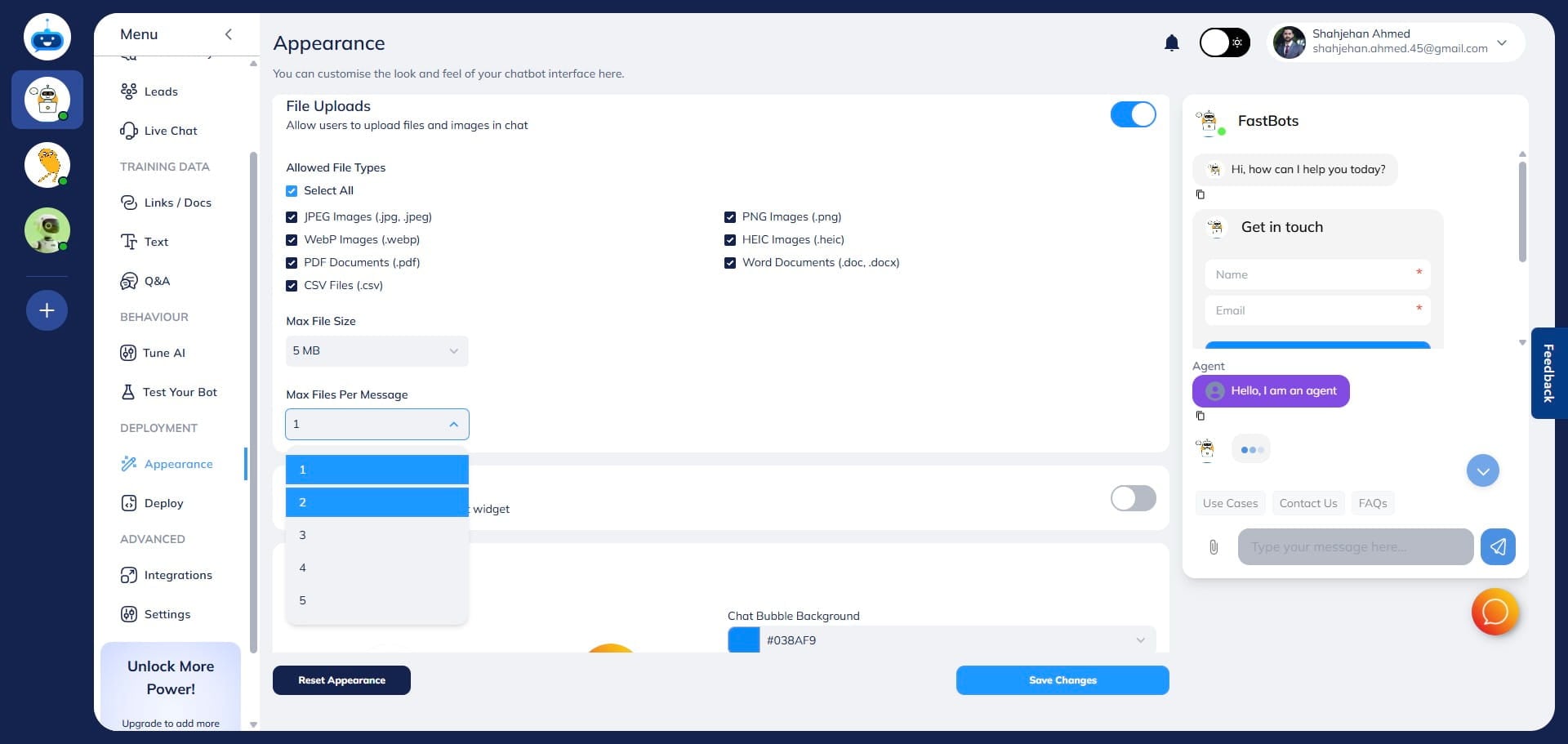
Use this option to determine the maximum file size a user can upload. The maximum file size allowed is 10 MB.
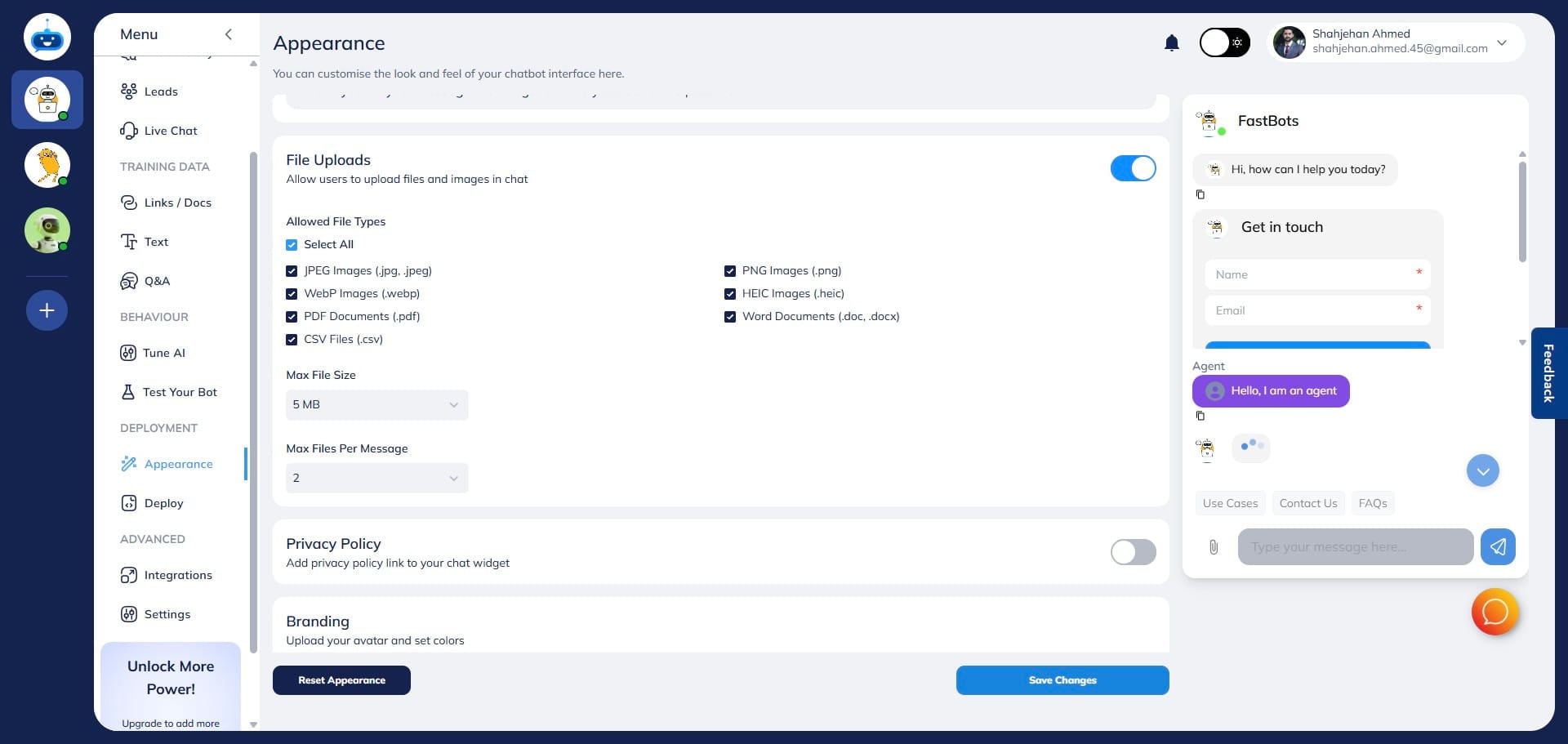
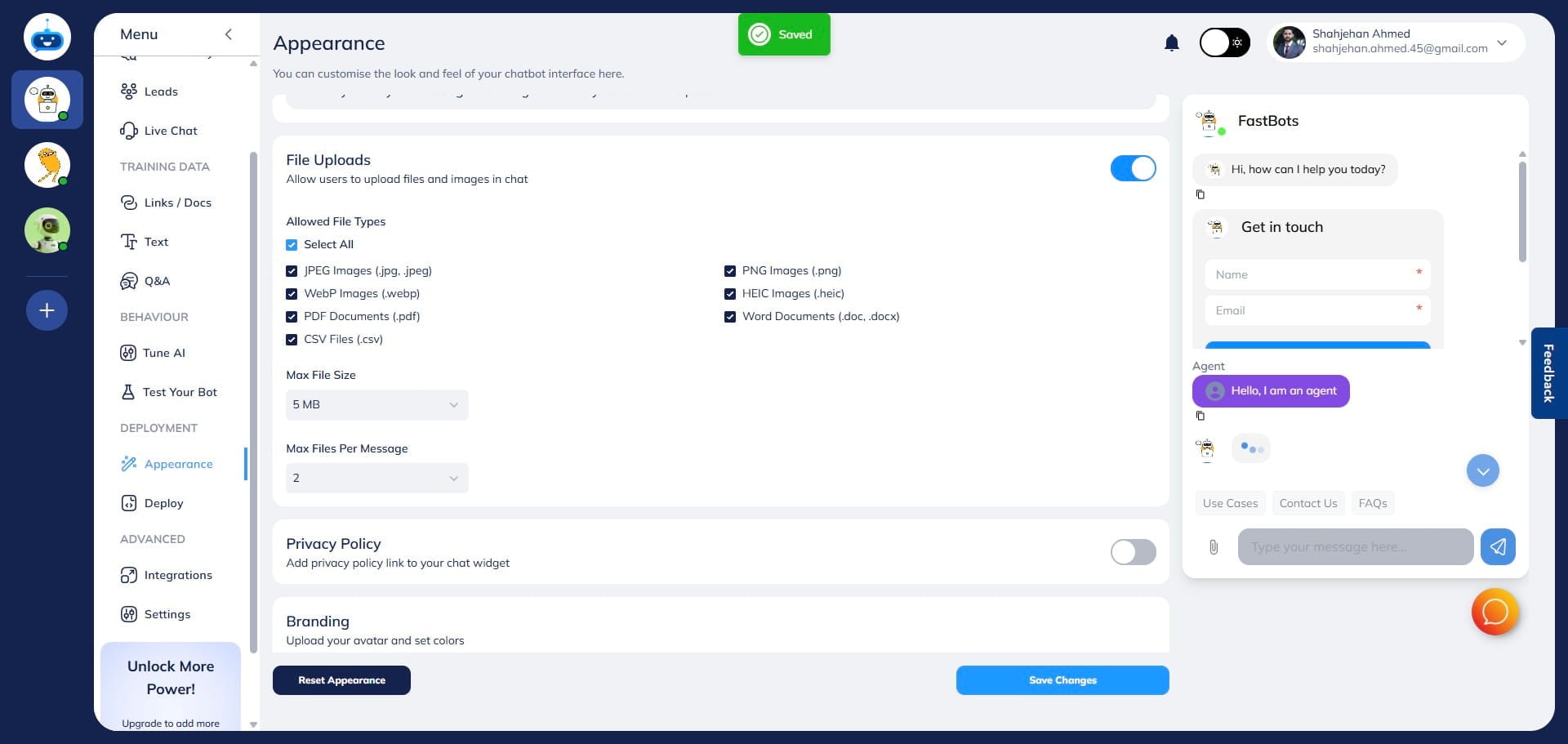
Click on "Save Changes" to apply these configurations.
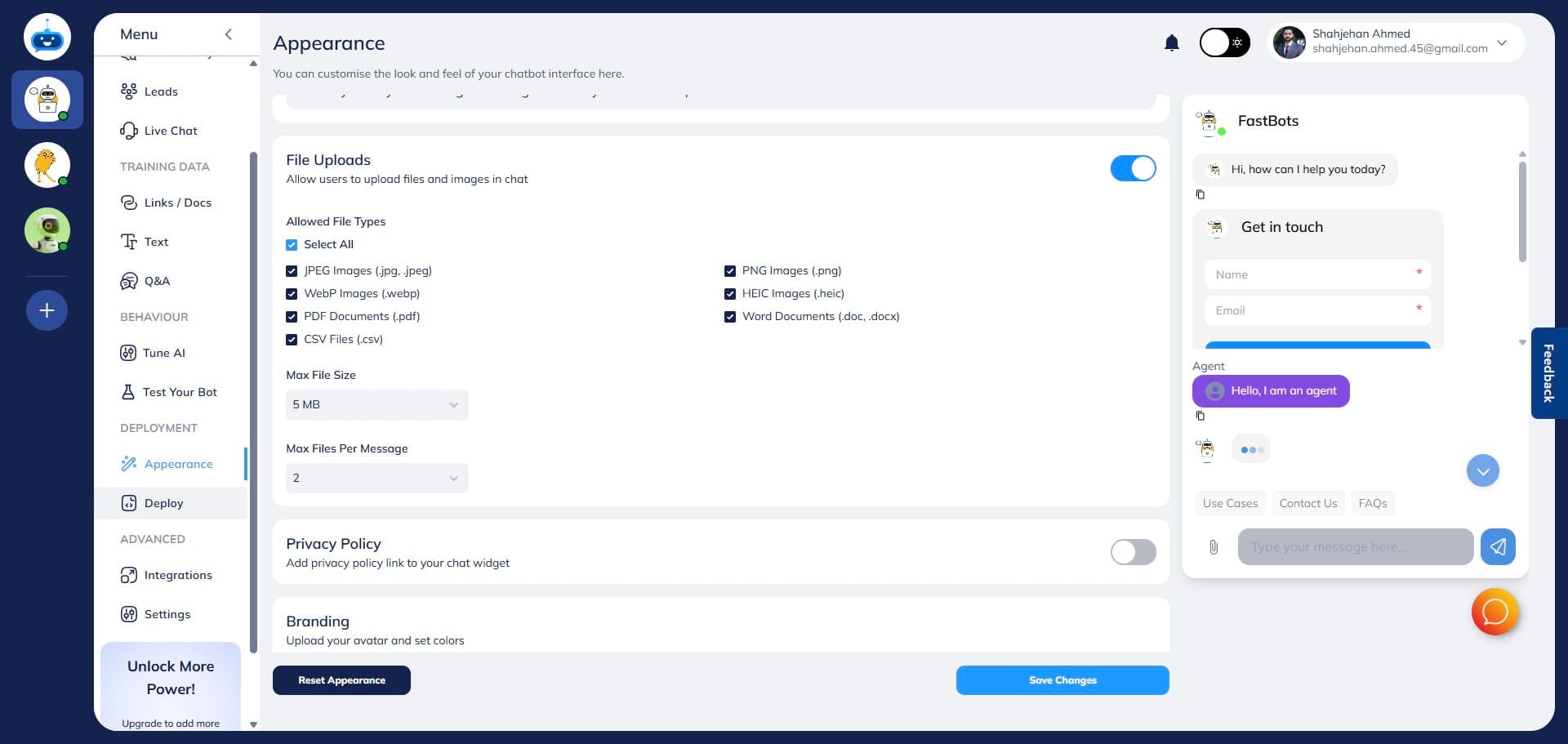
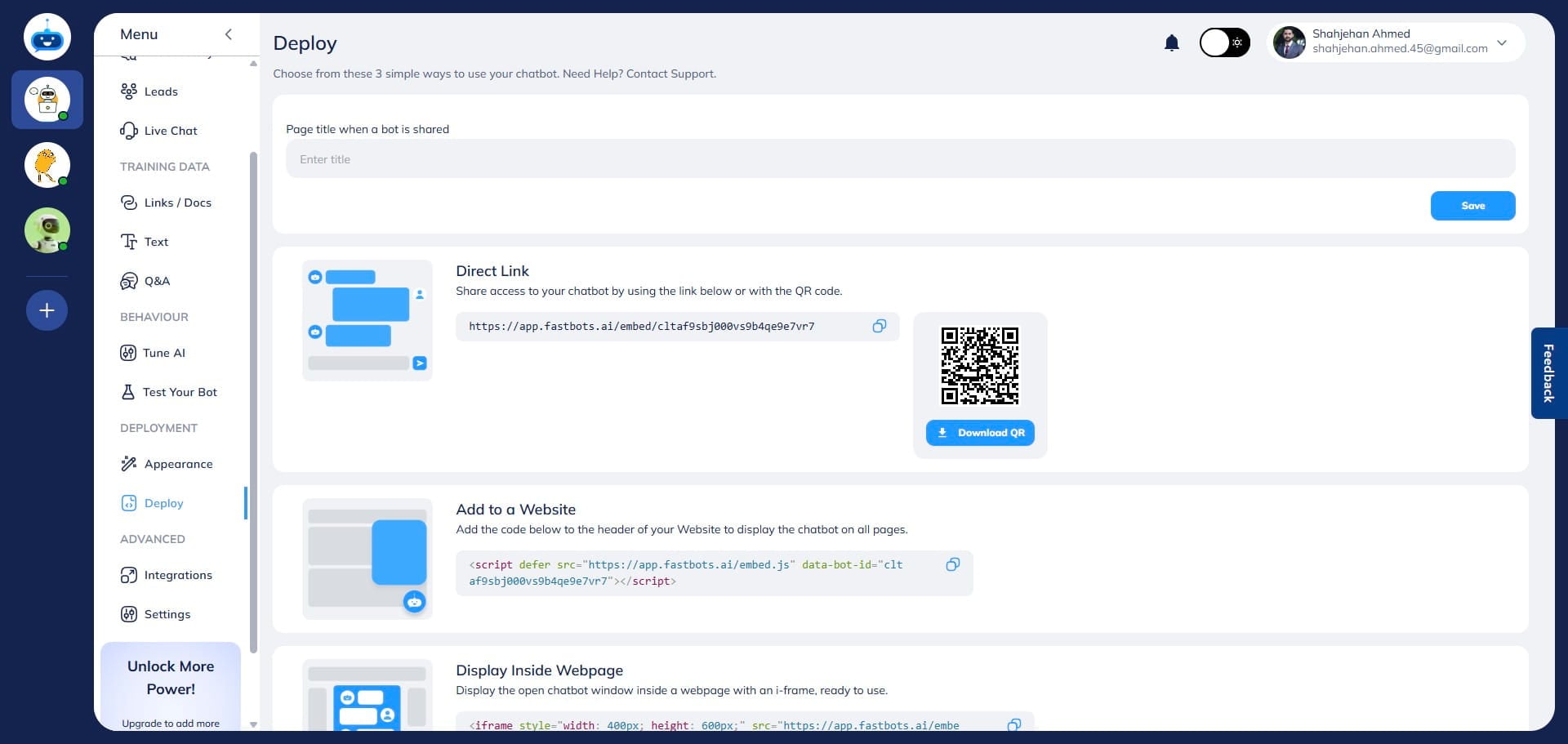
Now, to test the chatbot, click on the "Deploy" button to open this page.
Copy the "Direct Link" and open it in a new tab.
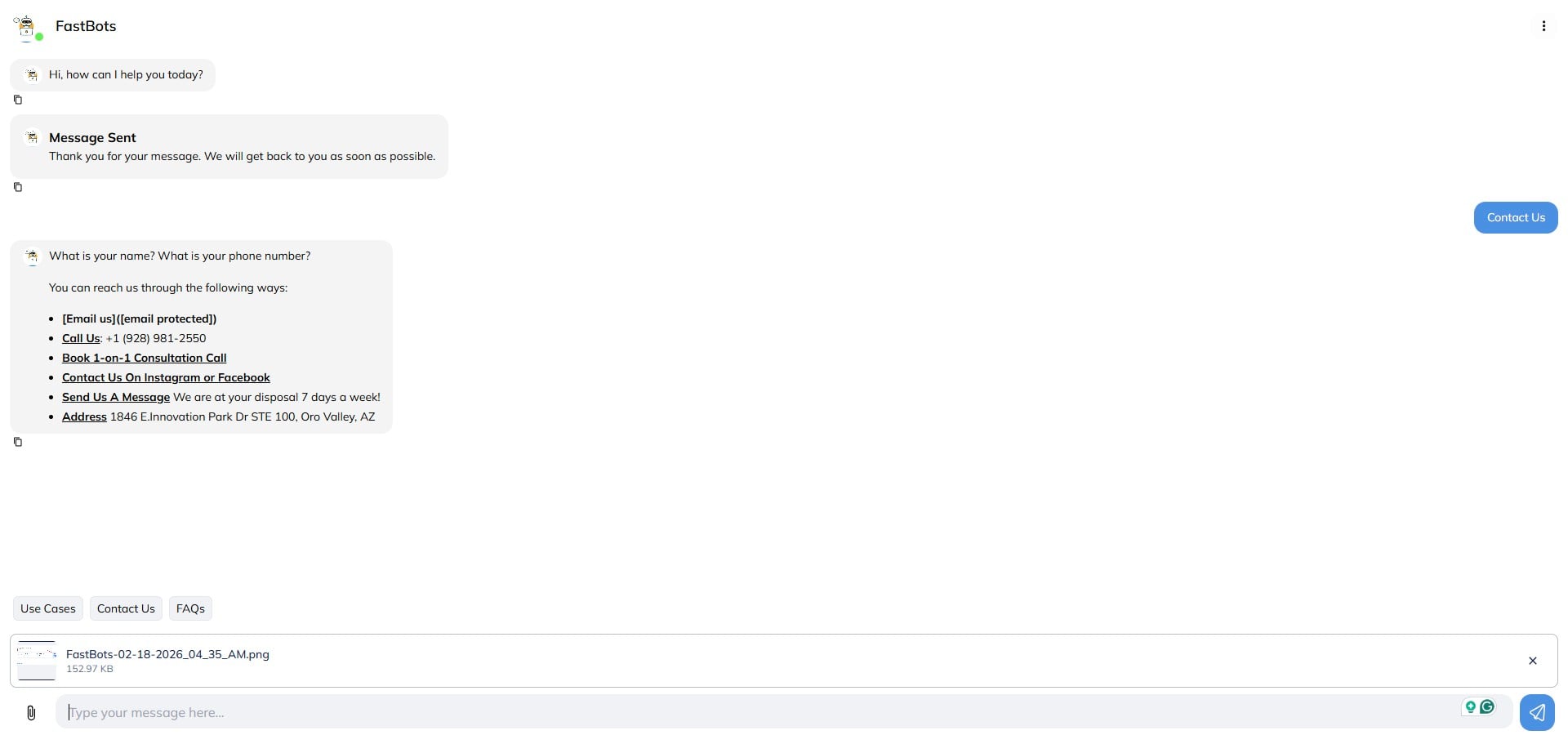
Here you can test the chatbot by uploading a file in real time. Upload the file and click on Send button
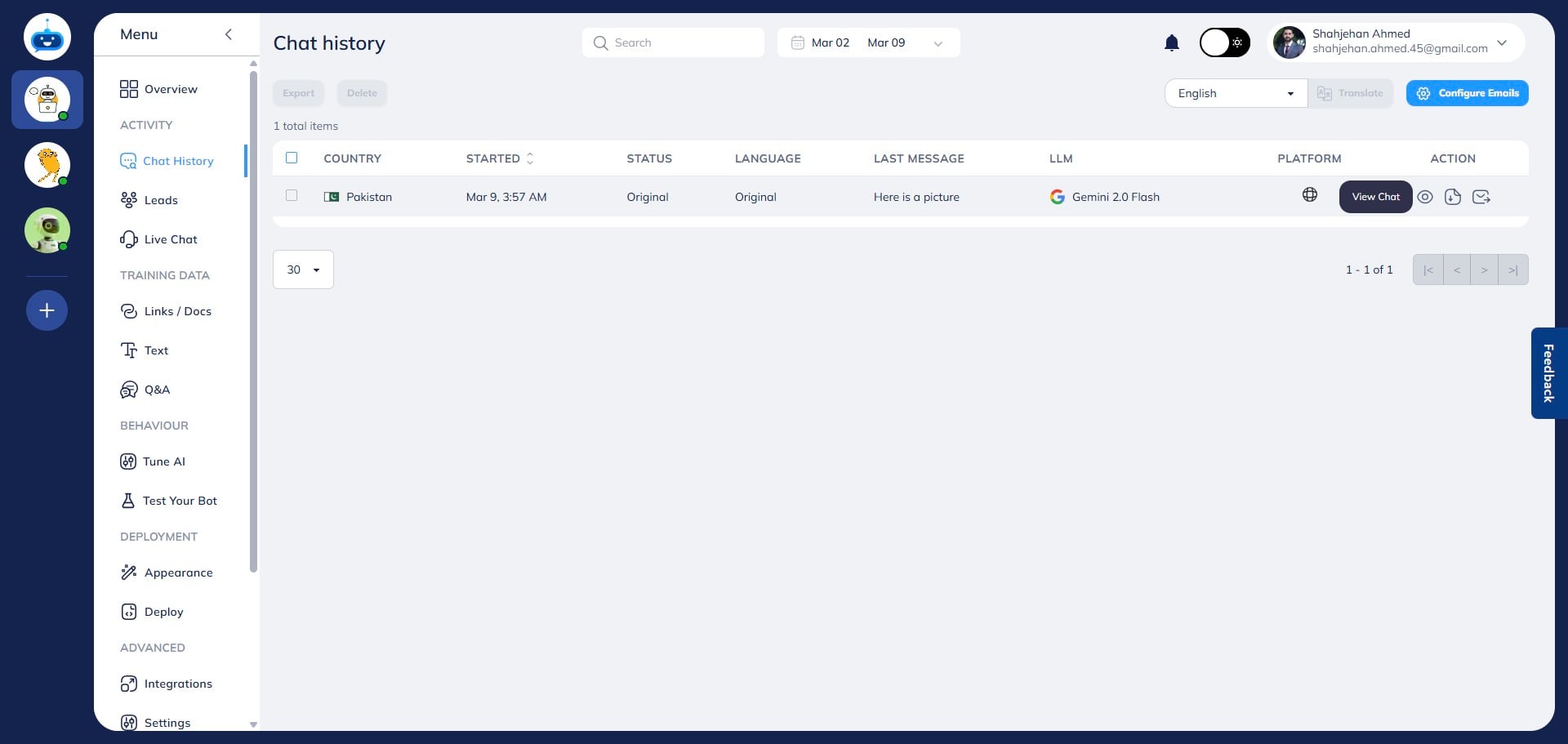
You can find all the users' uploaded files on the chat history page. Open the chat history page, click on "View Chat" option to open the conversation and it will show you the file that user has uploaded in a specific conversation.
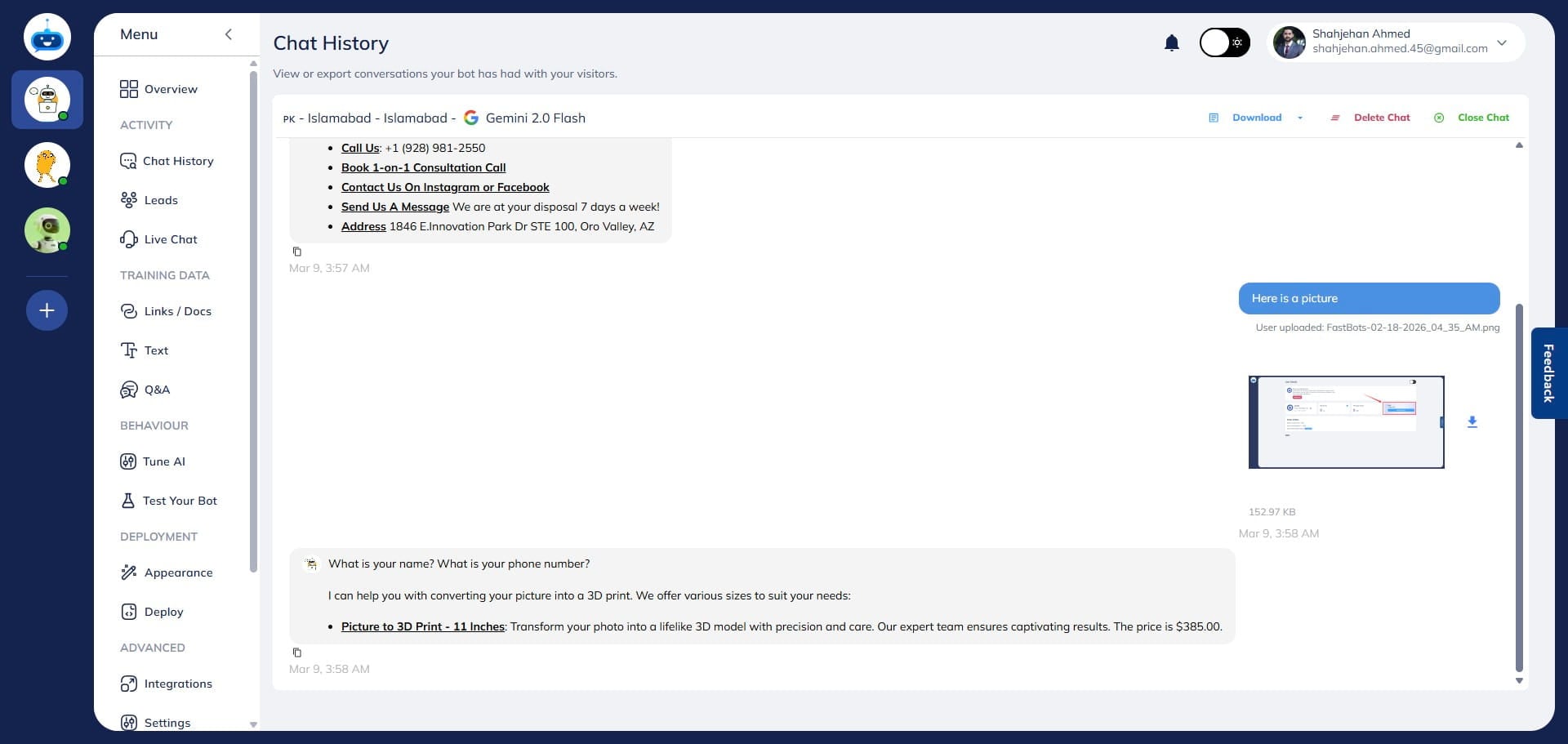
You can view the file in the conversation on the chat history page. You can also click it to open the file or download it to your computer.
Done 🚀