How To Add A PDF To chatbot
This guide will walk you through each step of the process for training your chatbot using a PDF file, providing clear instructions and helpful tips to ensure a smooth and efficient experience.
Nov 19, 2024●
1
Navigate to https://app.fastbots.ai/
2
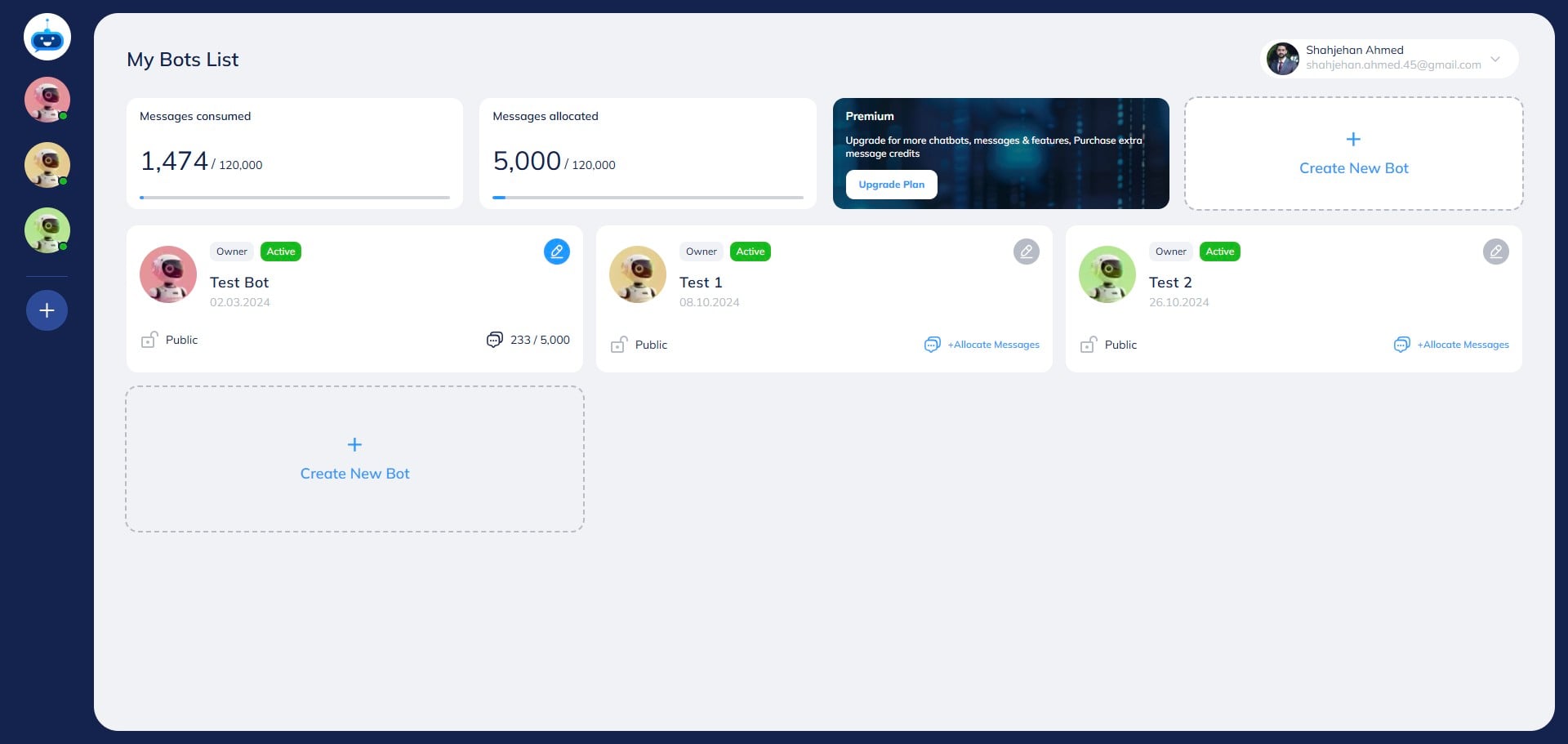
Click on the chatbot to open it.

3
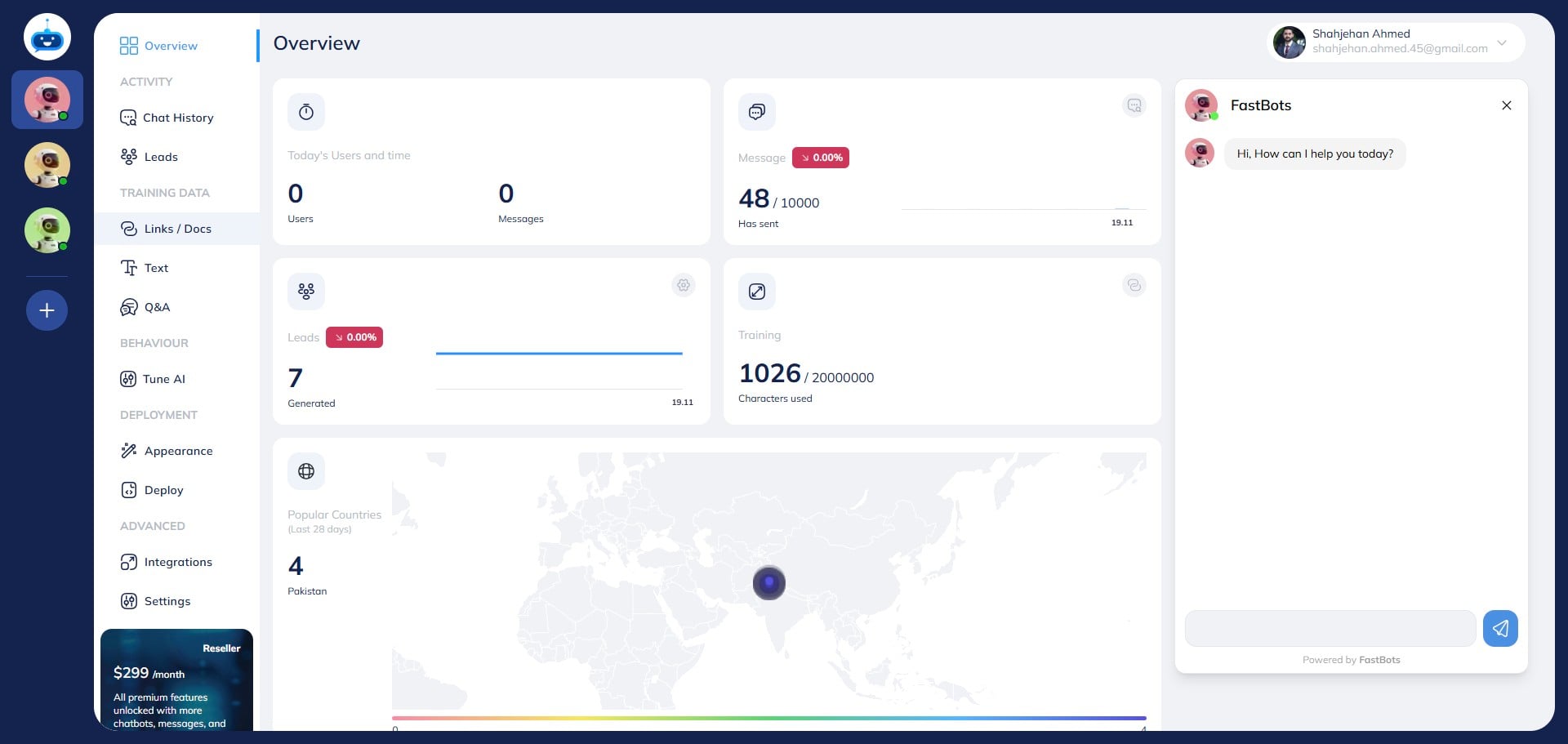
Click on "Links / Docs" to open this page.
4
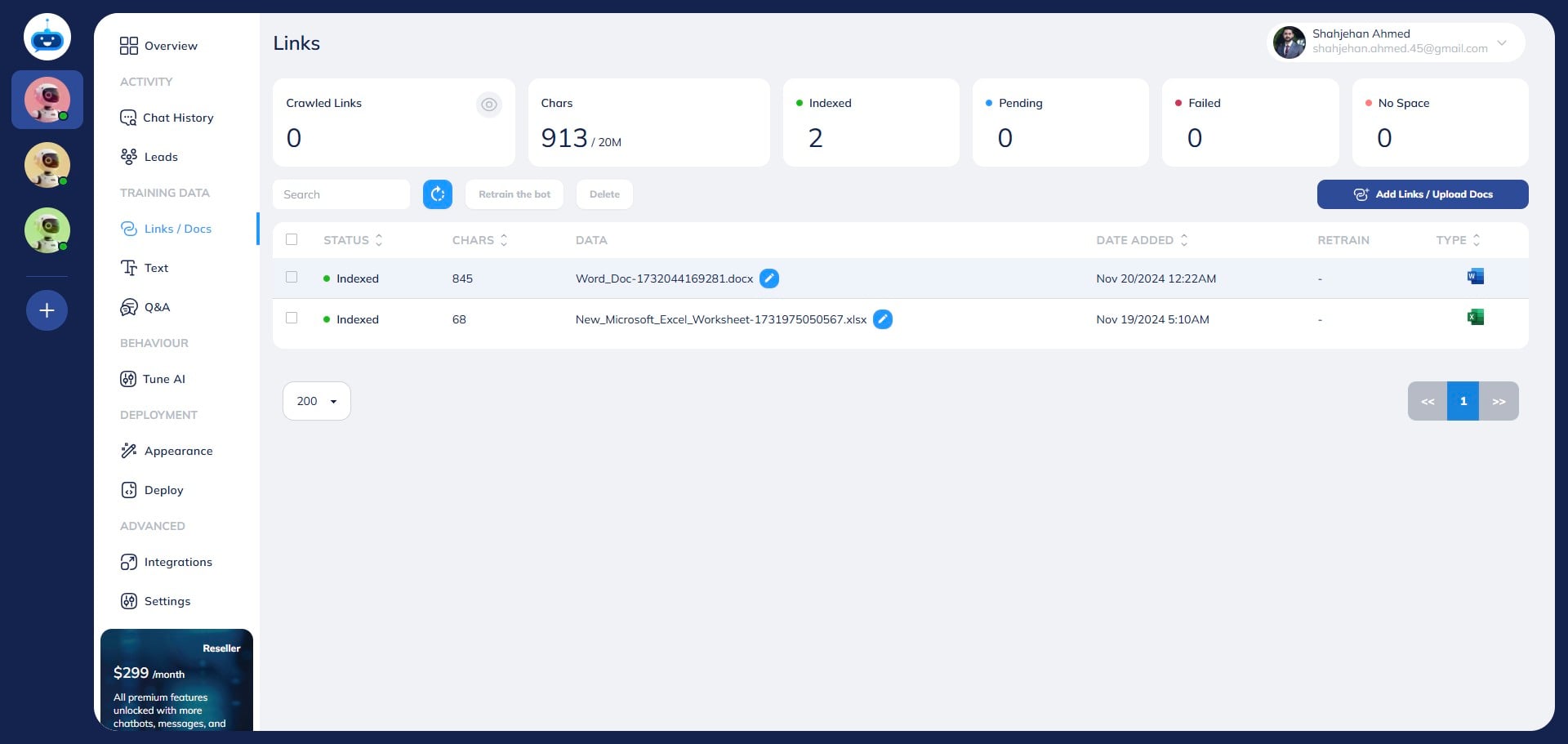
Click on "Add Links / Upload Docs" button.
5
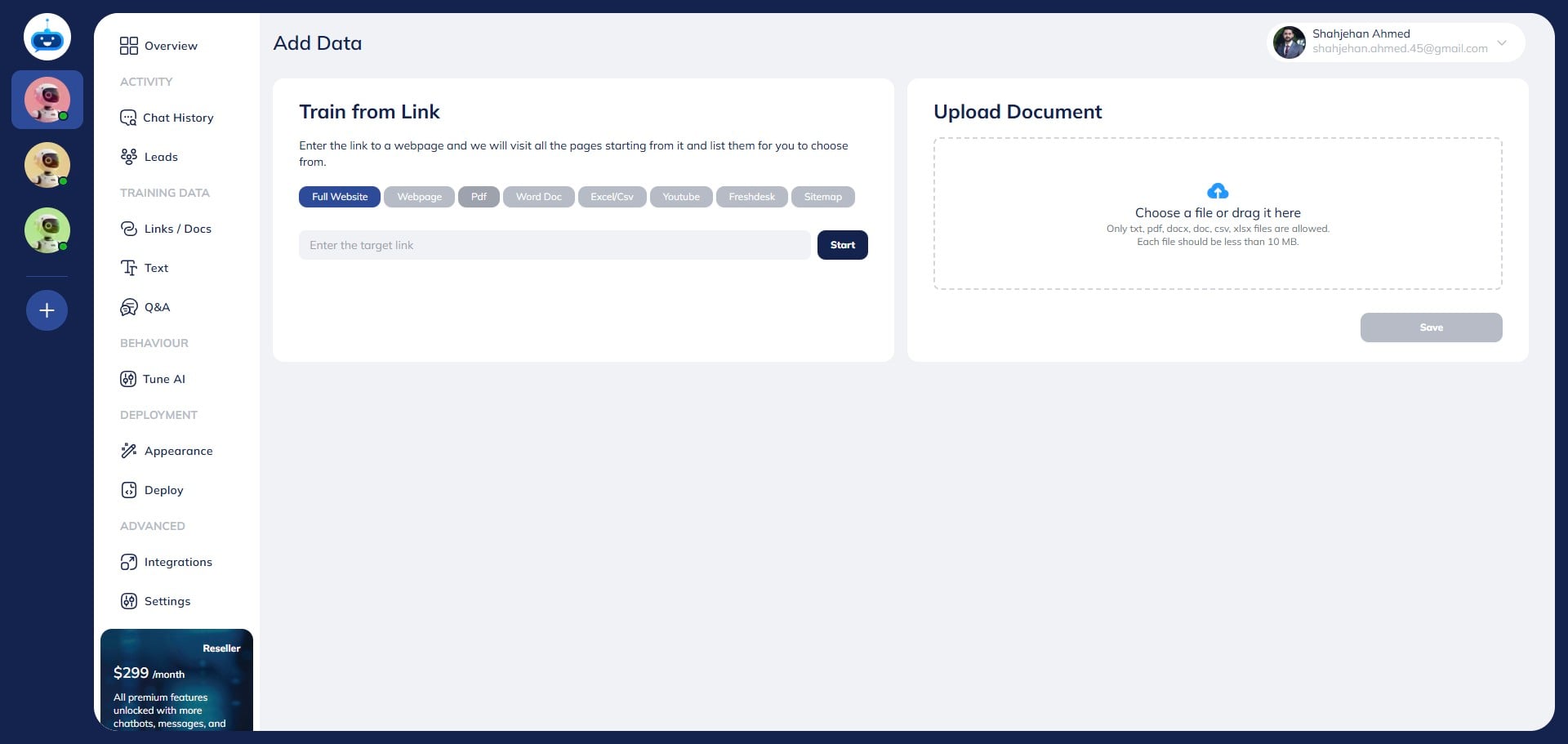
Click on "PDF" to select this option.
6
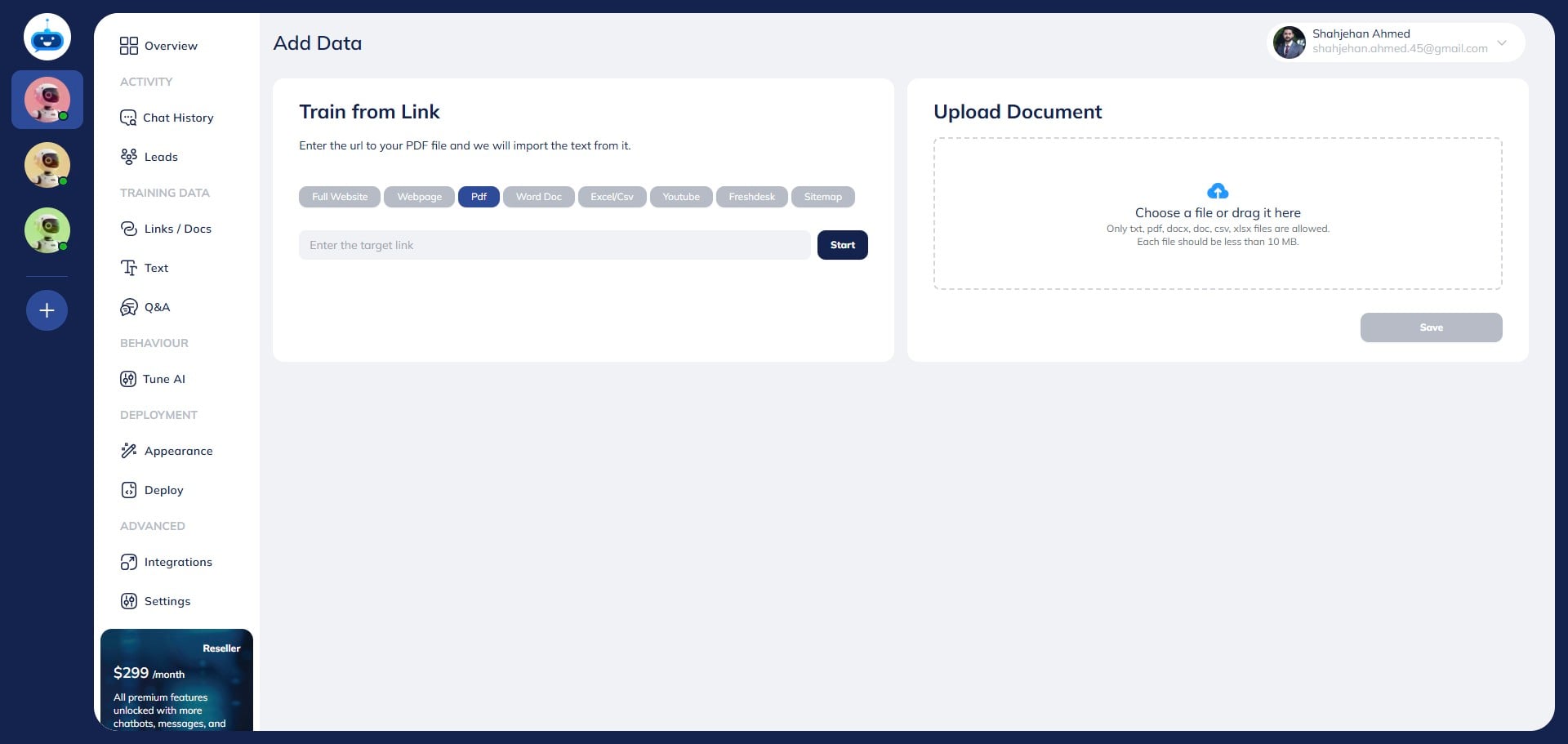
Click here to upload the PDF file.
7
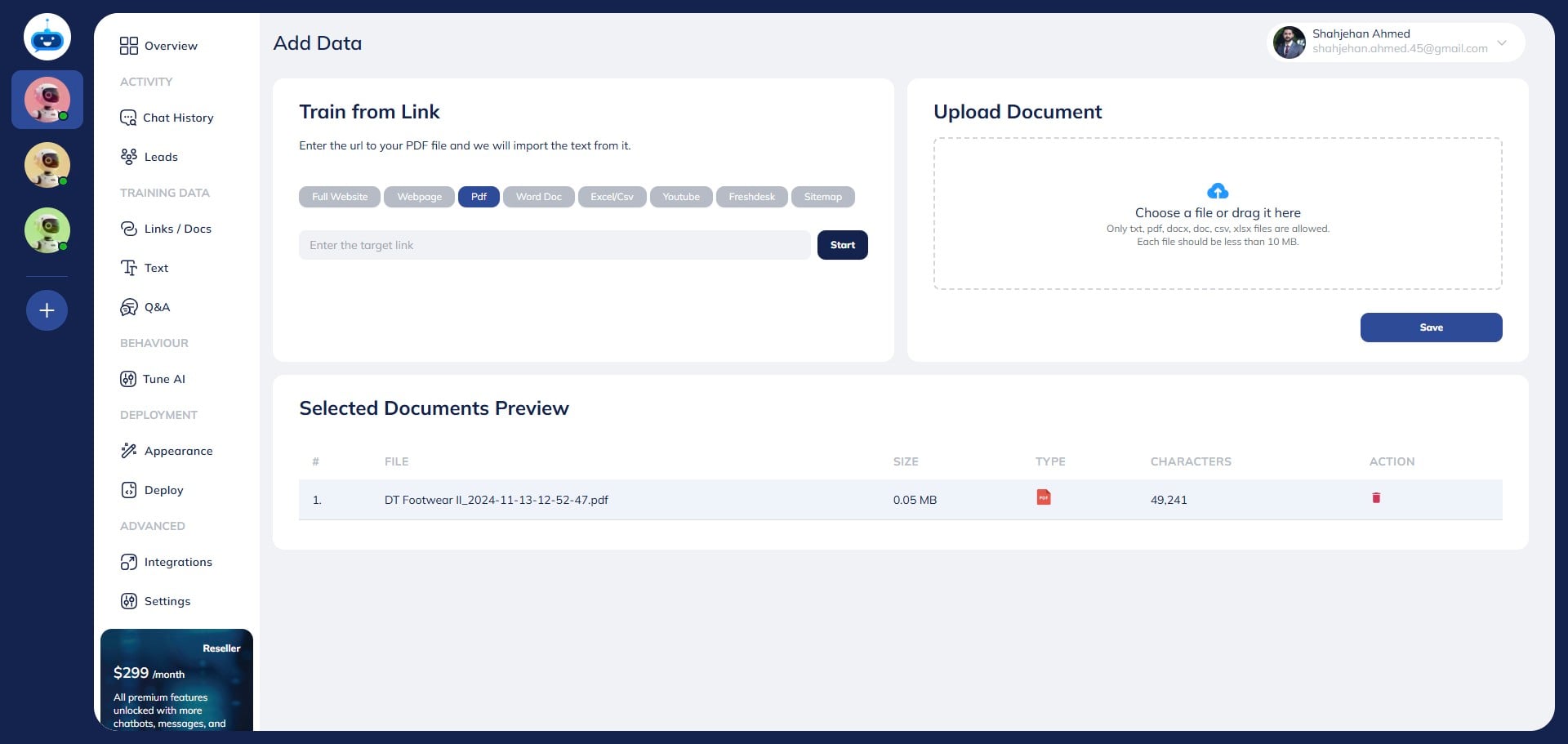
Click on "Save"
8
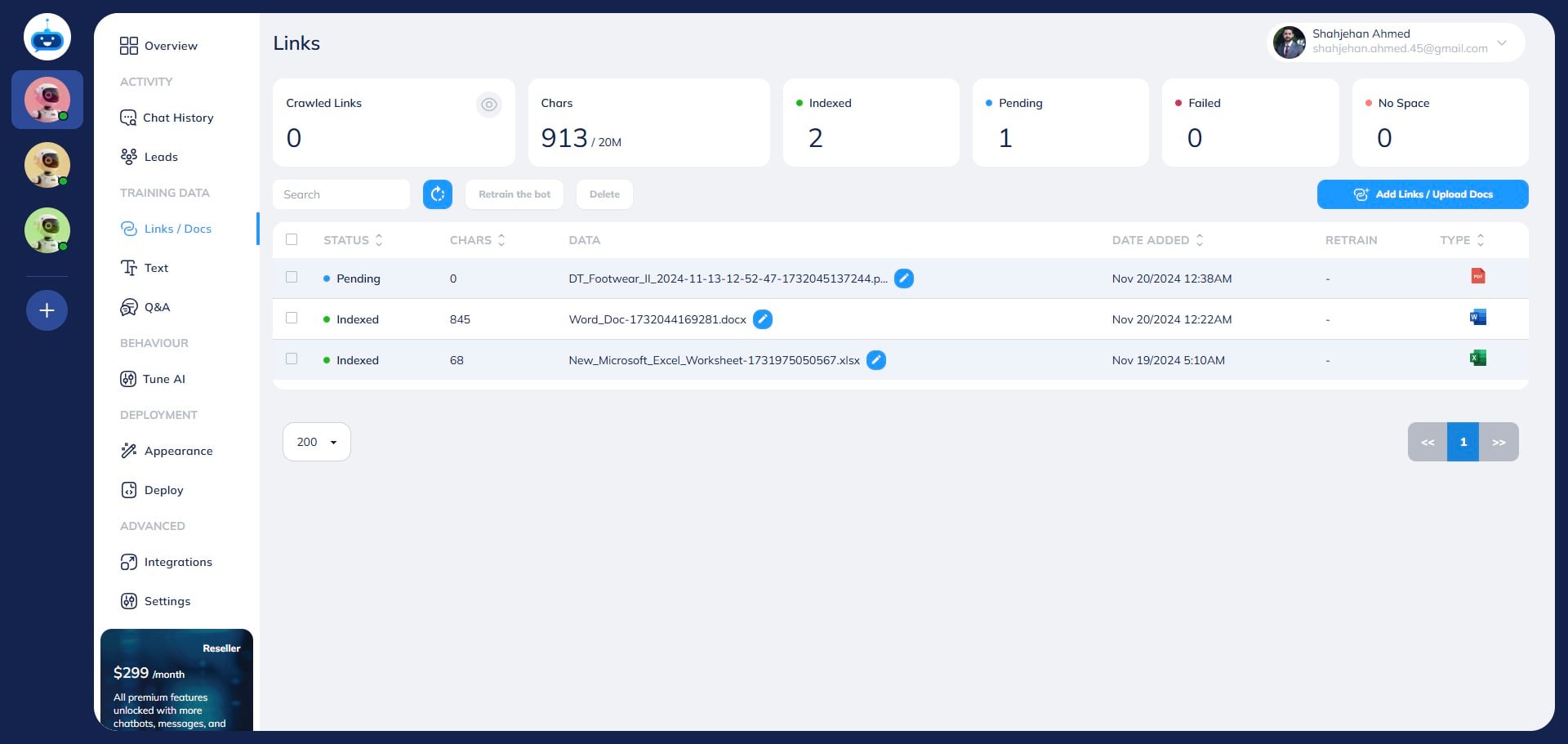
You will see the pending Status while the chatbot is indexing your file.
9
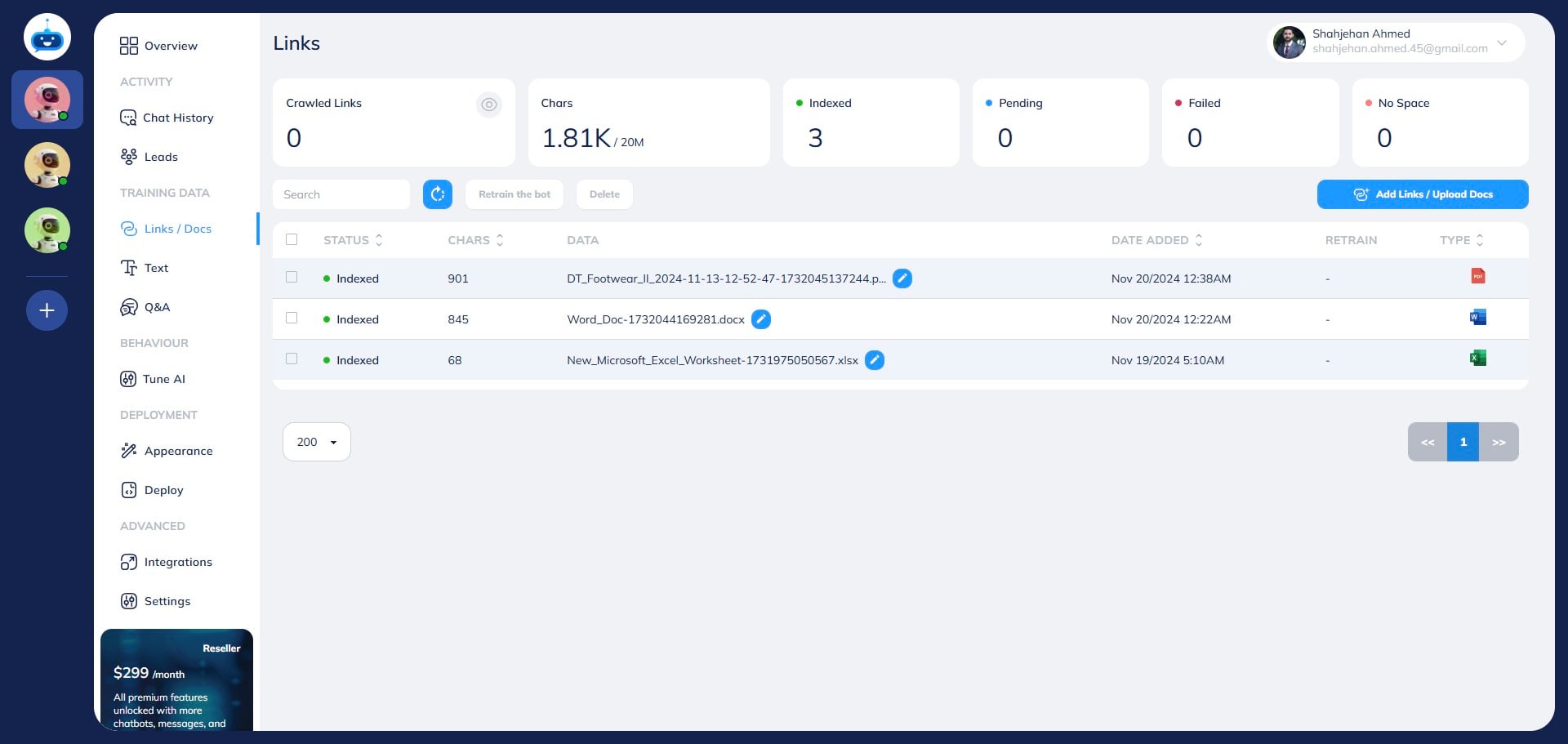
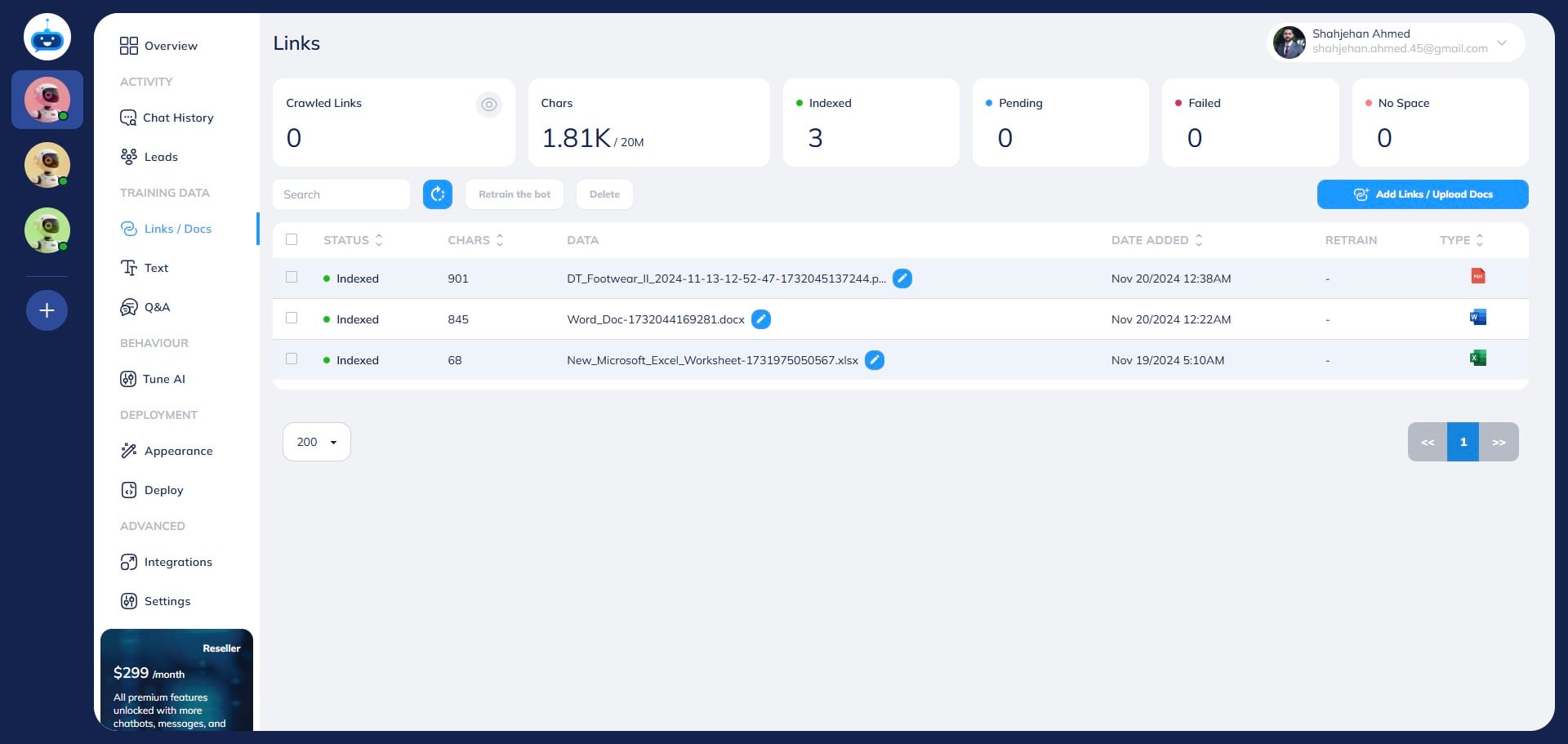
Once the file is uploaded successfully, you will see "Indexed" under the Status column.
10
Done 🚀. You have successfully added the Excel file to your chatbot training.