How To Integrate Fastbots with Make.com | Part I
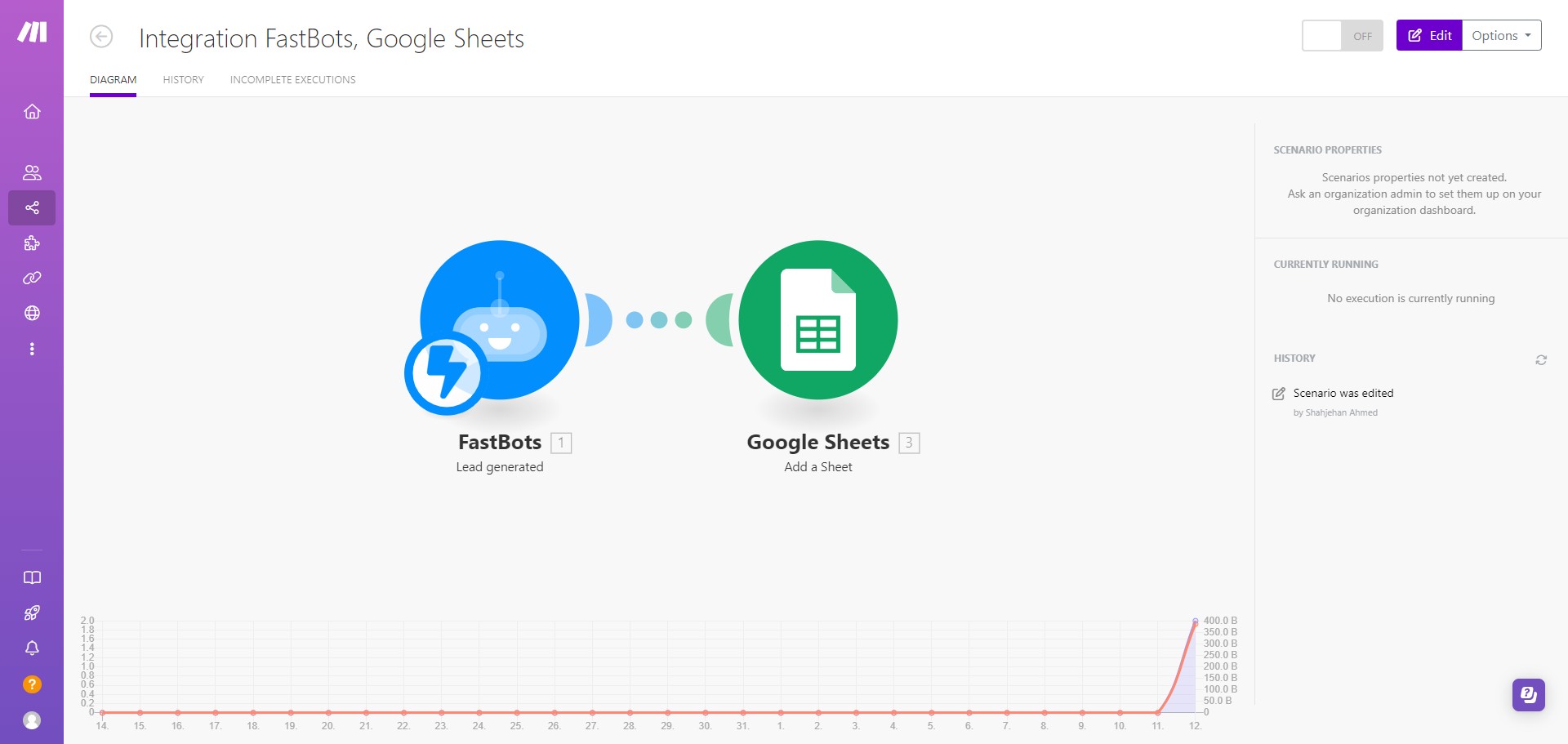
This guide will show you step-by-step instructions on how to integrate Fastbots with Make.com to automatically send a lead from the chatbot to other platforms.
Full video demonstration and set up of the FastBots Makecom integration.
Login to your make.com account.
Click on this link: https://eu2.make.com/app/invite/1bc836818aba18e5fa0d8e1b688f2f58
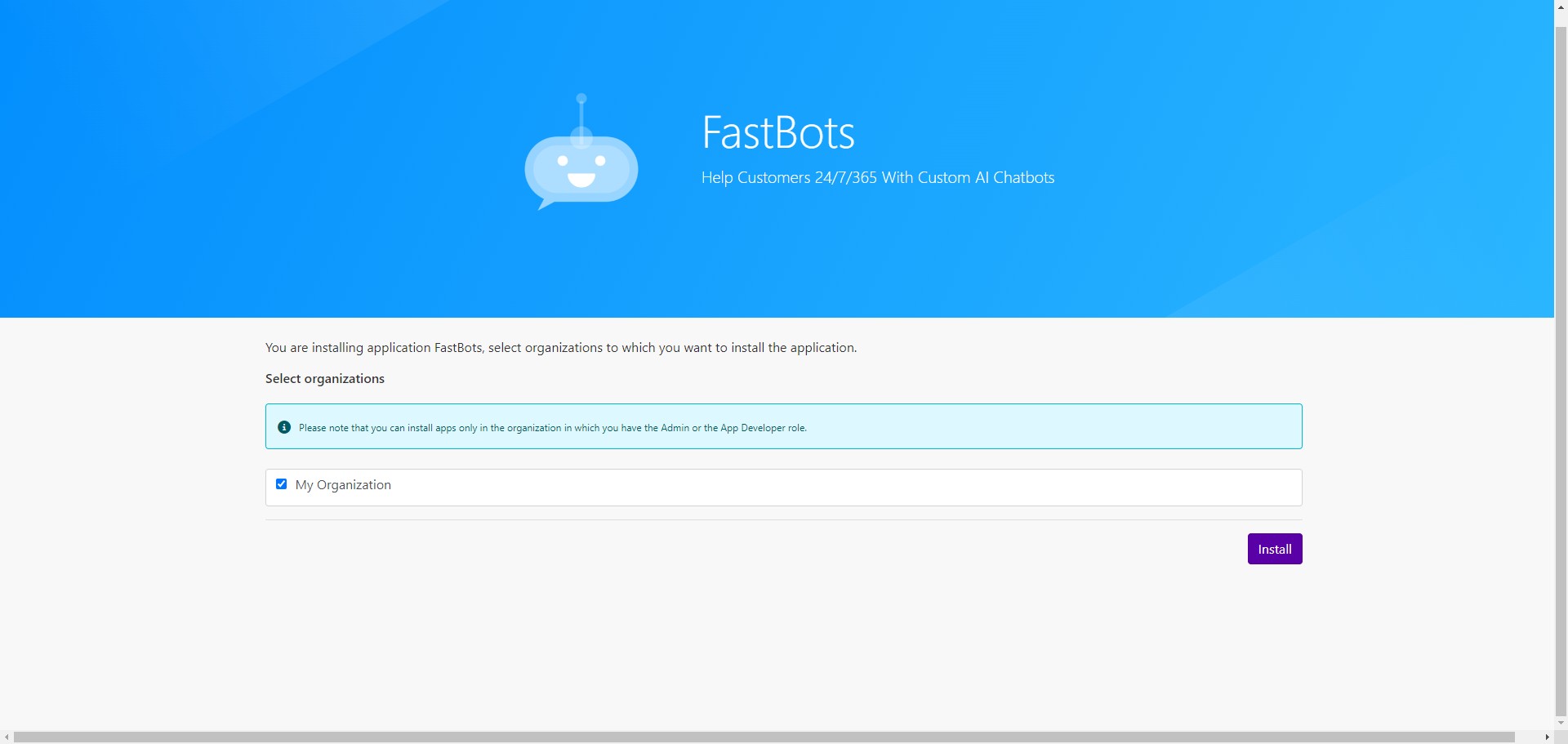
You can click on the Install button to add Fastbots to make.com apps.
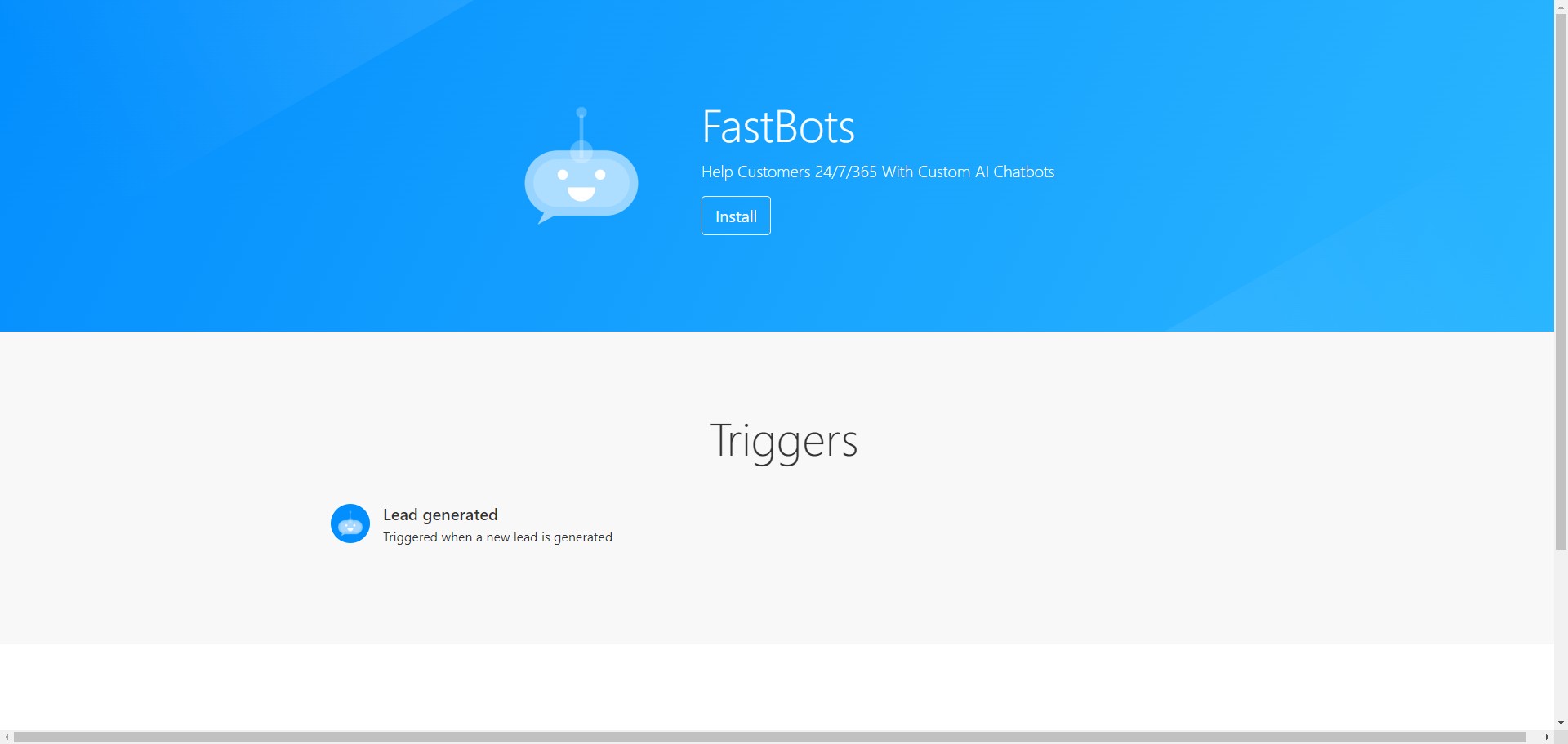

You can perform 2 types of automation using Fastbots-make.com integration. 1. You can create a trigger that will allow you to send the leads from Fastbots to other software. 2. You can create an action that will allow you to send a message to the bot and then the chatbot will send information based on that message to your required software.
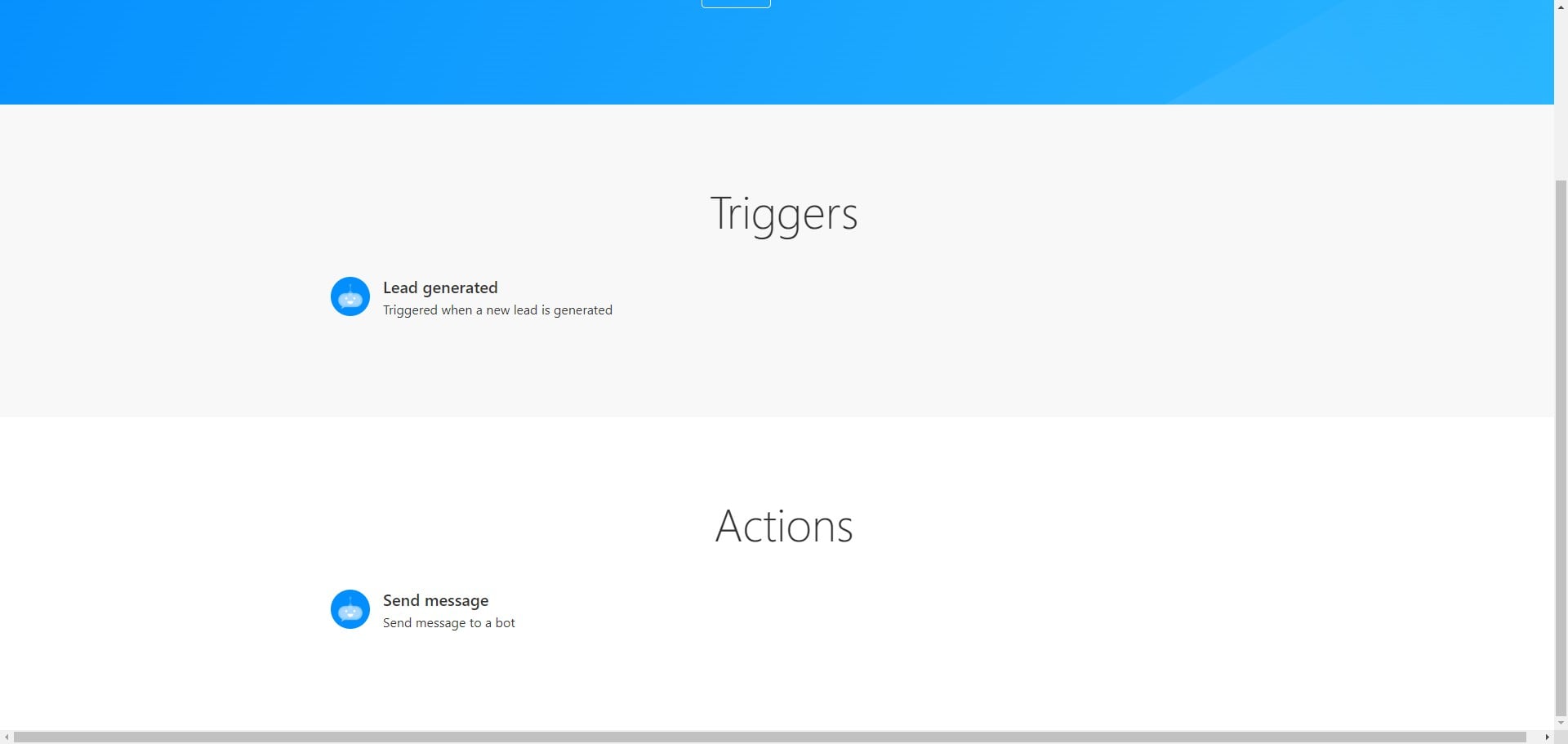
Let's start with installing the Fastbots app in your make.com account. Click on the "Install" button.
Select "My Organization" and Click on "Install"
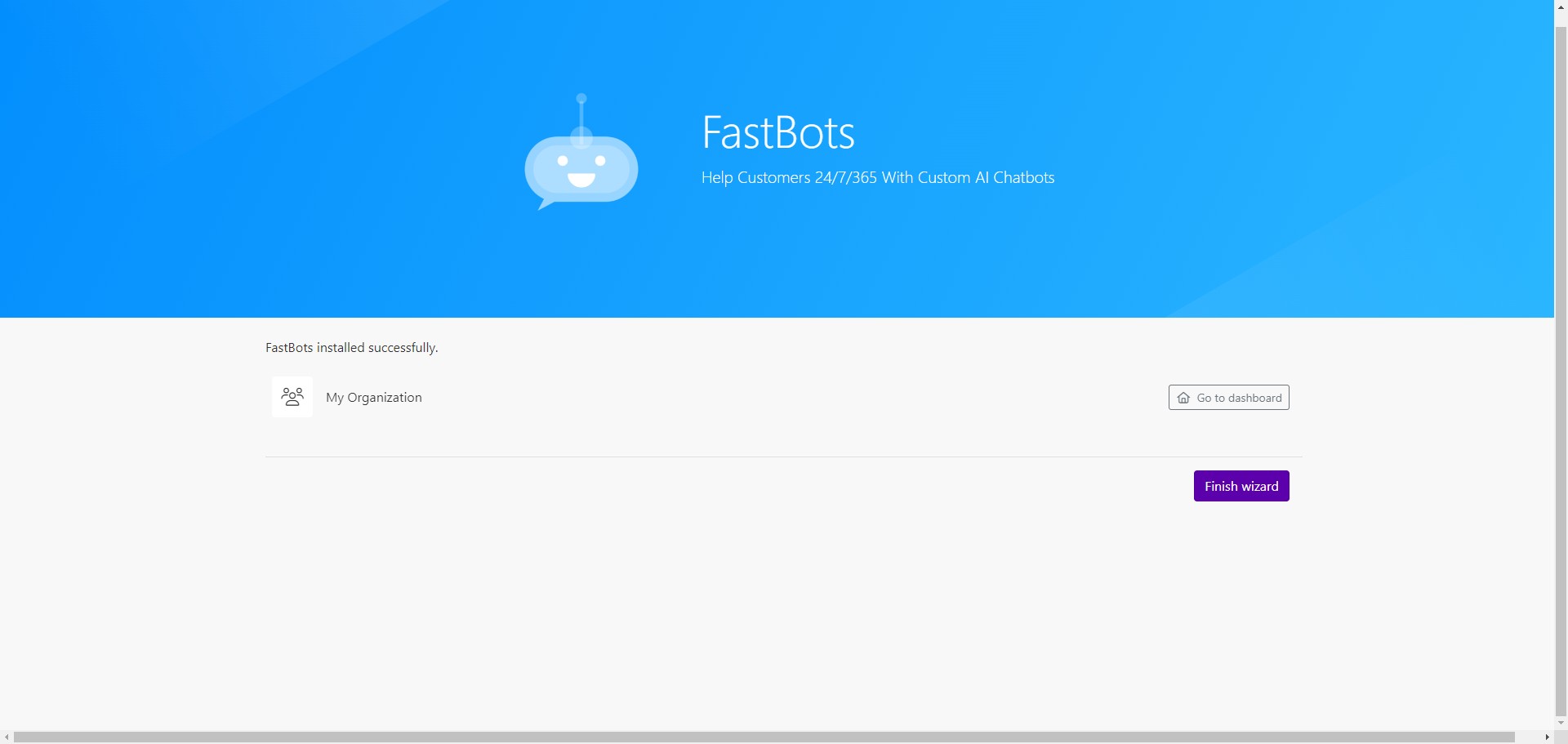
Click on "Finish wizard" to finish installing Fastbots.
To create an automation, click on "Scenarios"
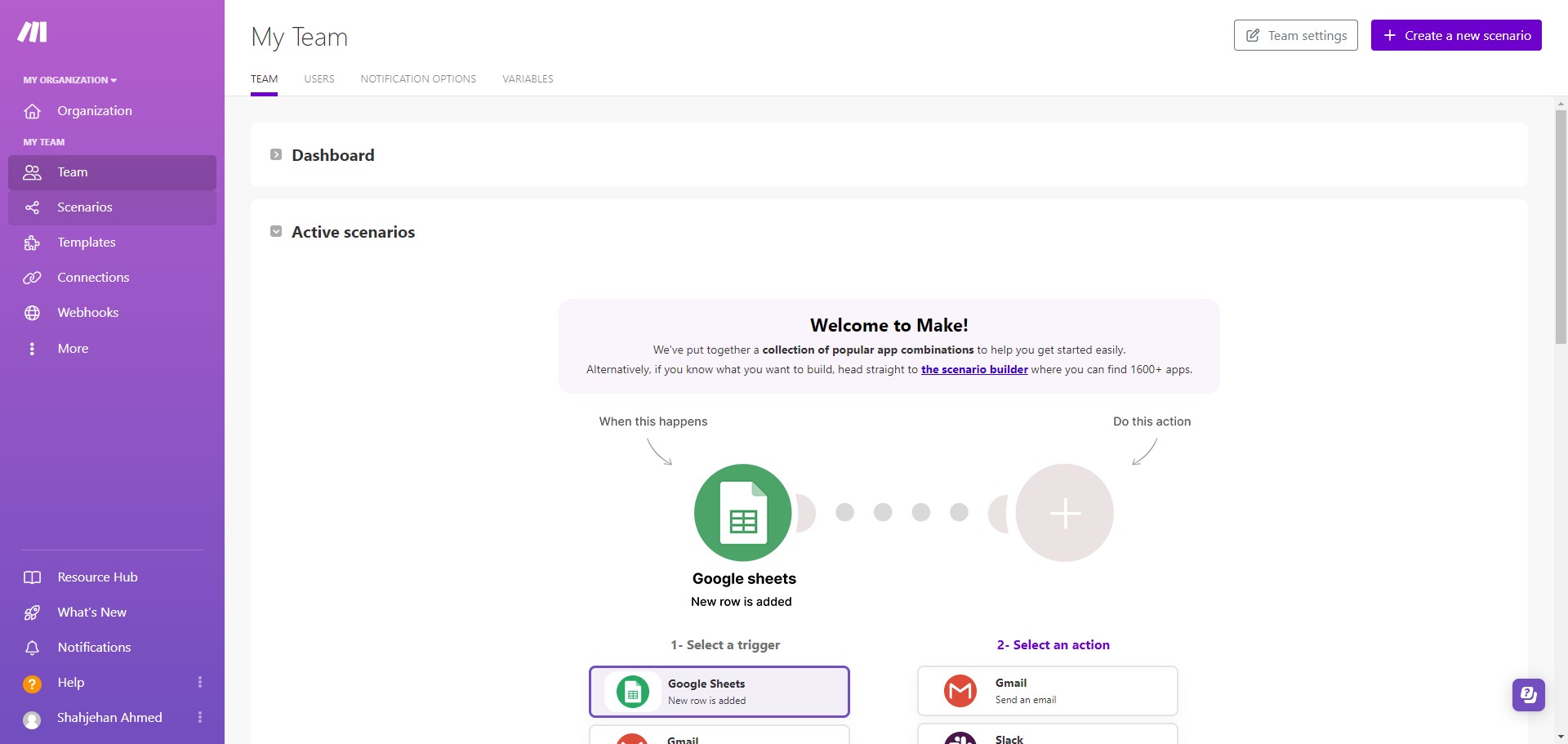
Click on "Create a new scenario"
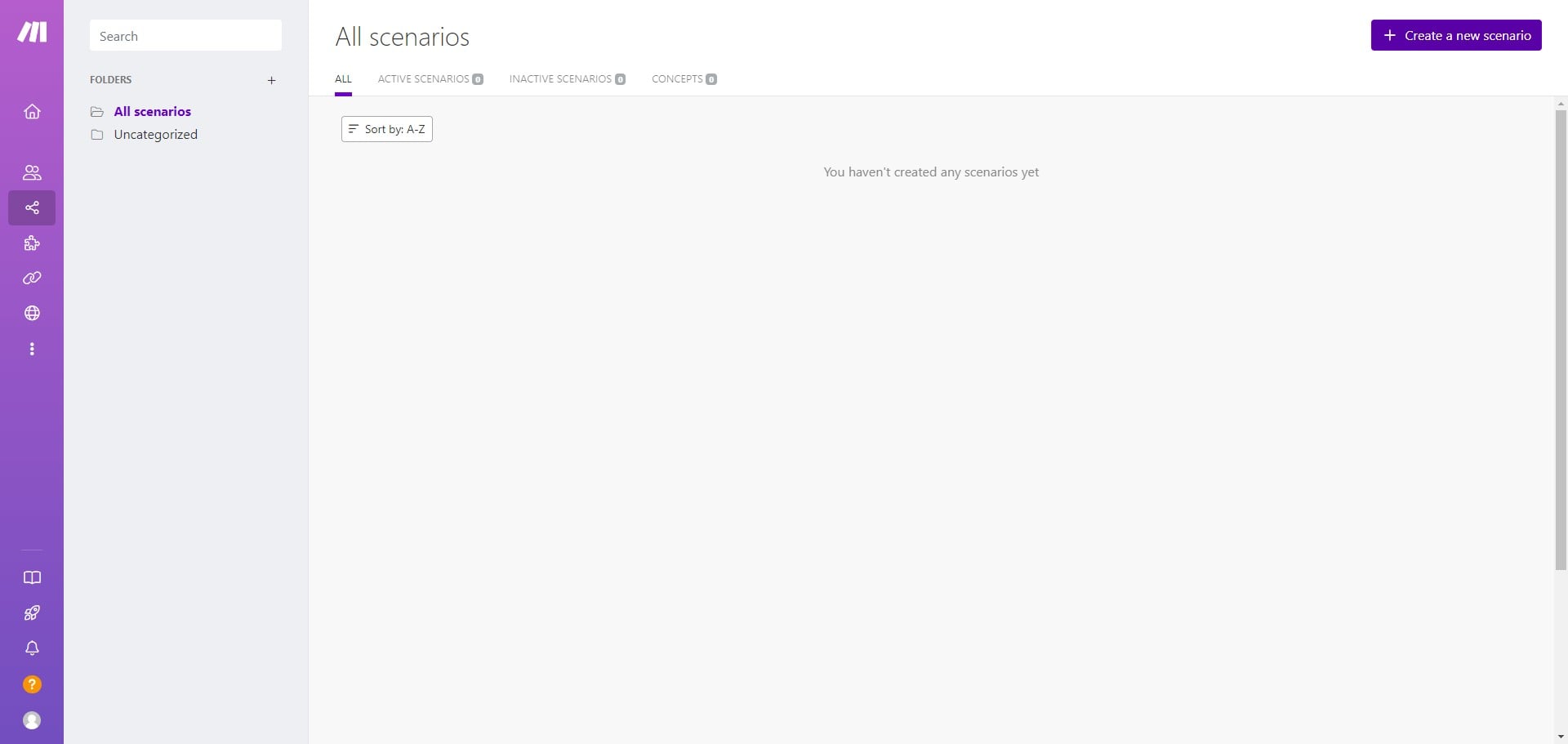
In the search bar, type Fastbots and select the application.
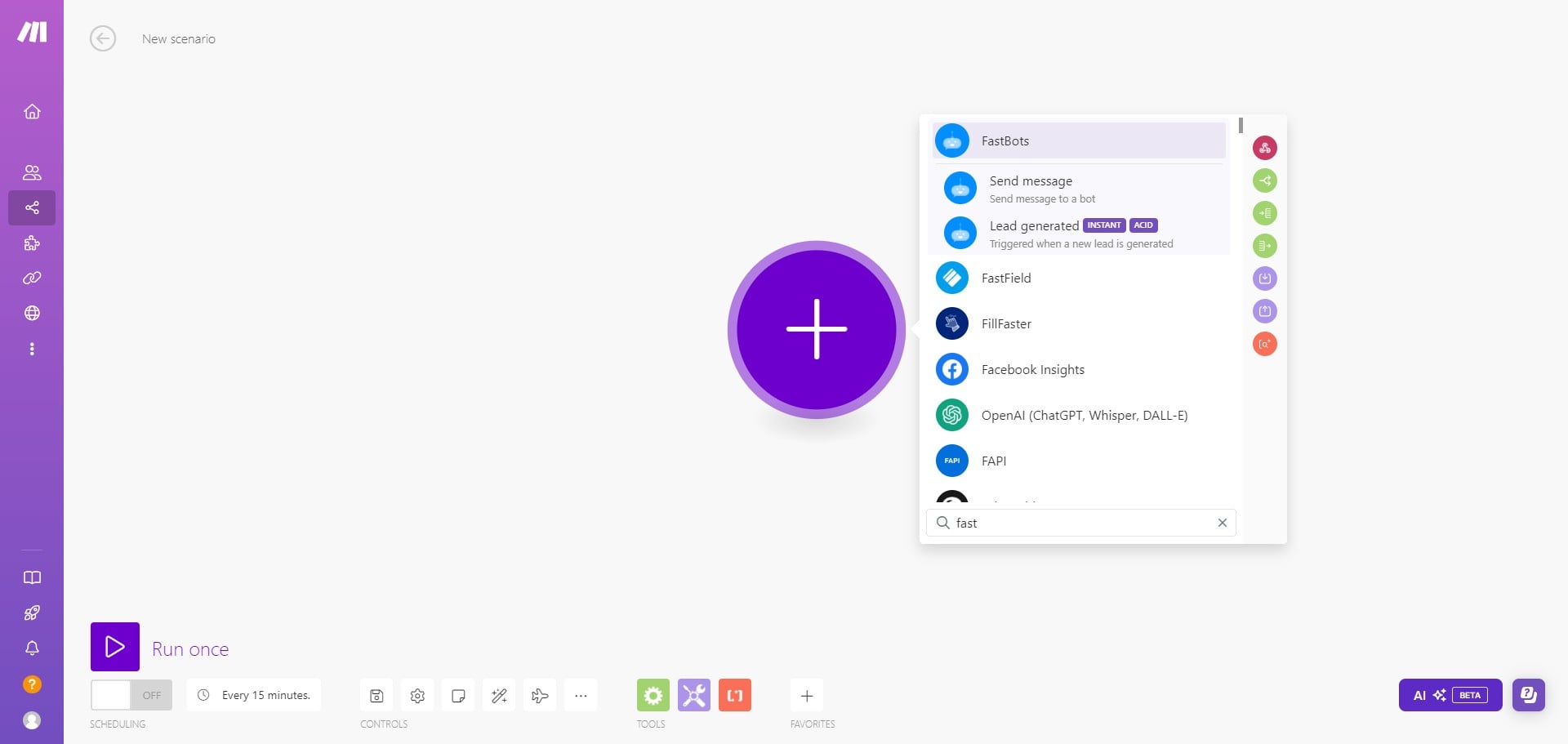
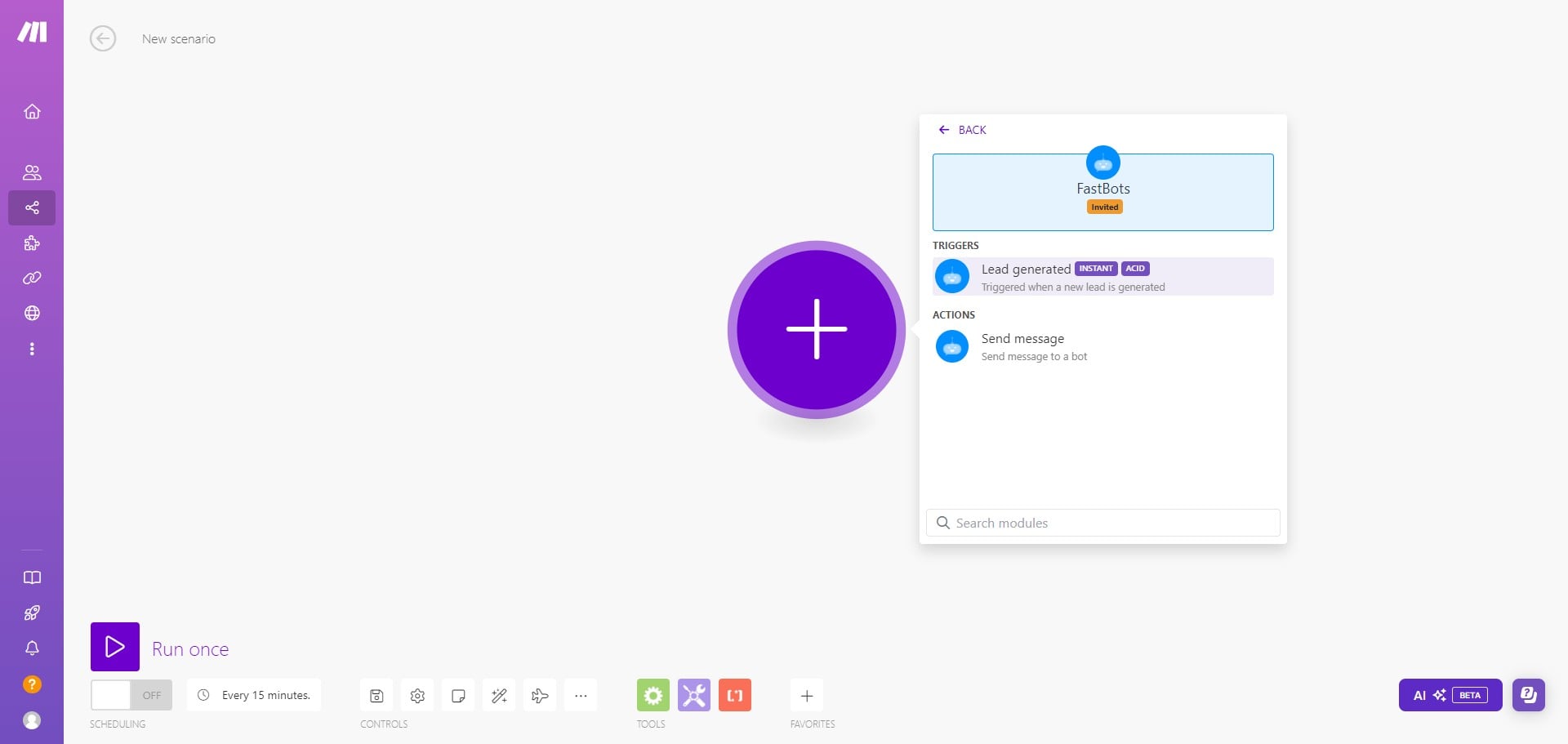
To select the trigger, click on "Lead generated"
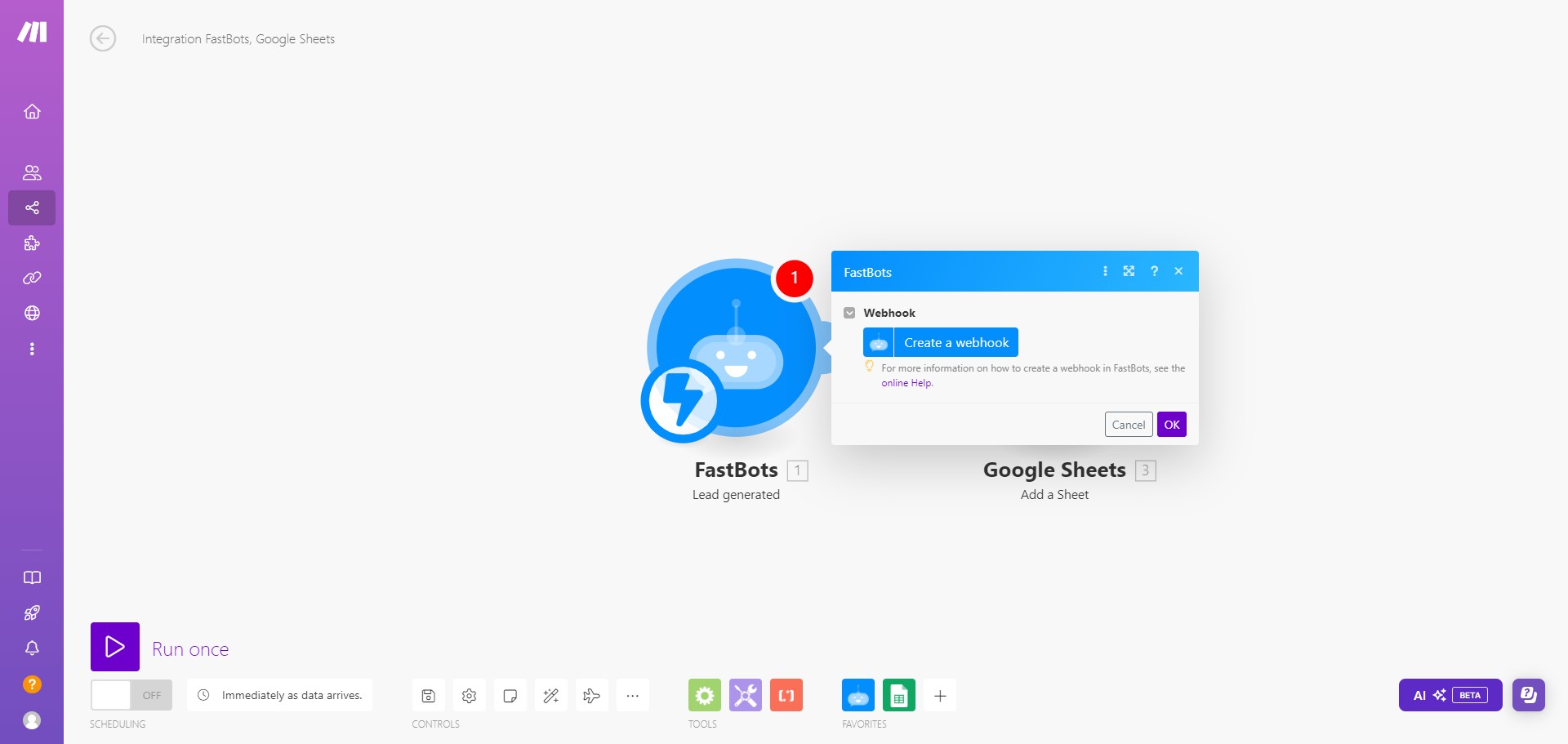
Click on Fastbots module icon and click on " Create a webhook"
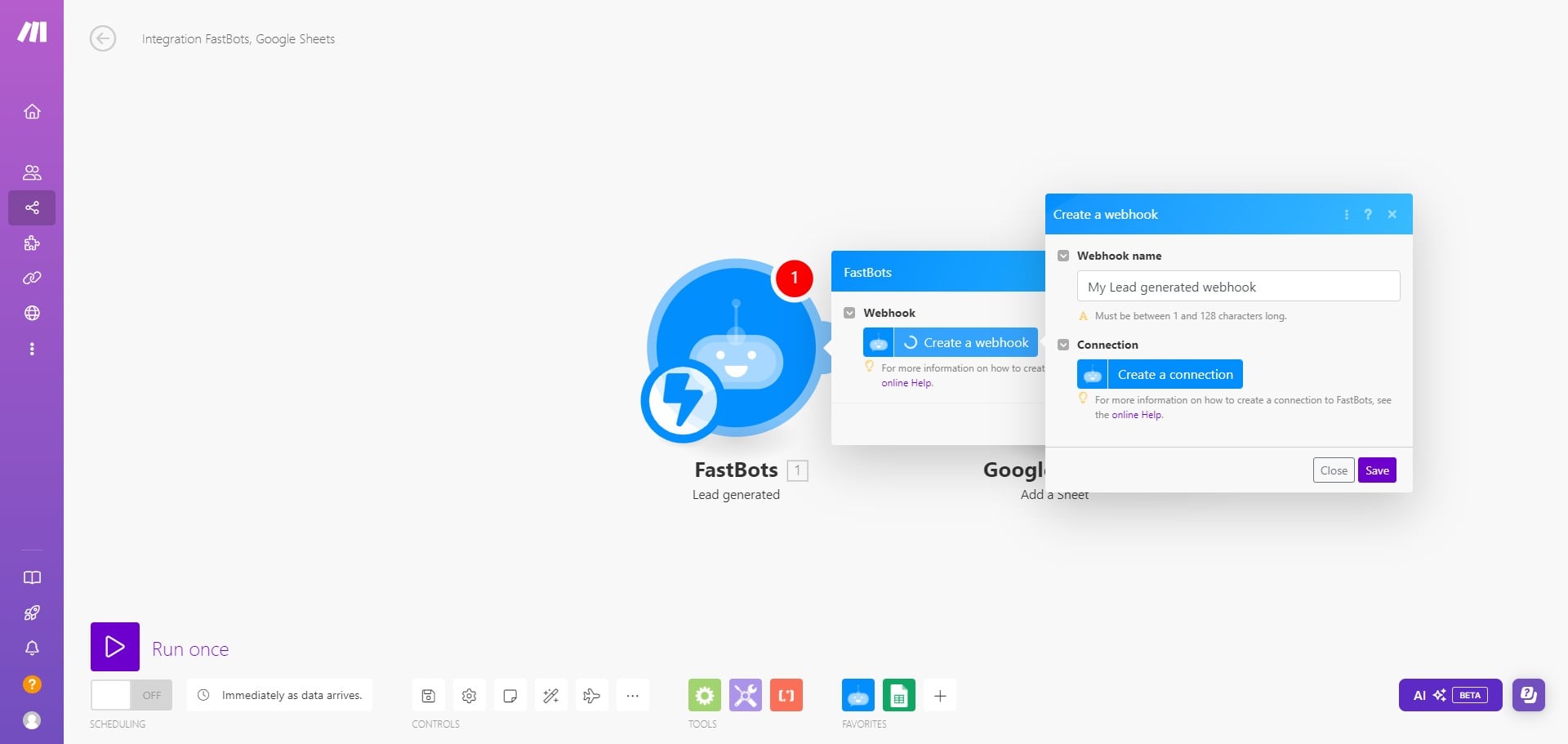
Click on "Create a connection"
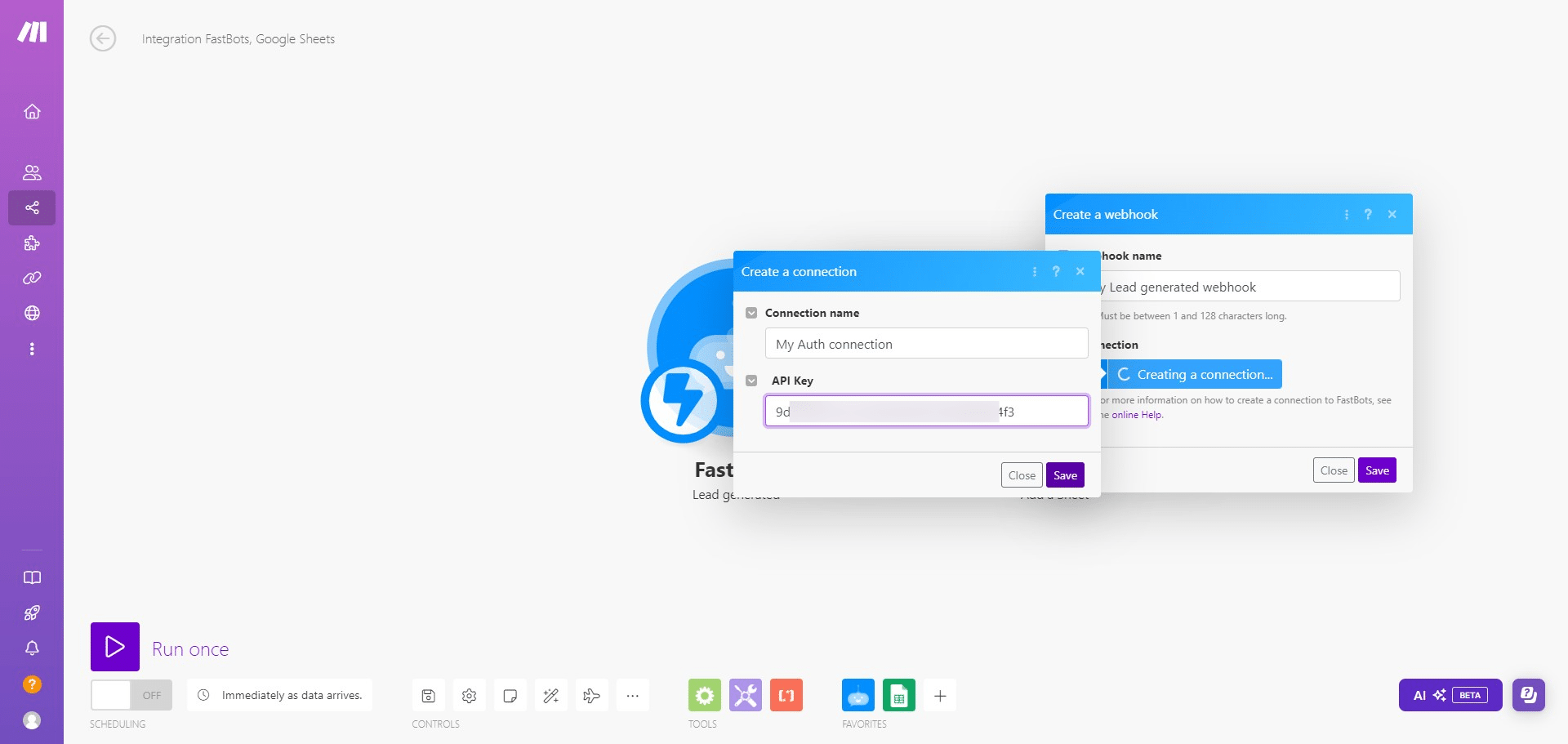
Copy the API key of your Fastbots account from the "Account" section and paste it here.
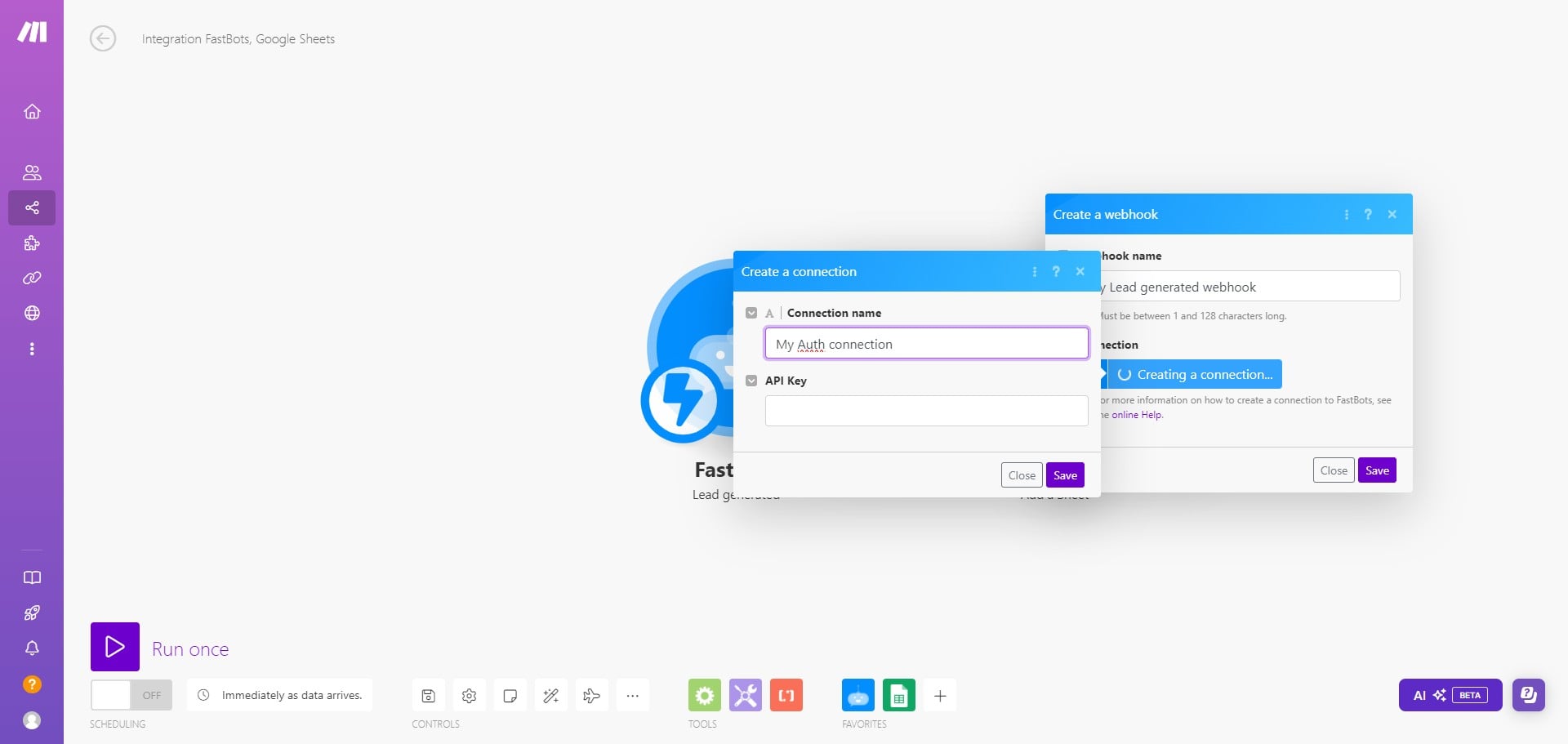
After entering the API Key, click on save.
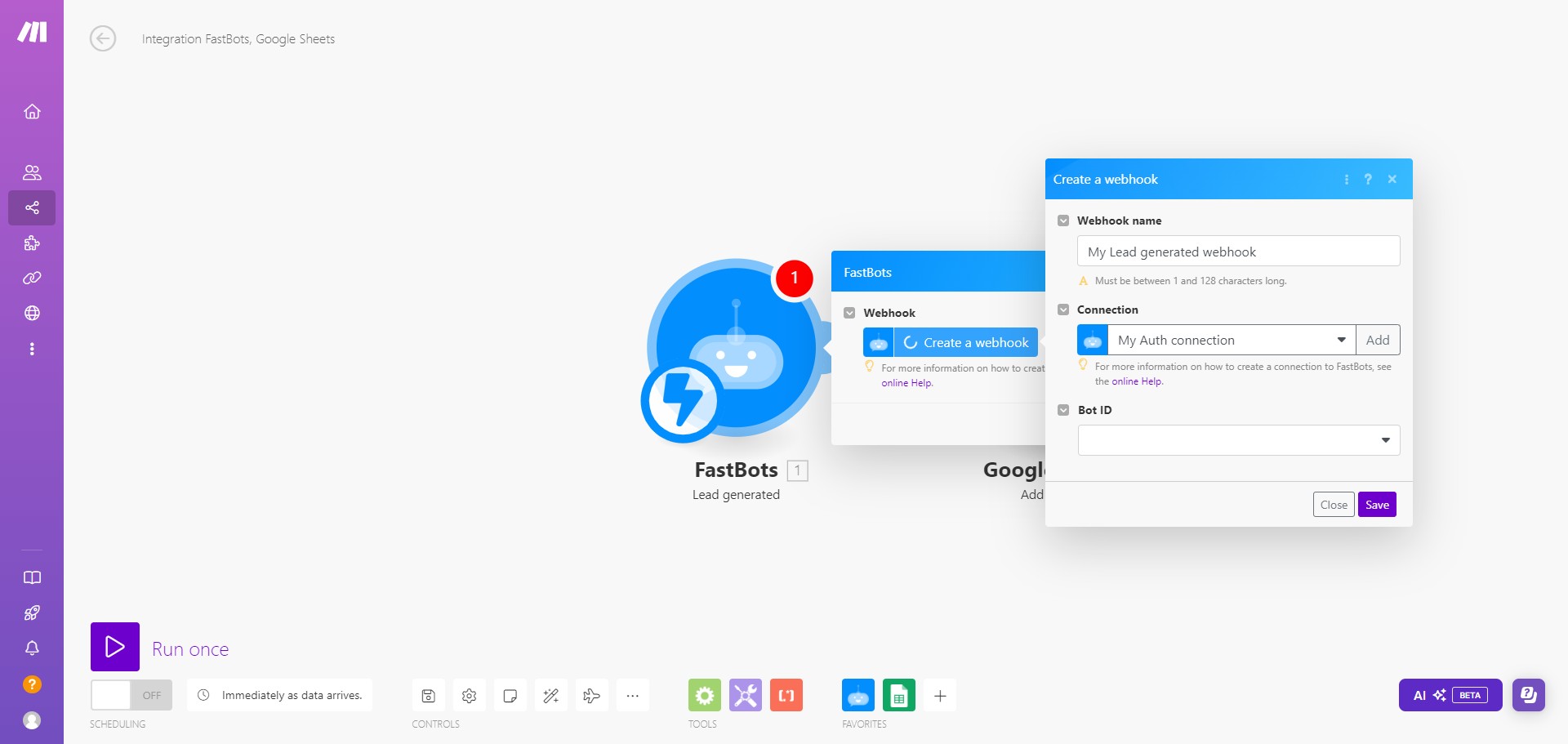
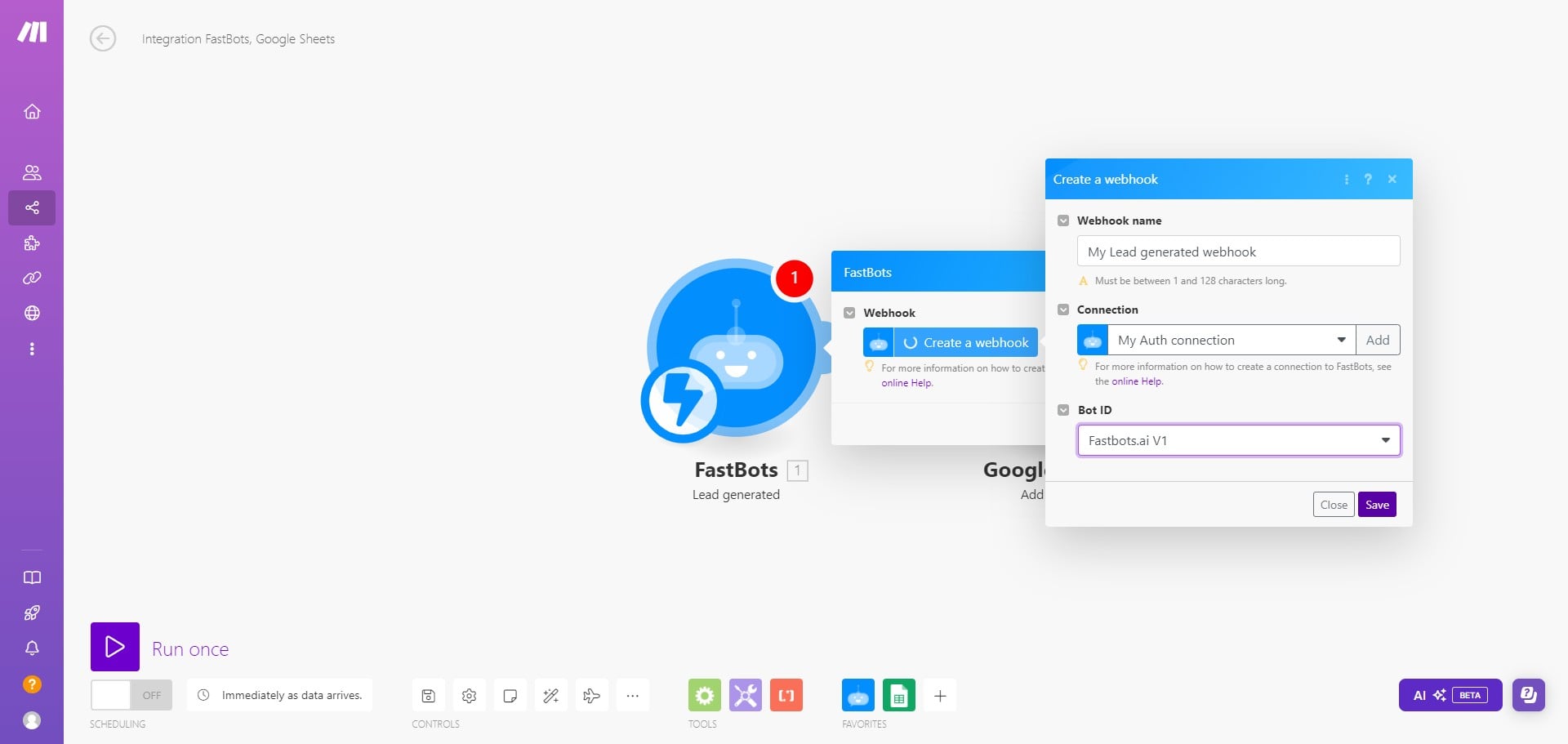
Select the Bot ID by clicking on the drop down option.
Click on "Save"
Click on "OK"
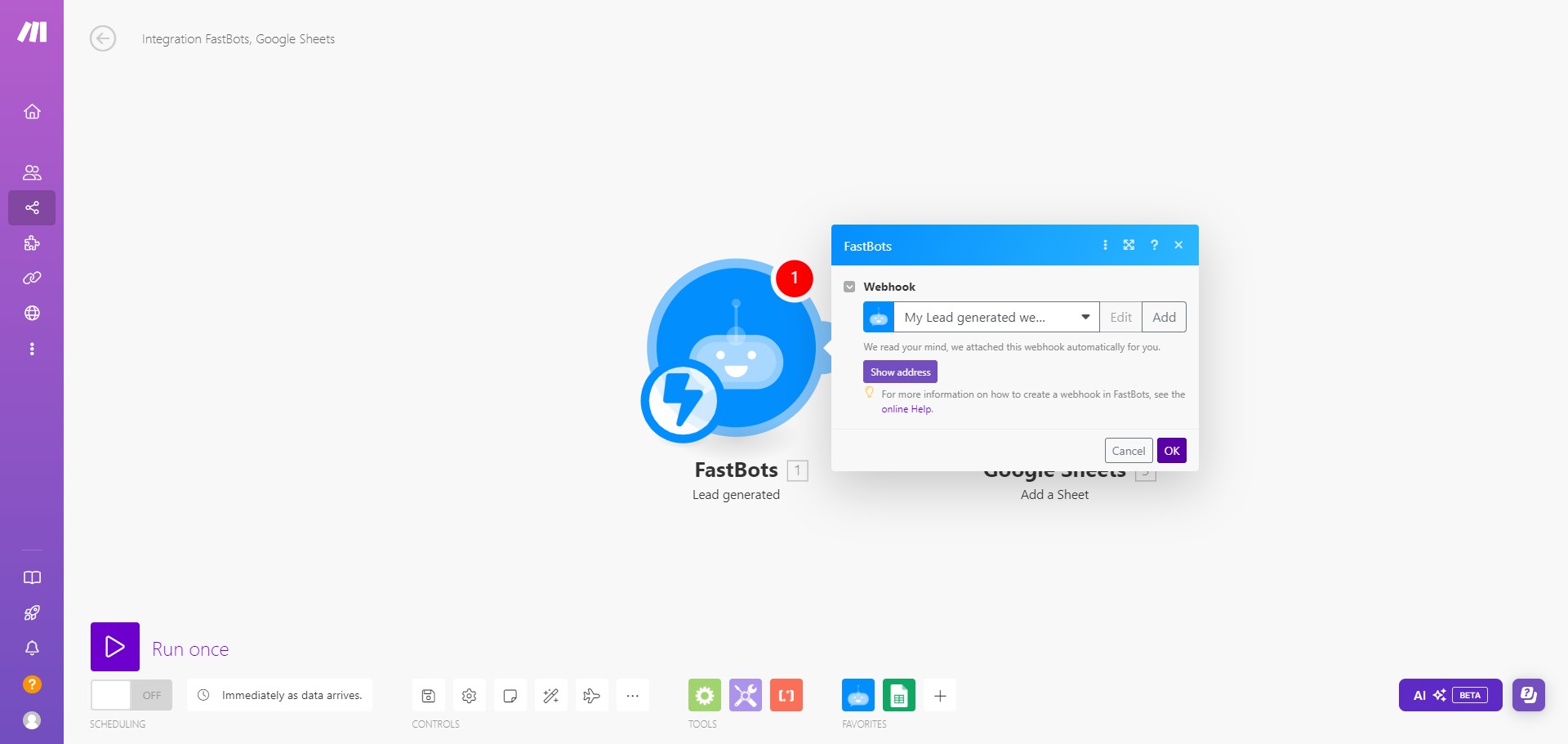
Create a new module and search your required app where you want to send the lead information.
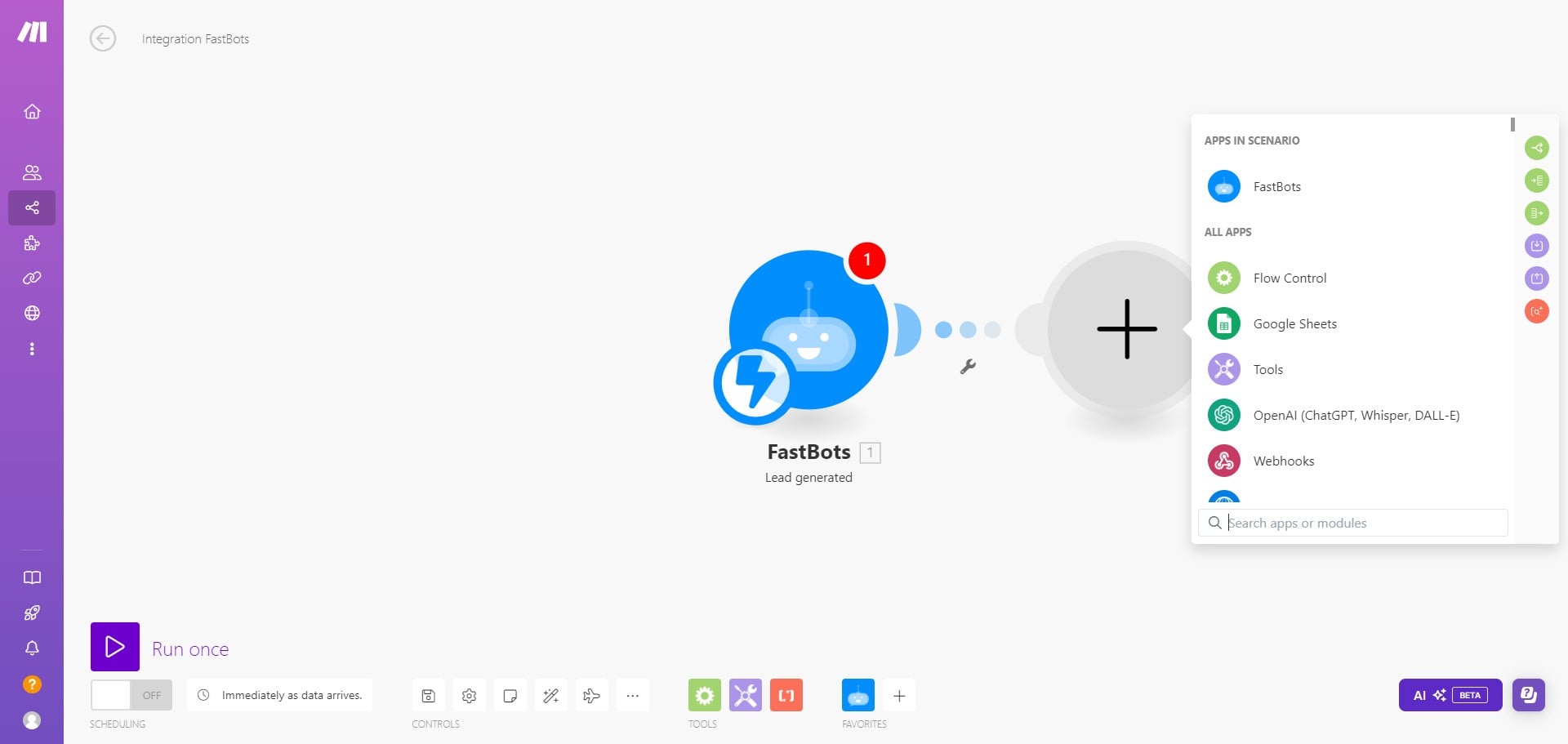
I this tutorial, I will select "Google Sheets"
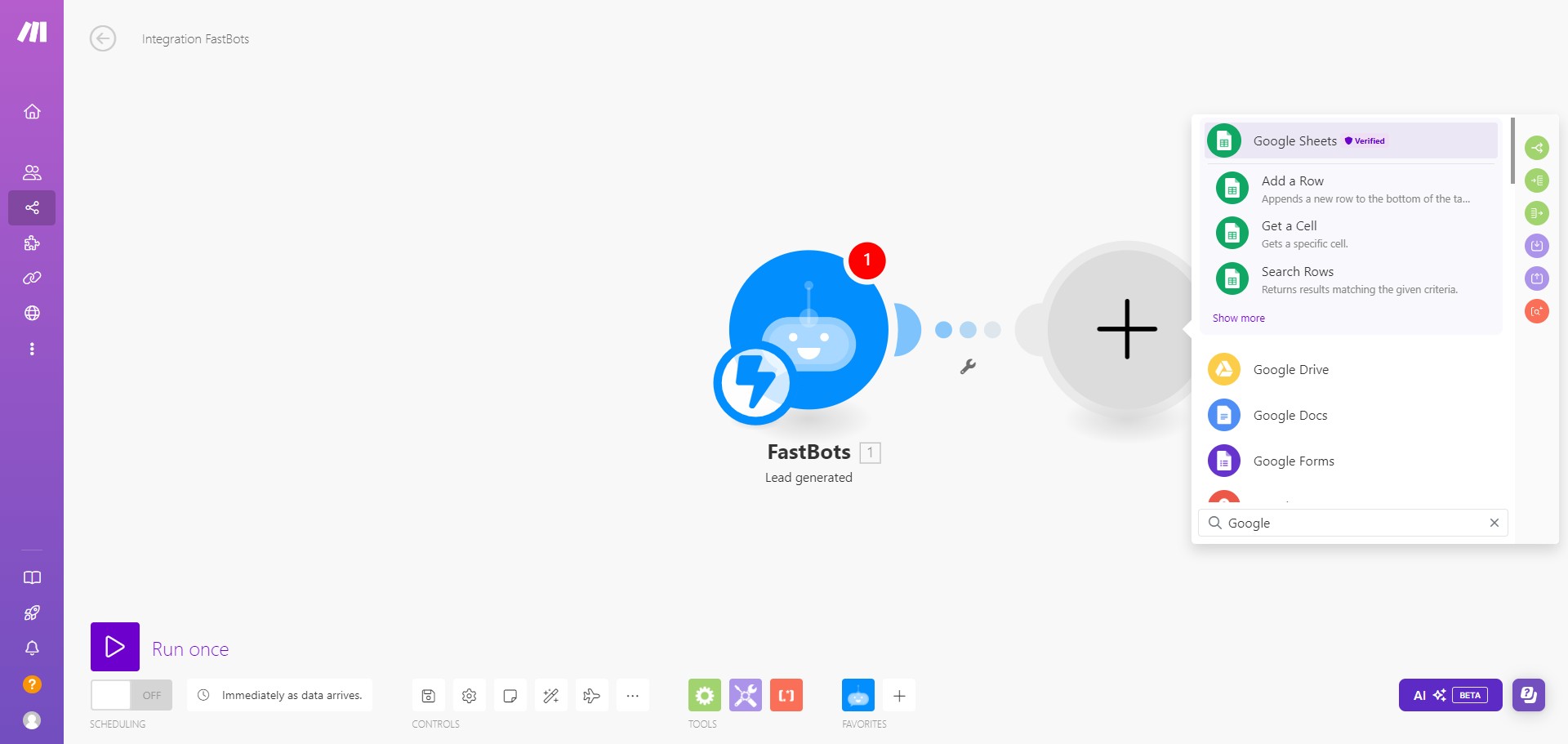
Once you add the Google Sheets to your module, click "Create a Connection" to finish up settings.
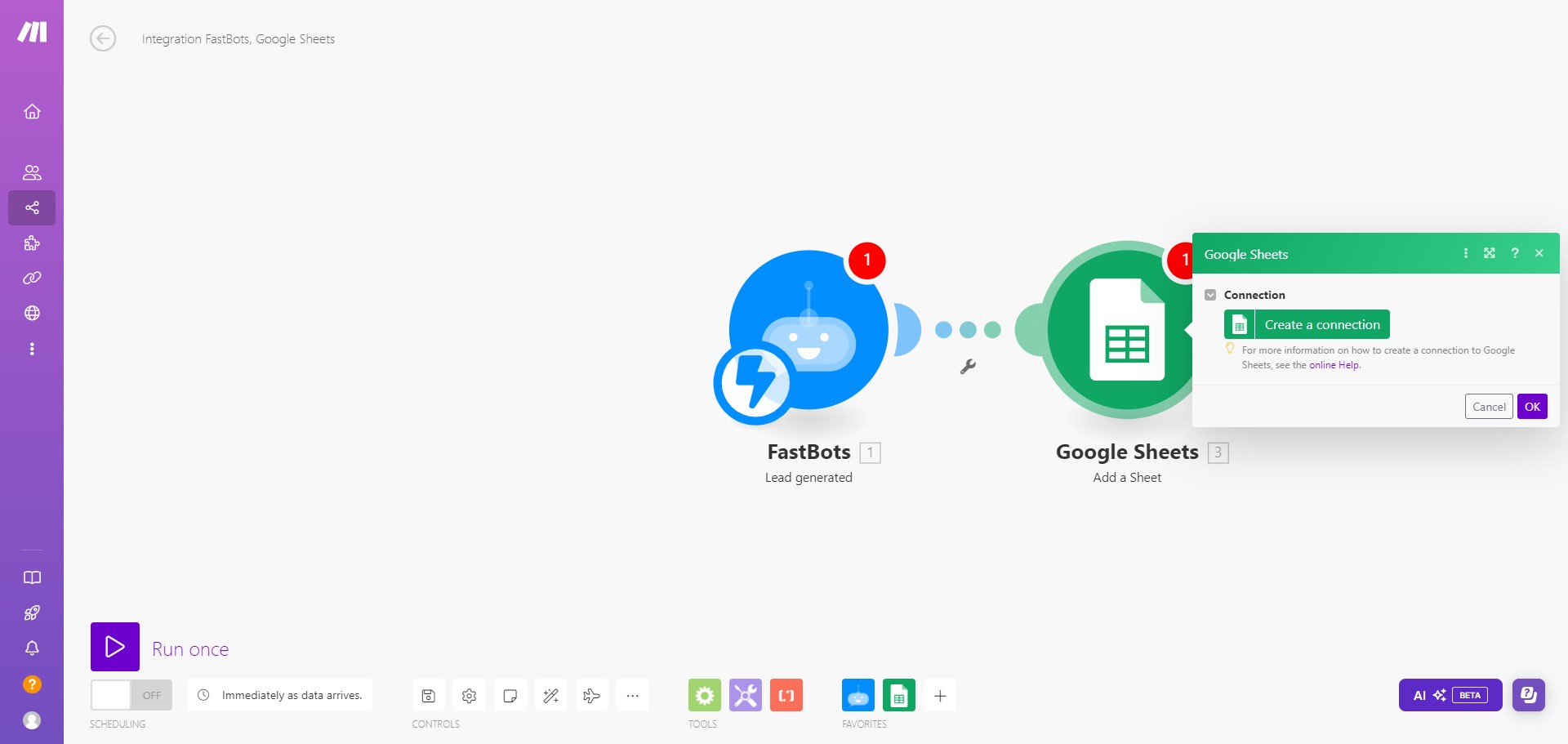
If your Google account is not already connected to make.com, you can click on Sign in with Google to connect your account otherwise, you can proceed to the next steps.
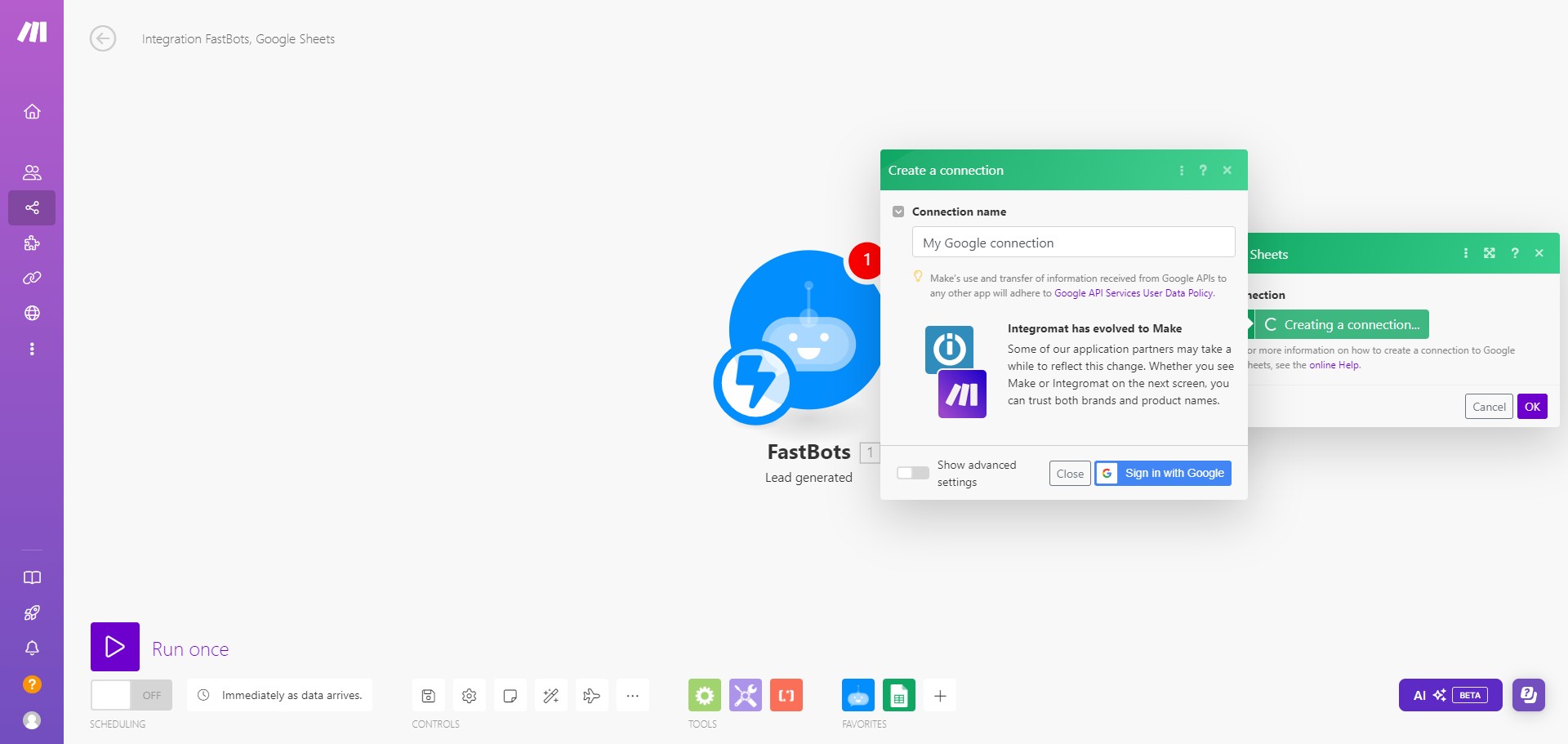
Once your Google account is connected, select the "My Drive" option.
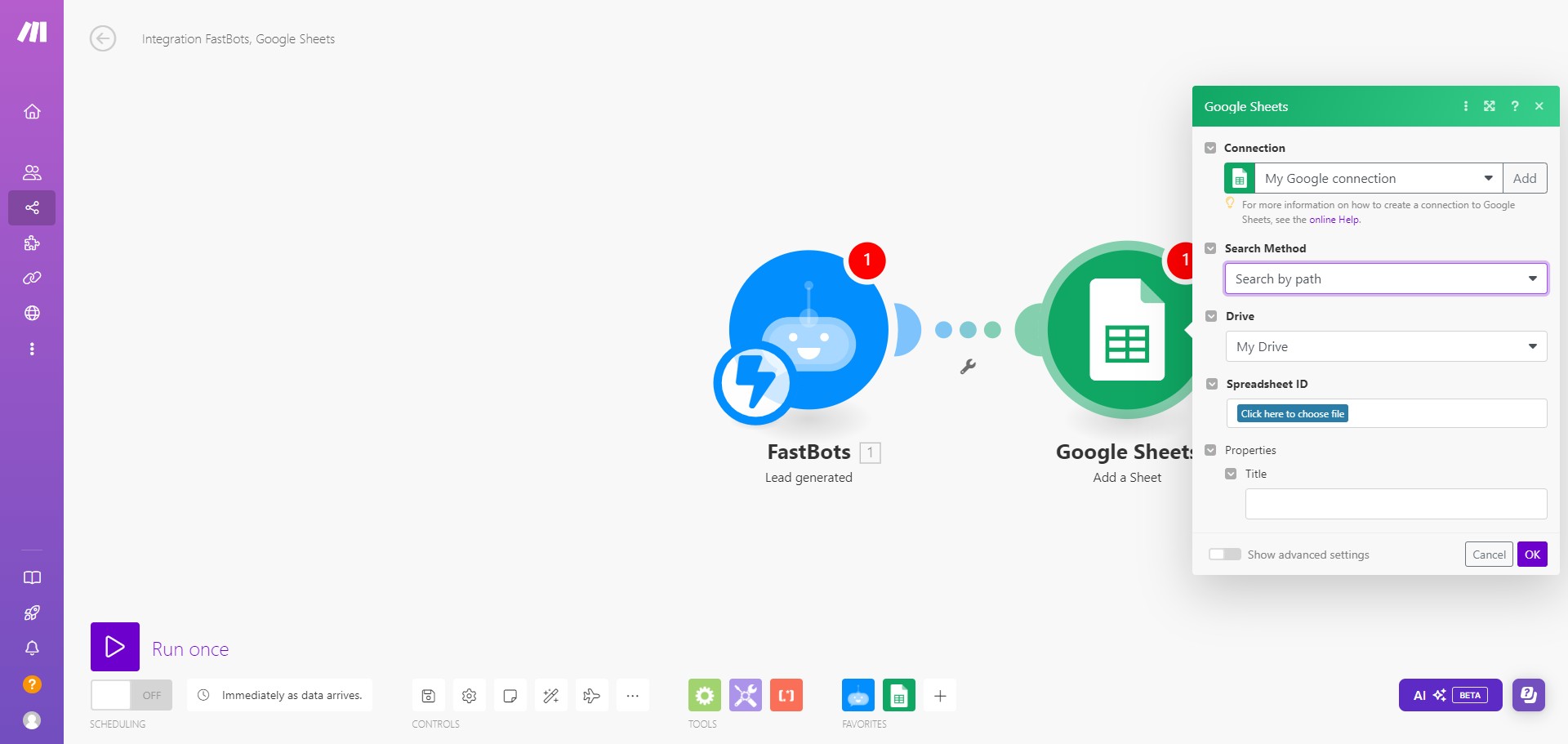
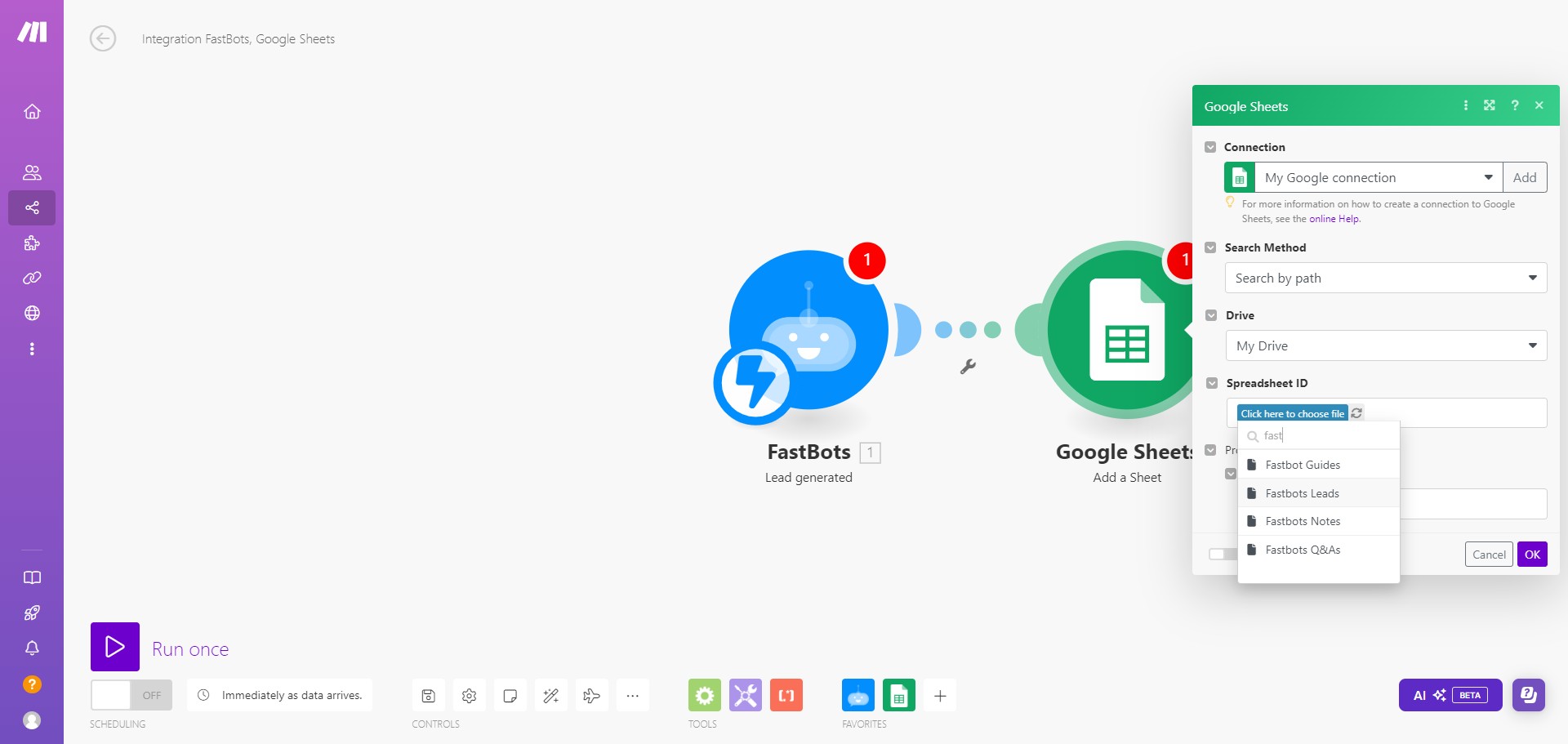
Click on "Click here to choose file"
Choose the Spreadsheet where you want to send the leads.
Click on "Ok" button to save the settings.
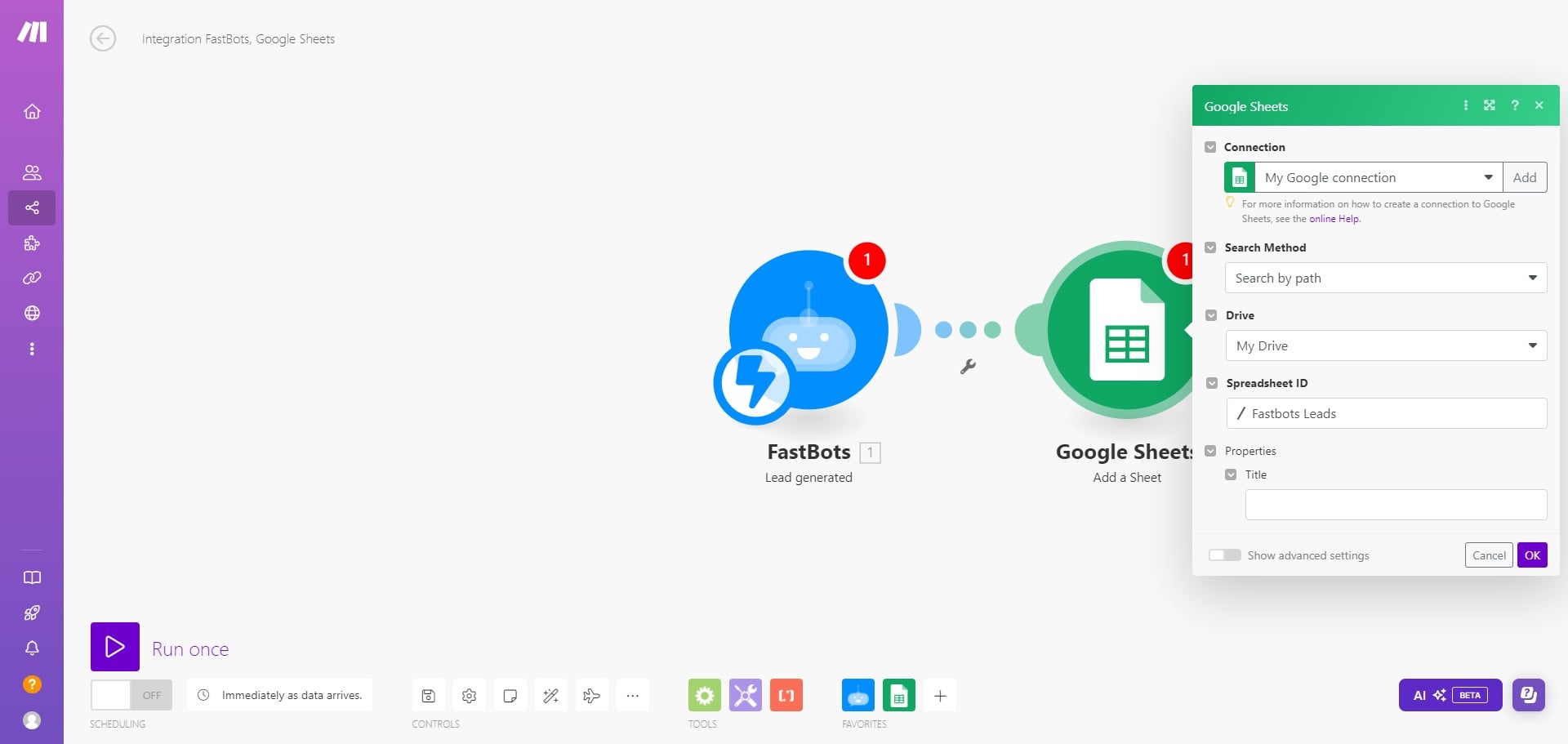
We have successfully created the scenario to send the leads captured by the Fastbots to Google Sheets. To see how you can do the "Send Message" automation, please see the next part of this tutorial. Thank you.