How To Connect Fastbots with WhatsApp
This training guide offers a step-by-step process for integrating Fastbots with business WhatsApp. Once the chatbot is connected to WhatsApp, it will automatically begin responding to inquiries, enhancing customer engagement and support.
Navigate to https://app.fastbots.ai/
Please make sure the phone number that you are trying to connect to Fastbots is not associated with any existing WhatsApp account. If a WhatsApp account already exists on the phone number, you can delete that WhatsApp account by using the WhatsApp application. Once the phone number is free, you can start the Fastbots Integration process.
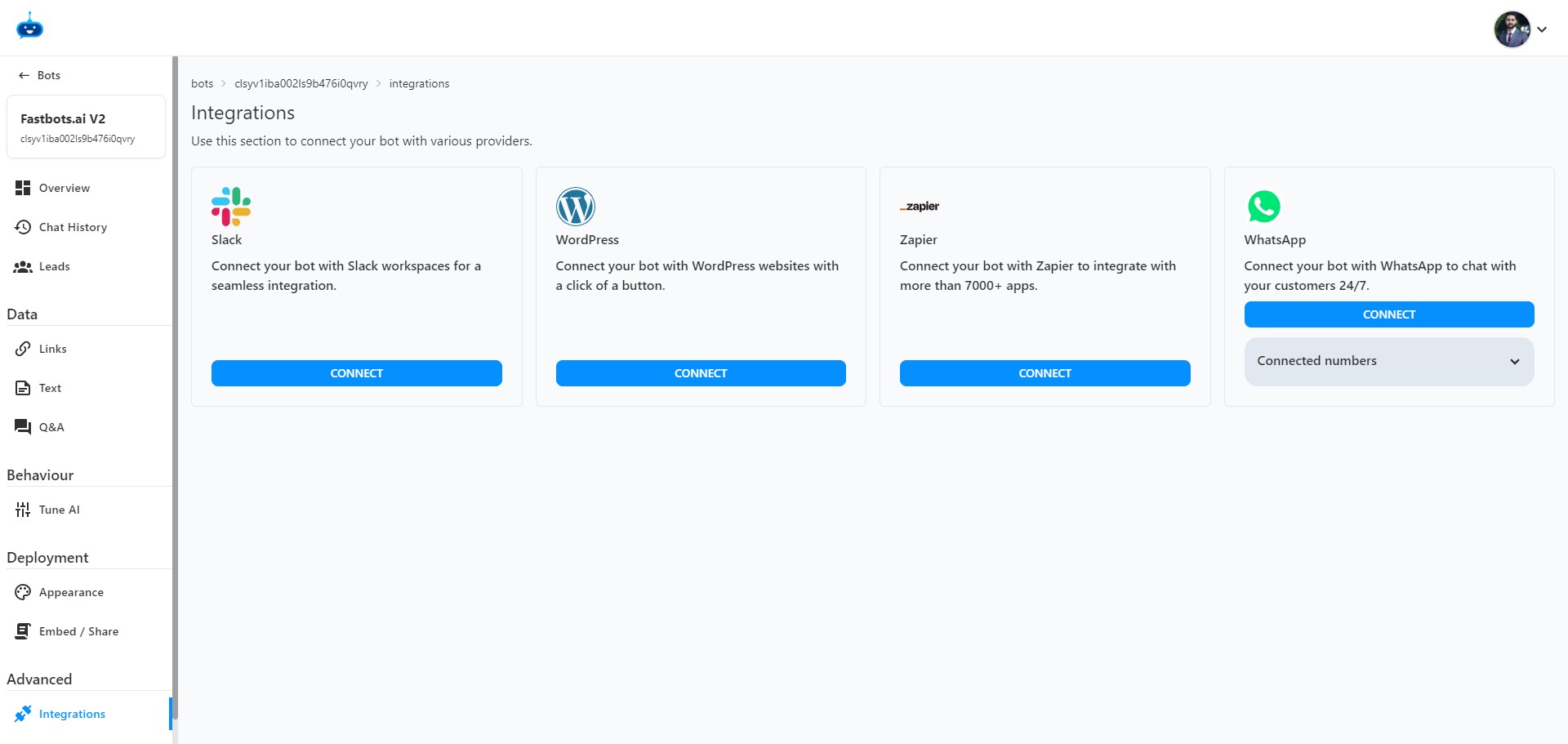
Open your chatbot.
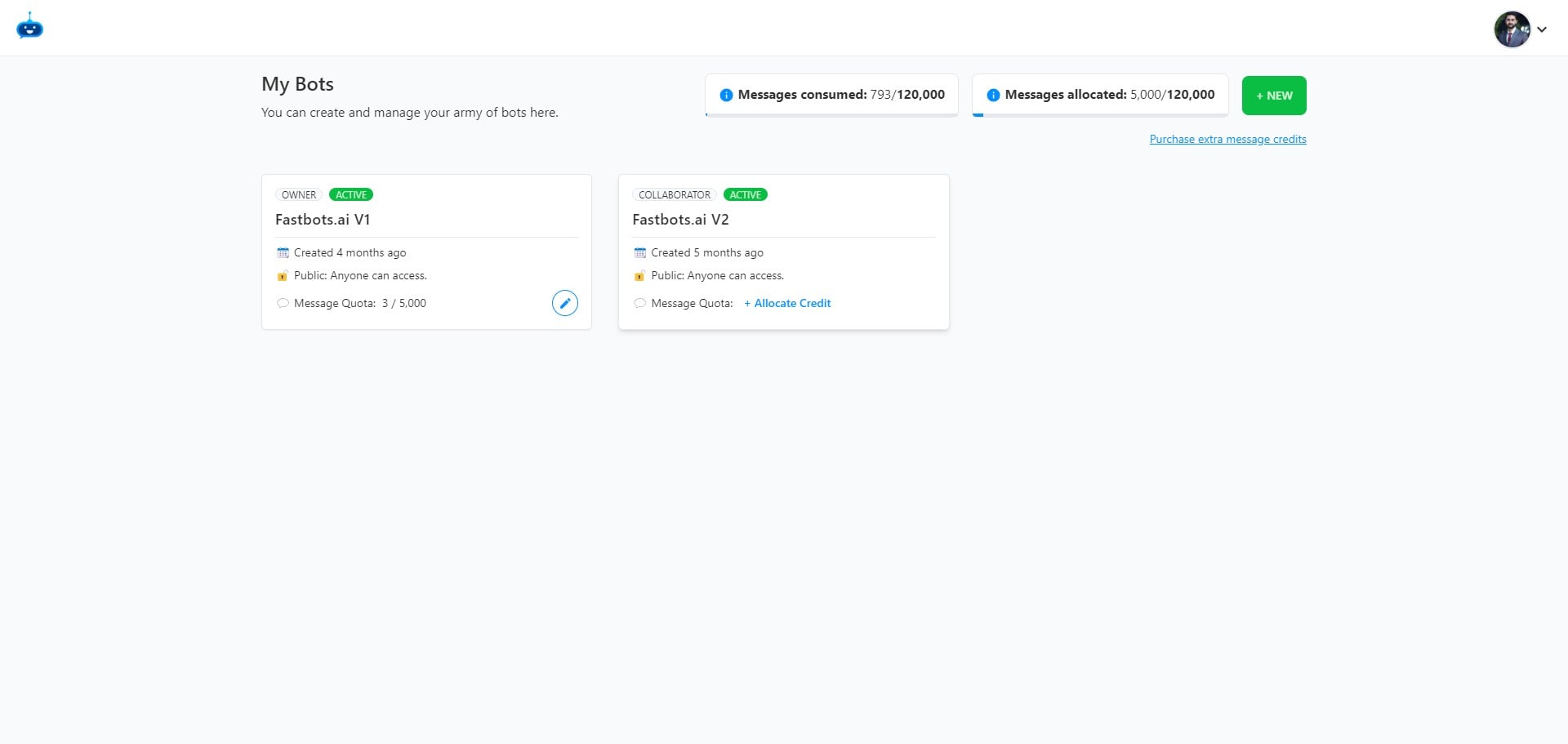

Click on "Integrations"
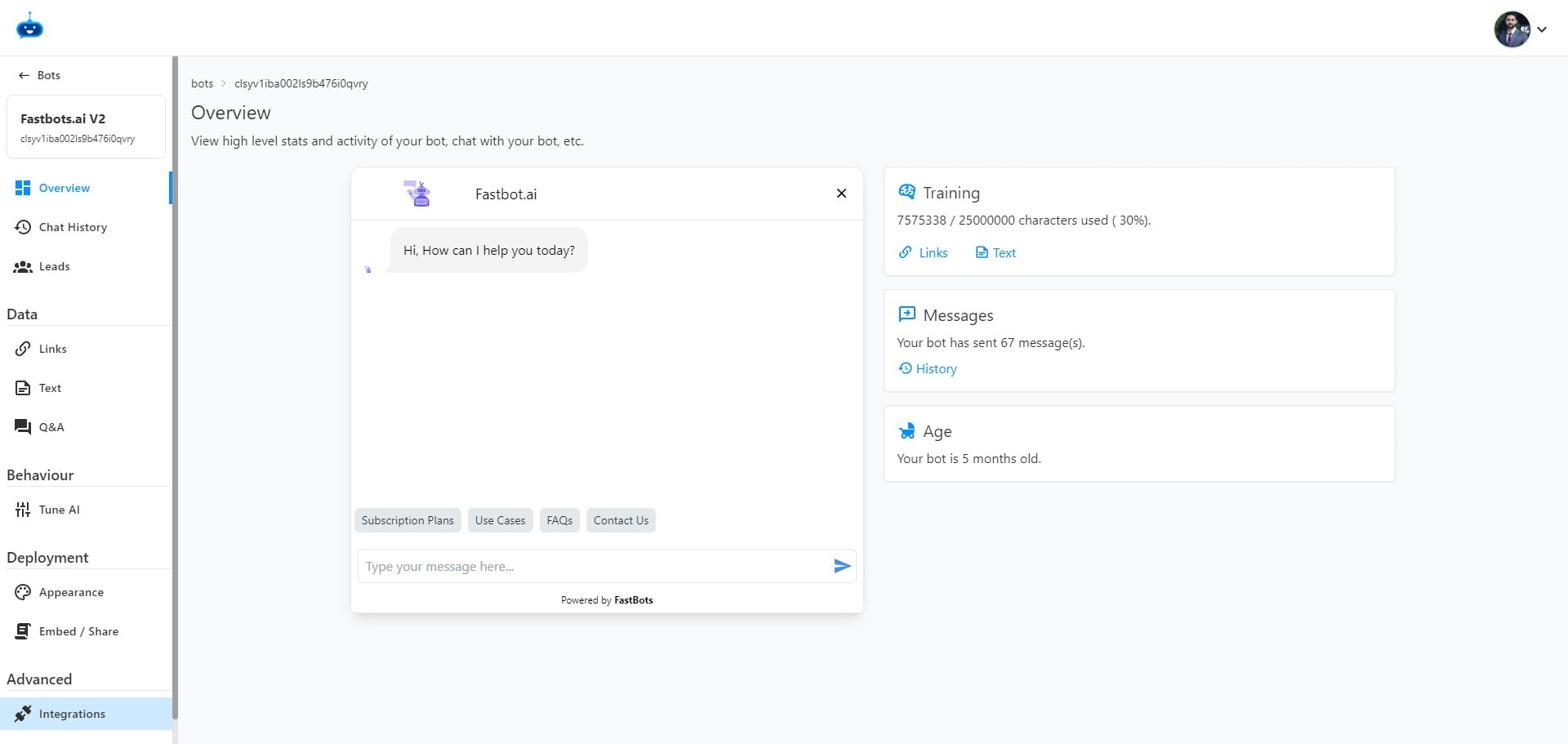
Click on the "Connect" button under the WhatsApp option.
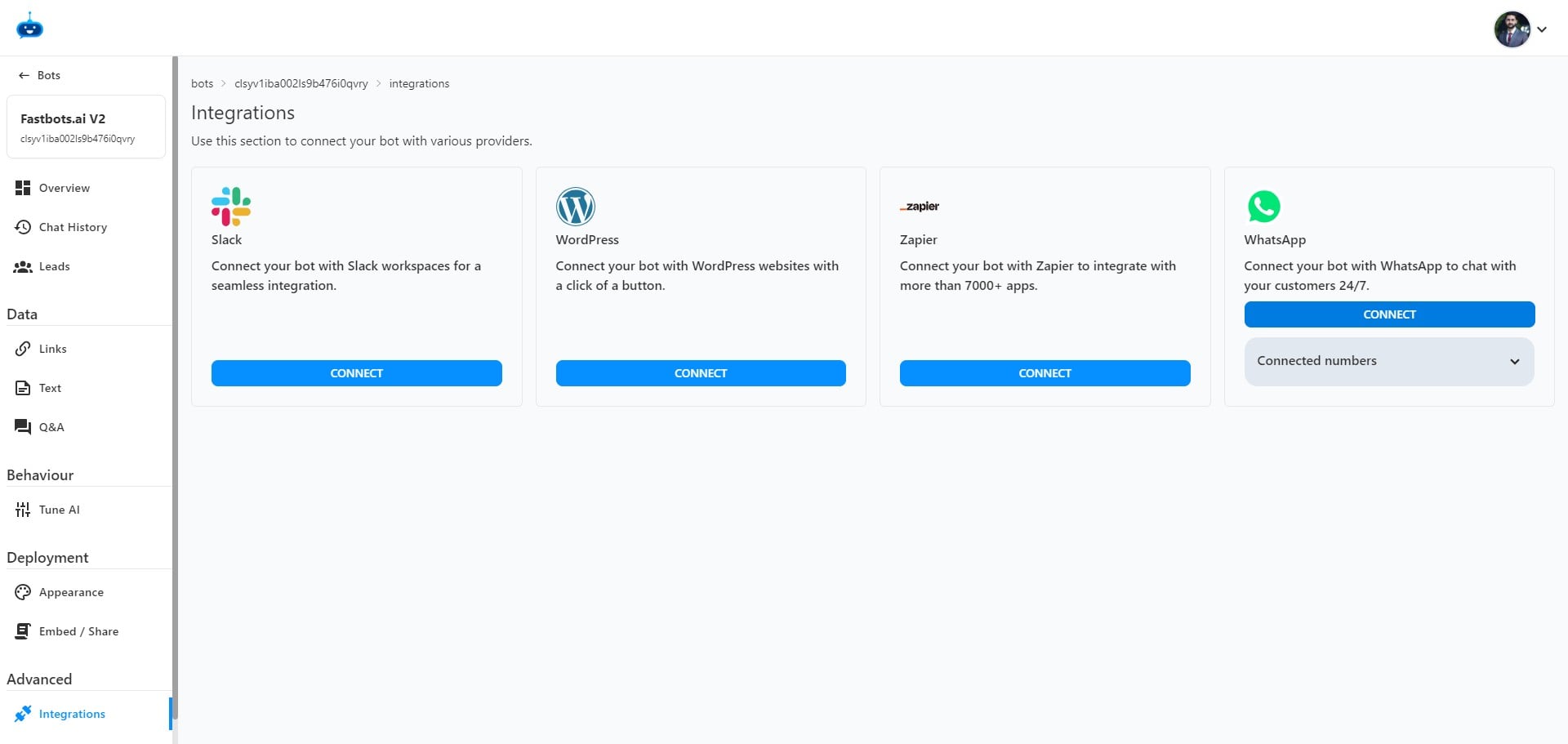
The first step is to connect your Facebook account. So add your Facebook account credentials and click on continue.
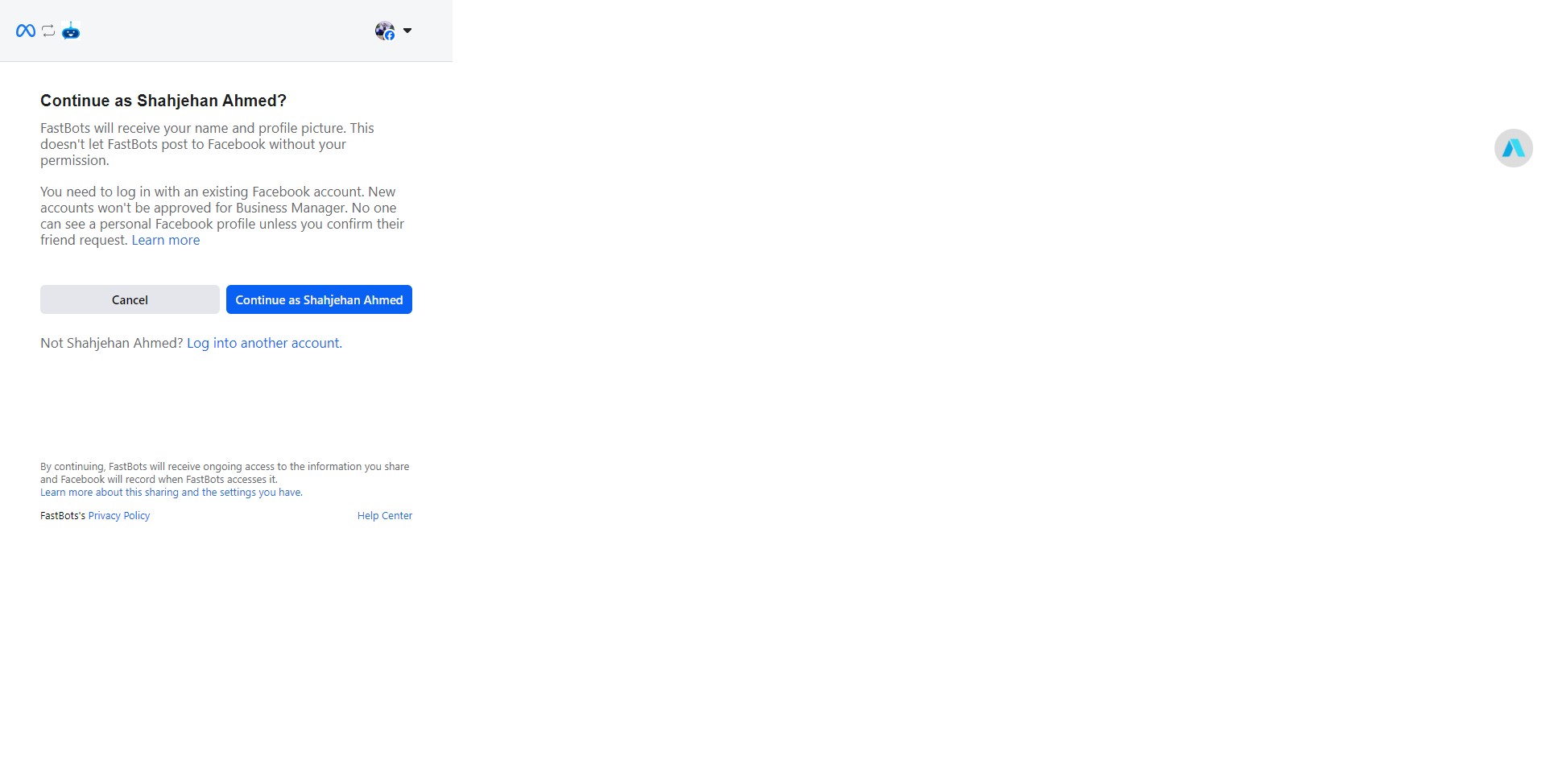
Click on "Get Started"
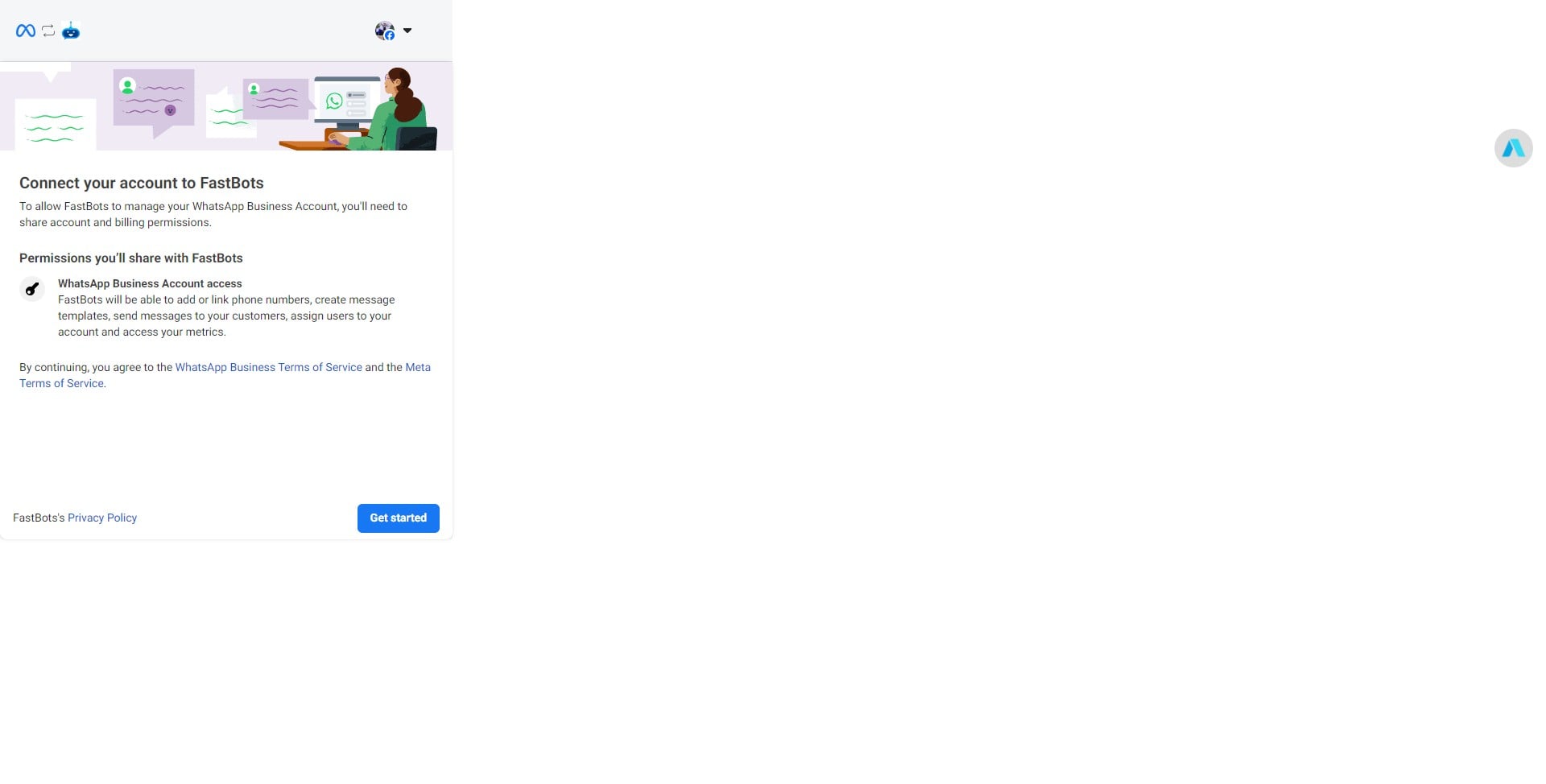
Click on the drop-down menu and select the "Create a business portfolio" option.
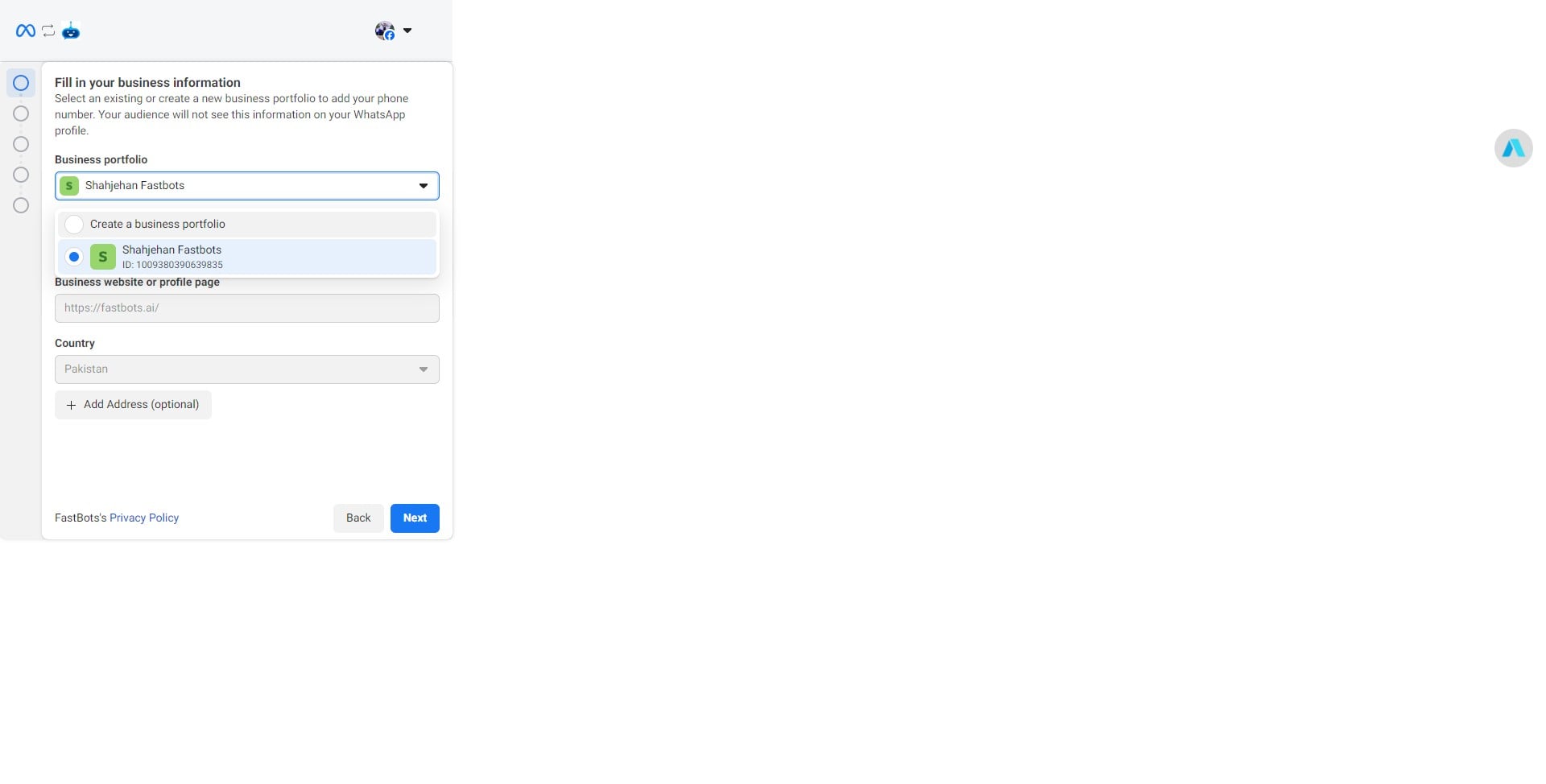
Add your business name.
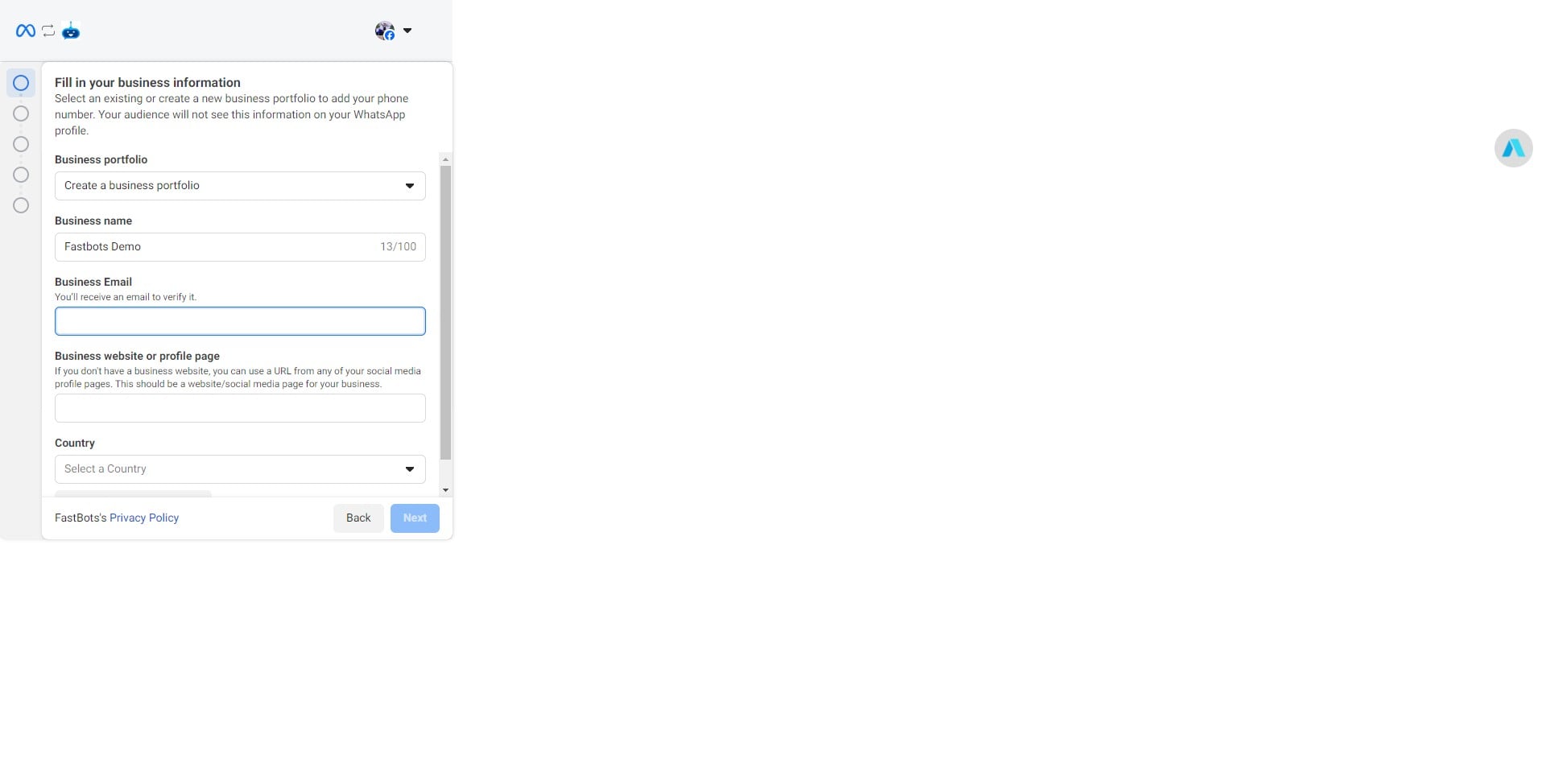
Add your Business Email, Business Website, Select your country and click on the "Next" button.
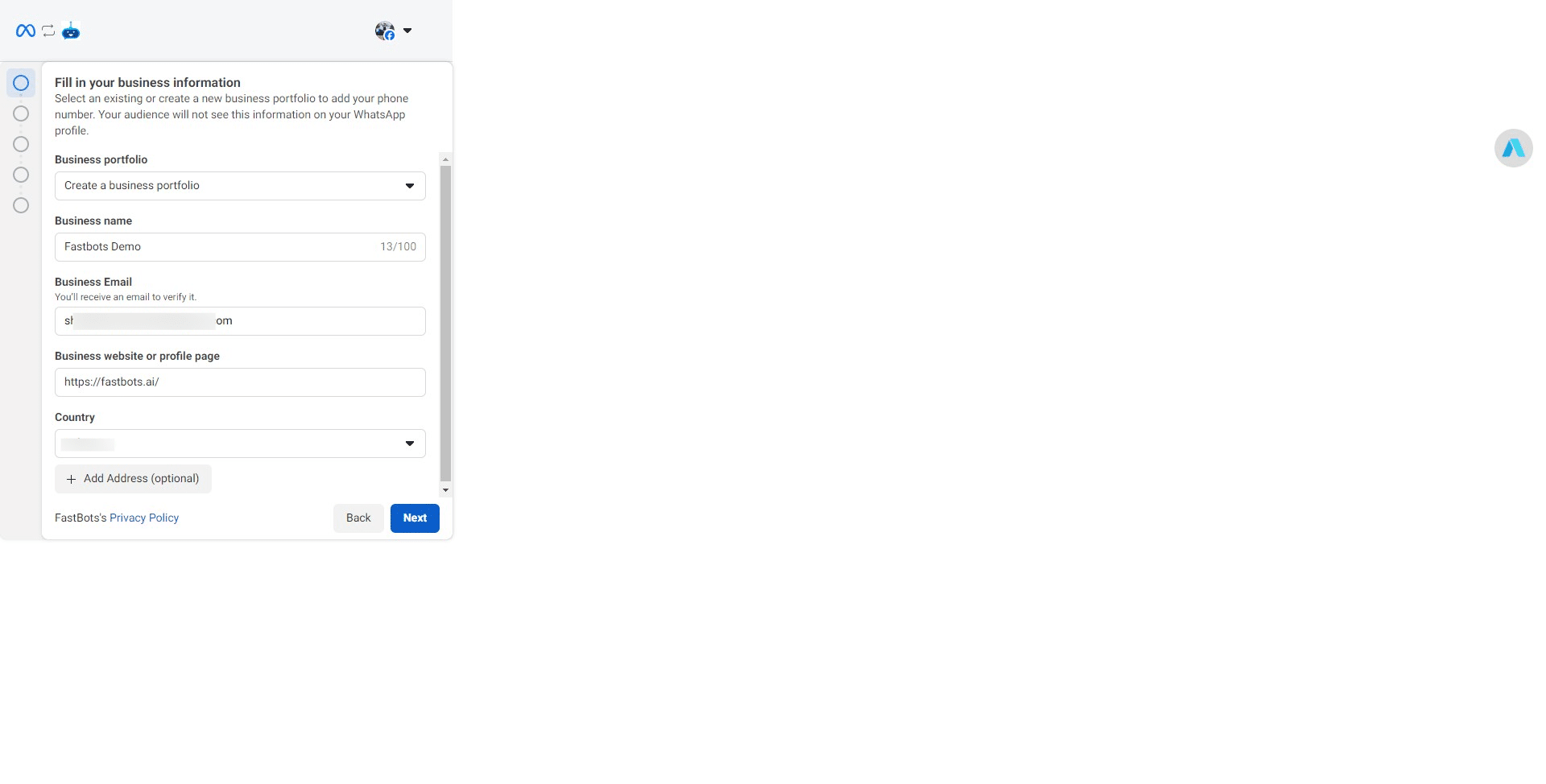
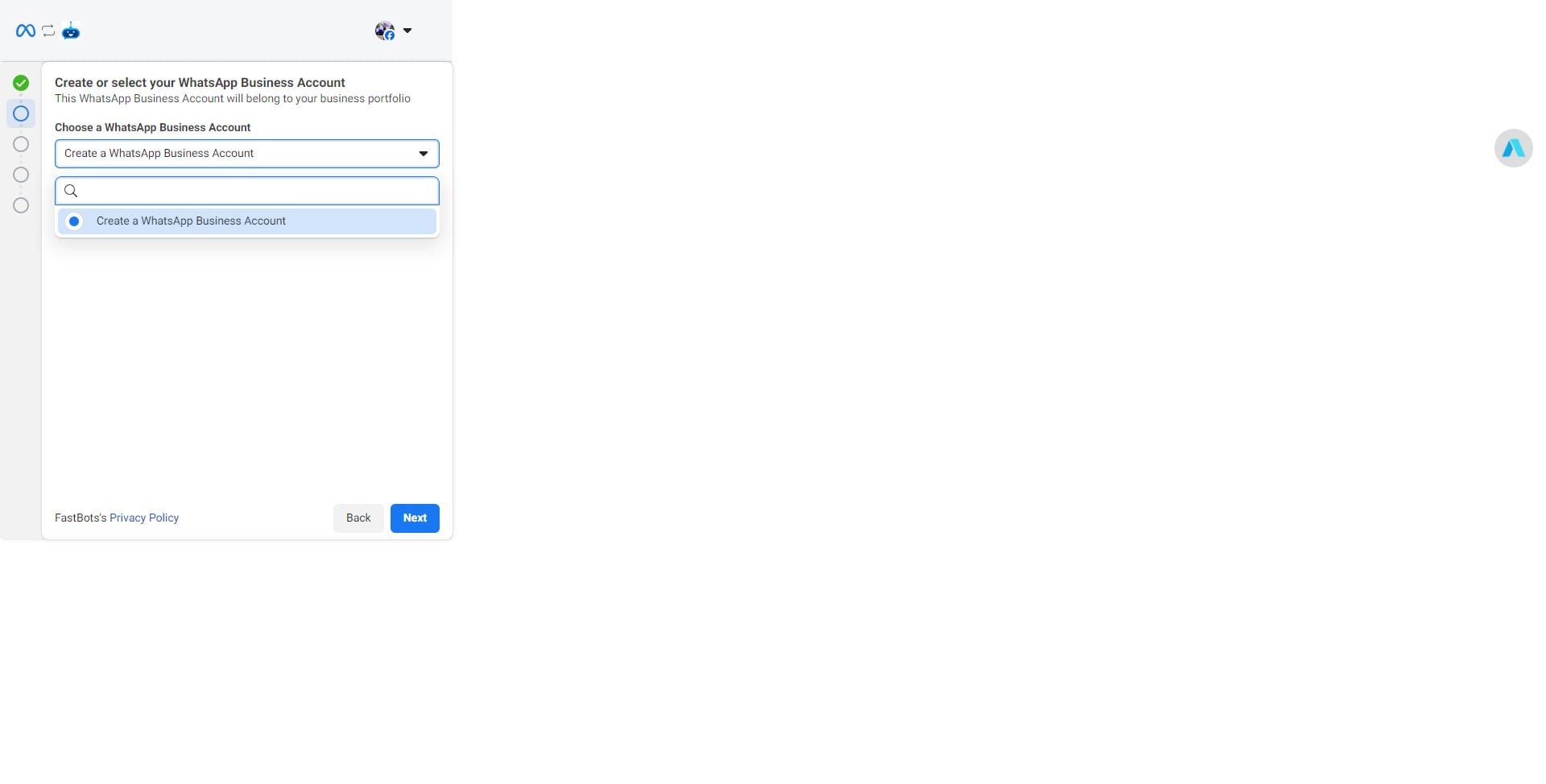
Click on "Create a WhatsApp Business Account"
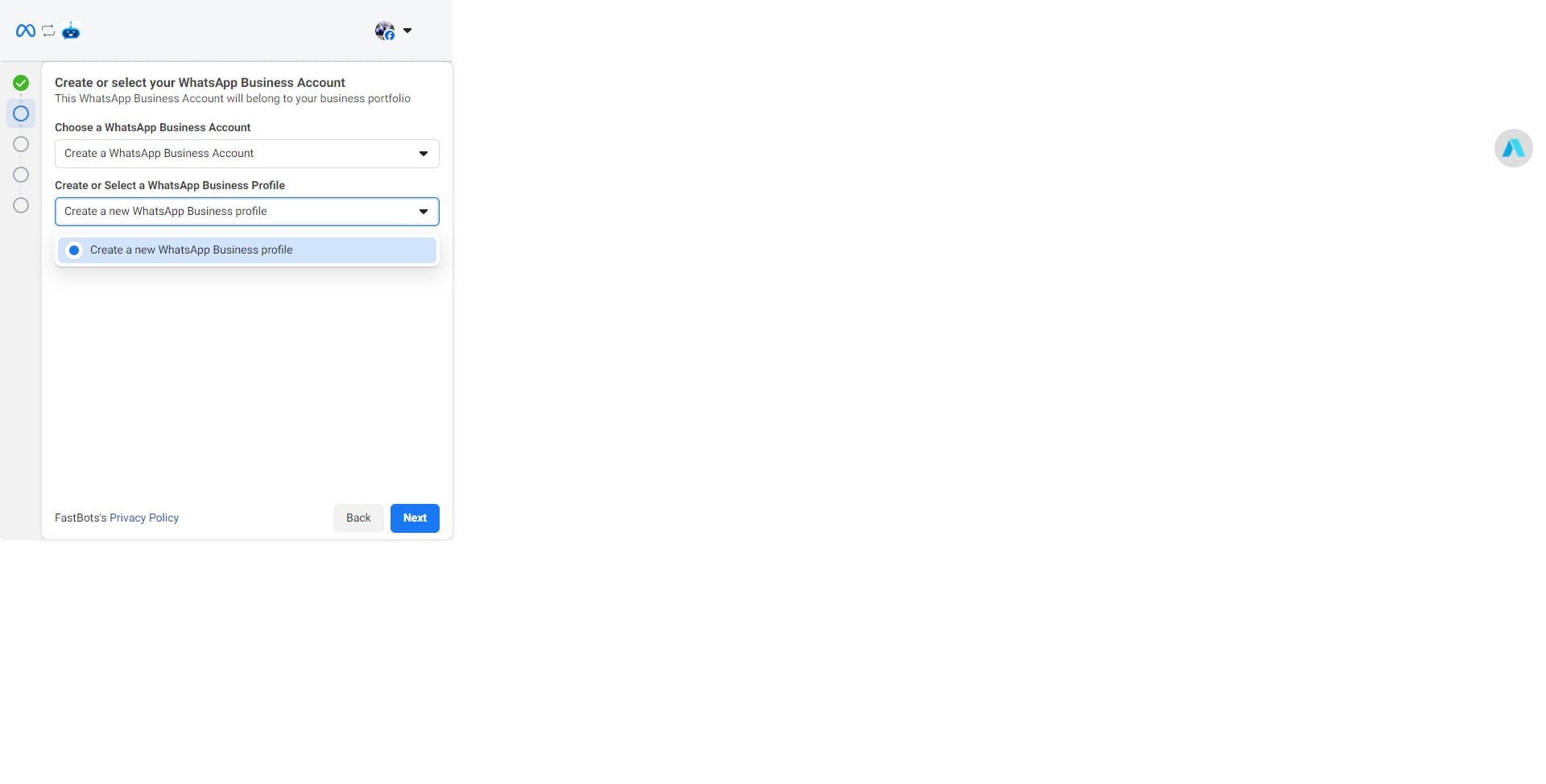
Click on "Create a new WhatsApp Business profile"
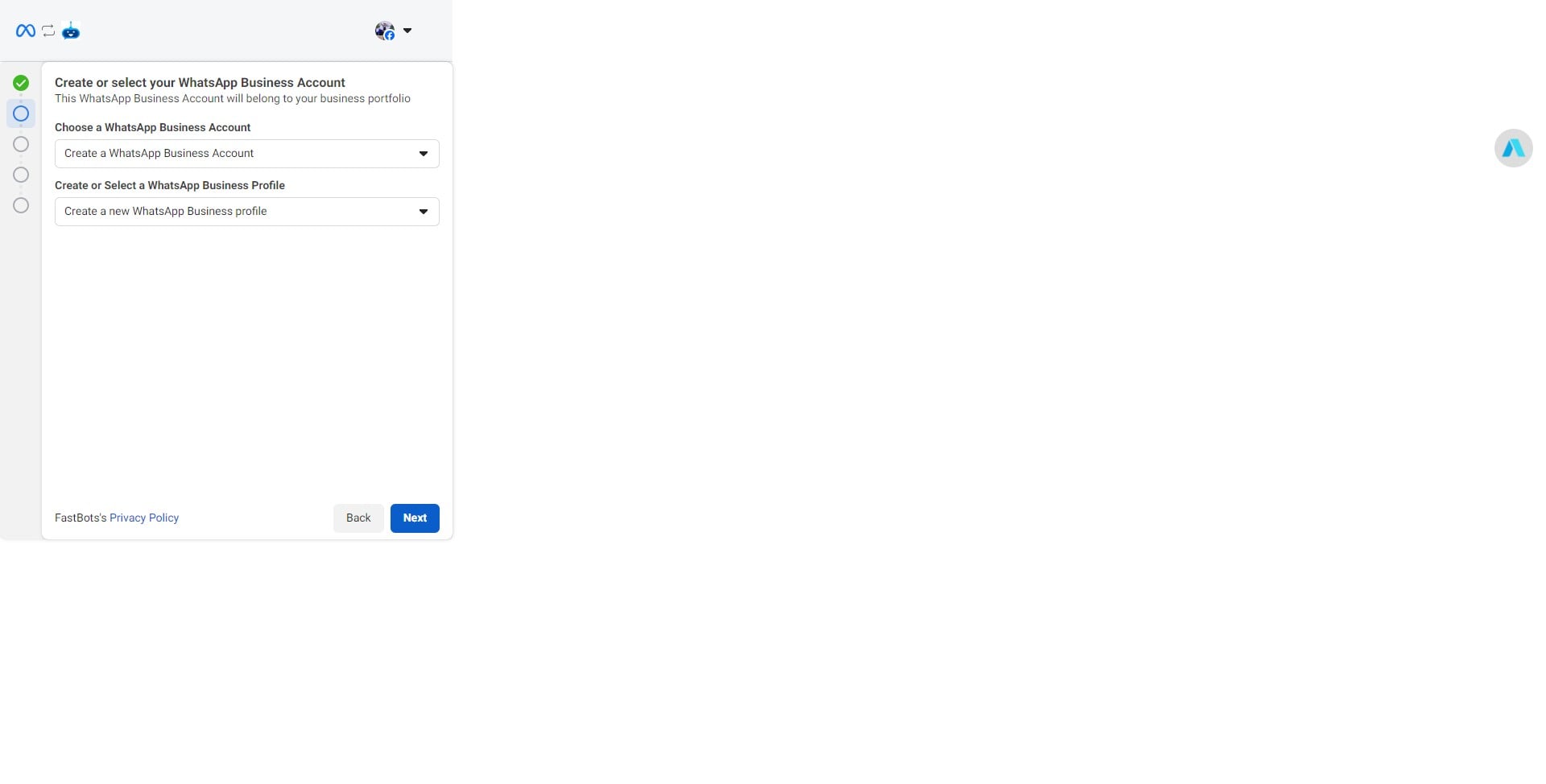
Click on "Next"
Add your WhatsApp Business Account Name.
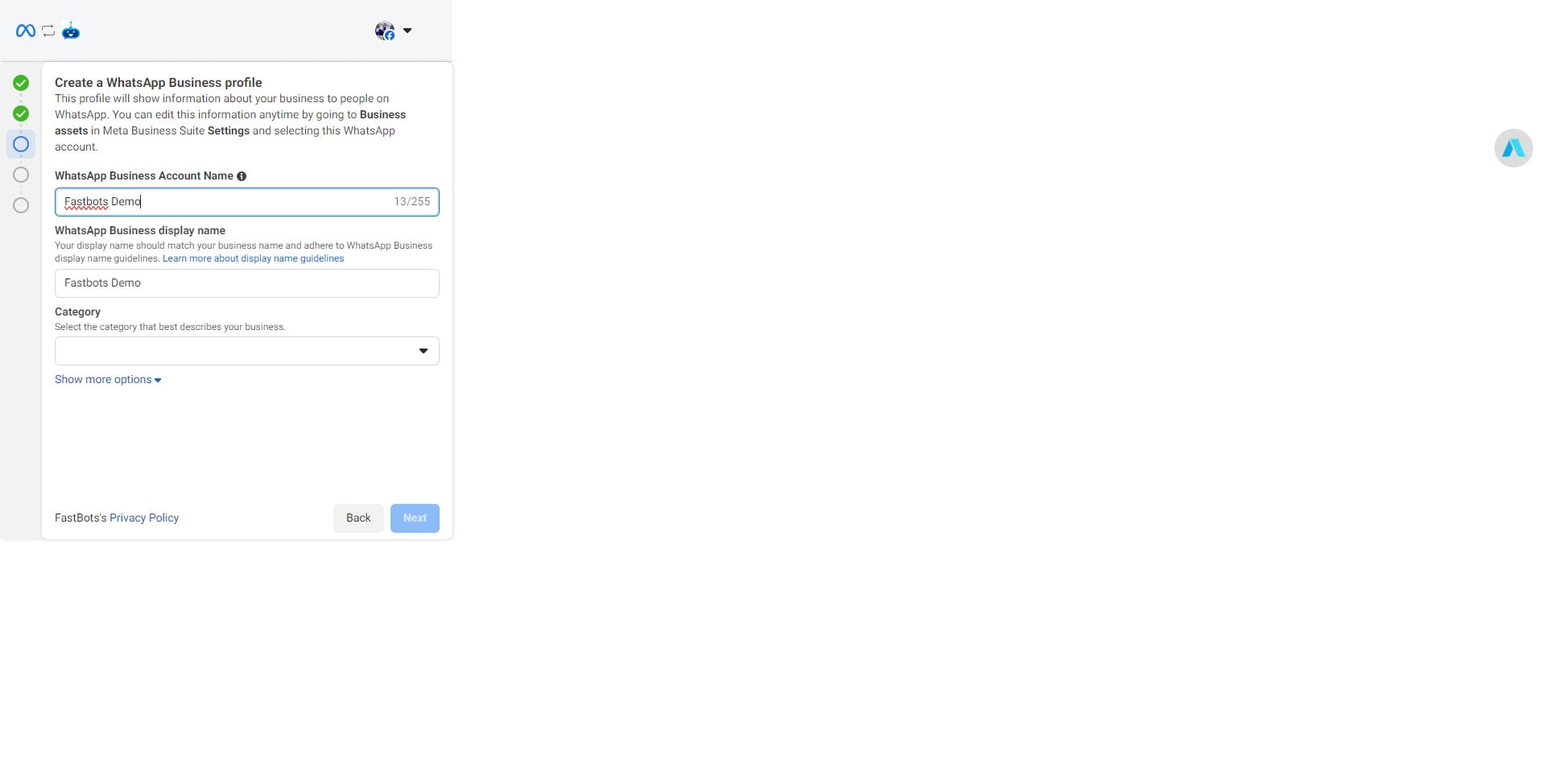
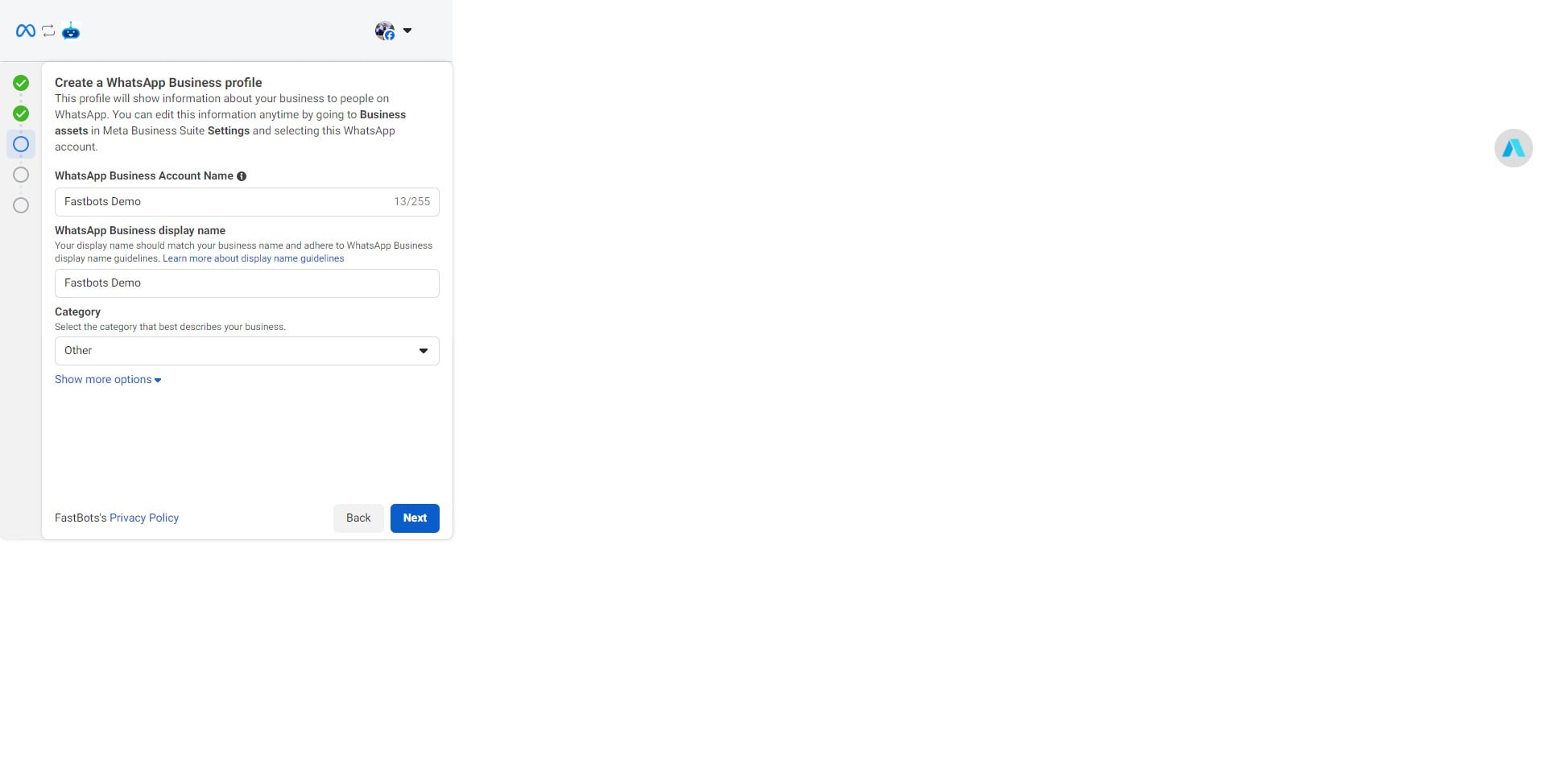
Select a category of your choice.
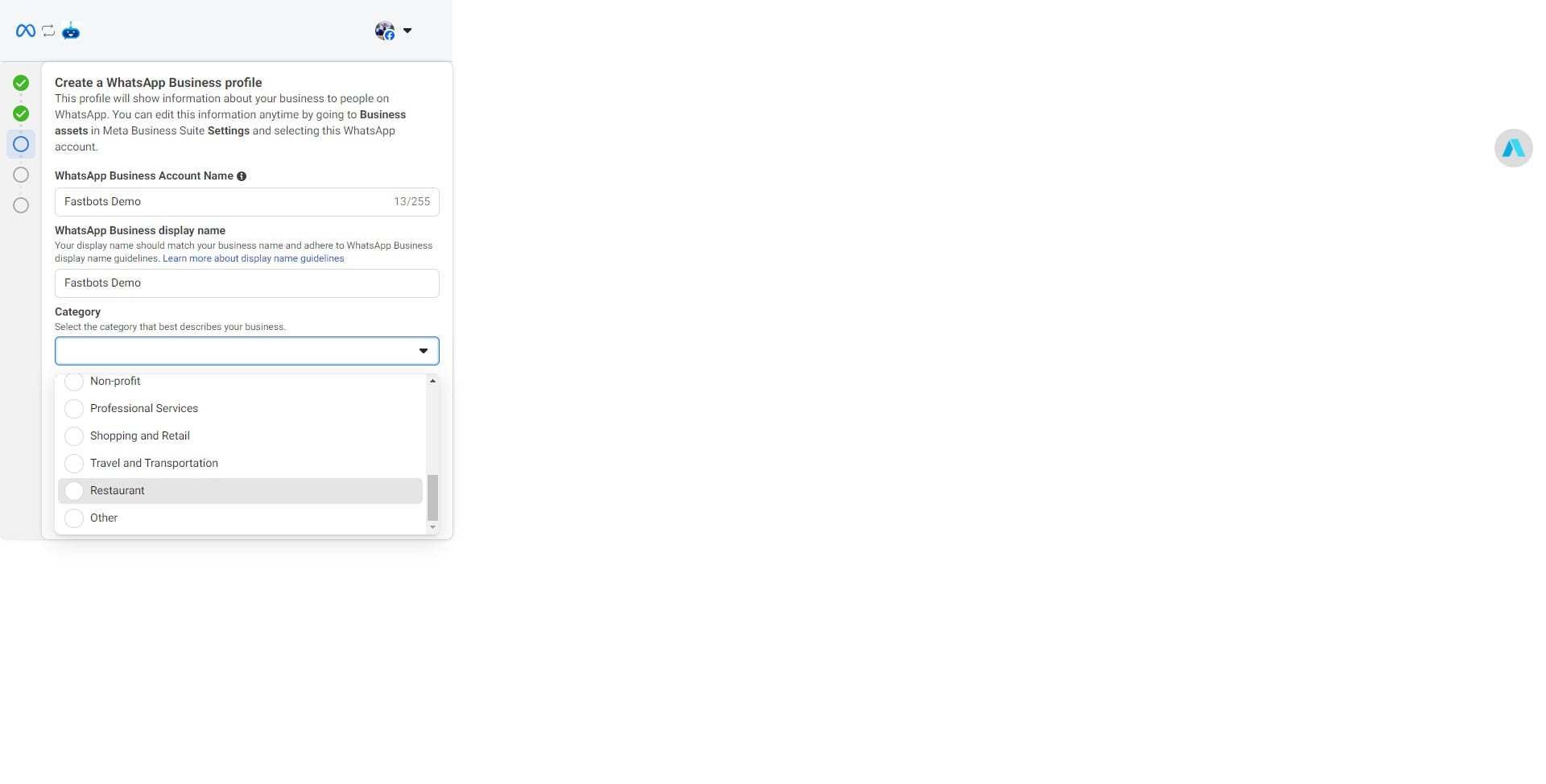
Click on "Next"
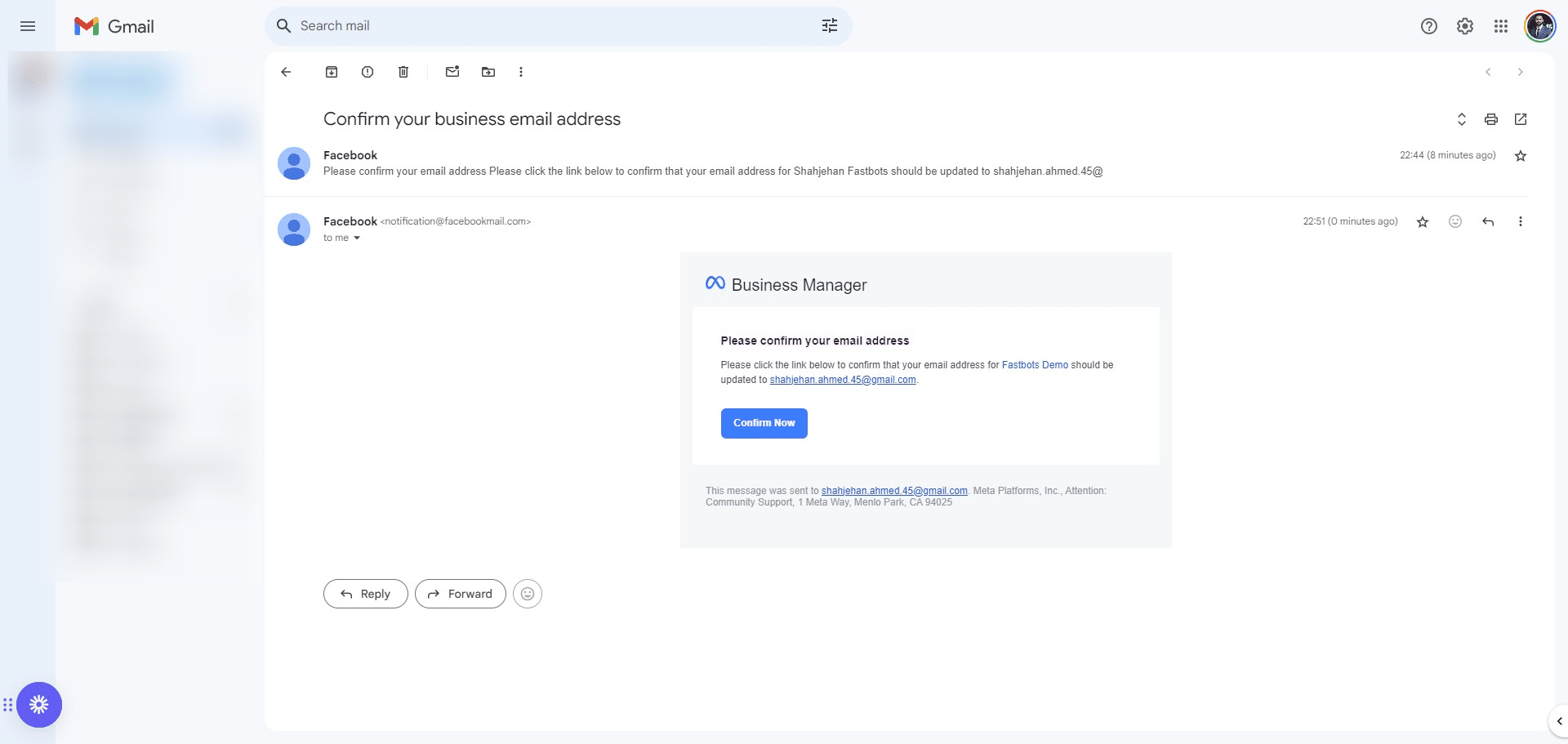
Check your email address for the confirmation email from Meta and click on "Confirm Now" button to complete the verification.
Enter your phone number, select the verification code and click on "Next"
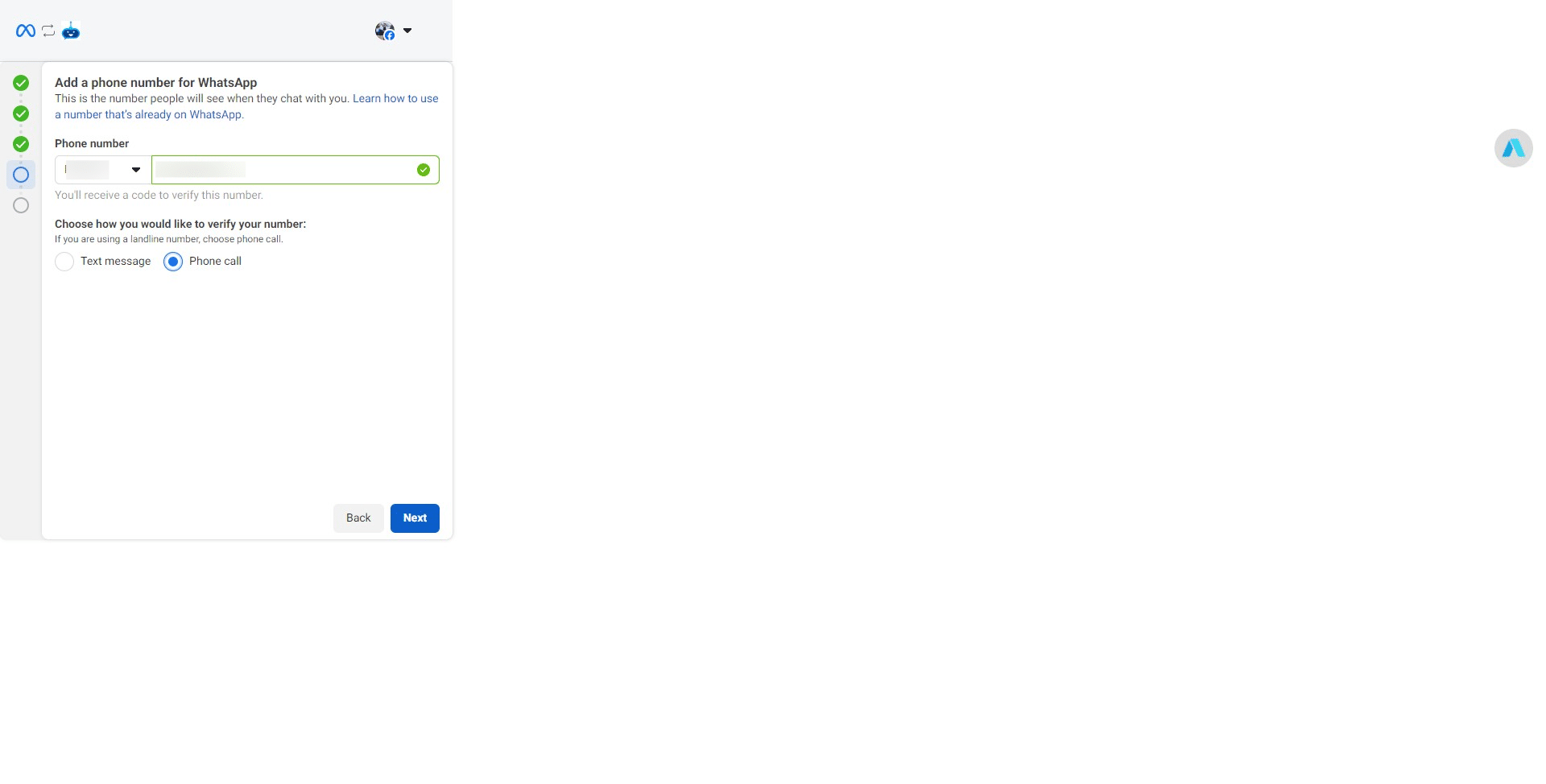
After entering the verification code, click on "Continue"
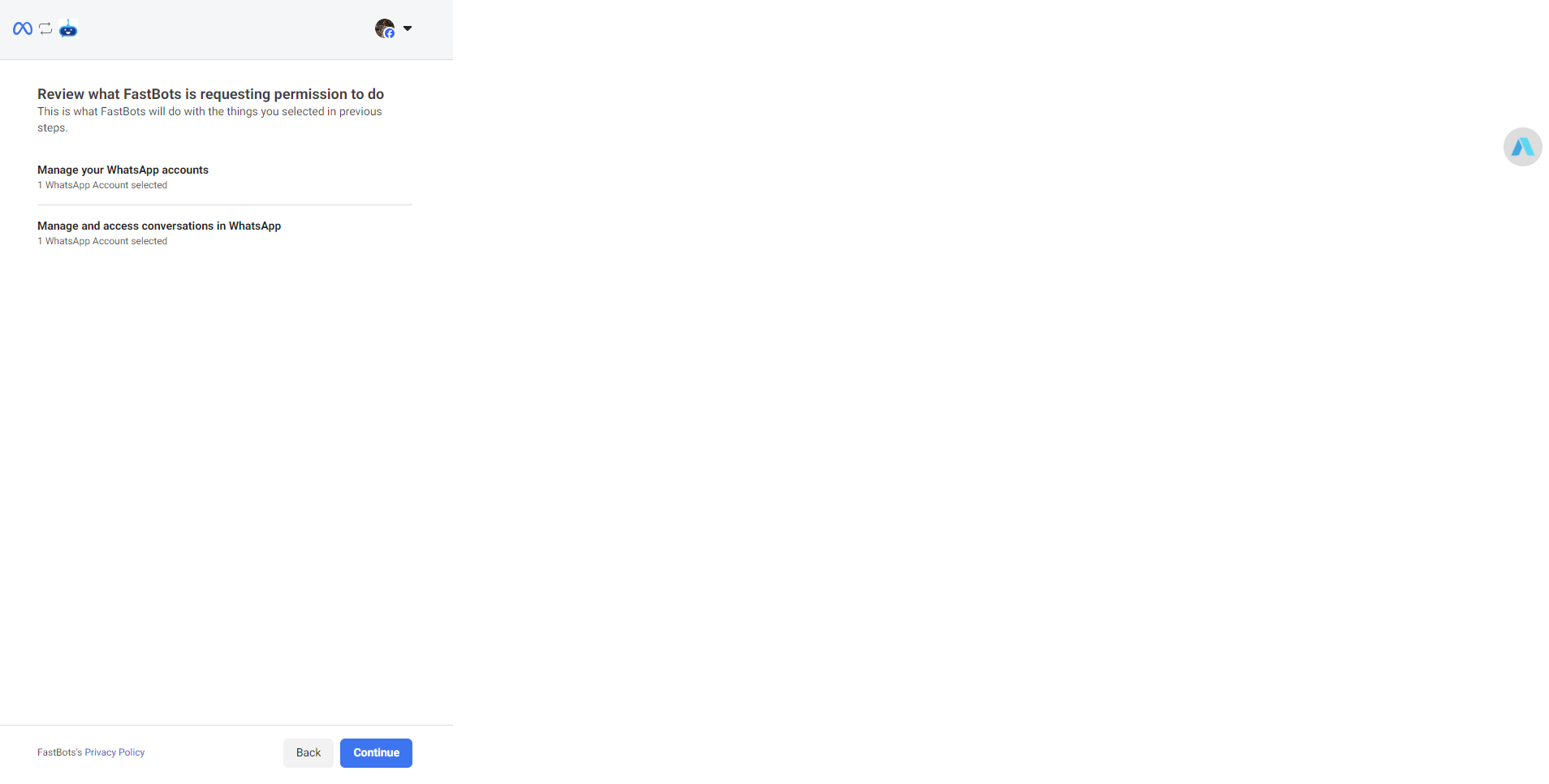
Wait for the verification to complete.
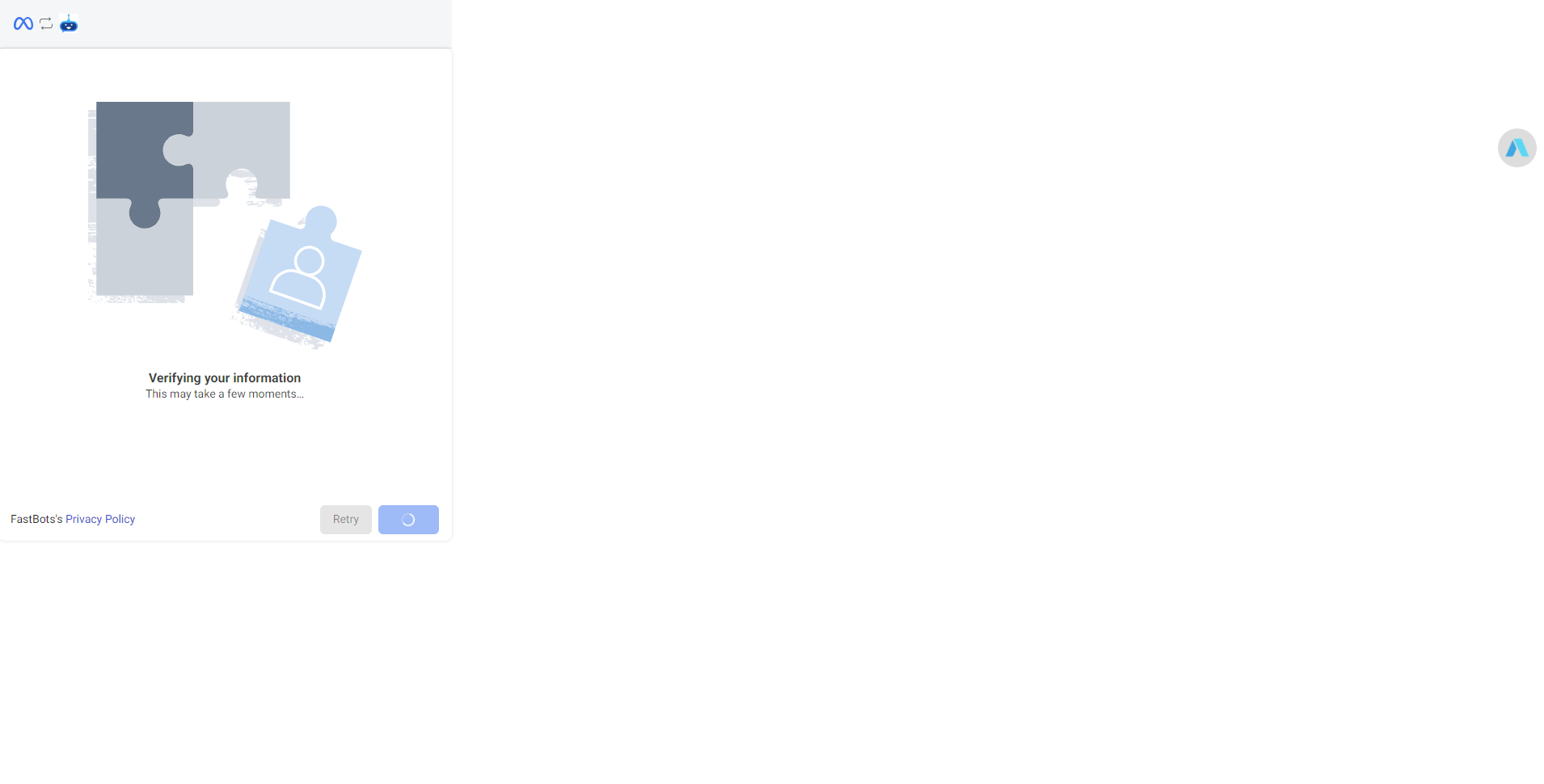
Click on "Finish"
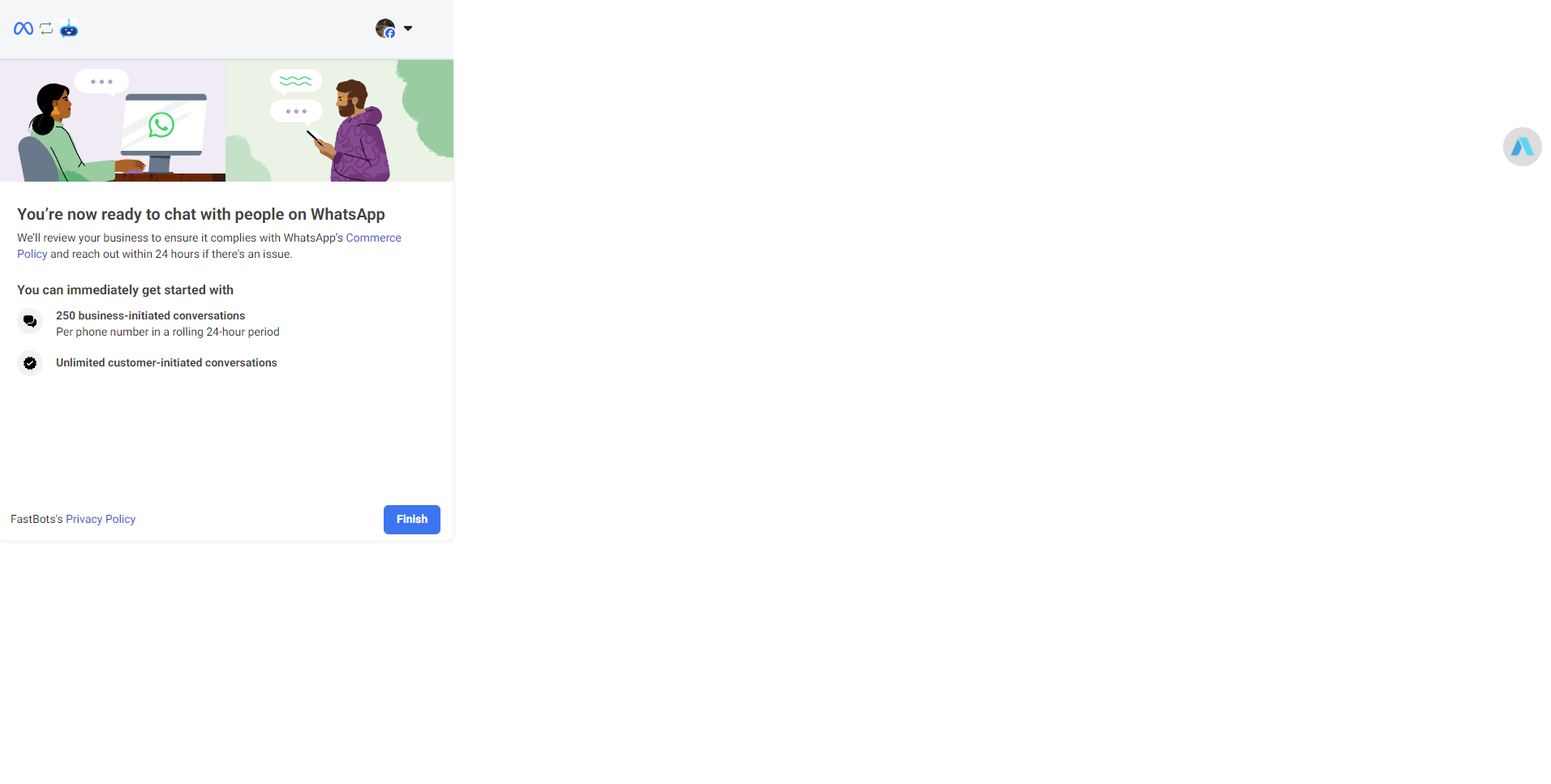
After clicking on Finish, the integration will be completed. You can check the connected WhatsApp number on the Integration page.
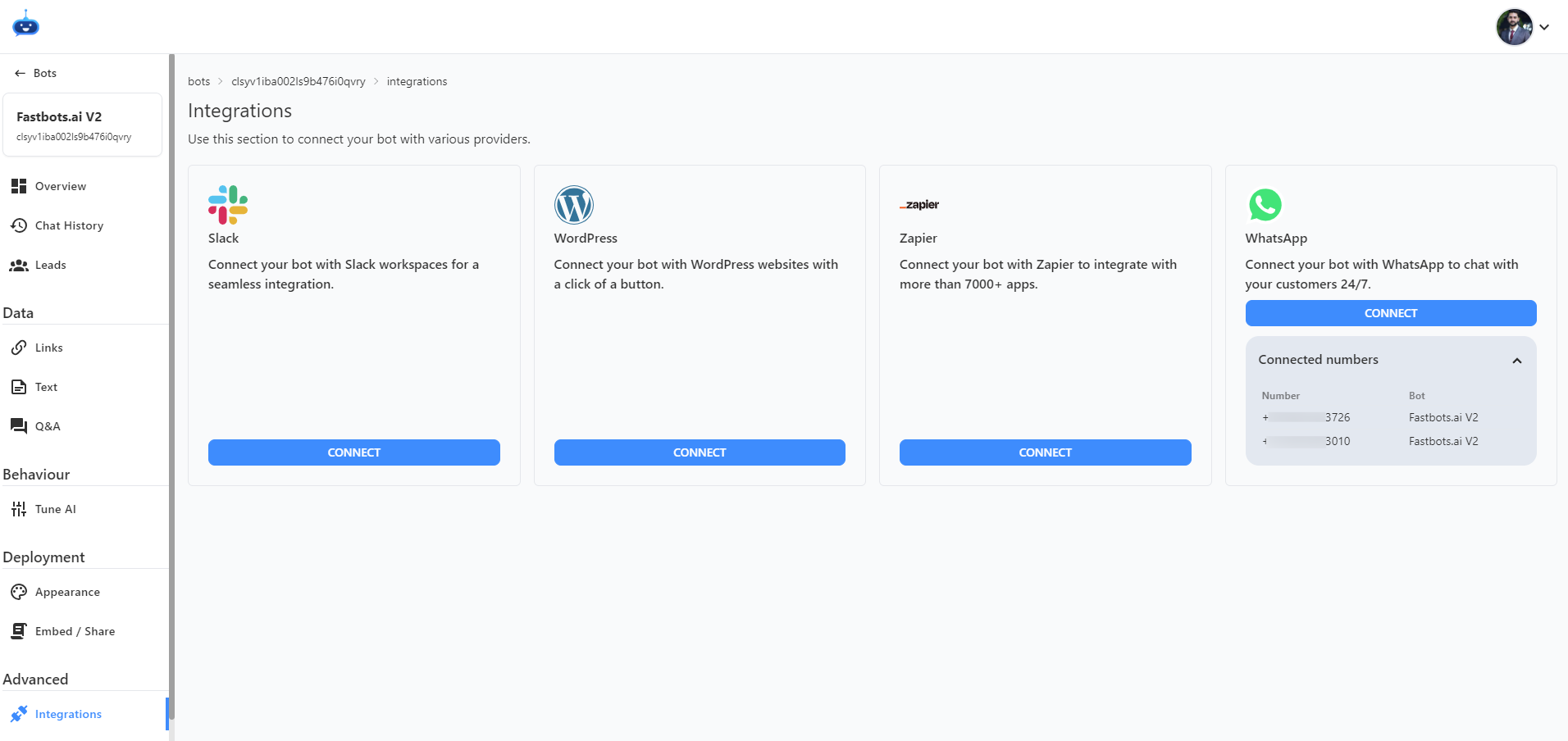
Once the phone number is connected, we can generate the link and give it to users. The link format is https://wa.me/YOUR_NUMBER_WITH_INTERNATIONAL_CODE_WITHOUT_PLUS
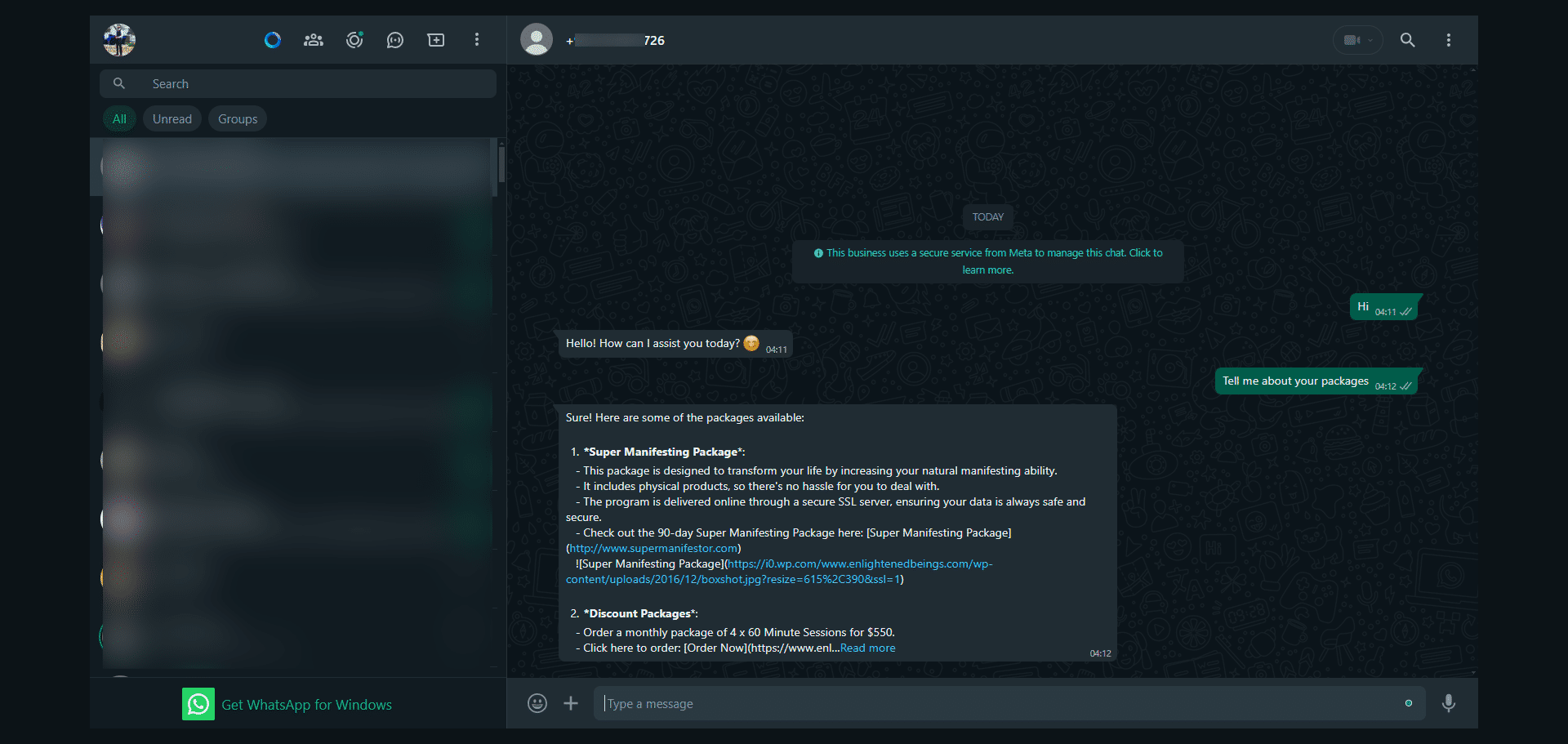
User can simply click on your generated link and have a conversation with the chatbot using their WhatsApp.
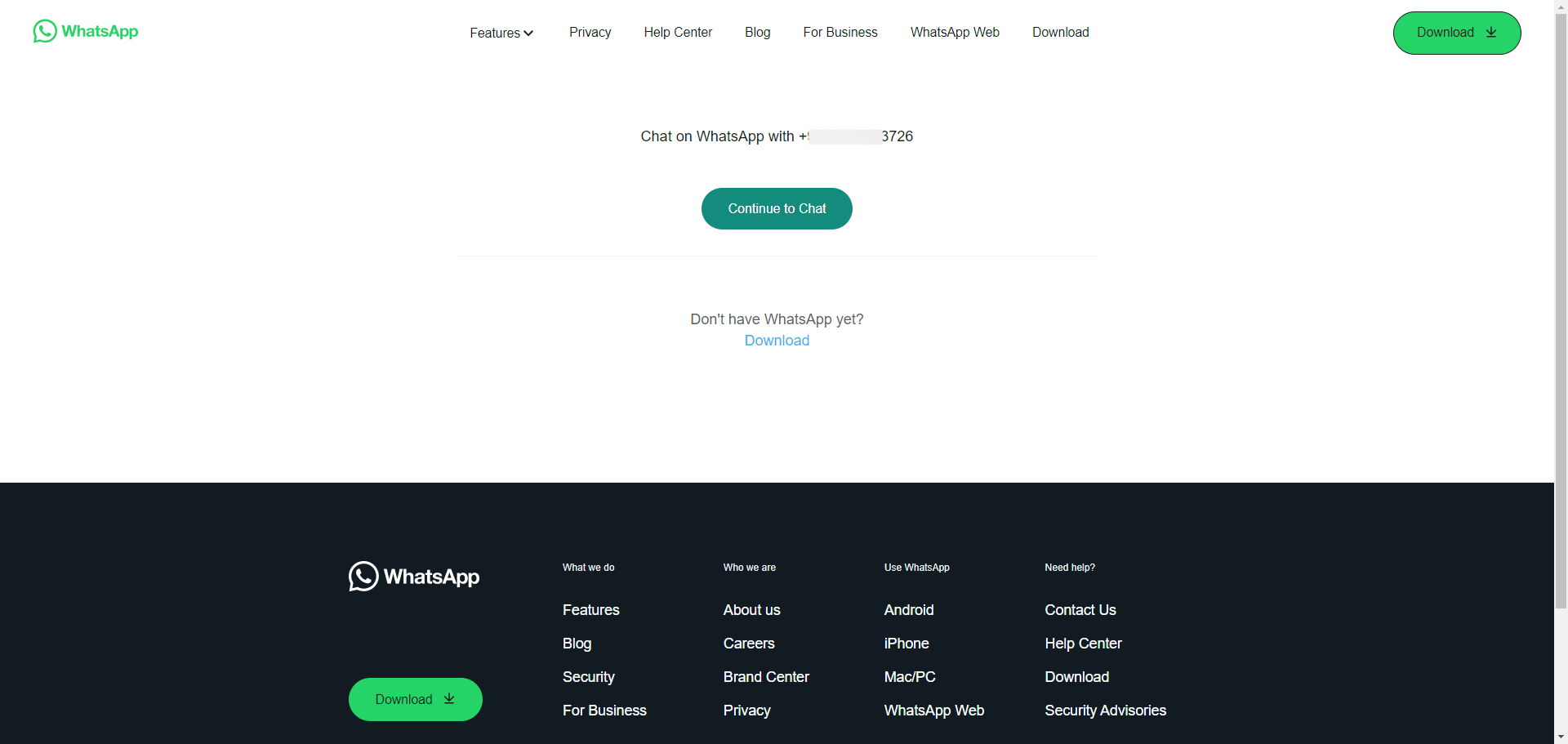
User can chat in their WhatsApp application using the above link and ask questions from the chatbot.
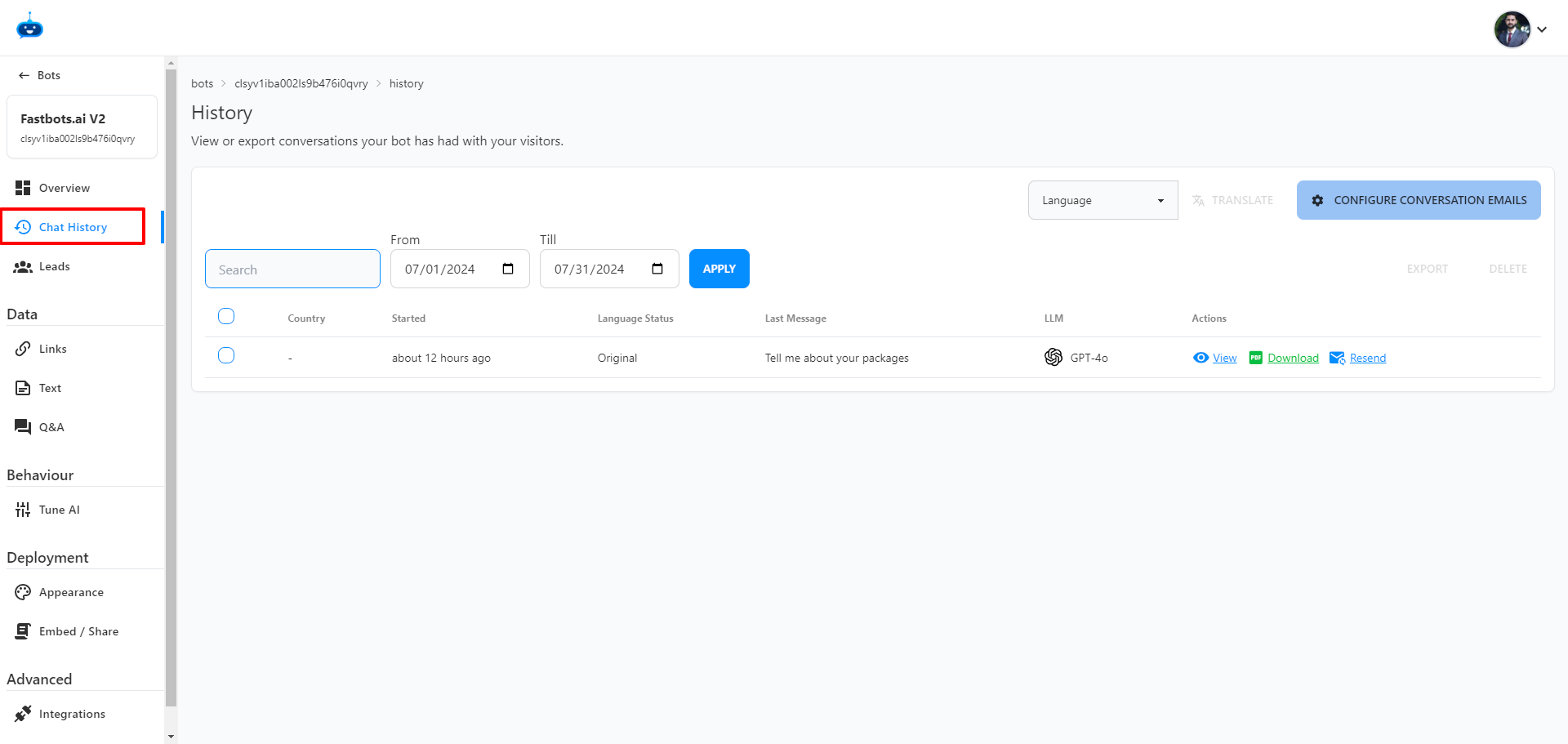
You can check all the conversations in your chatbot on the "Chat History" page.
Done 🚀