Domain Whitelisting: Control Where Your Chatbot Can Be Embedded
This guide will explain how to use the domain whitelisting feature. By utilizing this feature, you'll have the ability to control and specify the exact websites where your chatbot can be embedded, ensuring greater security and targeted deployment.
Navigate to https://app.fastbots.ai/
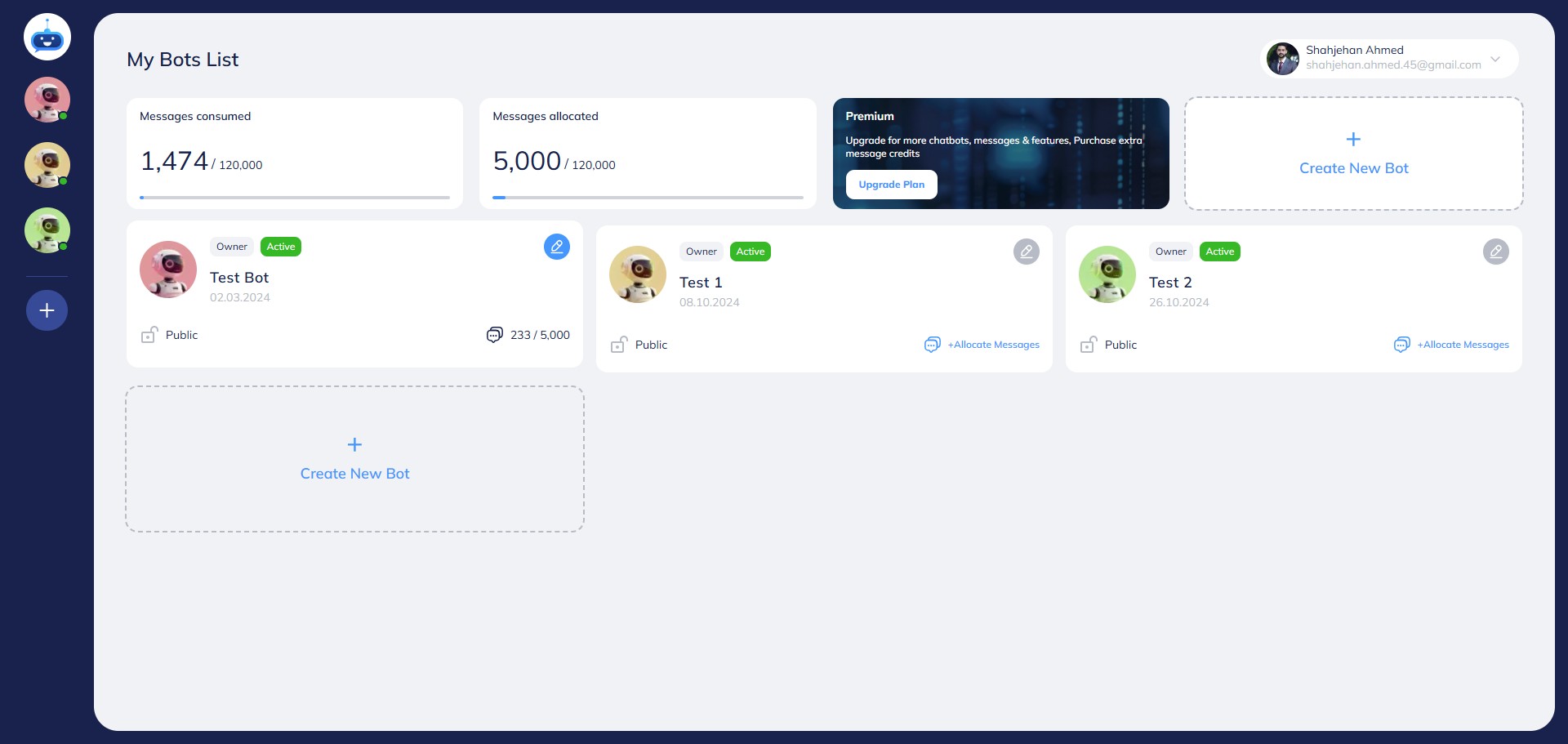
Click on the chatbot to open it.

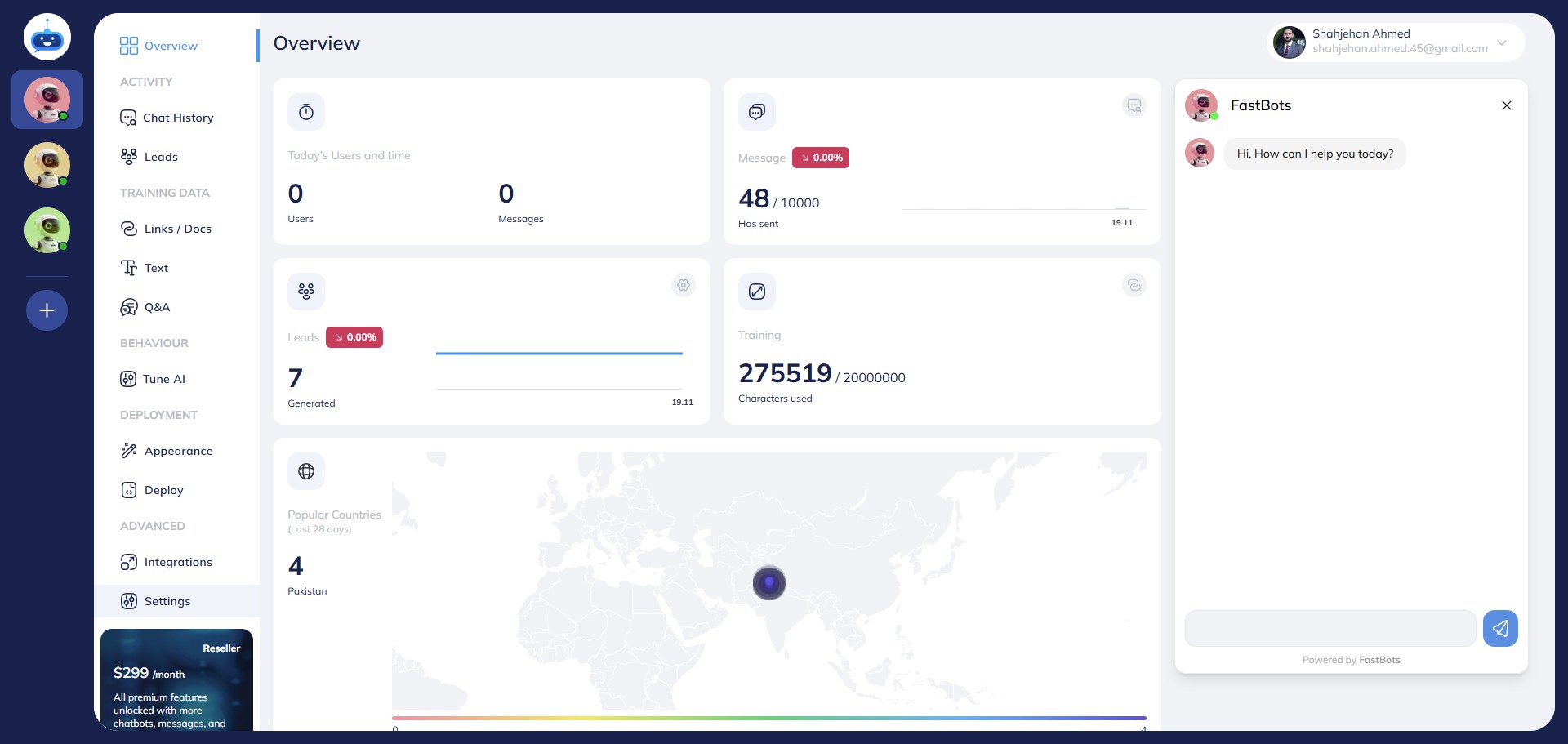
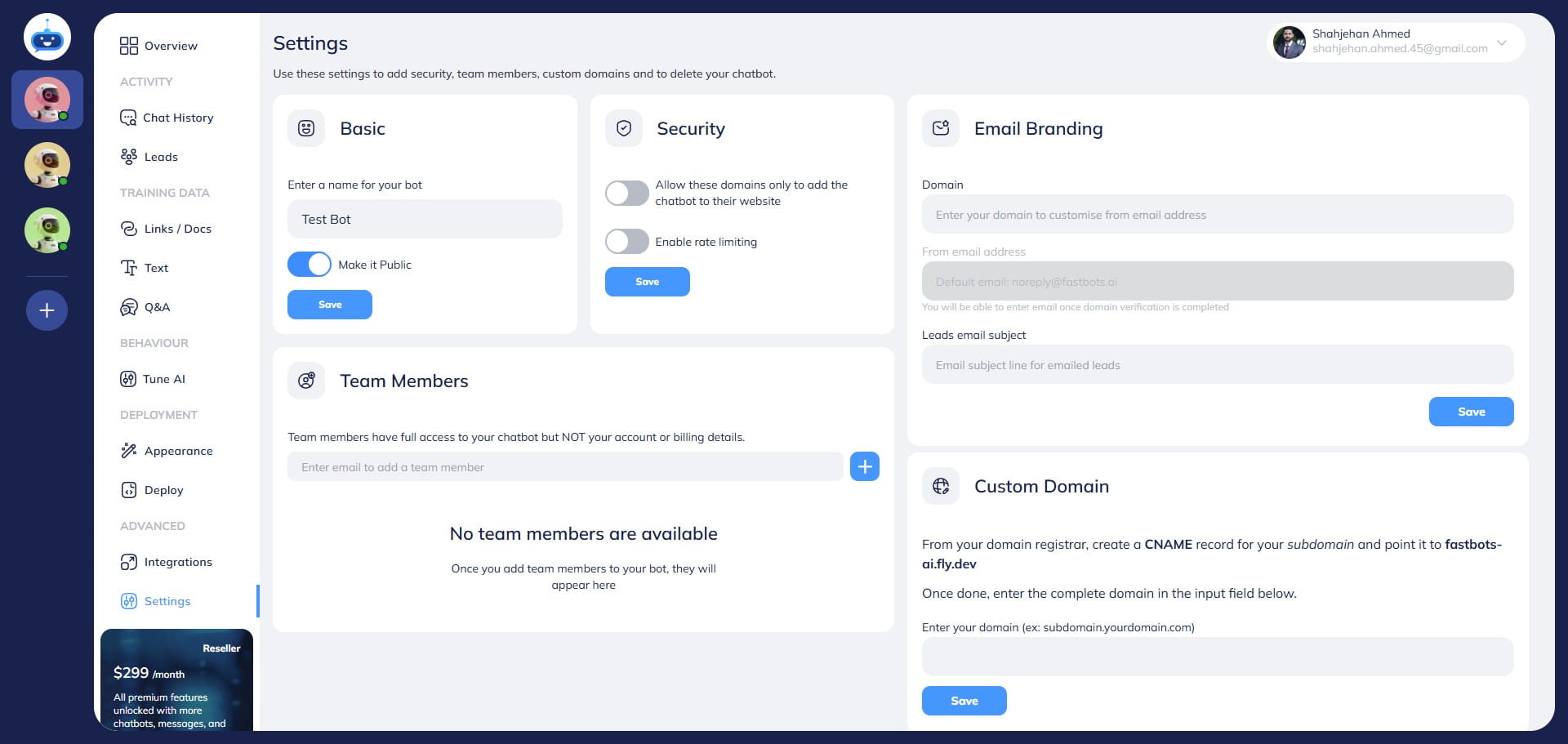
Click on "Settings" to open this page.
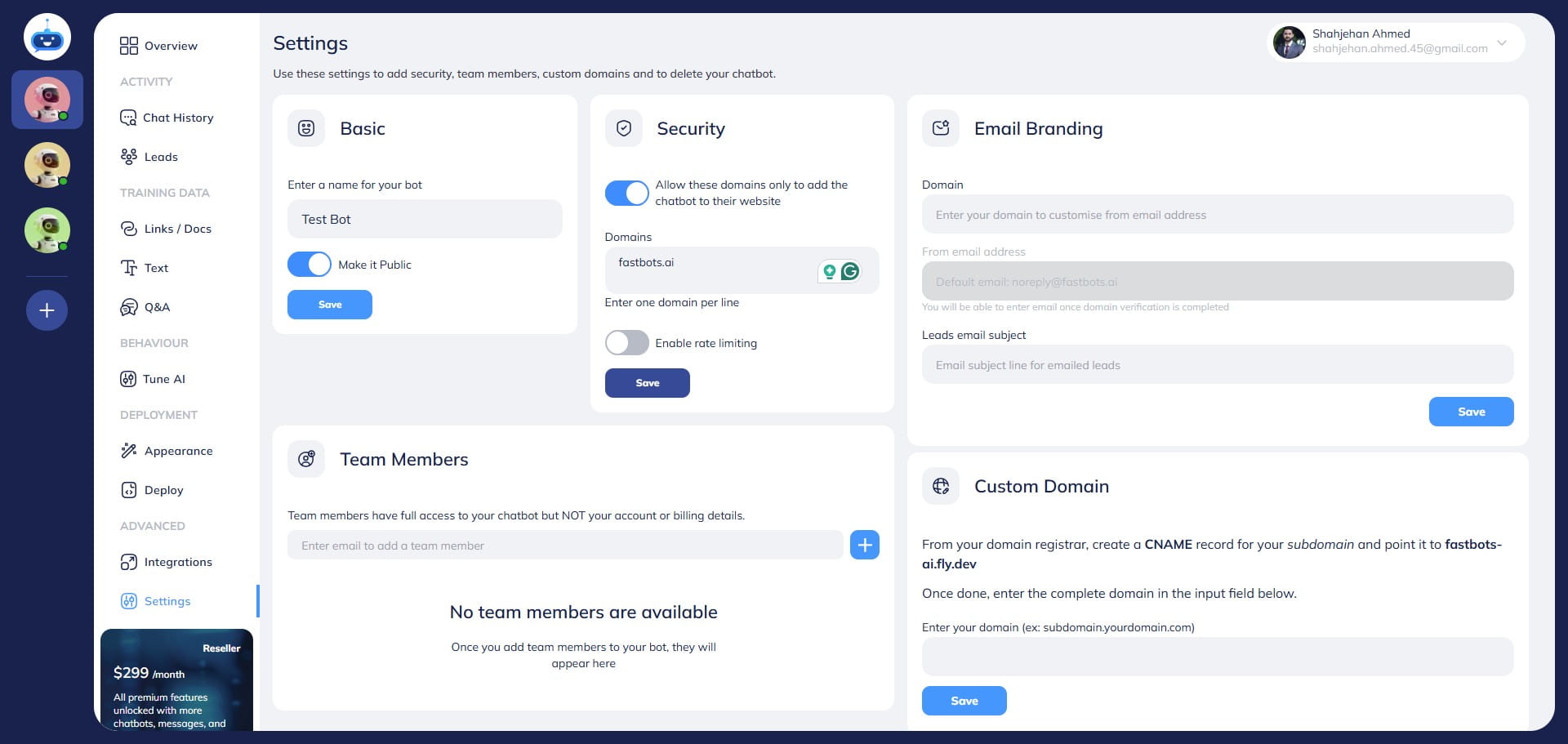
You can use this security feature to list out the websites on which your chatbot can be embedded. You can enter the domain name here and the chatbot can only be embedded in the domains listed in the "Enable Domain White Listing" security feature.
Click on the "Toggle" button and turn it on.
Specify the website(s) where you'd like to authorize the chatbot to be able to embed by entering the website domain.
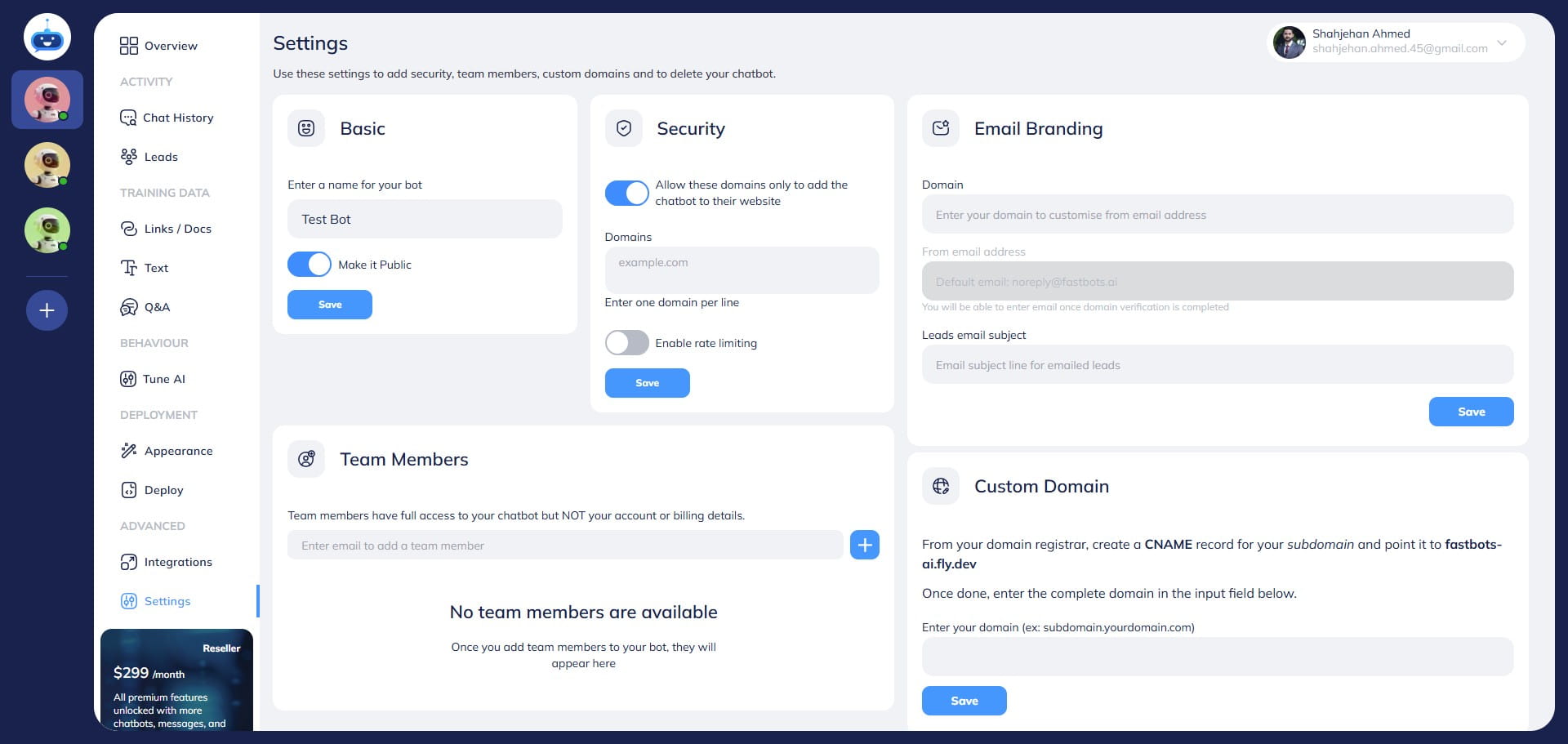
After entering the domain, click on the "Save" button.
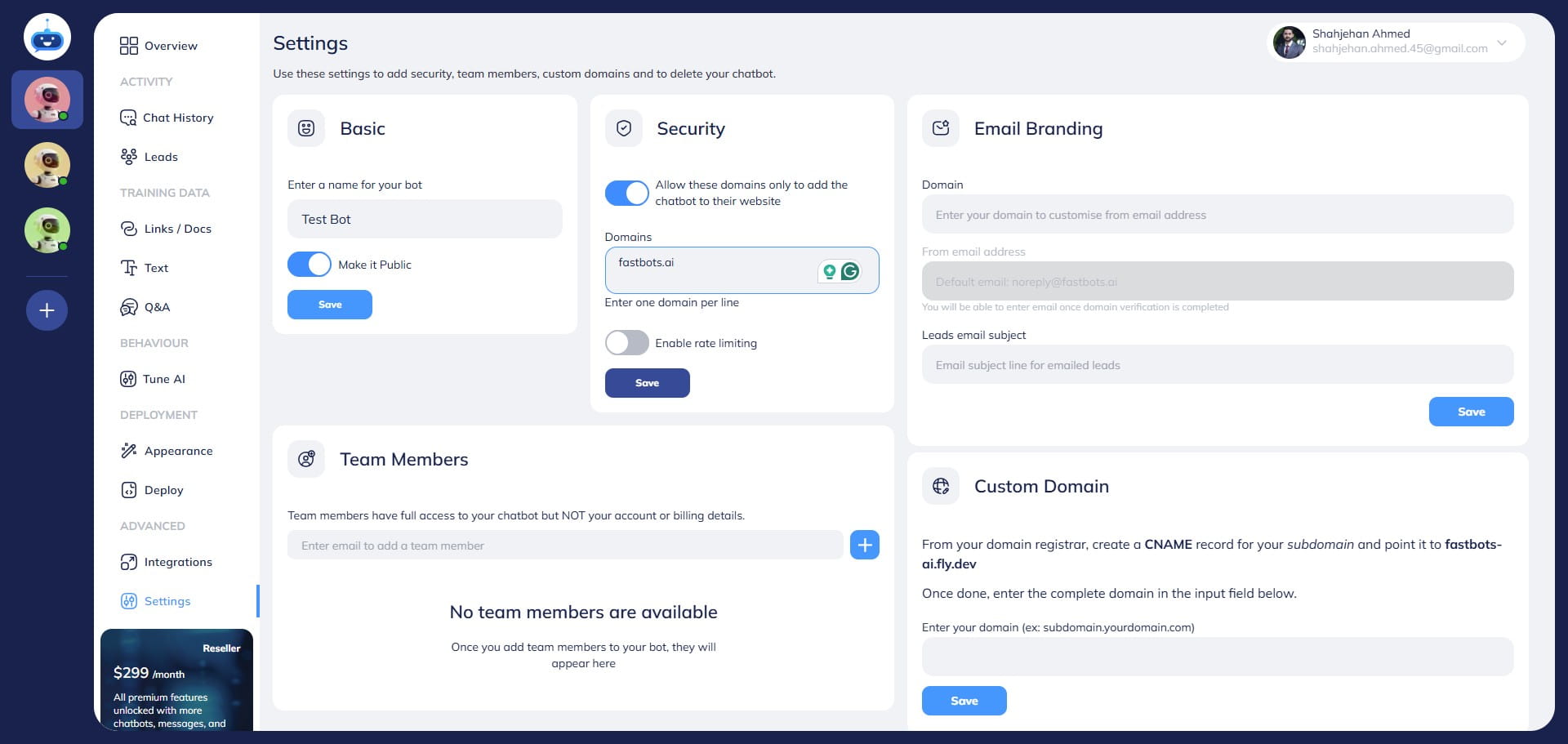
Done 🚀. You have successfully enabled the domain whitelisting.