How To Change The Start Chat Icon Picture
Learn how to change the picture of the start chat icon of your chatbot. Uploading the correct picture as the chat icon is crucial for chatbot branding.
Sep 28, 2024●
1
Navigate to https://app.fastbots.ai/
2
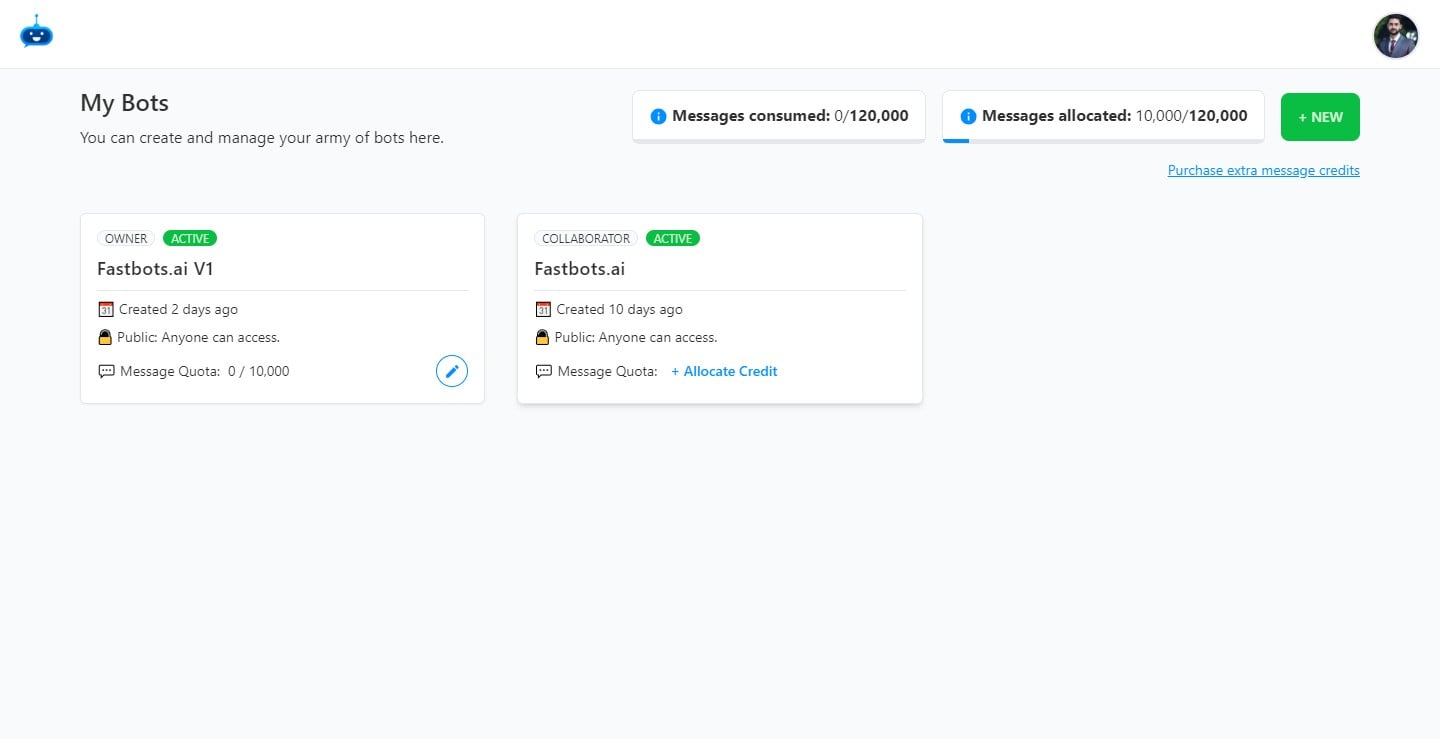
Click on the chatbot to open it.

3
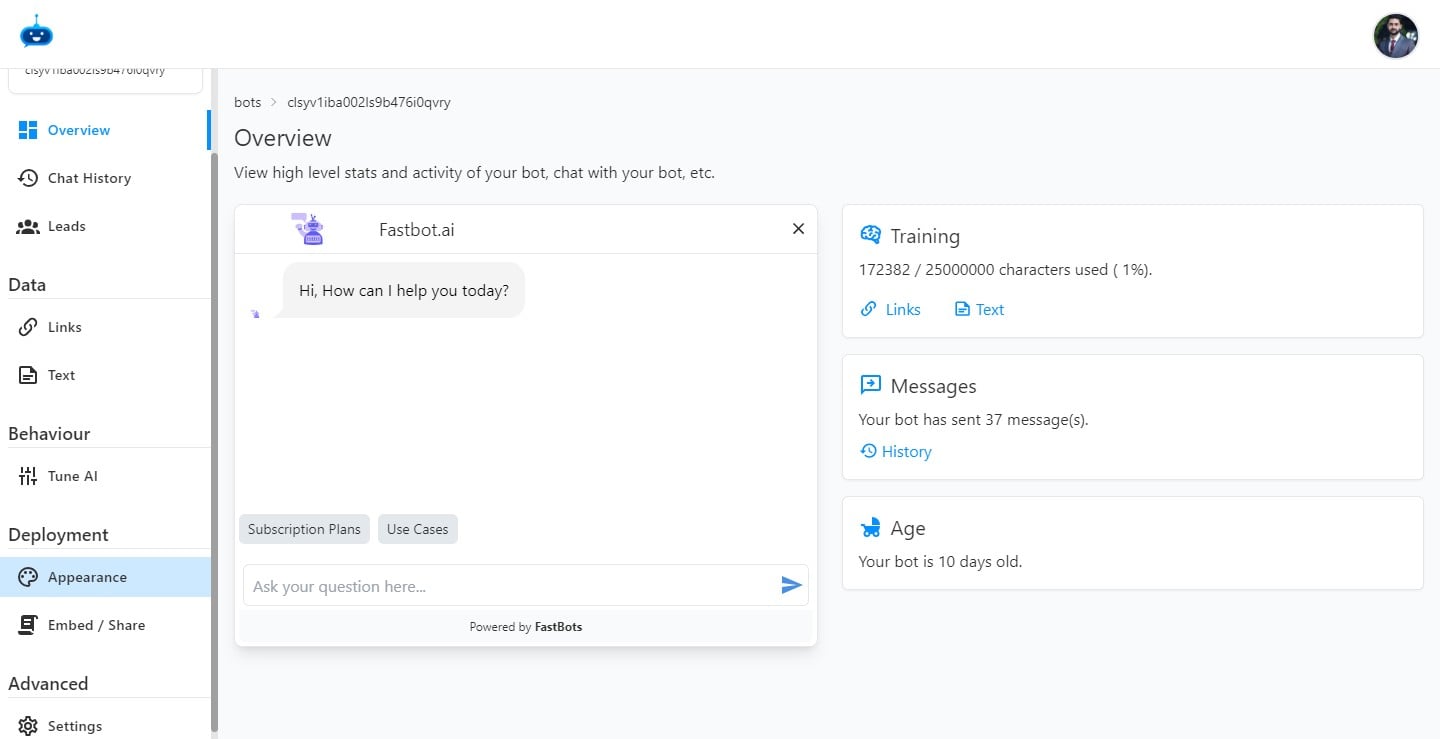
Click on "Appearance" to open the page.
4
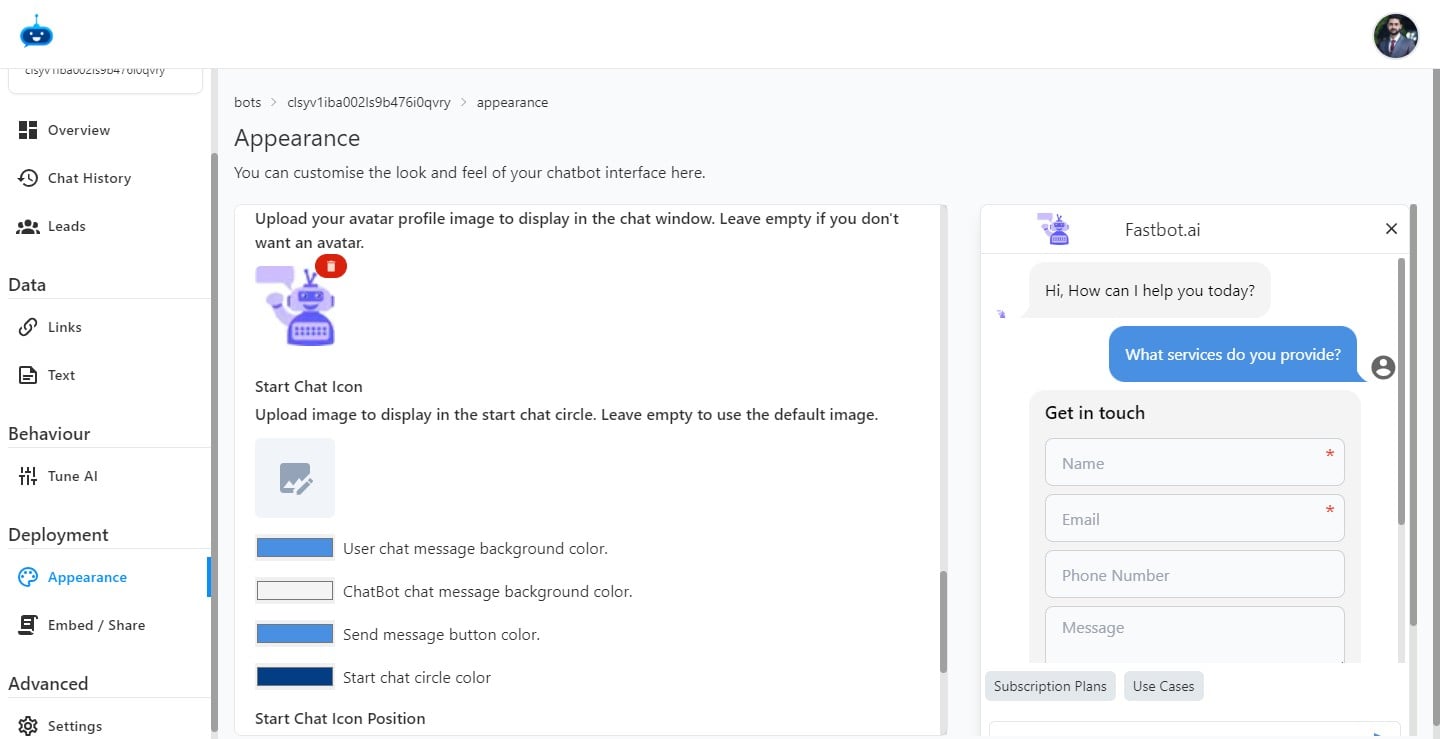
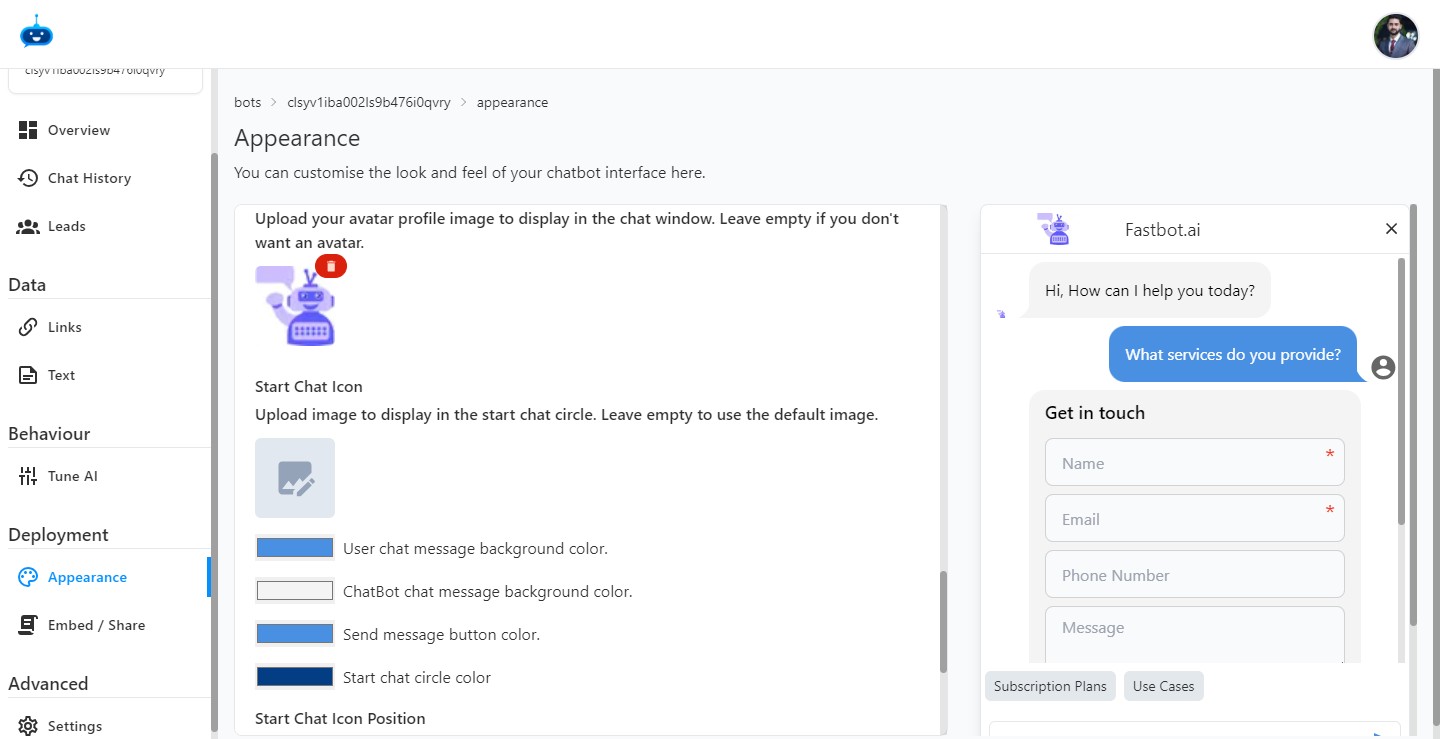
Scroll down and find the "Start Chat Icon" option.
5
Click on the "Upload image" and upload the picture that you want to use on the start chat icon.
6
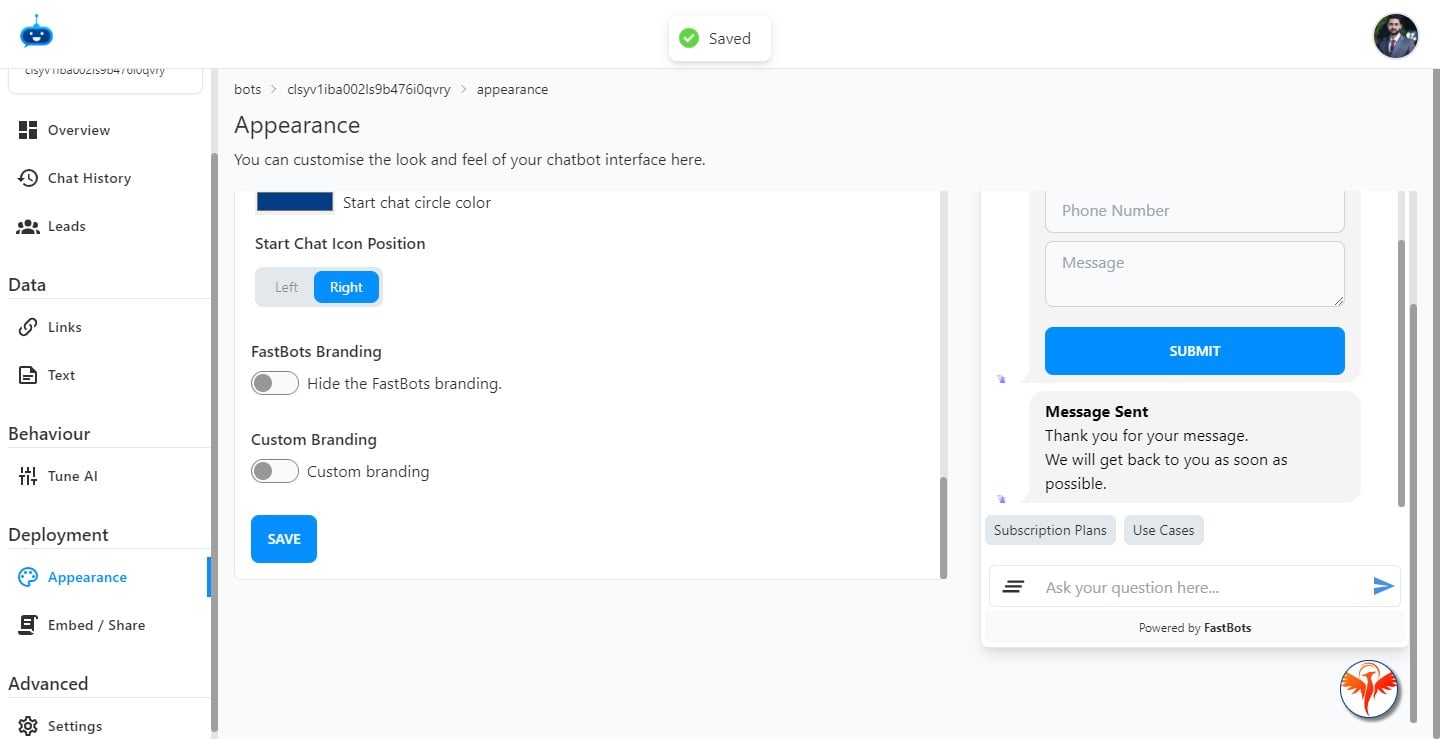
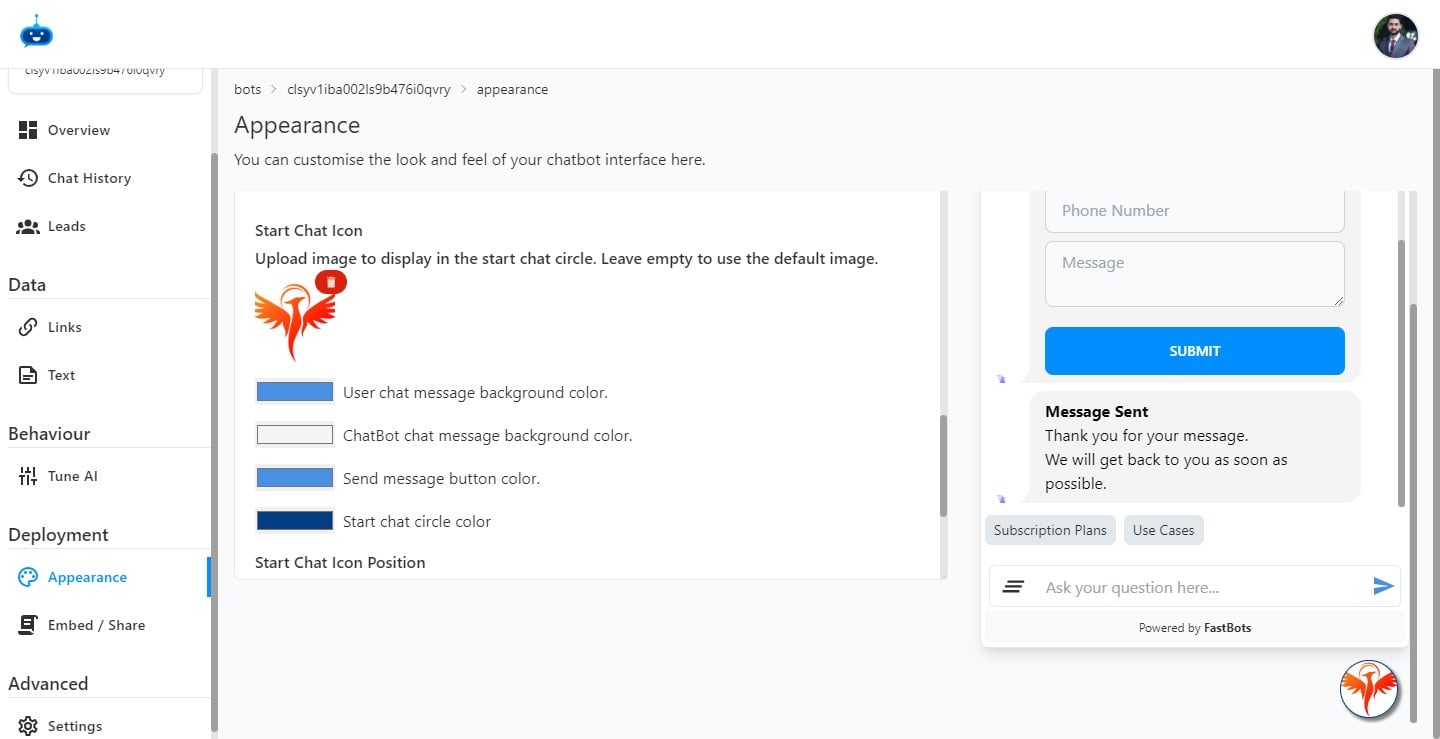
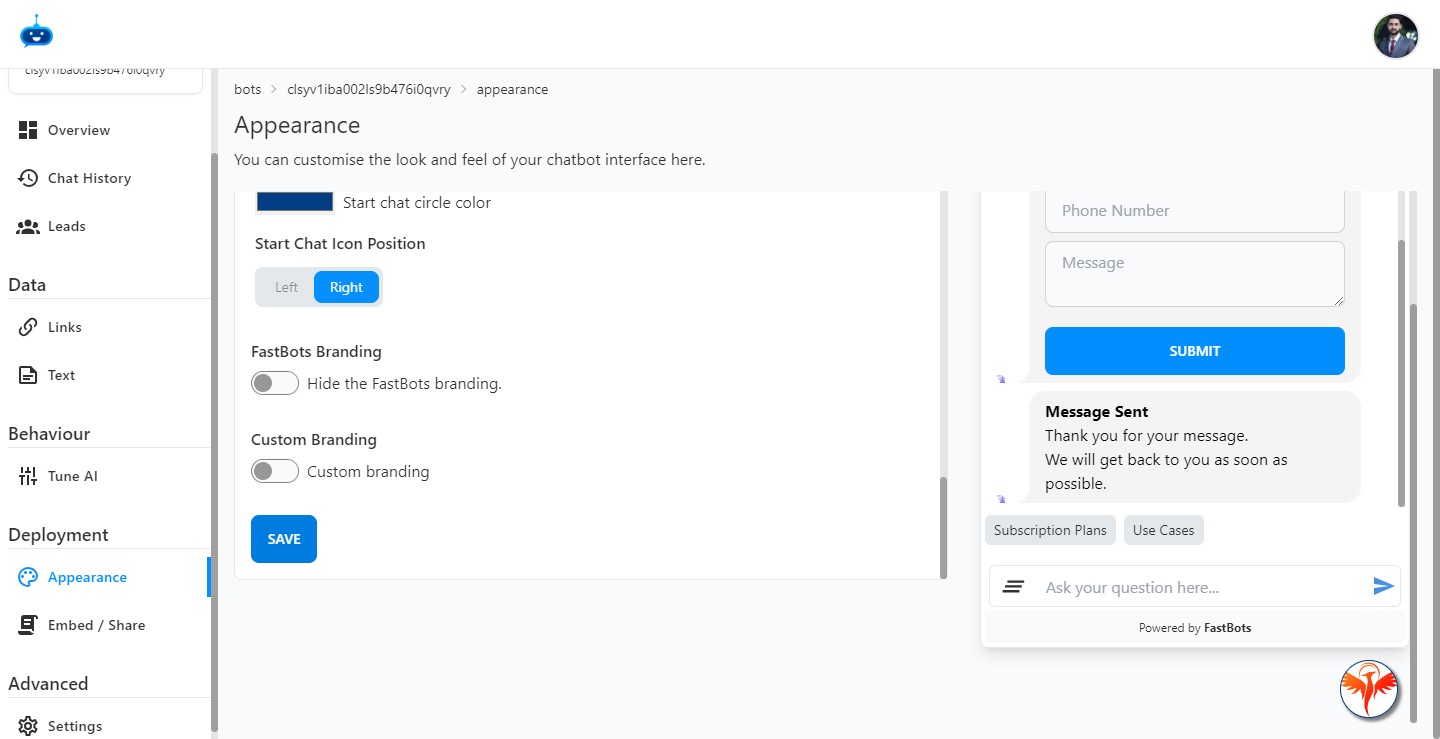
After you upload the picture, it will show on the chatbot start icon like this.
7
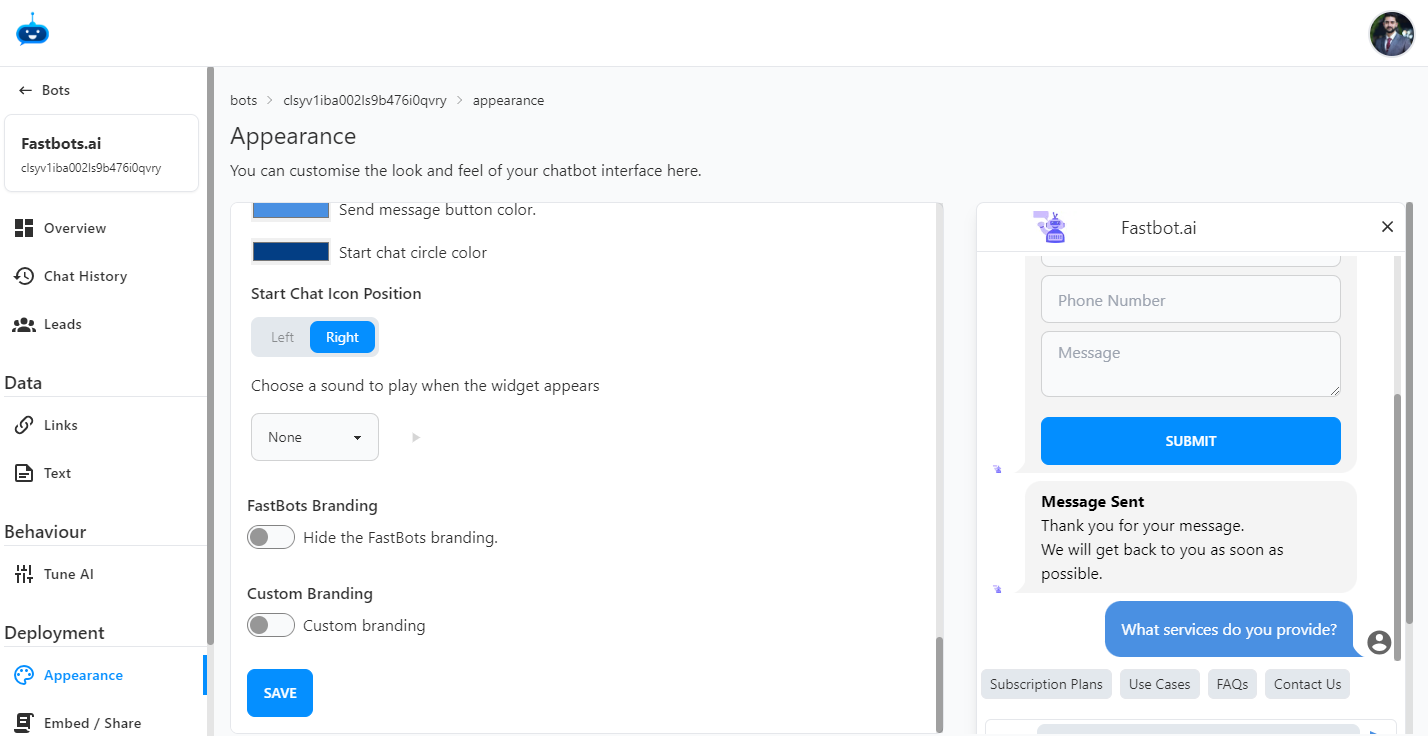
You can also alert people to the chatbot on your website by playing a sound when the visitor first arrives.
8
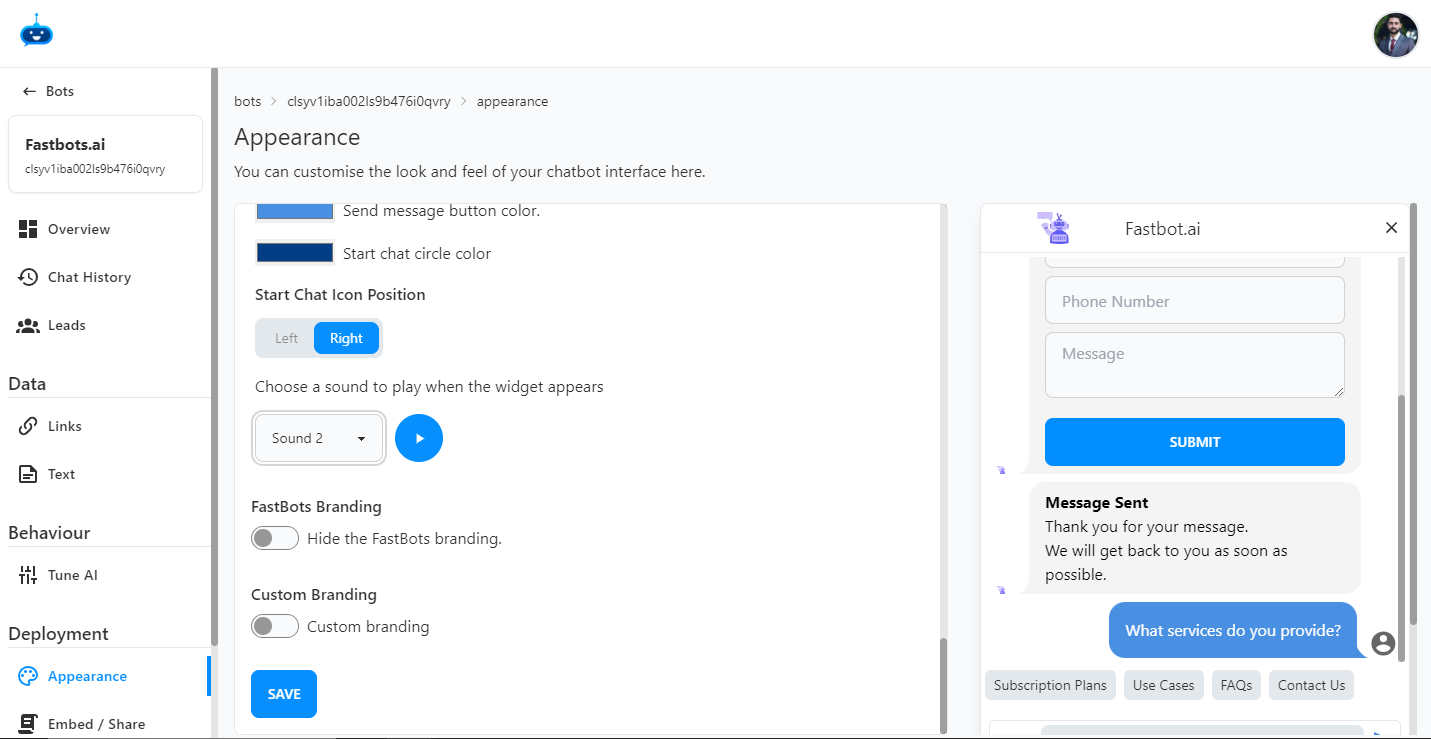
You can choose a sound from the drop-down menu. You use this "Icon" to test the sound.
9
Click on the "Save" button to save all the changes.
10
Done 🚀