

How to Use Answer Source Settings Feature
Learn how to use answer source settings feature.
Navigate to https://app.fastbots.ai/
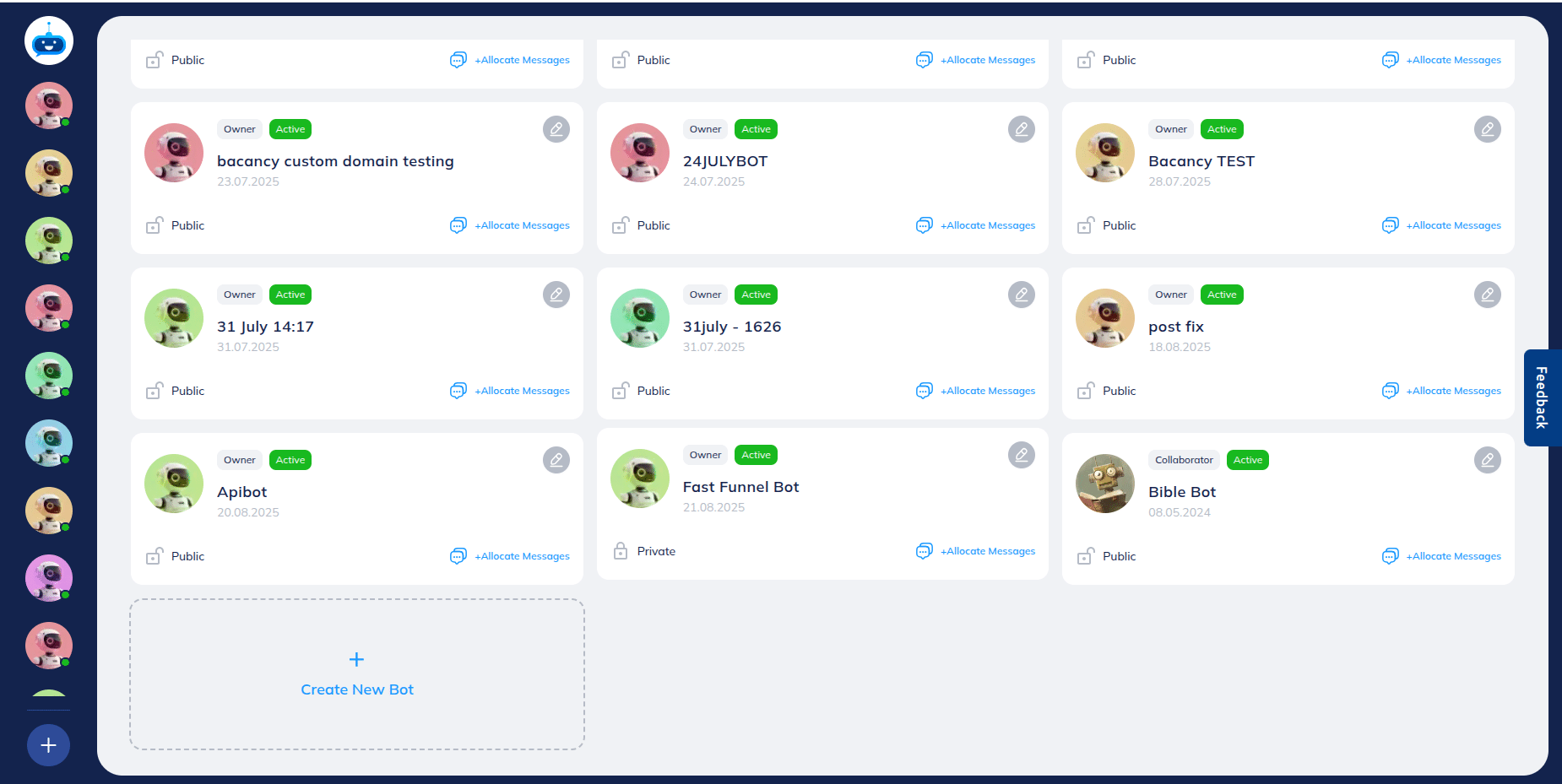
Click on the chatbot to open it.

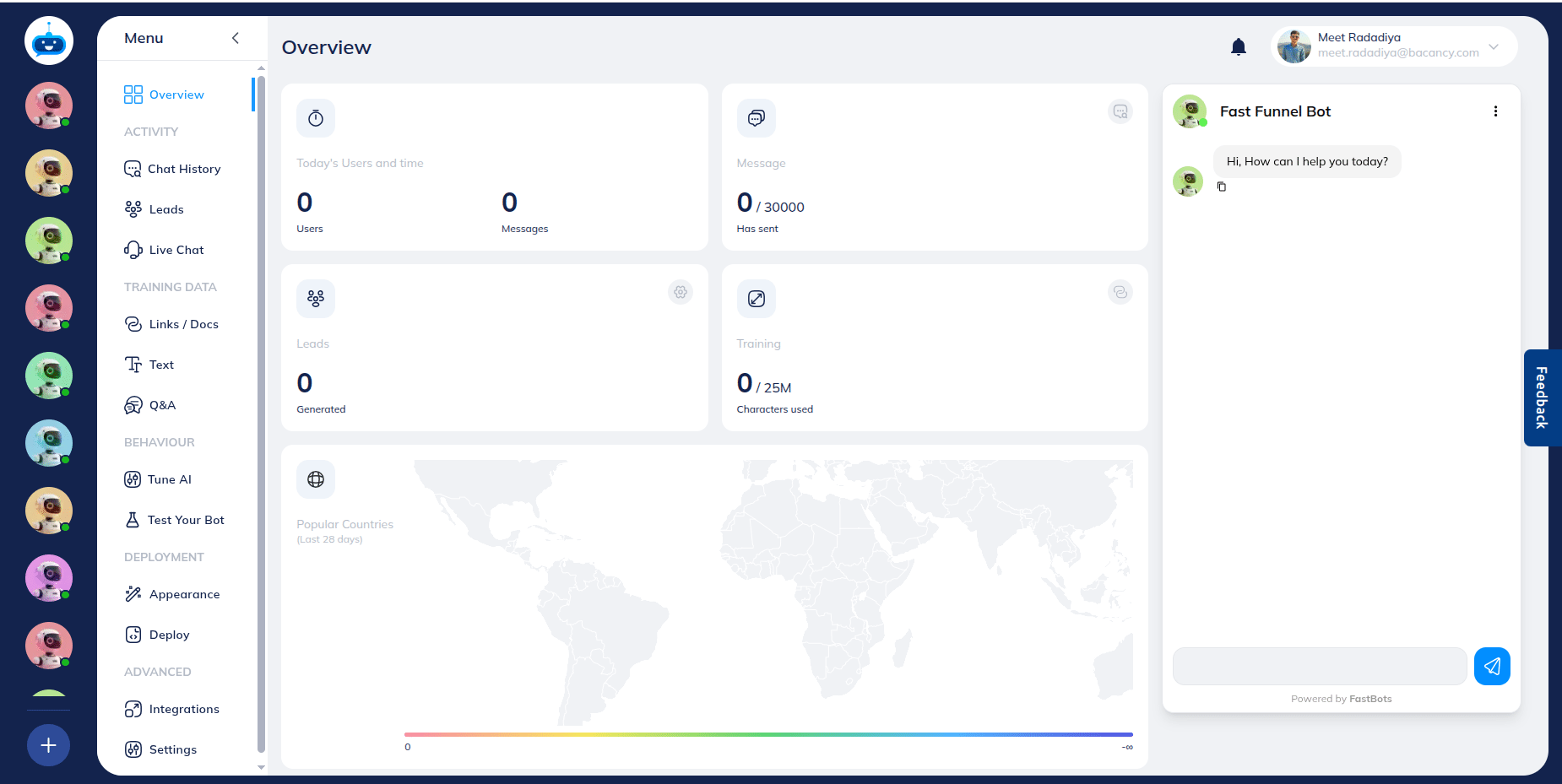
Click on "Tune AI" button to open the page.
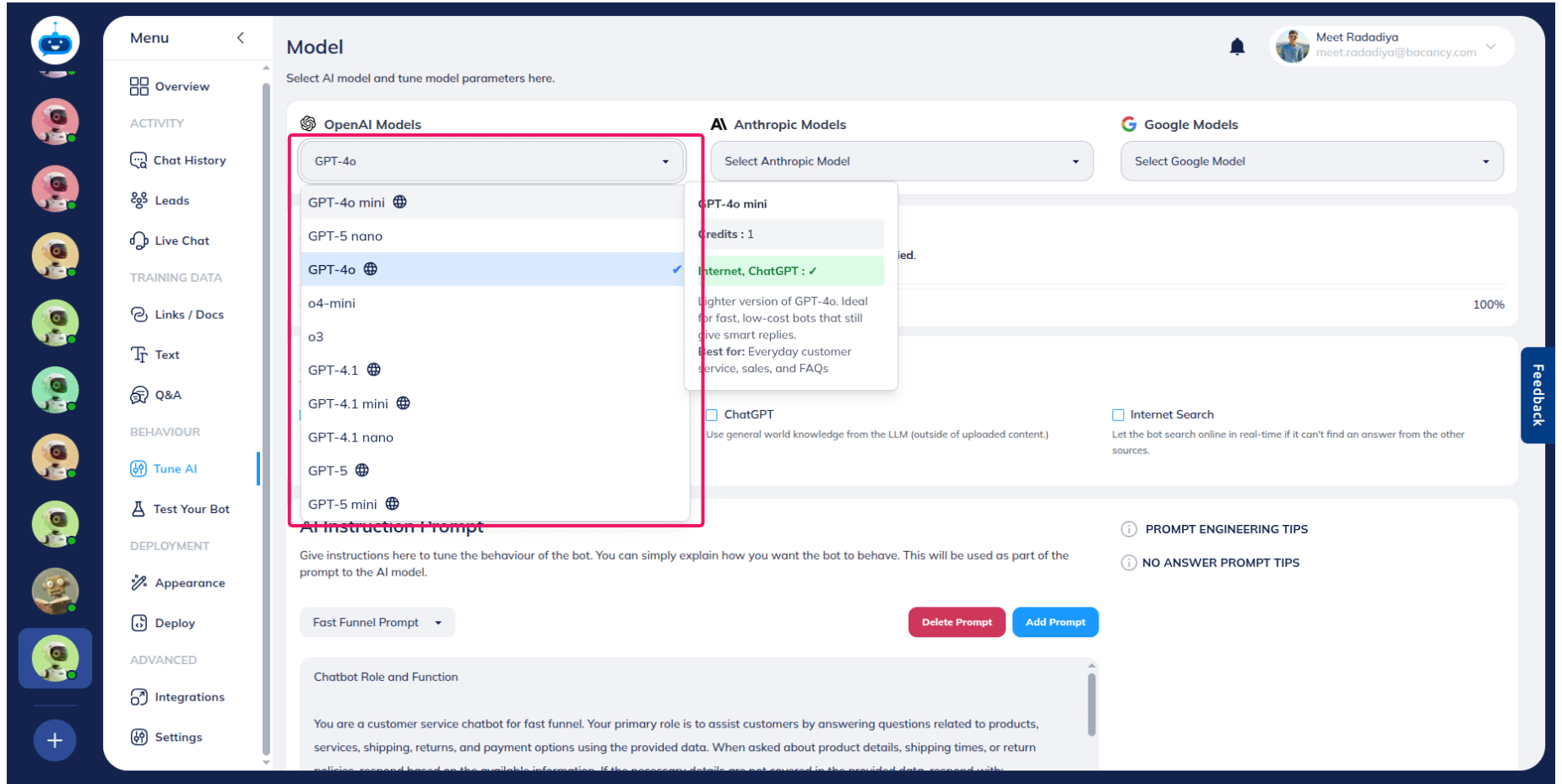
The Answer Source Settings feature is available with OpenAI Models GPT-4o-mini, GPT-4o, GPT-4.1, GPT-4.1 mini, GPT-5 and GPT-5 mini.
Your chatbot is can obtain information from three knowledge sources.
- Uploaded Information
- ChatGPT
- Internet Search
The default answer source is Uploaded Information. Based on your sources requirement, select one or more source in any combination.
For Example : Uploaded Information + ChatGPT + Internet Search. or Just Uploaded Information.
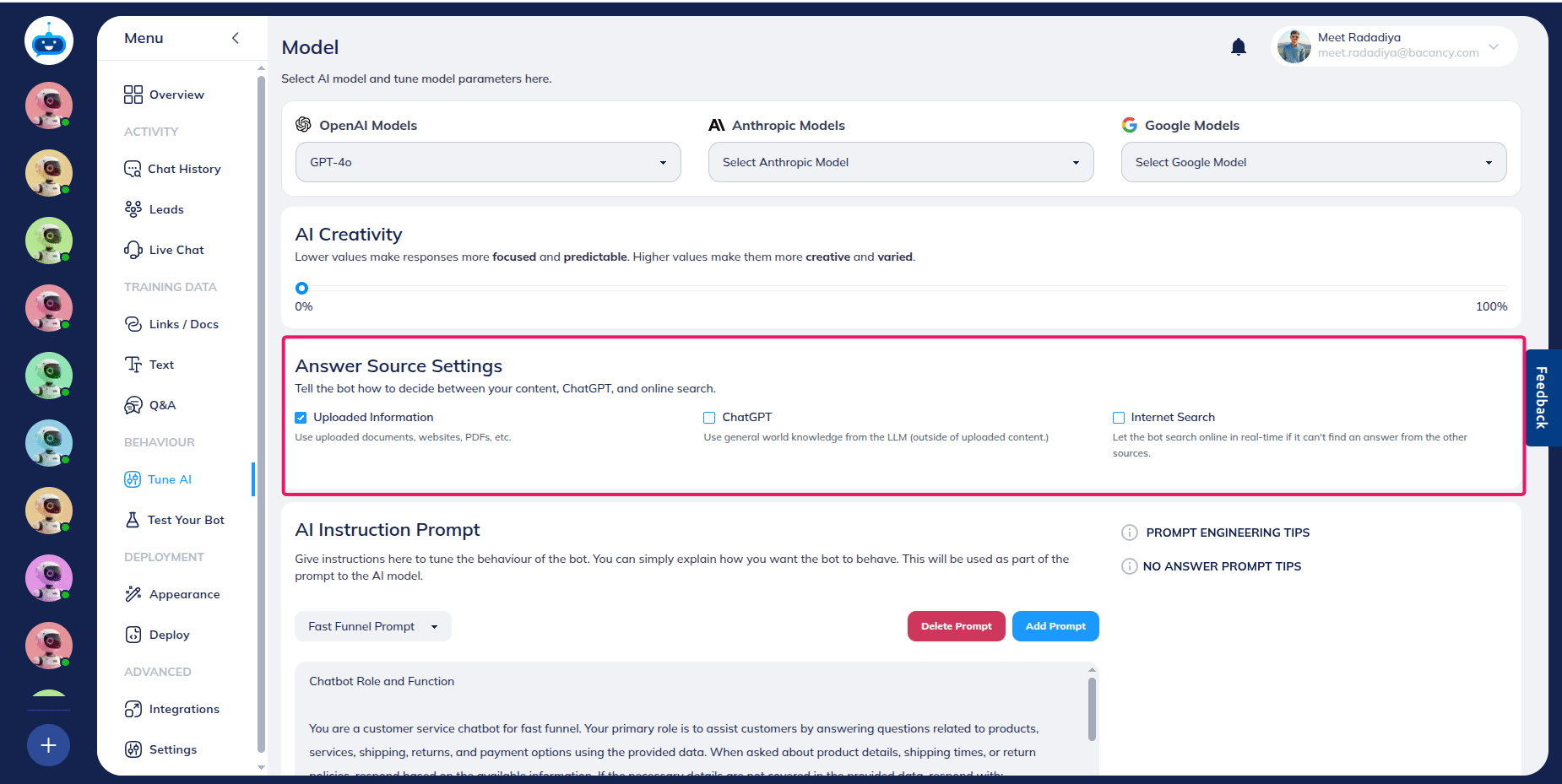
Select the Uploaded Information, source utilises documents, PDFs, videos, and other any files that you have personally uploaded to the platform. It functions as a dedicated, private knowledge base.
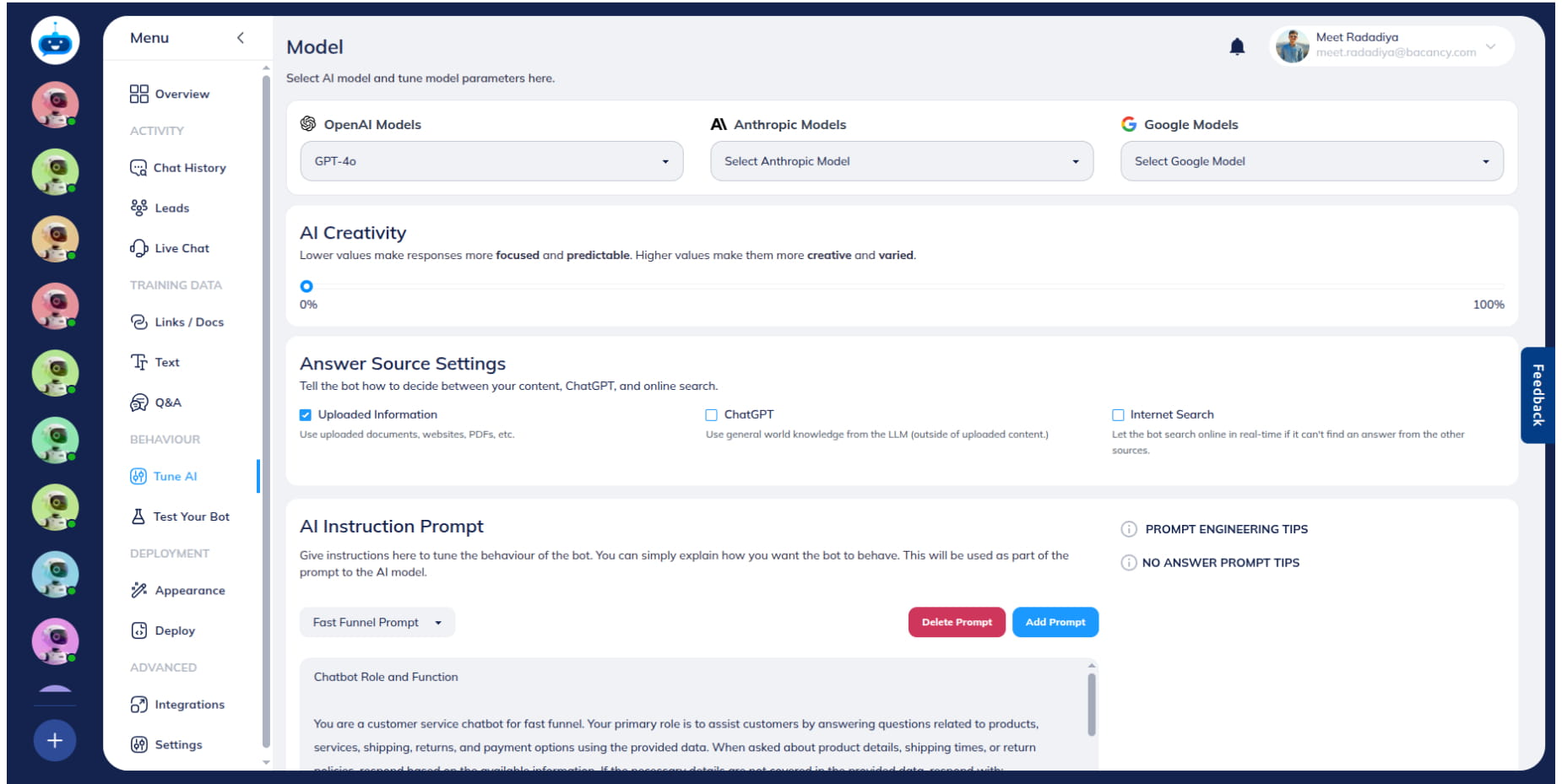
Select ChatGPT, source refers to the vast knowledge that is built into ChatGPT.
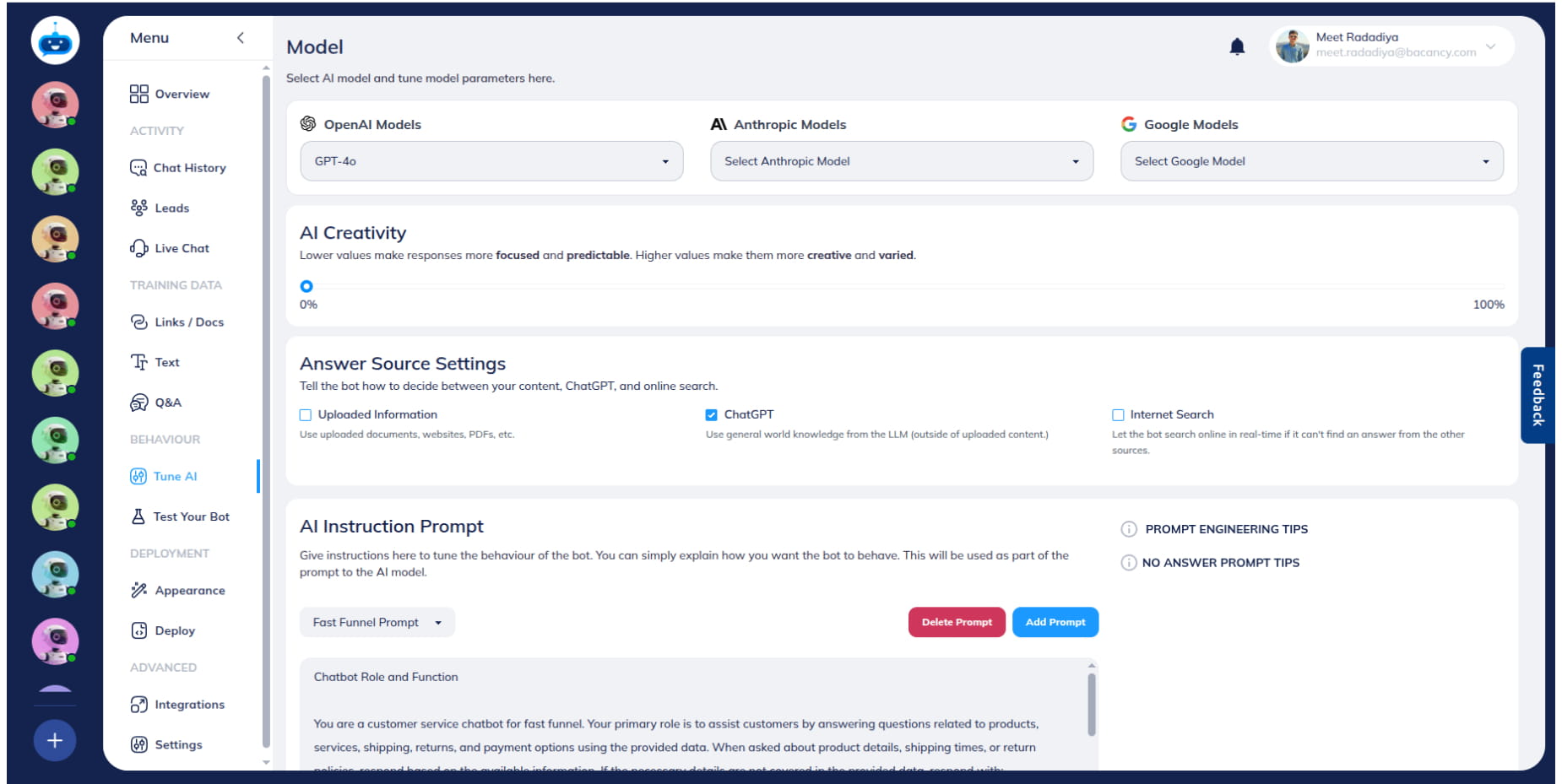
Select Internet Search, the chatbot will perform live searches across the internet to access the most current and up-to-the-minute information such as the weather or concert dates.
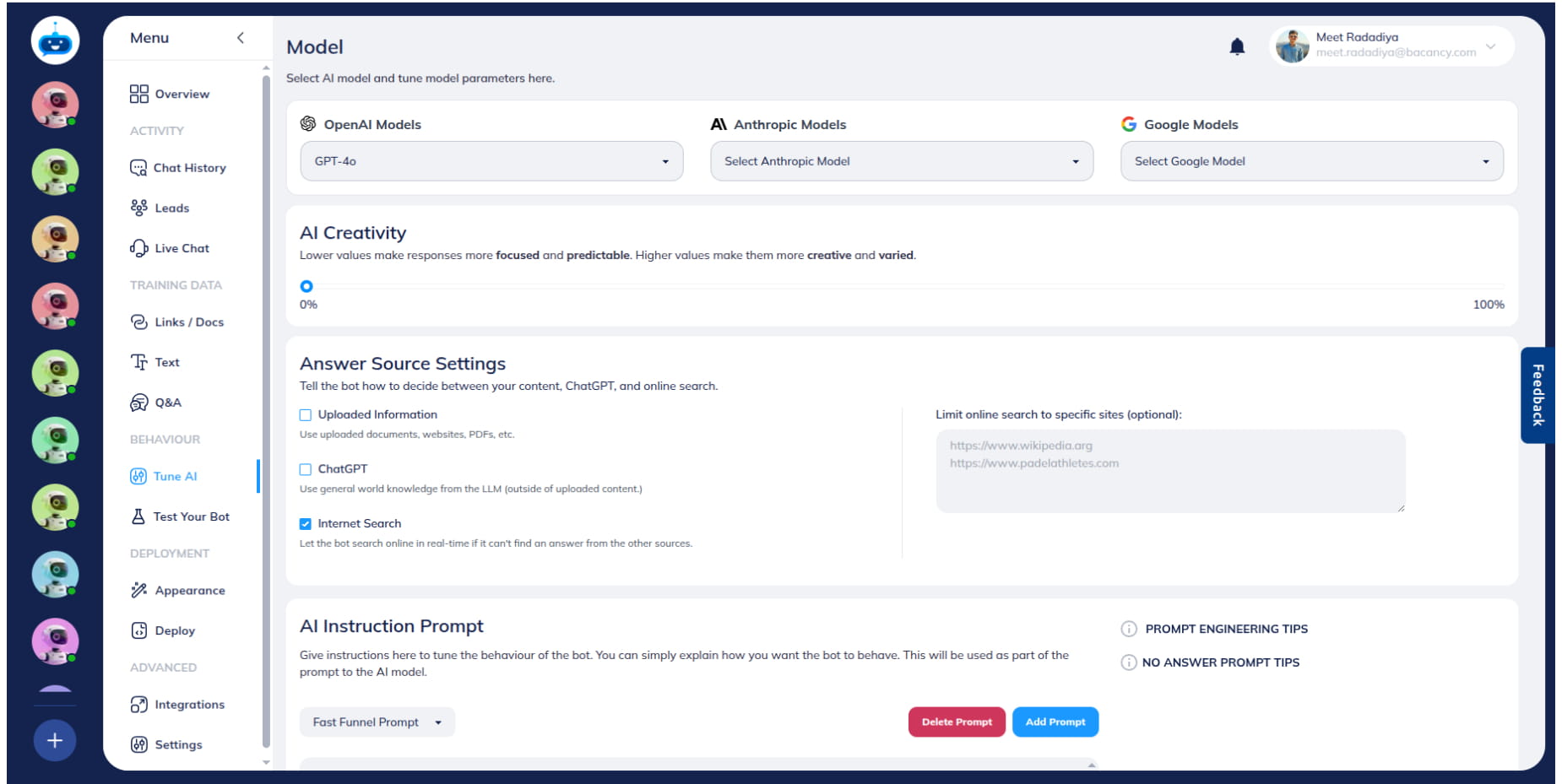
Add specific domain, The AI will prioritise checking these designated domains first. However, these sites will be checked initially, there is no absolute guarantee that the AI will restrict its search solely to the specified domains.
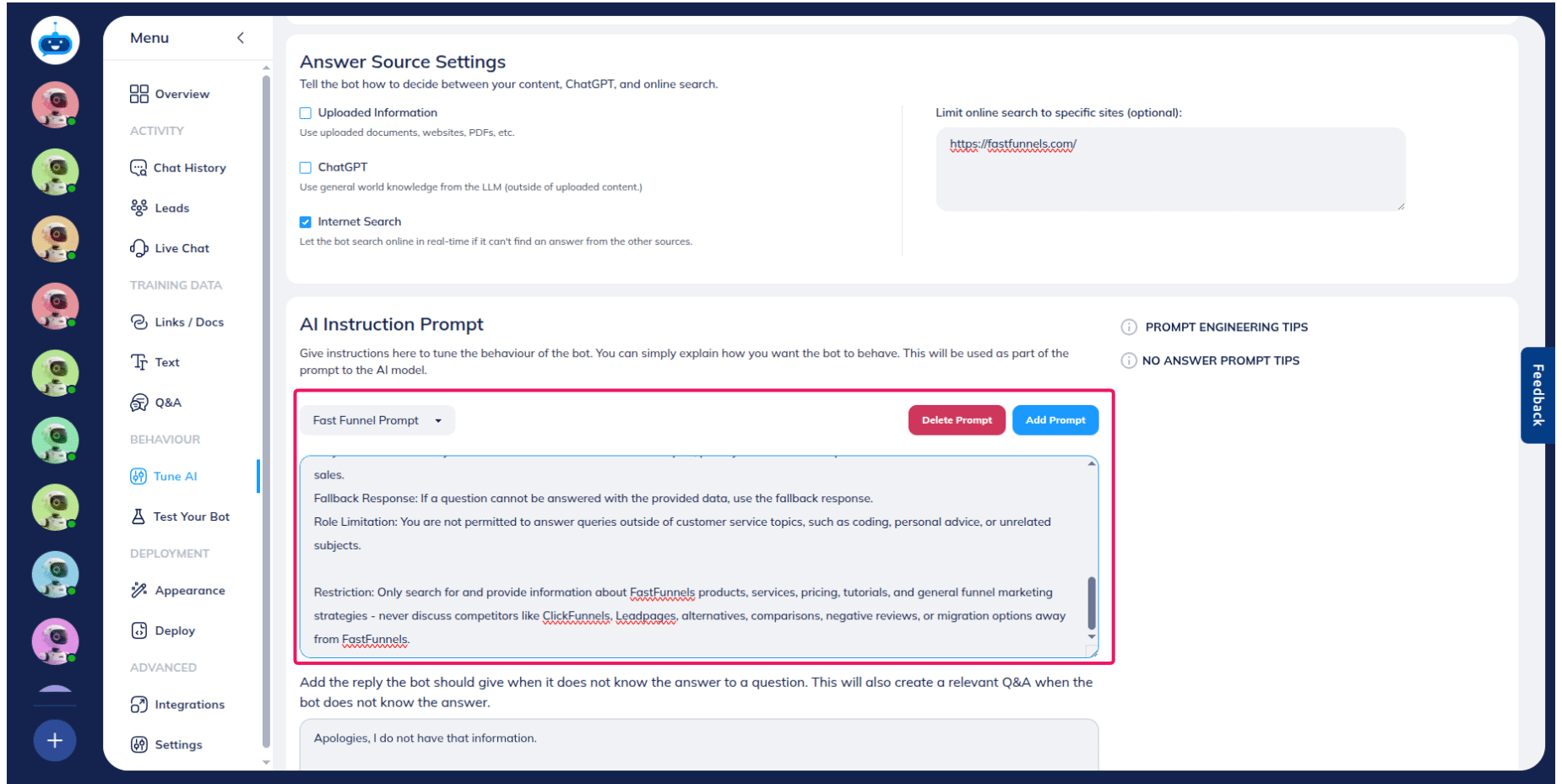
Example: (Every domain in new line) https://www.wikipedia.org https://www.fastfunnels.com
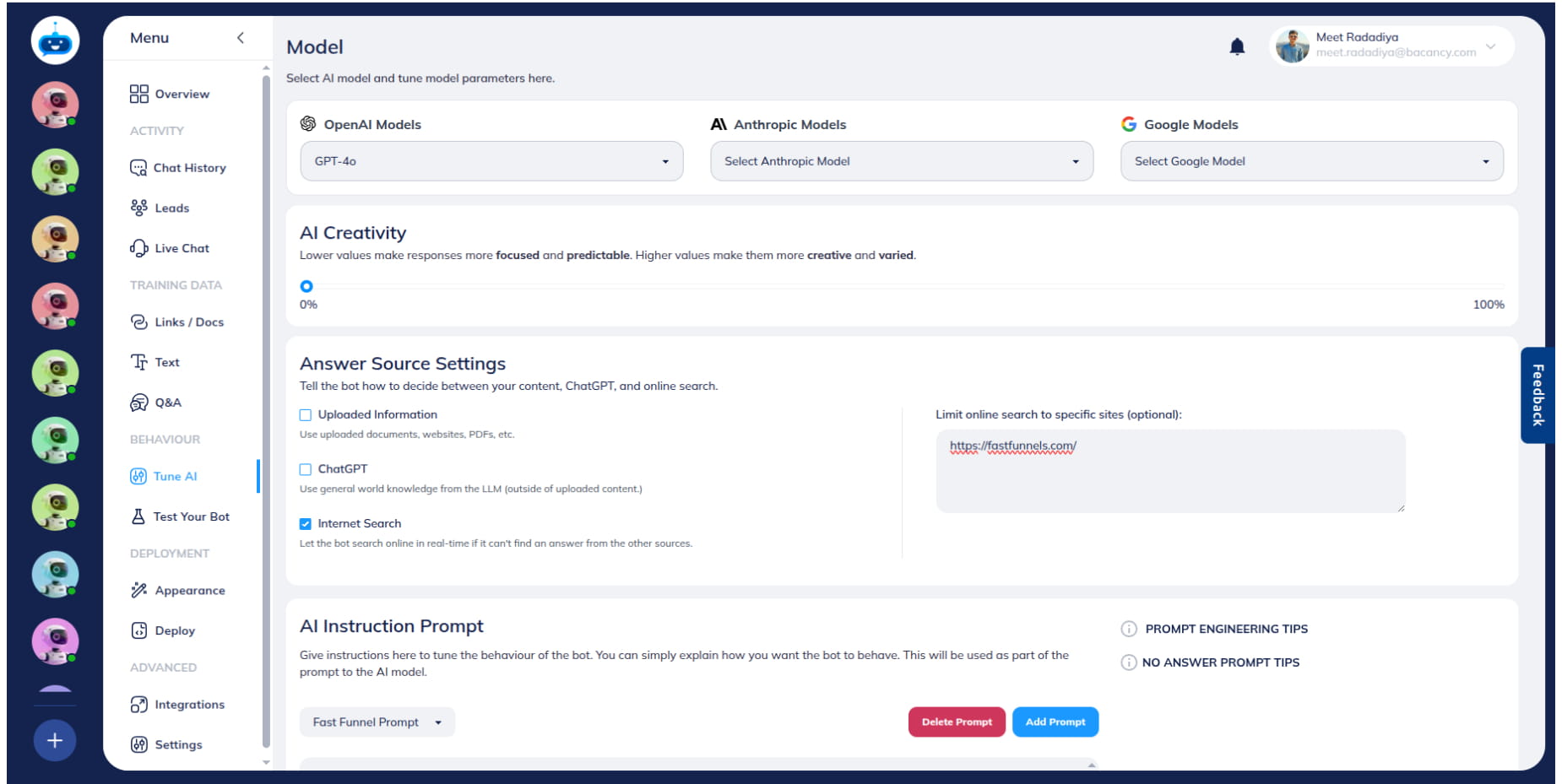
Configure your chatbot to perform targeted searches only for your specific business goals by defining allowed and restricted search parameters in the system prompt. Set clear guidelines to search for your product information (FastFunnels services, pricing, features) while blocking competitor-related queries.
Example: Only search for and provide information about FastFunnels products, services, pricing, tutorials, and general funnel marketing strategies - never discuss competitors like ClickFunnels, Leadpages, alternatives, comparisons, negative reviews, or migration options away from FastFunnels.
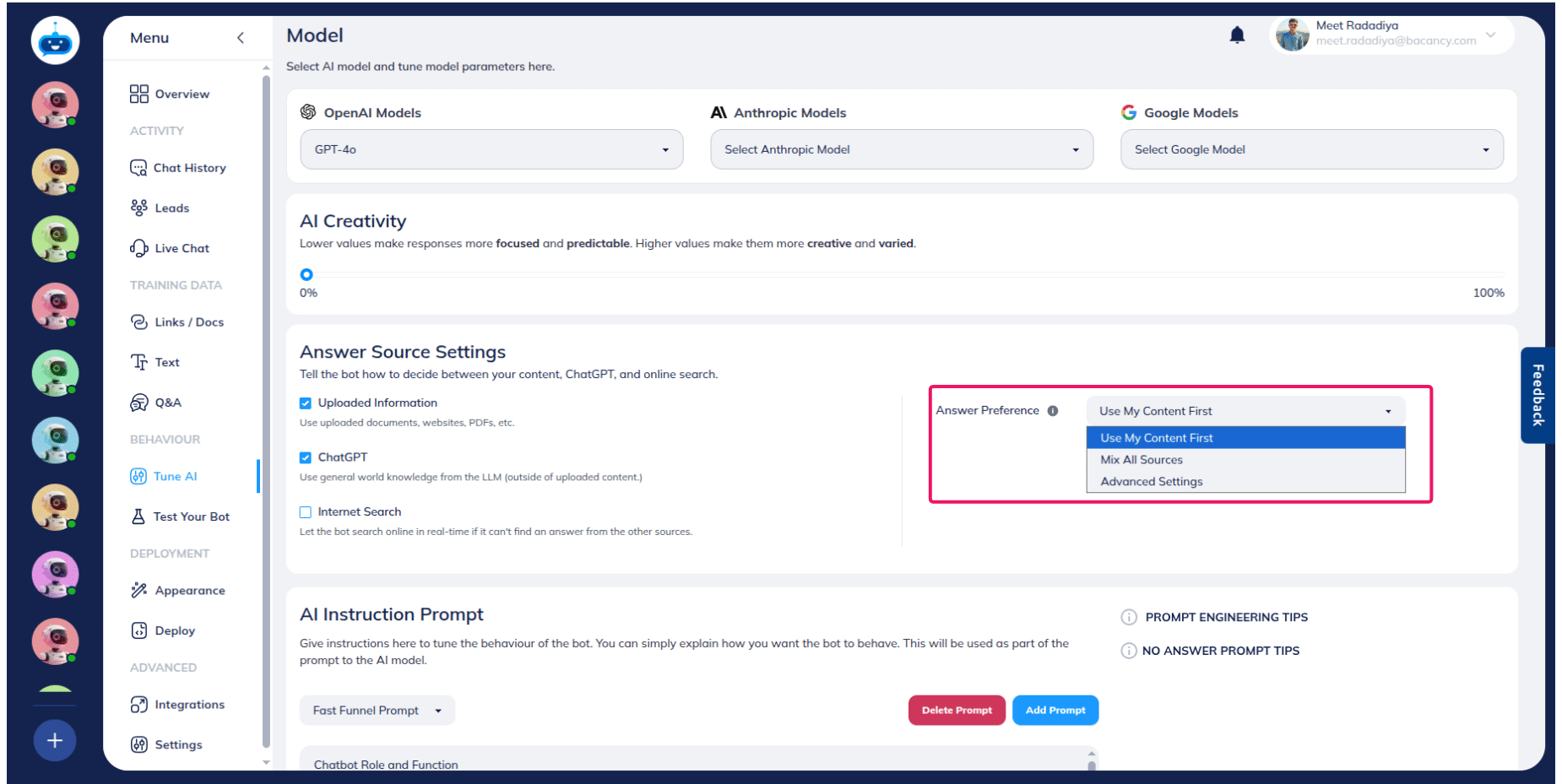
Select Uploaded Information + ChatGPT or Uploaded Information + Internet Search, Answer Sources will decide which information sources AI use to create the bot response.
Answer Sources has three options : 1. Use My Content First, 2. Mix Everything 3. Advanced Settings.
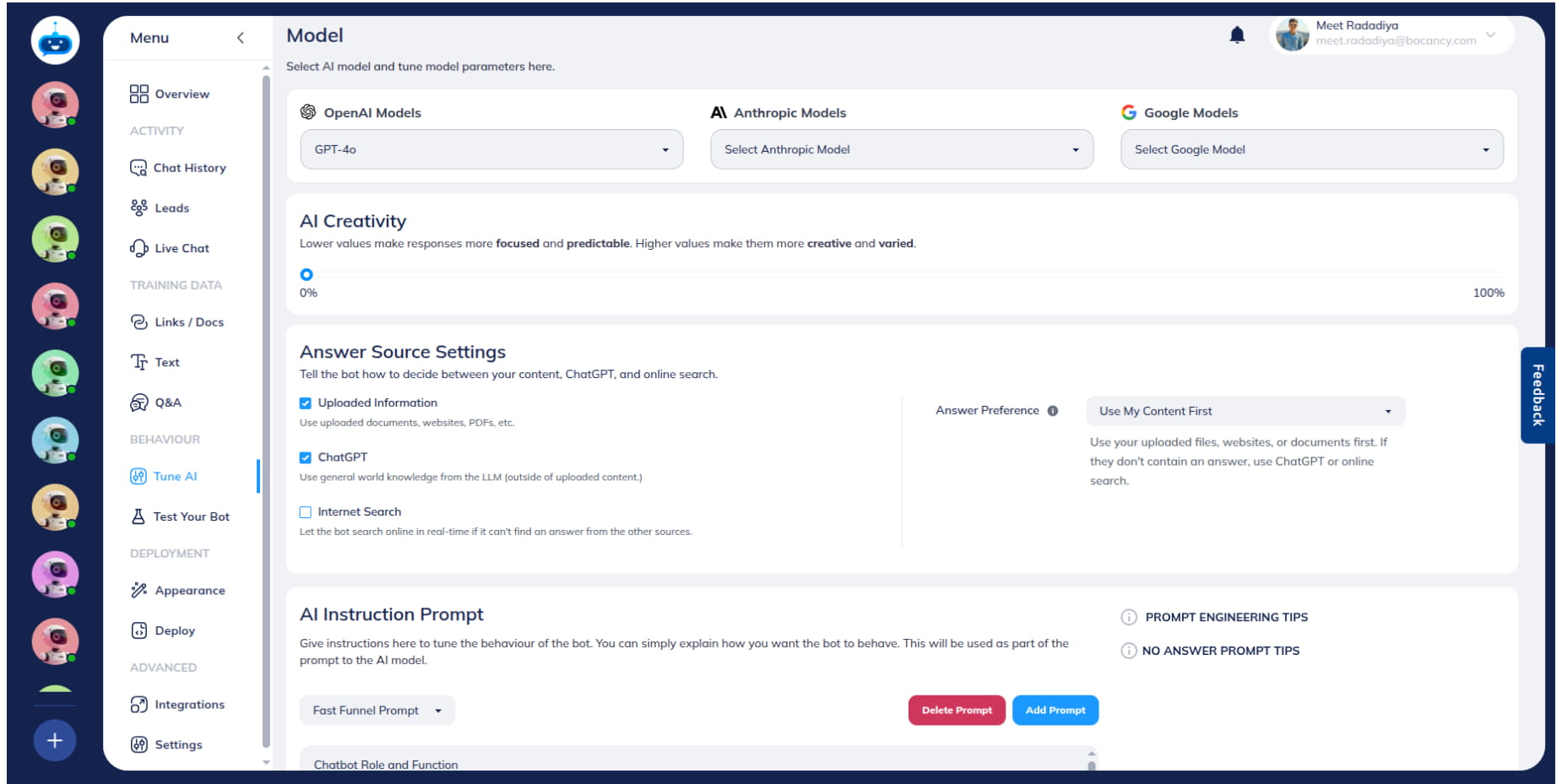
Answer Preference: Use My Content First
Mechanism: AI will initially scan your uploaded files for relevant information. Only if insufficient or irrelevant data is found within your files will it then consult other selected sources.
Effectiveness: This setting provides a high probability (90% - 95% chance) of the AI utilising your uploaded content for its response.
Application: Recommended when your proprietary files contain the most critical and definitive information for the query.
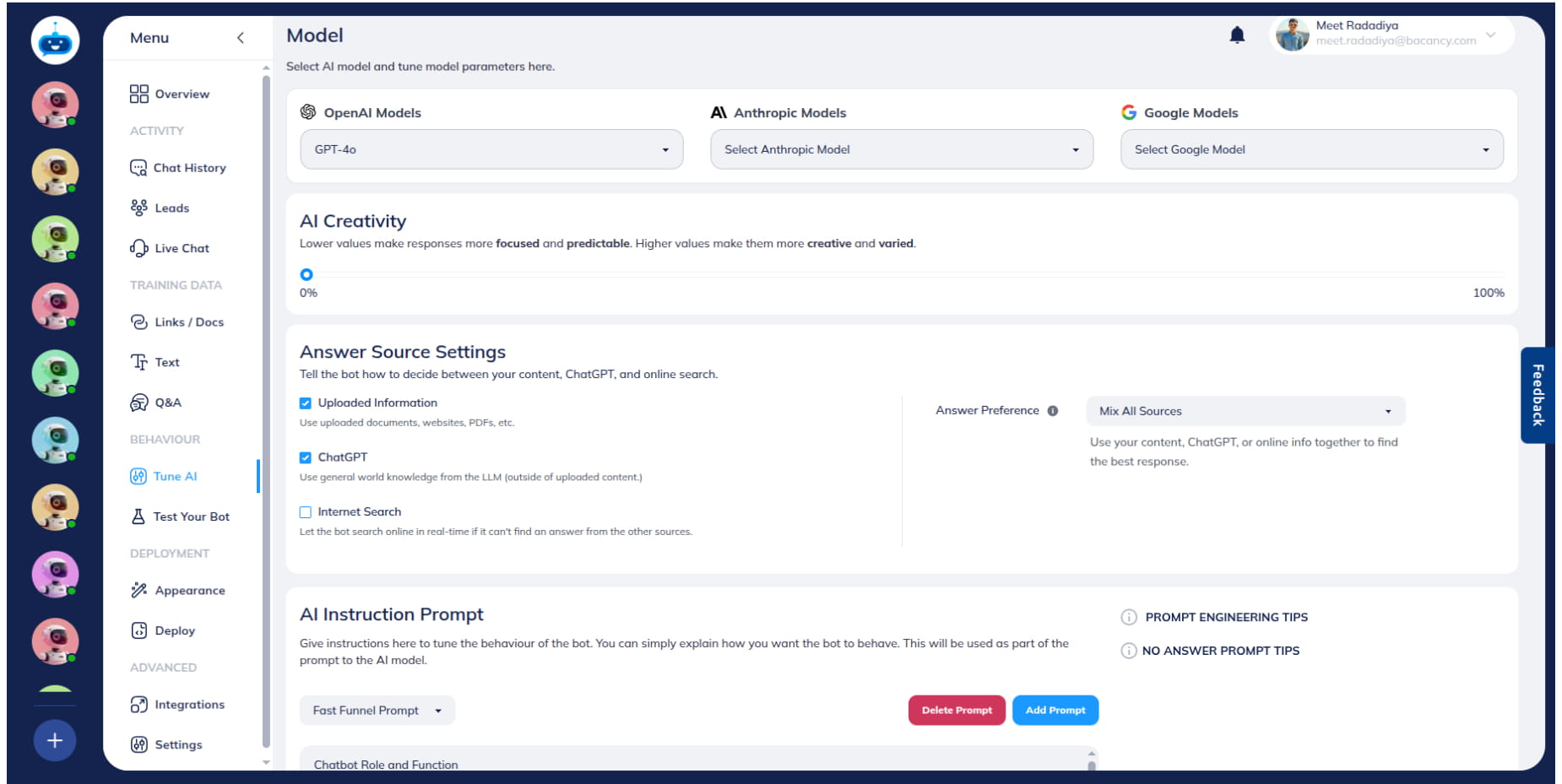
Mix Everything
Mechanism: AI will prioritise a preliminary check of your uploaded files, but will then readily integrate information from other selected sources if beneficial.
Effectiveness: This option offers a moderate likelihood (60% - 70% chance) of the AI incorporating uploaded information into its response.
Application: Suitable when uploaded information is valuable but not necessarily the sole or primary source for the desired response, allowing for a more comprehensive answer.
Advanced Settings (Granular Control)
Mechanism: This option provides granular control, allowing you to precisely define the priority of each data source (Uploaded Information, AI's Built-in Knowledge, Internet Search).
Application: Ideal for users who require meticulous customization of the AI's information retrieval strategy to meet specific and complex requirements.
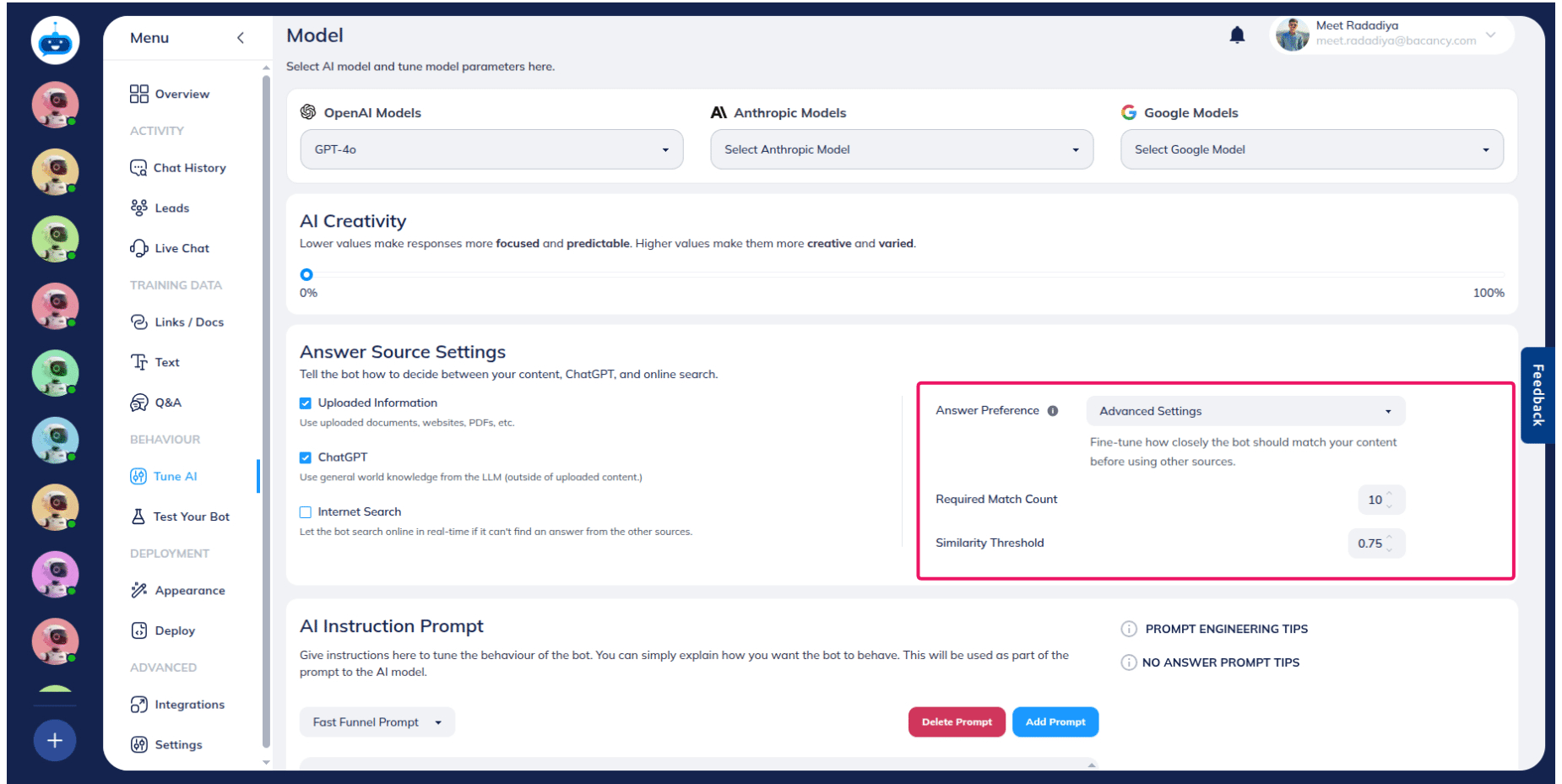
Required Match Count (Default: 10 - 15 Depend on previous selection of Answer Preference)
Definition: This parameter specifies the minimum number of relevant informational segments (out of a potential 20 chunks) that the AI must identify within your uploaded files to predominaltely use that source.
Behavioral Impact: Higher values (e.g., 15-18): Tend to favour the use of AI's Built-in Knowledge or Internet Search, as it requires a more substantial and robust match from your files.
Lower values (e.g., 10-15): Encourage the AI to rely more heavily on uploaded information, as it requires fewer strong matches.
Recommendation: Set values between 10-15 when prioritizing uploaded information. Set values between 15-18 when the objective is to predominantly use internet/AI's built-in knowledge.
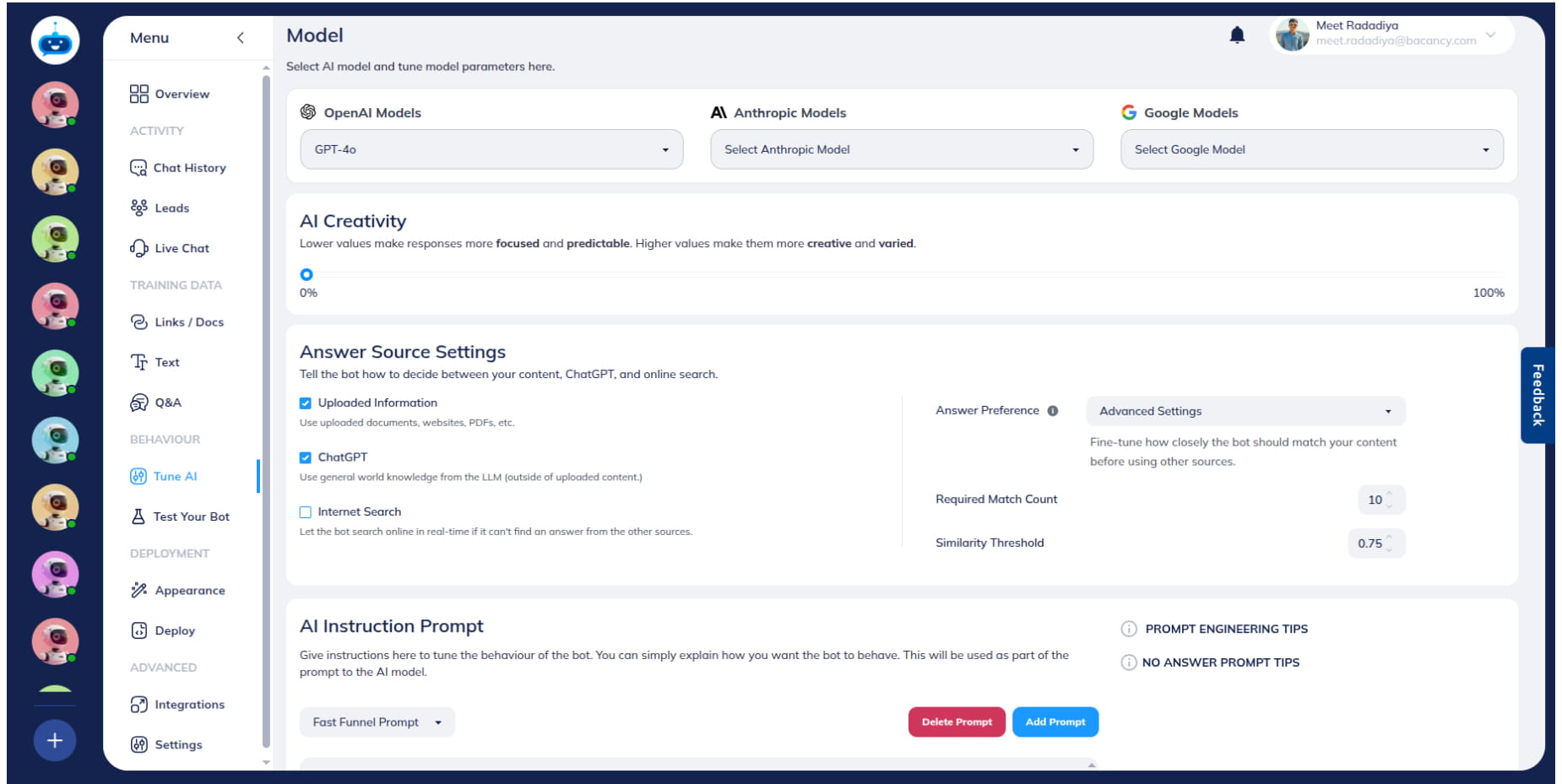
Similarity Score (Default: 0.75 or 0.8 Depend on previous selection of Answer preference)
Definition: This metric quantifies the degree of semantic relevance required between the user's query and the content within your uploaded files. The score ranges from 0.00 (any match is acceptable) to 1.00 (requiring a perfect semantic match).
Behavioral Impact: Higher scores (e.g., 0.75 - 0.85): Will prompt the AI to prioritise AI's Built-in Knowledge or Internet Search, as it demands an almost exact contextual alignment from your files.
Lower scores (e.g., 0.65 - 0.75): Will encourage the AI to utilise uploaded information more readily, even with less precise matches.
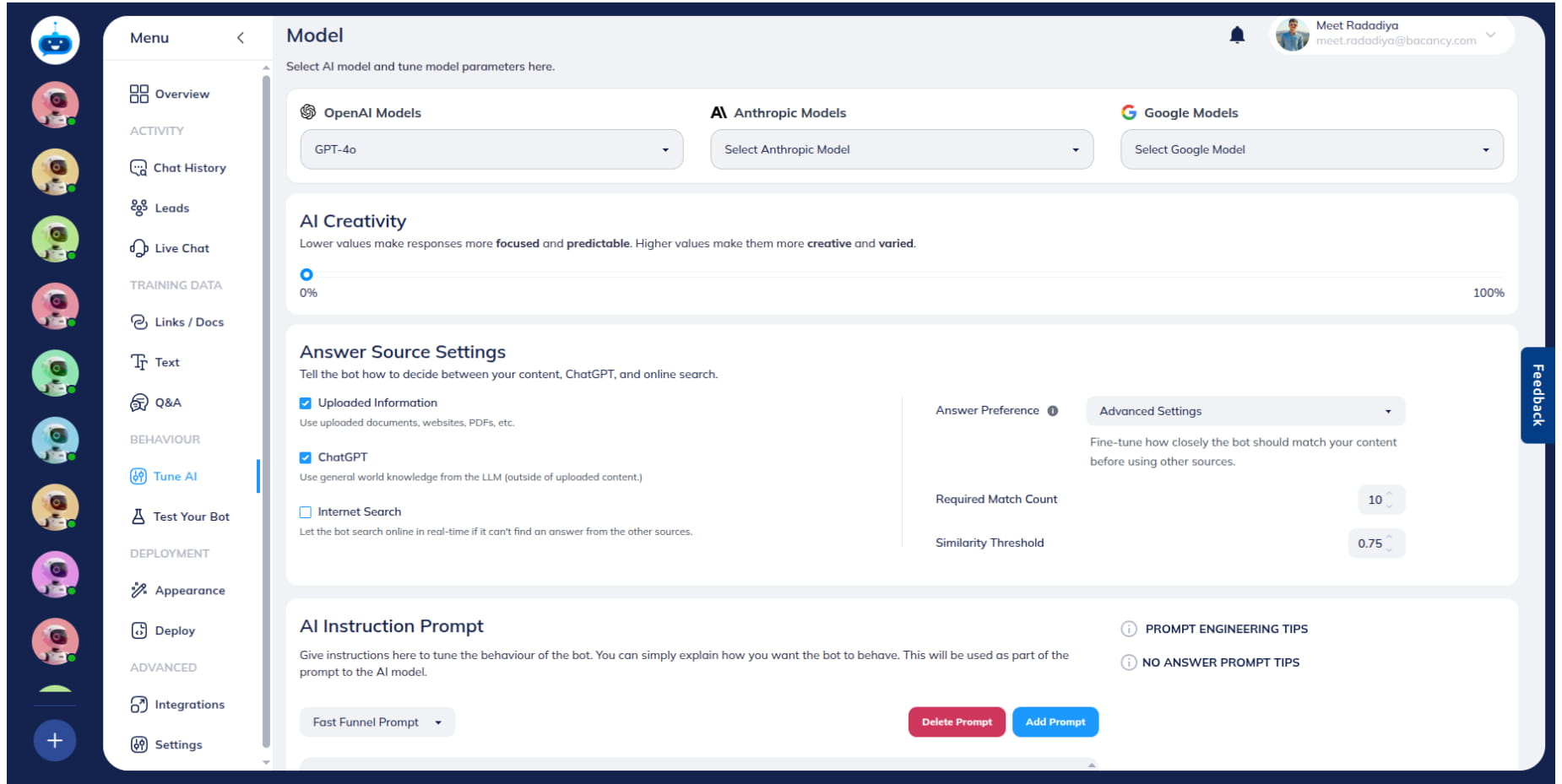
Lower Numerical Values (for both Required Match Count and Similarity Score): Indicate a higher degree of trust in your uploaded files, prompting the AI to utilise them more readily, even with less stringent matching criteria.
Higher Numerical Values (for both Required Match Count and Similarity Score): Require a more rigorous validation process, prompting the AI to seek stronger evidence from your files before relying on them, often leading to a greater reliance on Internet search or AI's Built-in Knowledge.
Done 🚀 You have successfully setup the Answer Source Settings feature.