

How To Use Q&A Page To Train Chabot
This feature is avilable for business plan users and above to be notified as soon as there is an unanswered question by your chatbot. You can then quickly add in the correct answer you would like it to give next time around.
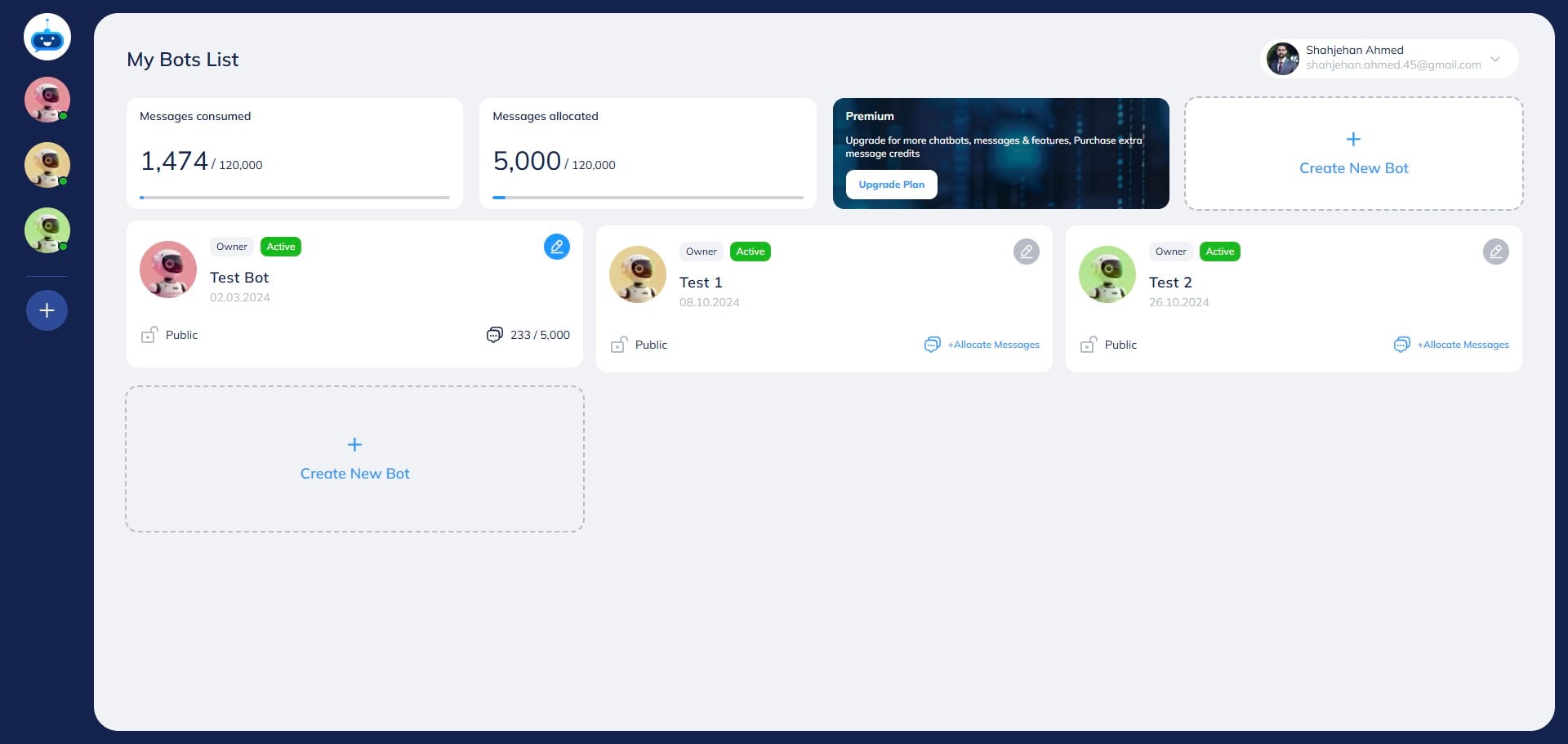
Click on your chatbot to open it.

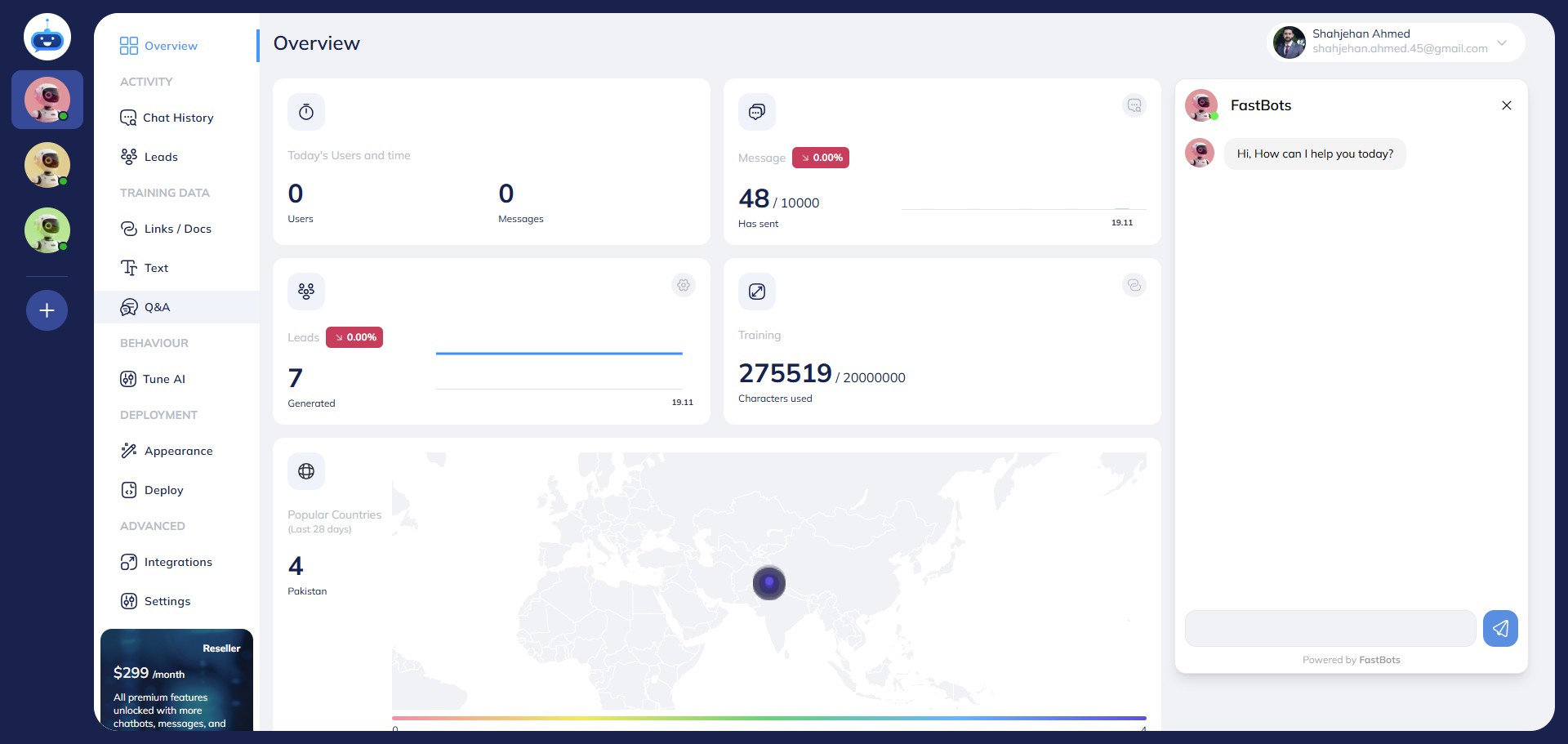
Click on "Q&A" to open this page.
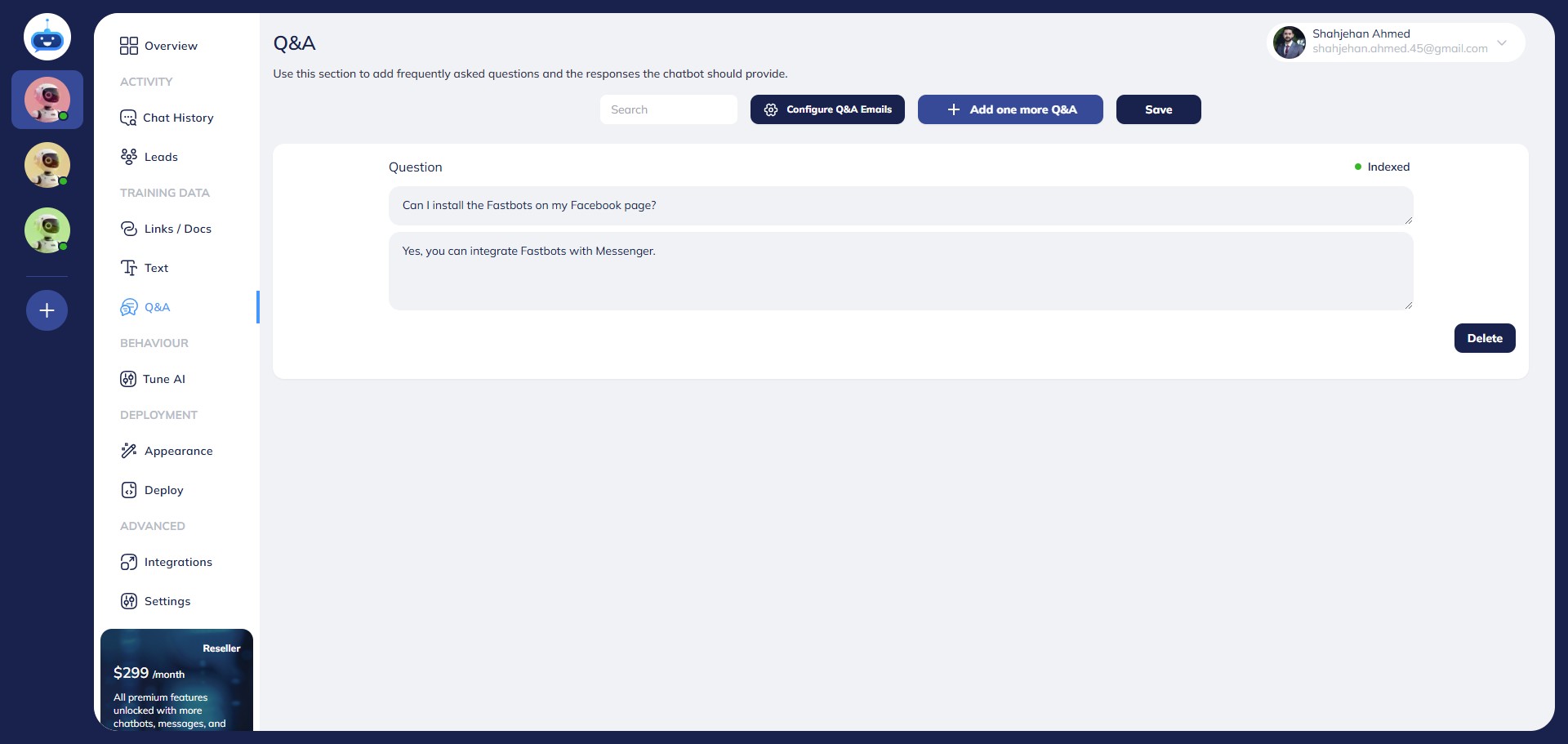
On this page, you can add the data in Question and Answer pairs. To add the data, click on the "Add one more Q&A" button.
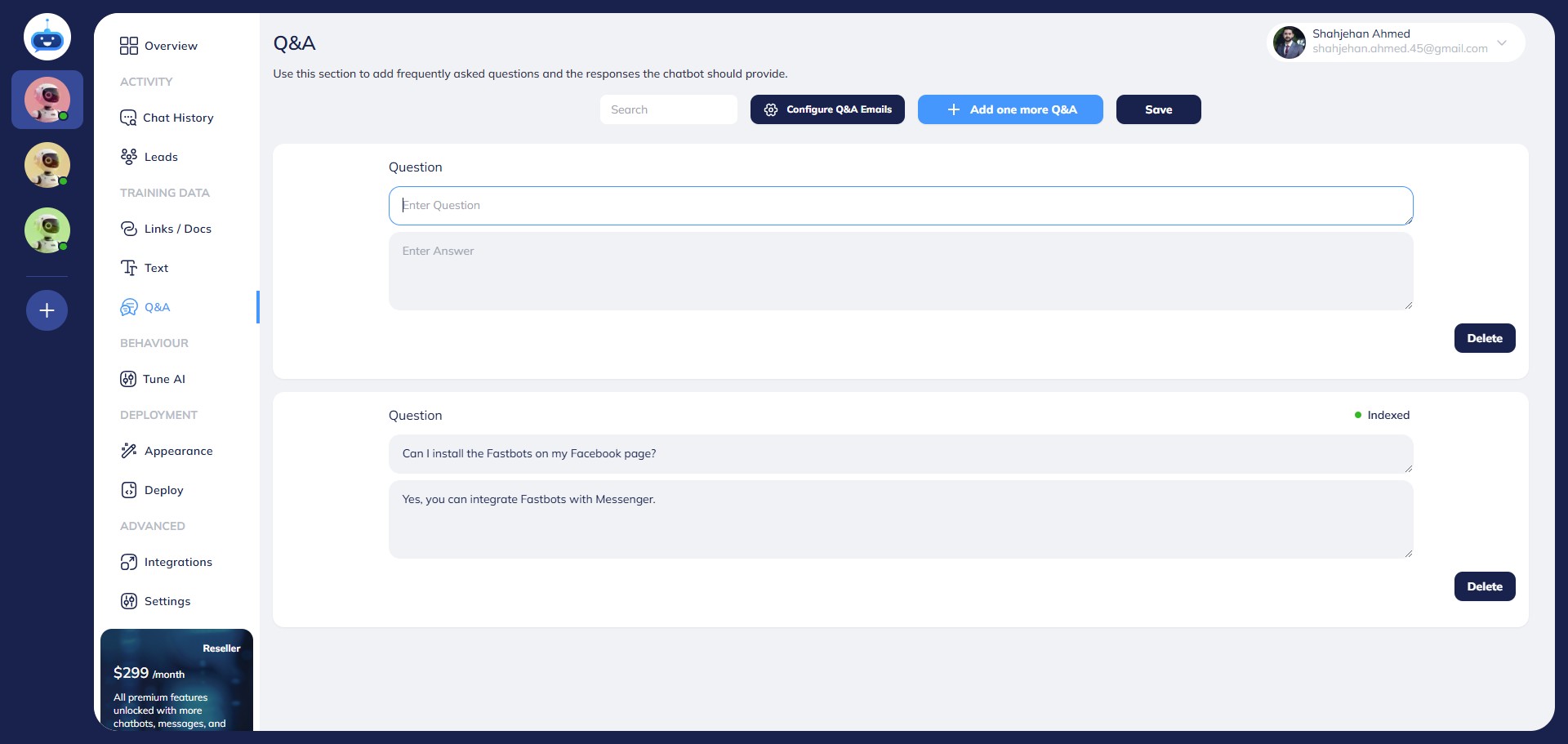
Add your question and answer here.
After adding the information, click on the "Save" button.
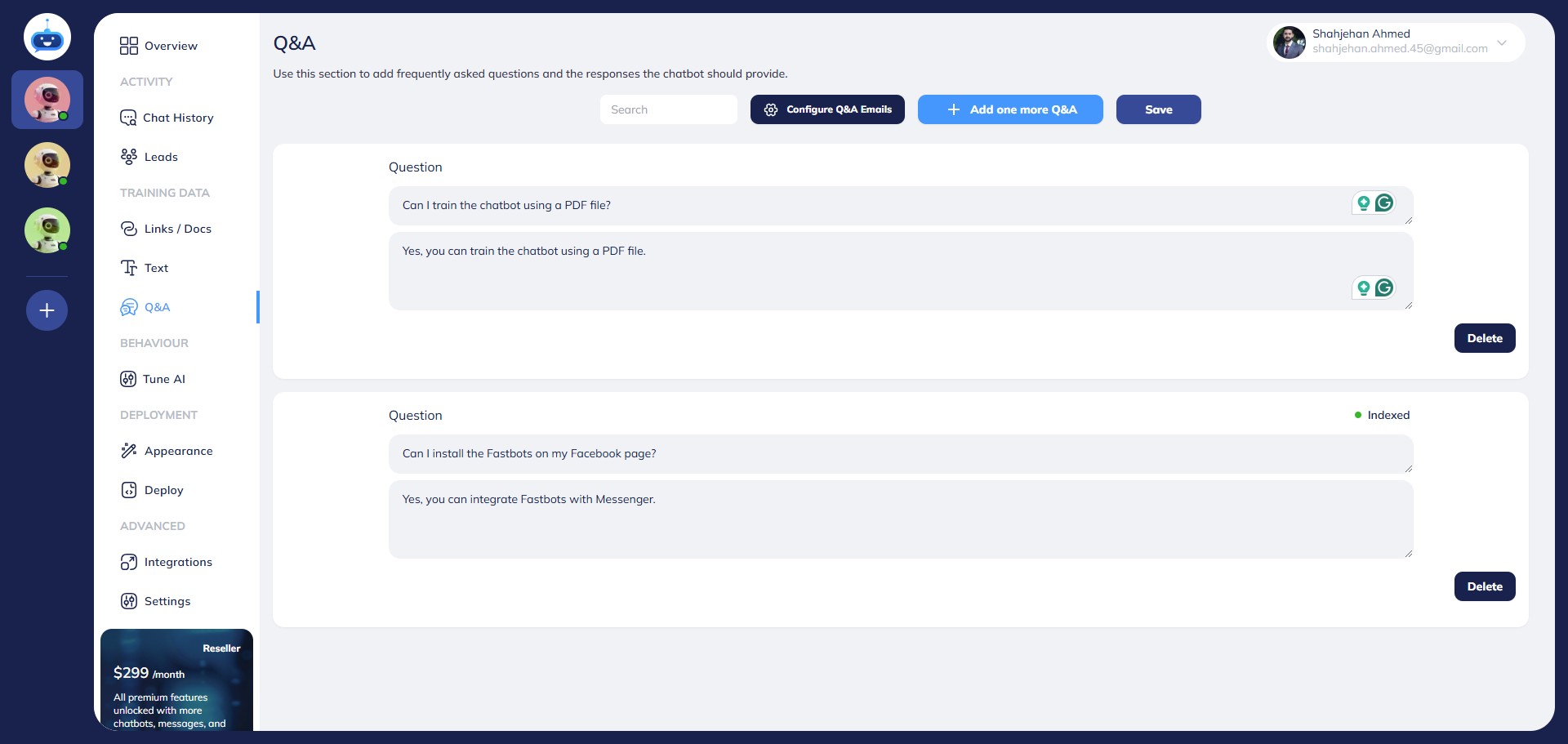
The status will be shown as Pending while the chatbot is adding the information to its database.
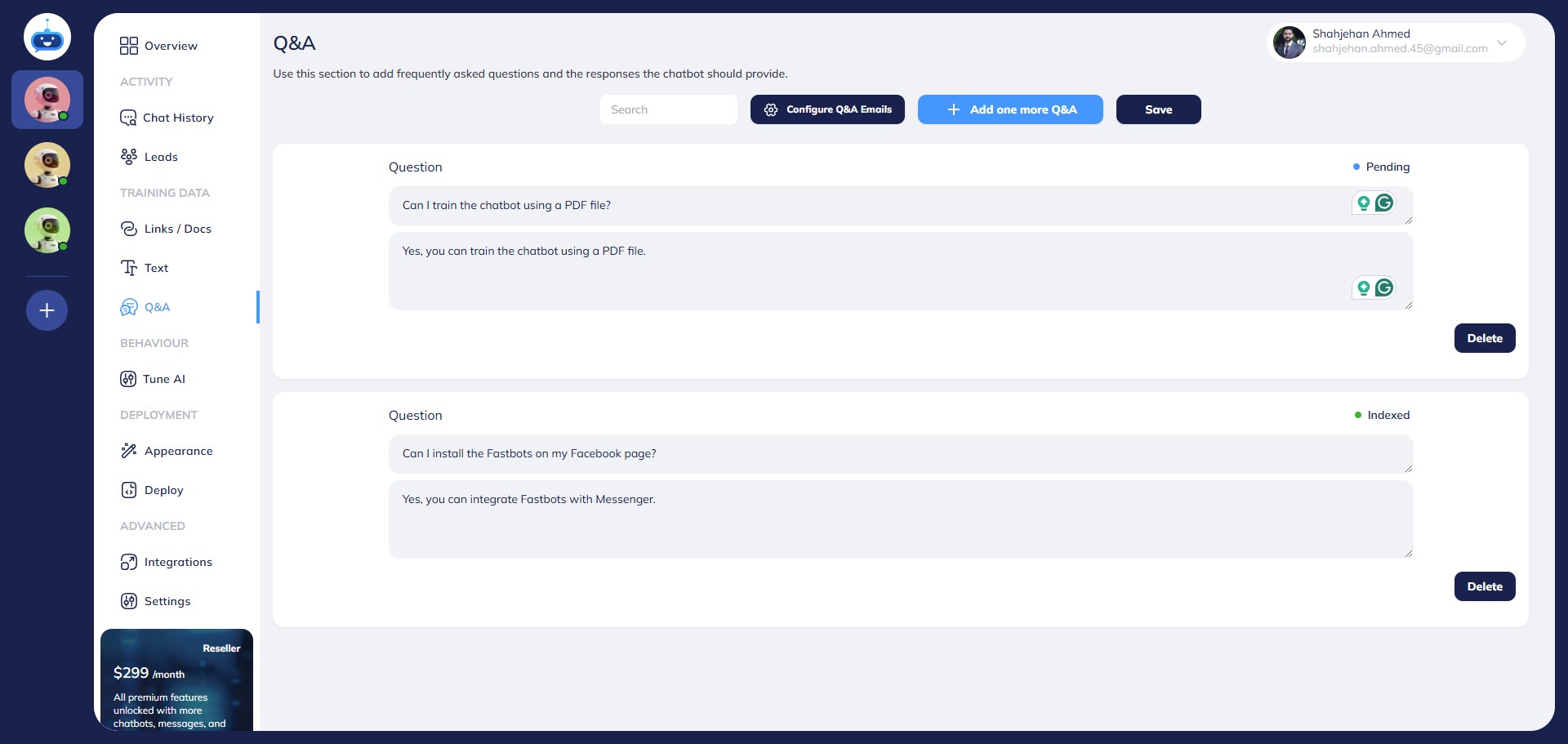
Refresh your tab and you should be able to see "INDEXED" on the Q&A window once the information is saved successfully.
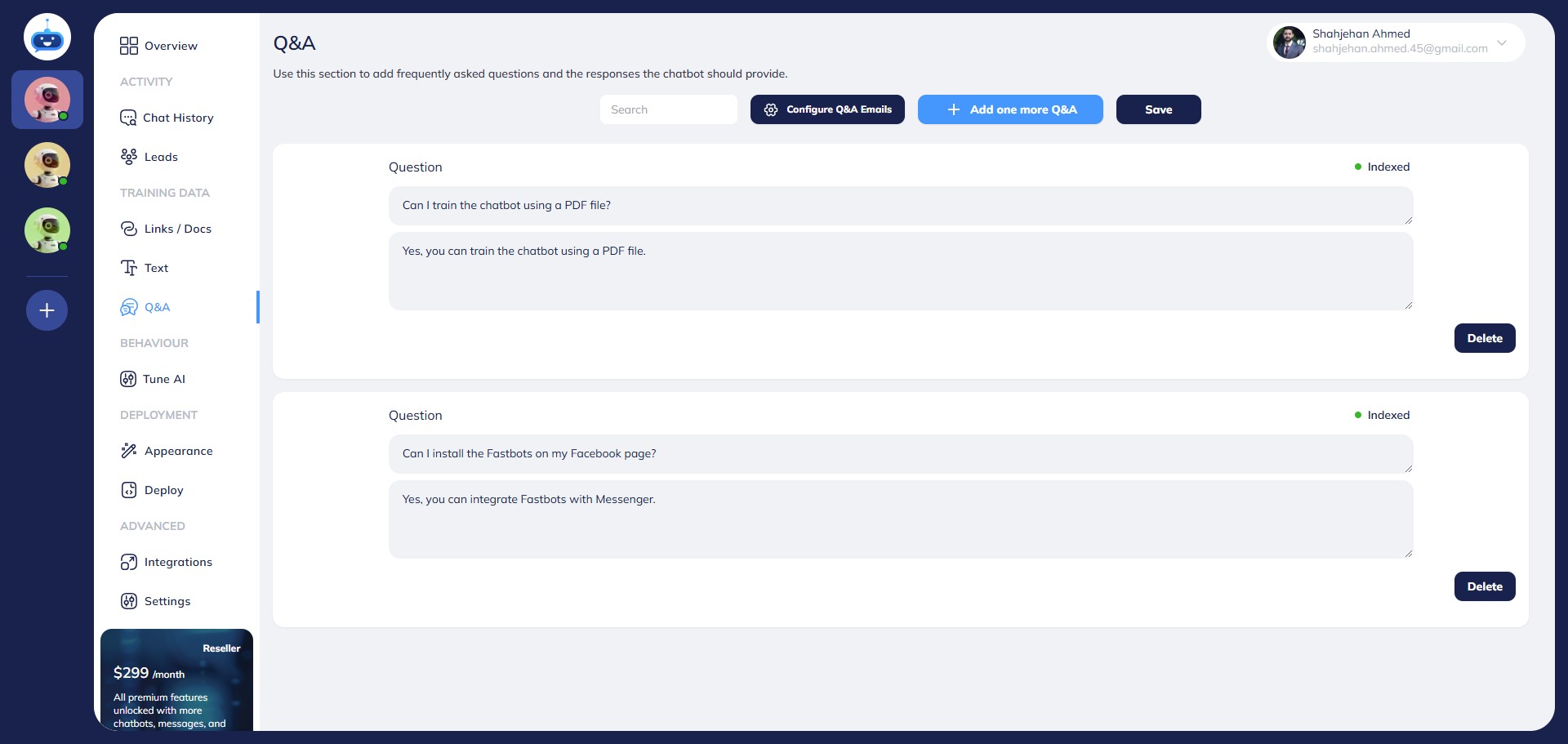
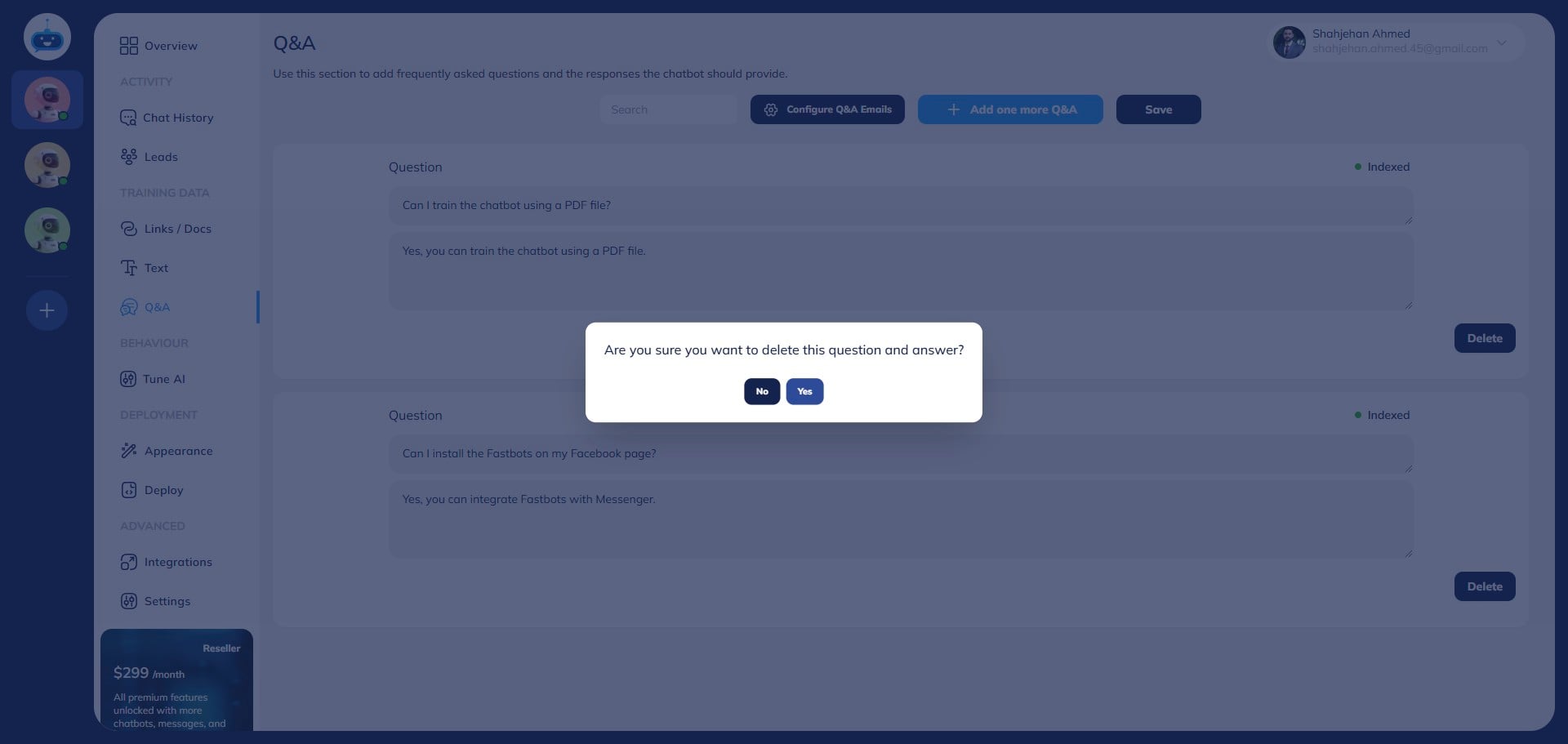
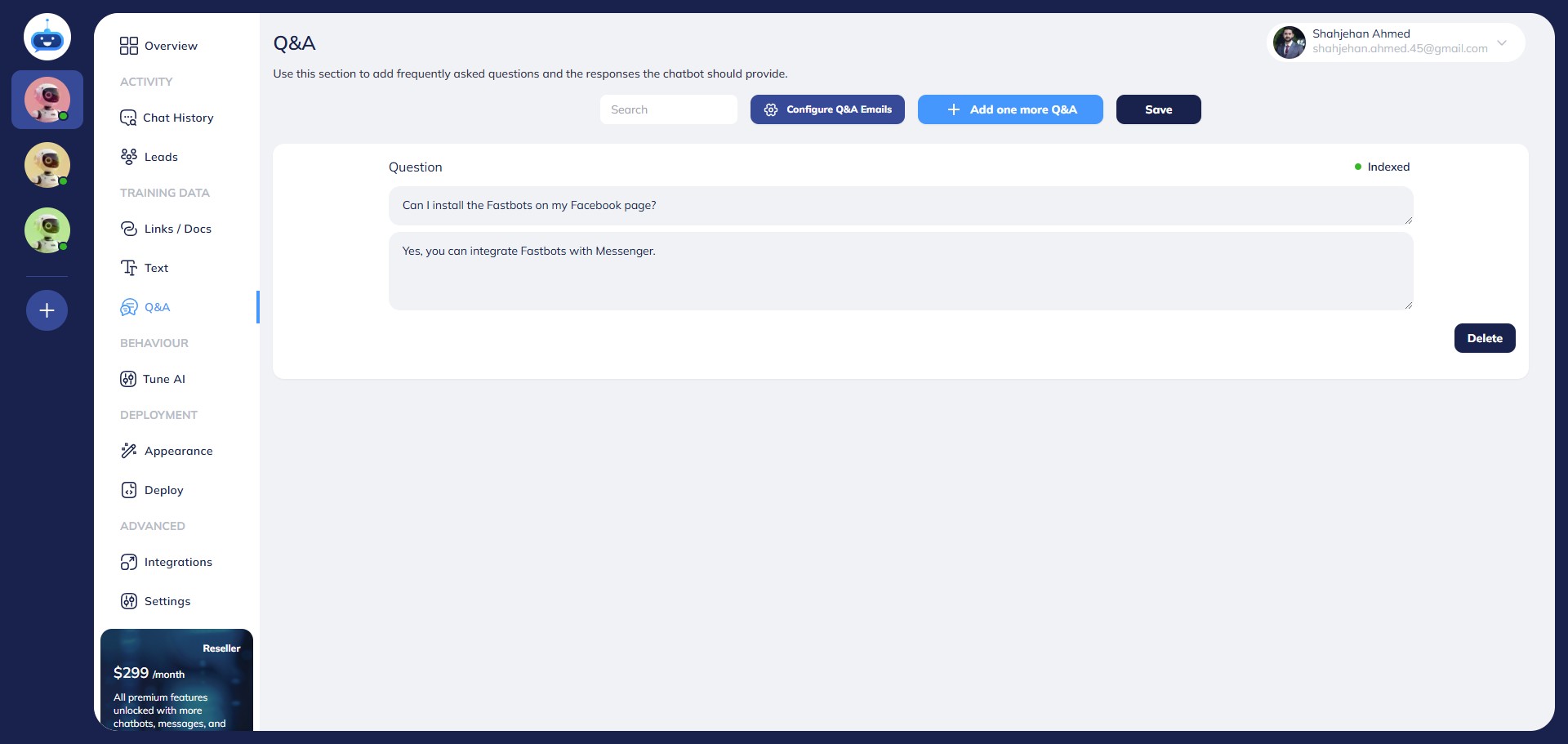
In order to delete a question from the chatbot data, click on the "Delete" icon.
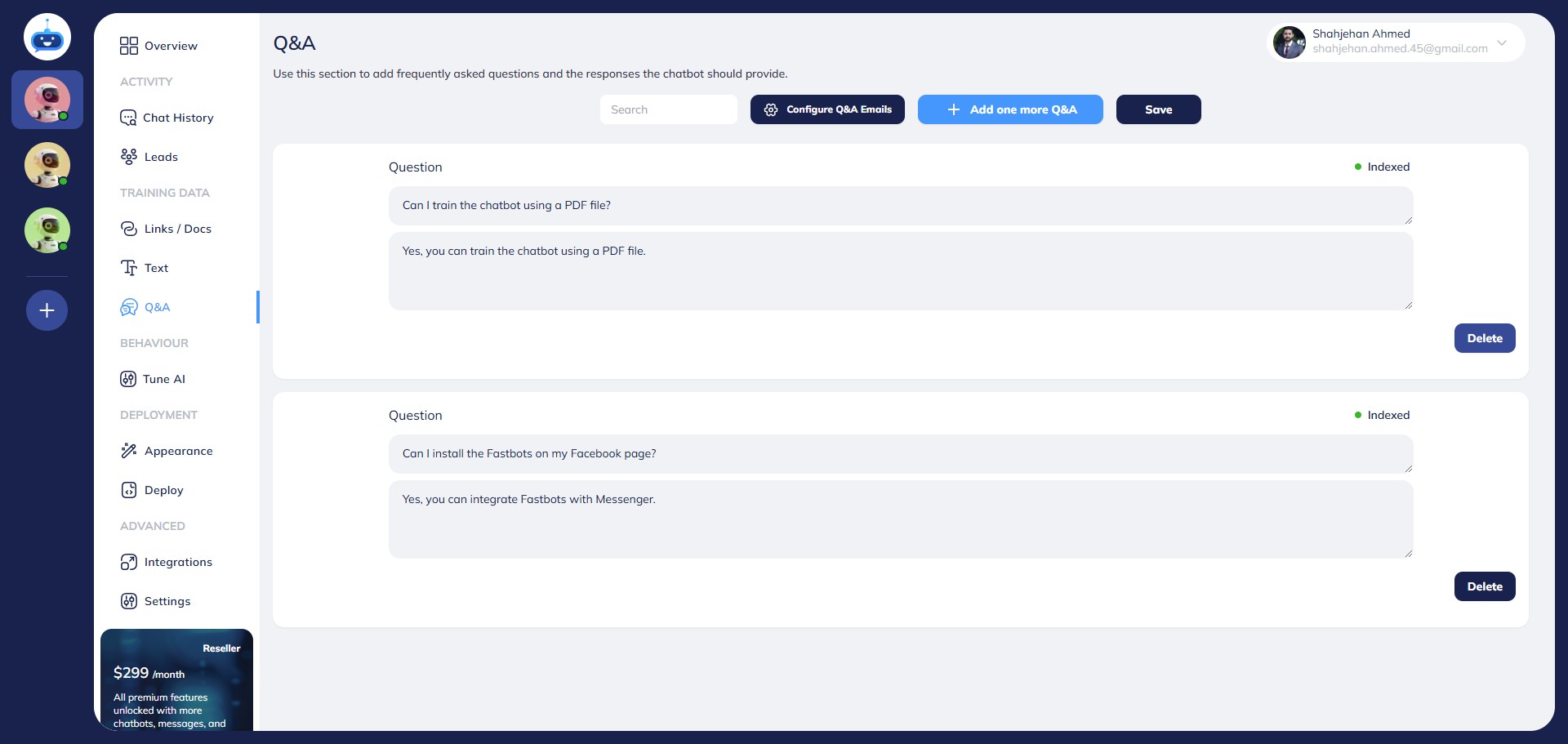
Click on the "Yes" button to delete.
To learn how to use "Configure Q&A Emails", please watch the video at the start of this guide.
Done 🚀. You have successfully trained your chatbot using the Q&A page.