How to Integrate Fastbots with Facebook Messenger
This training guide offers a step-by-step process for integrating Fastbots with business Facebook page. Once the chatbot is connected to Messenger, it will automatically begin responding to inquiries, enhancing customer engagement and support.
Navigate to https://app.fastbots.ai/
Select your chatbot

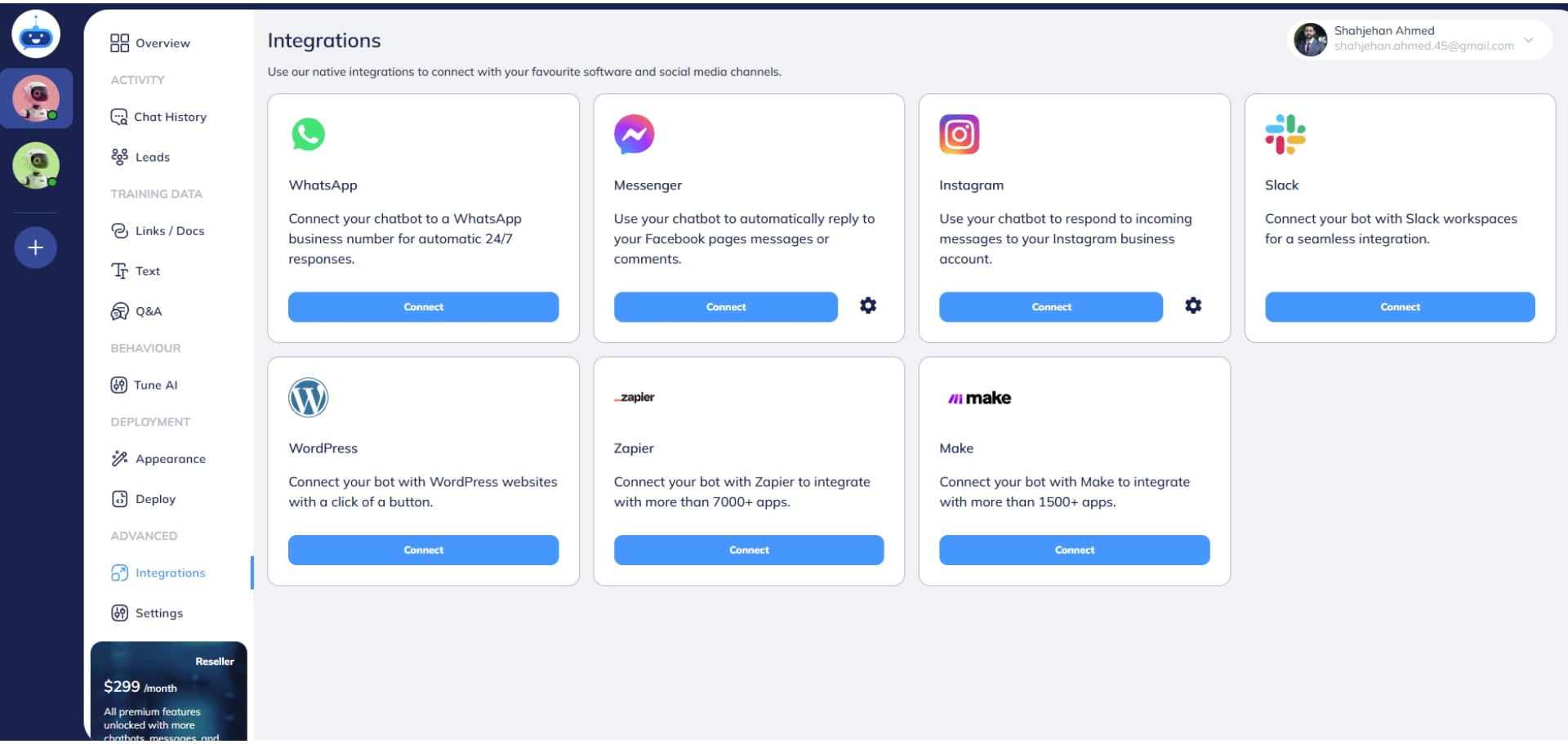
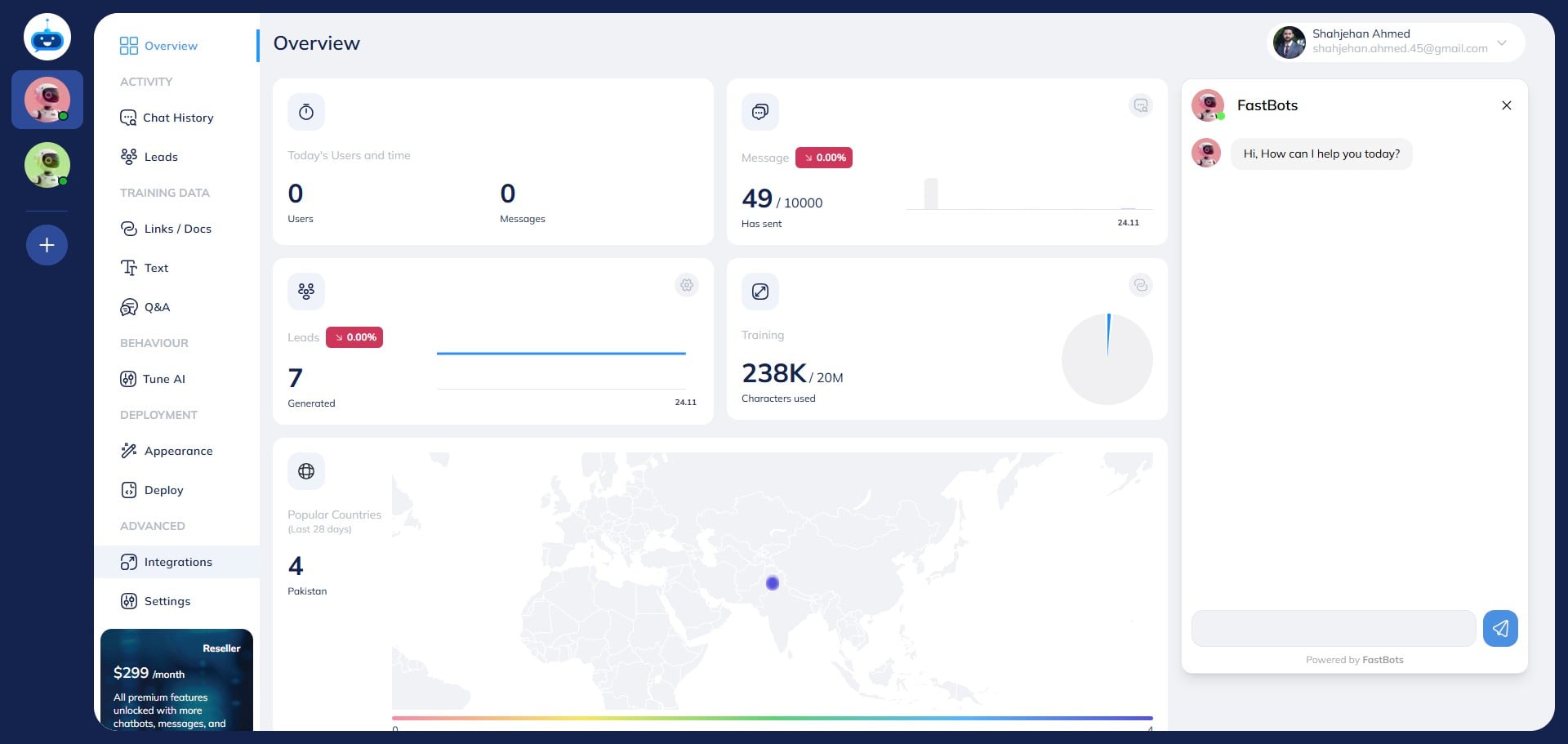
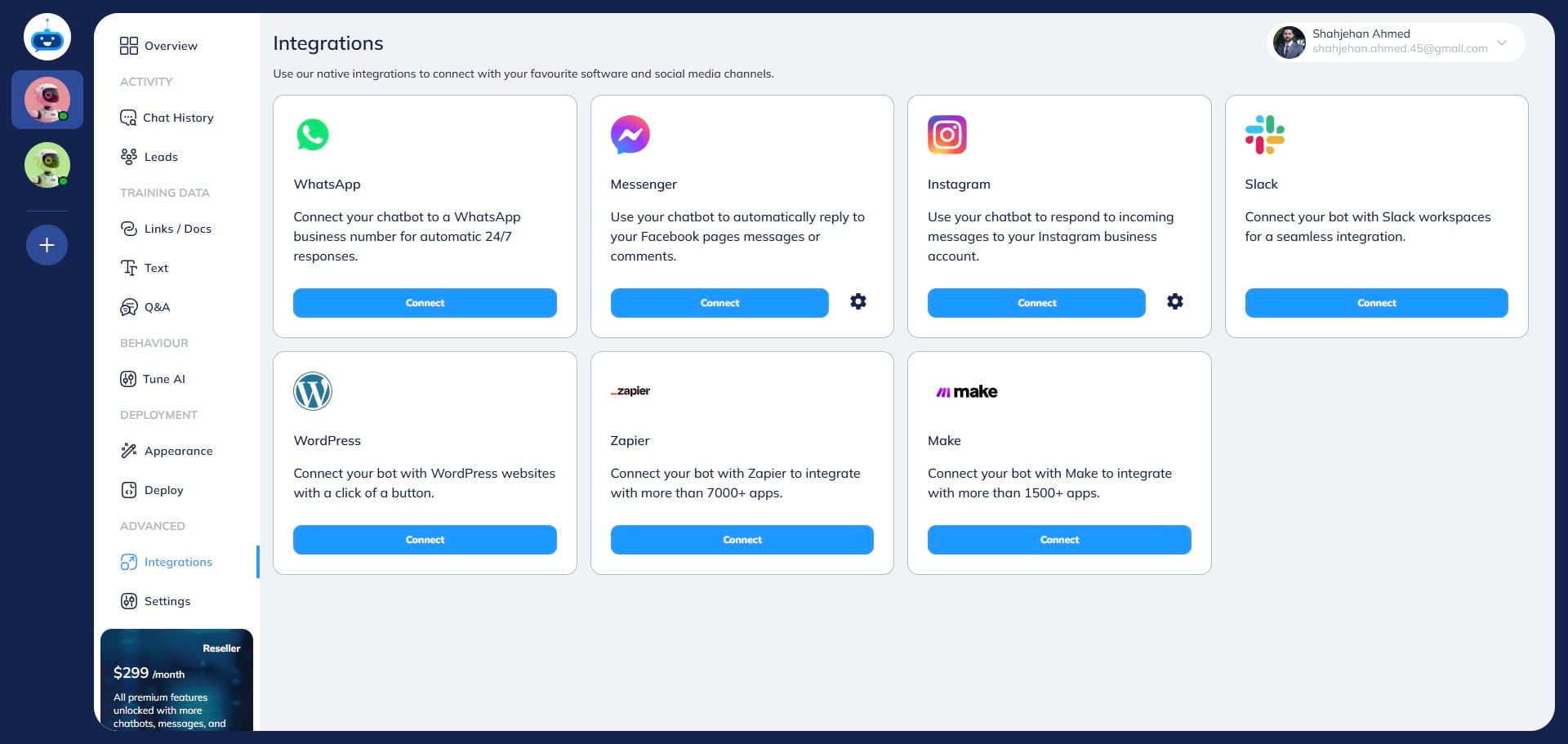
Click on the "Integrations" option to open the page.
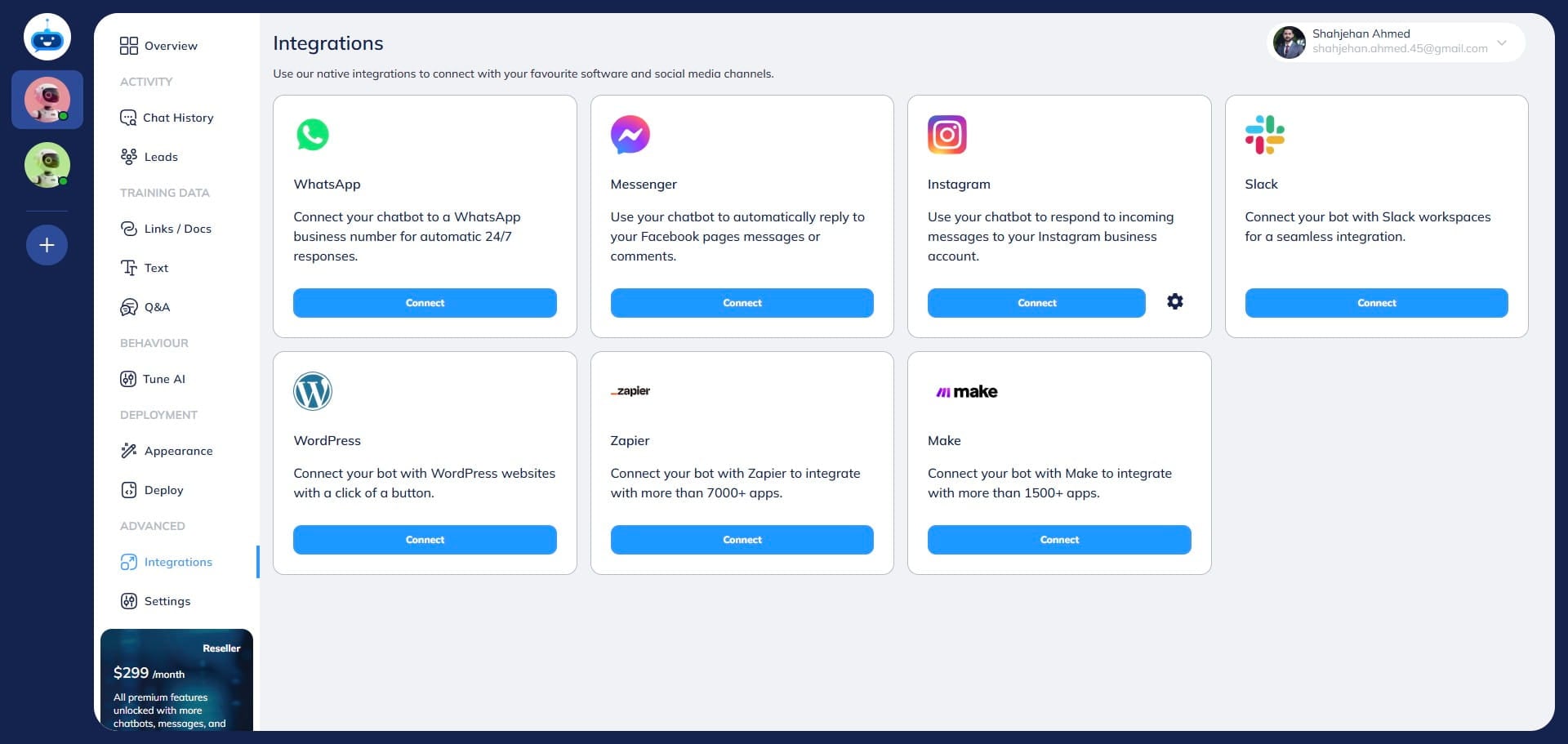
Click on the "Connect" button under the Messenger section.
Click on the "Continue" button. If you are already logged into Facebook, log in to your Facebook account and then click on the Continue button.
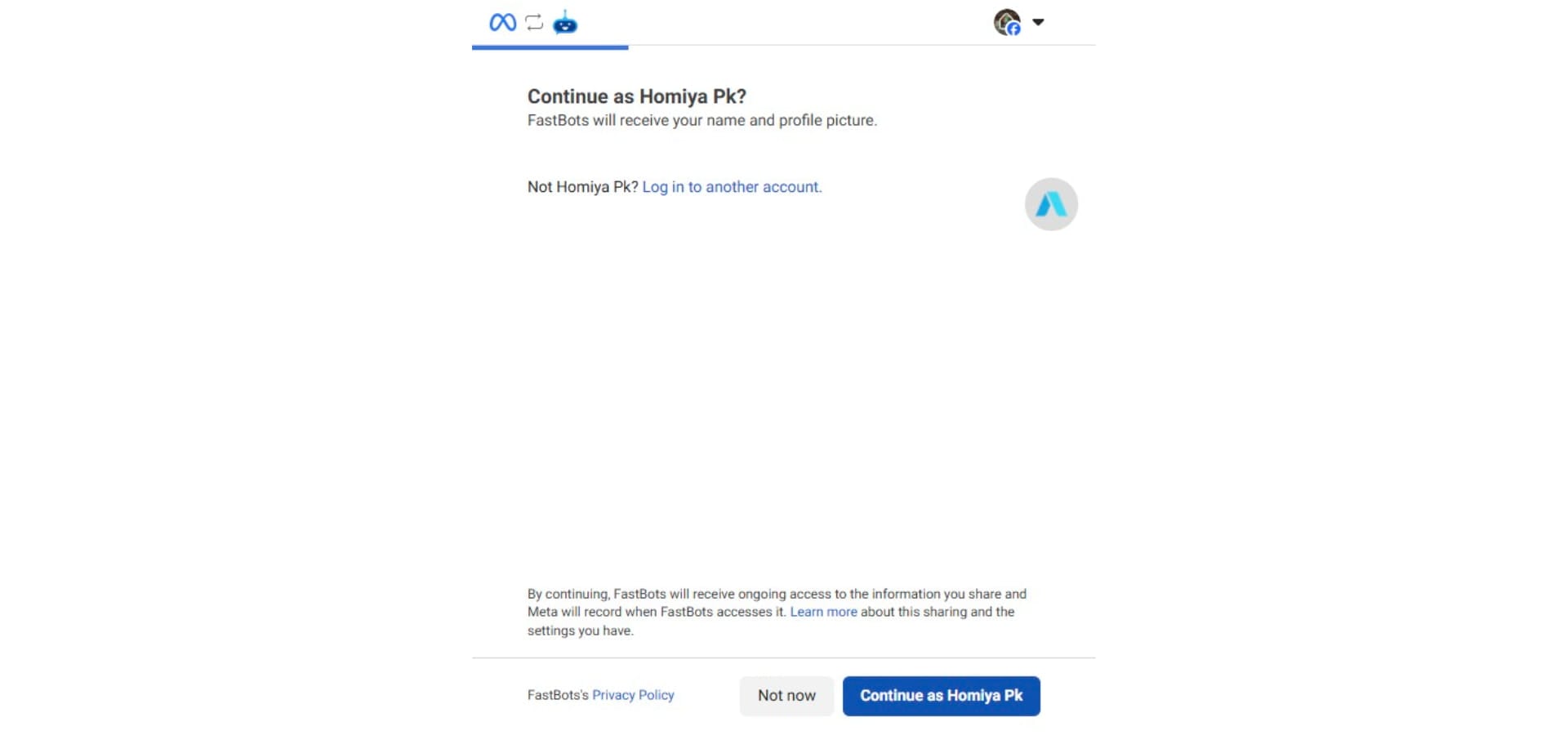
Select the page that you want to connect with Fastbots.
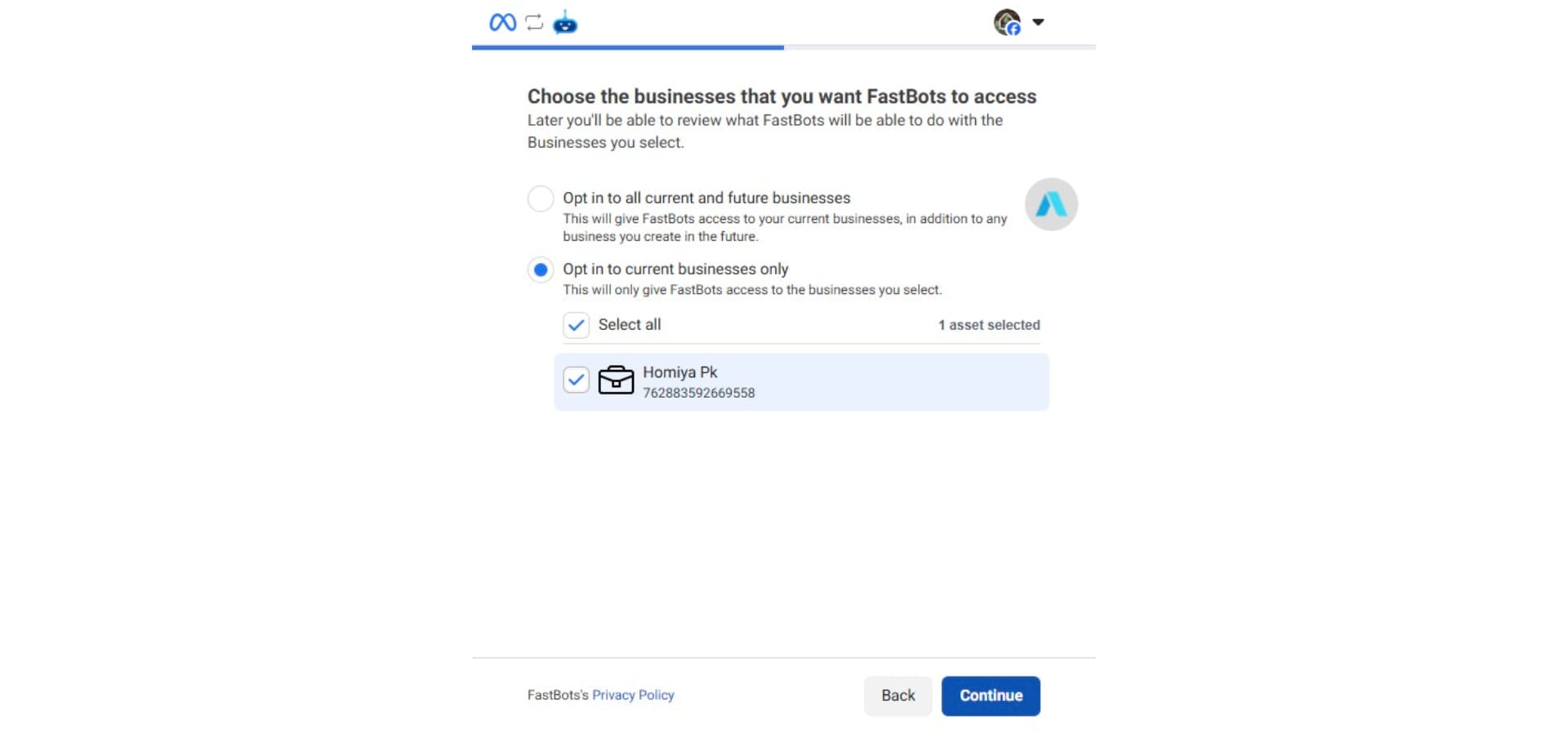
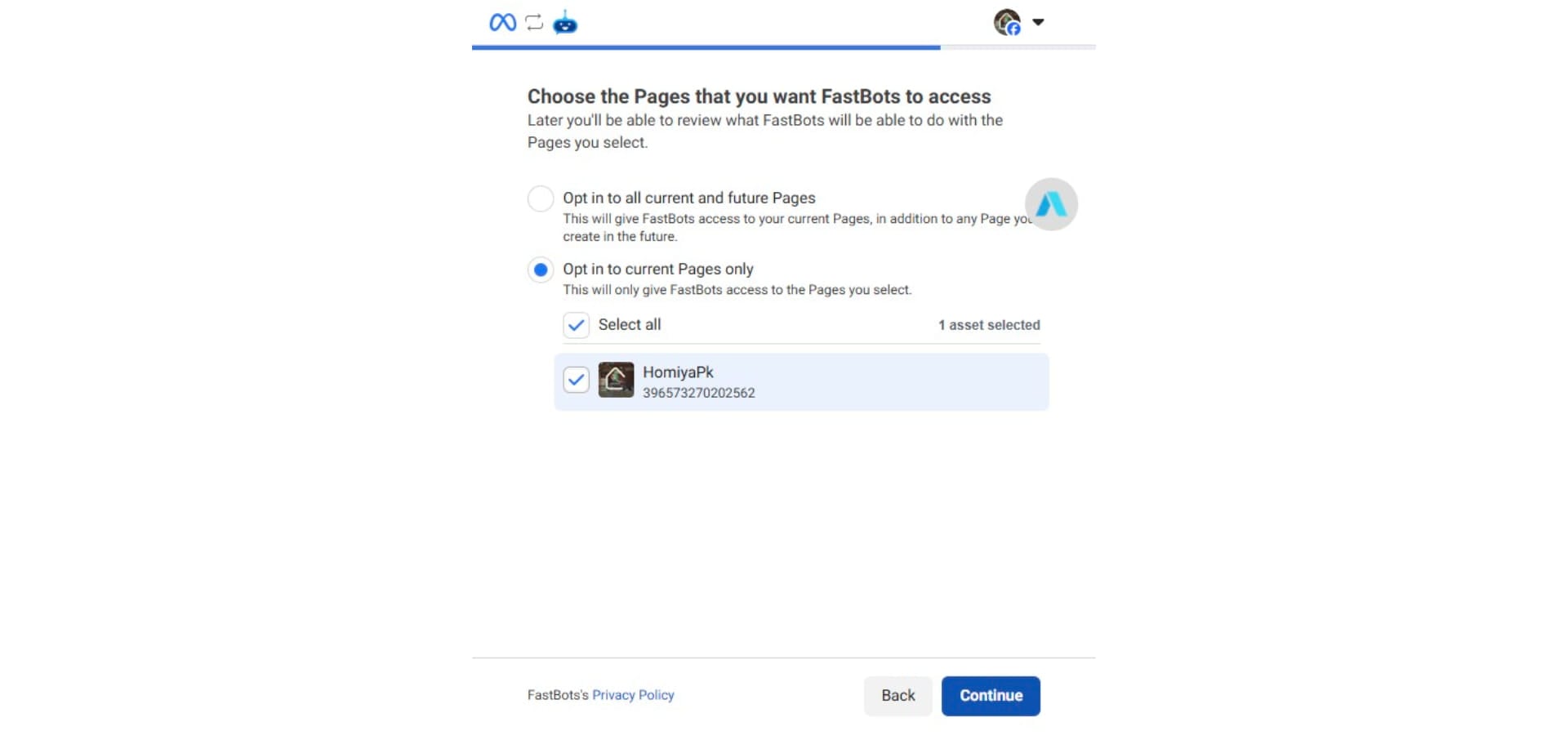
After selecting the Facebook page, click on "Continue"
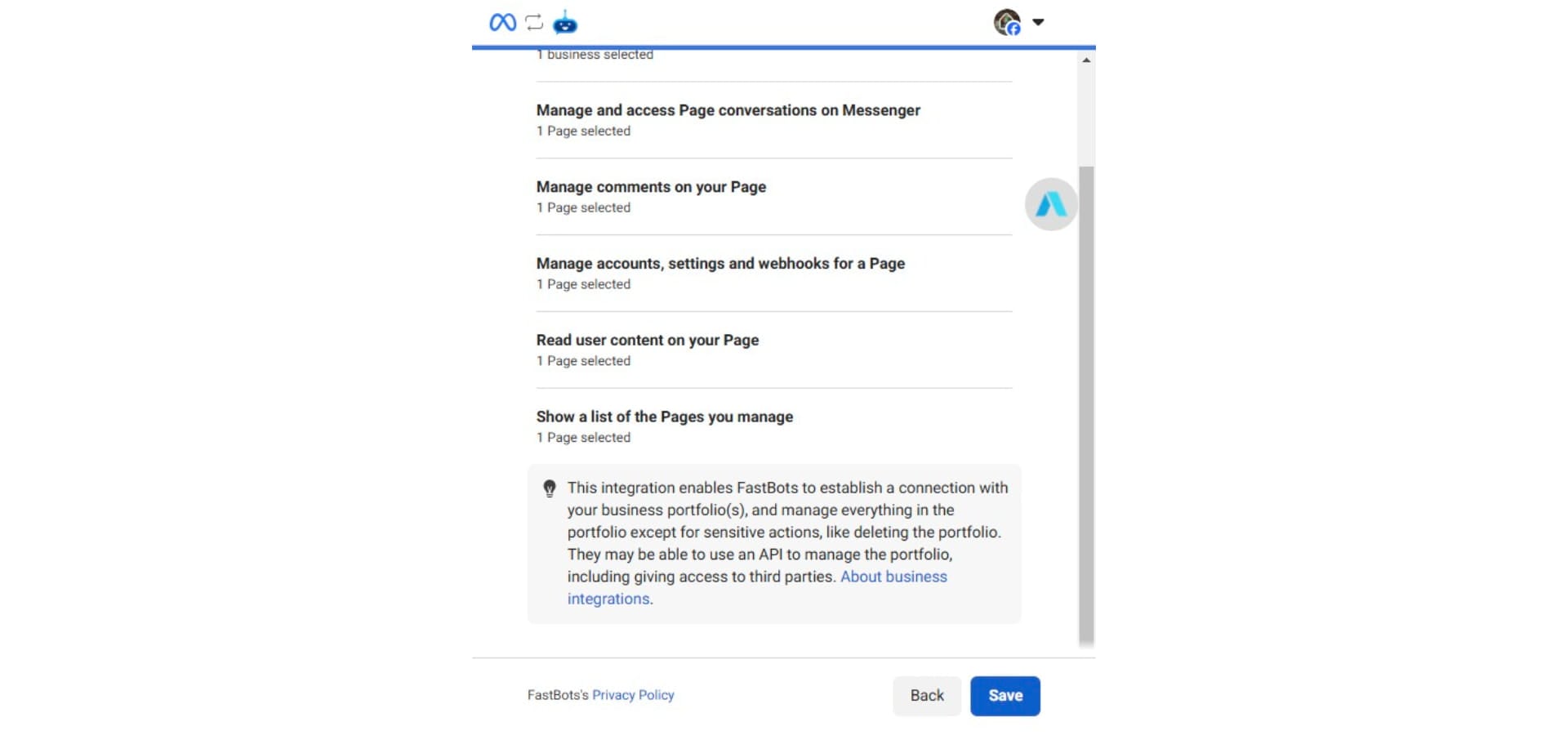
Click on the "Save" button.
Click on the "Got it" button.
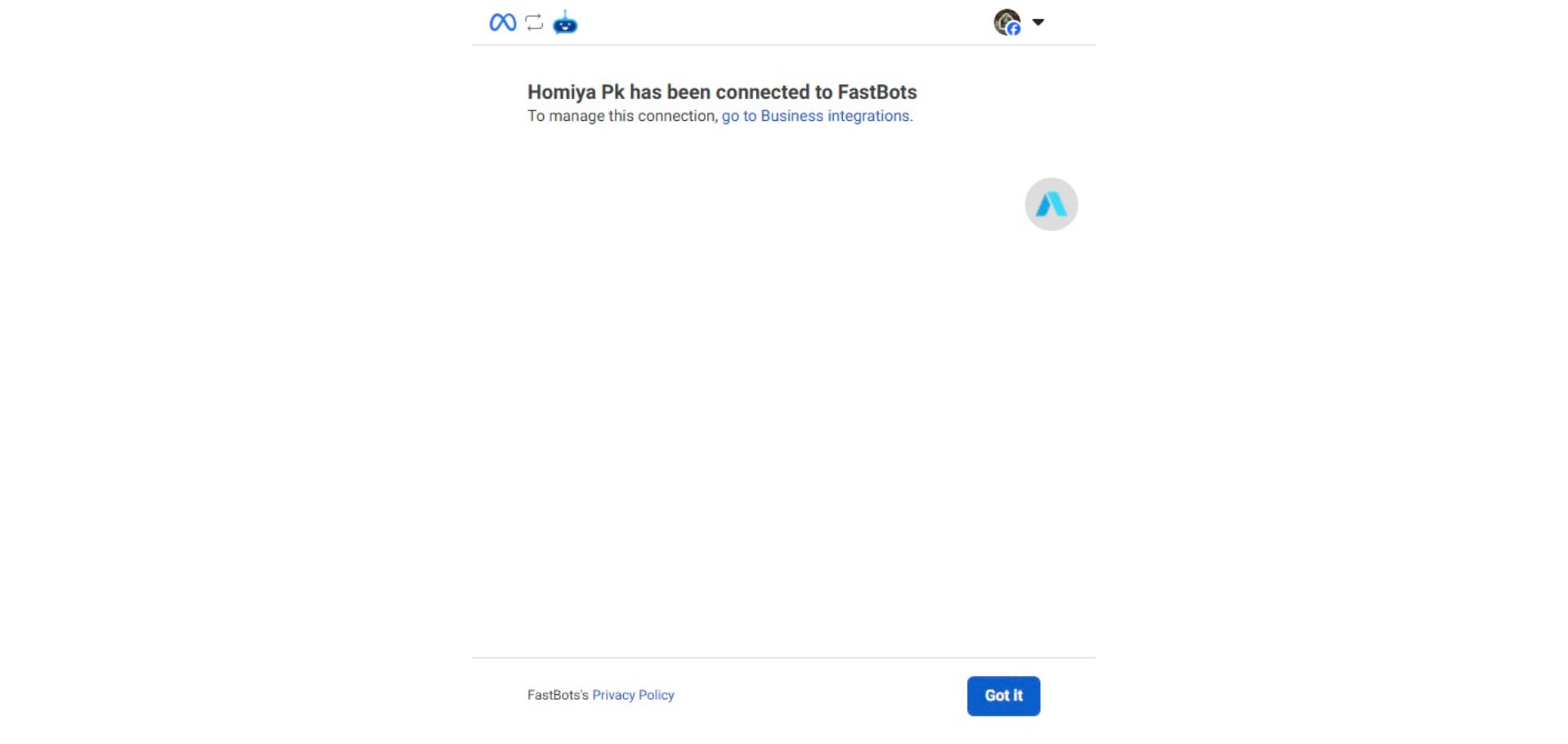
Once your chatbot is connected with your page, you will see the "Done" notification.
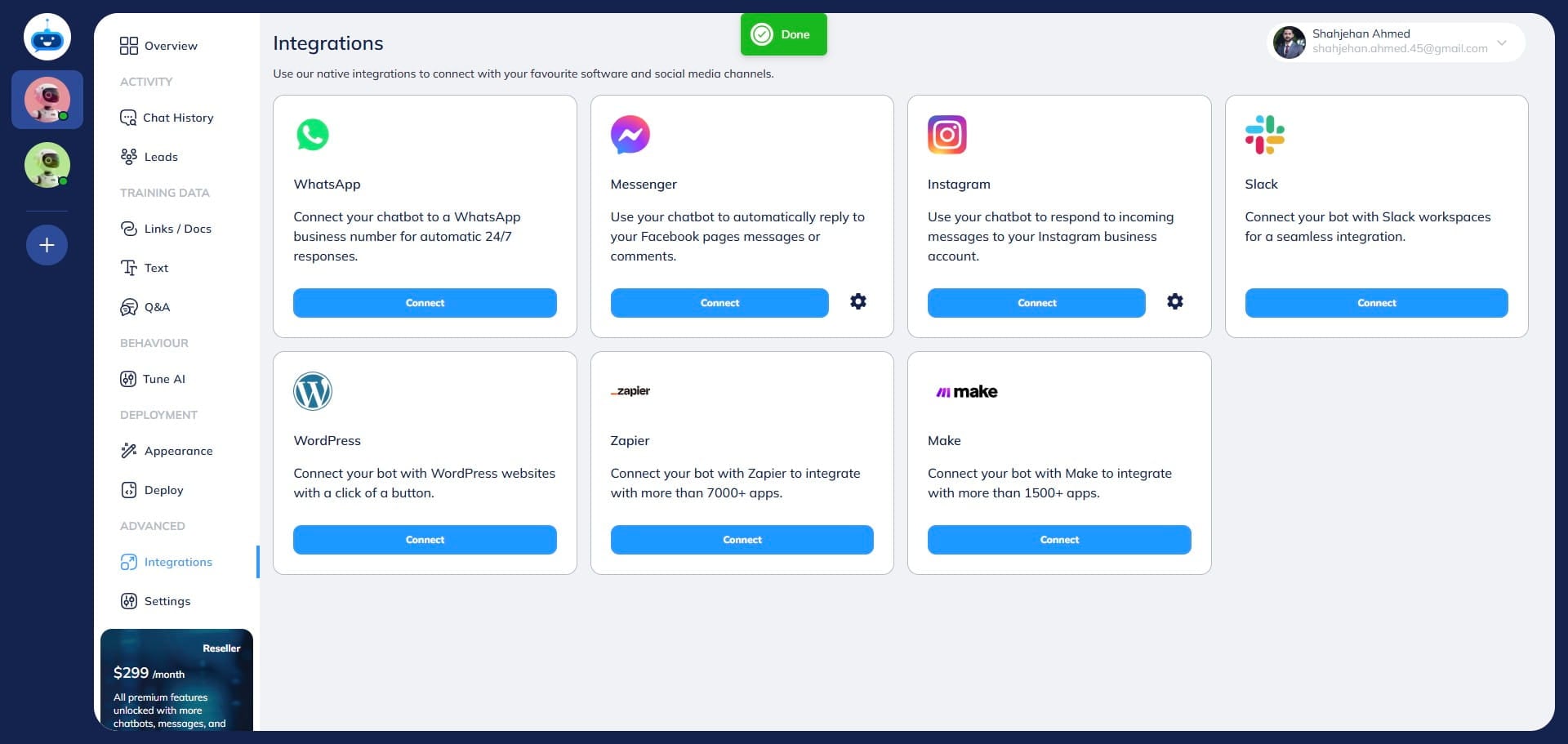
To see the connected page, click on this icon.
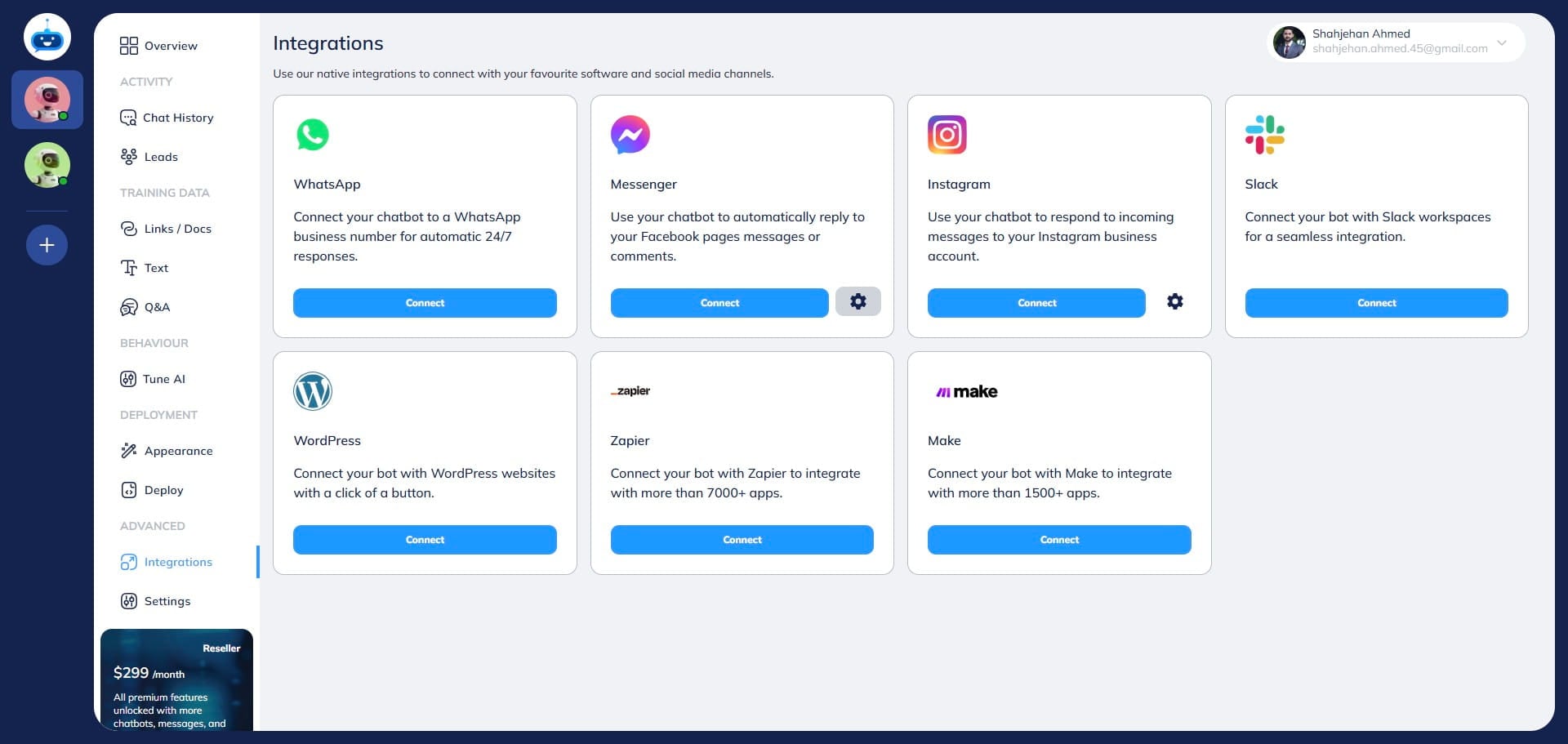
Turn the "Reply to messages" option on so the chatbot can reply to messages on the Facebook page.
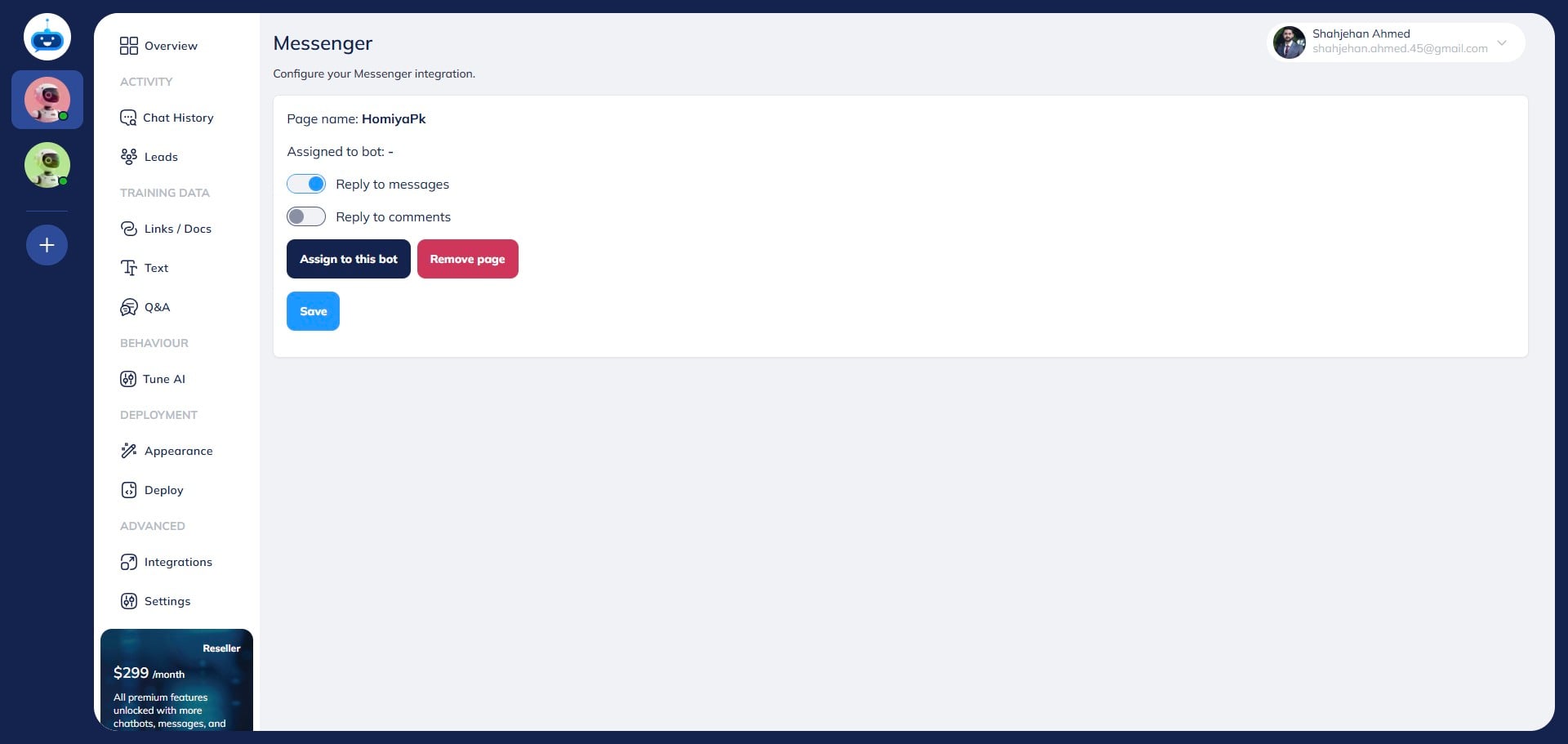
If you also want the chatbot to reply to comments on your Facebook page, you can turn this option on.
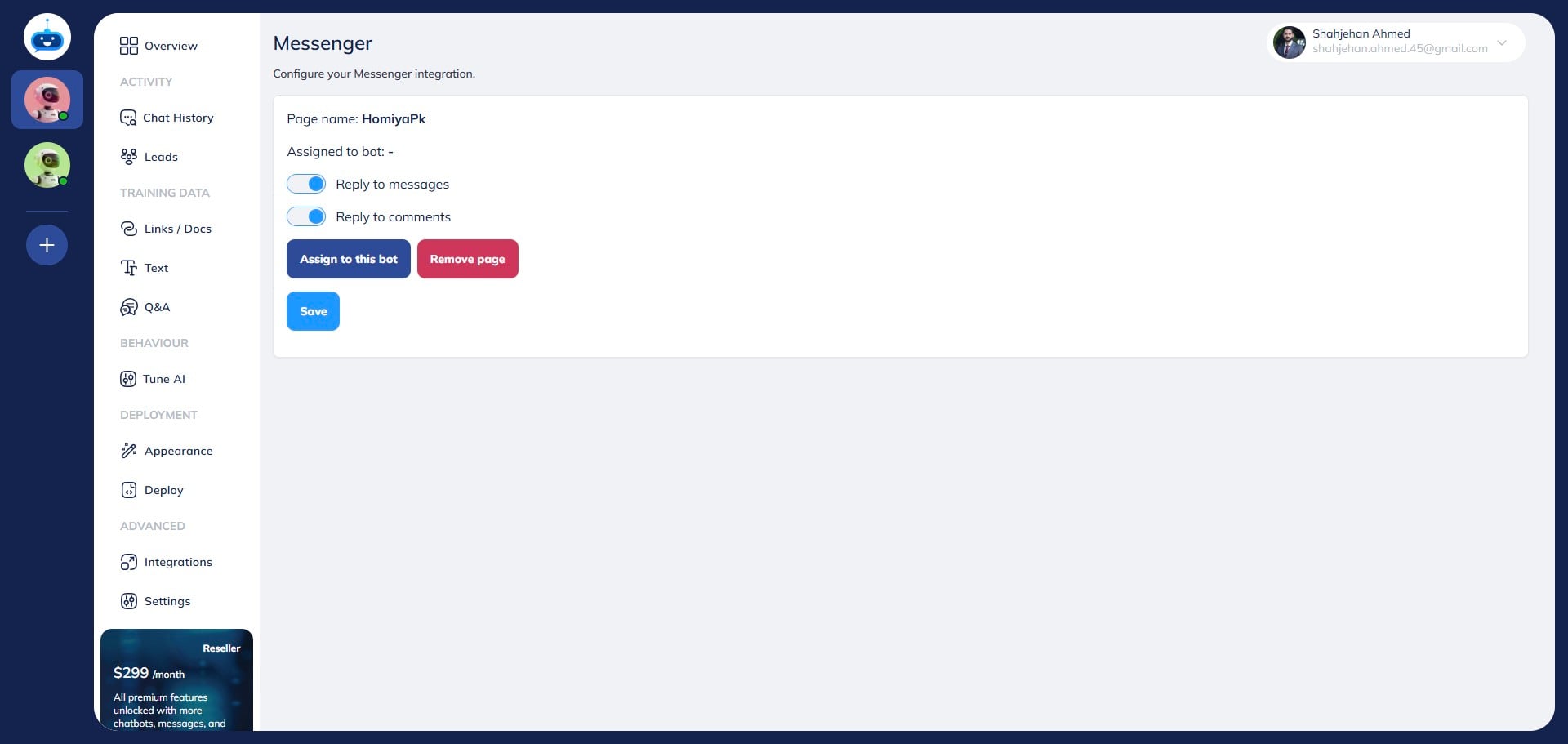
To make the chatbot functional on this page, click on the "Assign to this bot" button.
Click on "Save"
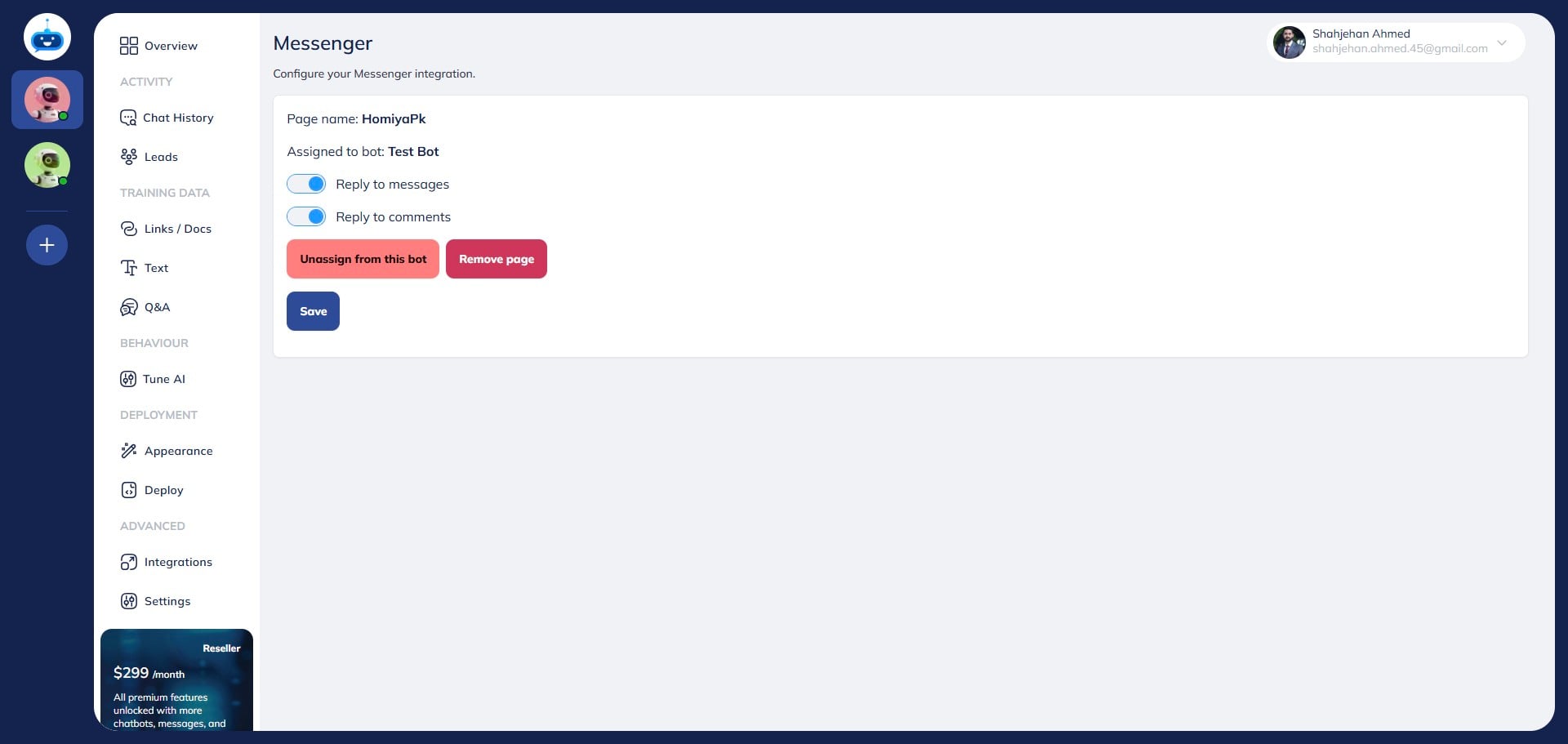
If you need to remove or unassign the chatbot from the Facebook page, just click on the "Unassign from this bot" or "Remove Page" button and hit save.
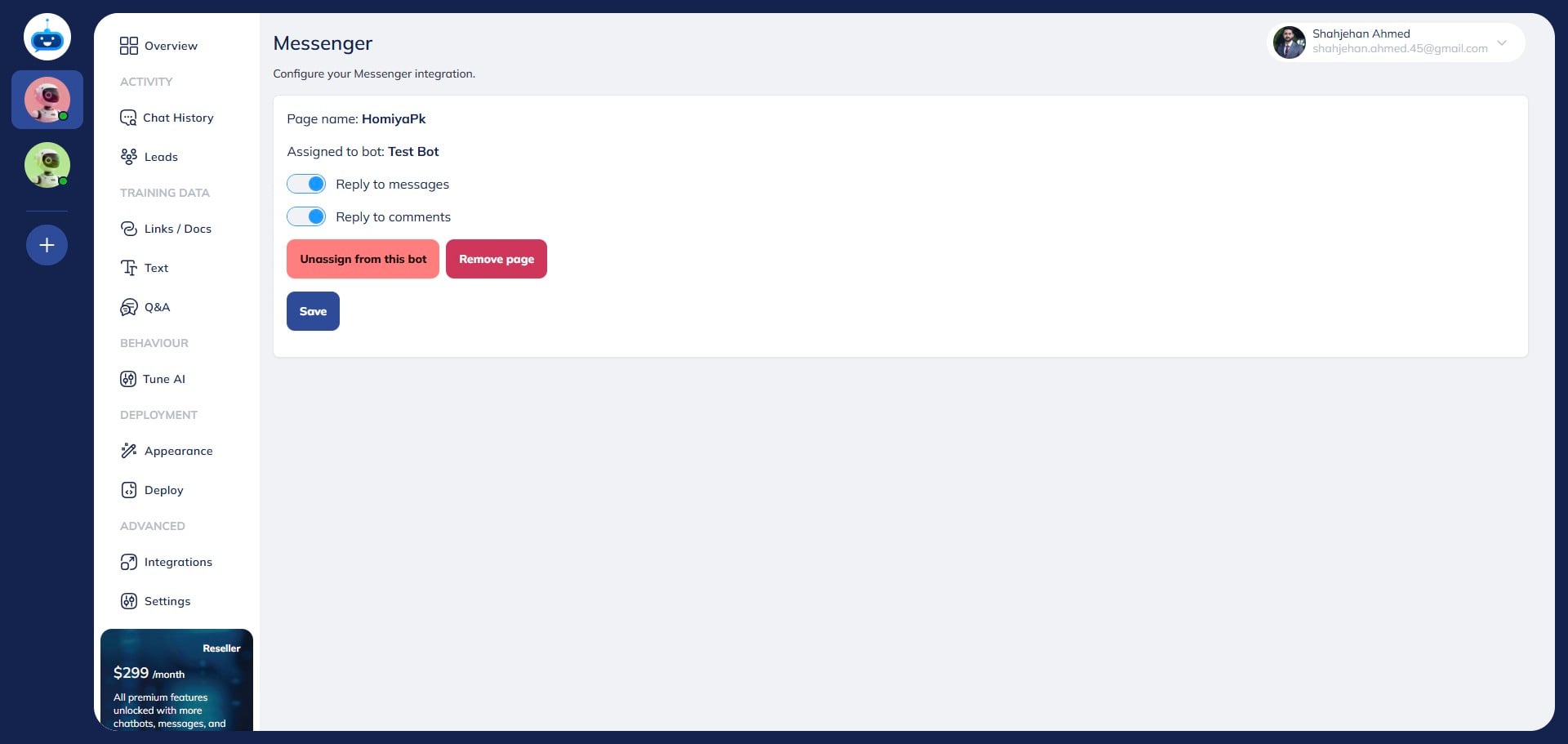
If you want to integrate other Facebook pages with your chatbot, click on the "Connect" button again.
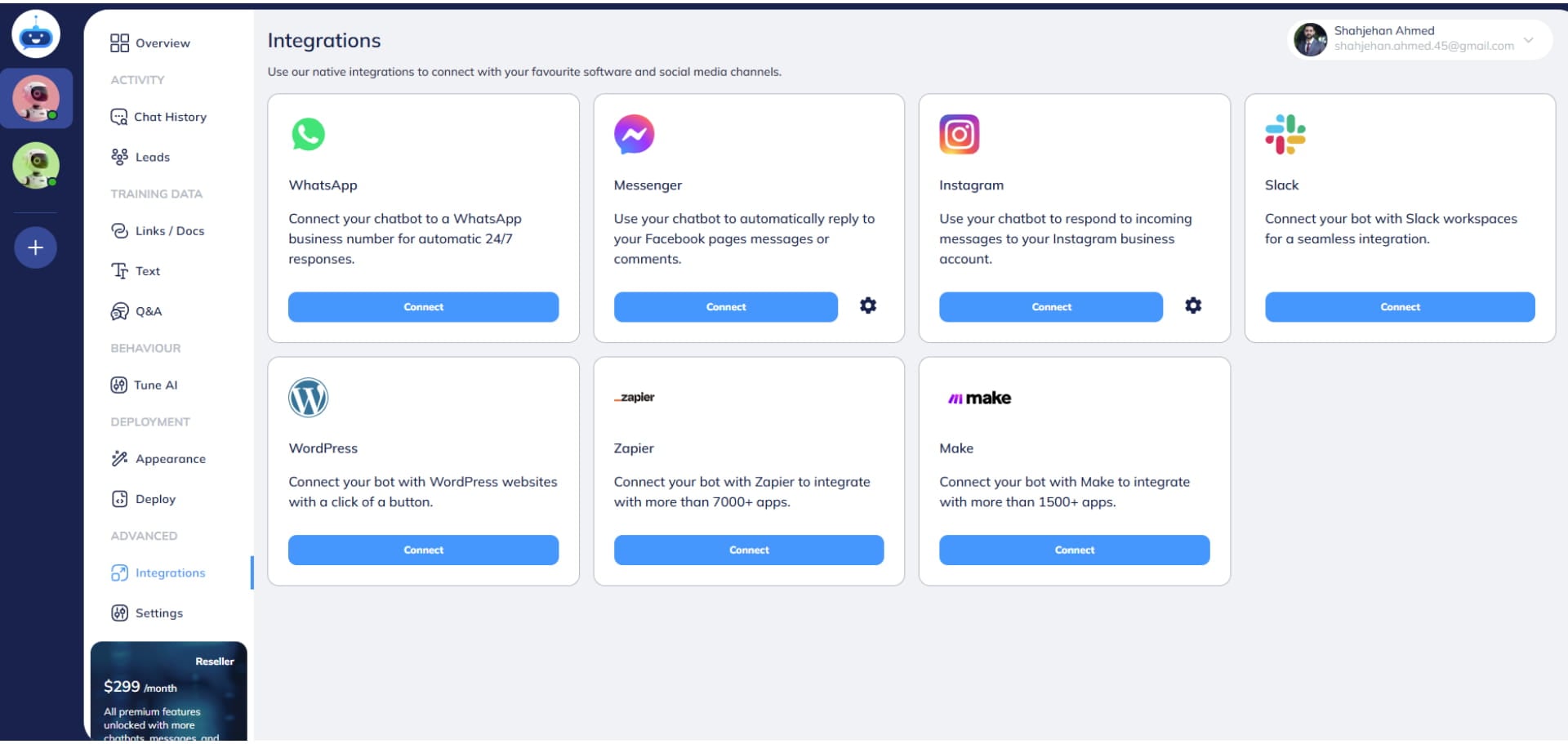
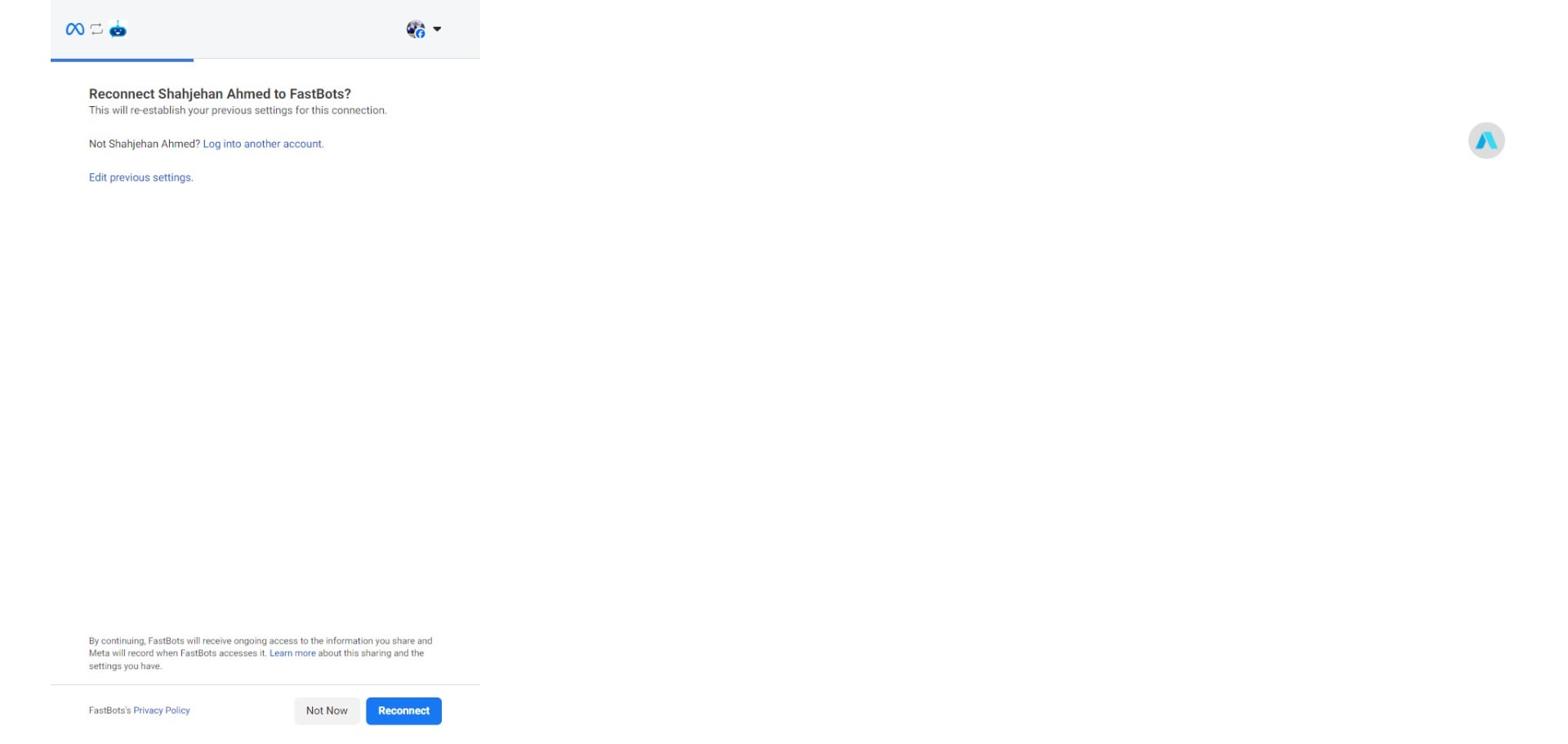
Click on the "Edit Previous Settings" option.
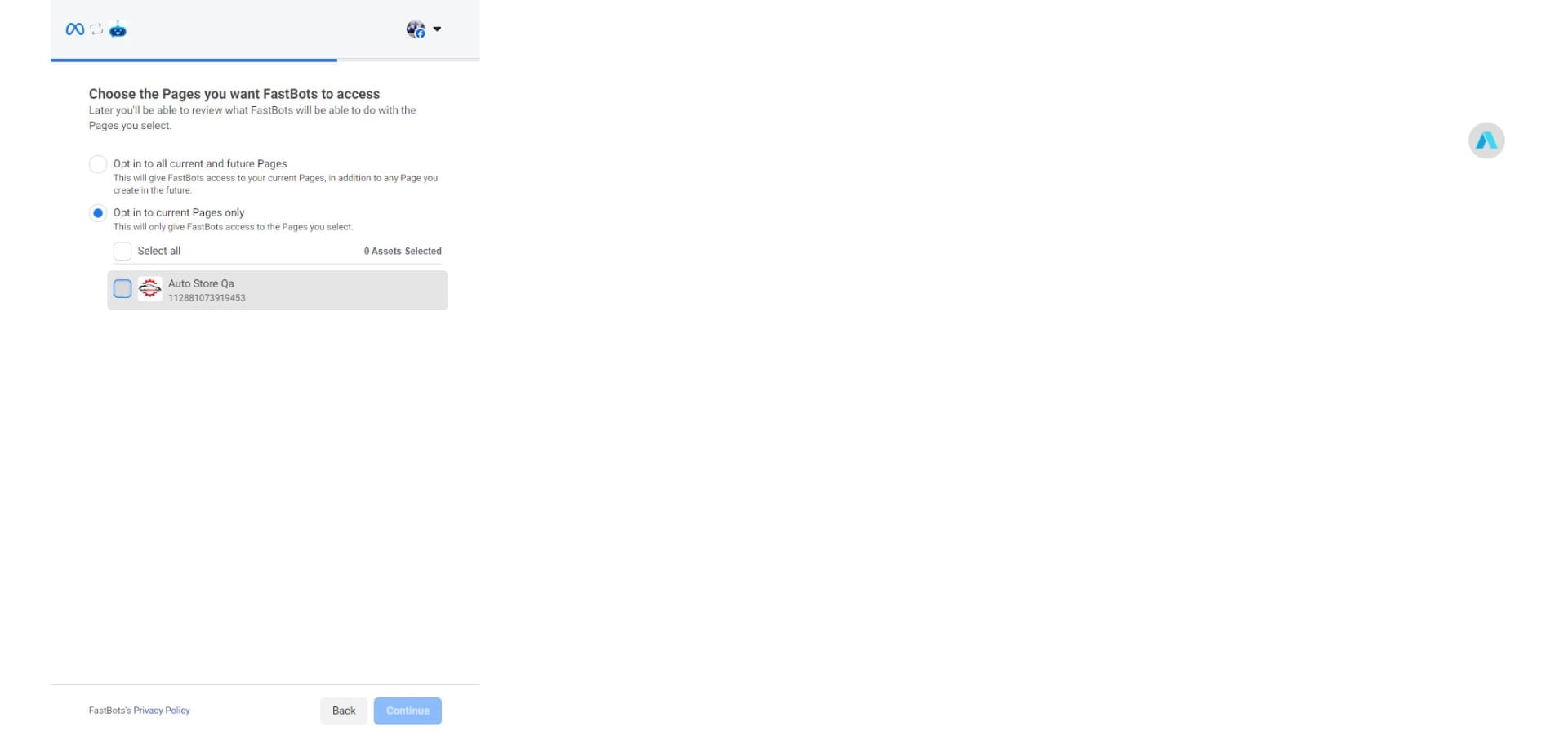
If you have any other Facebook pages, they will show in the list. You can select the Facebook page that you want to connect by clicking on the checkbox.
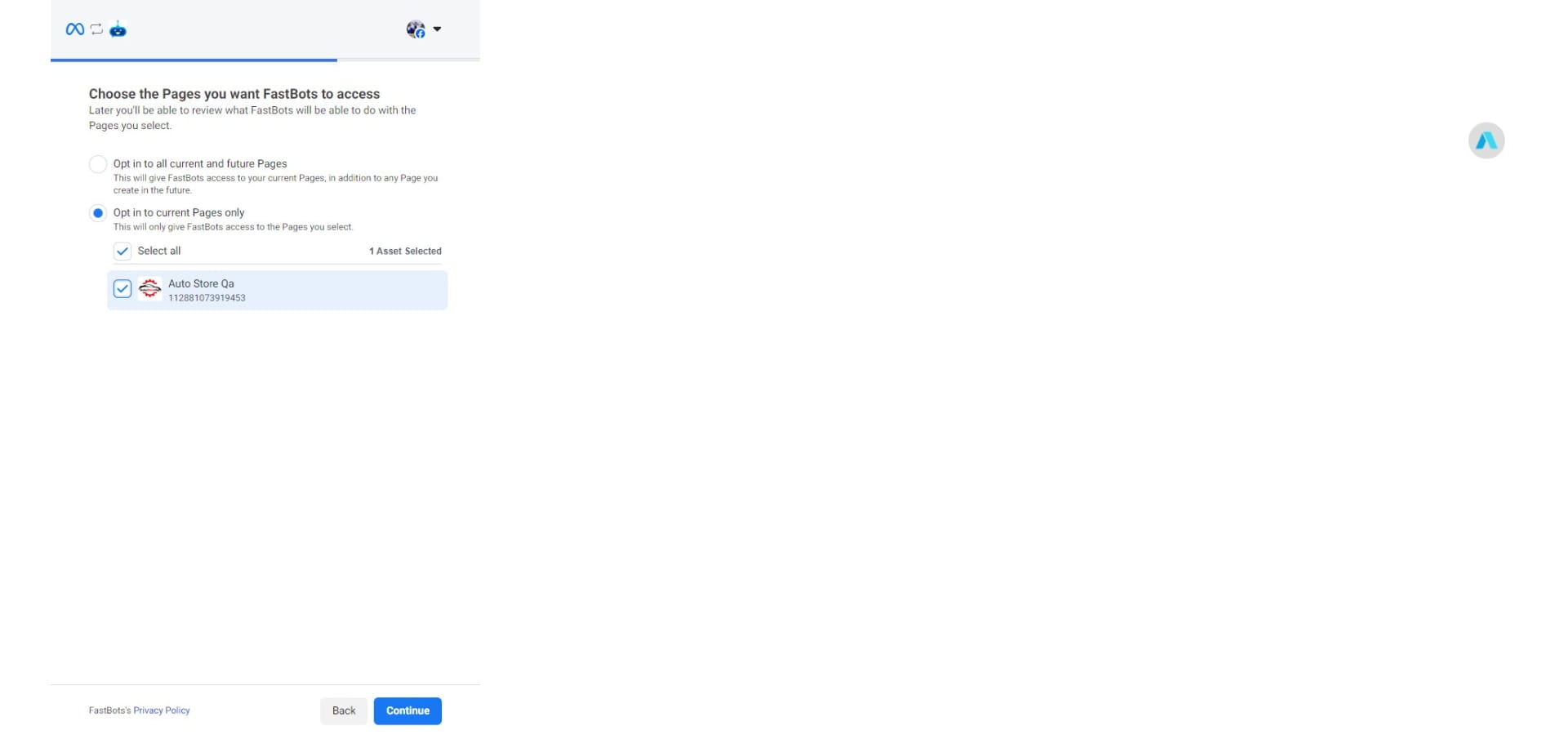
After selecting the Facebook page, click on "Continue"
You have successfully connected the other Facebook page with your chatbot.
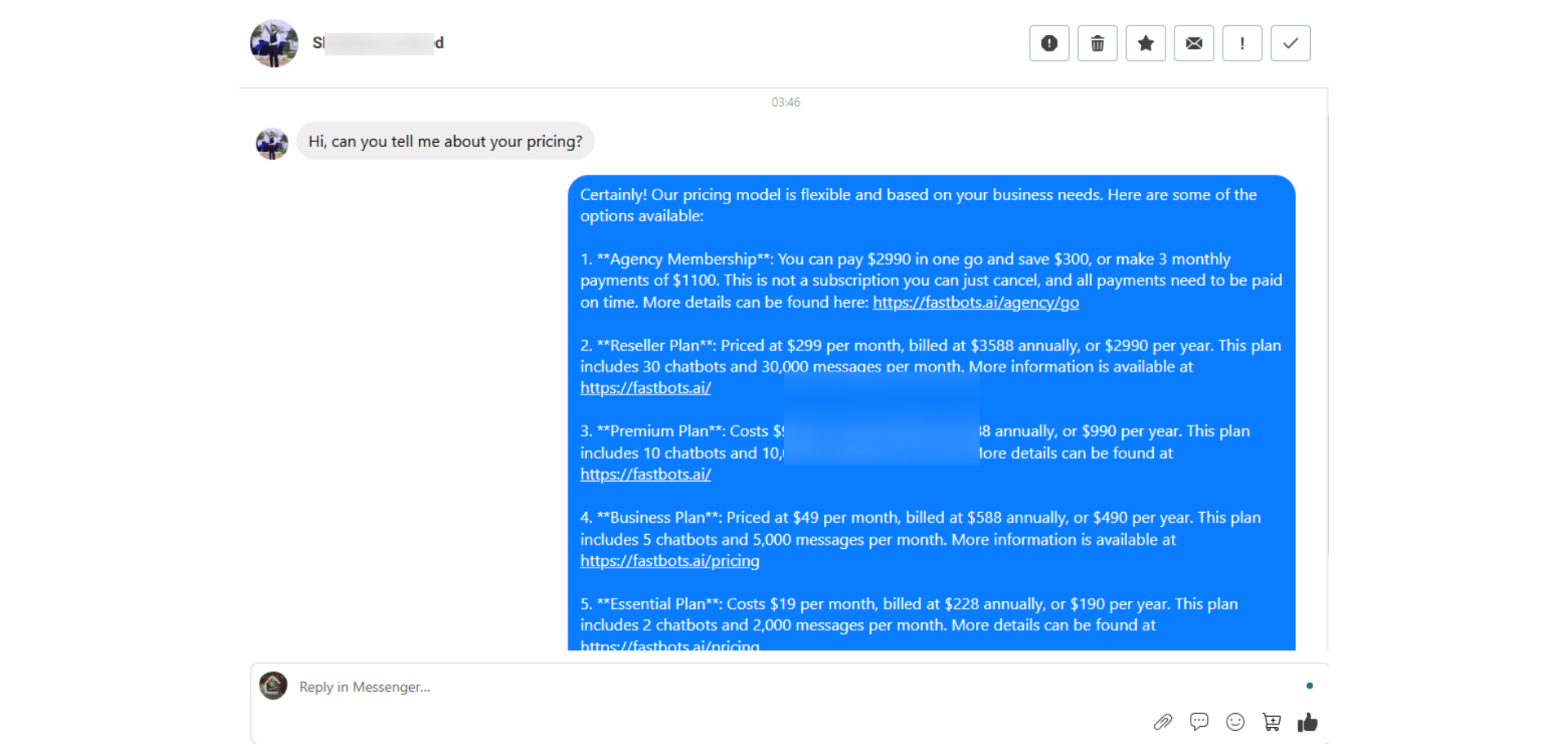
Once your chatbot is assigned to the Facebook page, it will begin responding to questions from users on Messenger. You can view the conversations either directly on Messenger or on the Chat History page in your Fastbots account.
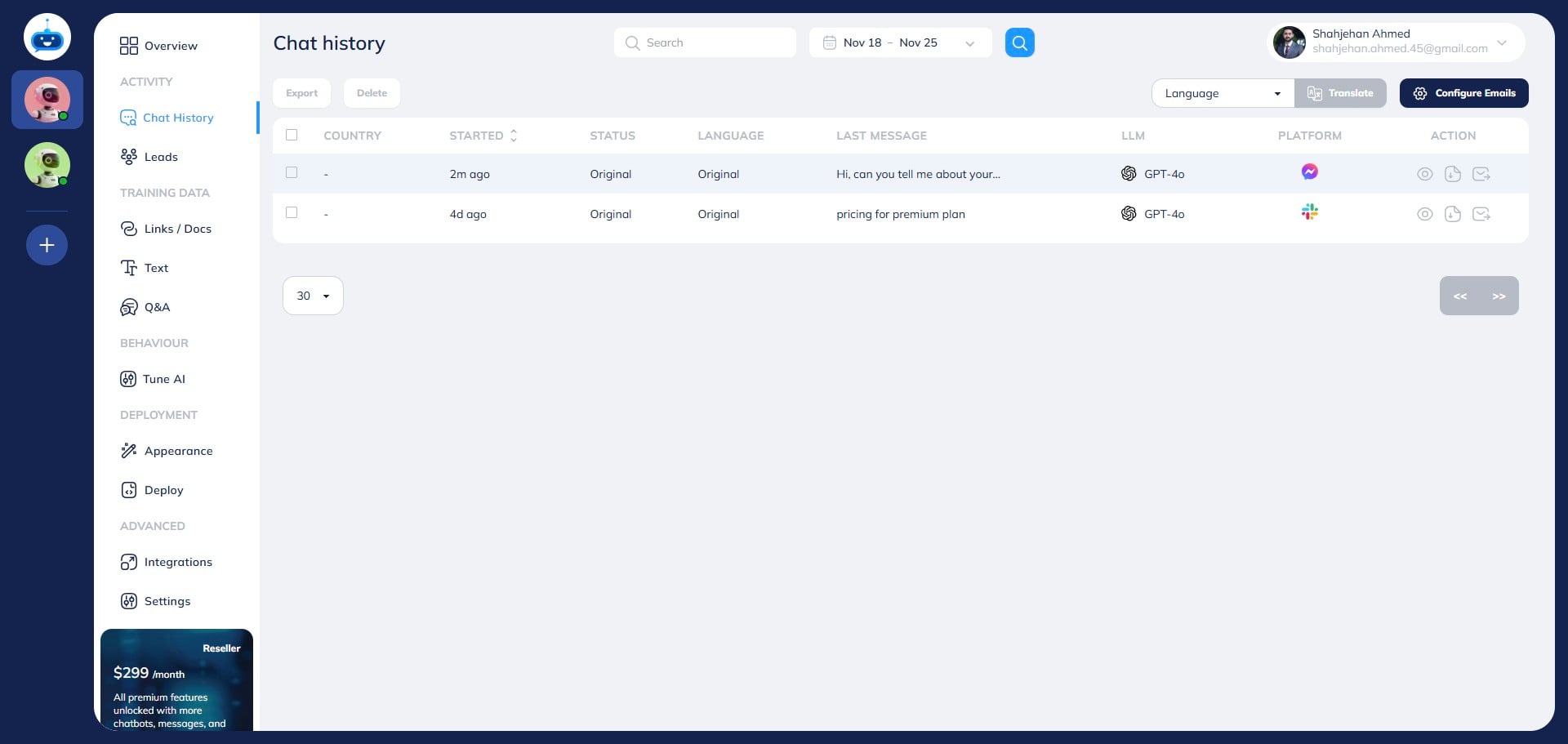
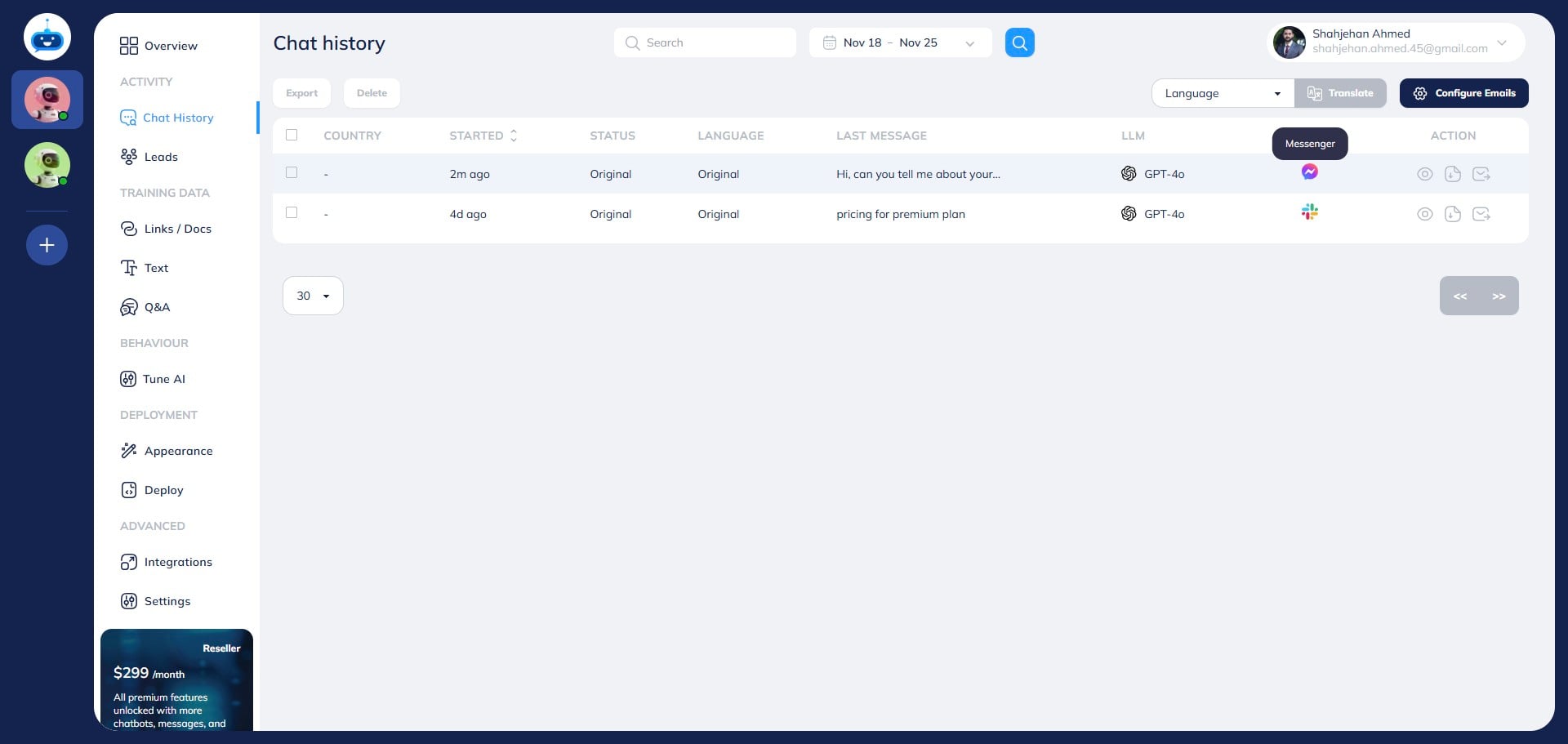
Chatbot will add the "Messenger" logo on all the chats which are coming from the connected Facebook page.
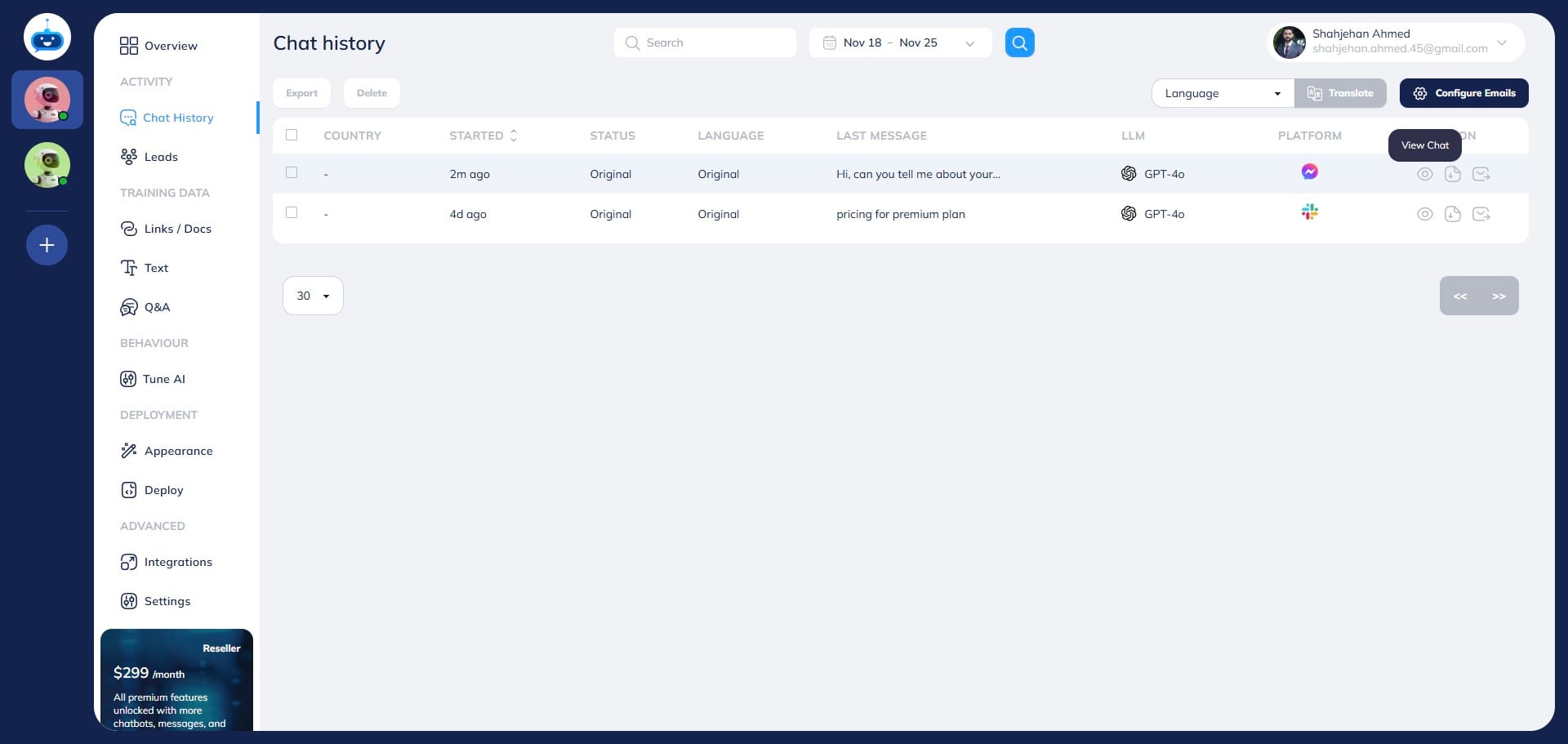
Click on the "View Chat" button to see the chat transcript.
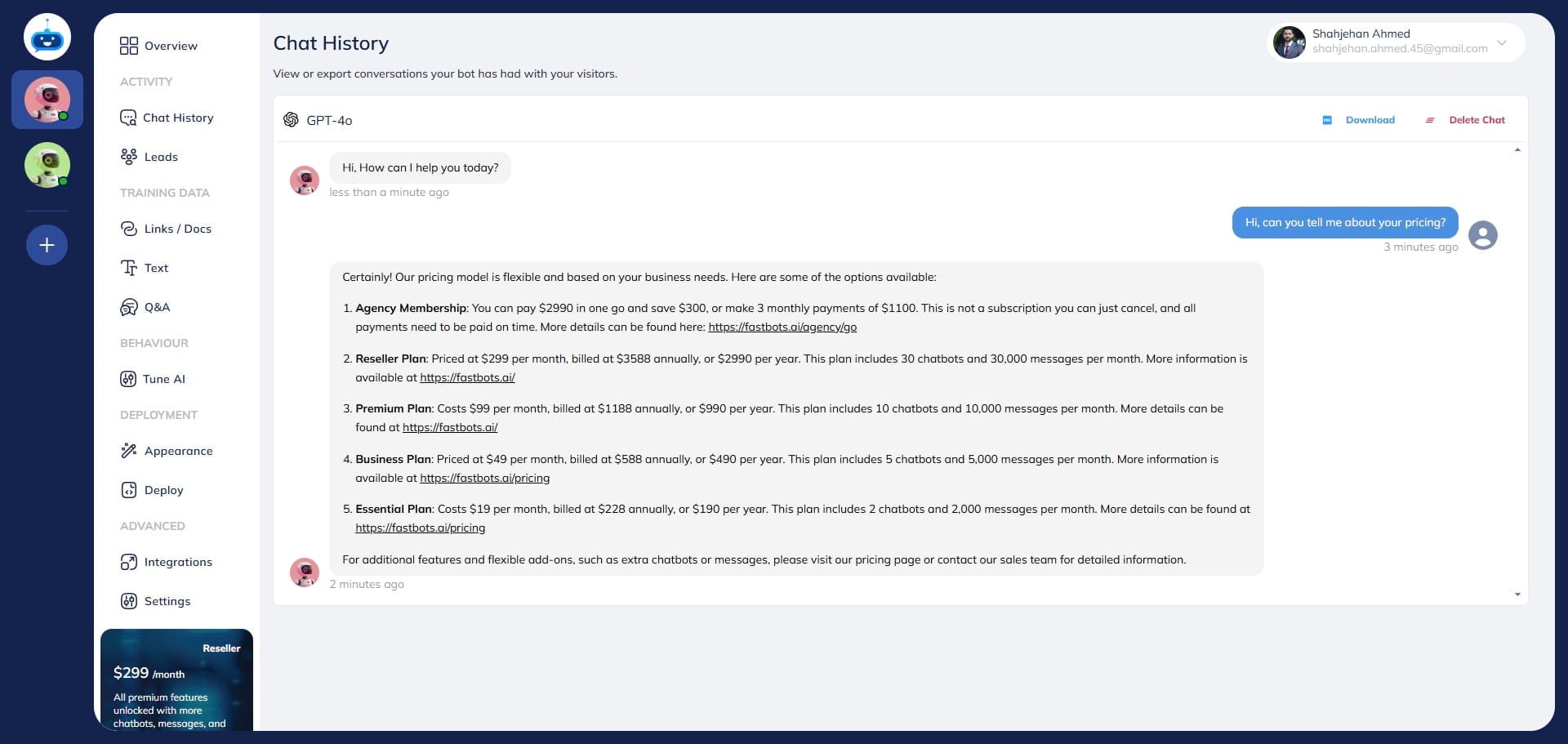
You can read the chat transcript or download it in a PDF file.
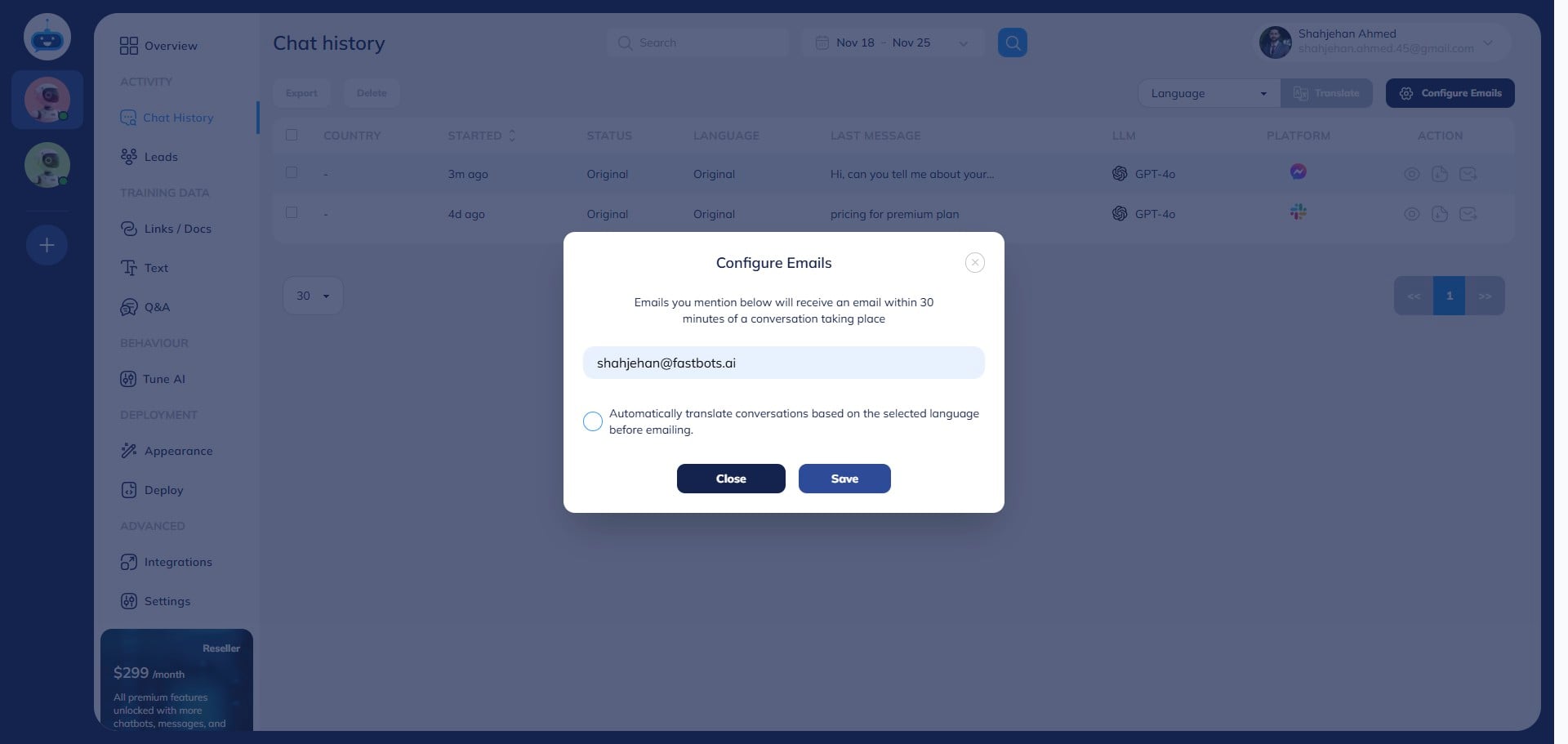
You can configure your email to receive notifications with the conversation transcript every time your chatbot engages with a user on Messenger. To set this up, click the "Configure Conversation Email" button.
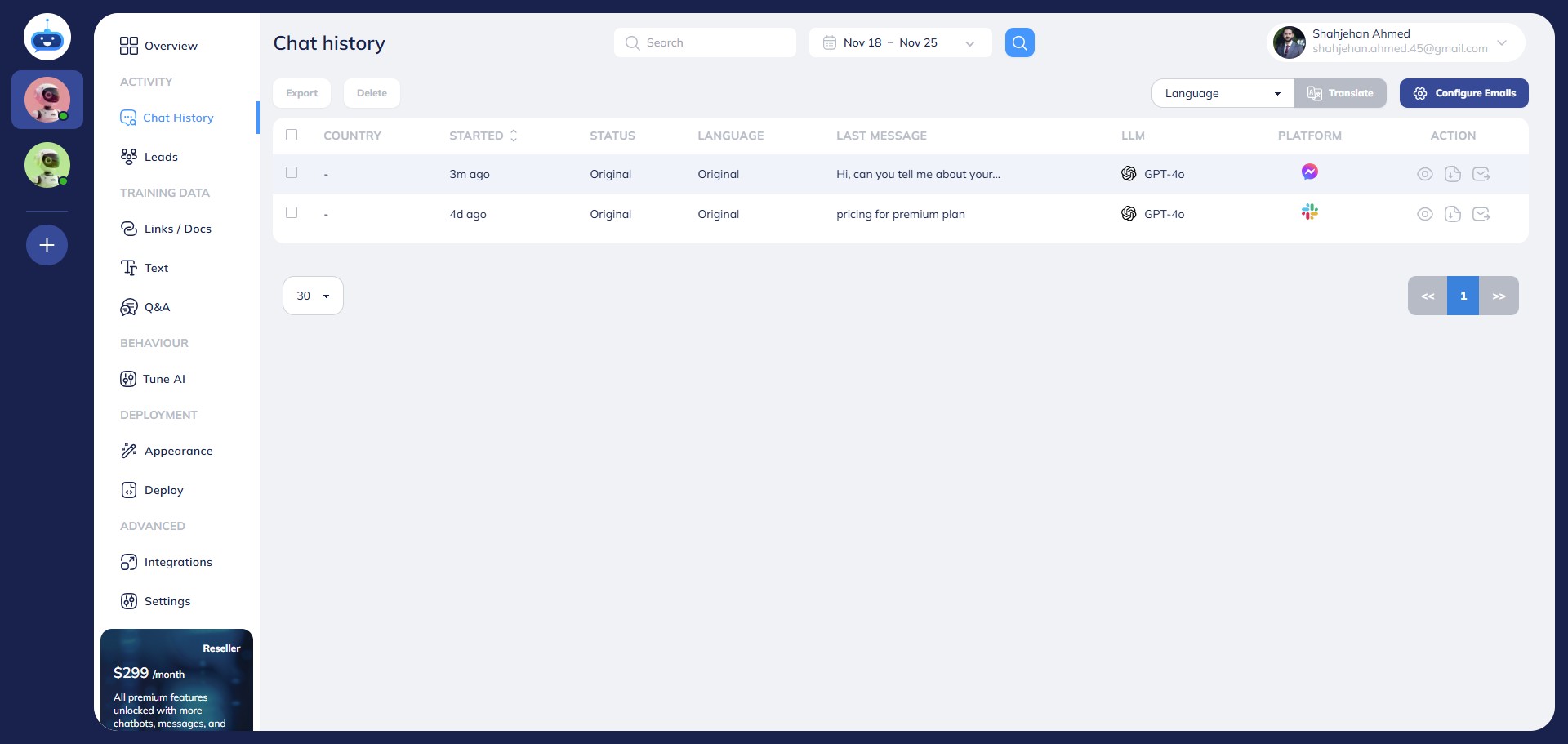
Add your email and click on the "Save" button. Once you add an email, the chatbot will send you a notification for every new conversation, with a PDF file of the transcript attached.
You can also login to Messenger app and see the conversation there.
Done! You have successfully integrated your chatbot with your Facebook account 🚀