How to Integrate Fastbots With Slack Workspace
The following tutorial will show you how to integrate your FastBots chatbots into Slack. Disclaimer: Since this app utilizes Large Language Model(s), it can generate inaccurate responses.
Navigate to https://app.fastbots.ai/
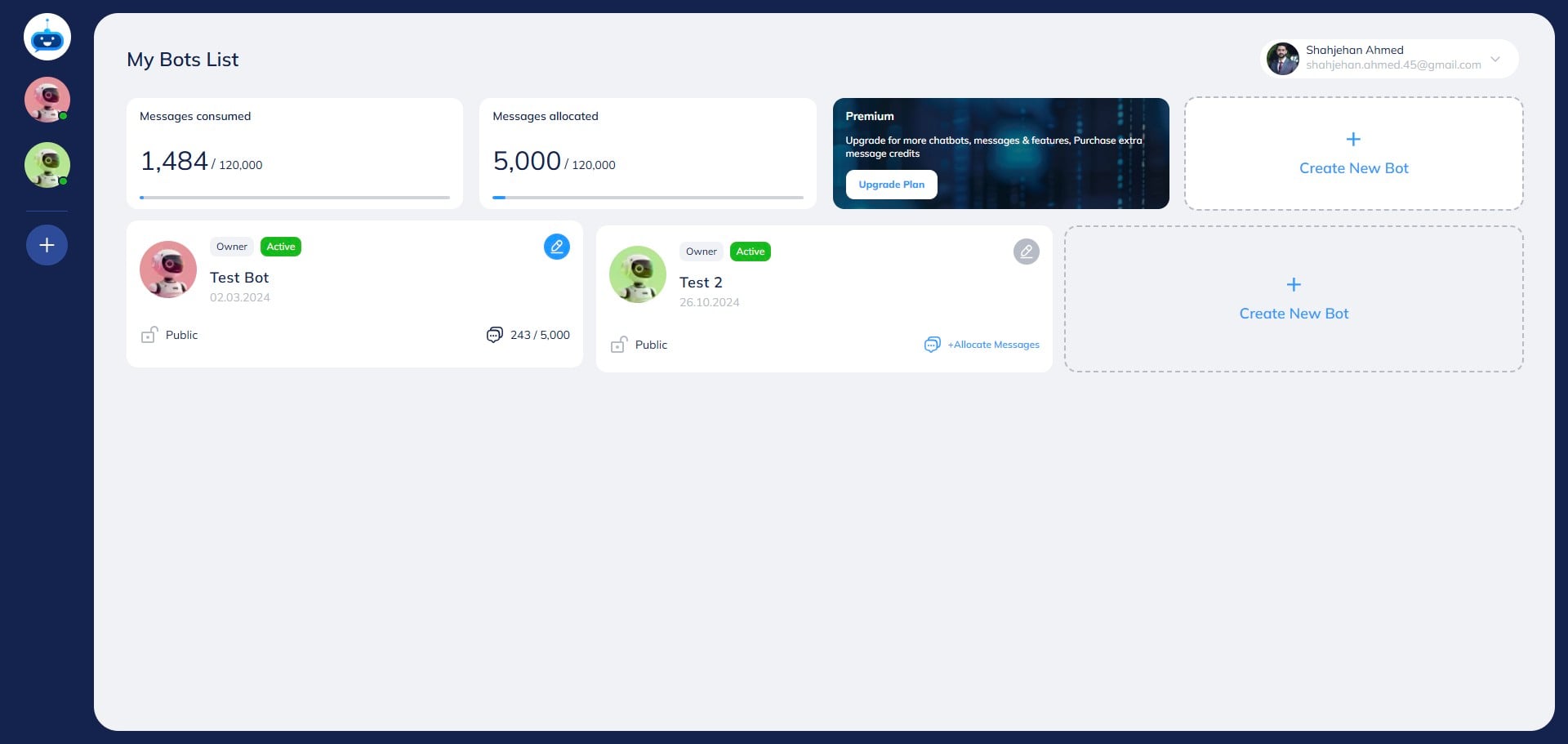
Click on the chatbot to open it.

Click on "Integrations" to open this page.
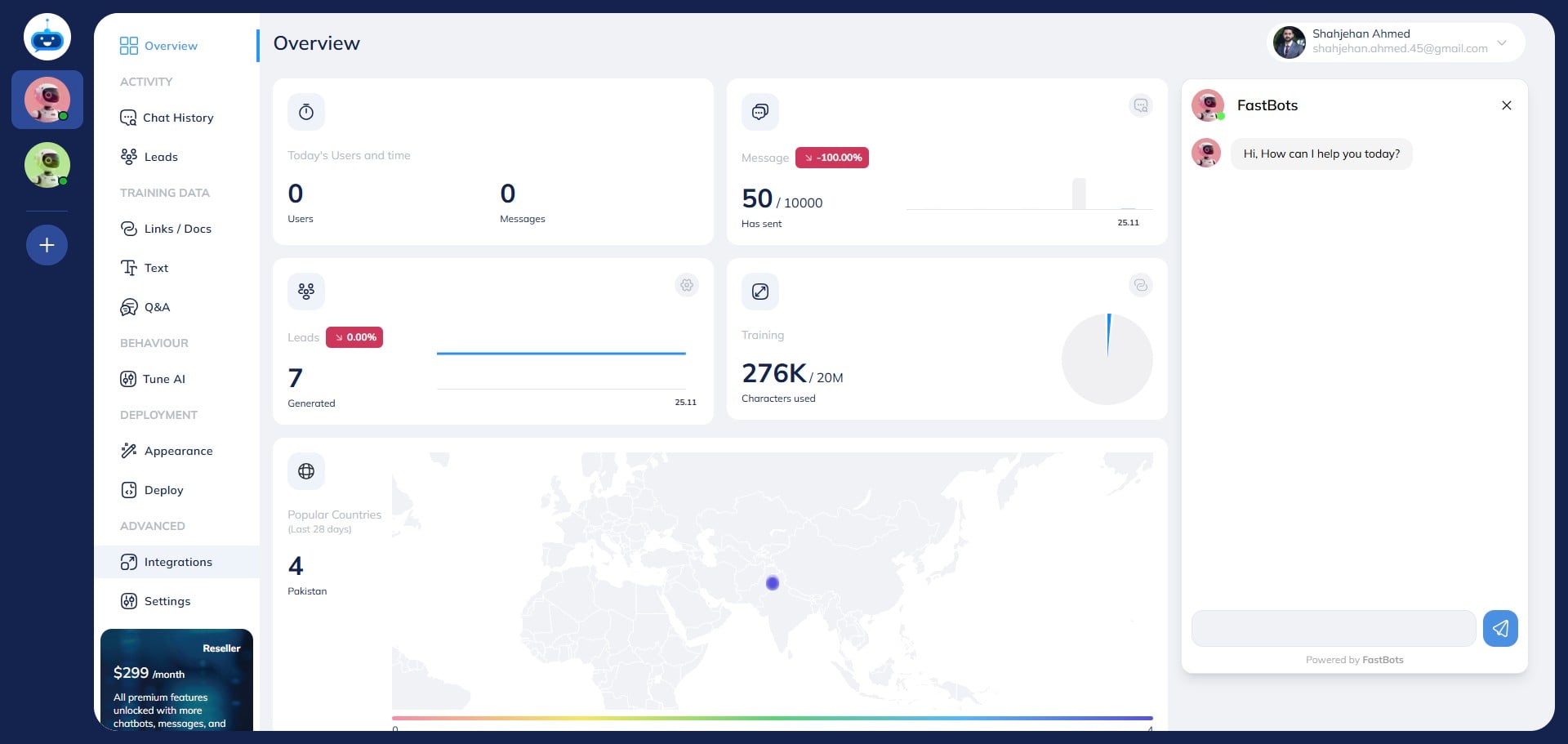
Click on the "Connect" button under Slack.
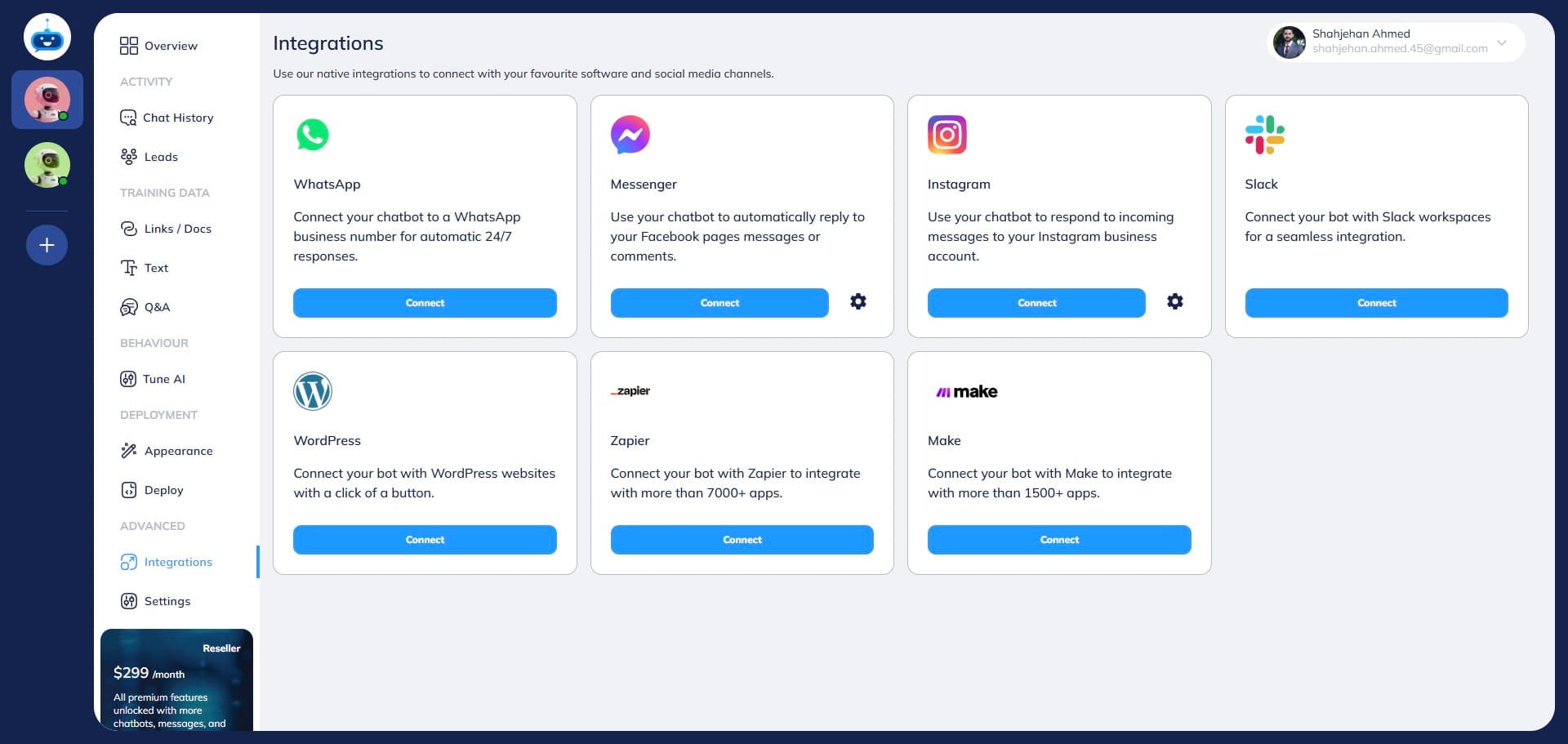
Click on the drop-down menu to select the Slack Workspace where you want to add the Fastbots.
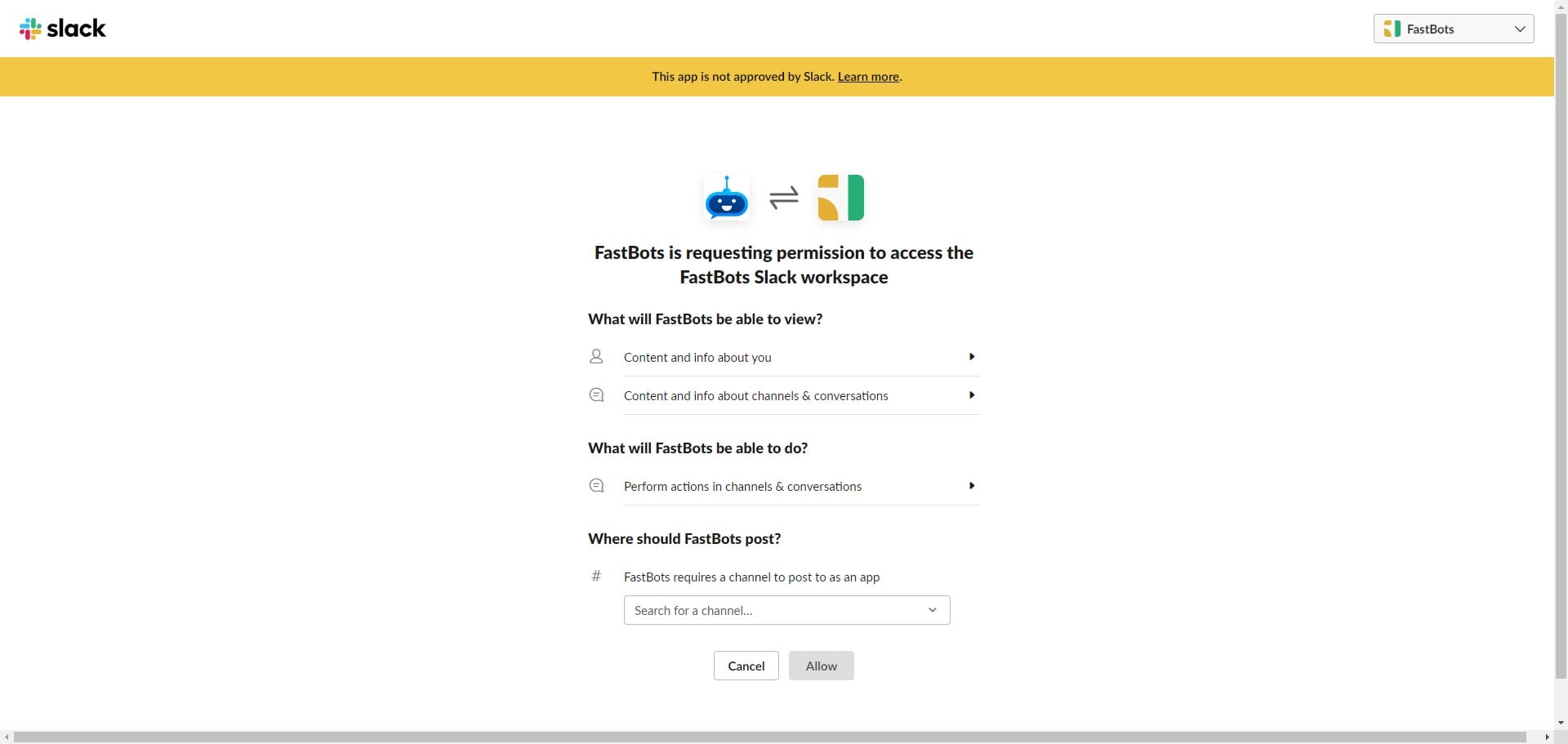
Once the workspace is selected, click on this option to select the channel to which you want to add the Fastbots.
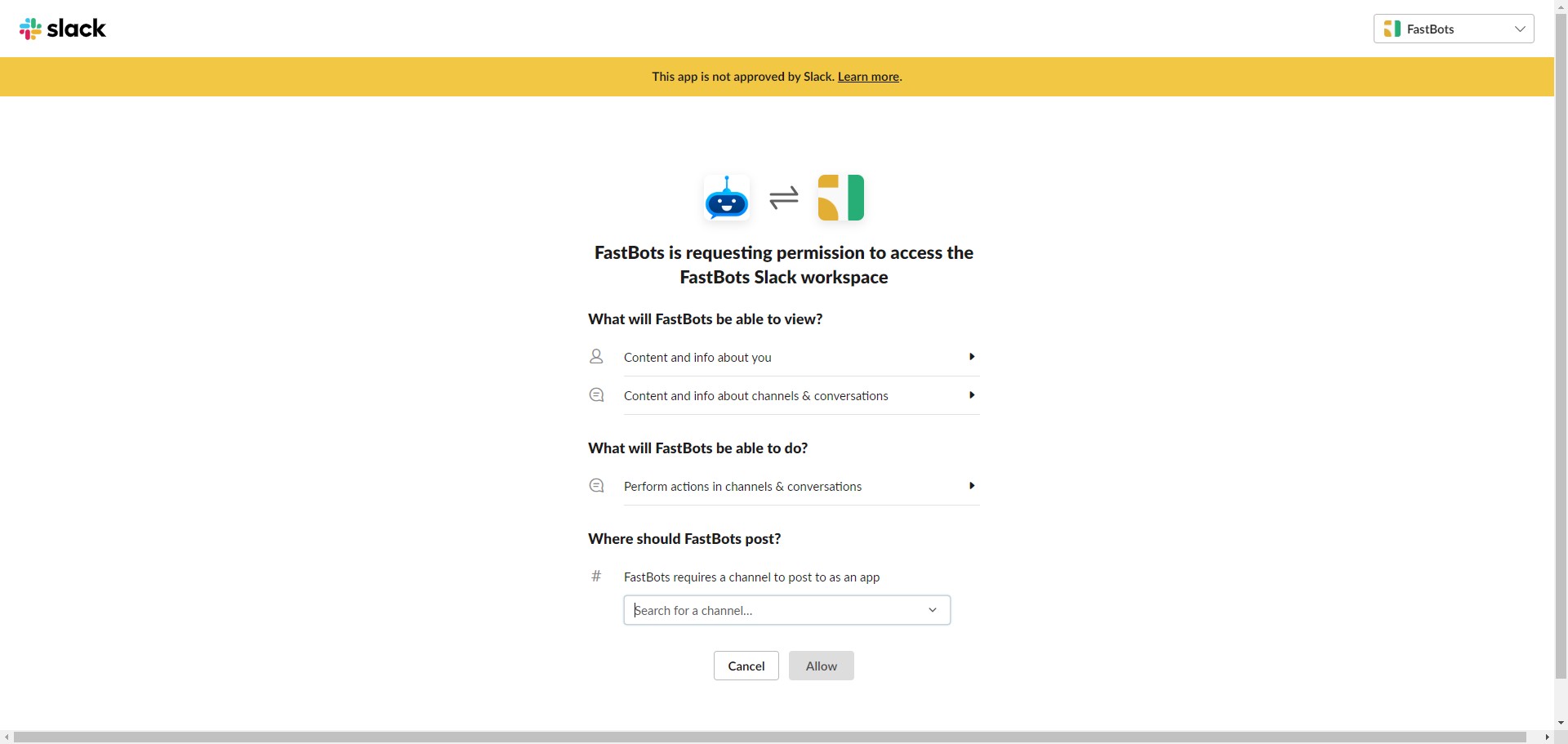
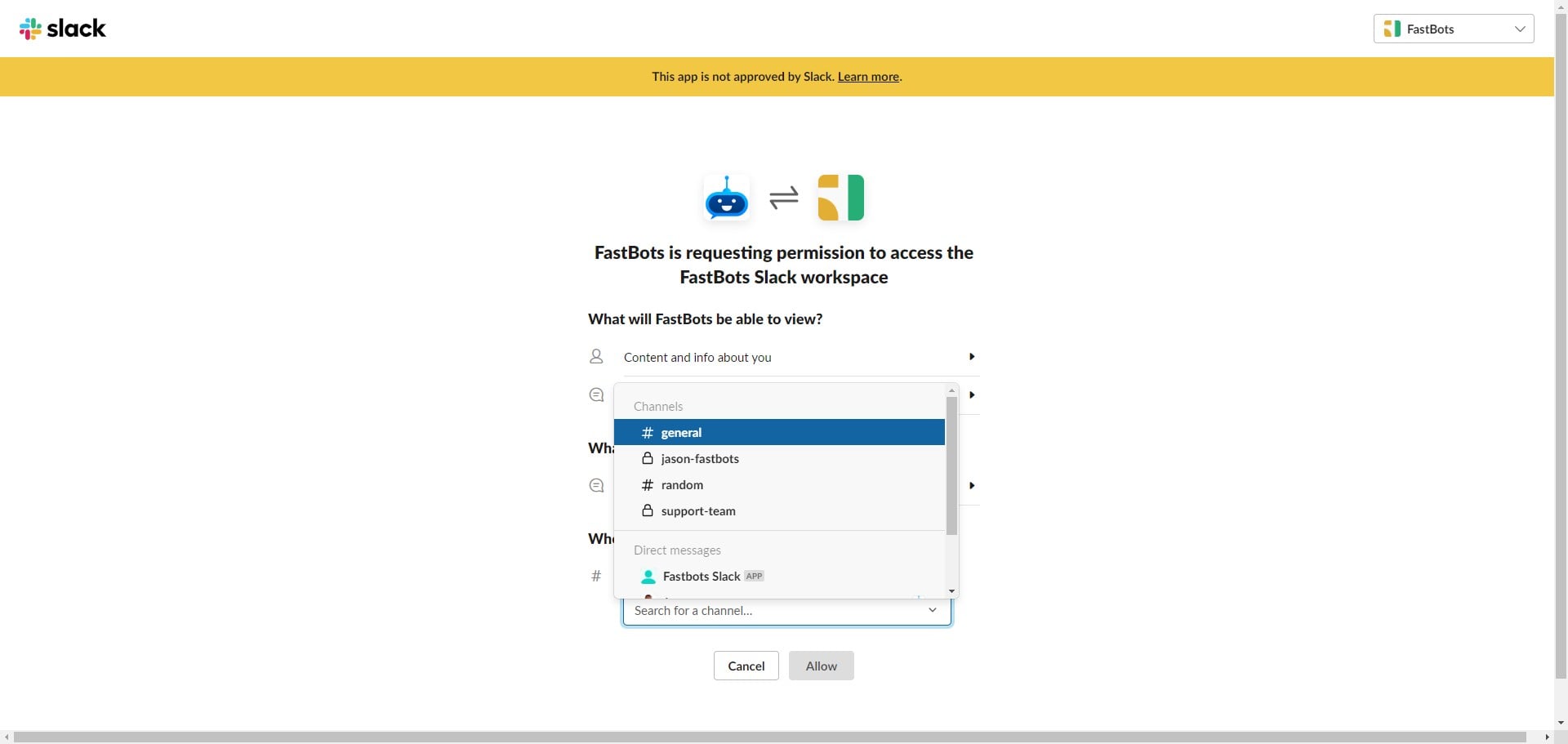
Select a channel name.
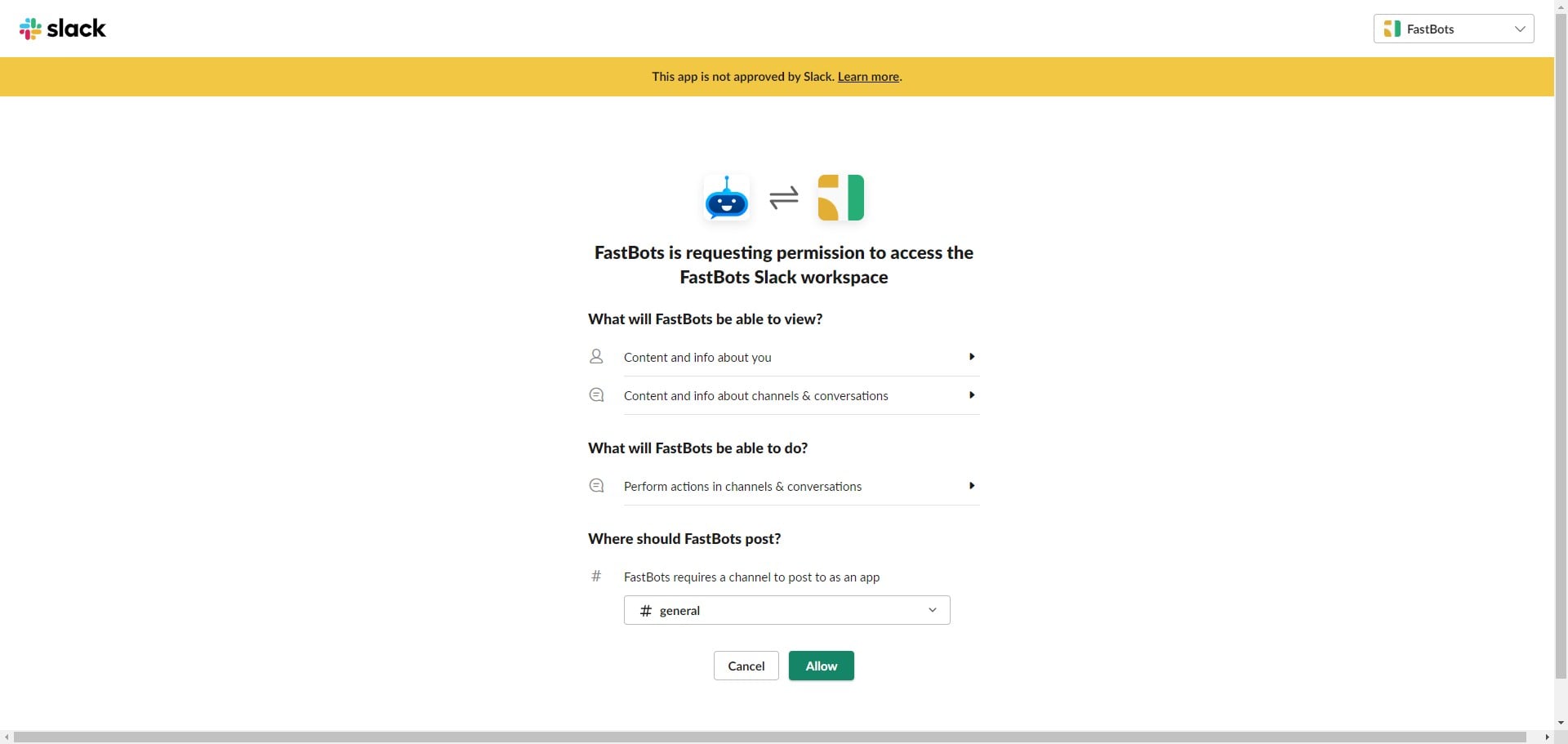
After selecting the channel name, click on the "Allow" button.
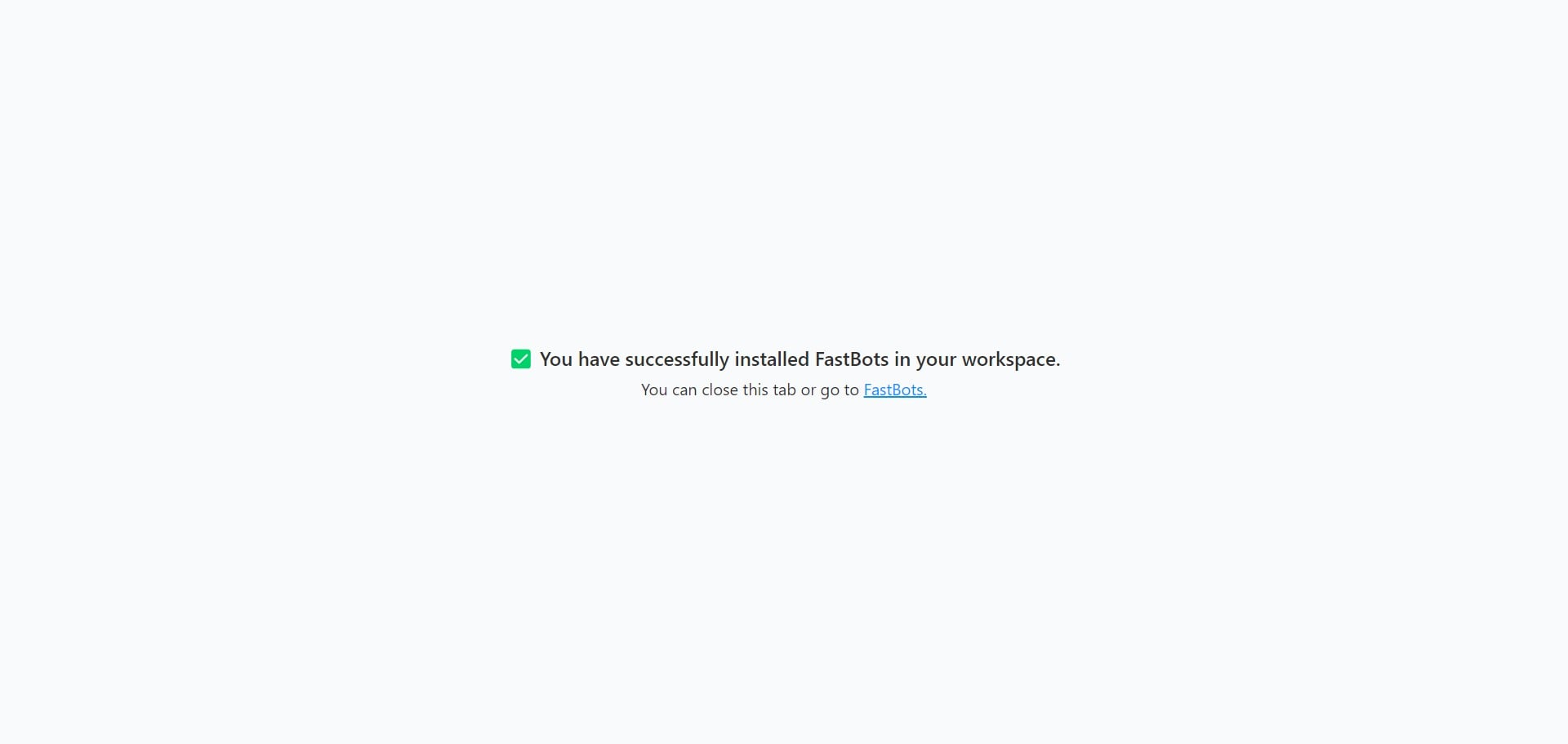
Upon clicking on "Allow" button, you will see this screen which means that chatbot has been successfully add to your Slack Workspace.
Open your Slack Workspace and go to the channel where you added the Fastbots.
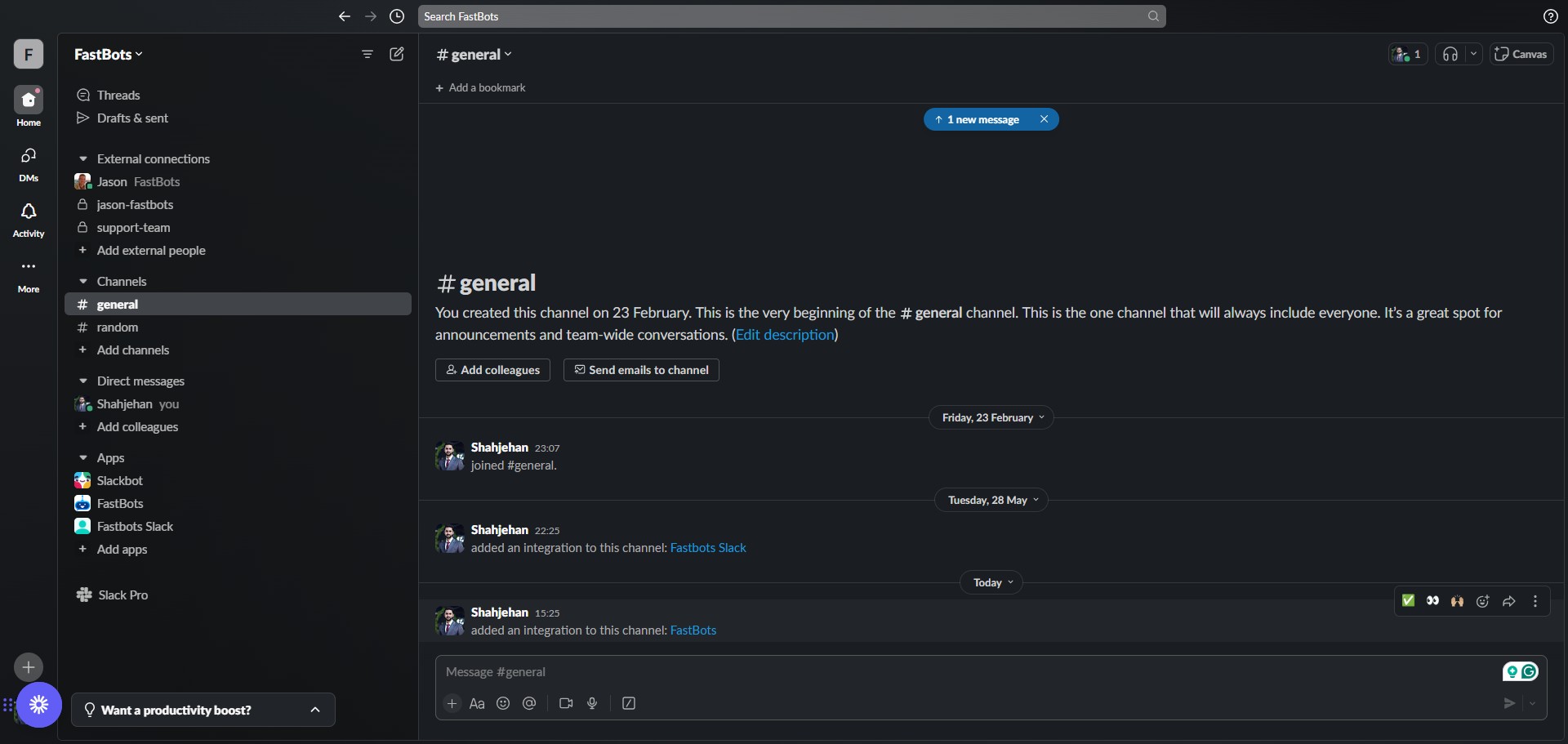
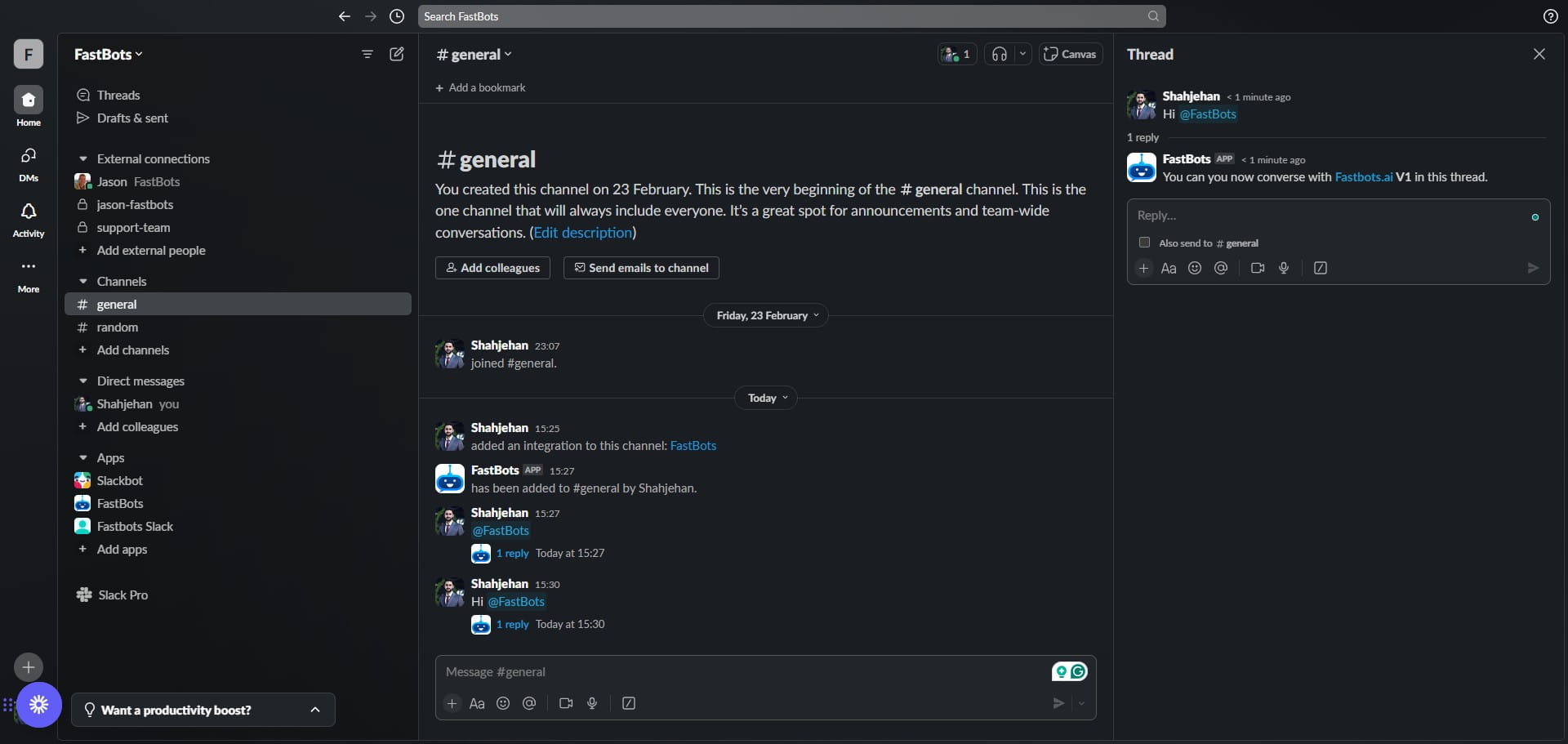
Once you open the channel, you will see this message "added an integration to this channel: FastBots"
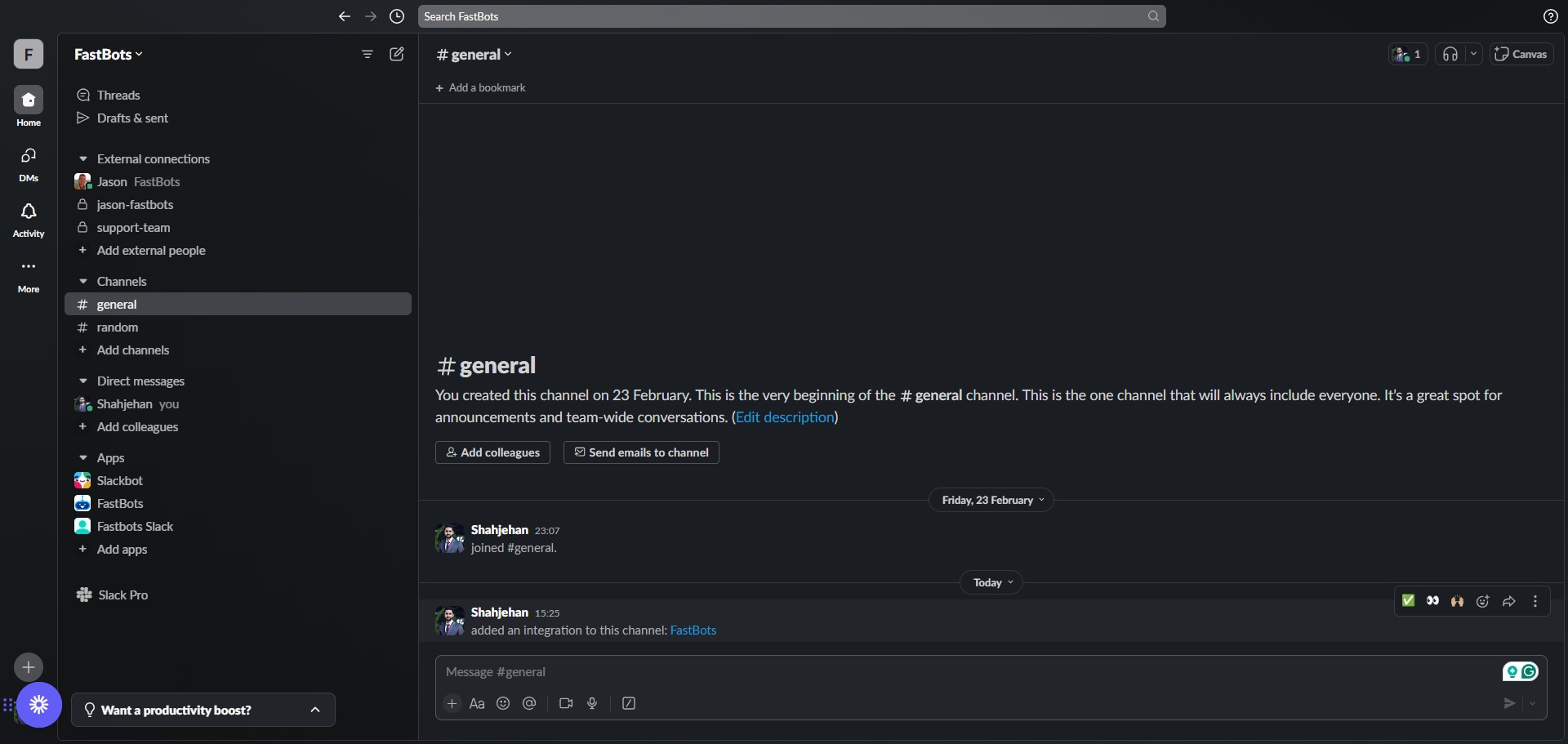
The next step would be to connect your API with your Slack workspace so your chatbot can be functional.
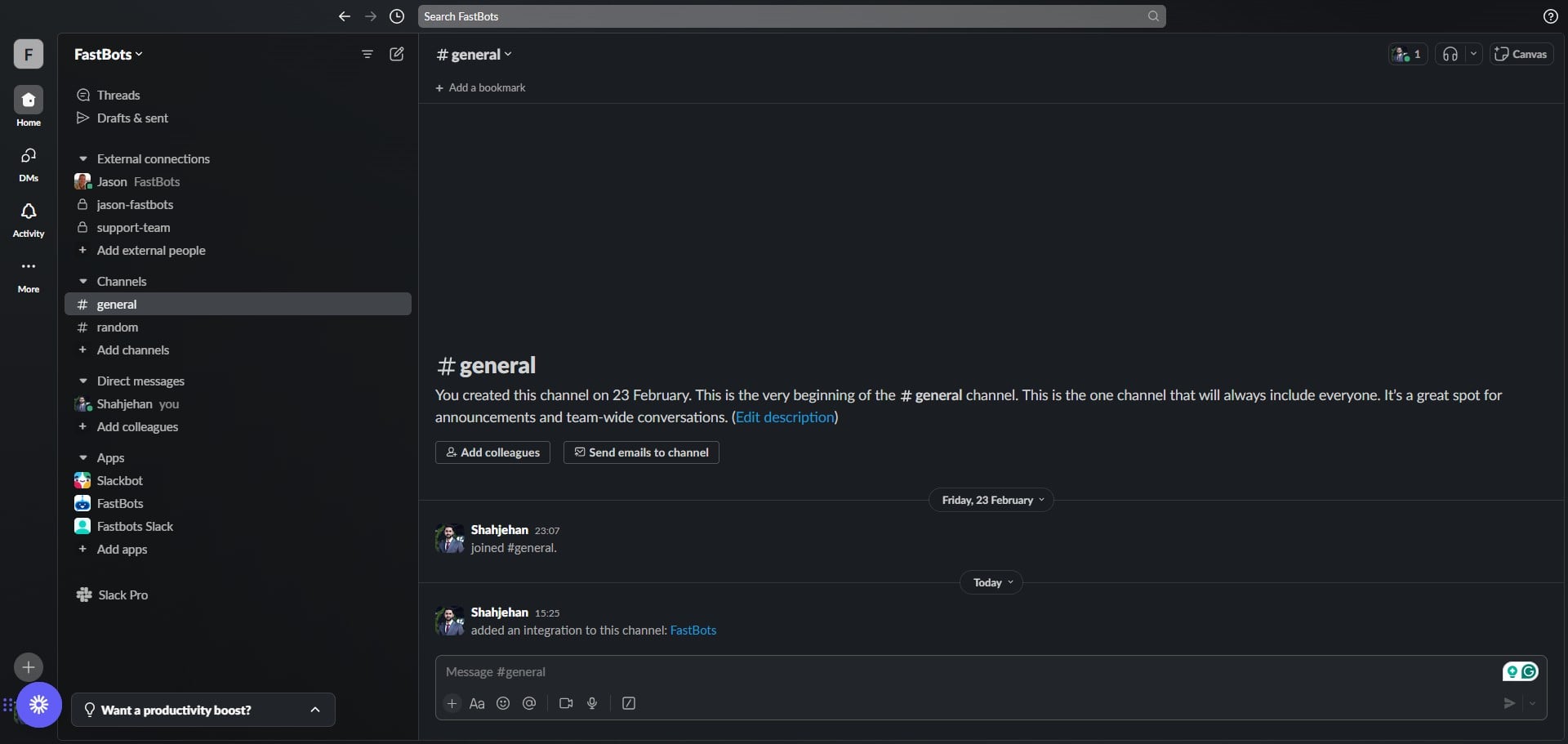
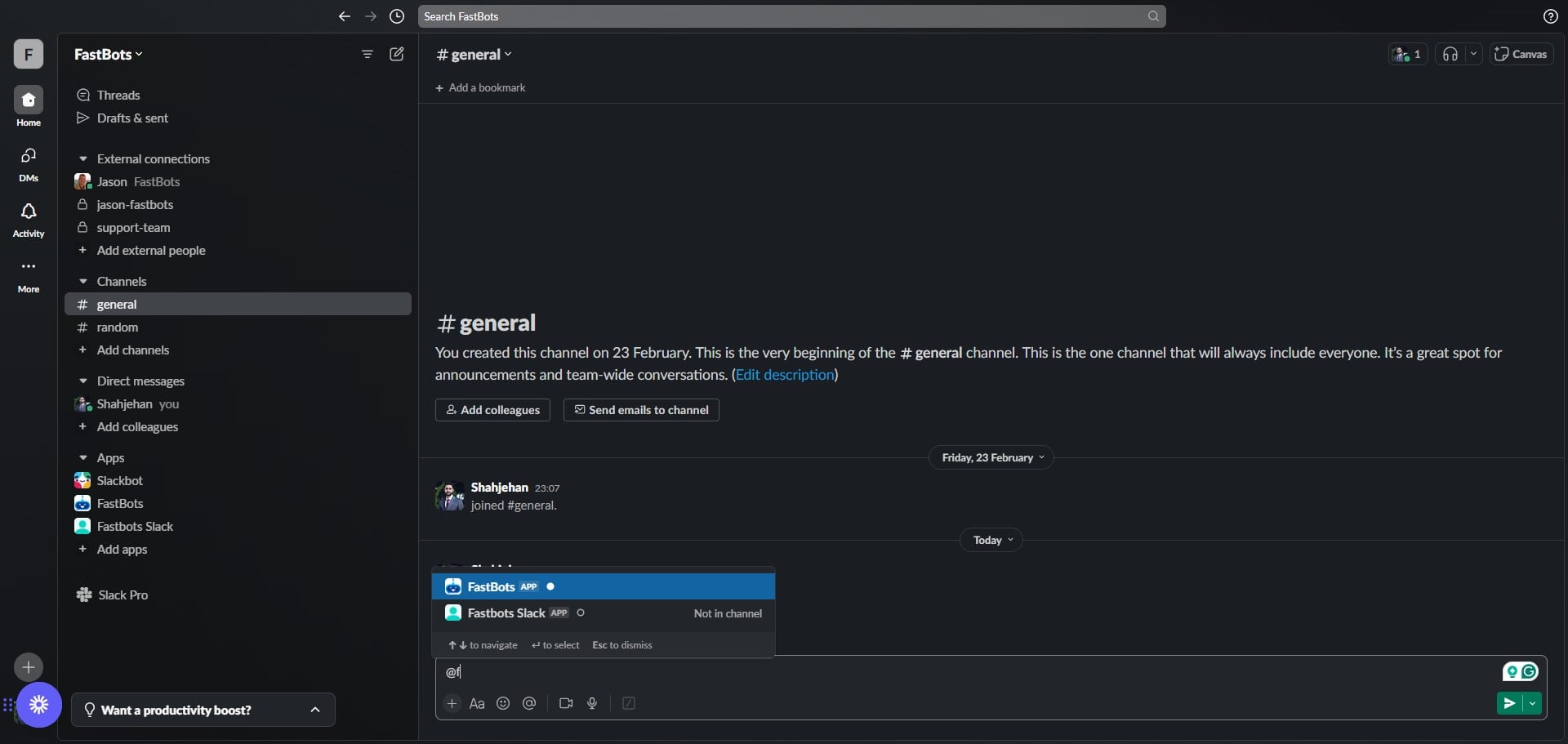
To make your chatbot functional in Slack, start a conversation with the chatbot by mentioning it in the selected channel.
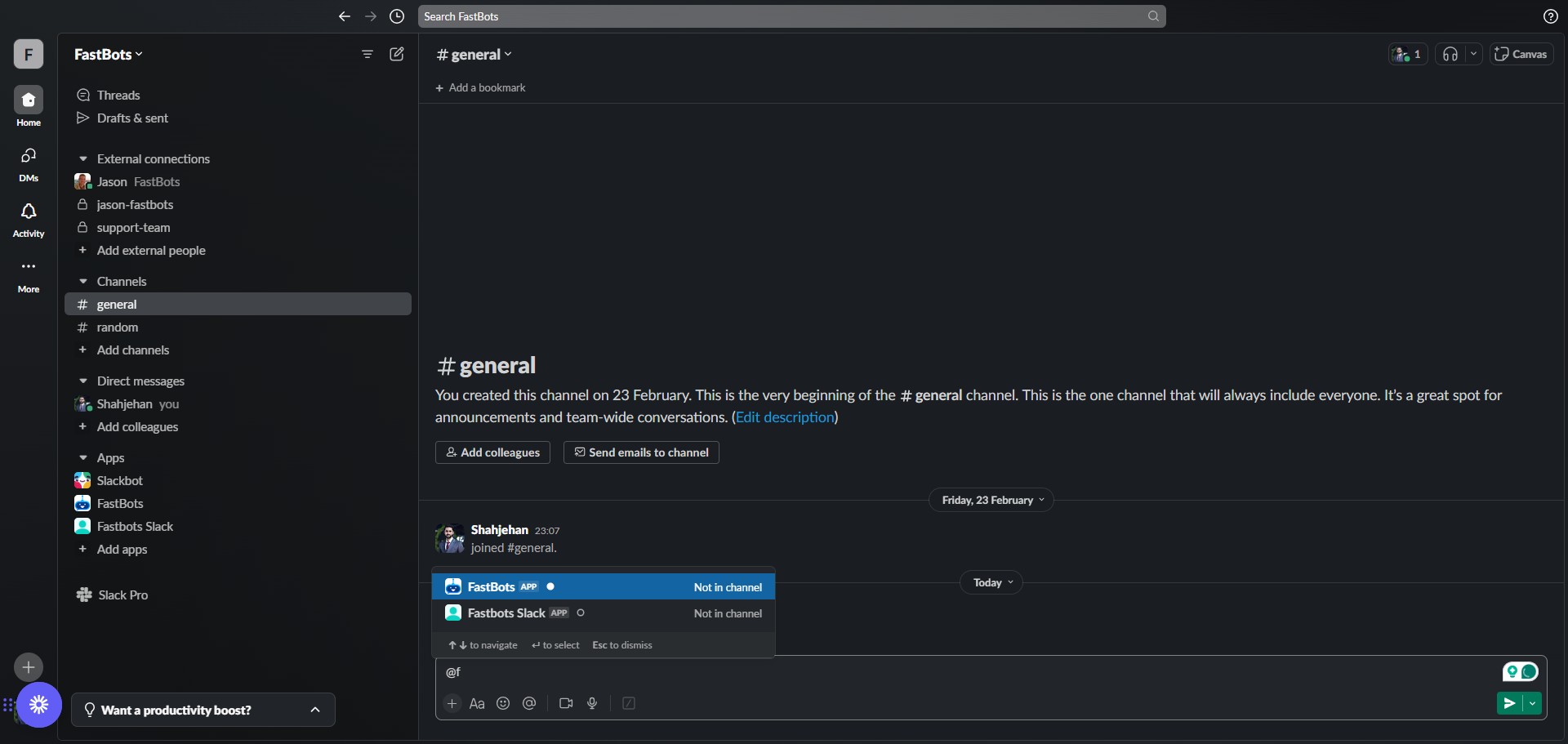
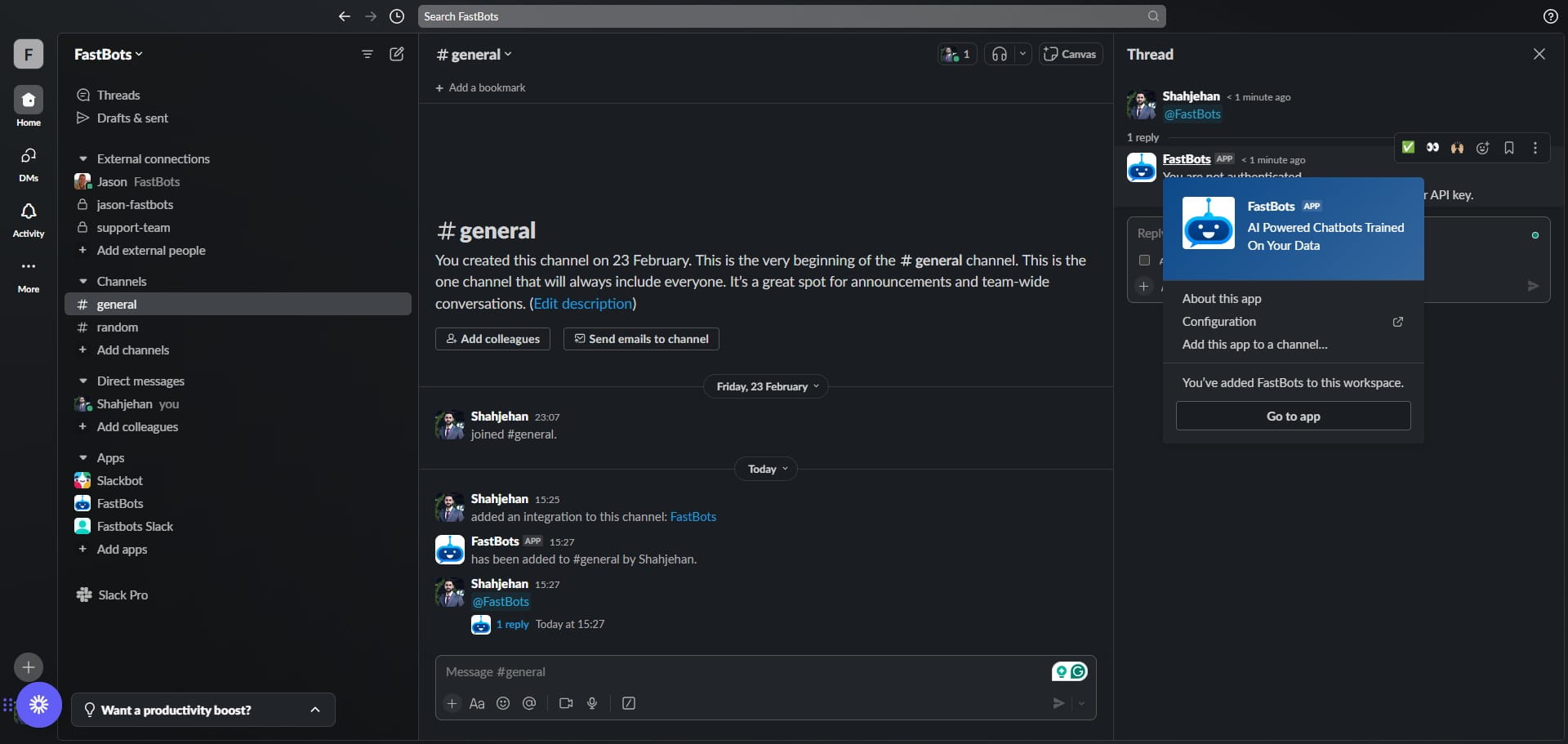
This screen will appear once you click on "@FastBots"
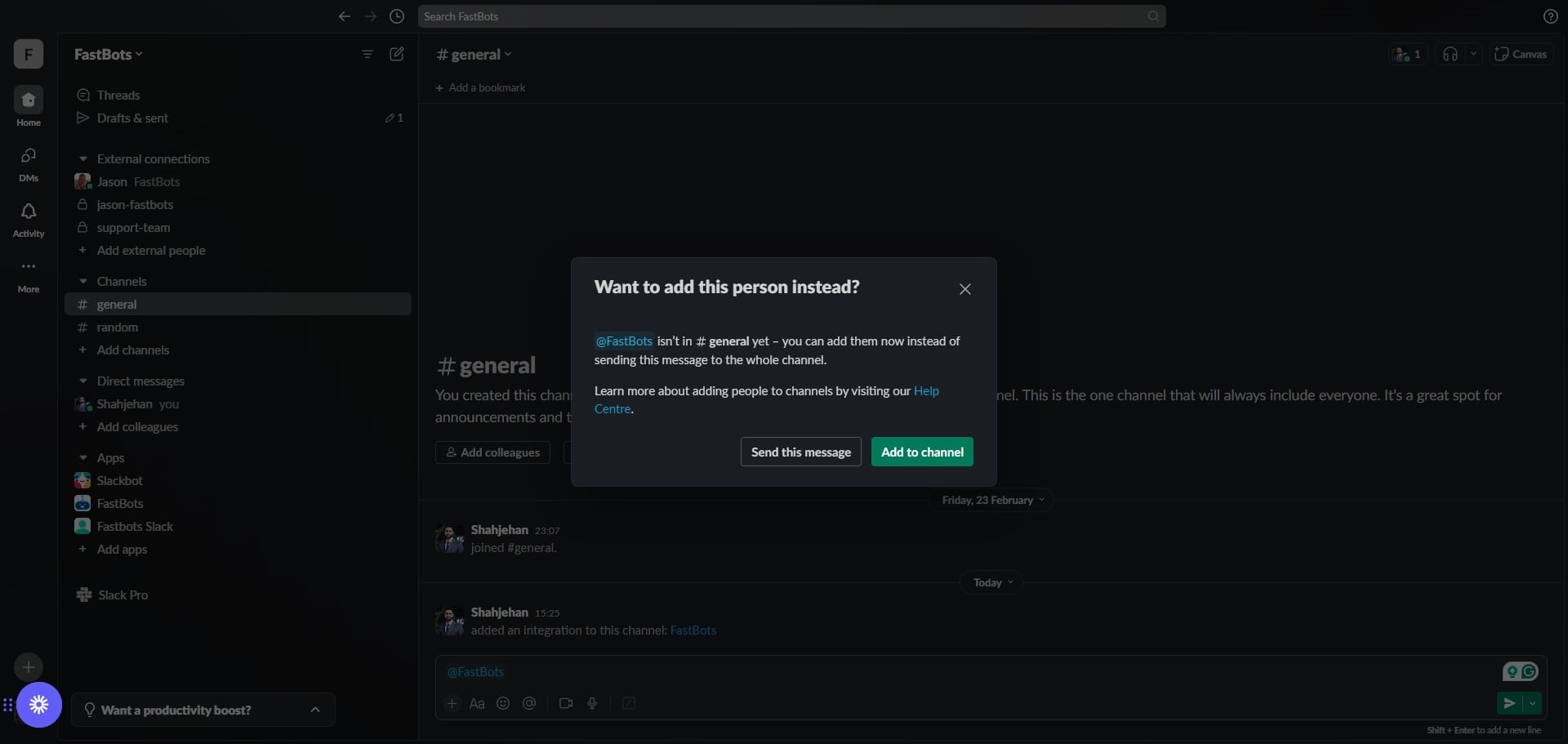
Click on the "Add to channel" button.
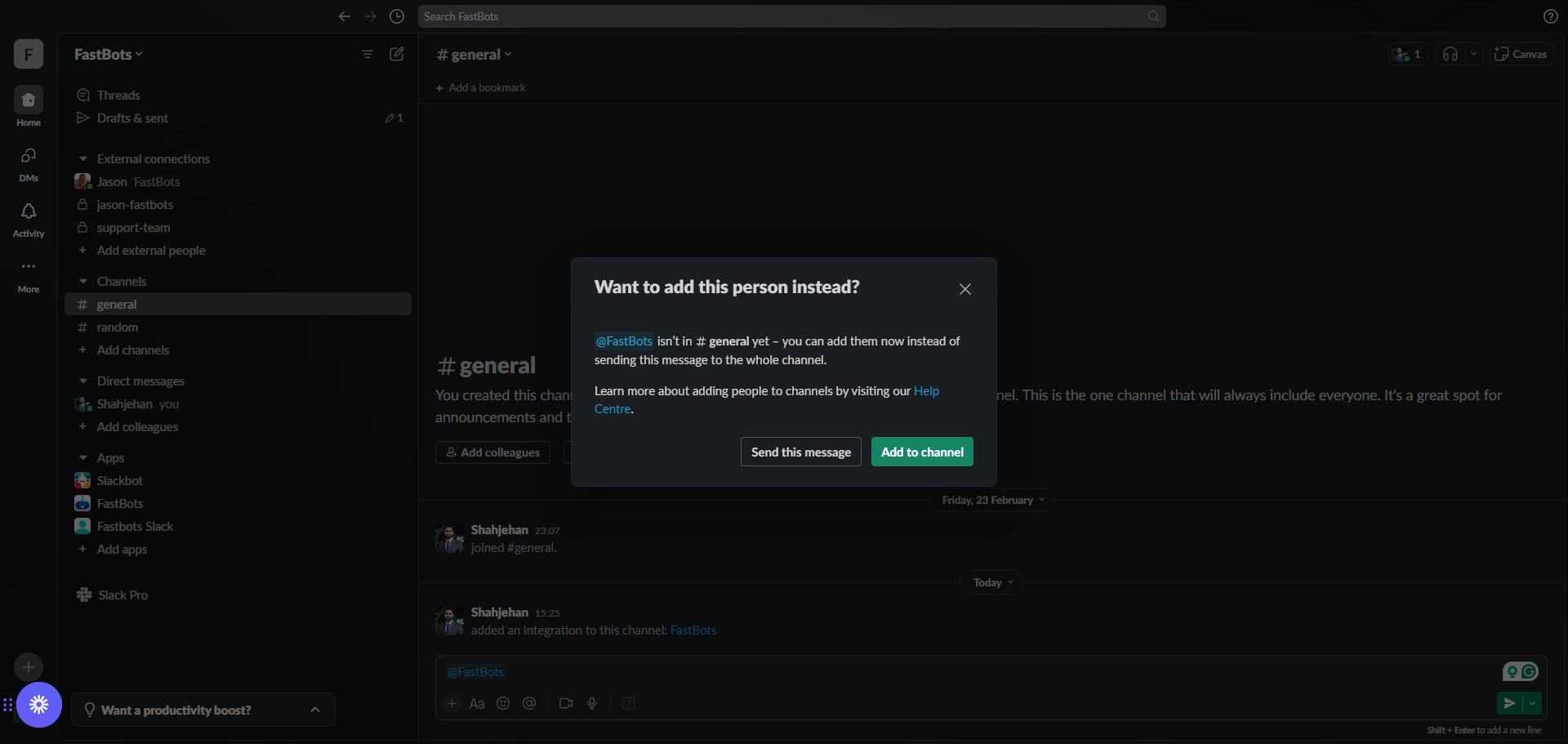
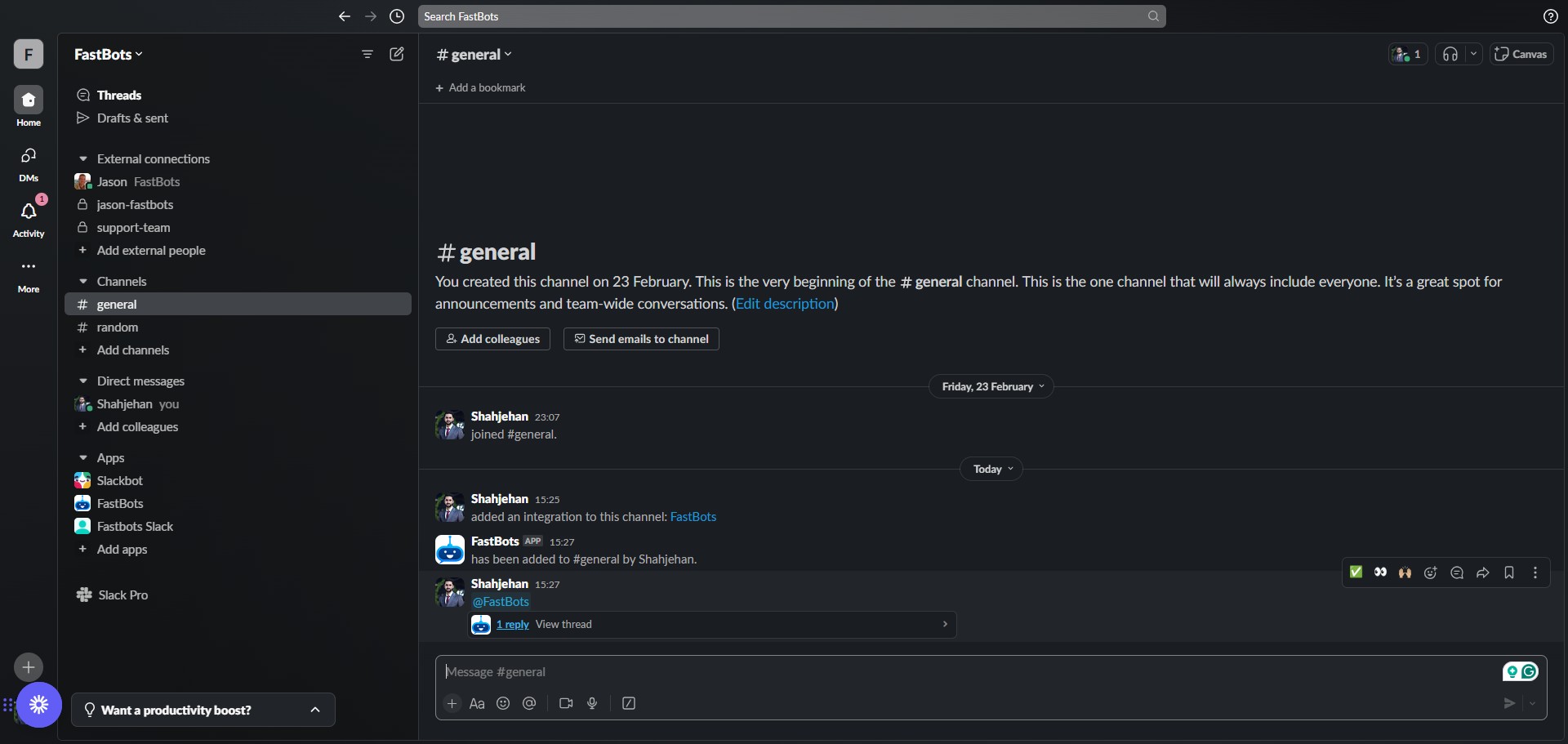
Once you see this message "has been added to #general by {your name}", select a new conversation with chatbot by mentioning it again in the channel.
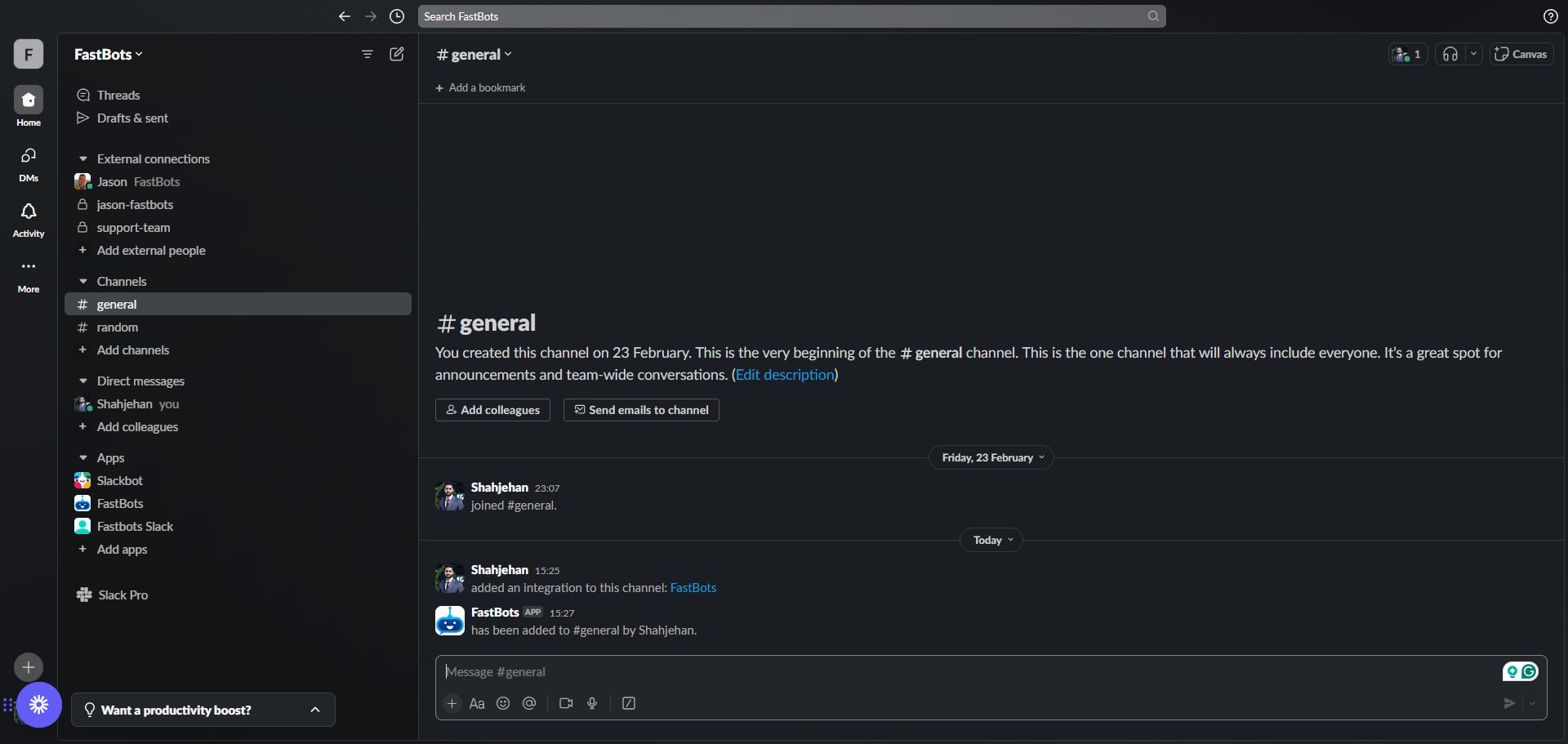
Select @Fastbots and send the message.
You will notice that you have received a reply in the thread.
Open the thread and click on "FastBots" to go to its profile.
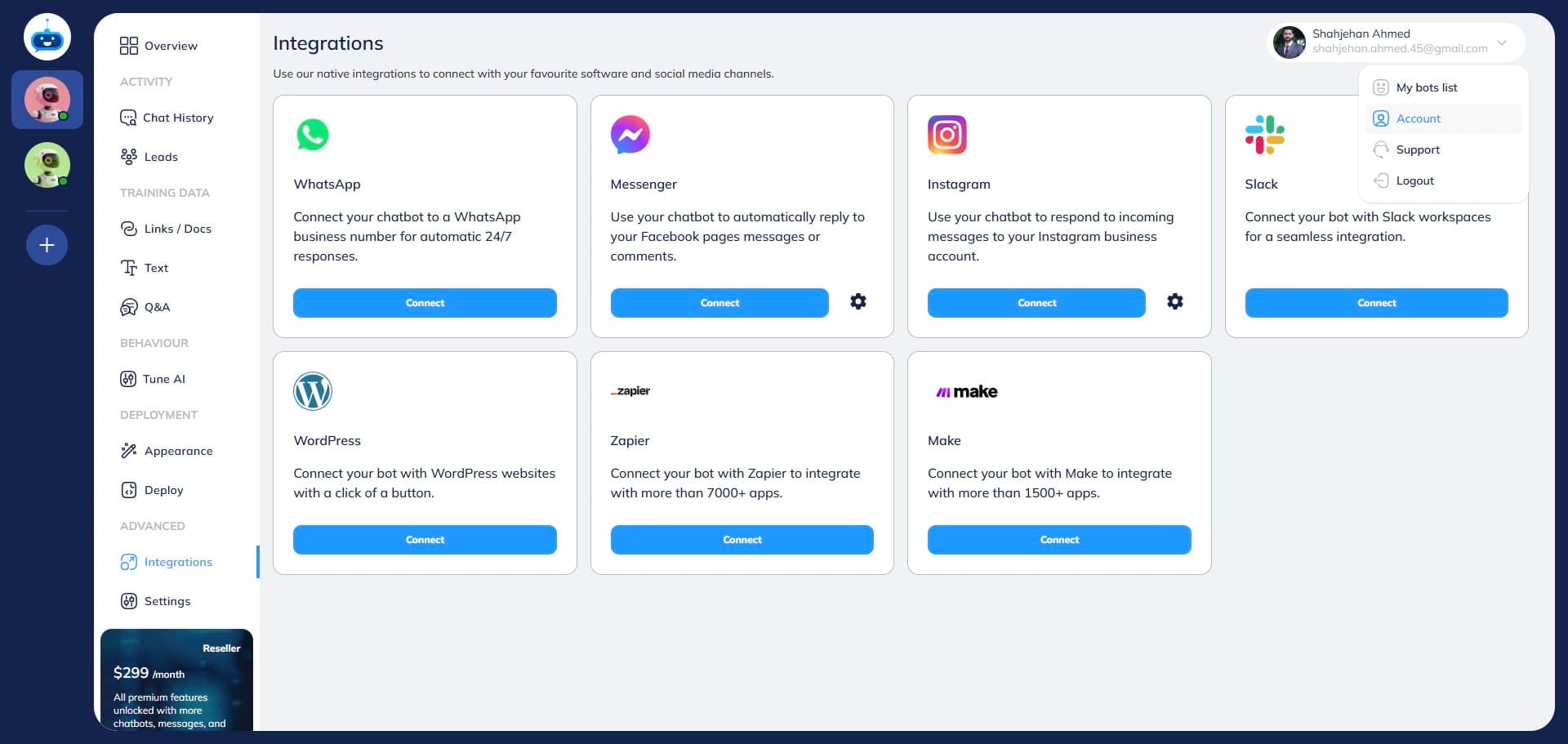
Go to your chatbot and open the "Account" section.
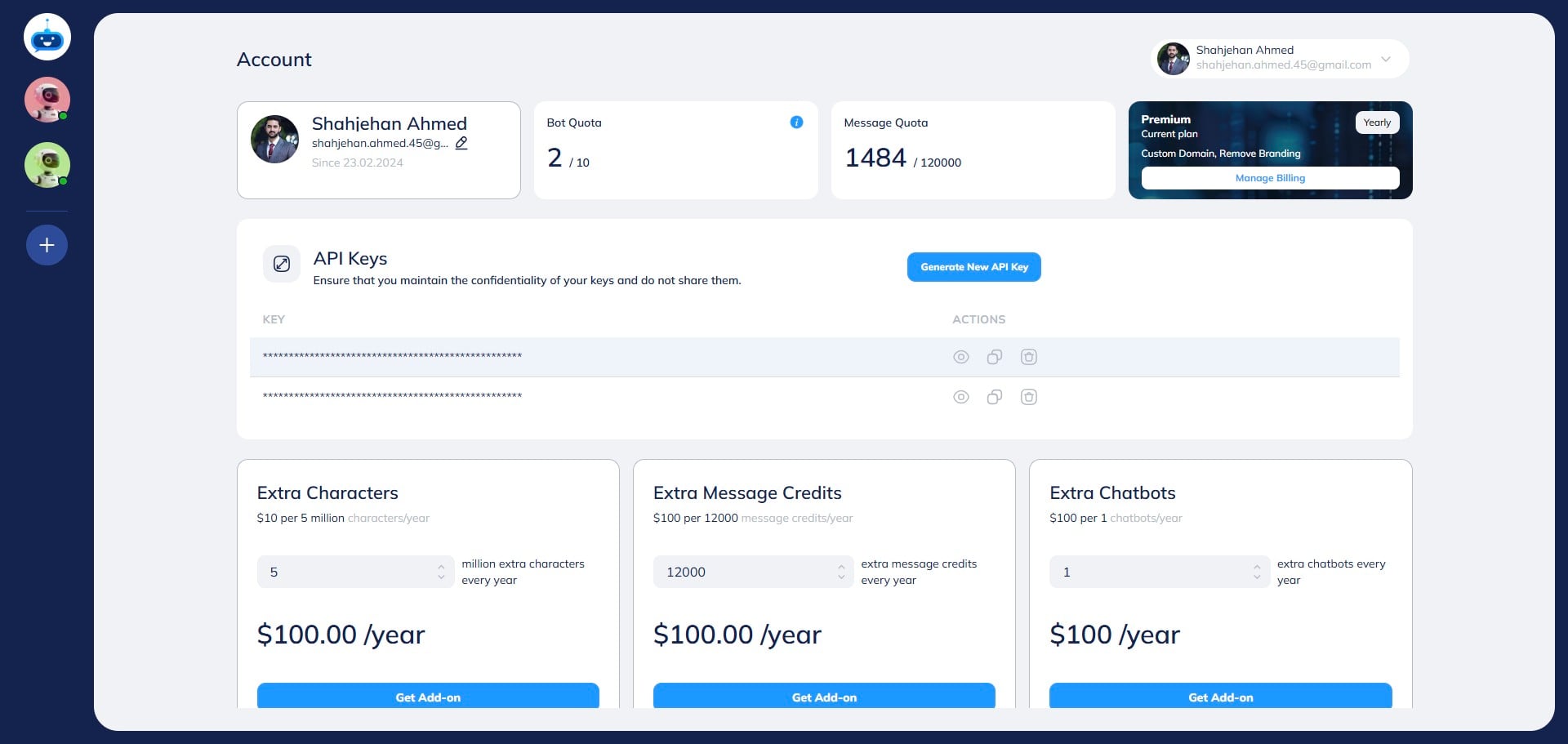
Click on the "Generate New API Key" button.
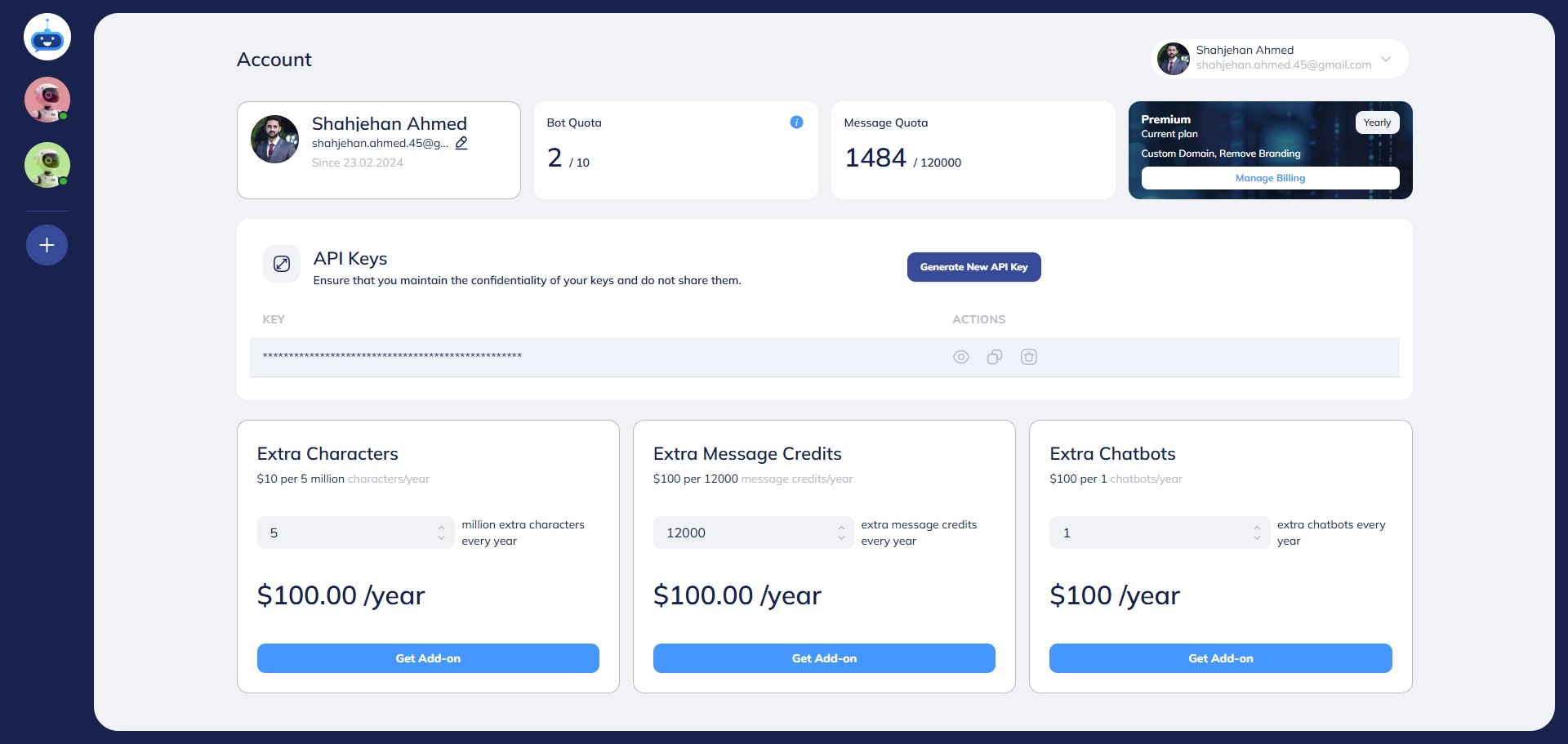
Copy the API Key using this icon.
Go back to your Slack Workspace and paste the API Key here.
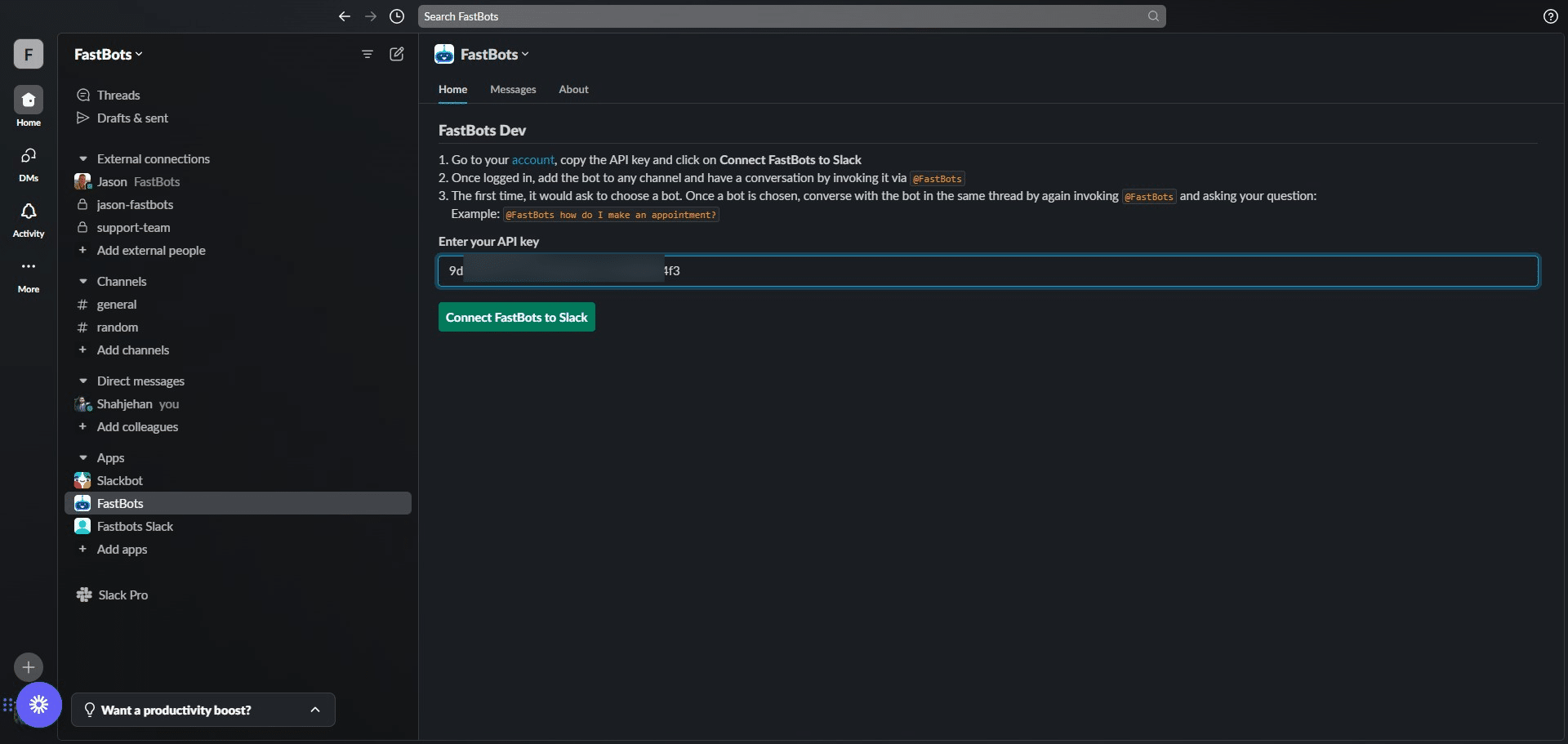
Click on "Connect FastBots to Slack"
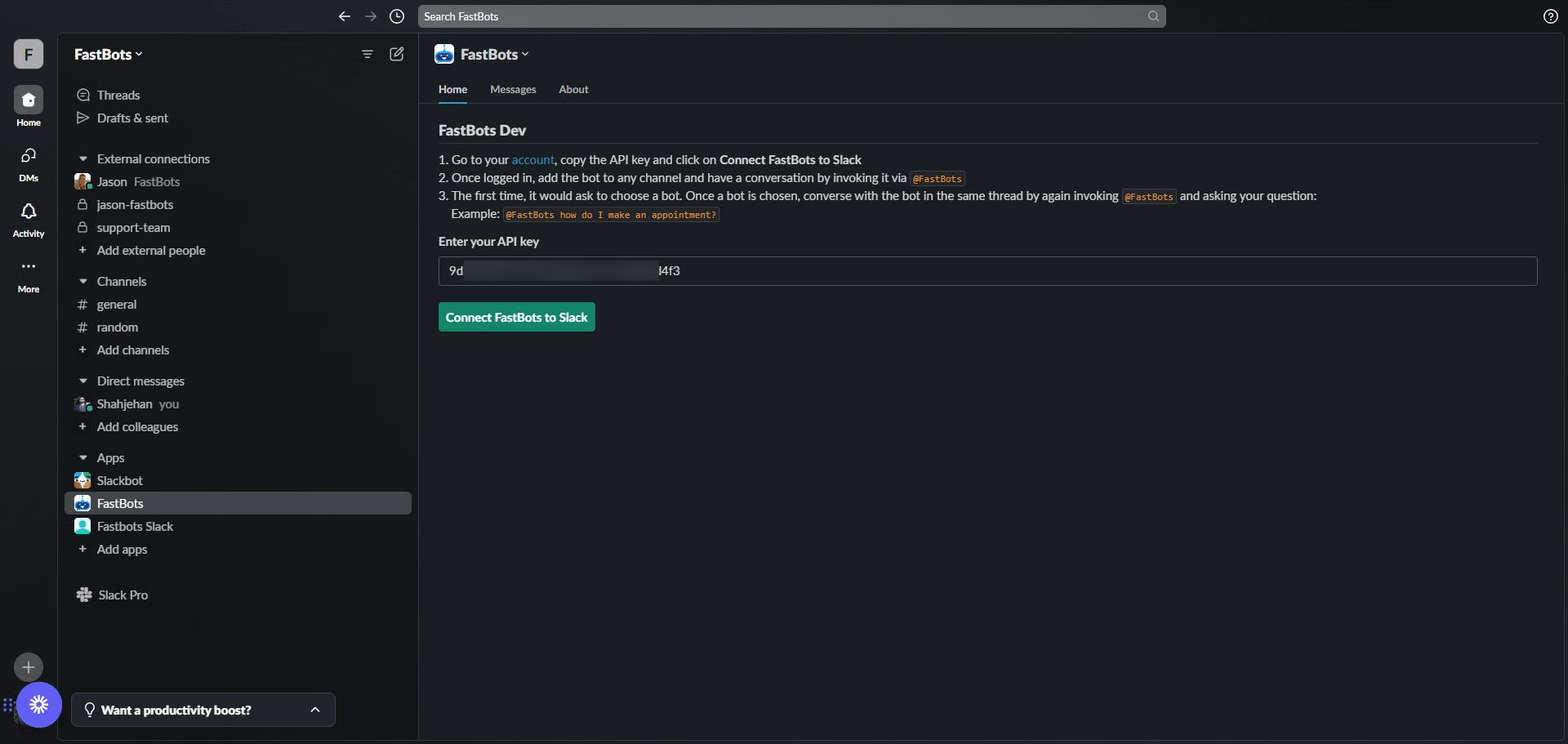
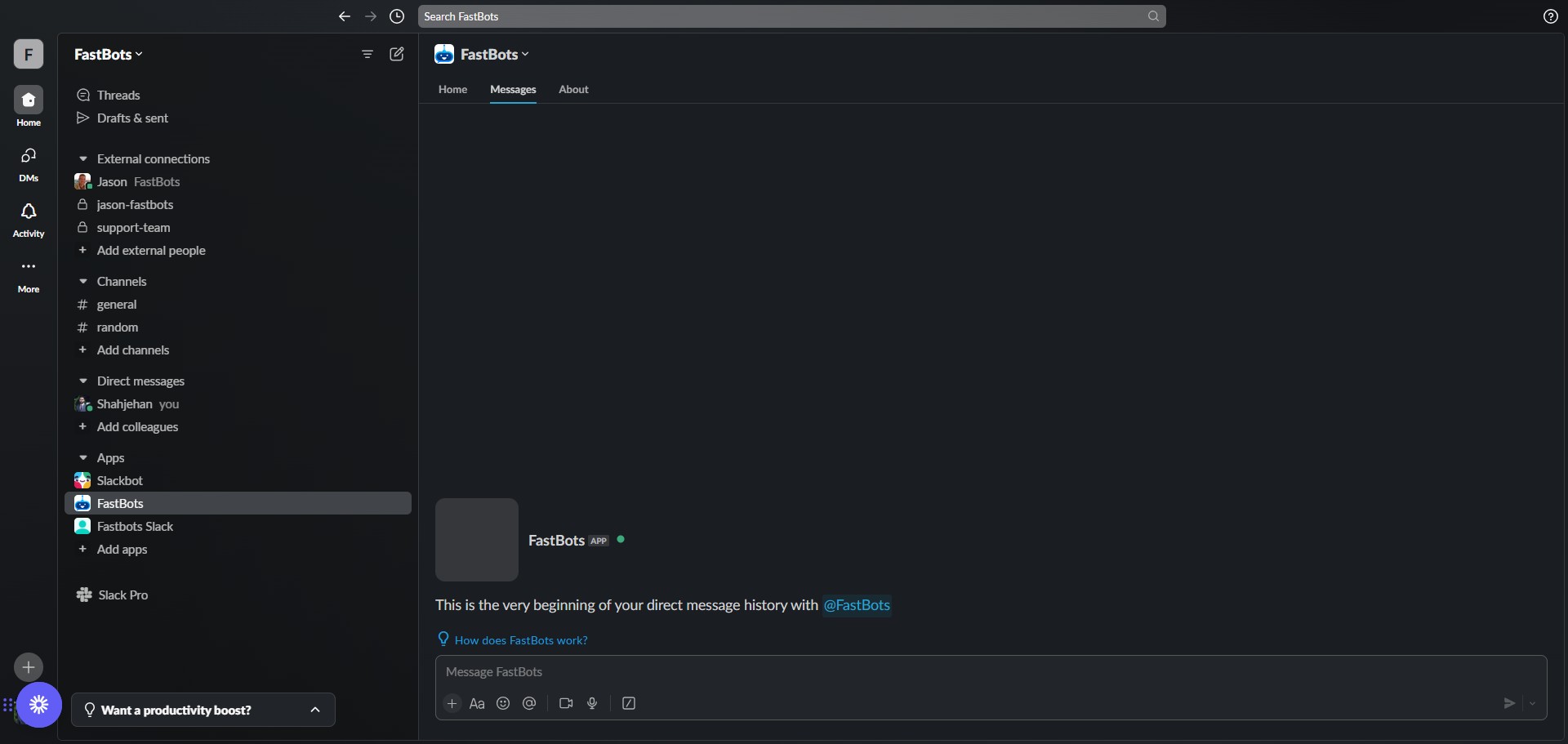
The chatbot is now completely configured with your Slack workspace and is ready to use. You can chat with the bot by either sending a private message or sending the message to the channel where it's added. Let's start the testing with direct message to chatbot. Click on the "Message" button.
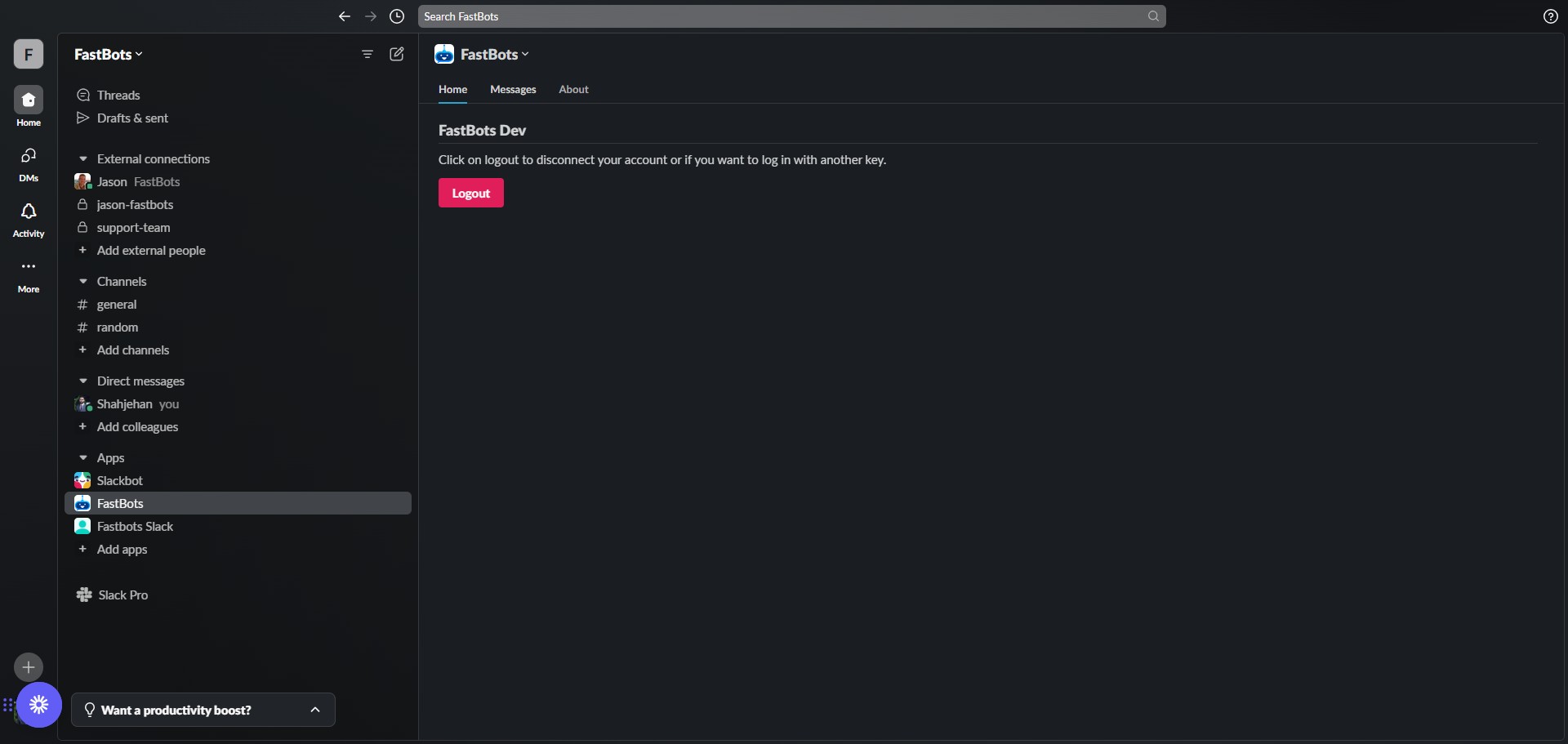
Send a message to your chatbot. In this case, I will send "Hi" to check its response.
The chatbot will reply in the thread. Open the thread to see the message.
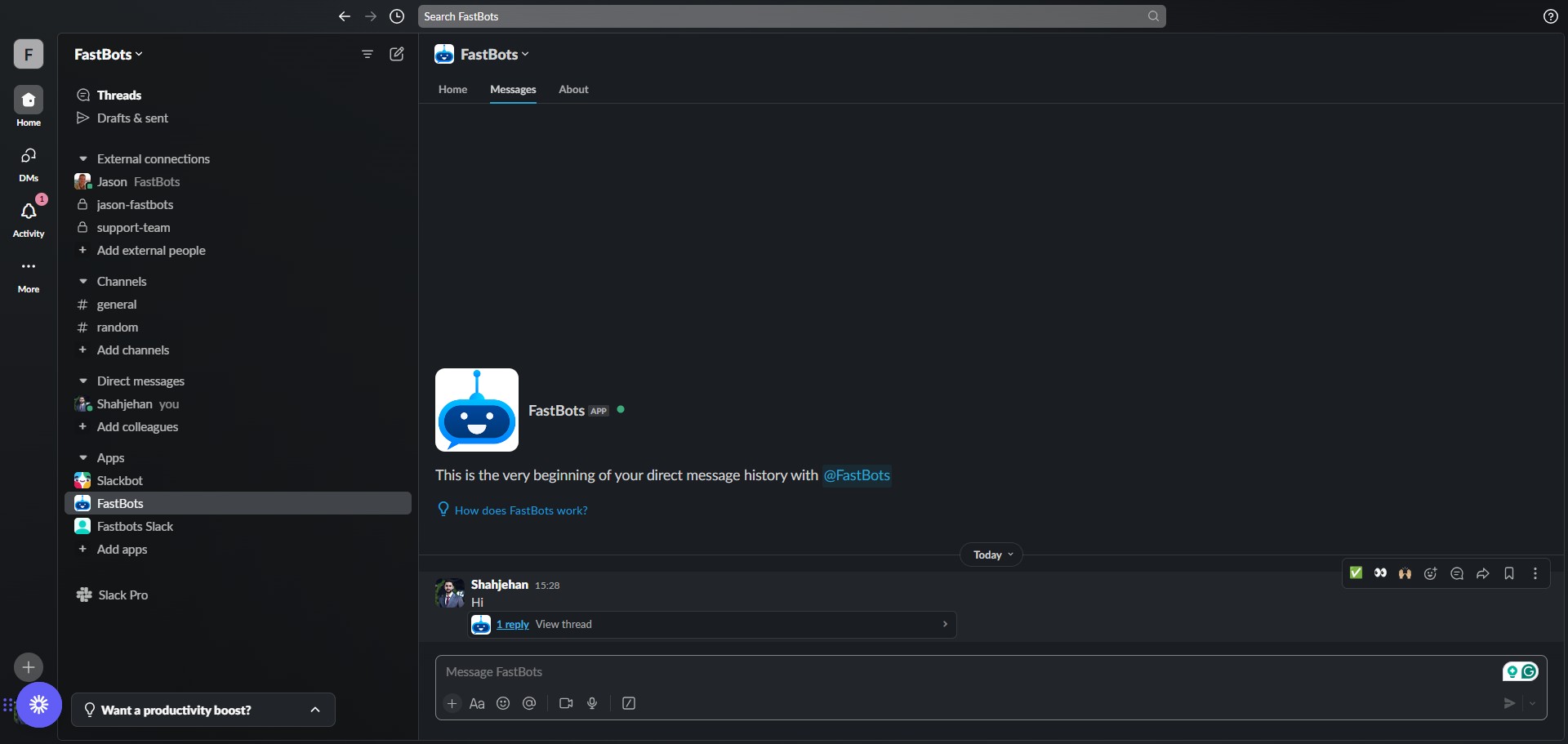
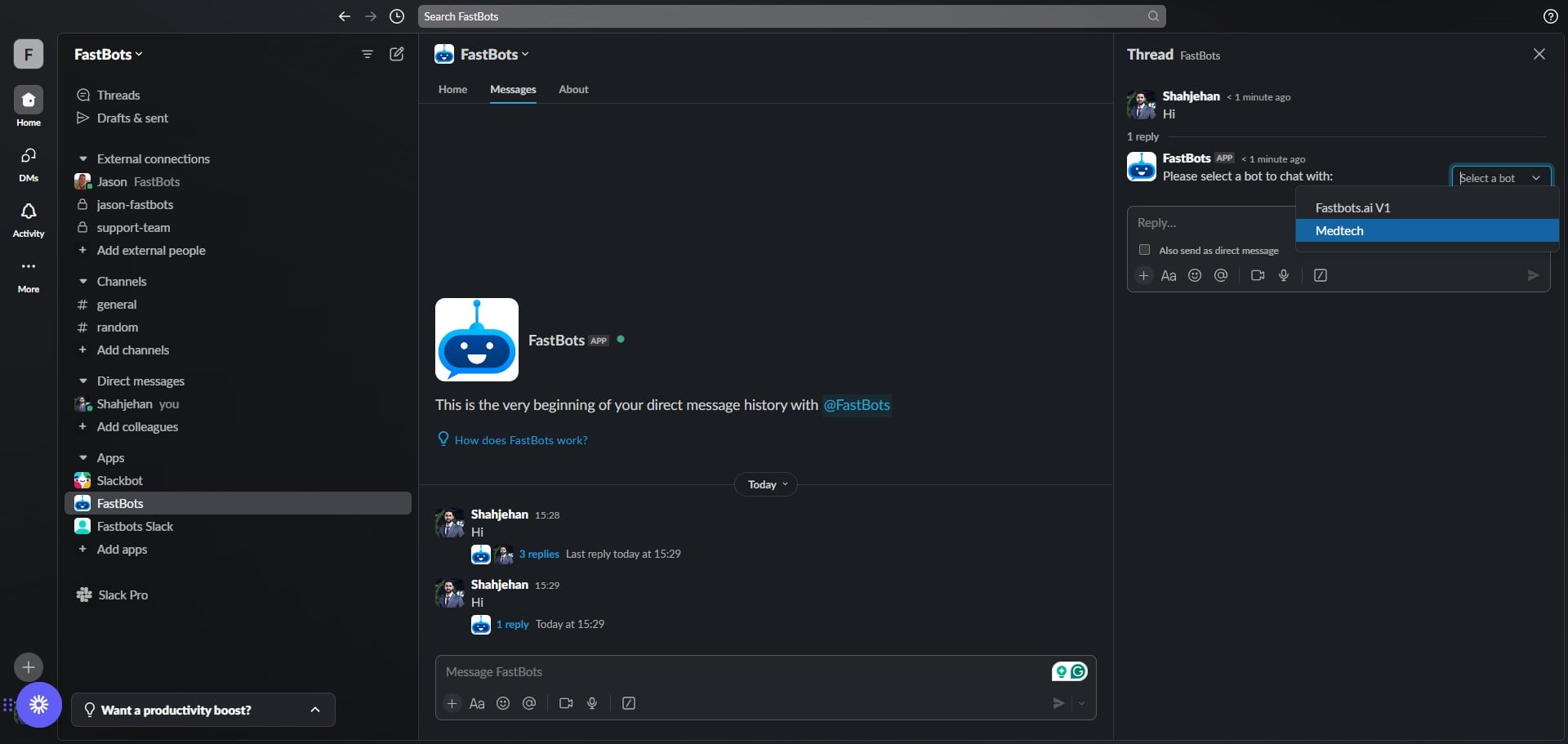
It will ask you to select a chatbot from your account. Click on "Select a bot"
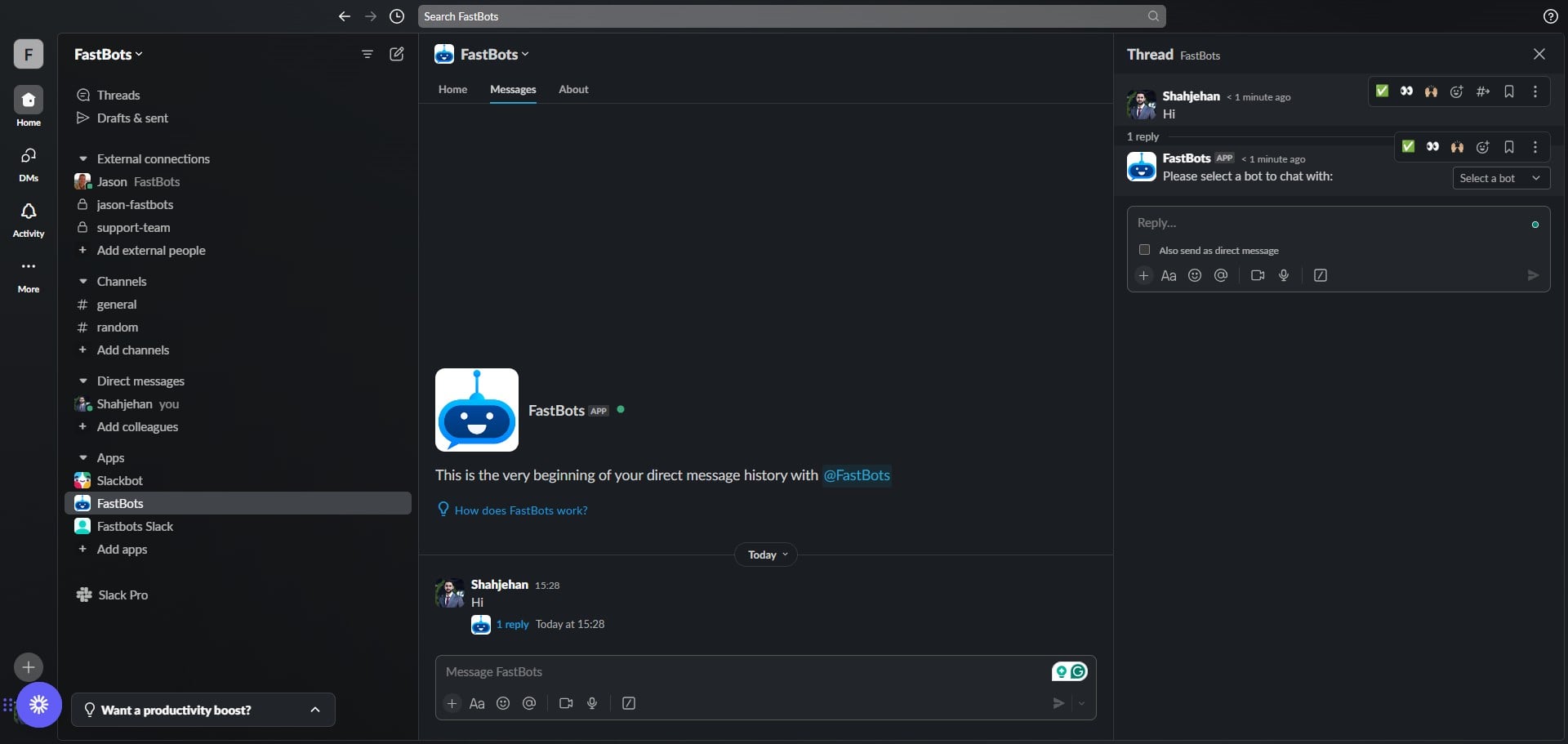
Choose the chatbot you wish to interact with.
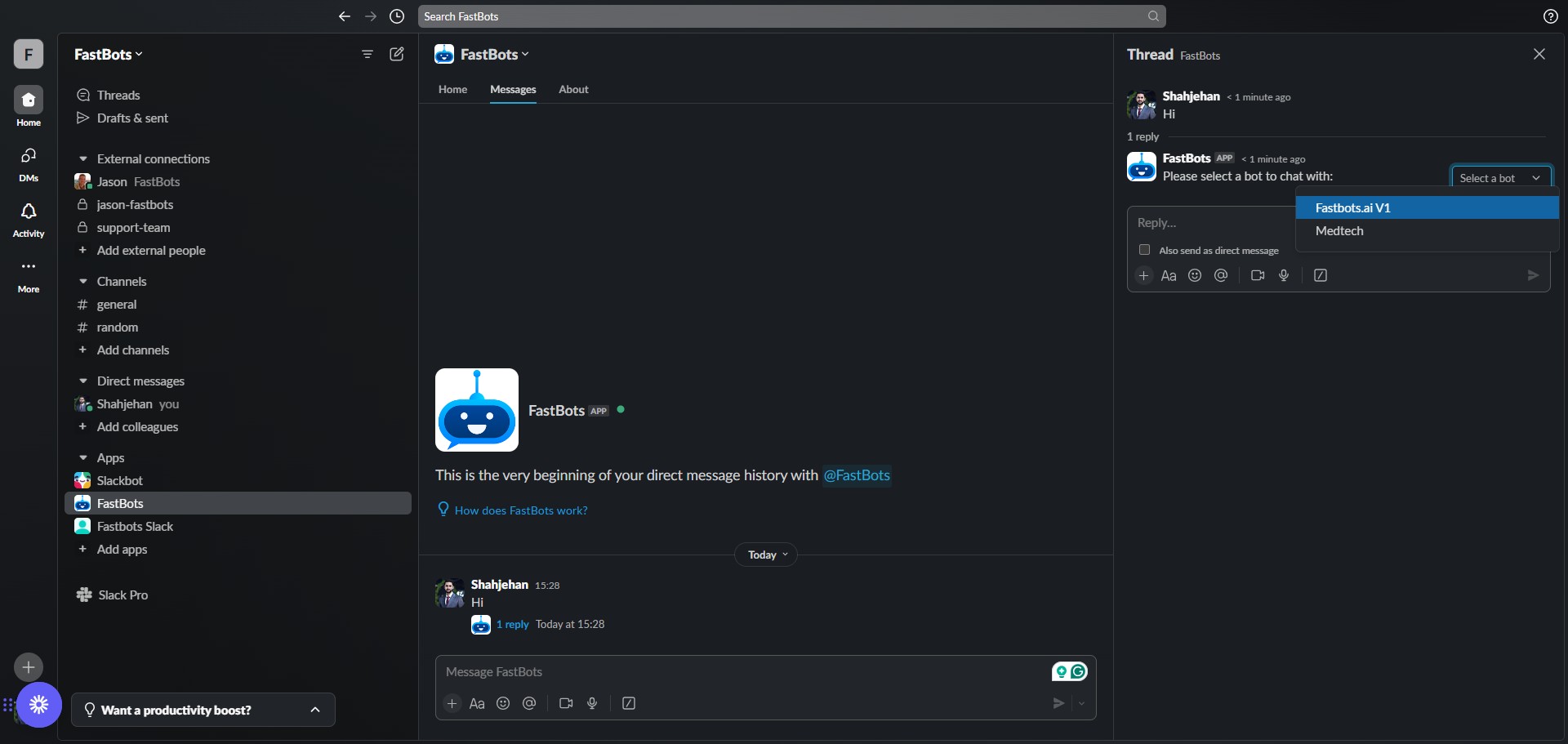
After selecting the chatbot you can start asking it questions and it will provide answers.
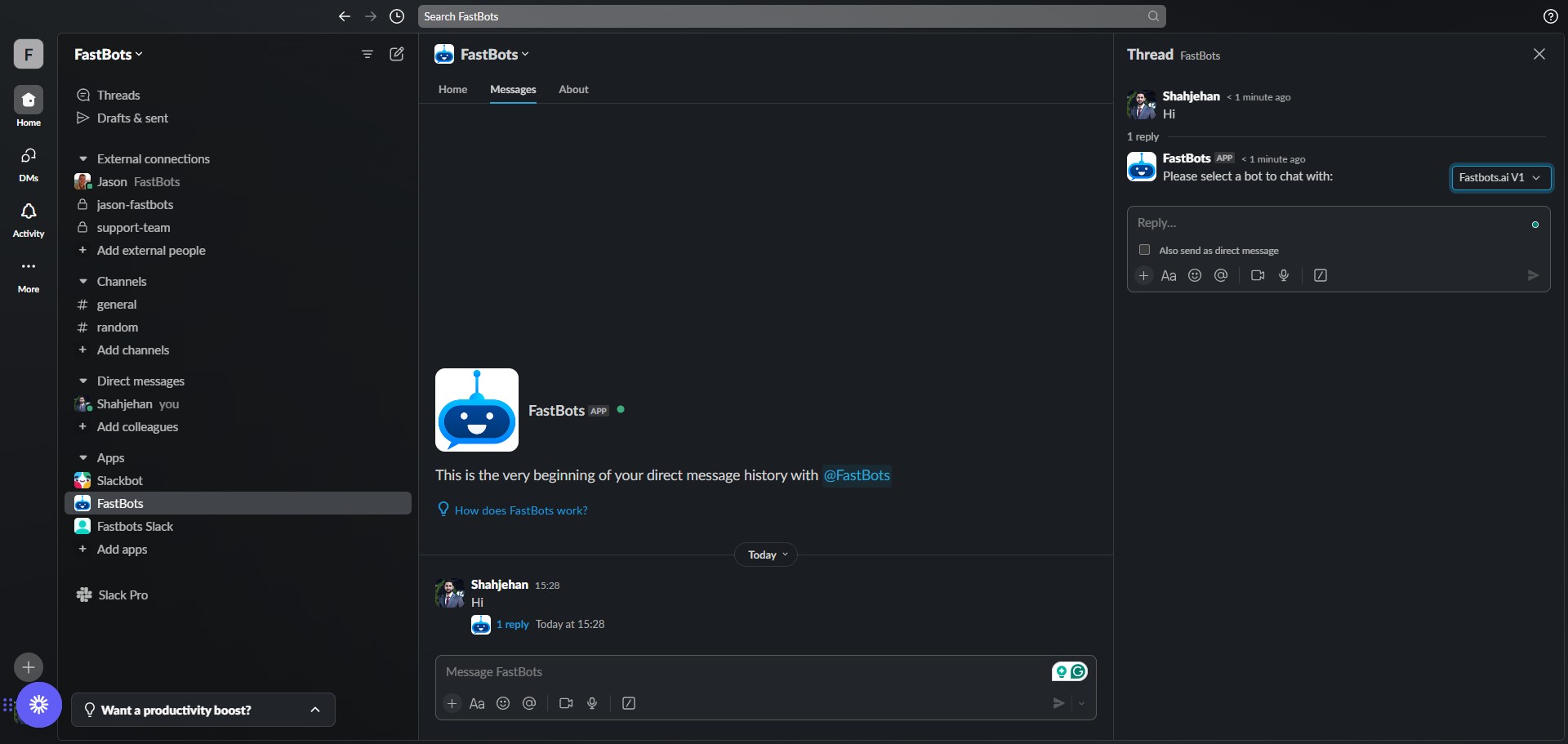
Once you ask a question, it will add the "Brain" emoji on your message which means its thinking and typing an answer.
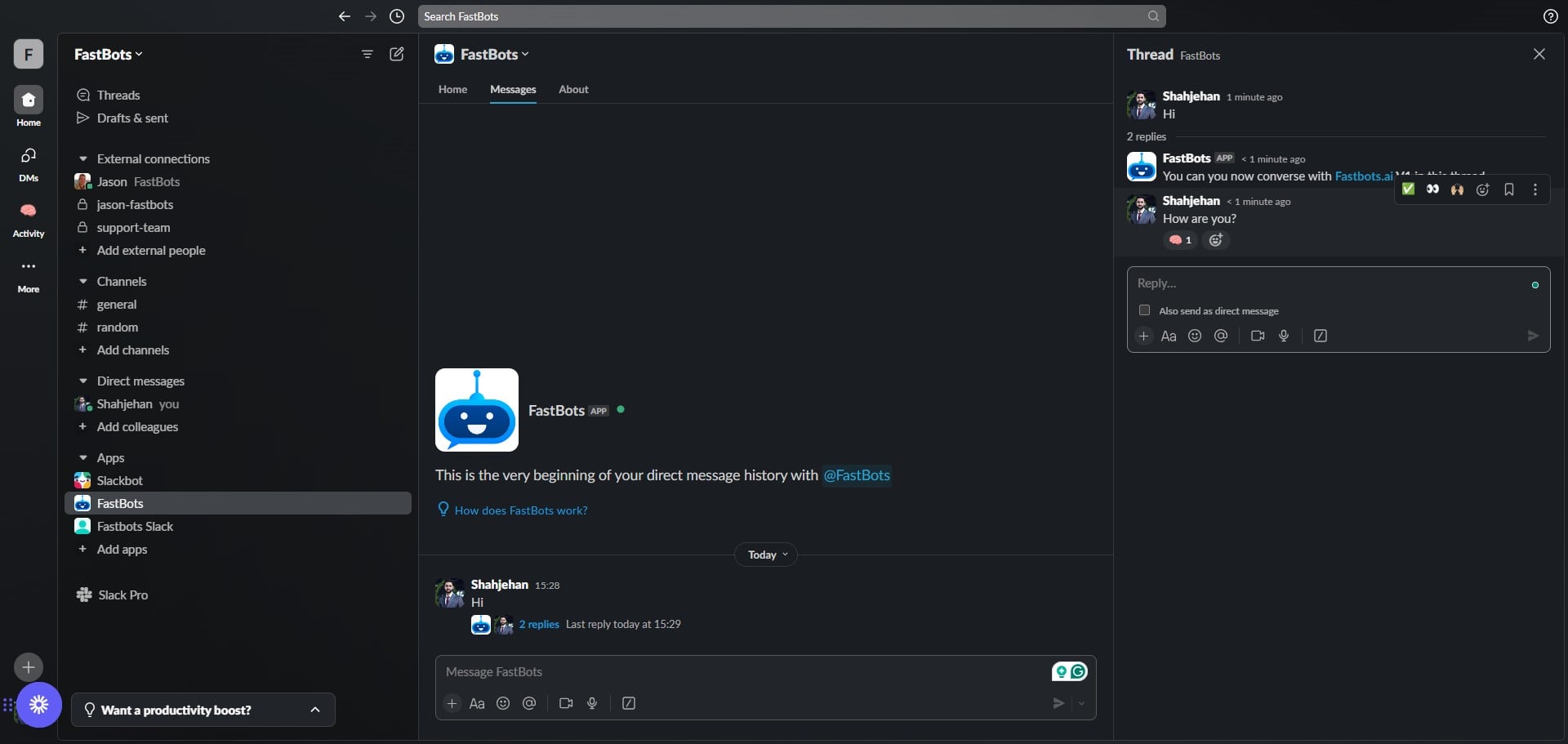
The emoji will be removed automatically once the chatbot provides the answer.
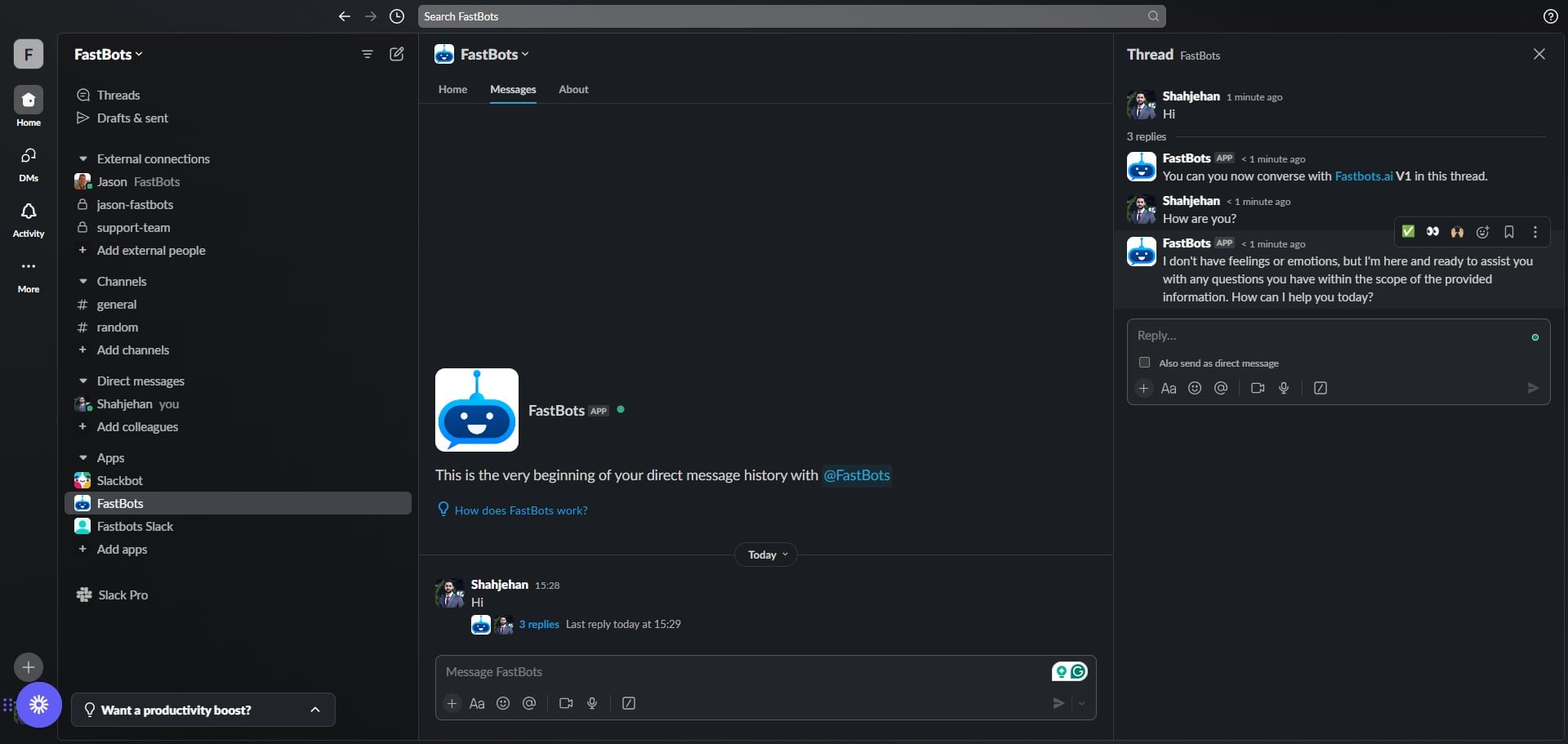
If you want to chat with a different chatbot, start a new conversation and then select the chatbot again from the thread.
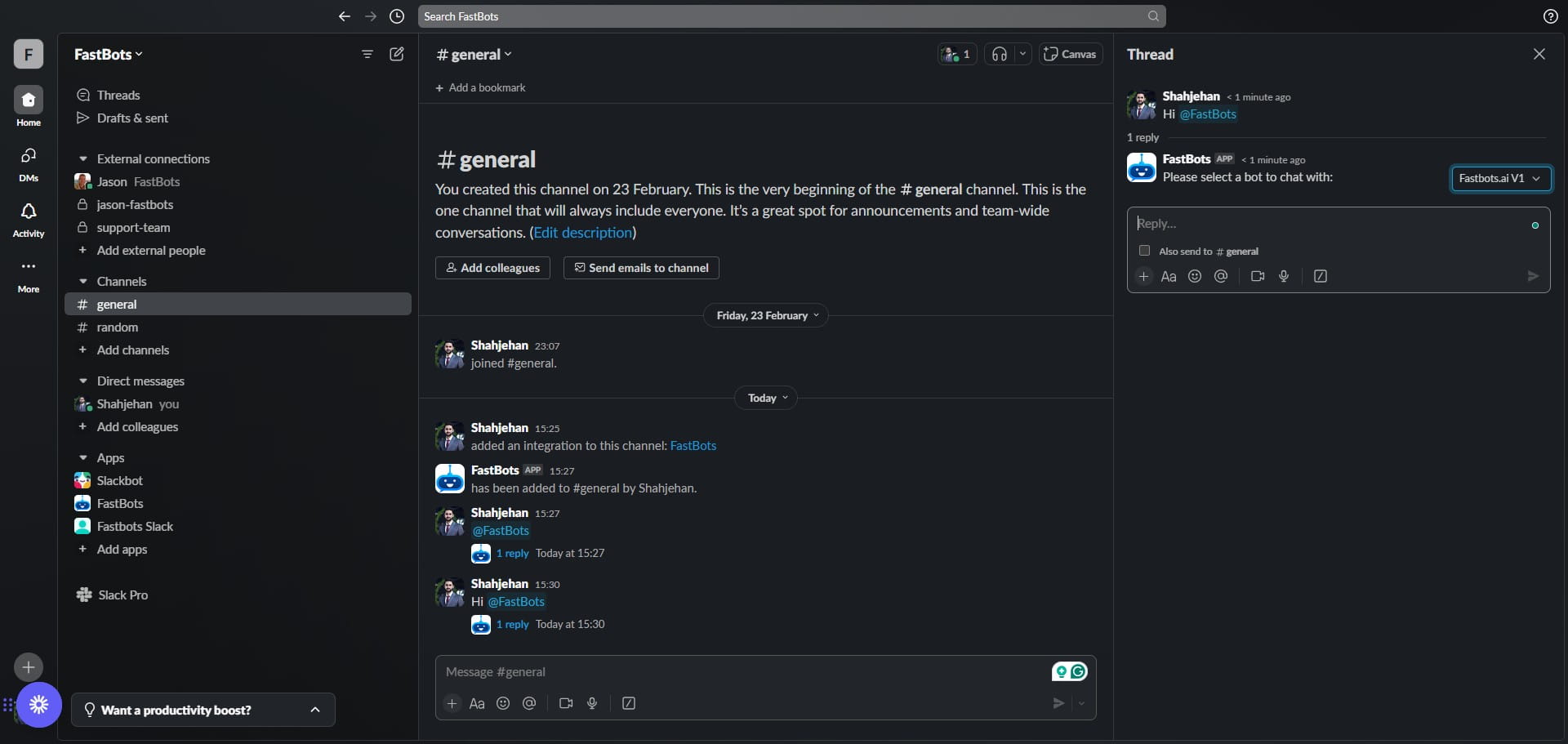
You can also interact with the chatbot in the channel where you originally added it. Just go to that channel and start a conversation by mentioning (@) the chatbot.
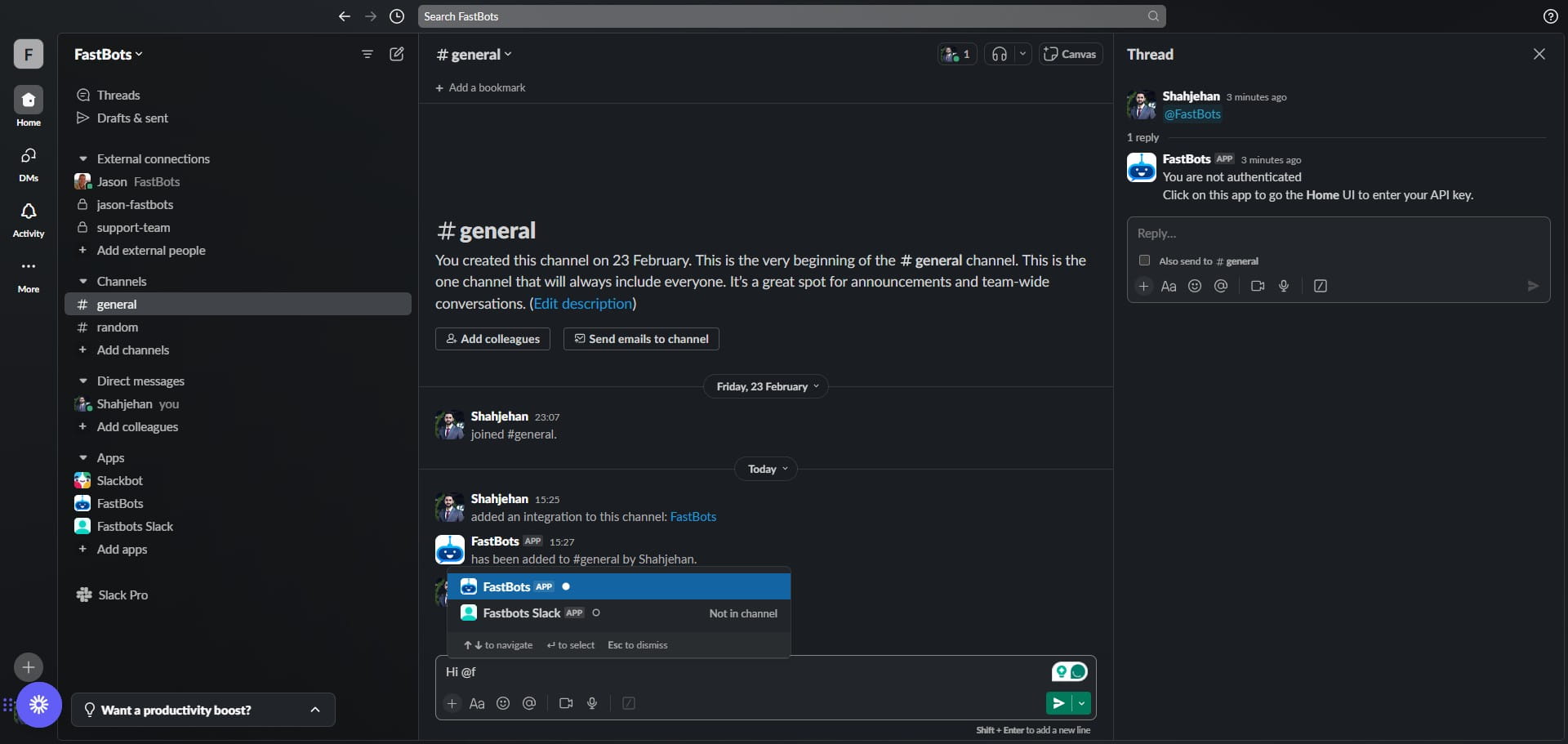
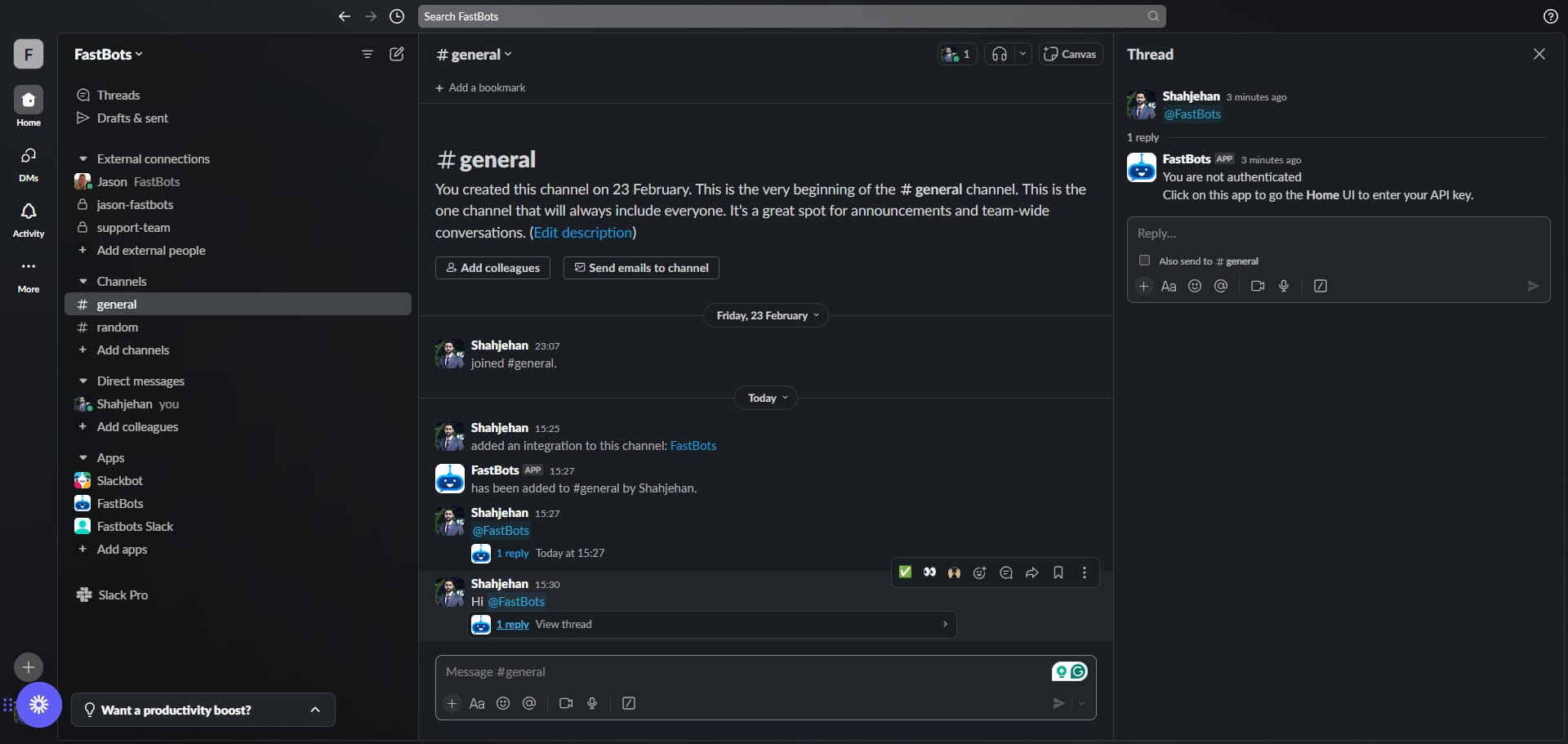
It will reply in the thread.
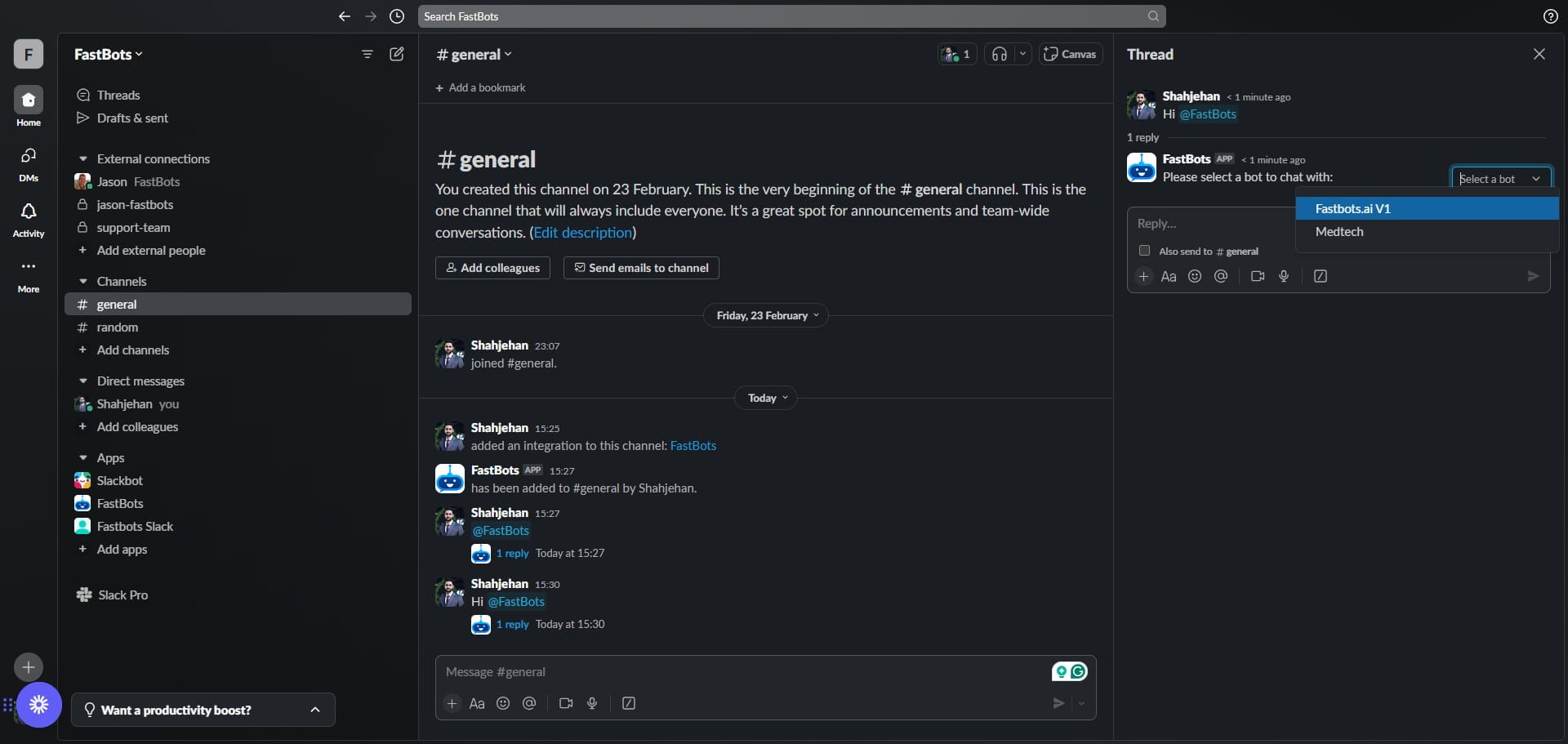
Open the bot's reply and select the chatbot you'd like to chat with.
Type your message to interact with the selected chatbot.
If you want to disconnect/remove your Fastbots chatbot from Slack Workspace, open the Fastbots profile in Slack.
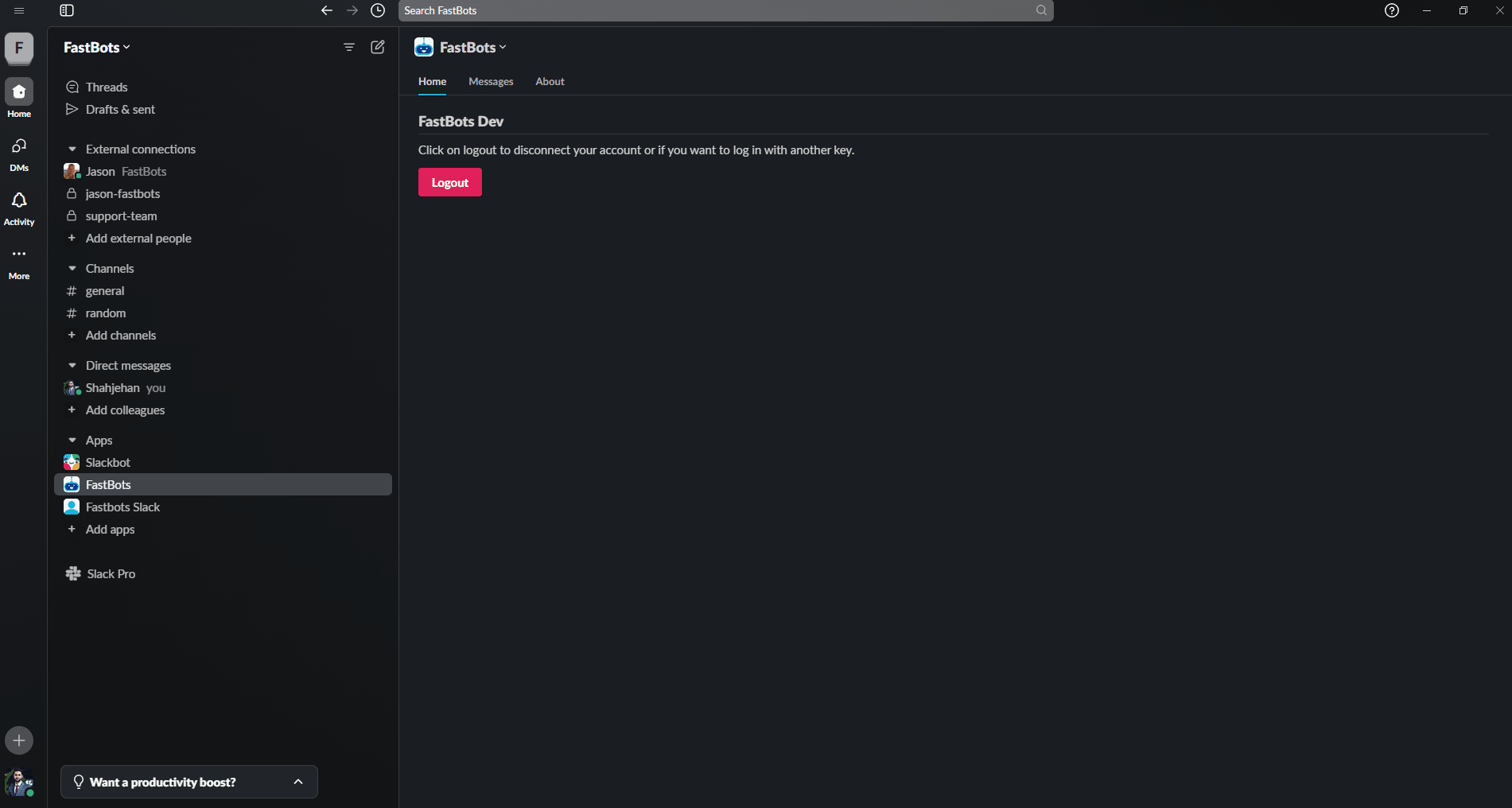
Click on the "Logout" button
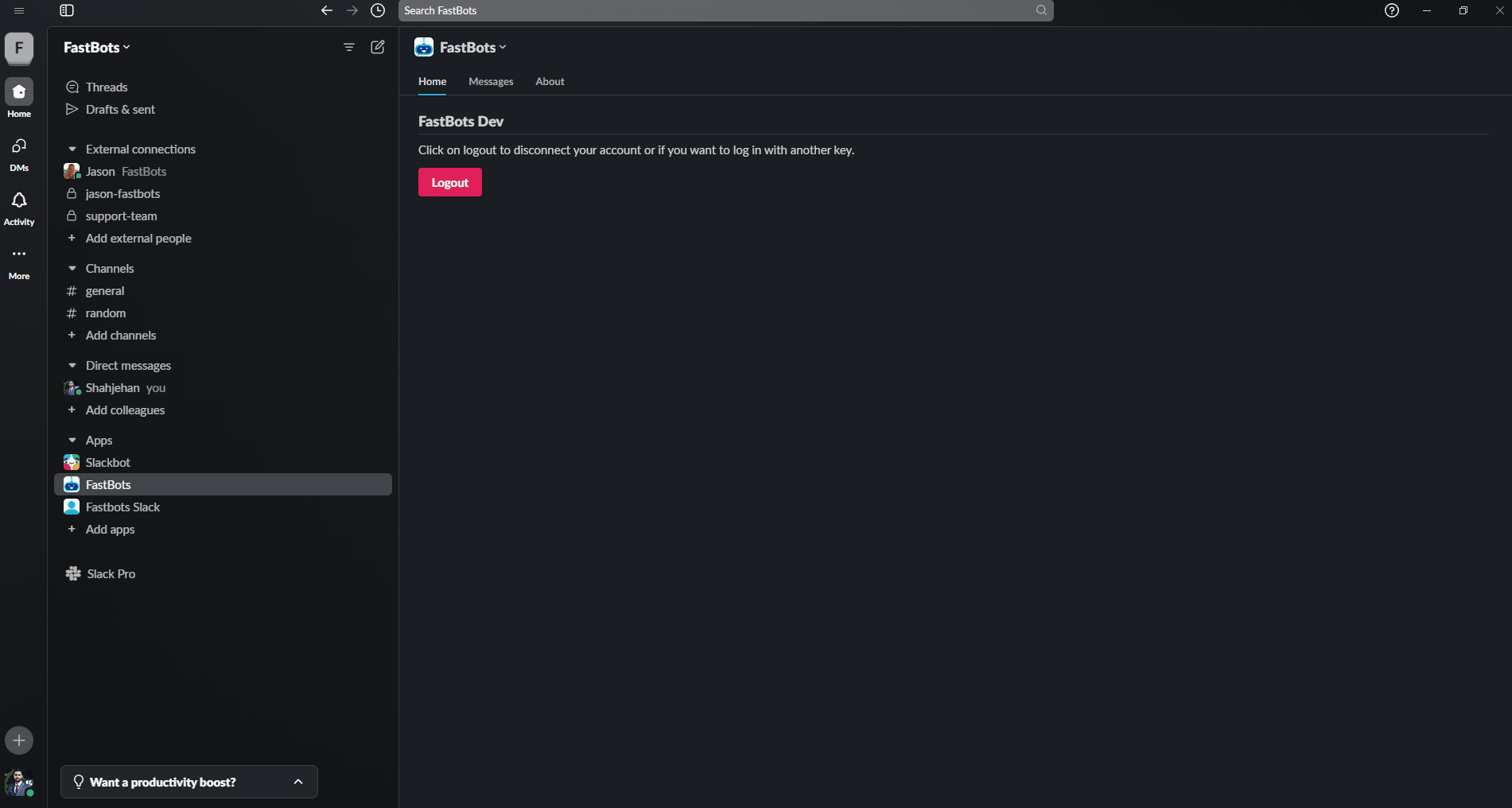
Done 🚀 You have successfully integrated your chatbot with Slack.