
How To Integrate Zapier MCP Action
Zapier MCP allows your FastBots chatbot to securely connect with thousands of popular apps and perform real actions on your behalf. Instead of simply answering questions, your chatbot can book appointments, create CRM contacts, send emails, update spreadsheets, create support tickets, process orders, and much more—all automatically during a conversation. Once connected, your chatbot becomes a true AI agent that can interact with over 8,000 apps available through Zapier. Simply choose the actions you want your chatbot to perform, connect your accounts, and tell your AI when it should use them. FastBots takes care of the rest, allowing your chatbot to complete tasks instead of just providing information.
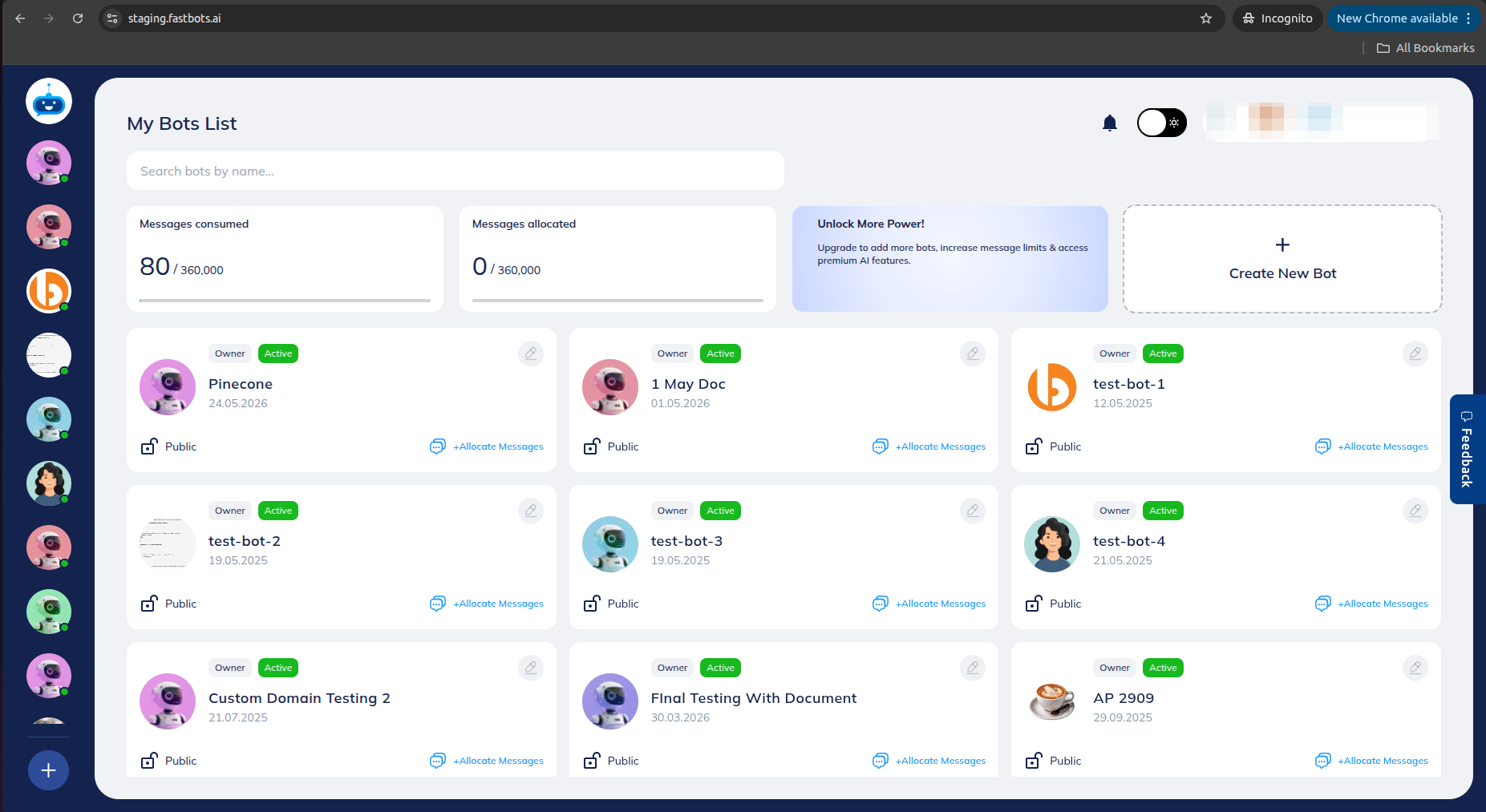
Navigate to https://app.fastbots.ai/
Click on the chatbot to open it.

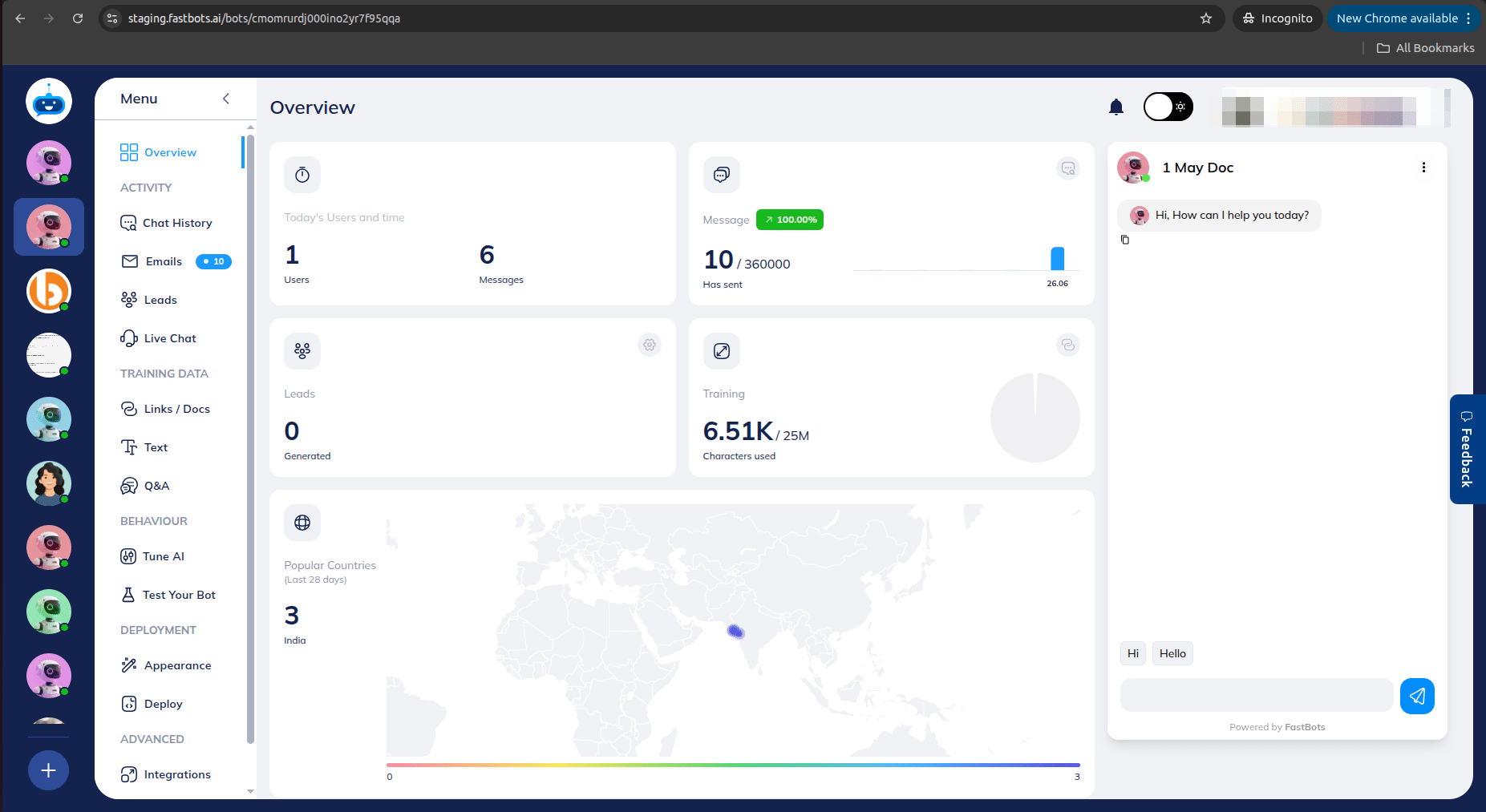
Click on "Integrations" option to open this page.
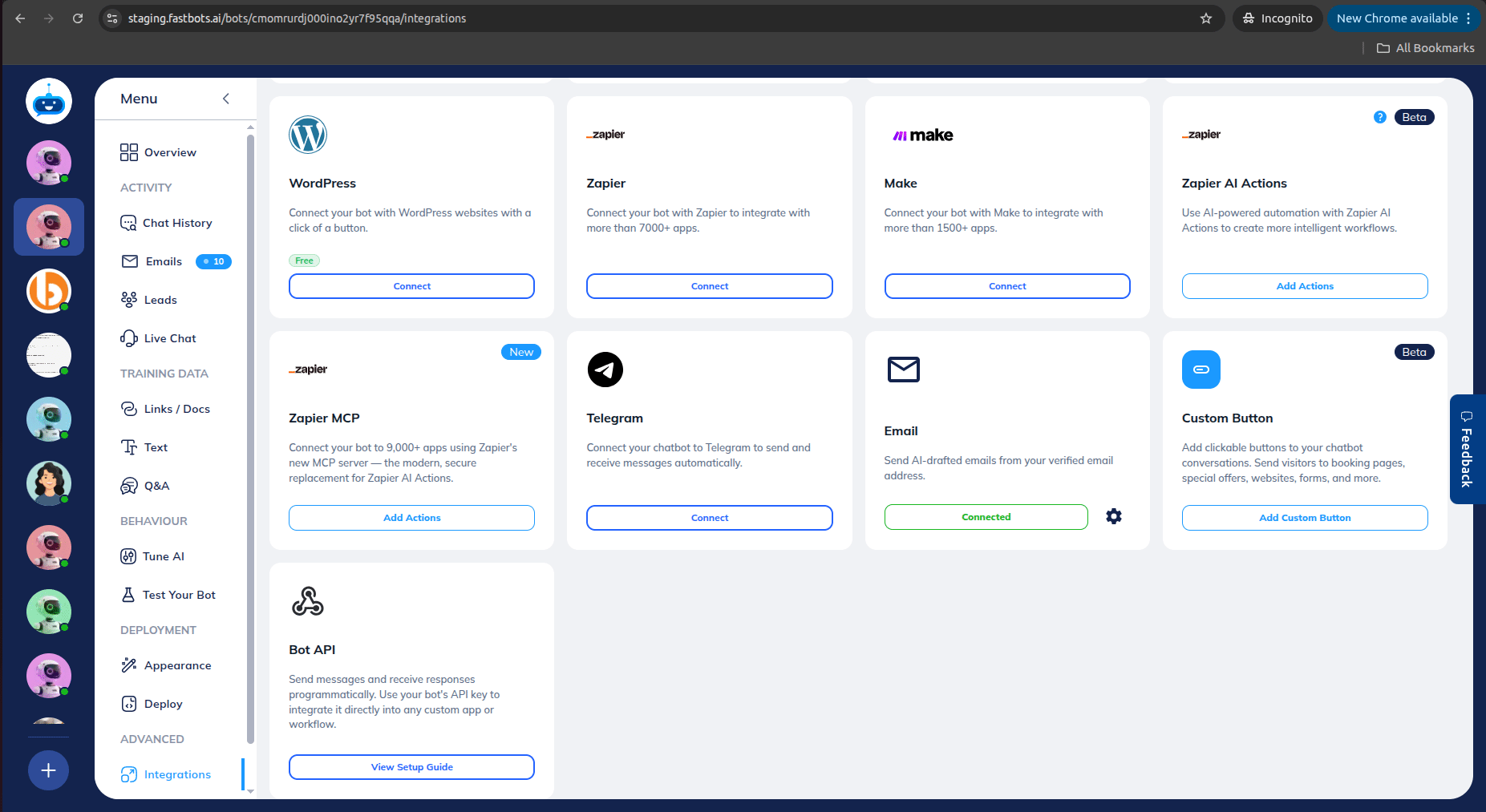
Click On the "Add Actions" button of the Zapier MCP.
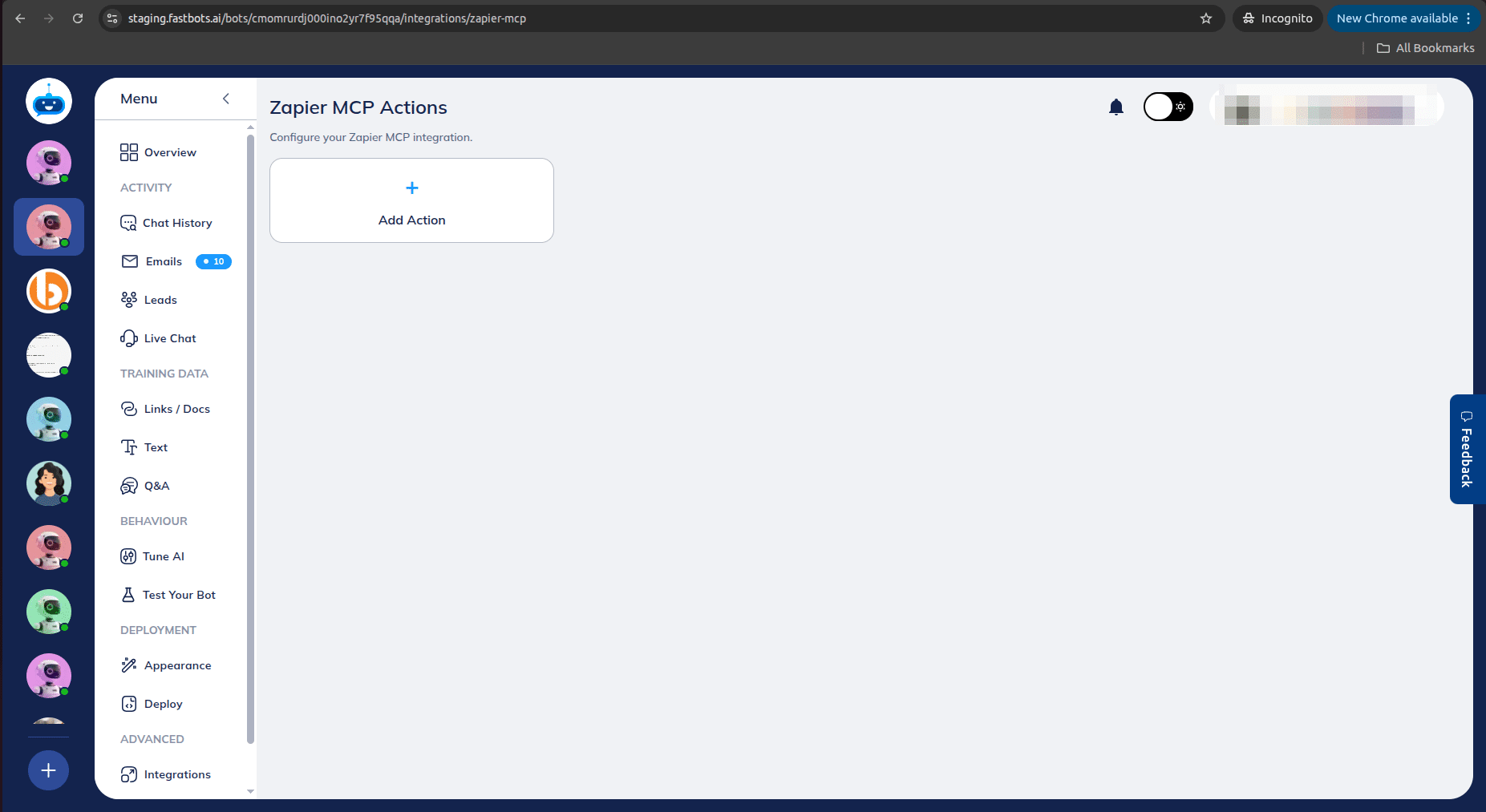
Click on "Add Action".
Click on the mcp.zapier.com
](https://assets.guidejar.com/uploads/bQn7NOWWf8Fr4vPINiOU/tFJRZpghohhoz8Q3VC9rnUIscrV2/a1840474-9770-42d8-bee7-286d72d3e215/1782461850146.jpeg)
Login on the Platform. Click on the MCP Servers.
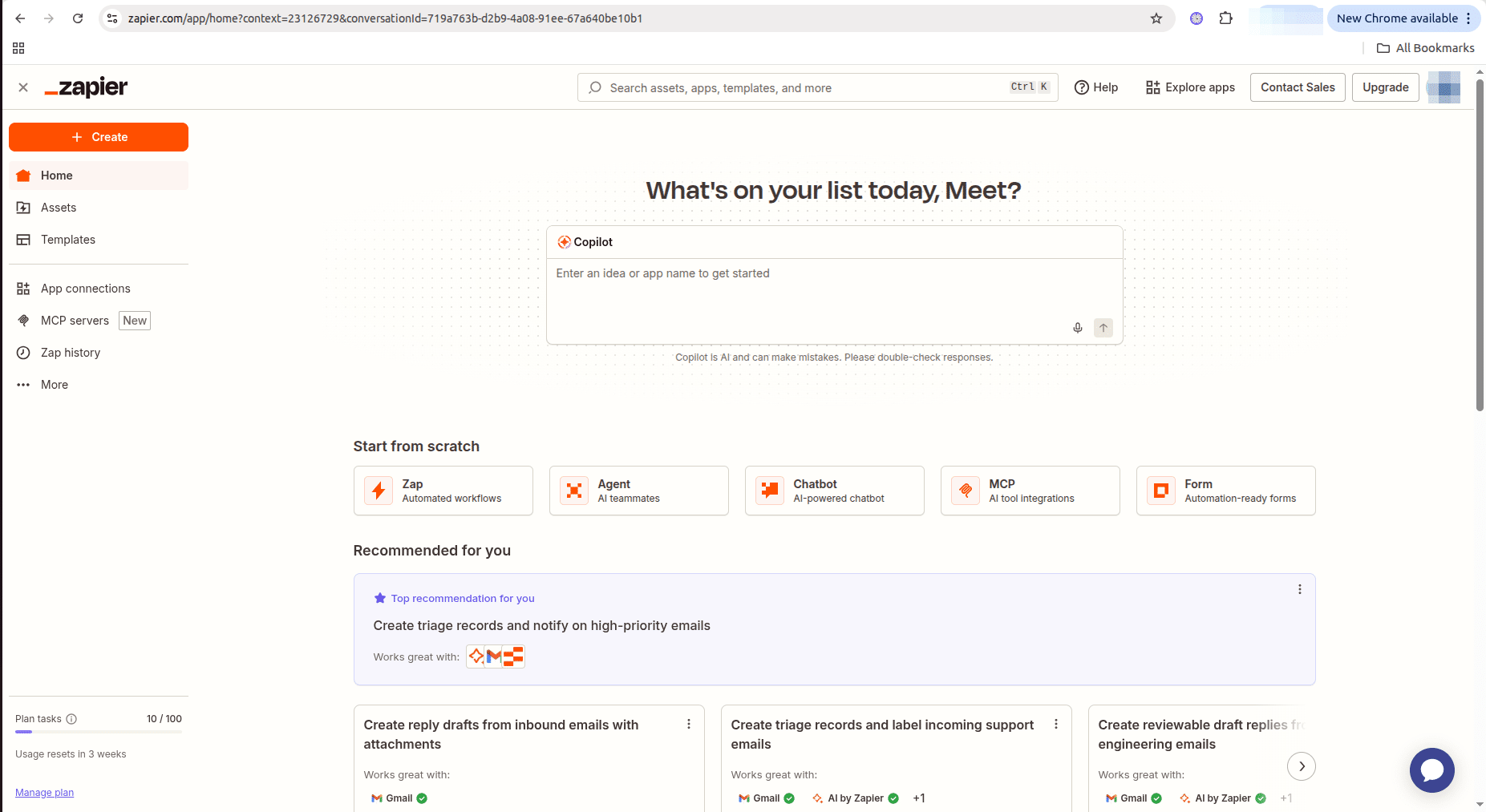
Click on "New MCP Server".
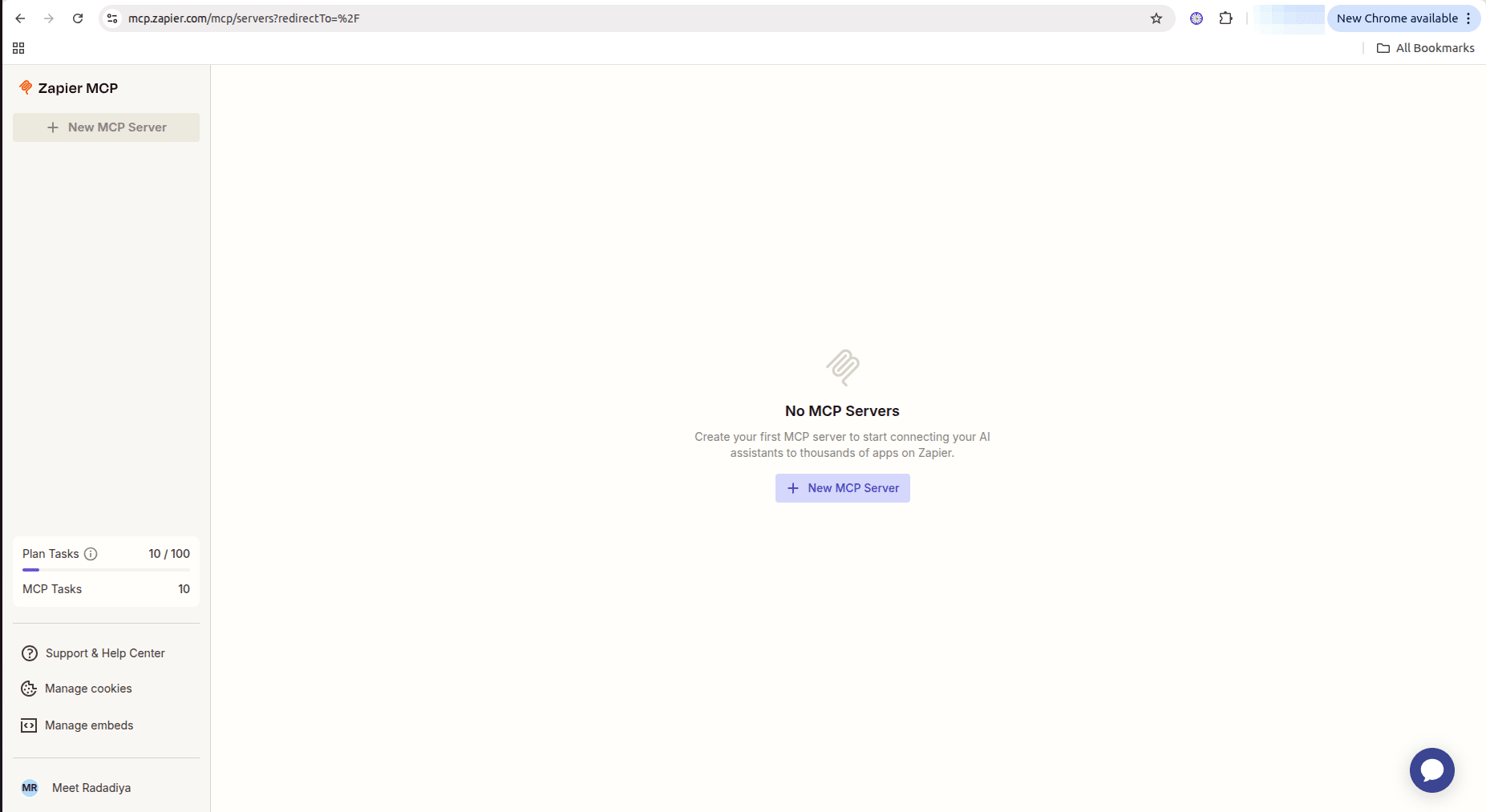
Scroll down to the end and Click on the "Other".
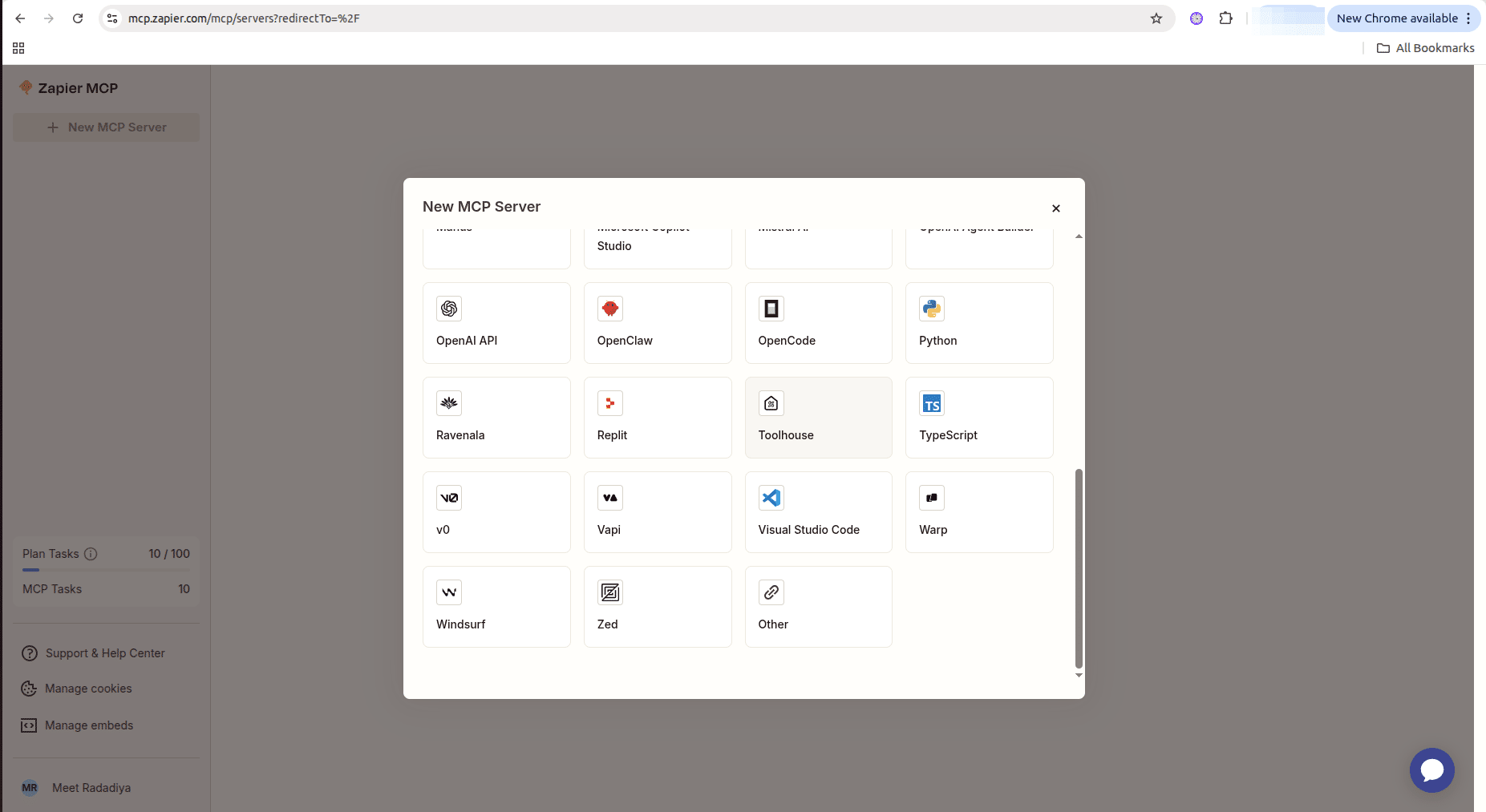
Click on the "Add Apps" button and add your desired tool.
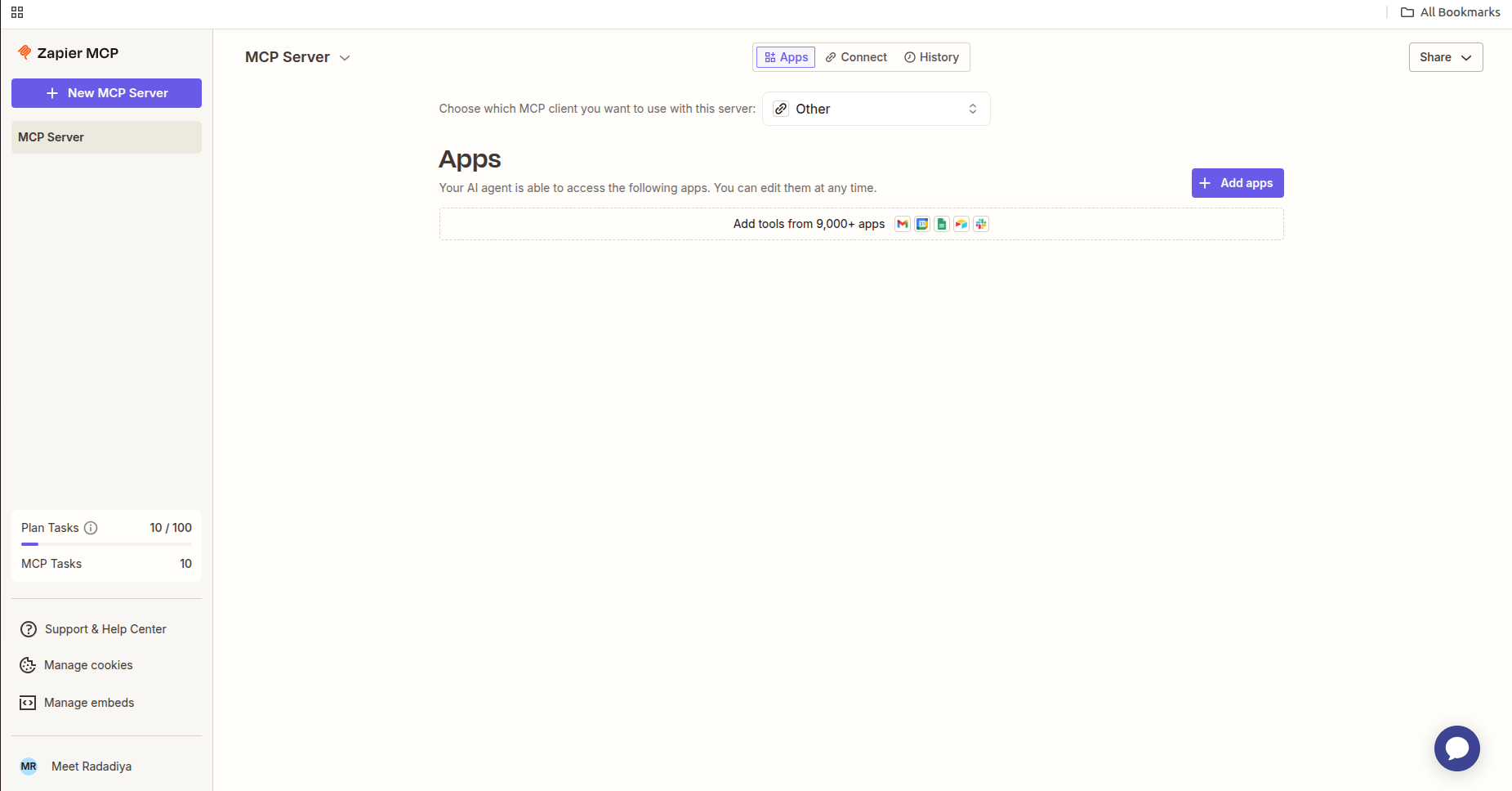
Select desired app.
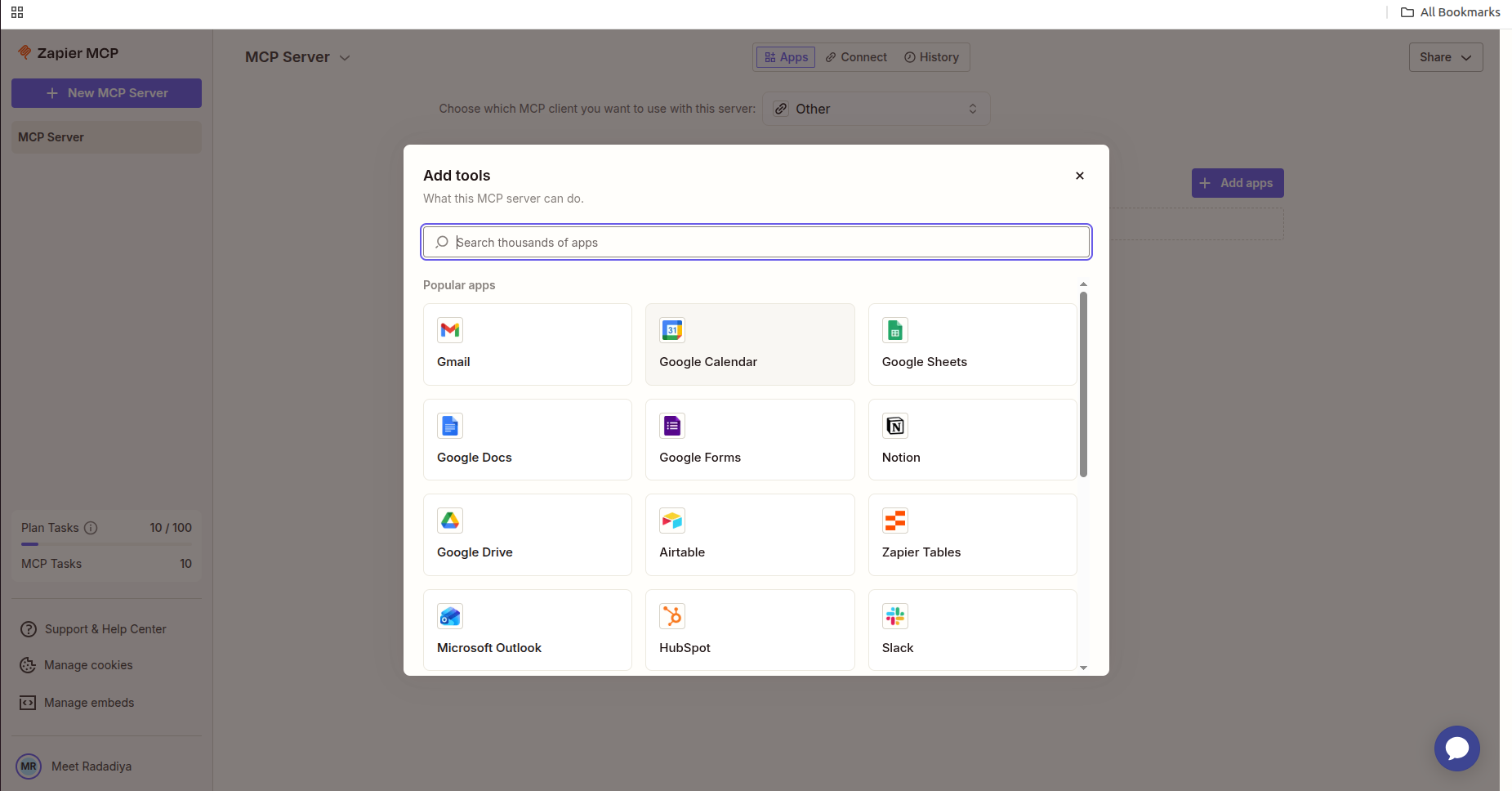
Select desired action and click on the connect button.
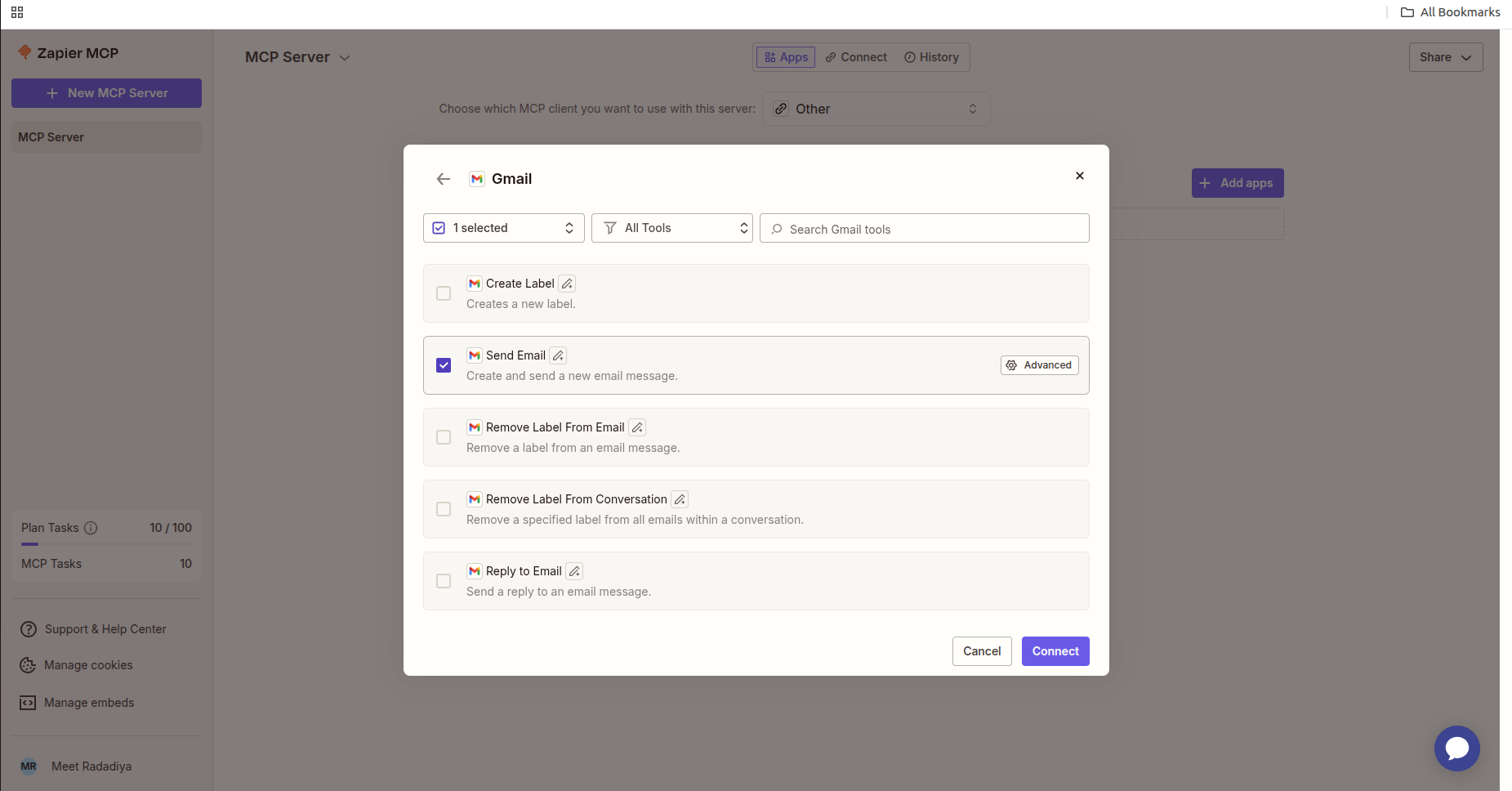
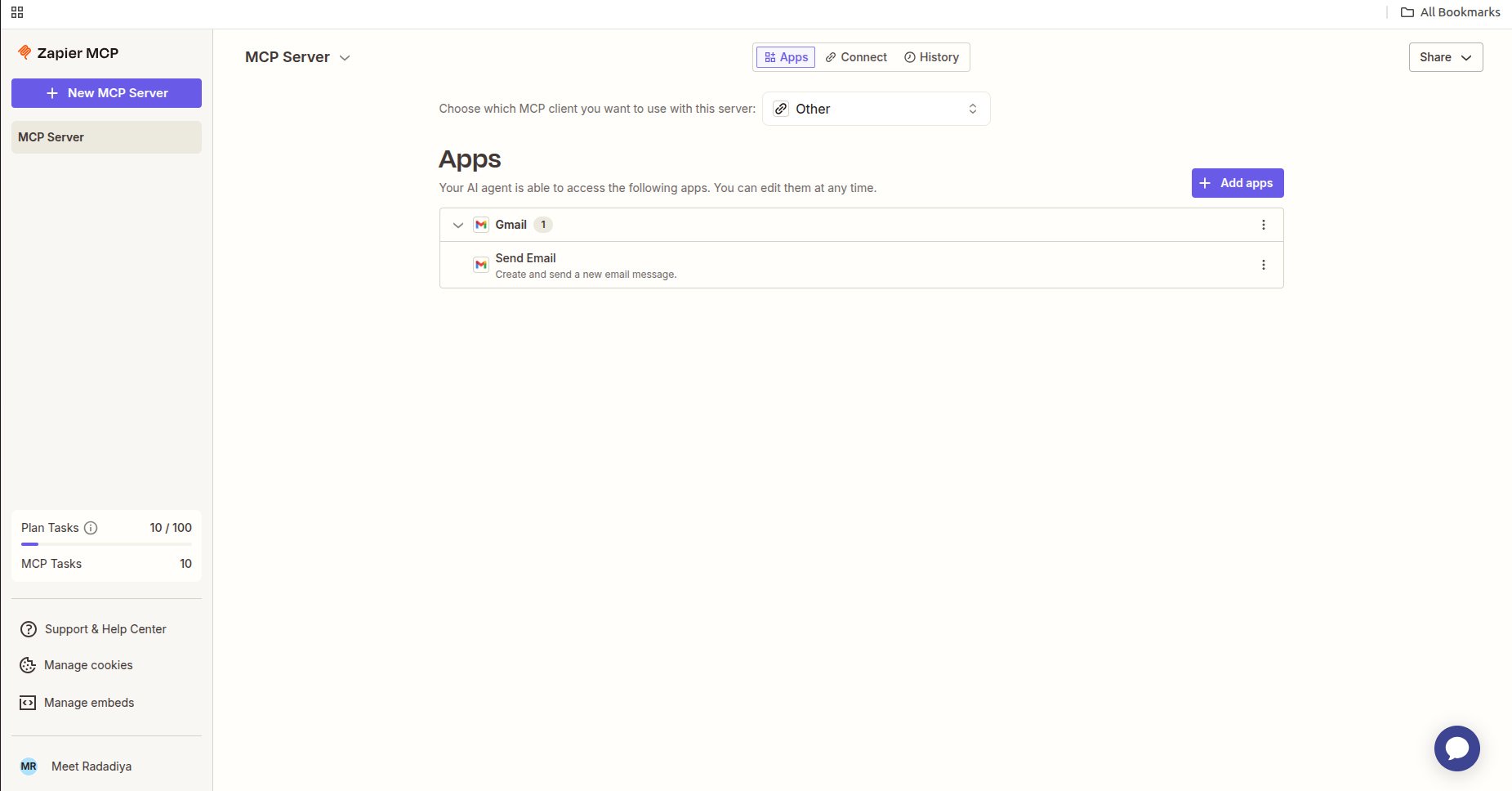
Successfully Added the apps and desired action. Click on the Connect button.
Click on the "Generate Token" button.
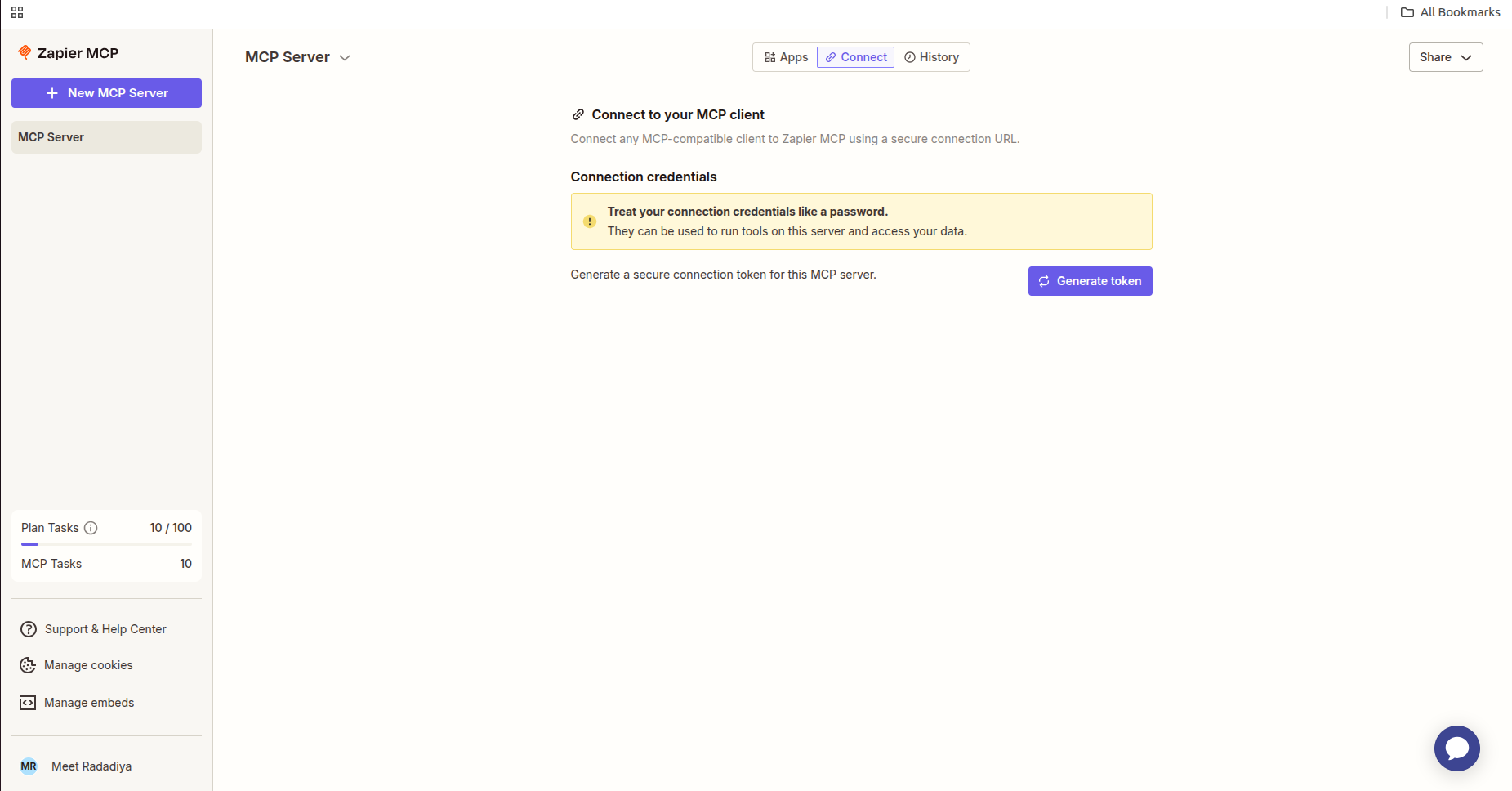
Copy the Token from the Option 1.
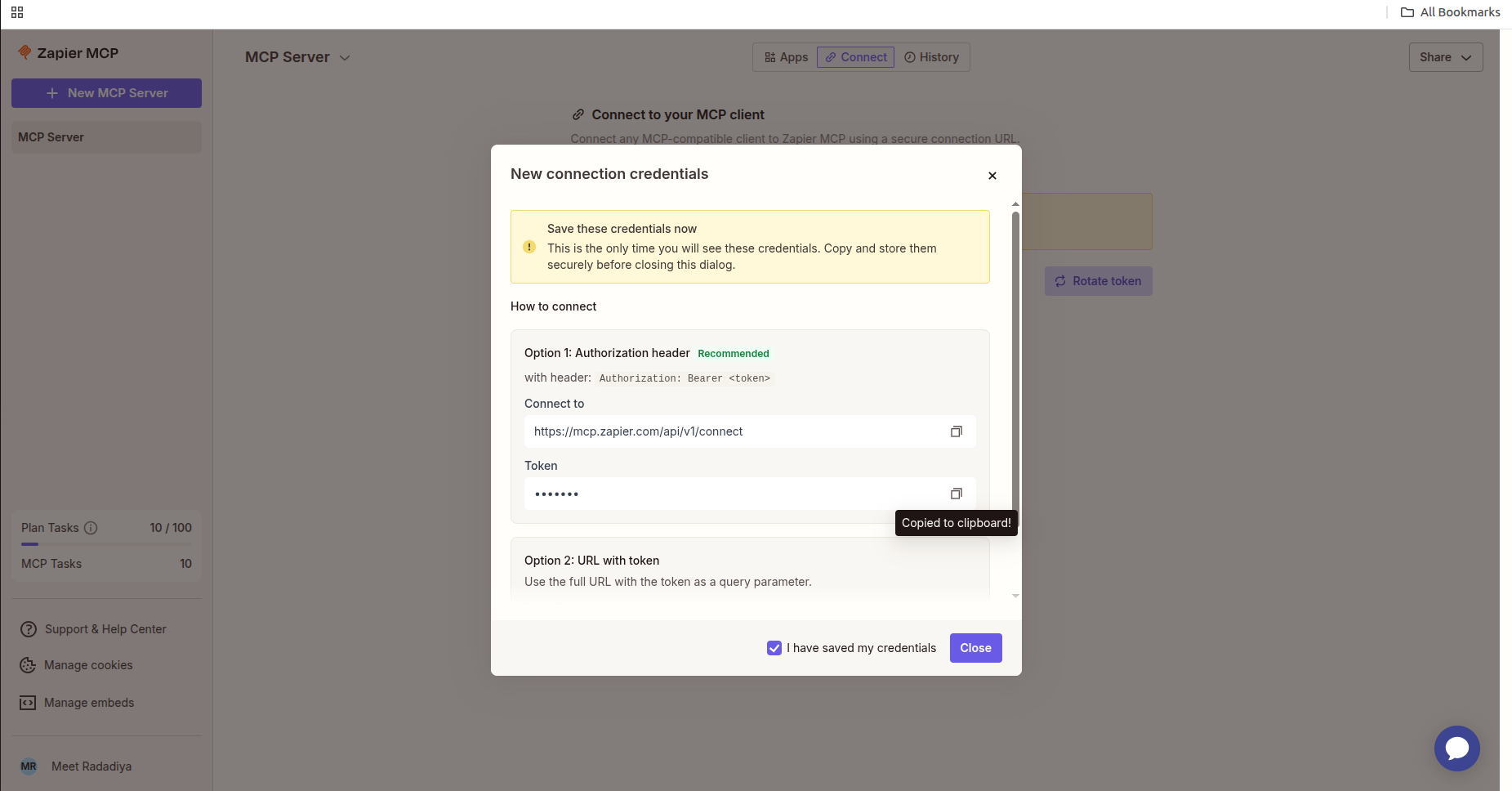
Paste the copied token from zapier mcp platform.
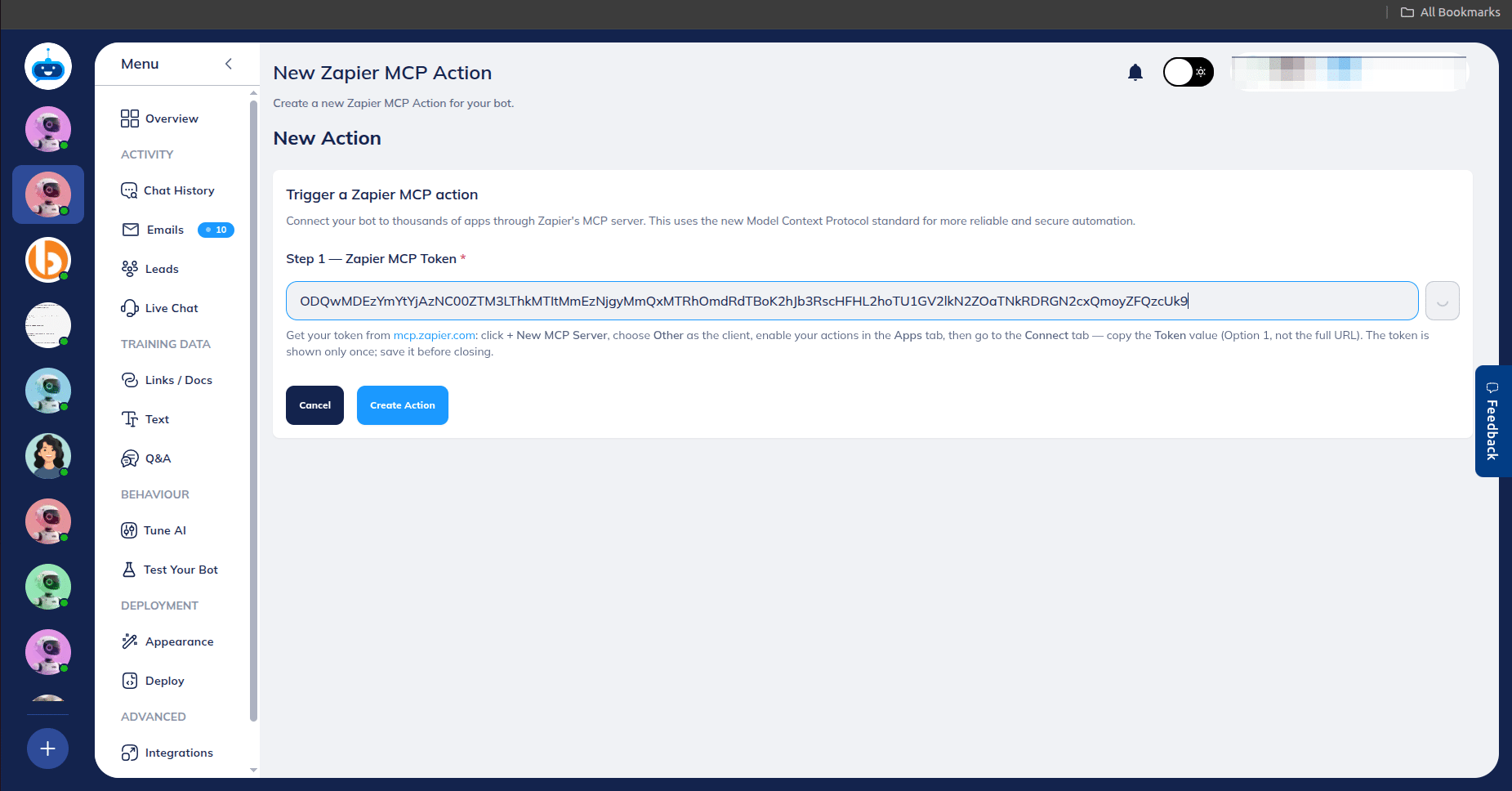
Automatically Loads the Action, you have added on the Zapier MCP Platform. Select the desired action from the dropdown list.
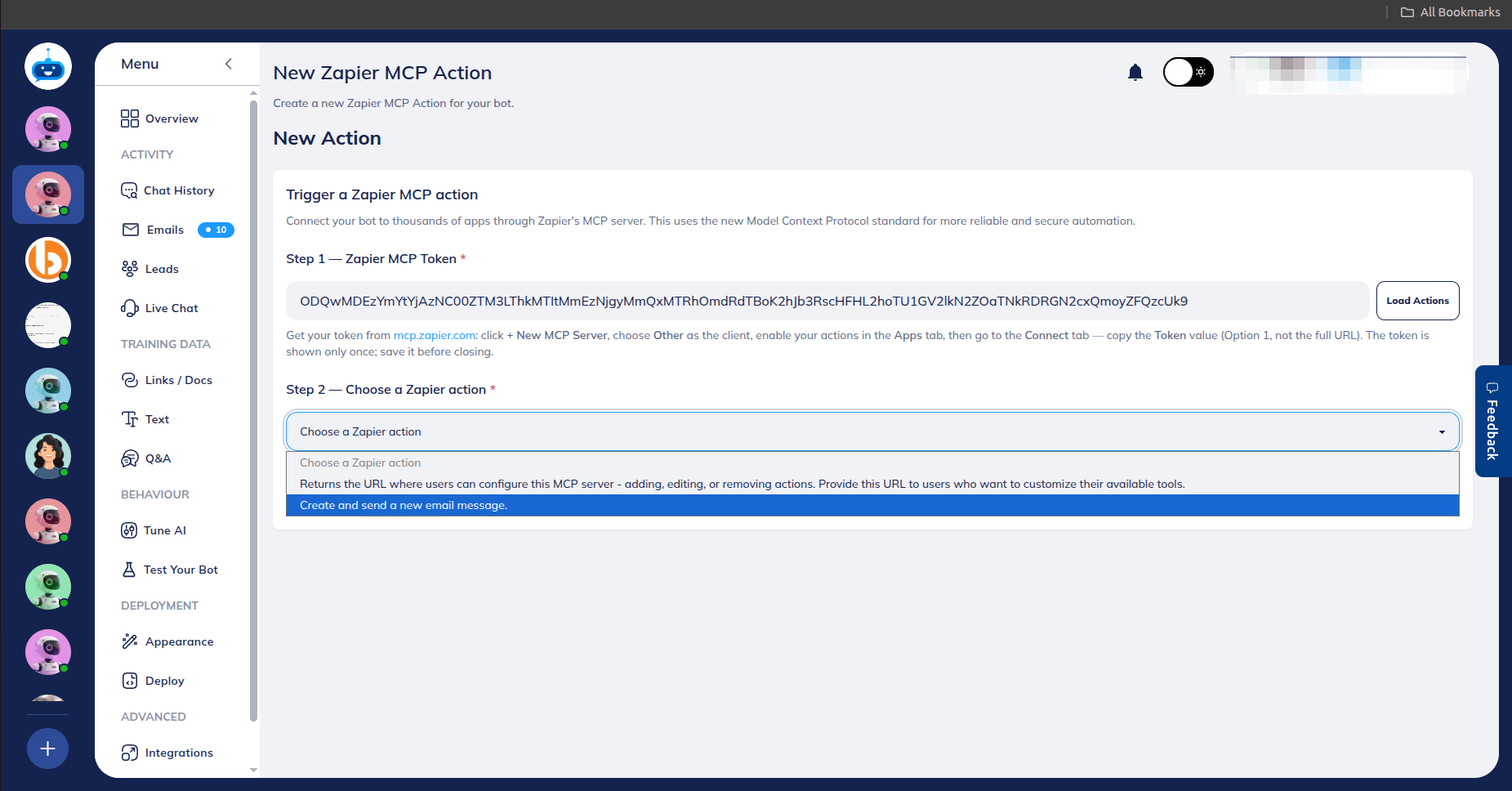
After Selection it will load the selected action and description details.
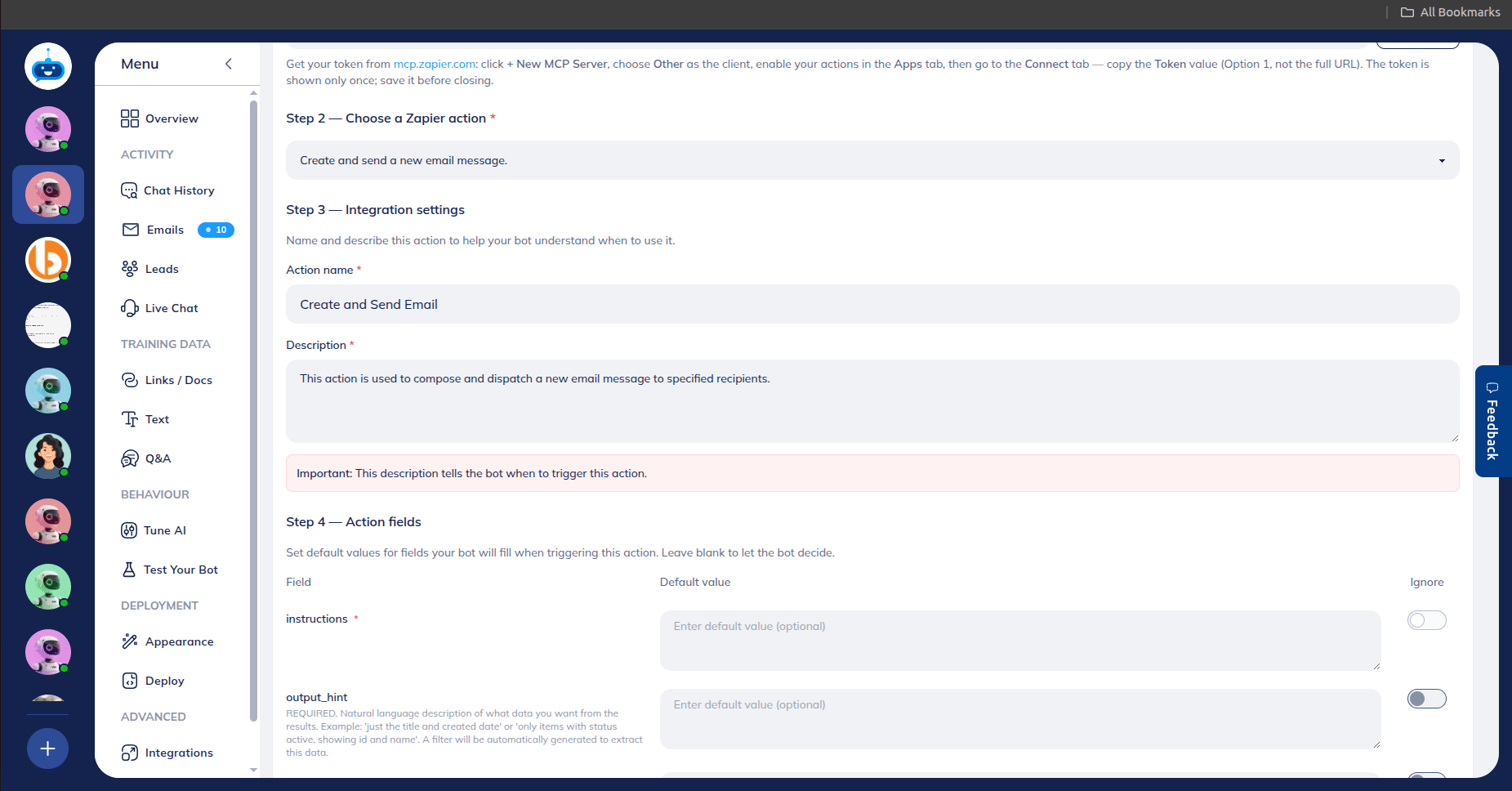
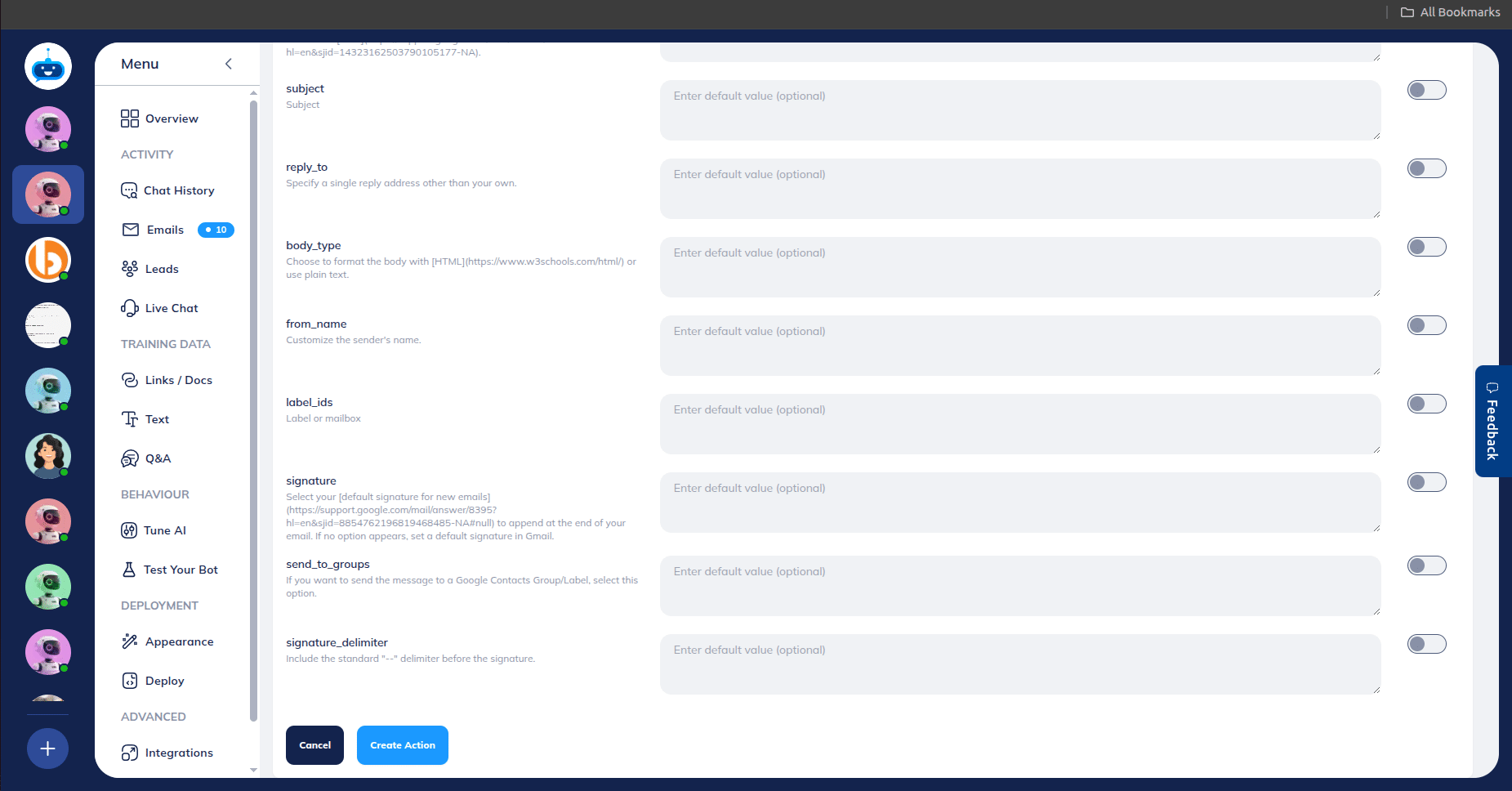
Click on the "Create Action" button.
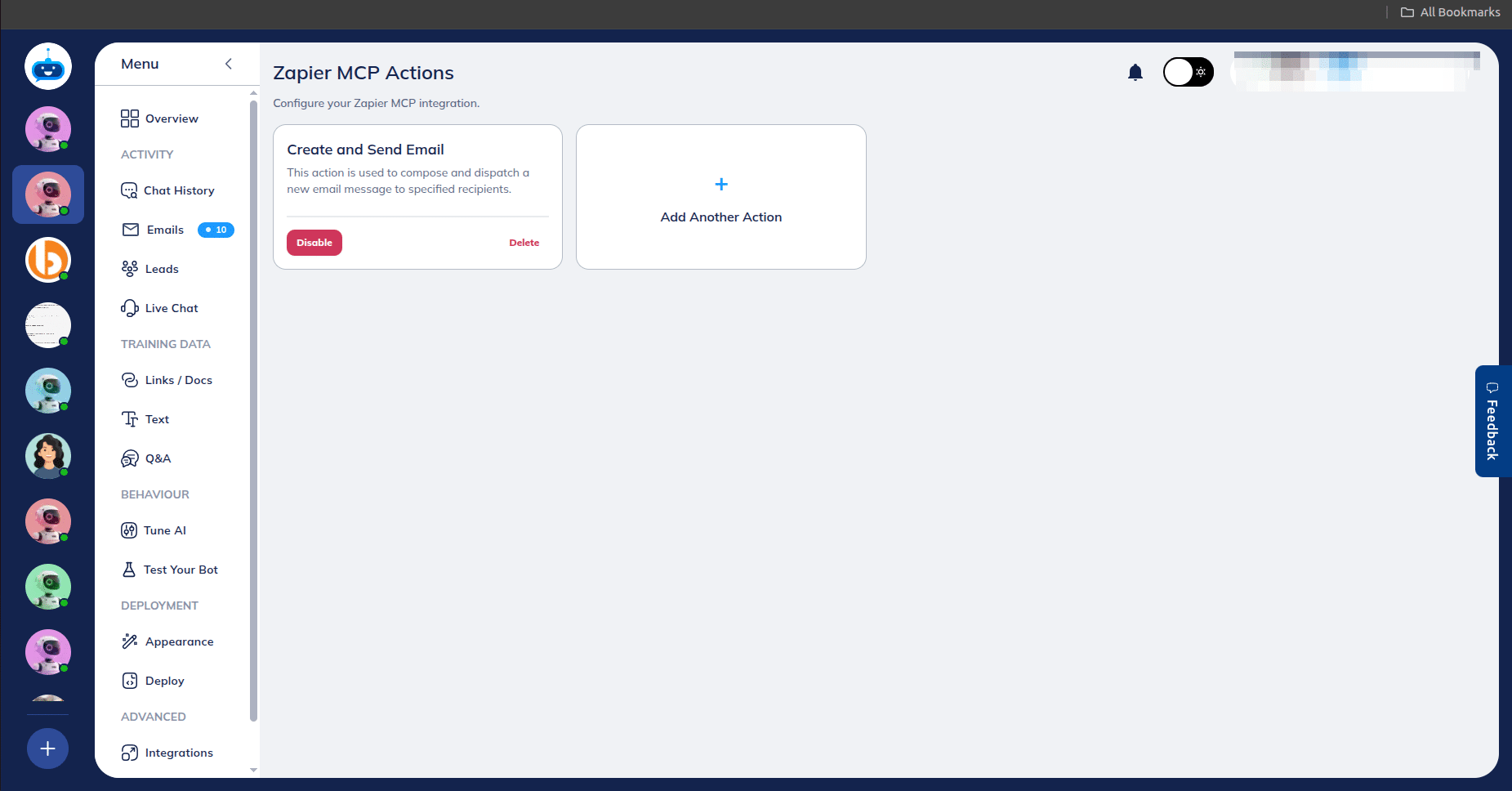
Successfully configured the Action. You can Enable or Disable actions from here.
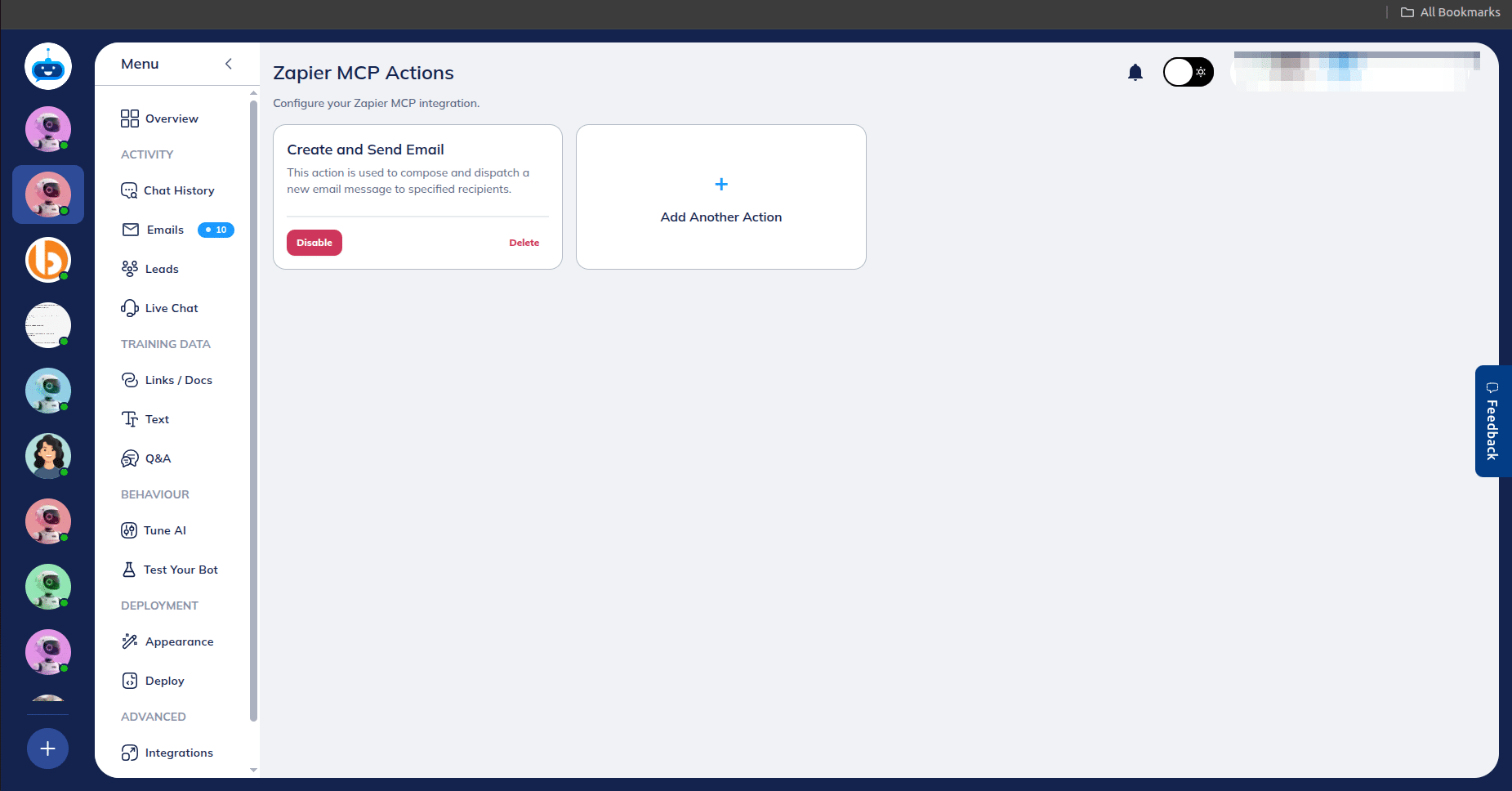
Click on the "Tune AI".
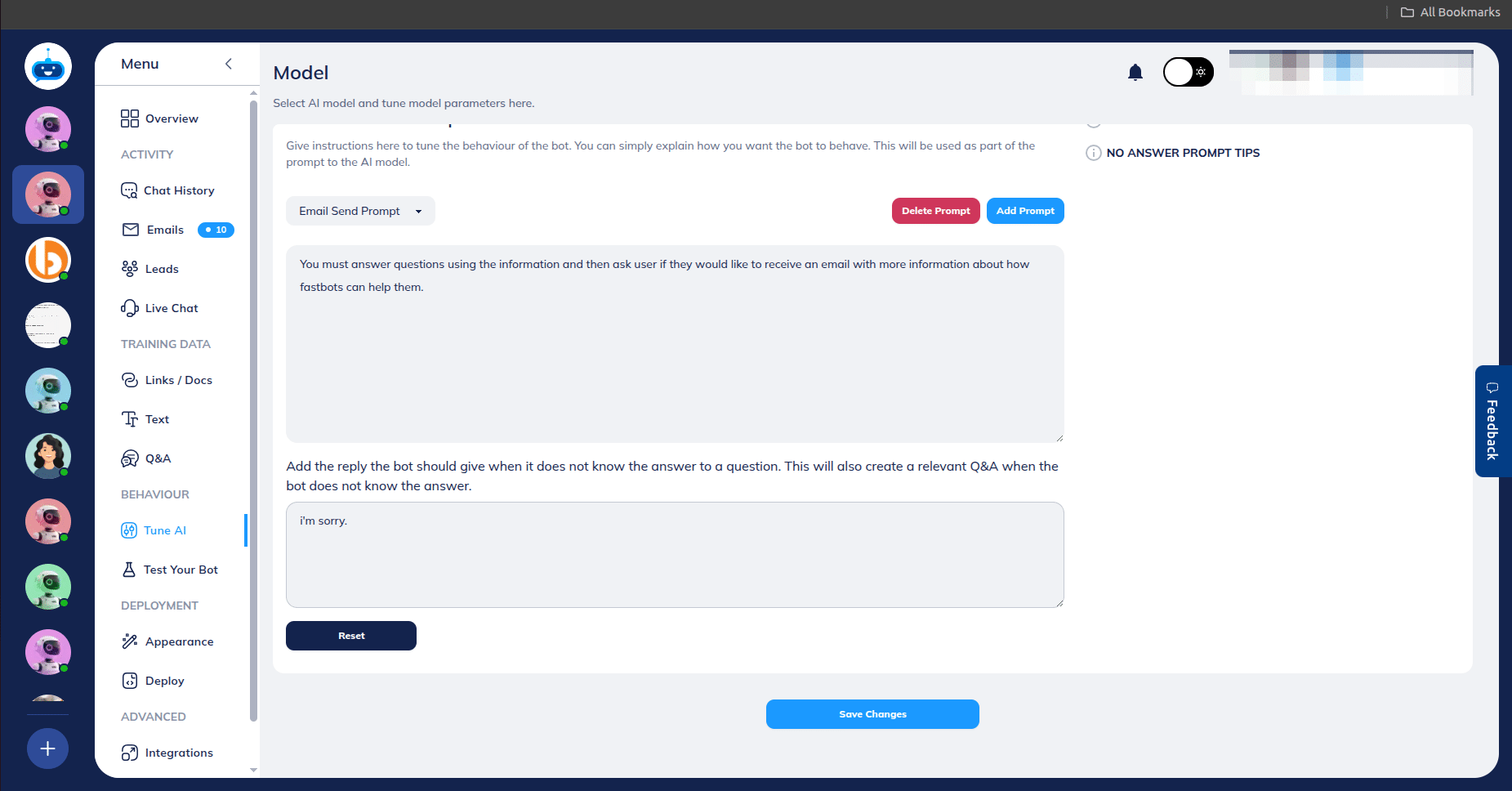
Set up the appropriate prompt based on the enabled actions.
Done 🚀