

How To Change The "Thank you message body"
This training guide will show you how to change the "Thank You" message that the chatbot shows once a user fills out the lead collection form.
Navigate to https://app.fastbots.ai/ Open Lead Collection → Lead Form. The Thank you message title and Thank you message body customise the confirmation after the visitor submits the form; they do not set the voice welcome.
Click on the chatbot to open it.
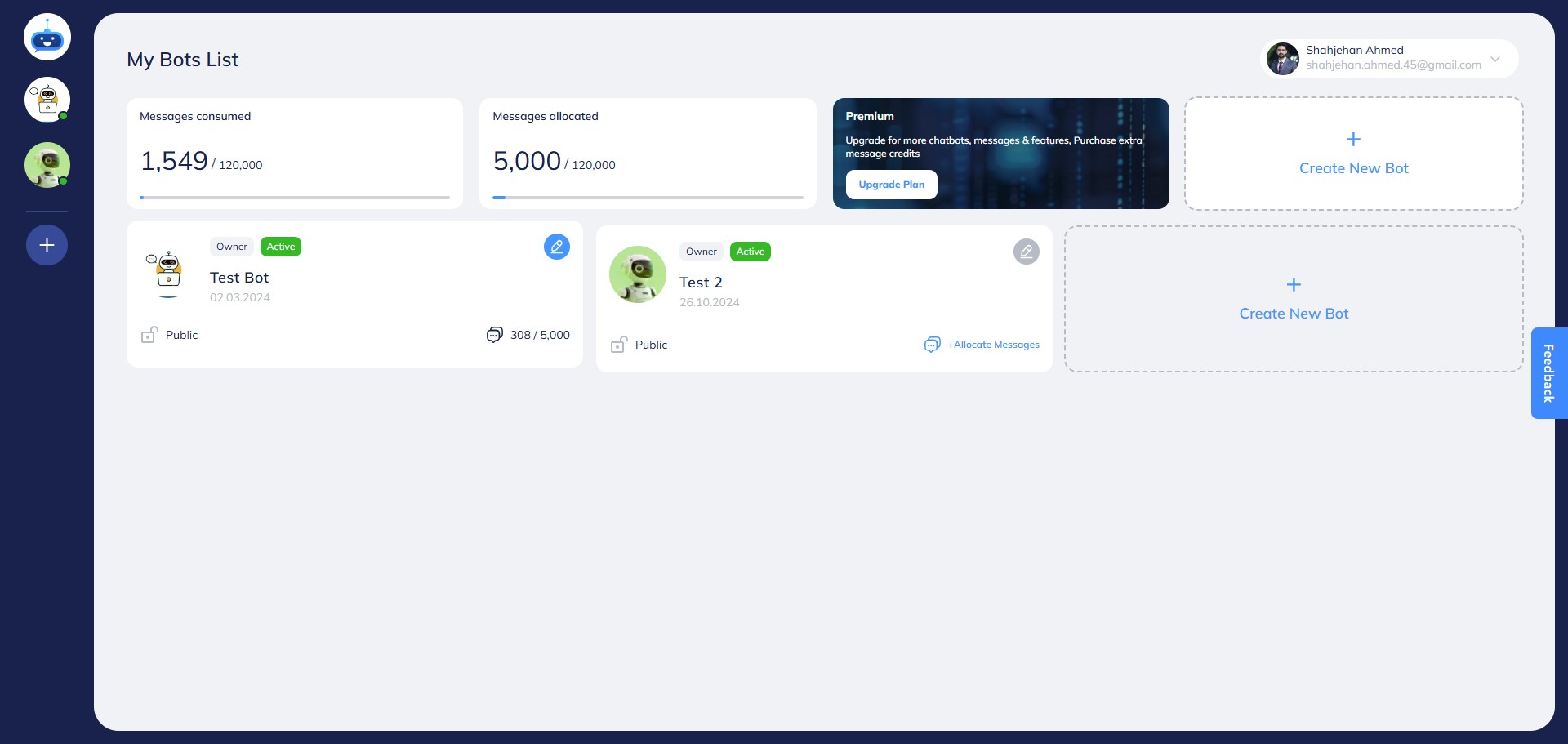

Open Deployment → Chat Widget → Lead Collection → Lead Form.
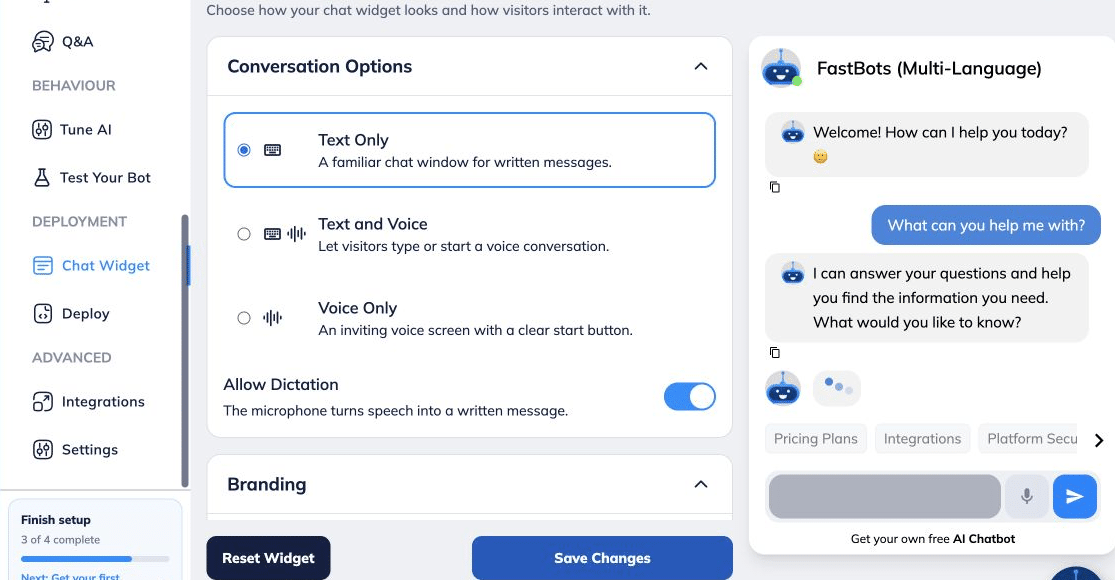
Scroll down and find the "Thank you message body" option.
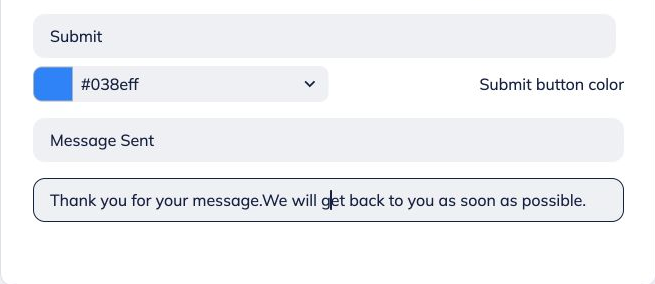
Here you can change the "Message Sent" title once a user submits the lead collection form.
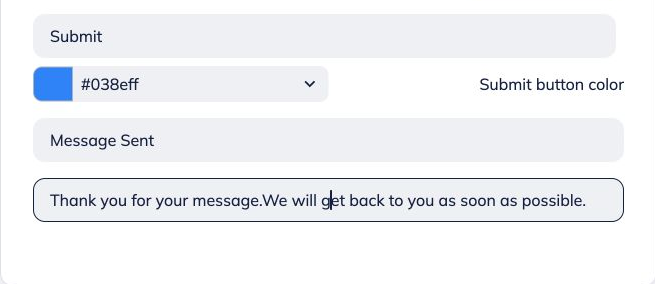
In this area, write the text that you want to show as a thank you message after someone submits the form.
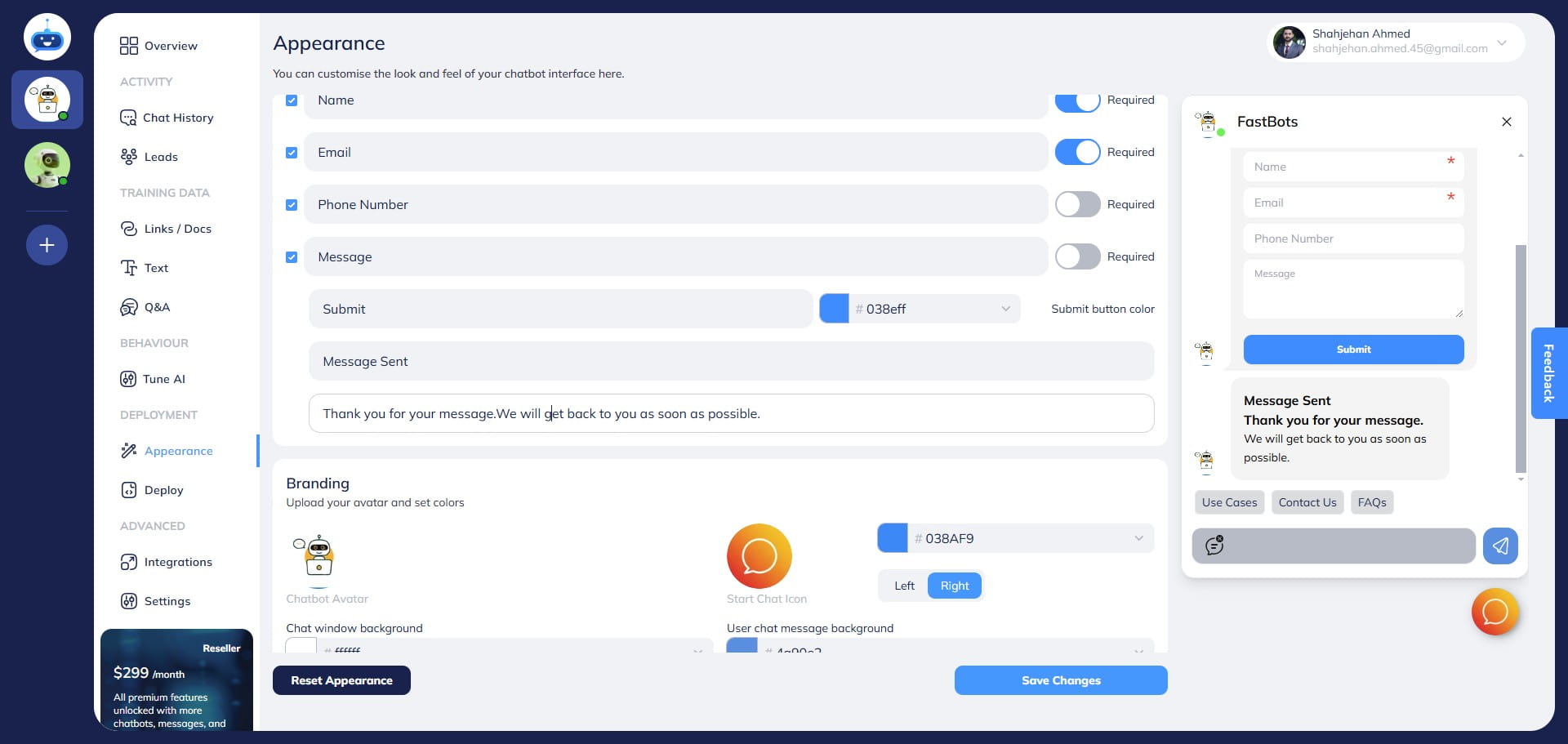
The text you enter will show here in the "Message Sent" after the lead collection form is submitted.
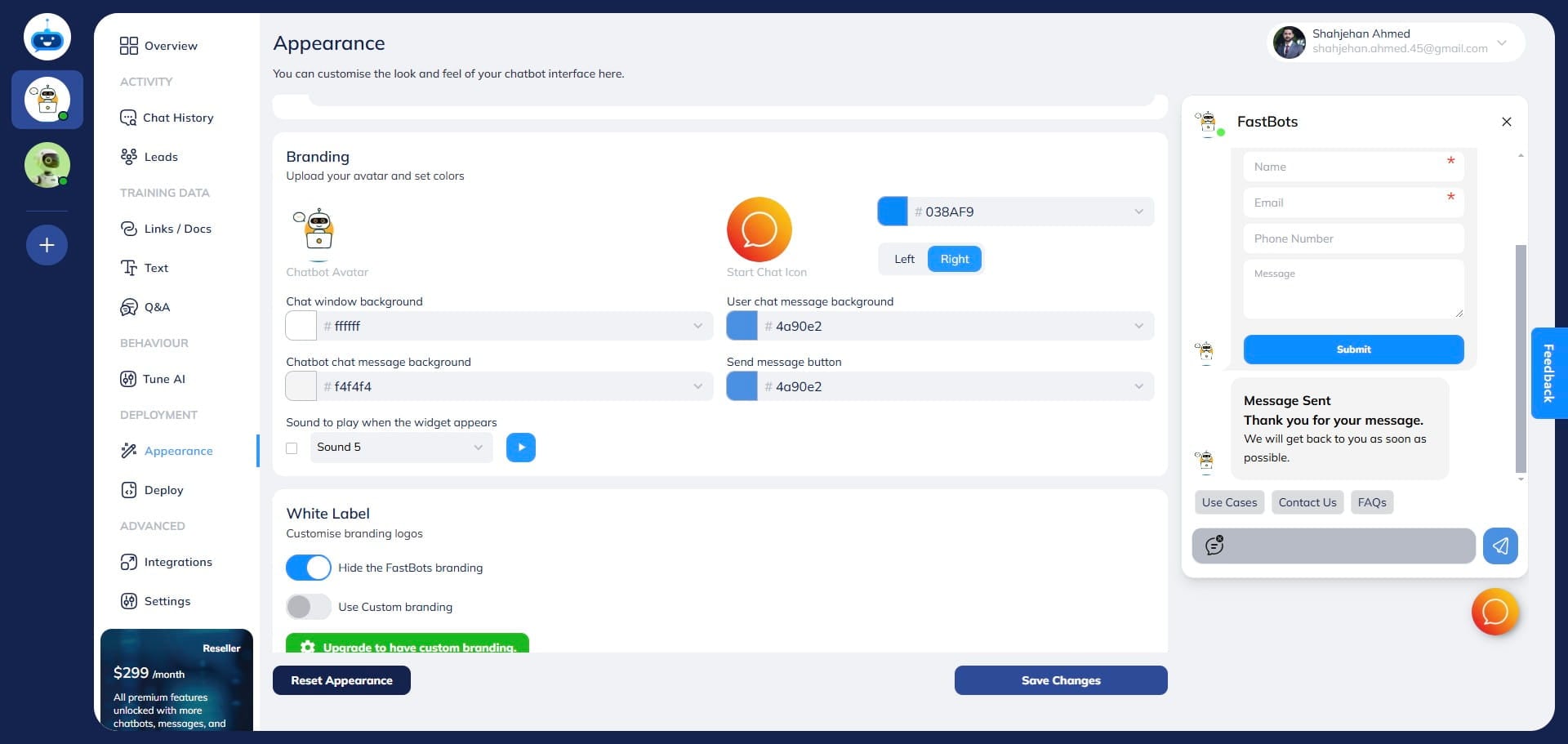
Click on the "Save Changes" button.
Done 🚀