

How To Translate Conversations To Your Desired Language
This guide will teach you how to translate chatbot conversations into your desired language.
Navigate to https://app.fastbots.ai/
Click on your chatbot to open it.
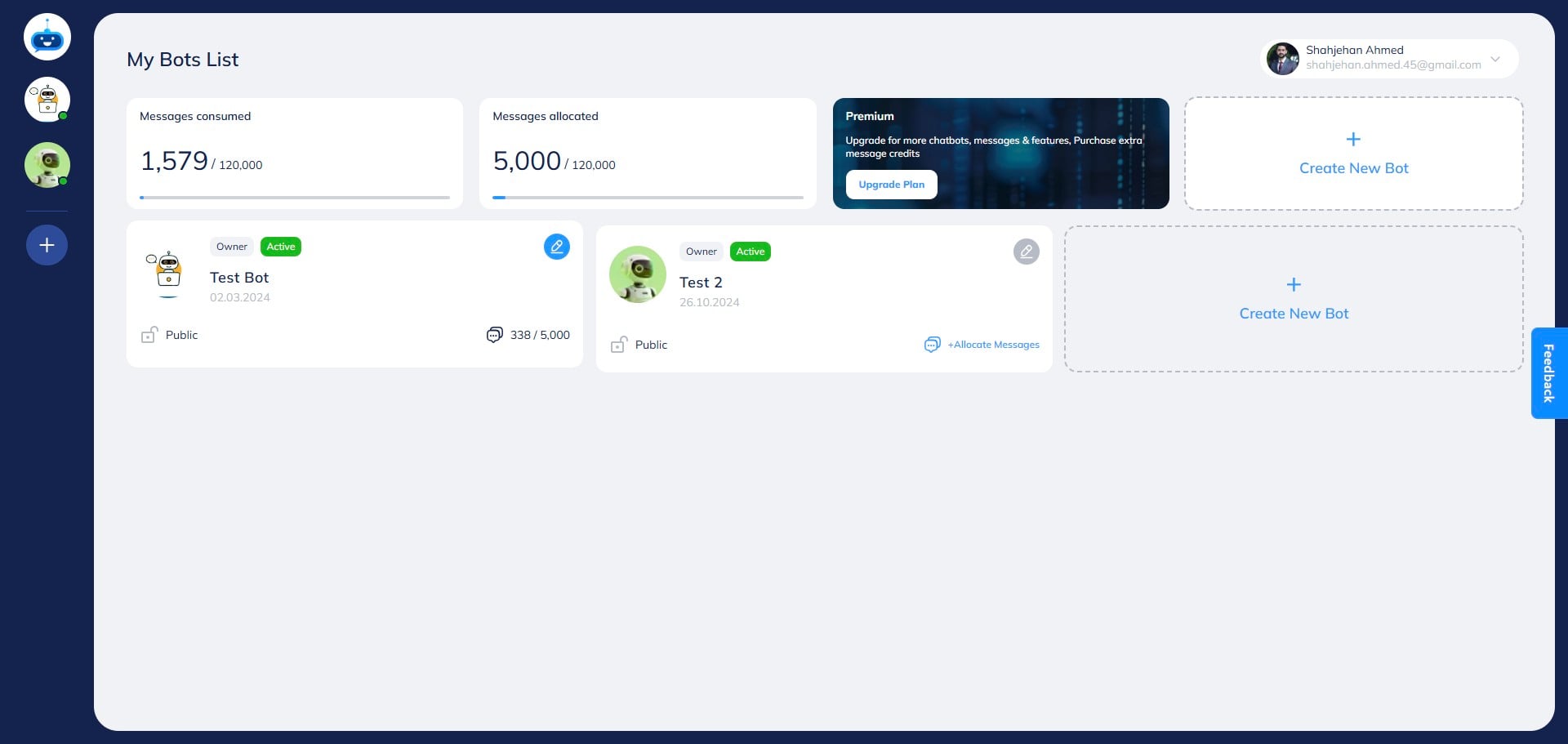

Click on "Chat History"
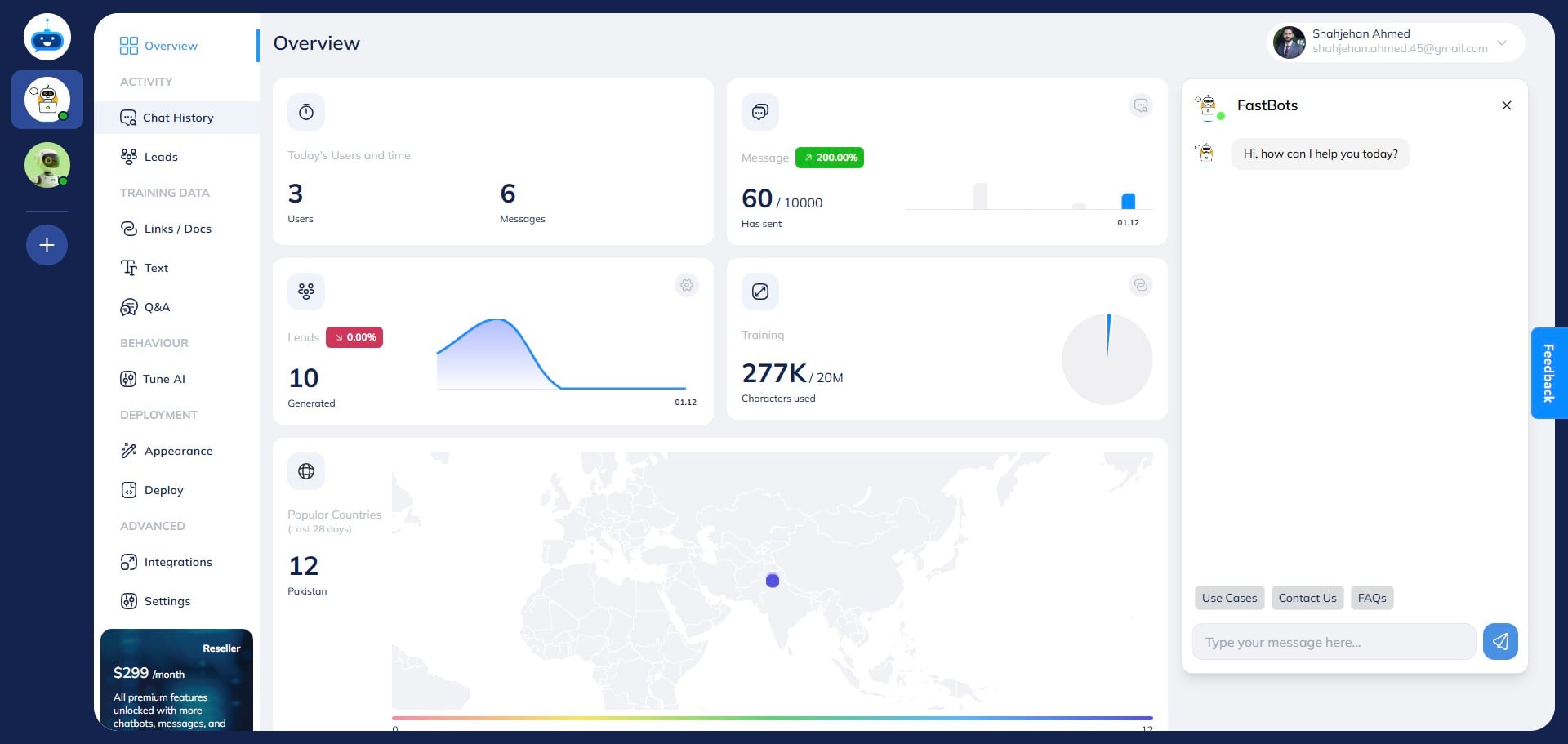
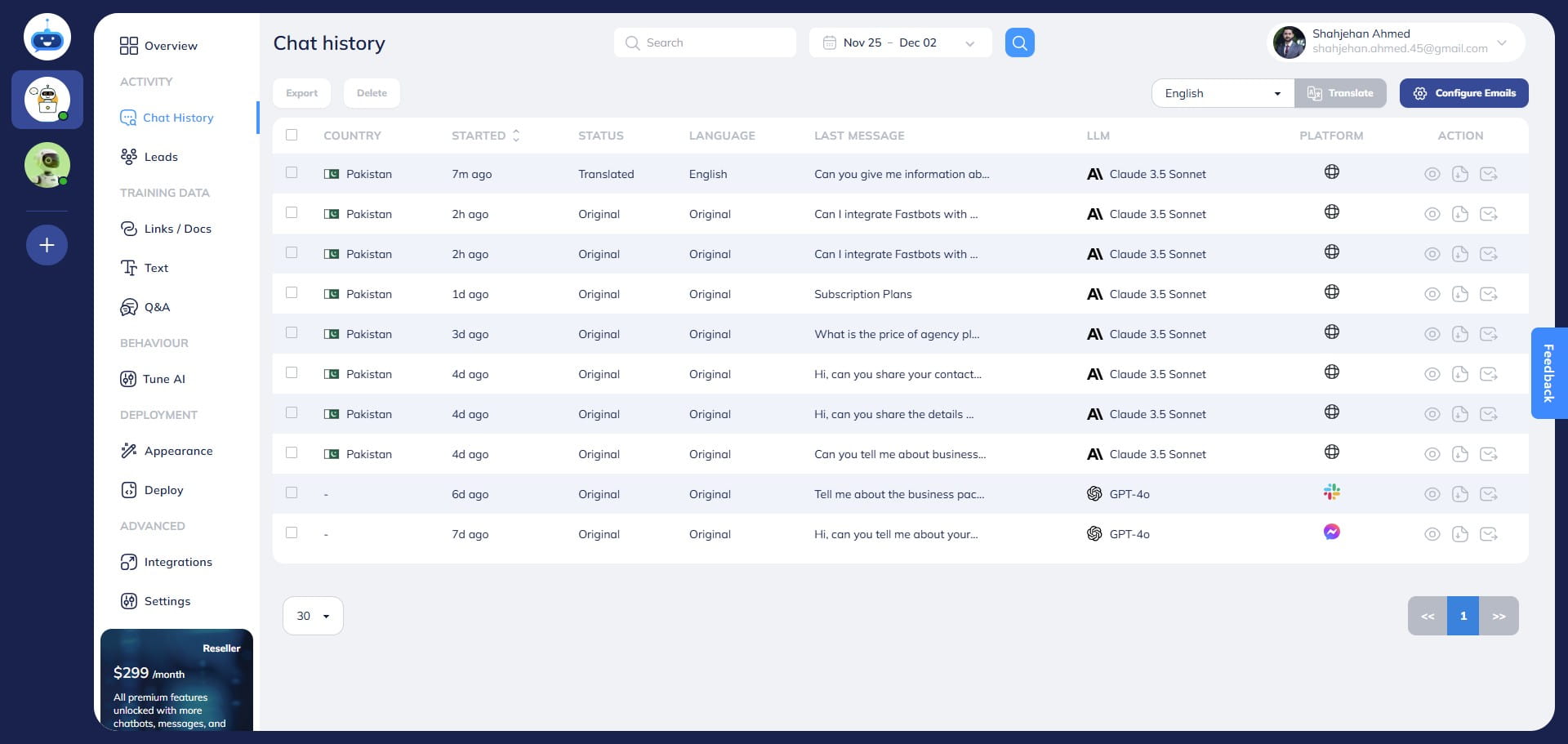
On the Chat History page, you will be able to see all the conversations of the chatbot.
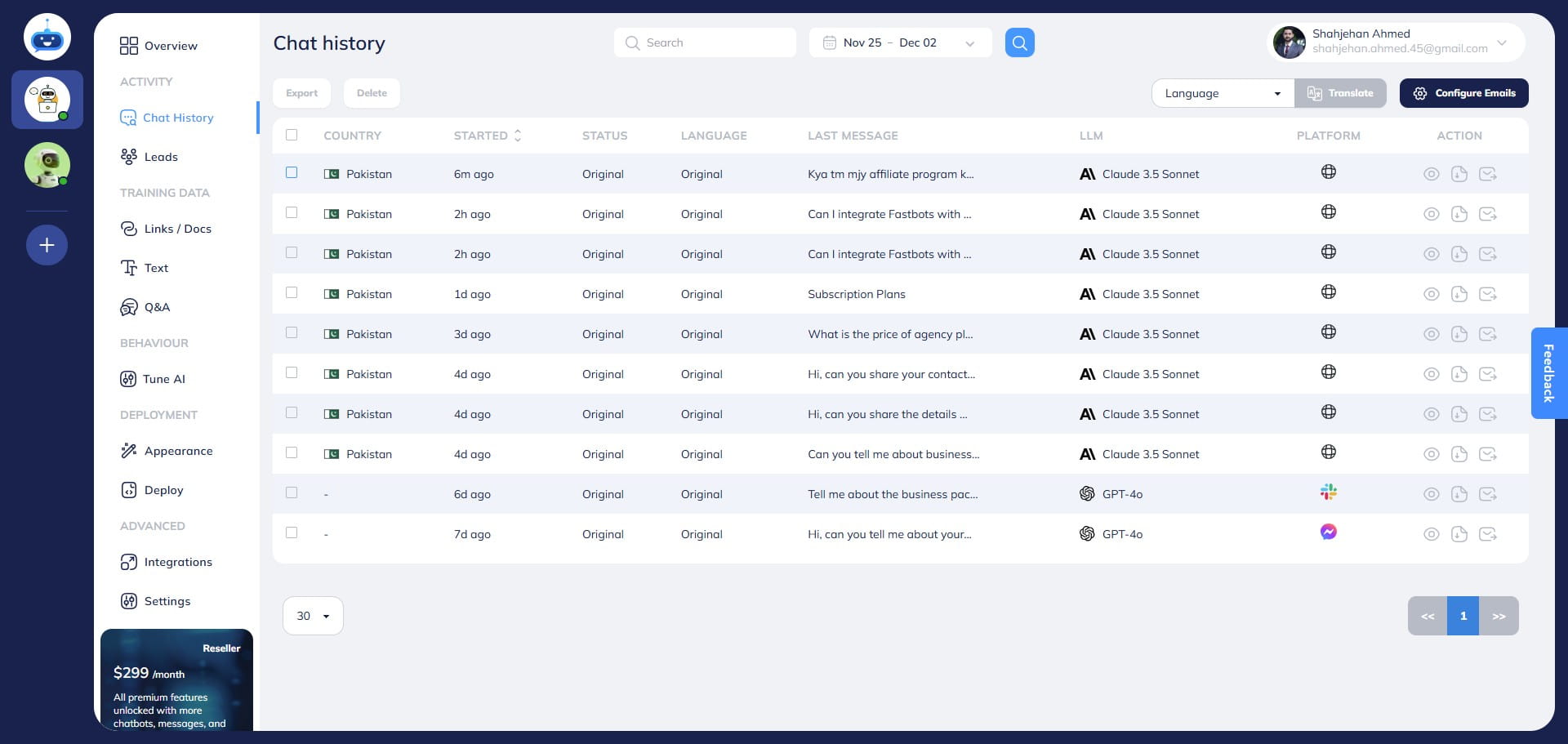
Select the chats that you want to translate to another language.
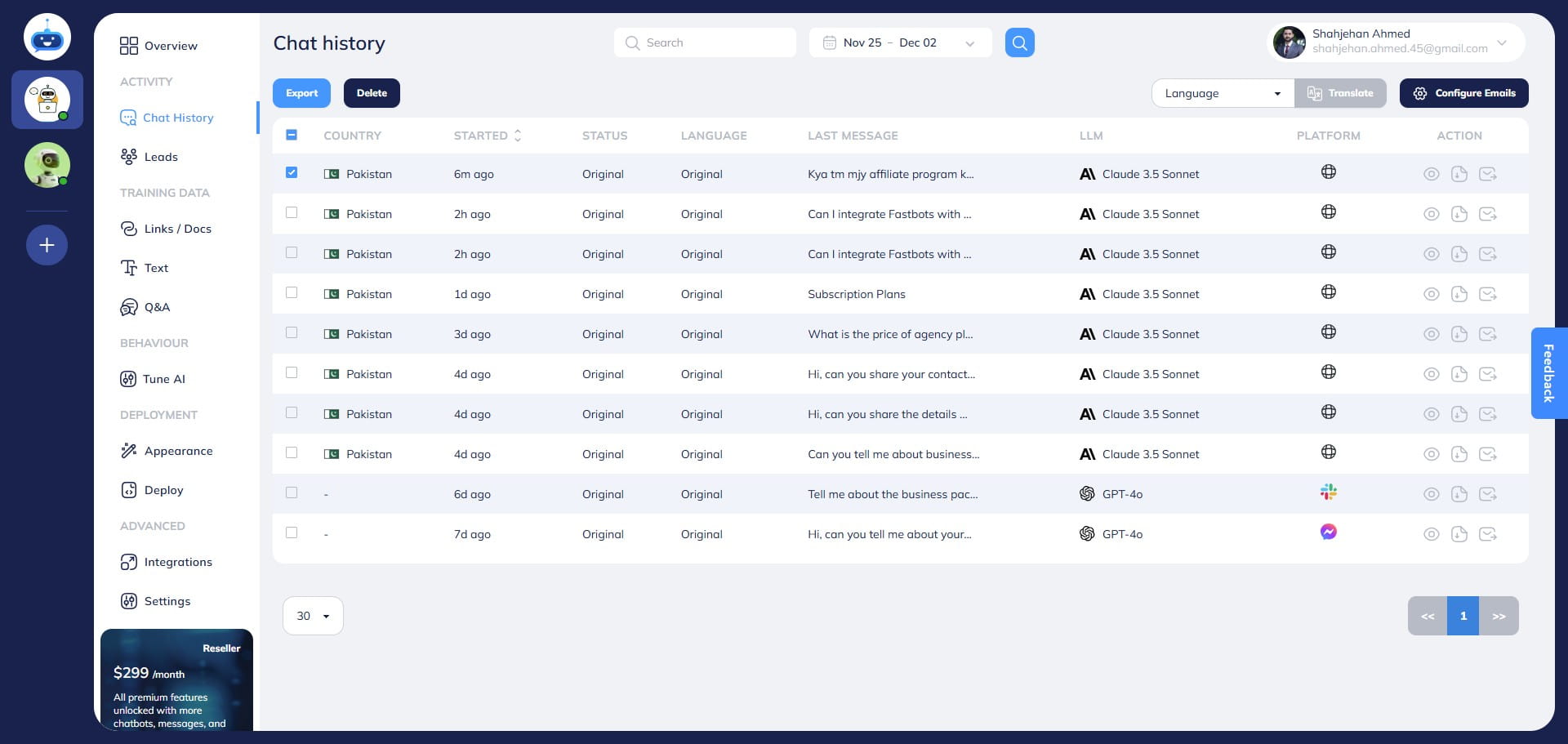
After selecting the chats, click on the Language button and select your desired language. In this case, we will choose English.
Once the language is selected, click on the "Translate" button.
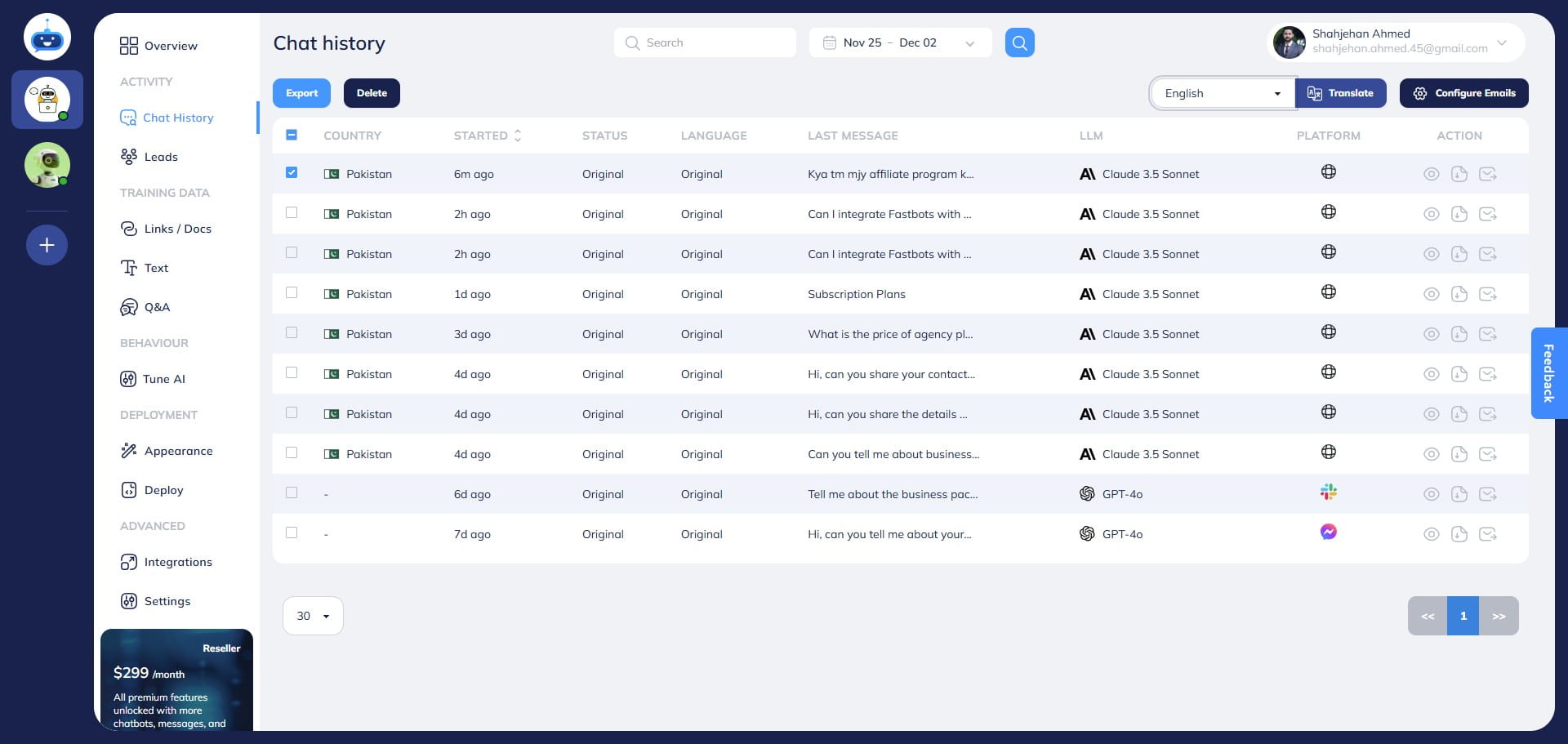
It will start translating those selected chats to your required language. During this period, the status will show "Translating"
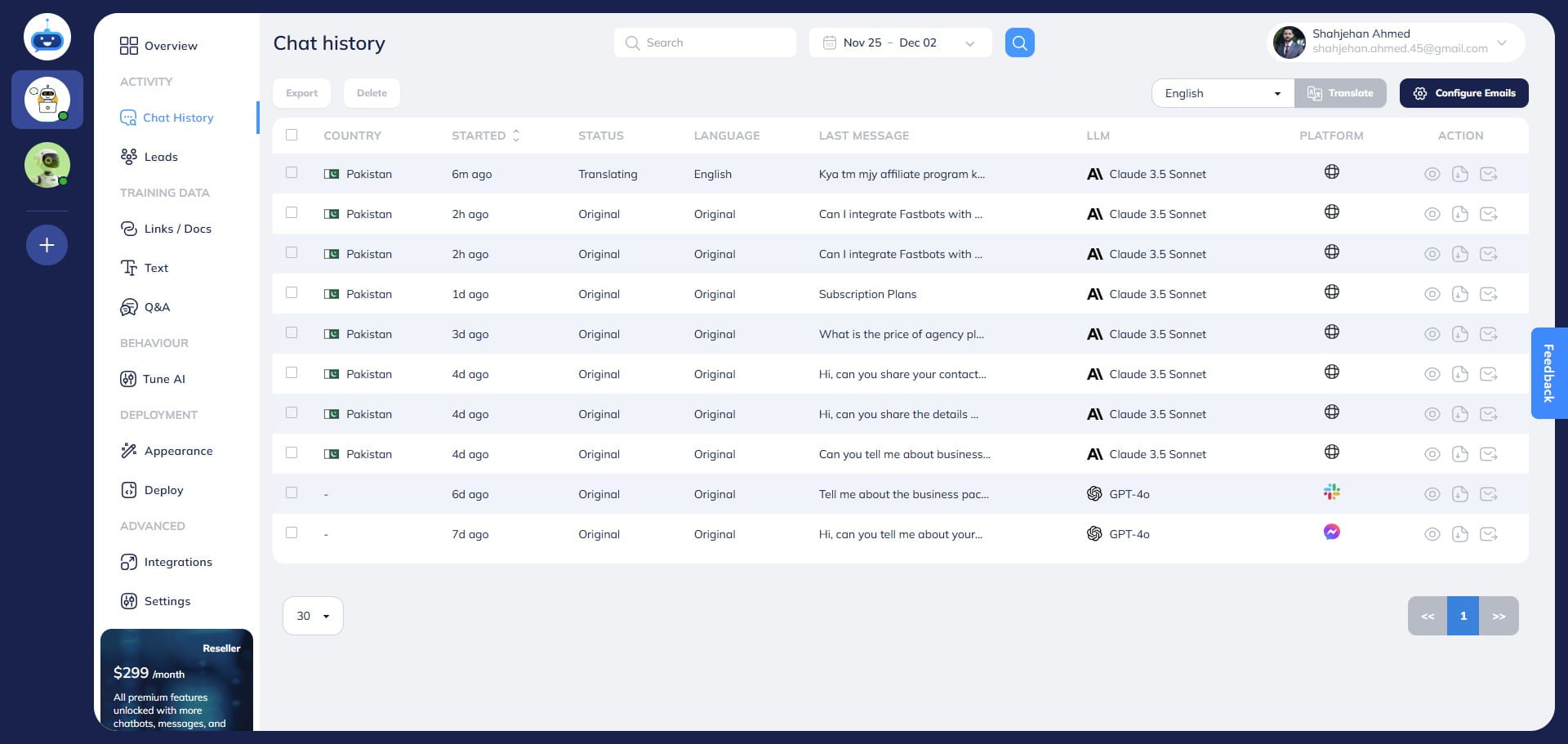
Upon refreshing your screen, the status will be changed to "Translated" and the conversation will be translated to your select language. In this case, it was translated to English as you can see in the screenshot.
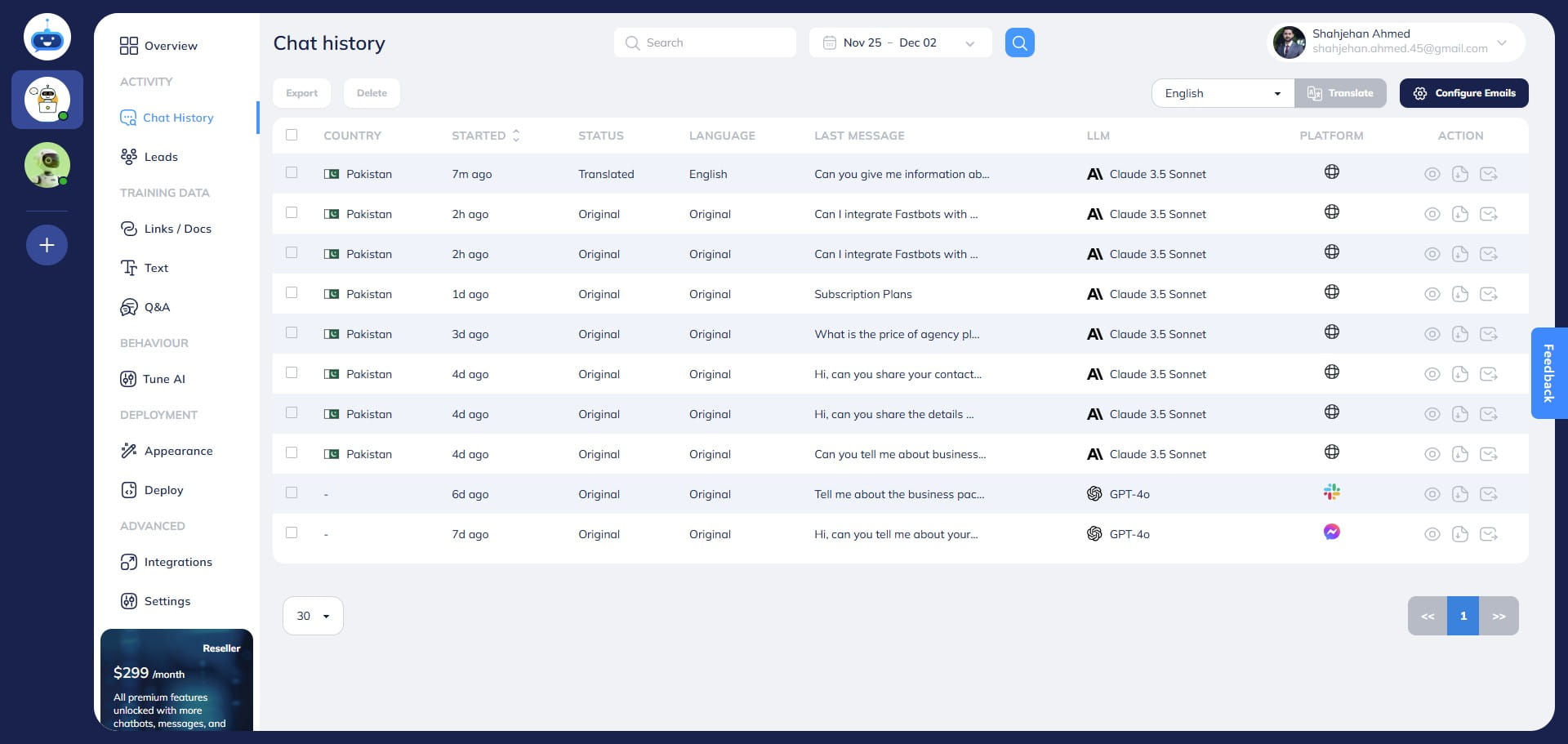
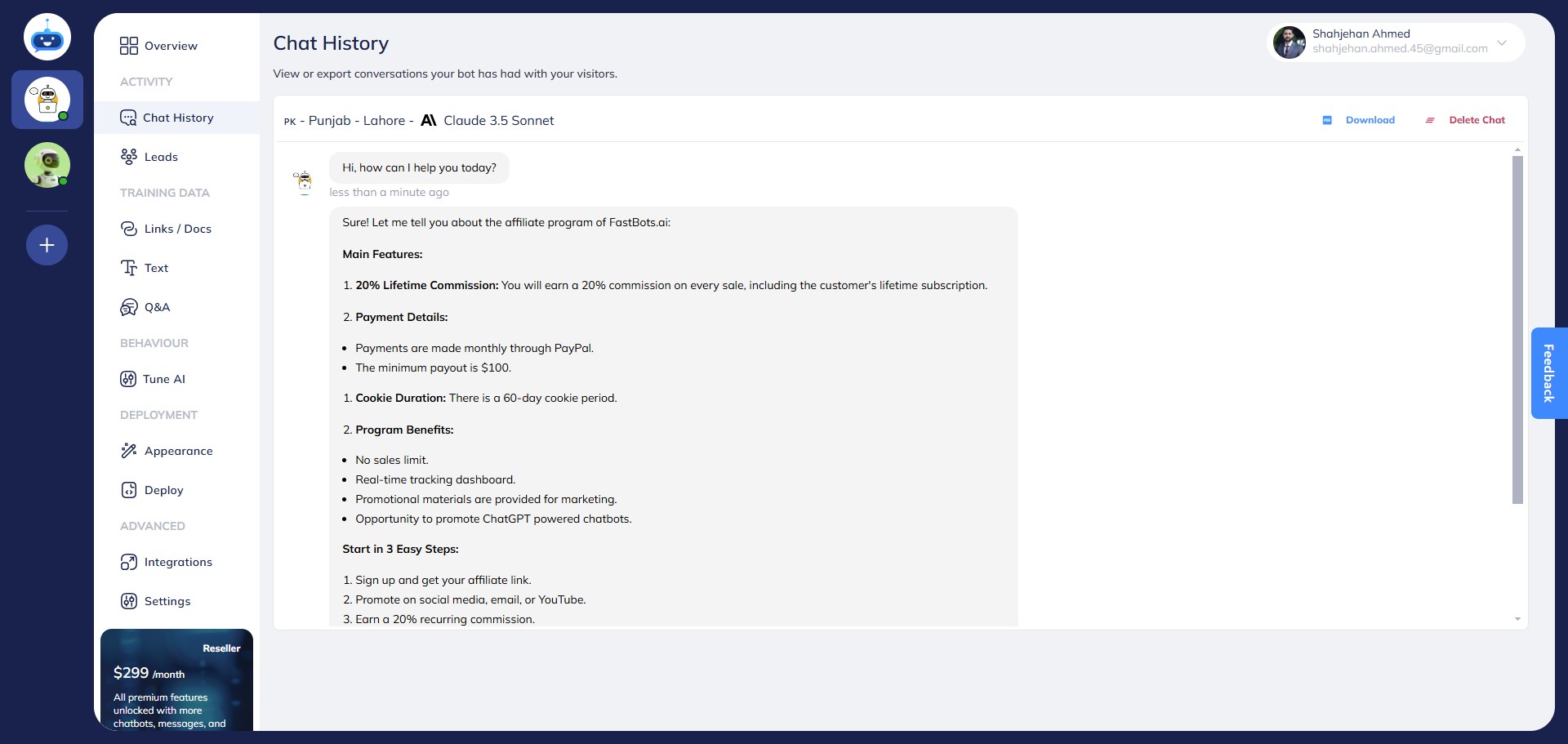
Click on the "View" button to read the translated transcript.
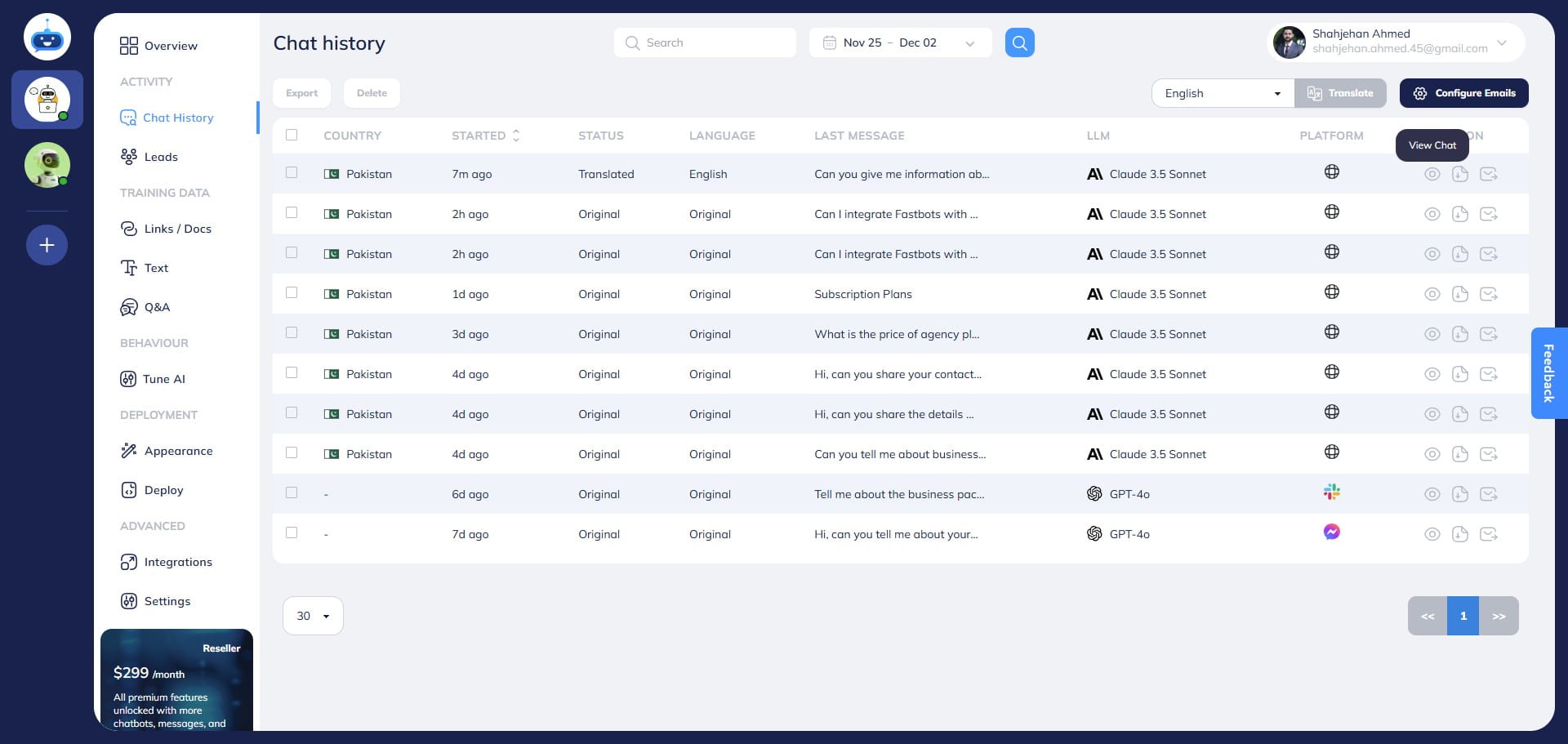
After clicking on view, you will be able to read the complete translated conversation in this format.
You can also have the chatbot automatically translate every conversation in your desired language and email it to you. To do this, select your desired language and click on the "Configure Emails" button.
Add your email and select this option.
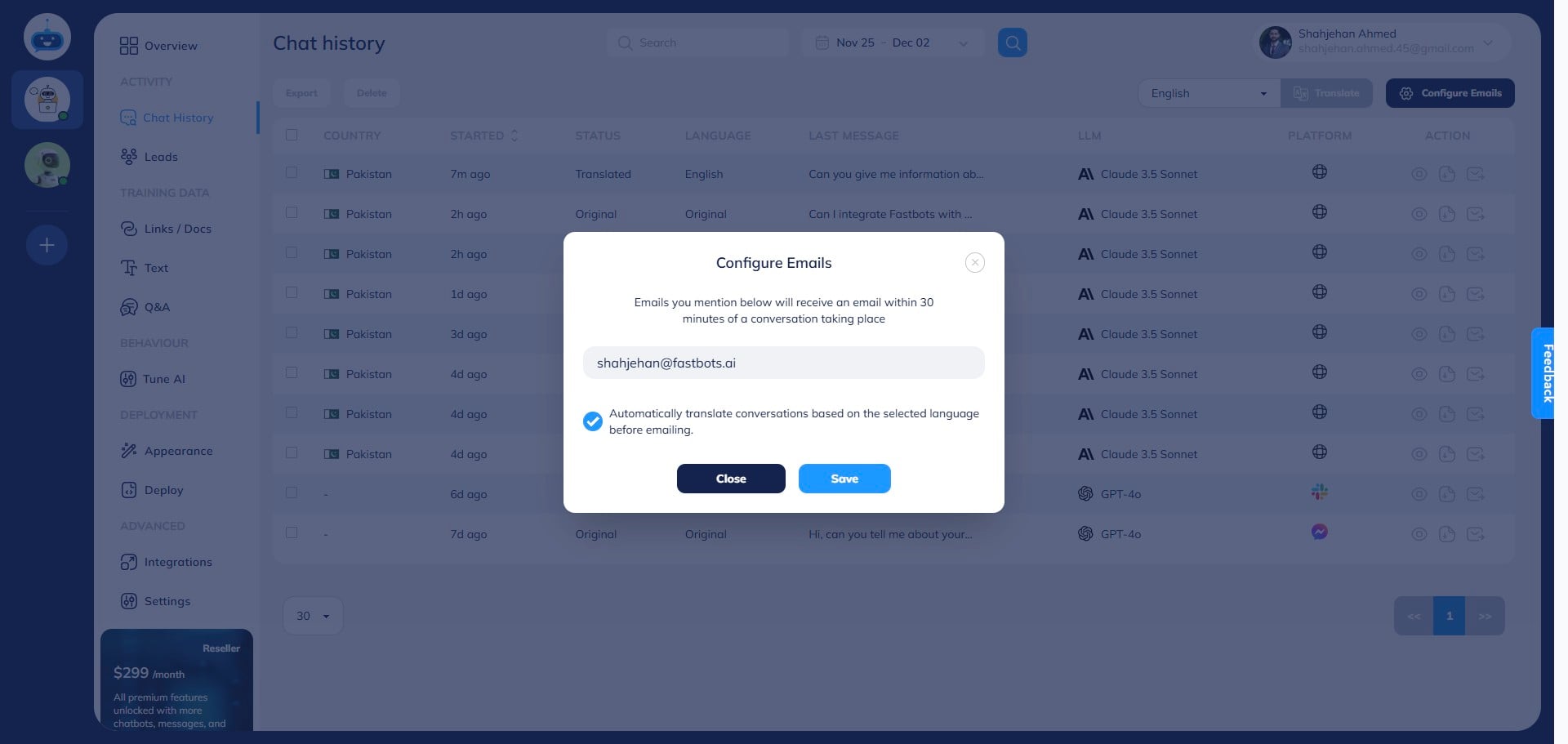
Click on the "Save" button.
Now, the chatbot will automatically translate all new conversations to your select language and email them to you. Done 🚀