How To Add Entire Website To Bot Training
Learn how to train your chatbot on a full website of up to 10,000 pages.
Watch this tutorial video on how to import an entire website into your chatbots knowledge using our new powerful Website crawlers.
Navigate to https://app.fastbots.ai/
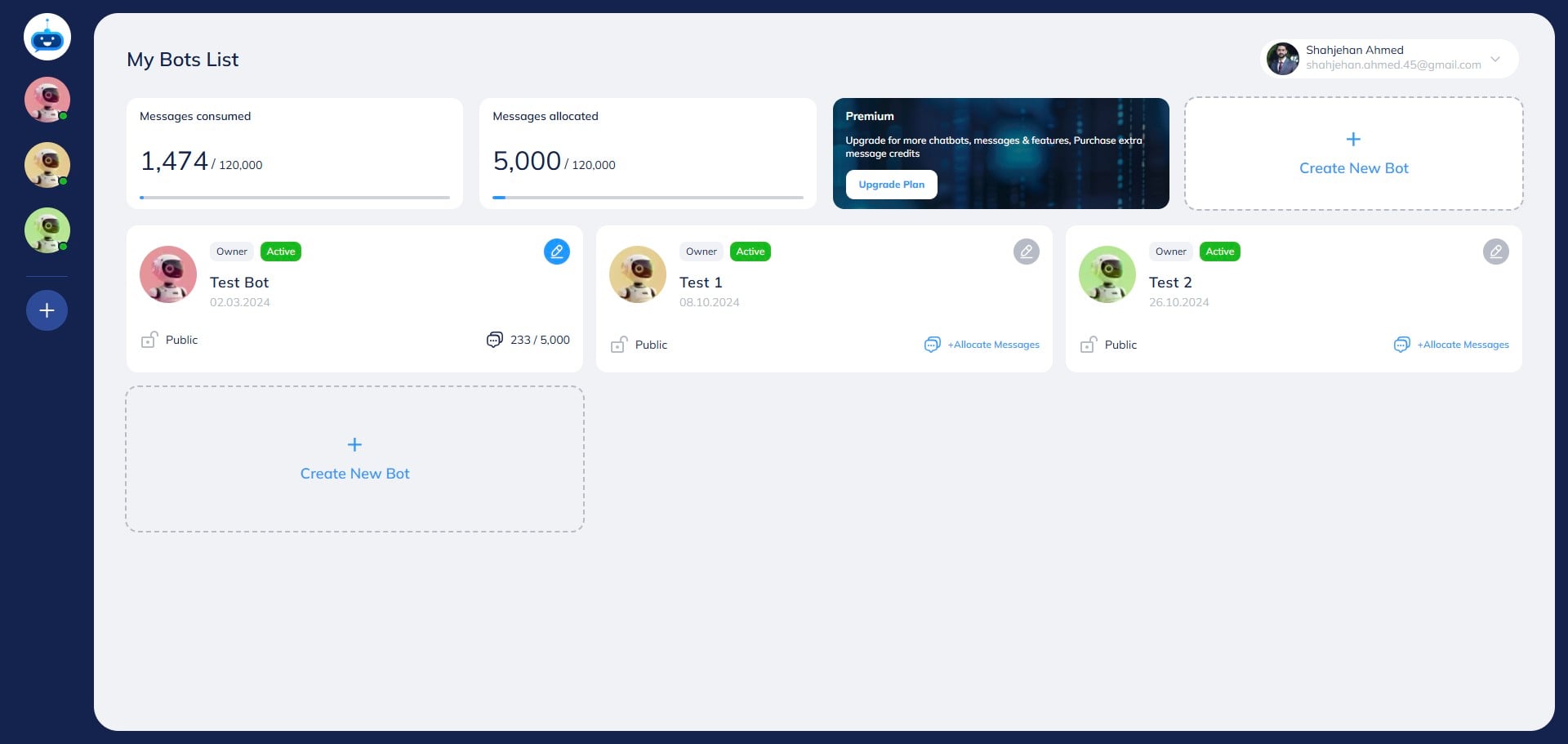
Click on the Chatbot that you want to open.

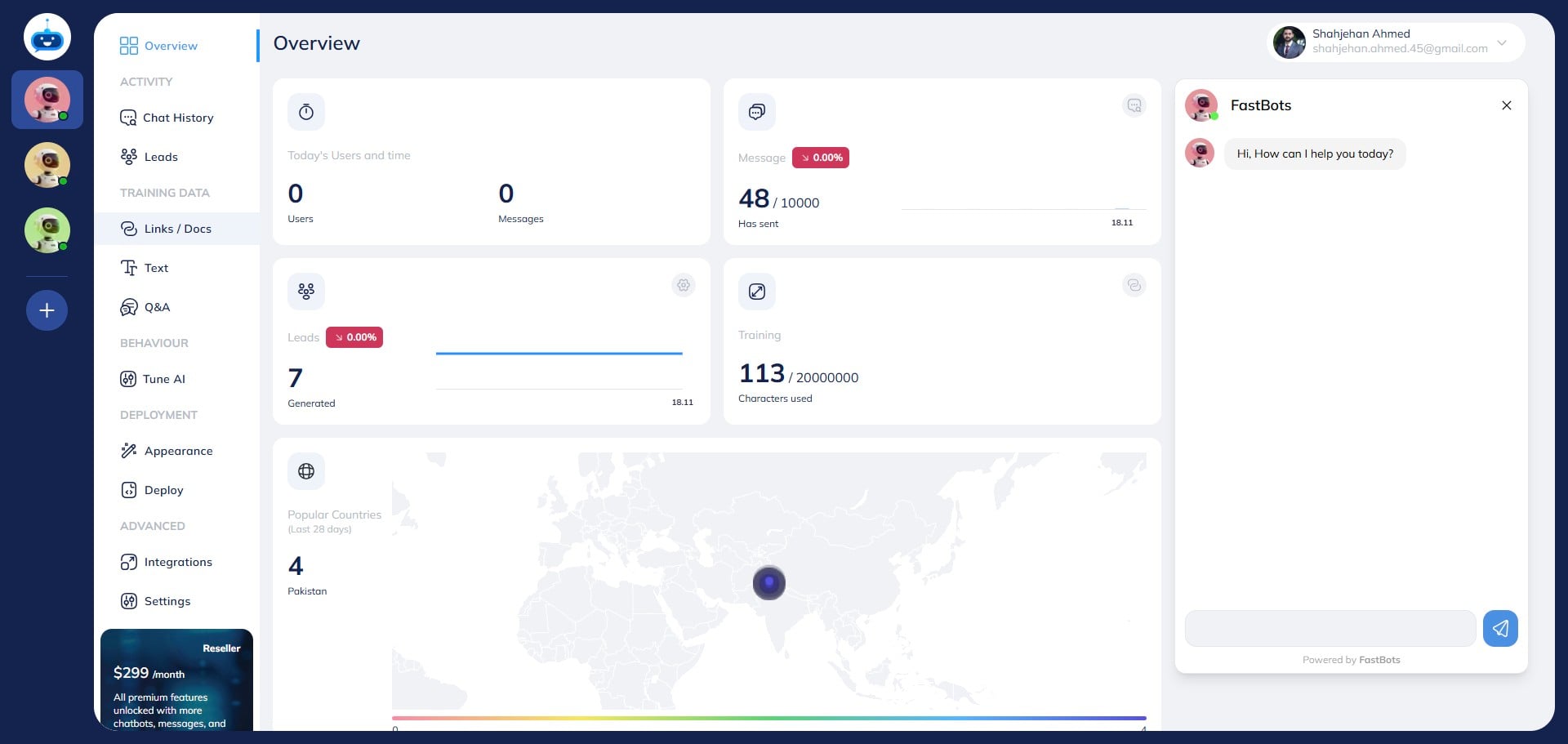
Click on "Links / Docs" to open this page.
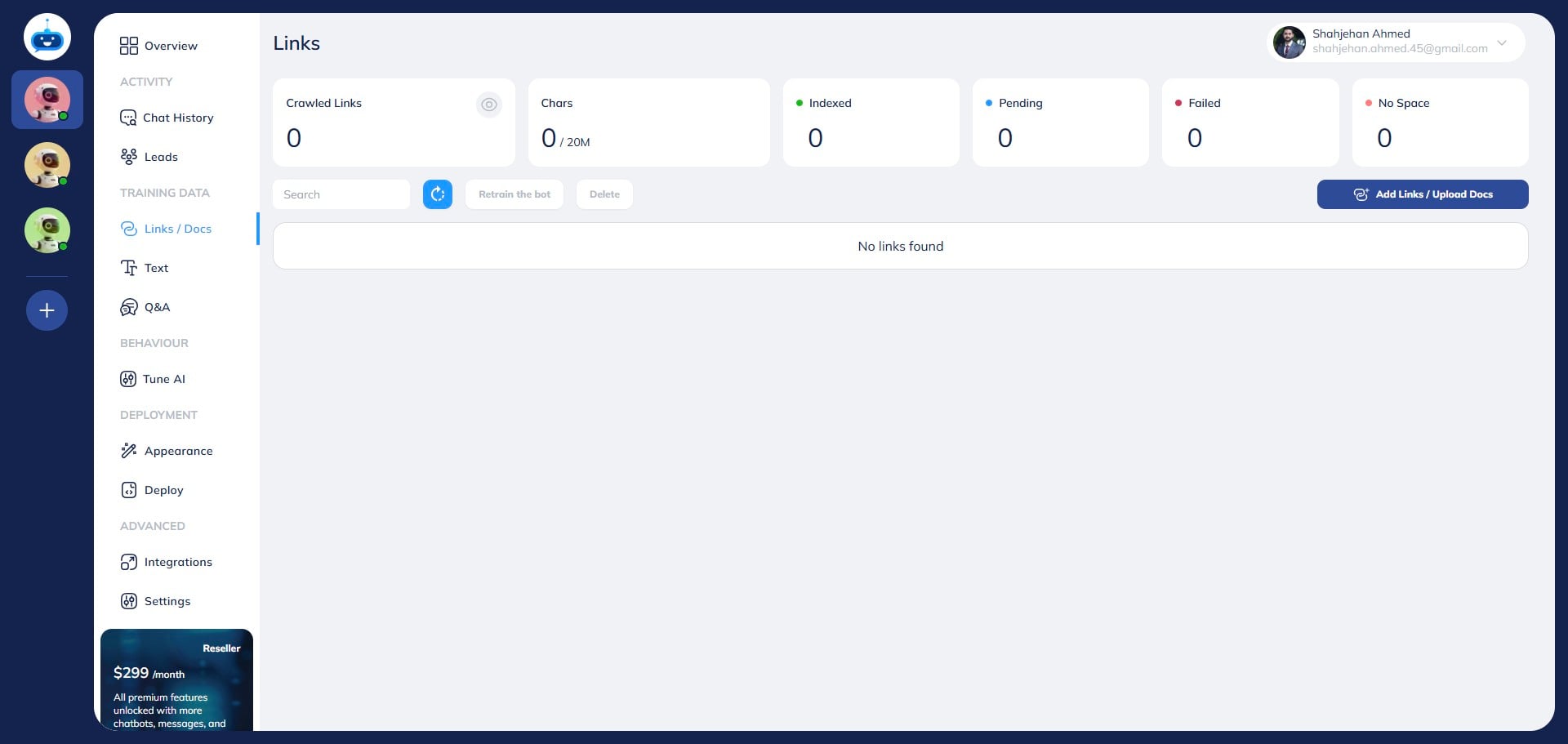
Click on the "Add Links/Upload Docs" button.
Click on the "Full Website" button to select this option.
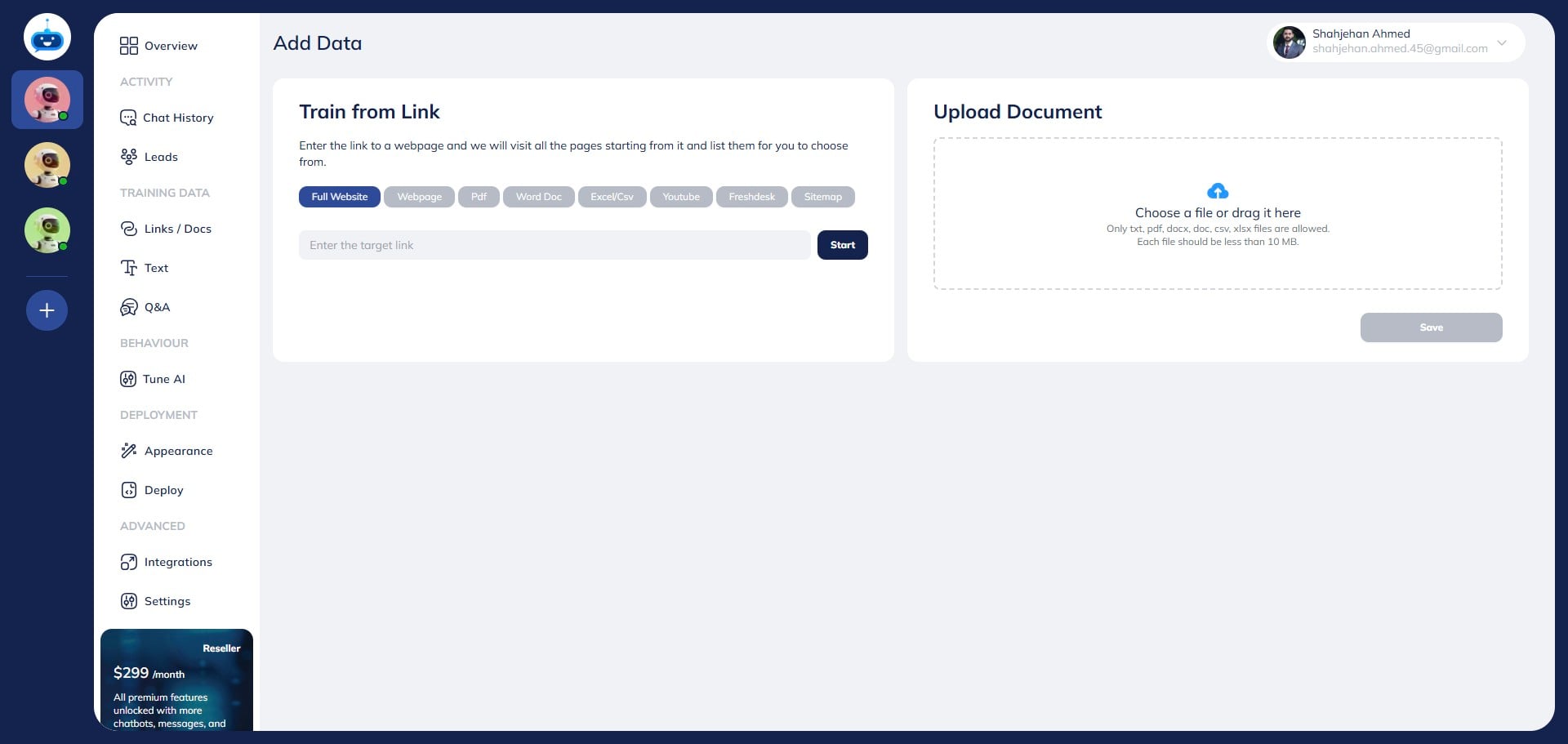
Enter the URL of the home page of your website and click on the "Start" button.
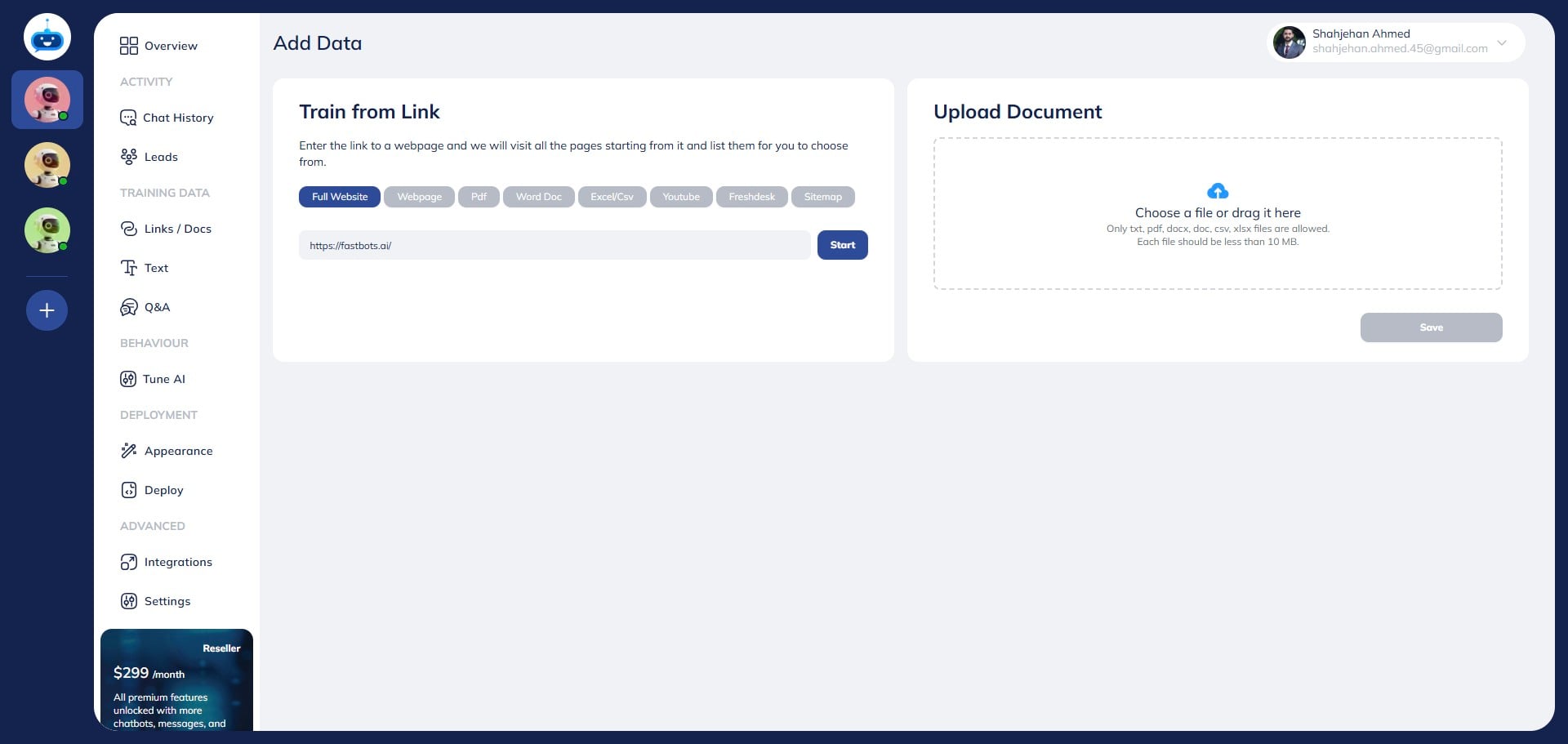
Fastbots crawler will scrape the whole website and list out all the URLs of the given website.
If, after the initial crawling is complete, there are still some pages that remain undiscovered, a prompt will appear asking you to retry. By clicking "Retry," the browser crawler will be reactivated to scan the site again and attempt to find any remaining pages
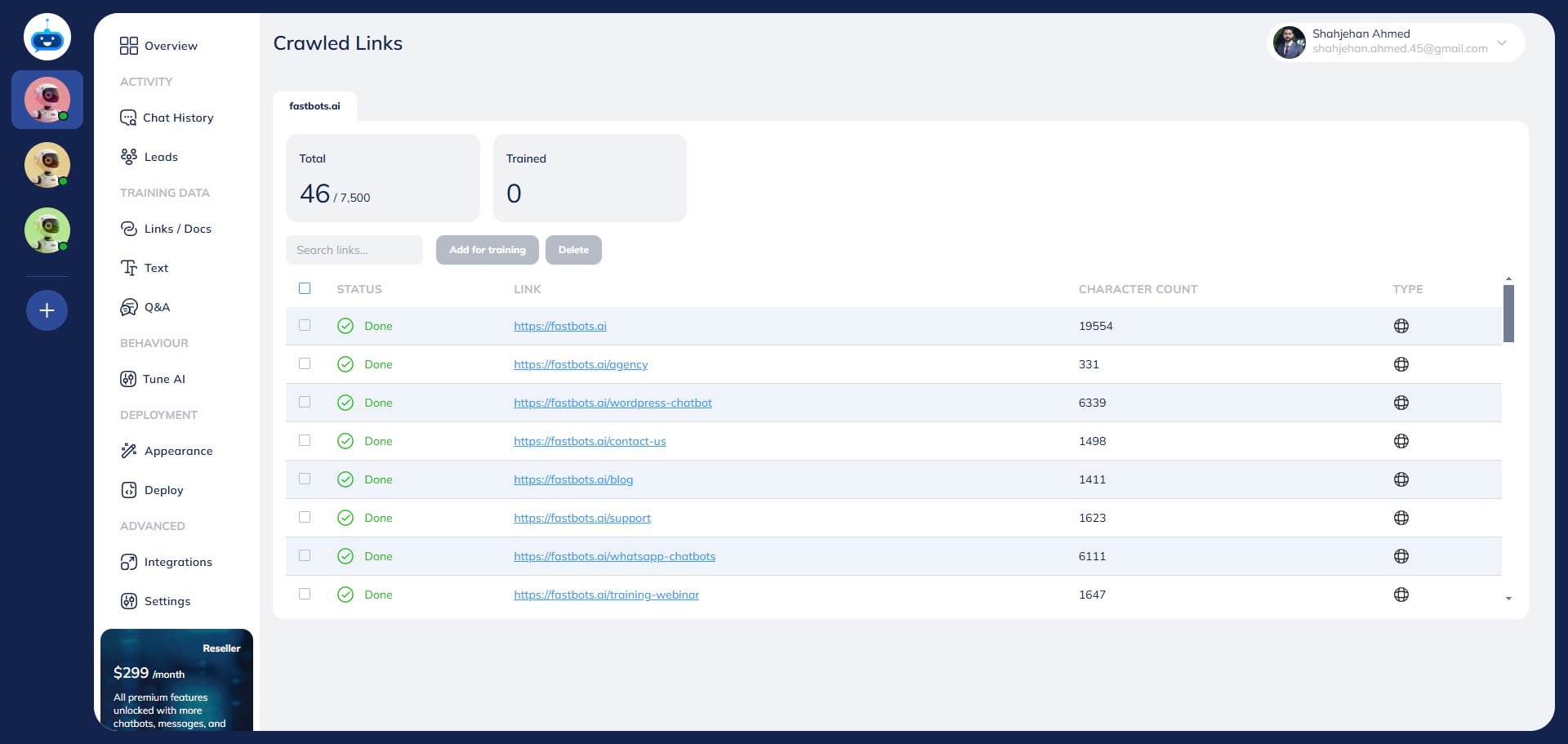
Click here to select all the URLs.
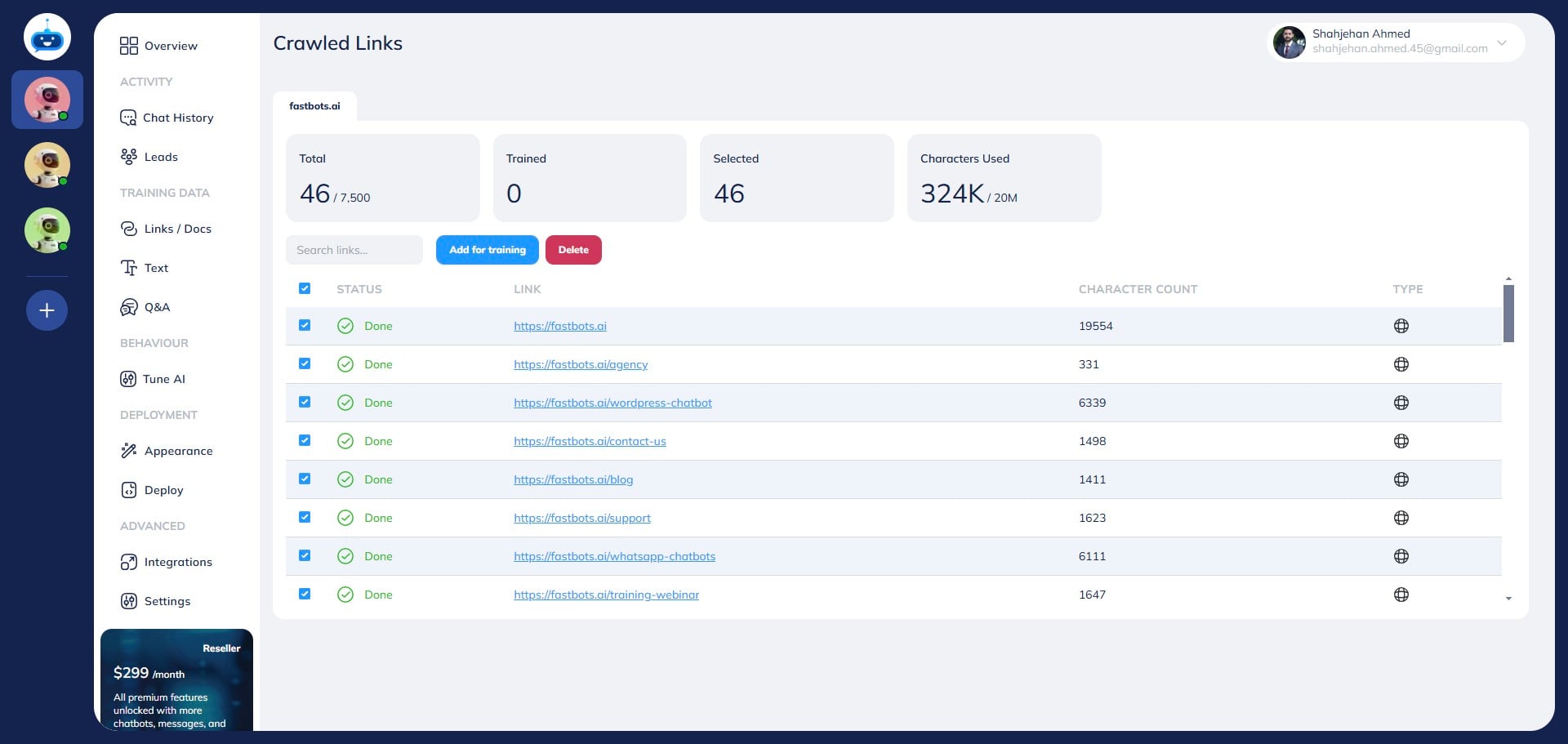
If you wish to remove certain URLs, just deselect them by clicking on the checkbox.
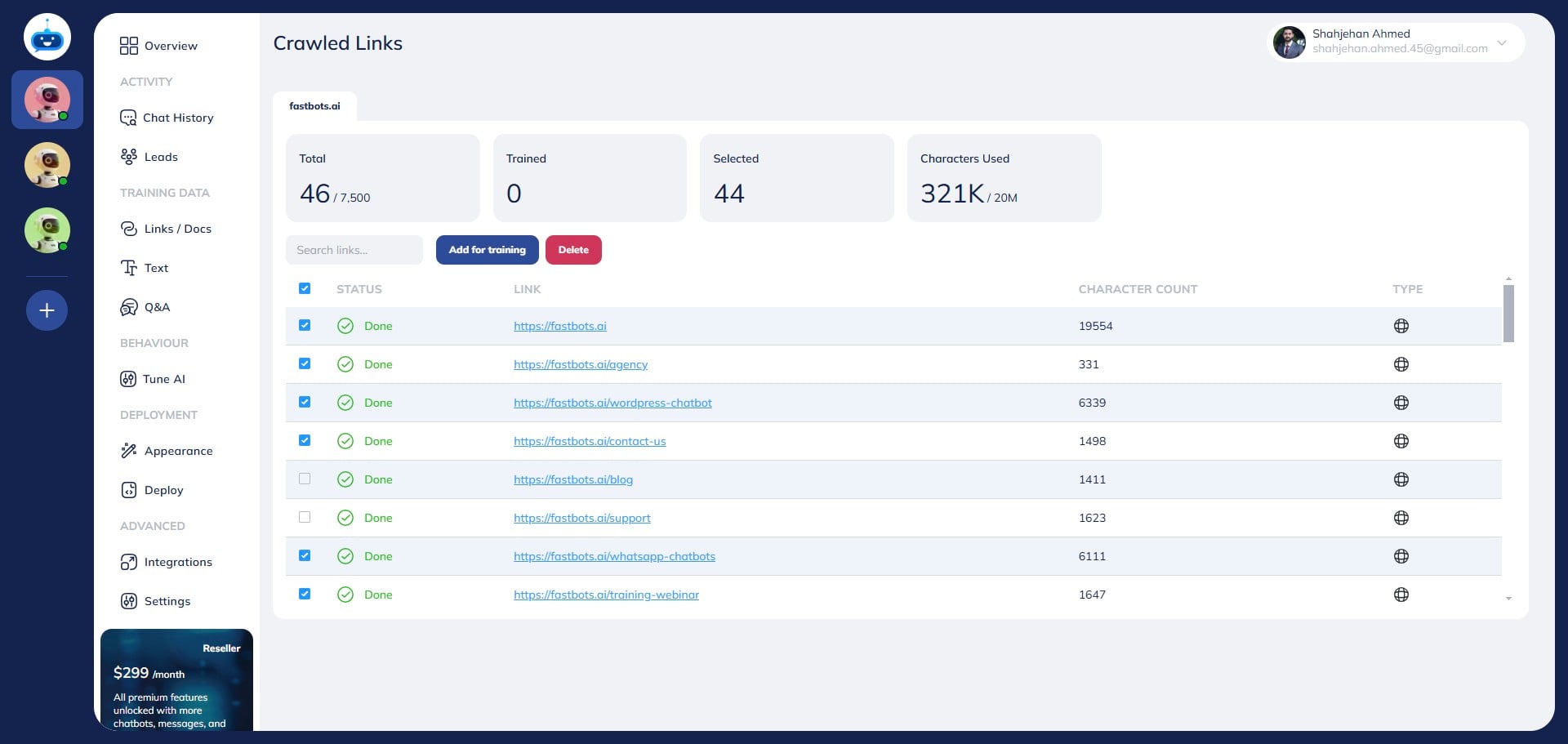
Click on "Add for training" to add all the selected URLs to chatbot training.
Here you can see the Status of new URLs added. You will be able to see the Pending URLs and Indexed URLs.
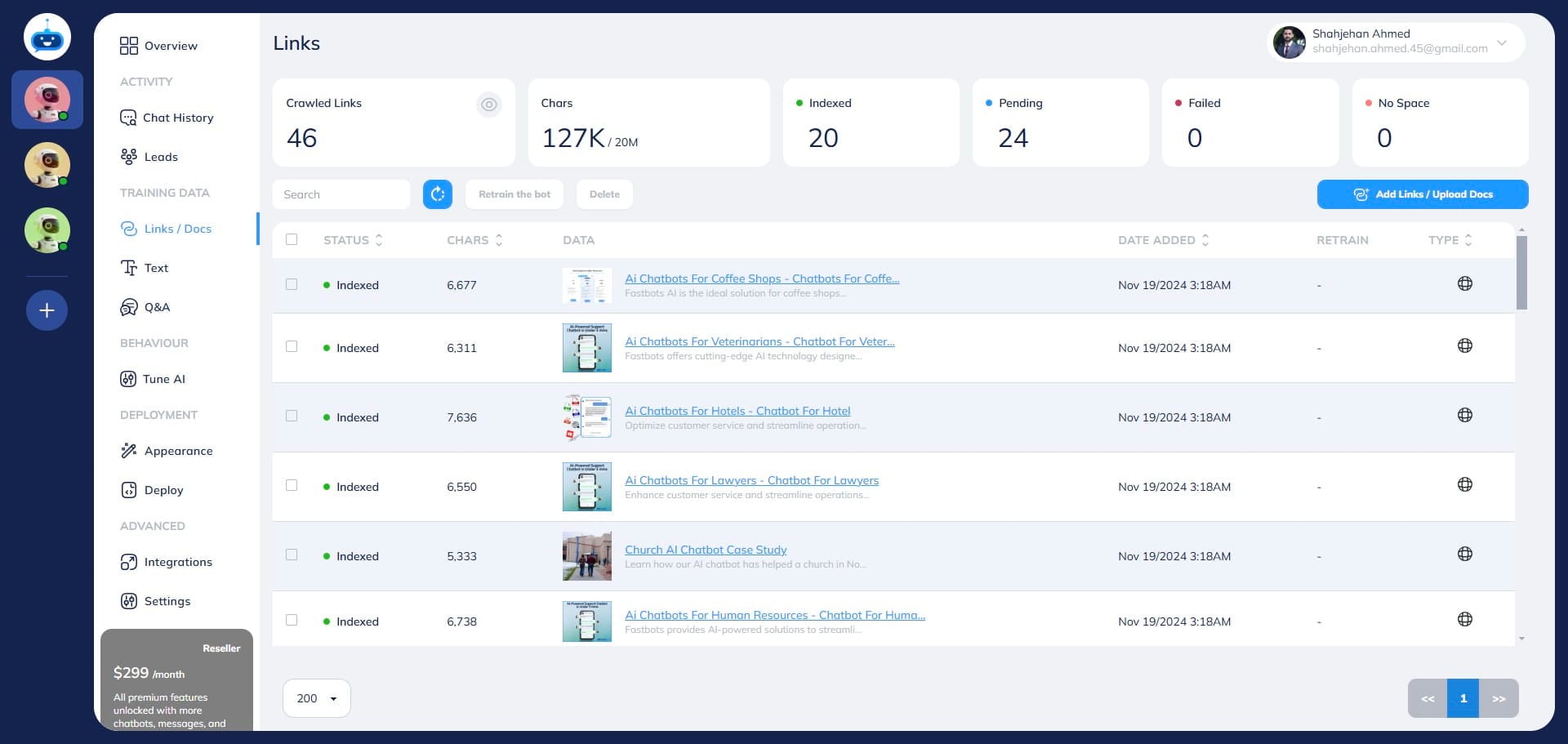
Refresh the app and make sure all the newly added URLs are indexed and showing a Green Dot under the status column.
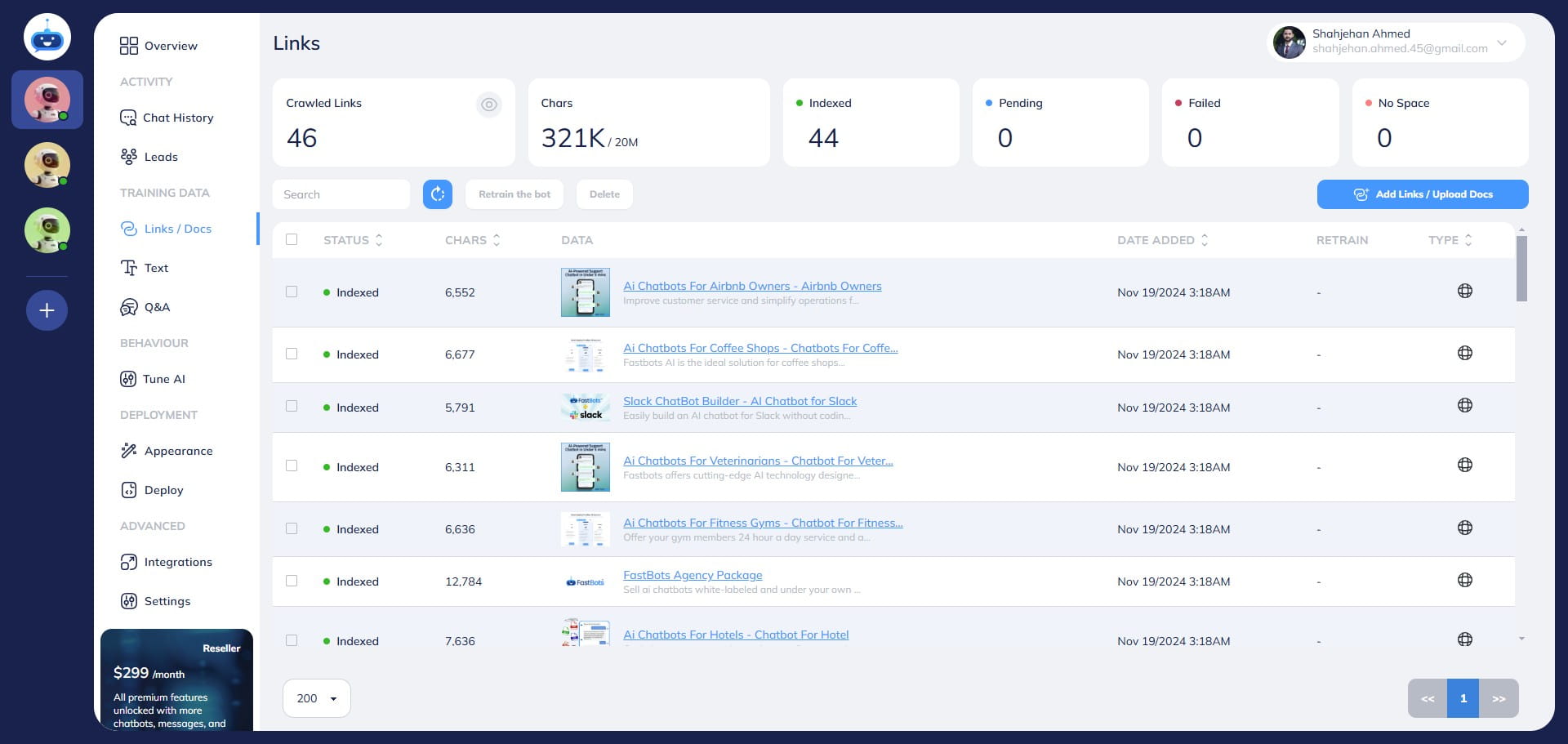
To delete a URL, just select it by clicking on the "Checkbox"
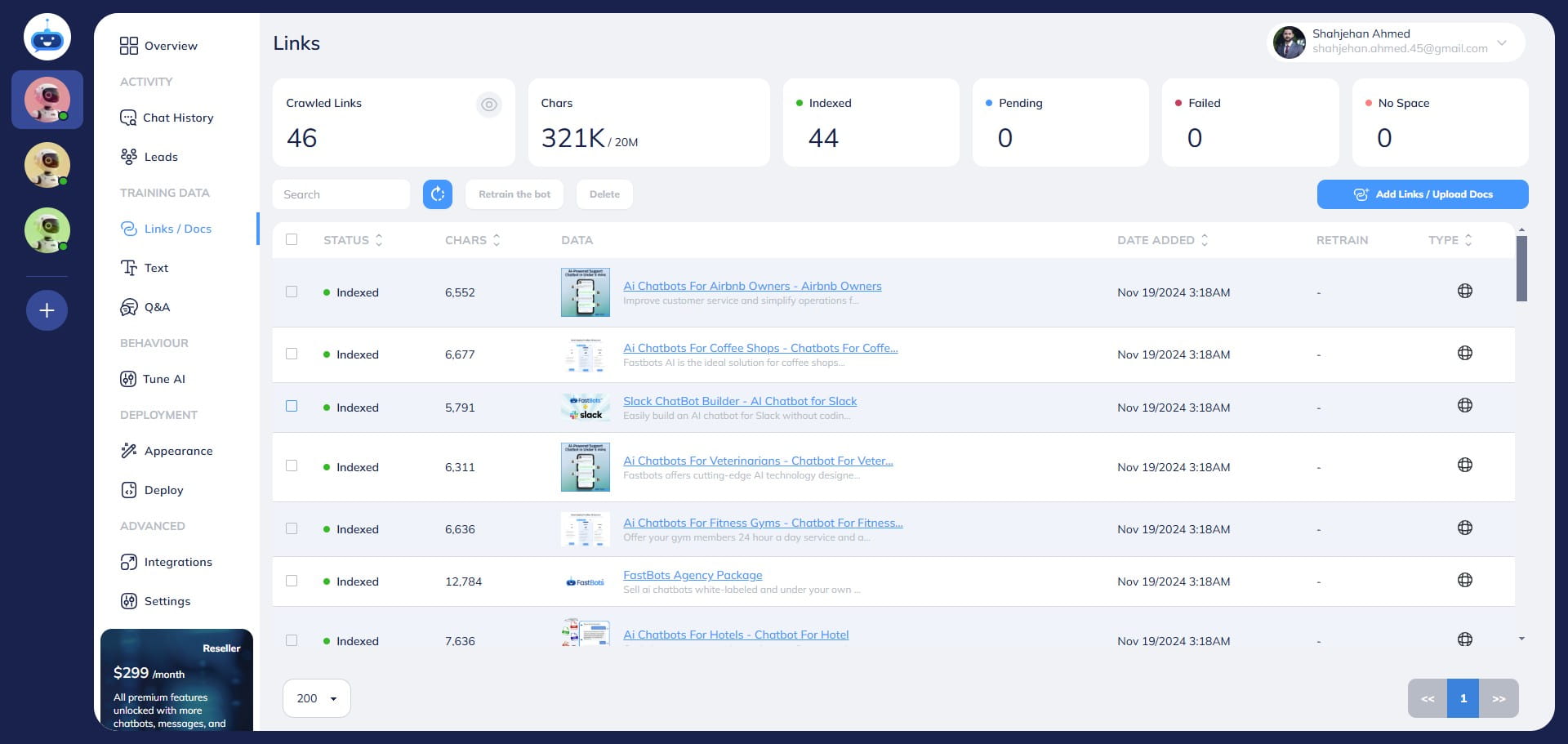
After selecting the URL, click on the "Delete" button.
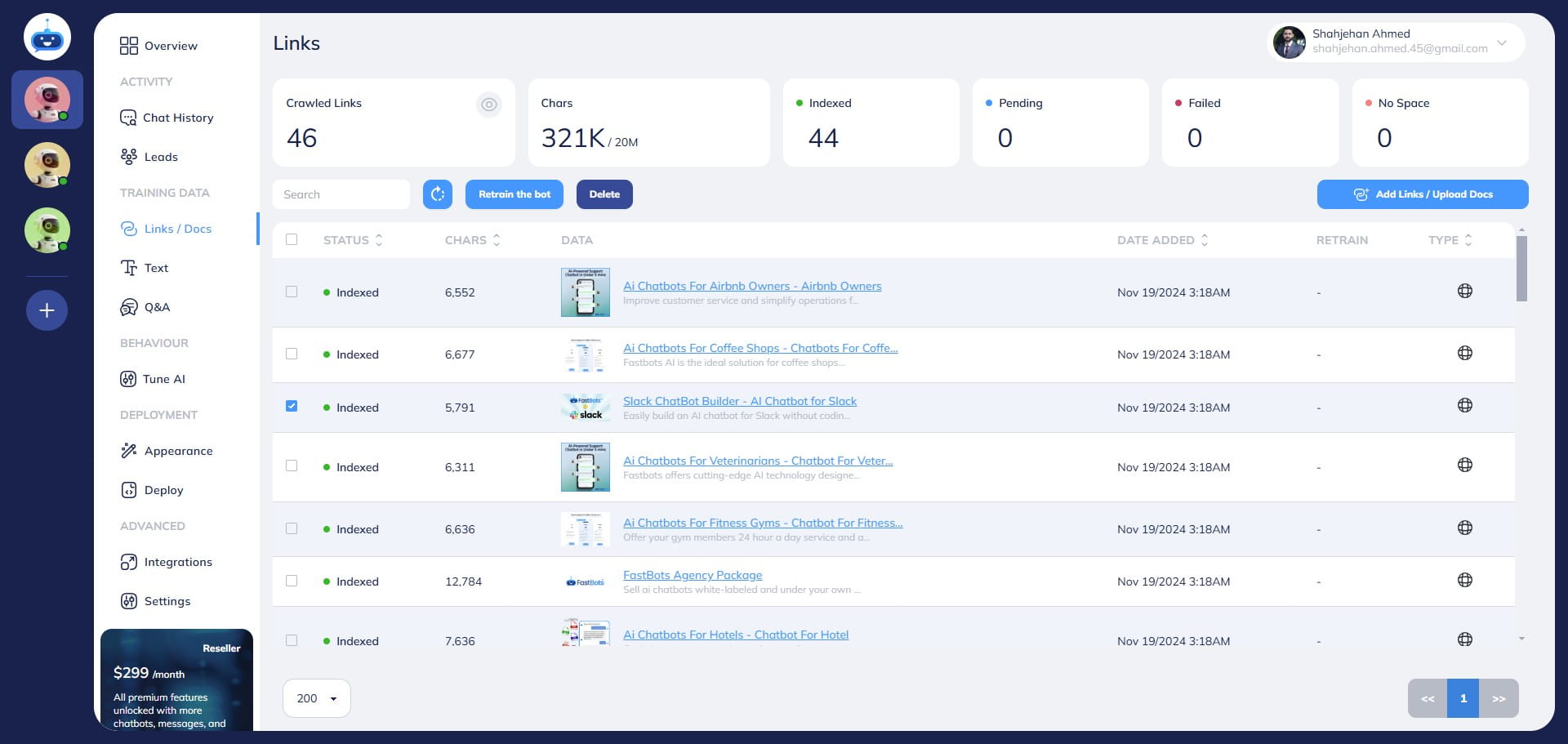
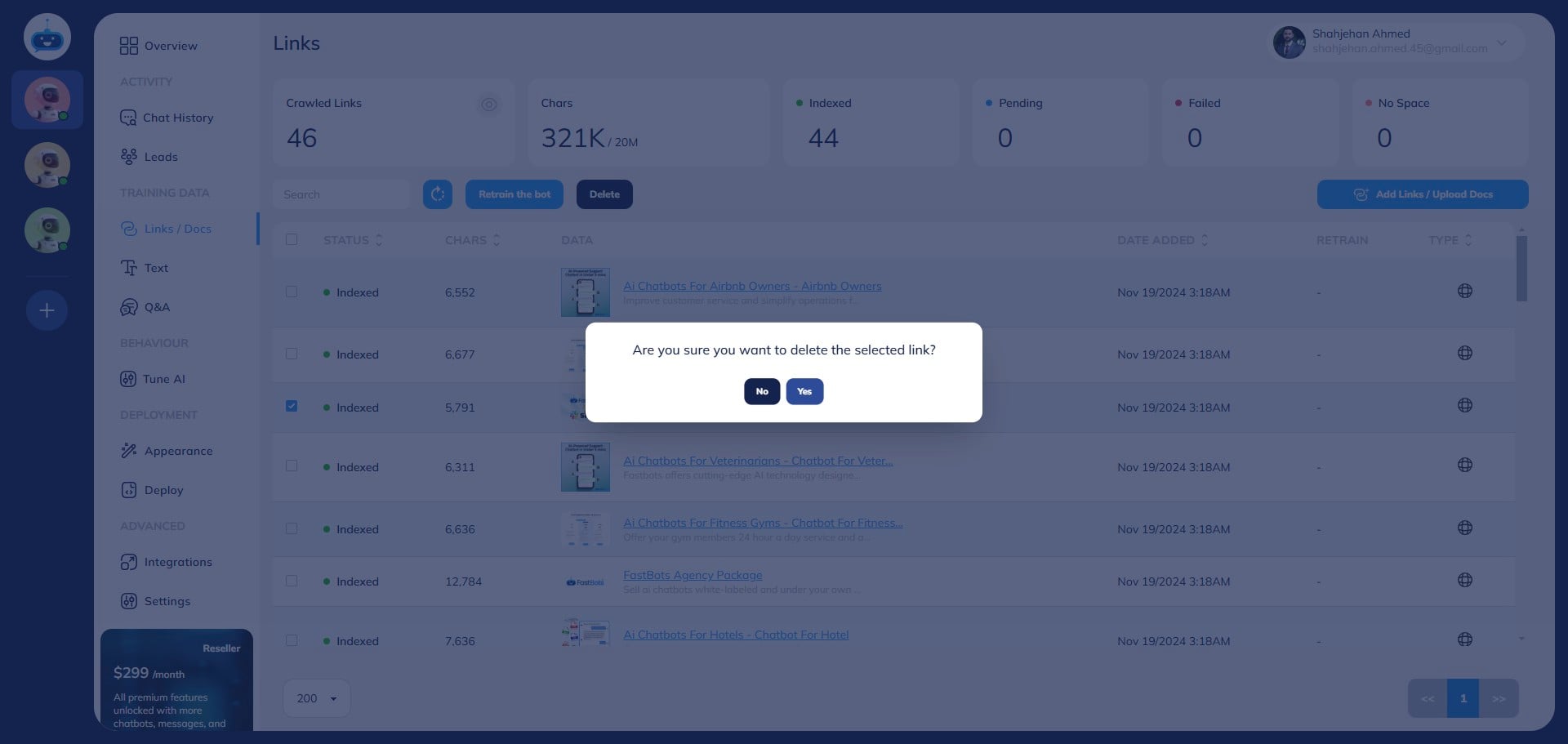
Click on "Yes" to Delete.
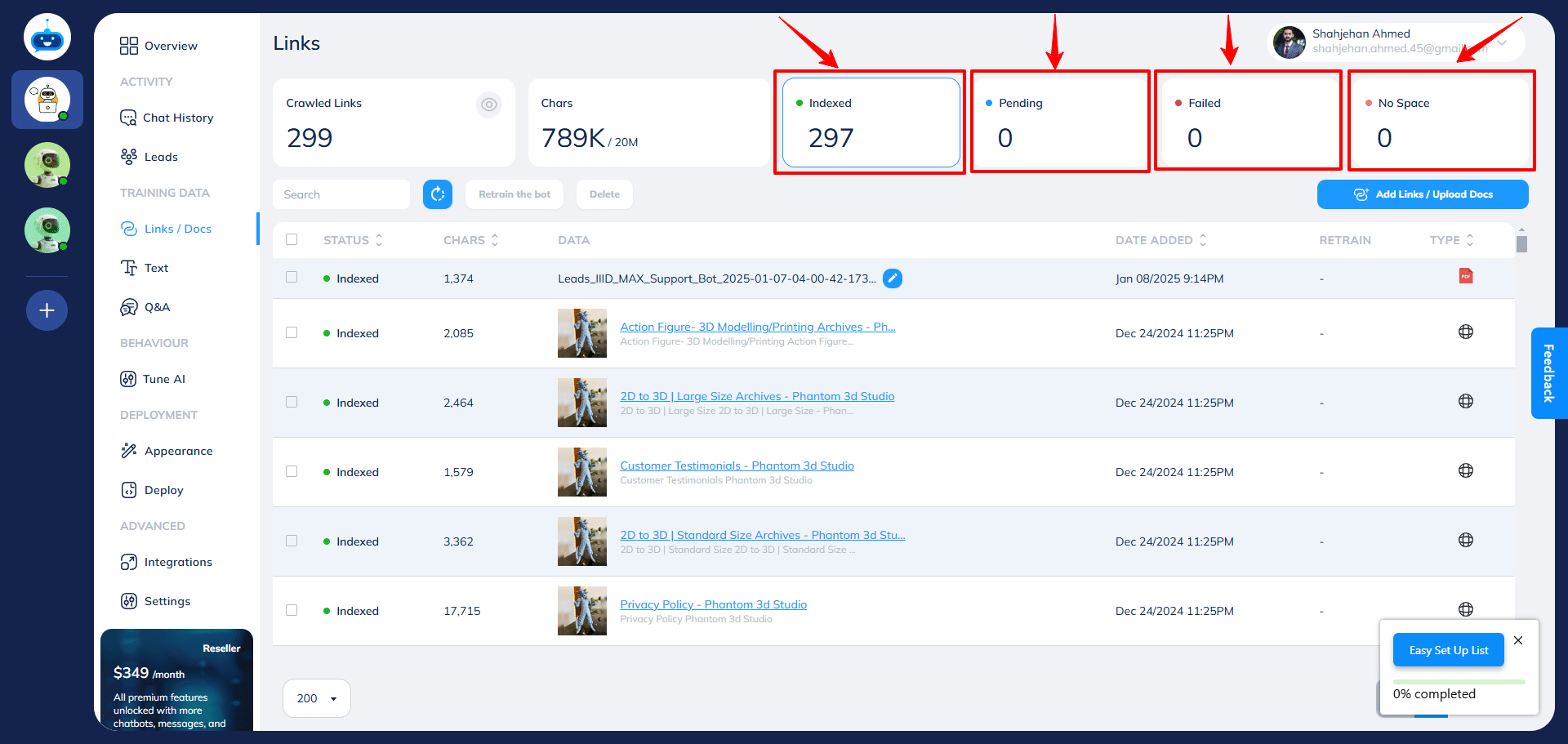
You can easily filter URLs using these blocks. To view only the "Indexed" URLs, click on the "Indexed" block. Similarly, to check only the pending links, click on the "Pending" block, and so on.
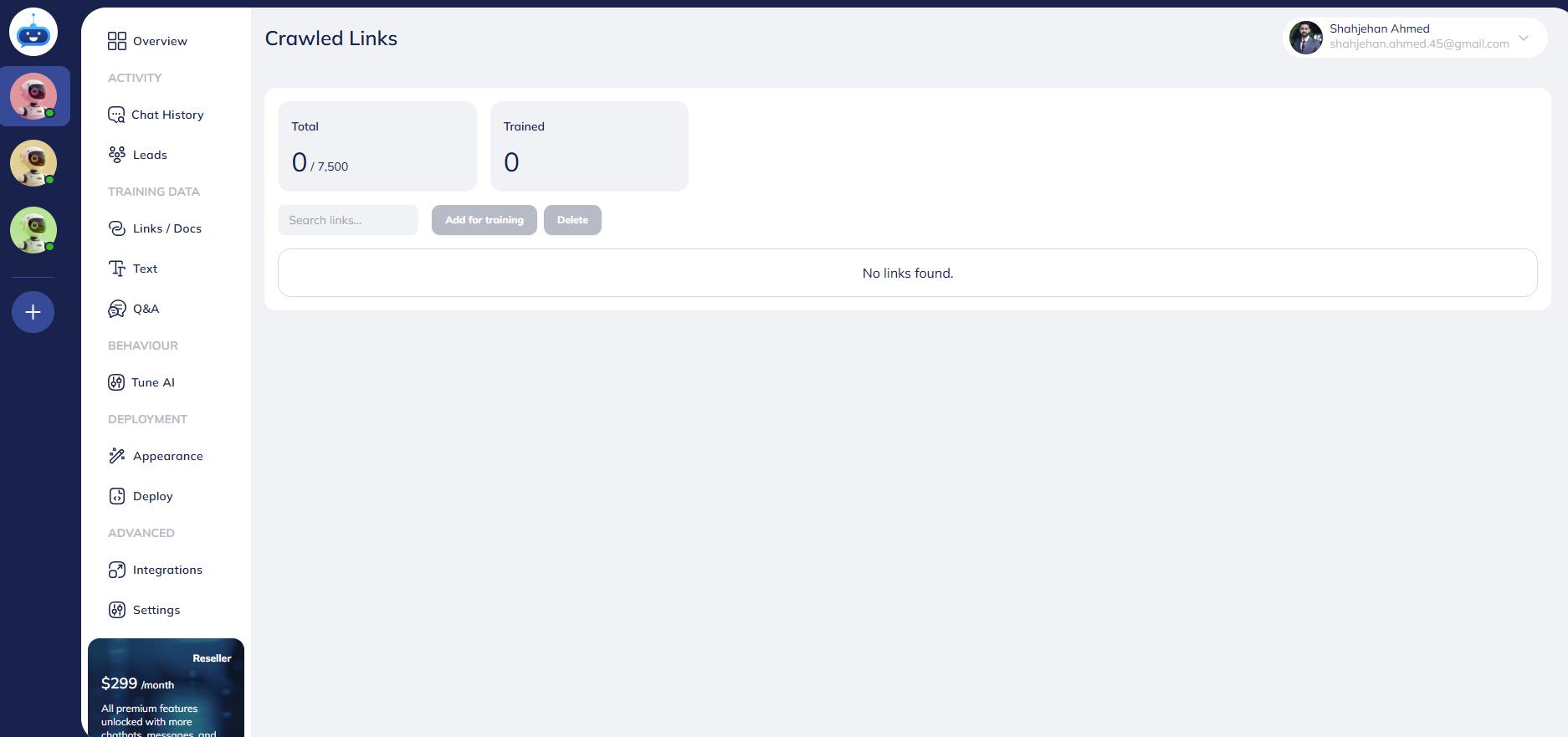
To see all the crawled links for your website, click on "Crawled Links".
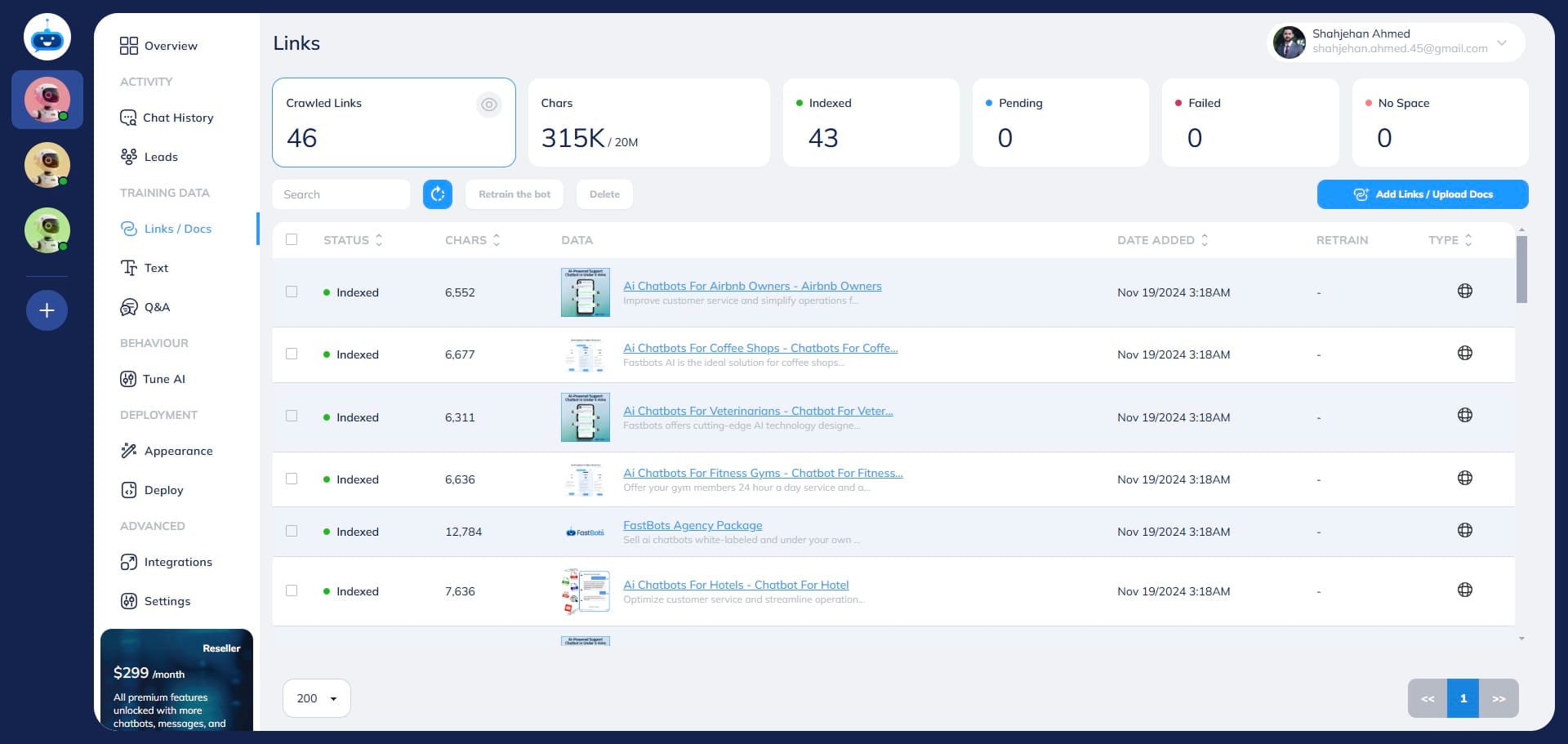
On this page, you can view all the links the chatbot has crawled.
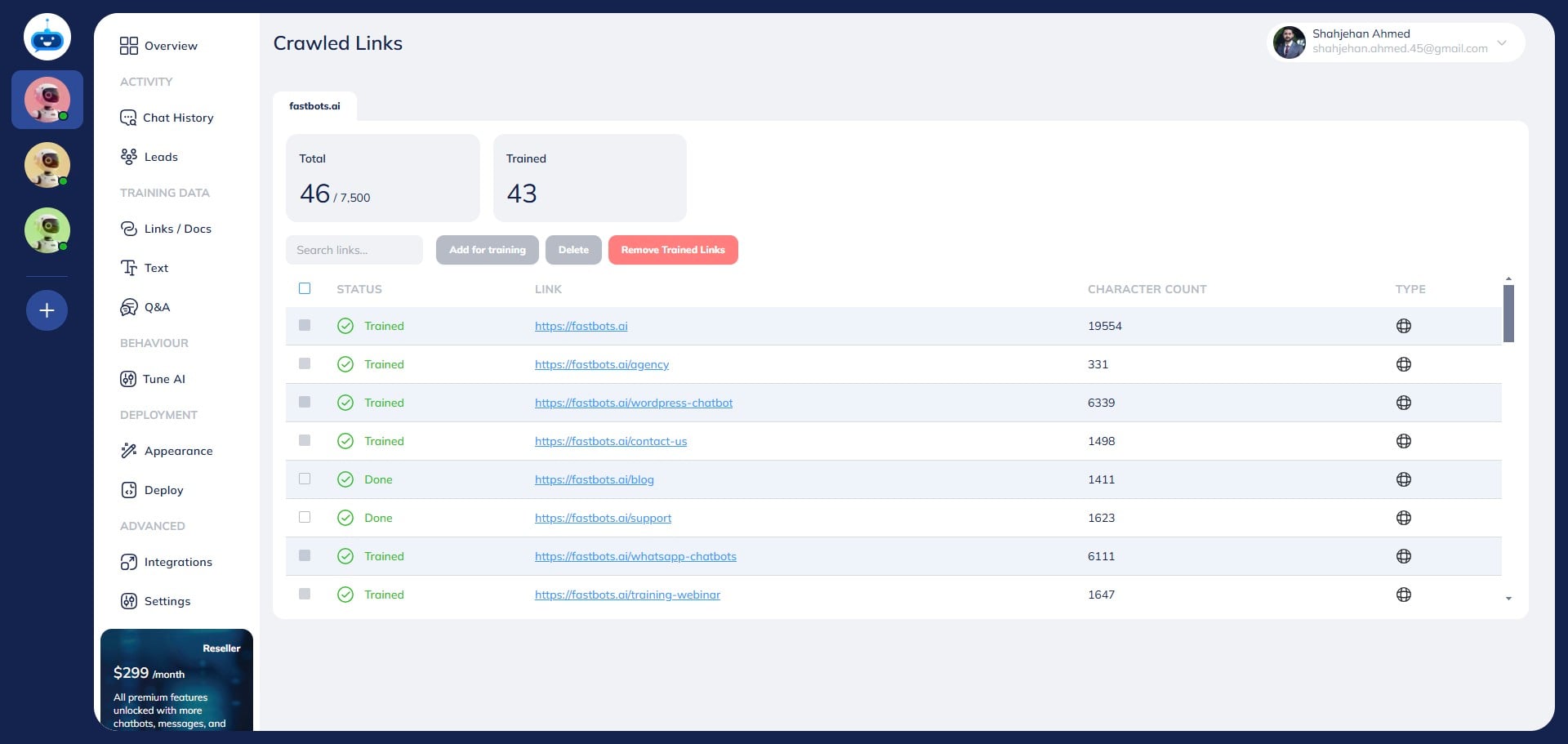
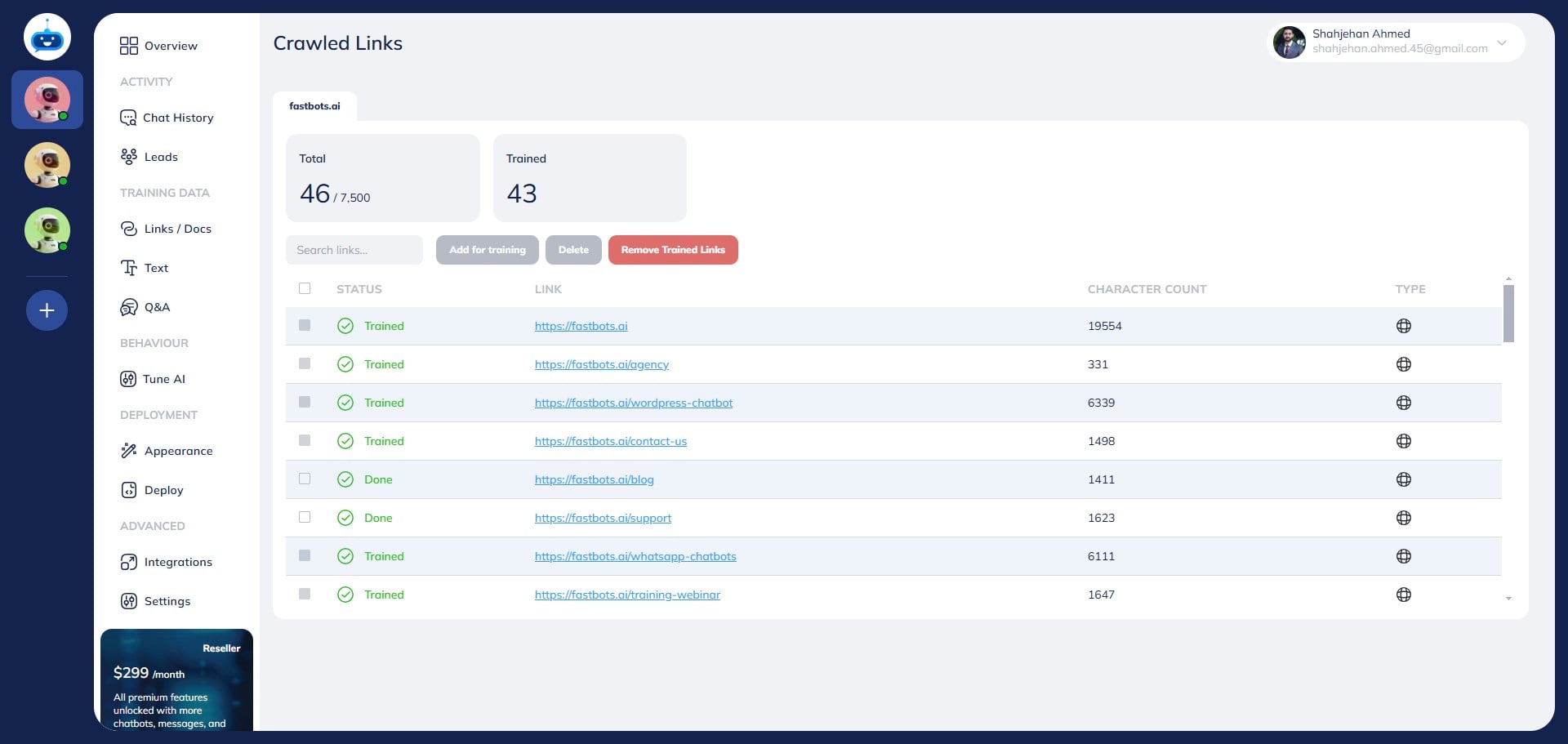
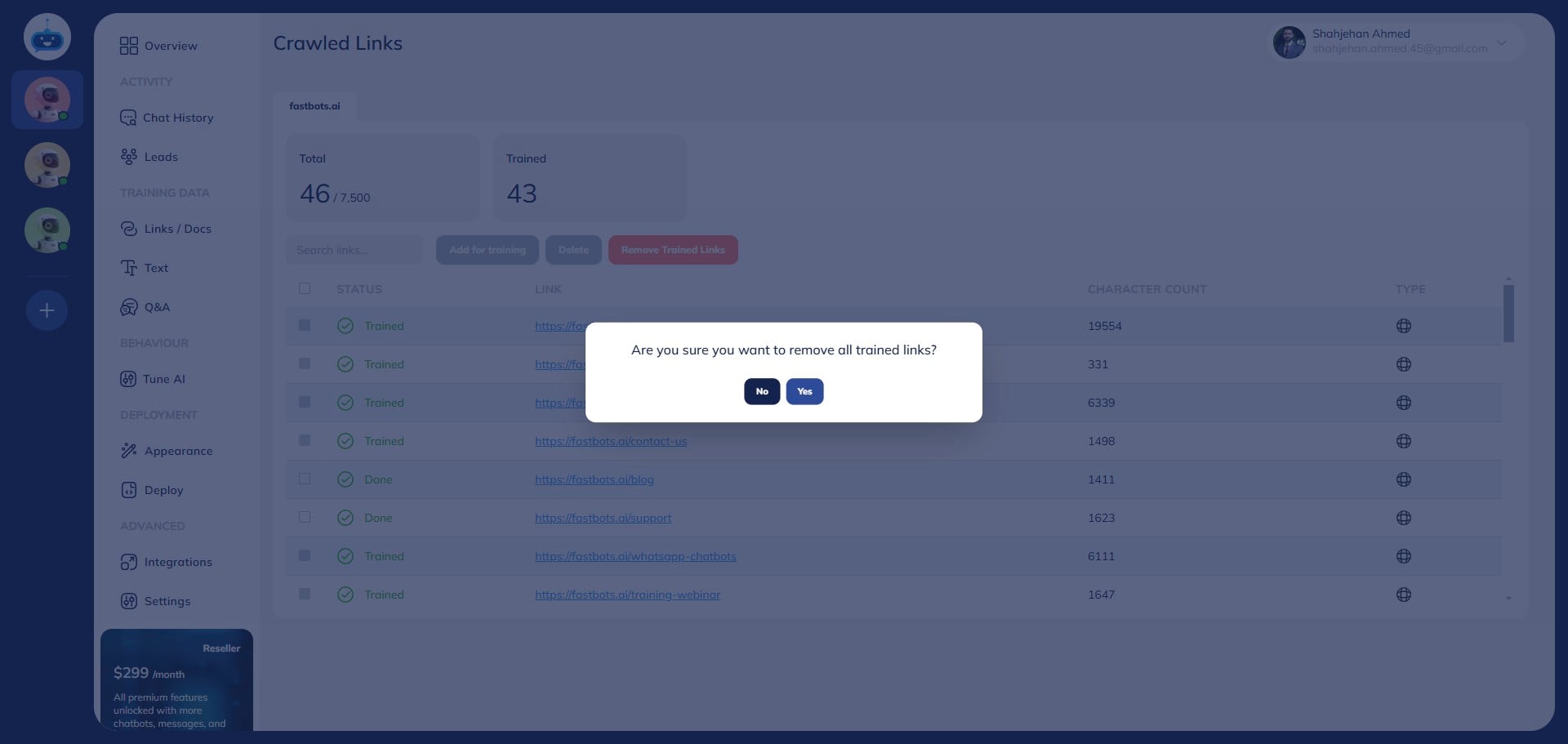
If you want to delete all the crawled URLs, click on the "Remove Trained Links" button.
Click on "Yes" to confirm.
Done 🚀