How To Add An Excel/CSV File To Chatbot
This guide will walk you through each step of the process for training your chatbot using an Excel or CSV file, providing clear instructions and helpful tips to ensure a smooth and efficient experience.
Nov 19, 2024●
1
Navigate to https://app.fastbots.ai/
2
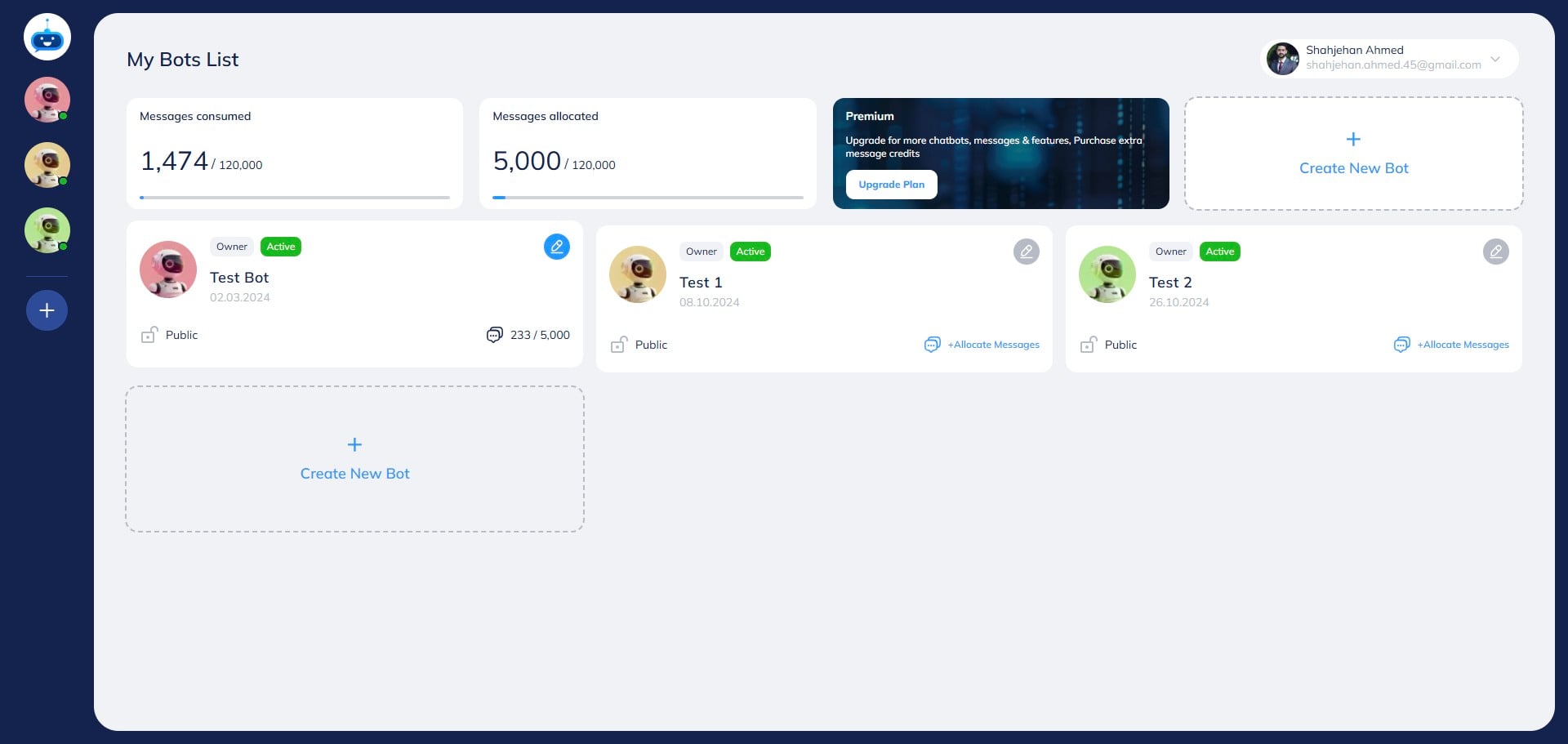
Click on the chatbot to open it.

3
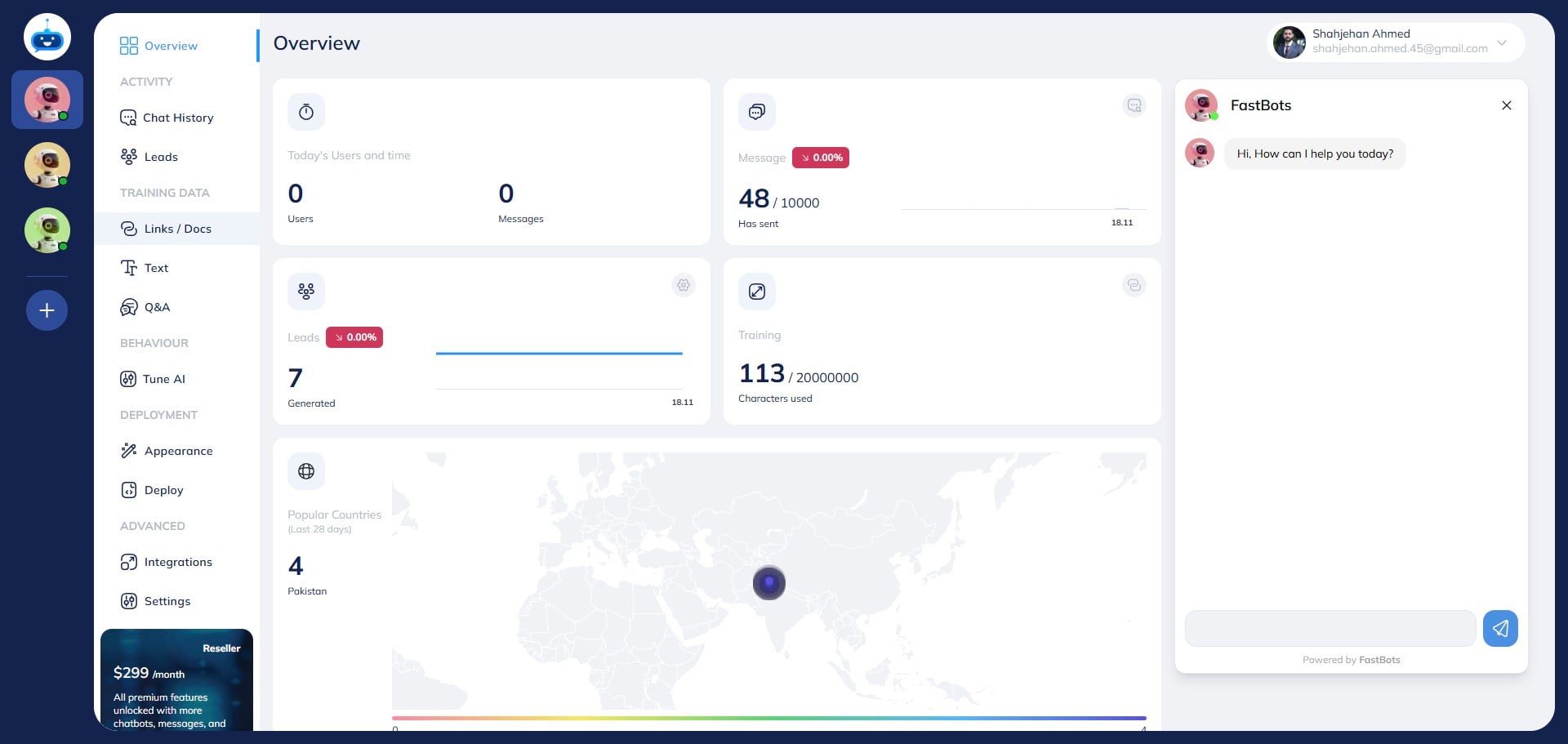
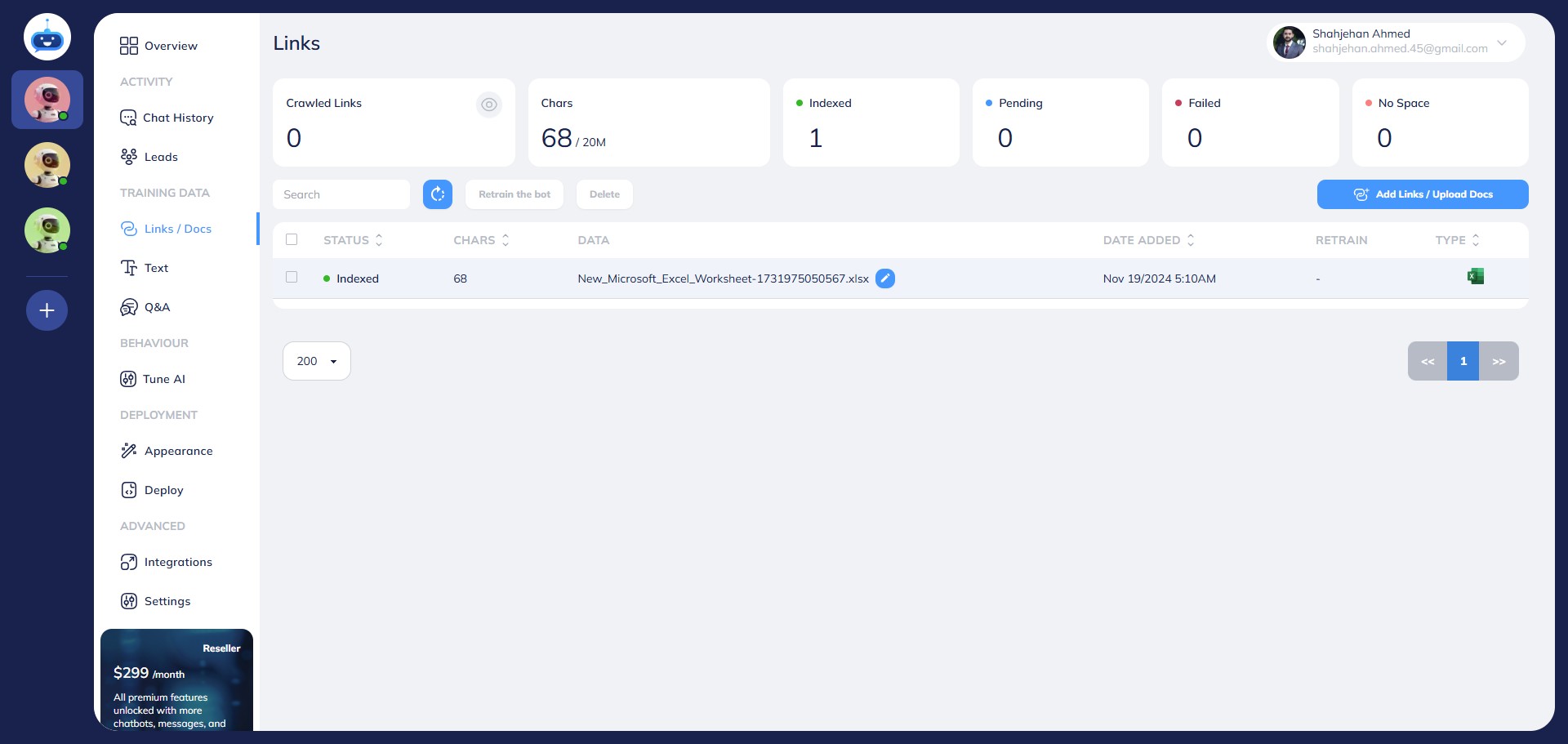
Click on "Links / Docs" to open this page.
4
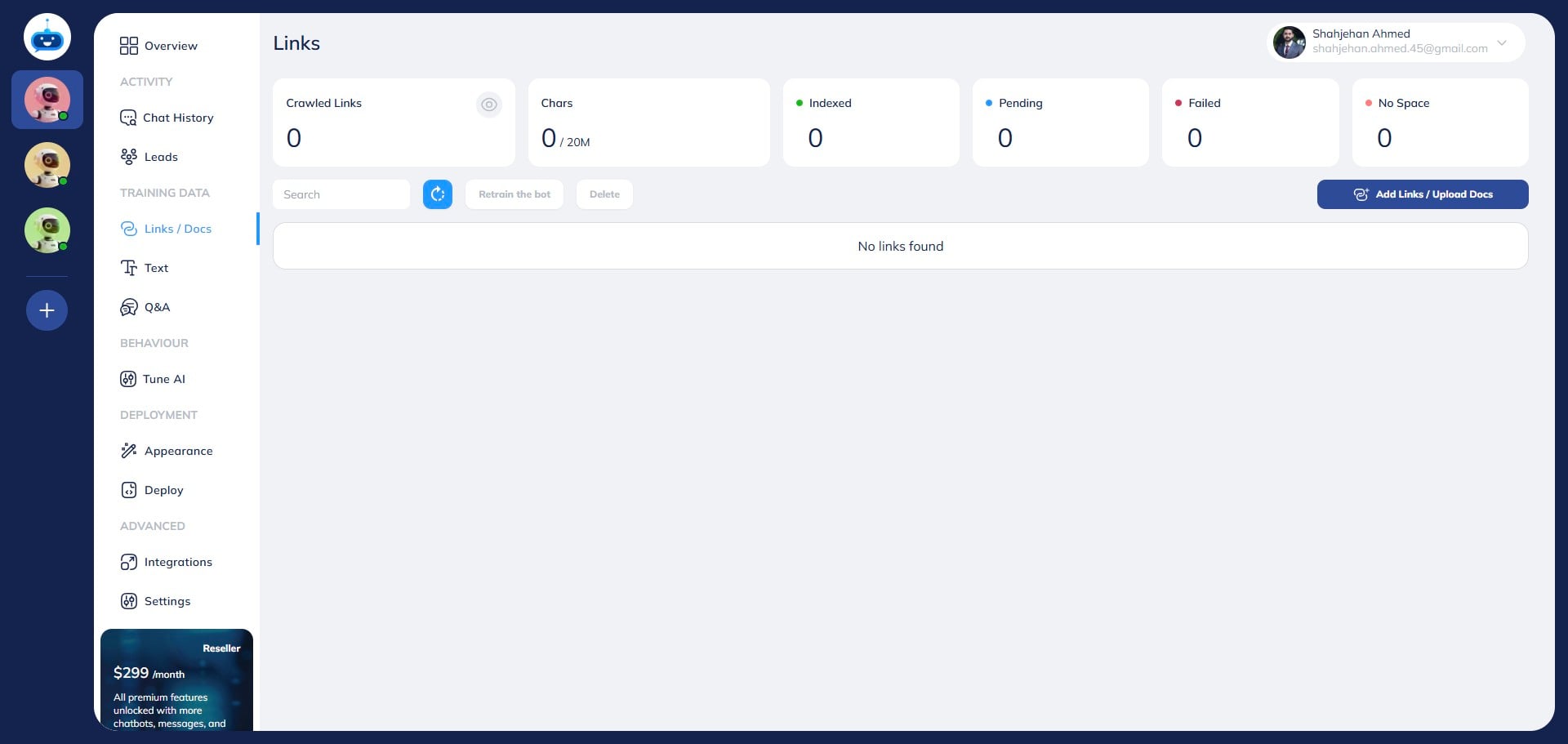
Click on "Add Links / Upload Docs"
5
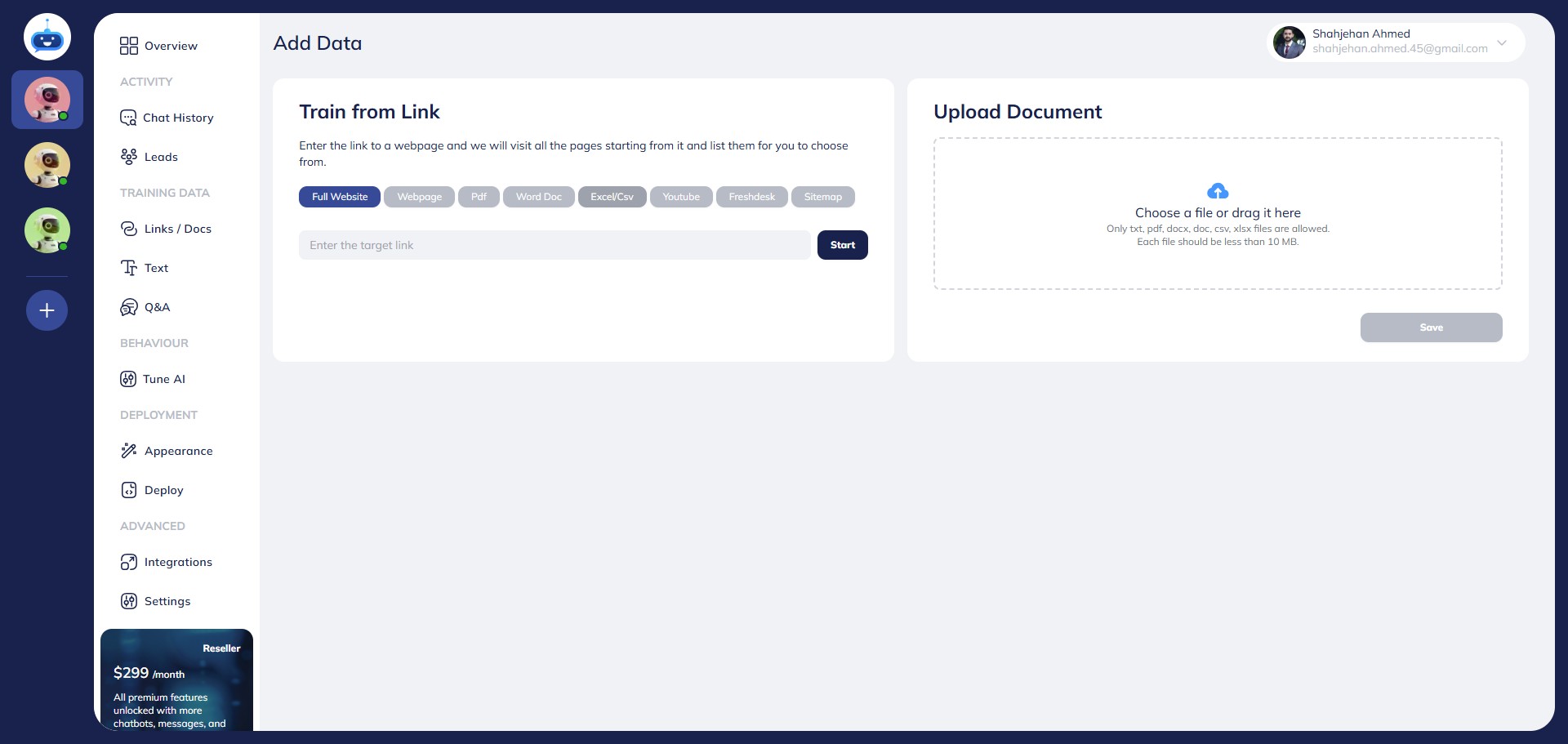
Click on "excel/csv"
6
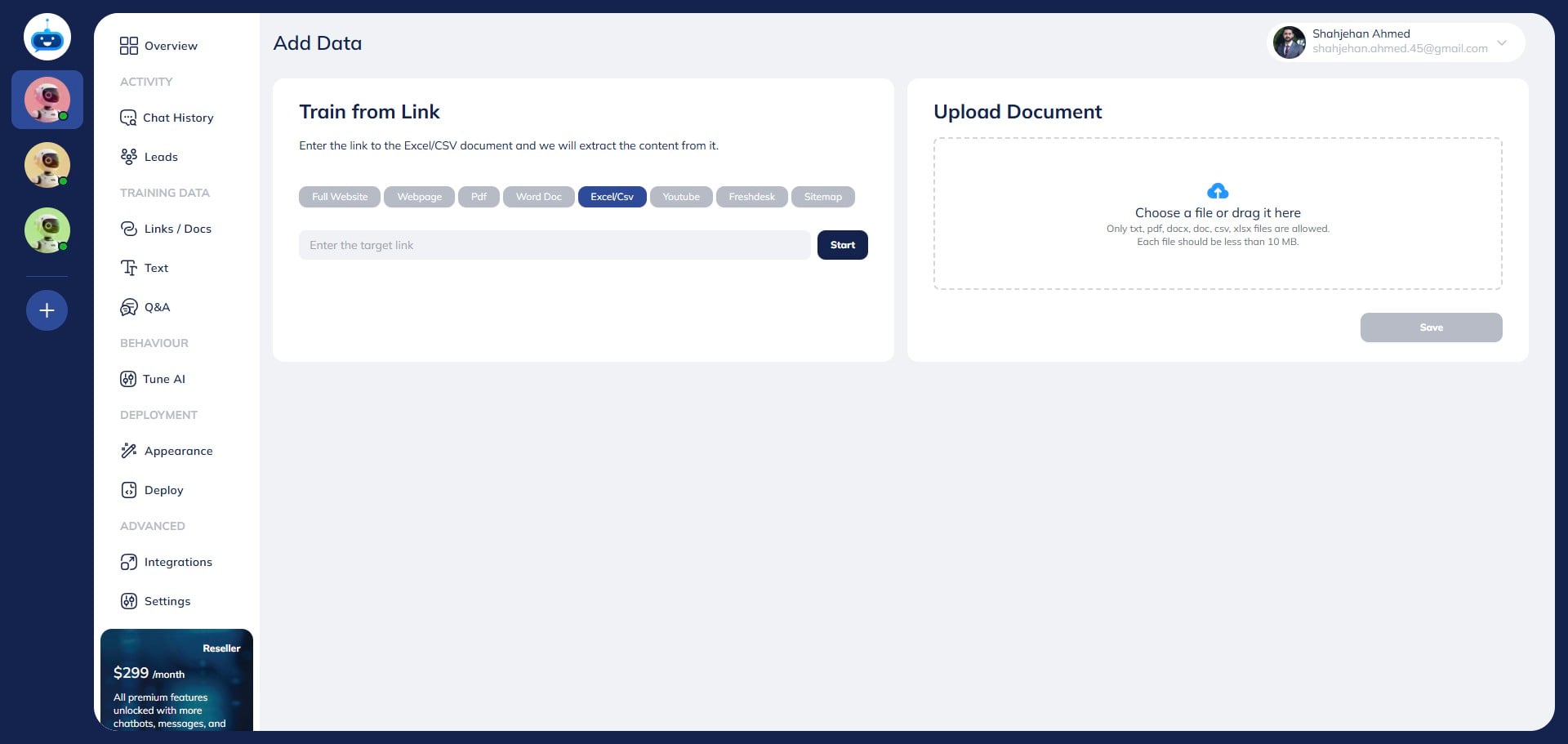
Click this icon to upload your file or drag and drop the file.
7
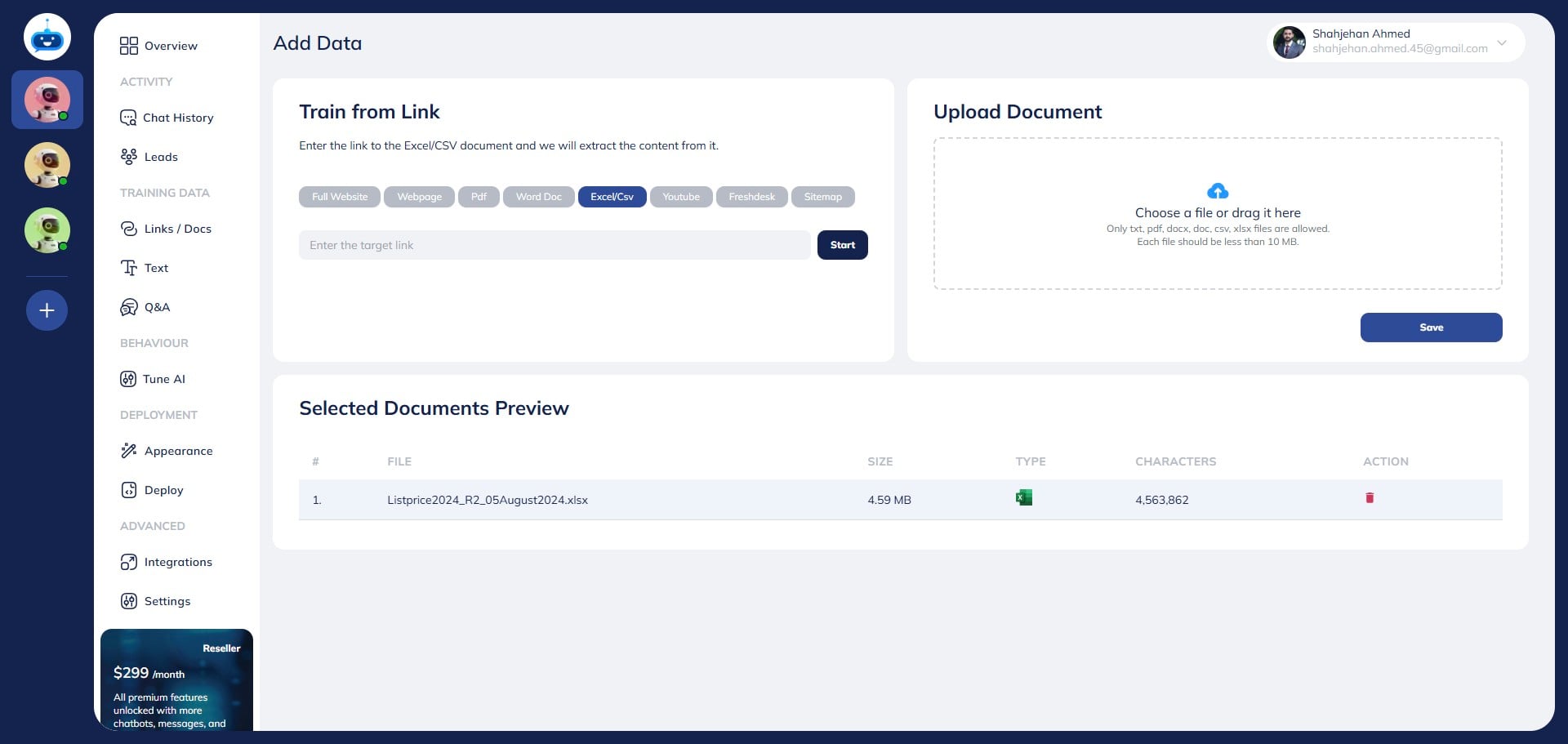
After adding the file, click on the "Save' button.
8
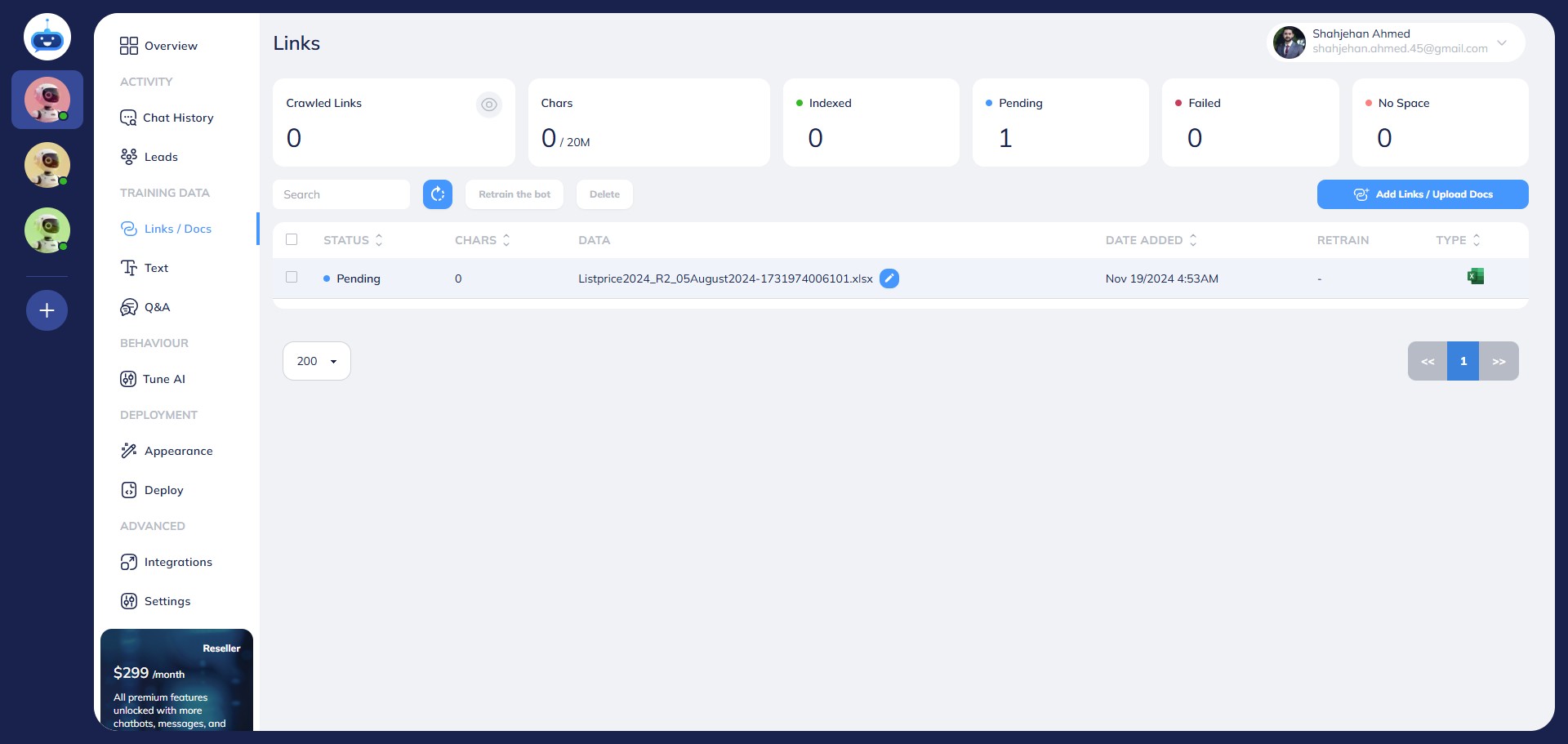
You will see the pending Status while the chatbot is indexing your file.
9
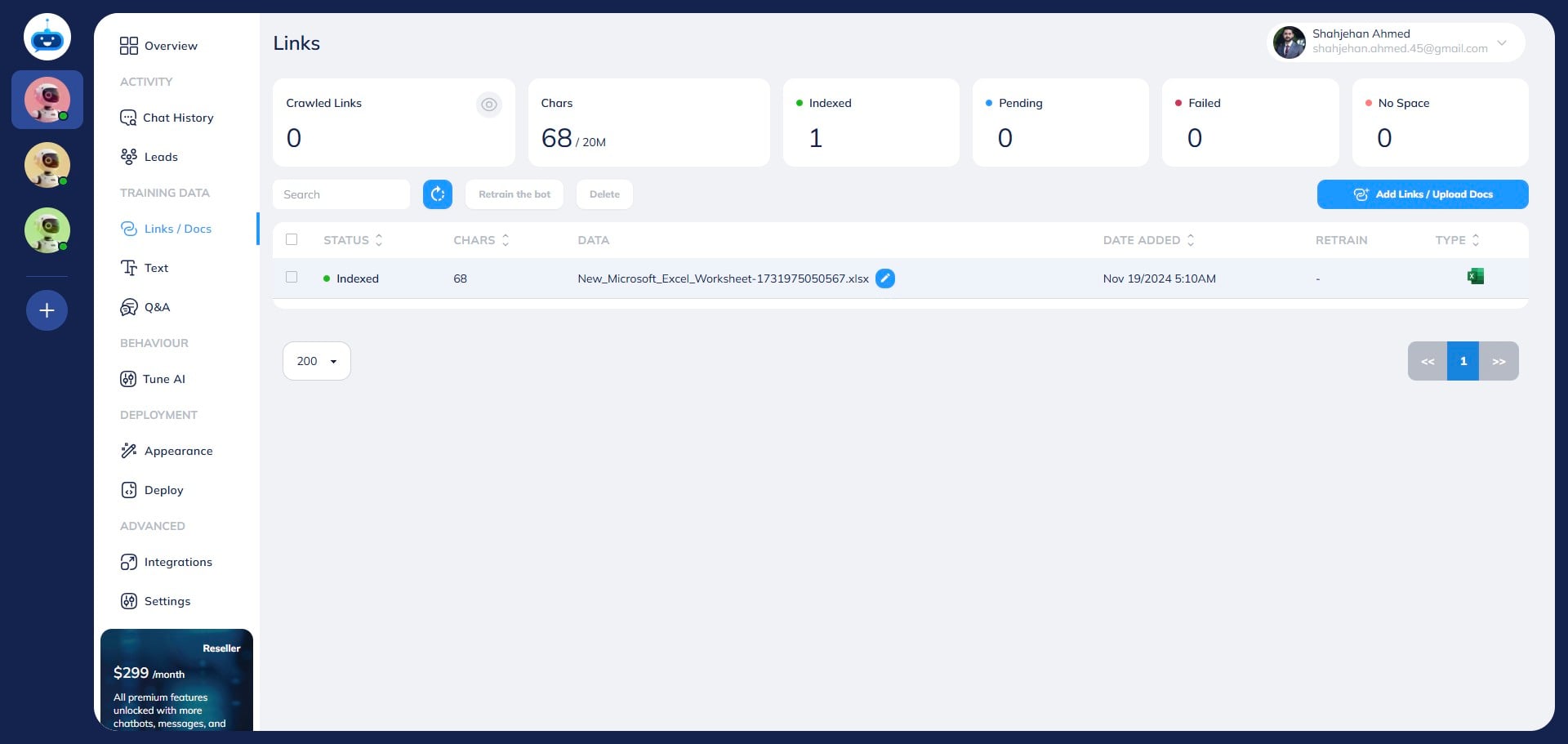
Once the file is uploaded successfully, you will see the Indexed under the Status column.
10
Done 🚀. You have successfully added the Excel file to your chatbot training.