

How to Connect Your AI Assistant to FastBots with MCP
Connect a compatible AI assistant to FastBots to review your bots, training and conversations. Learn how to connect securely, ask useful questions and understand what read-only access allows.
Open an AI application that supports remote MCP servers with OAuth sign-in. Find its Apps, Connectors or Integrations settings and choose the option to add a custom connection. The exact labels and availability depend on your AI application and plan.
Optional: add the FastBots icon to your new plugin. Right-click the robot image below and choose “Save image as…” to download it. Keep it in PNG format. In your AI application’s connection form, click the Icon upload area and select the saved file. The icon simply makes FastBots easier to recognise; it does not affect the connection.

Create a custom connection named FastBots. Enter this Remote MCP Server URL exactly: https://app.fastbots.ai/mcp Choose Continue or Connect. If asked for a client ID, choose automatic registration (for example, “No client ID – register one automatically”). Do not enter your FastBots password in the server URL or client ID fields.
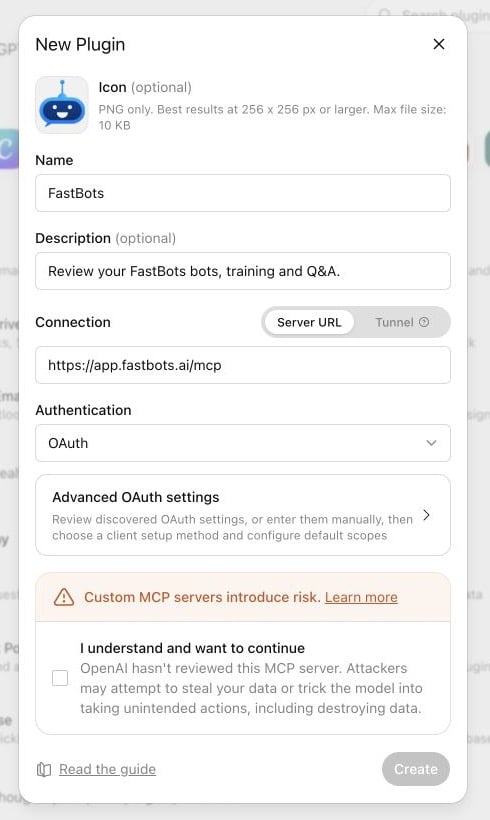
Sign in to FastBots when the connection opens the FastBots authorisation page. Use the FastBots account that owns, or has permission to access, the bots you want to review. Check that the address starts with https://app.fastbots.ai/ and that the requesting application is the one you intended to connect.
Review the requested permissions before choosing Allow. The current connection can read bot configuration, training sources and their full indexed content, redacted conversation history and Q&A entries. Only connect an AI application you trust: read-only access still shares this business information with that application.

Choose Allow, then return to your AI application. Check that FastBots appears as connected, and enable it for your conversation if your application requires this. The return screen and connection controls vary between applications.

Start with a simple request: “Find [your support bot name] and show its name and bot ID.” In ChatGPT, select FastBots from the + menu before sending your prompt. The example below uses FastBots.ai Support. Using the bot ID helps avoid confusion when bots have similar names.
![Start with a simple request: “Find \[your support bot name\] and show its name and bot ID.” In ChatGPT, select FastBots from the + menu before sending your prompt. The example below uses [FastBots.ai](http://FastBots.ai) Support. Using the bot ID helps avoid confusion when bots have similar names.](https://assets.guidejar.com/uploads/hiWpnq2IKRW0U8jJSnyq/lIb8emhxYeXedUErYKM3uPlaFUX2/5e328131-61ad-406d-8c12-9ebe4098d0c8/1789223259926.jpeg)
Review recent conversations: “For [bot name or ID], review the latest 20 available conversations. Compare replies with relevant training and Q&A. Suggest three improvements with anonymised examples. State how many conversations you reviewed and any missing data or tool errors. Do not show customer names, contact details or raw transcripts. Do not make changes.” Check the reported coverage before relying on the findings.
![Review recent conversations: “For \[bot name or ID\], review the latest 20 available conversations. Compare replies with relevant training and Q&A. Suggest three improvements with anonymised examples. State how many conversations you reviewed and any missing data or tool errors. Do not show customer names, contact details or raw transcripts. Do not make changes.” Check the reported coverage before relying on the findings.](https://assets.guidejar.com/uploads/hiWpnq2IKRW0U8jJSnyq/lIb8emhxYeXedUErYKM3uPlaFUX2/6b5f7f62-e71c-4844-9c98-7937976d6738/1789223871014.jpeg)
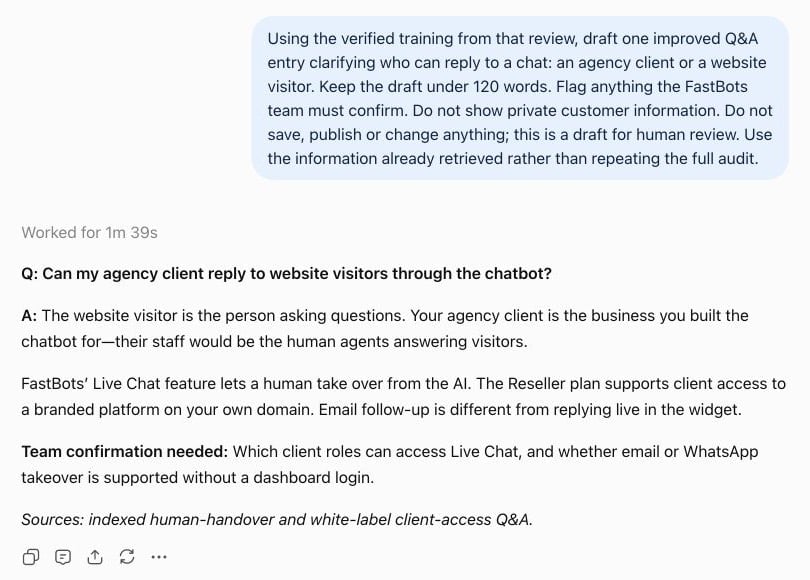
Turn a finding into a draft: “Draft one improved Q&A entry for the most useful fix identified above. Use verified training information, flag anything I need to confirm, and do not save or publish it.” Review the draft and make any approved changes yourself in FastBots. The current MCP connection is read-only: it cannot create, edit or delete bots, update training or Q&A, or run test conversations.
Frequently Asked Questions
- Is FastBots MCP limited to one AI application?
No. FastBots MCP uses a standard connection method rather than being built for one AI provider. Your chosen application must support remote MCP servers and the required OAuth connection flow. Check its current support, plan and administrator settings; support for one provider does not mean every app from that provider can connect.
- What if I cannot connect, or a request fails?
Check the server URL, the FastBots account you signed in with, and whether your AI application permits custom MCP connections. Try listing your bots first, then request a small amount of data from one bot. If an error continues, contact FastBots support with the bot ID, error message and application name. Never send passwords, access tokens or API keys. Treat reports with failed requests or missing pages as incomplete.
- How can I disconnect FastBots?
Open the Apps, Connectors or Integrations settings in the AI application where you added FastBots, and use its disconnect or remove option. Check that the connection is no longer active. Consult that application’s privacy controls for any information already included in previous chats.