

How to Take a FastBots Chatbot Online or Offline
Temporarily stop a chatbot from answering without deleting it. Learn what visitors see while it is offline, where their messages are saved, and how to bring the bot back online.
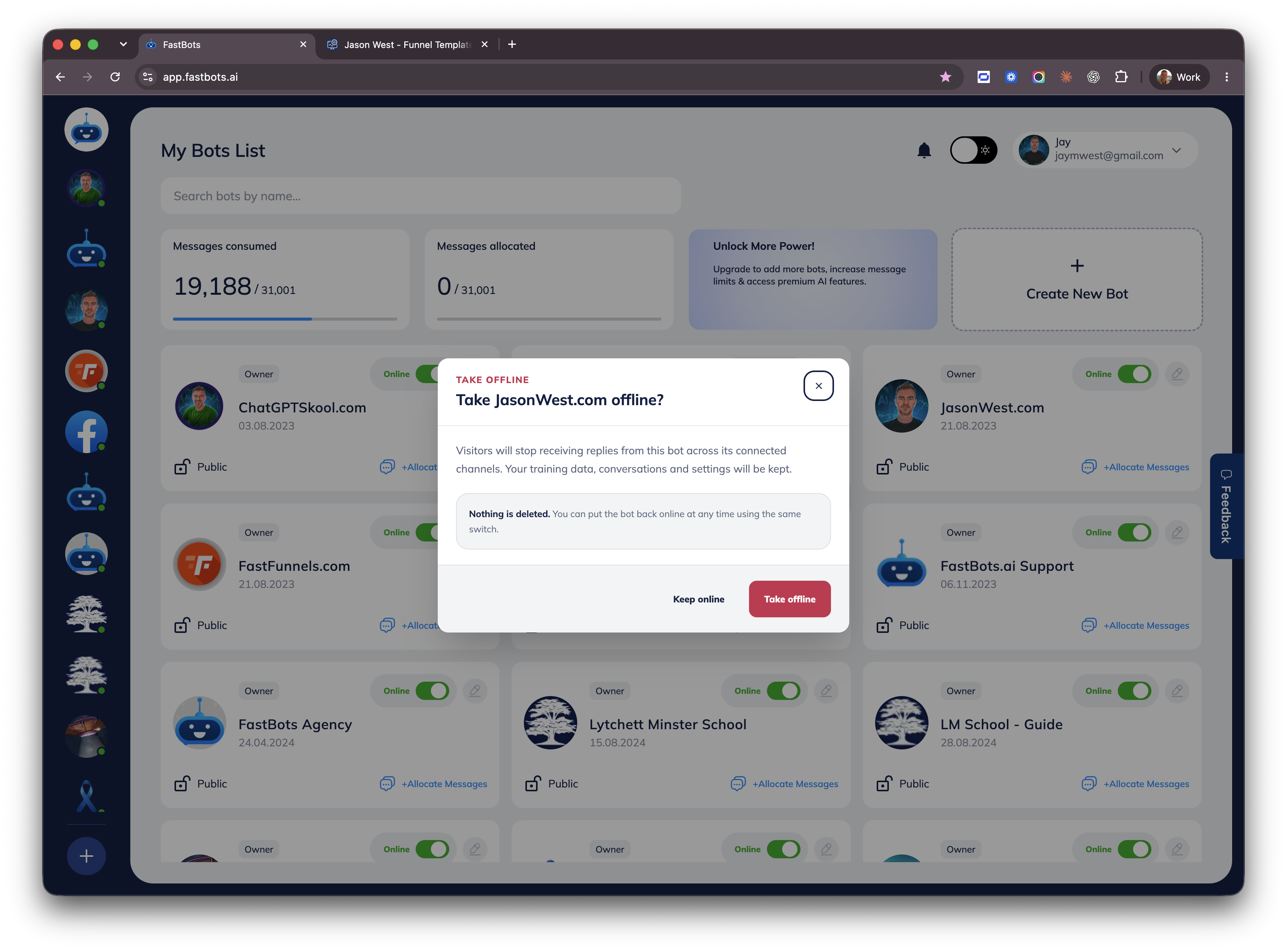
Open My Bots List and find the chatbot you want to control. Each bot you own now has an Online or Offline switch on its card.
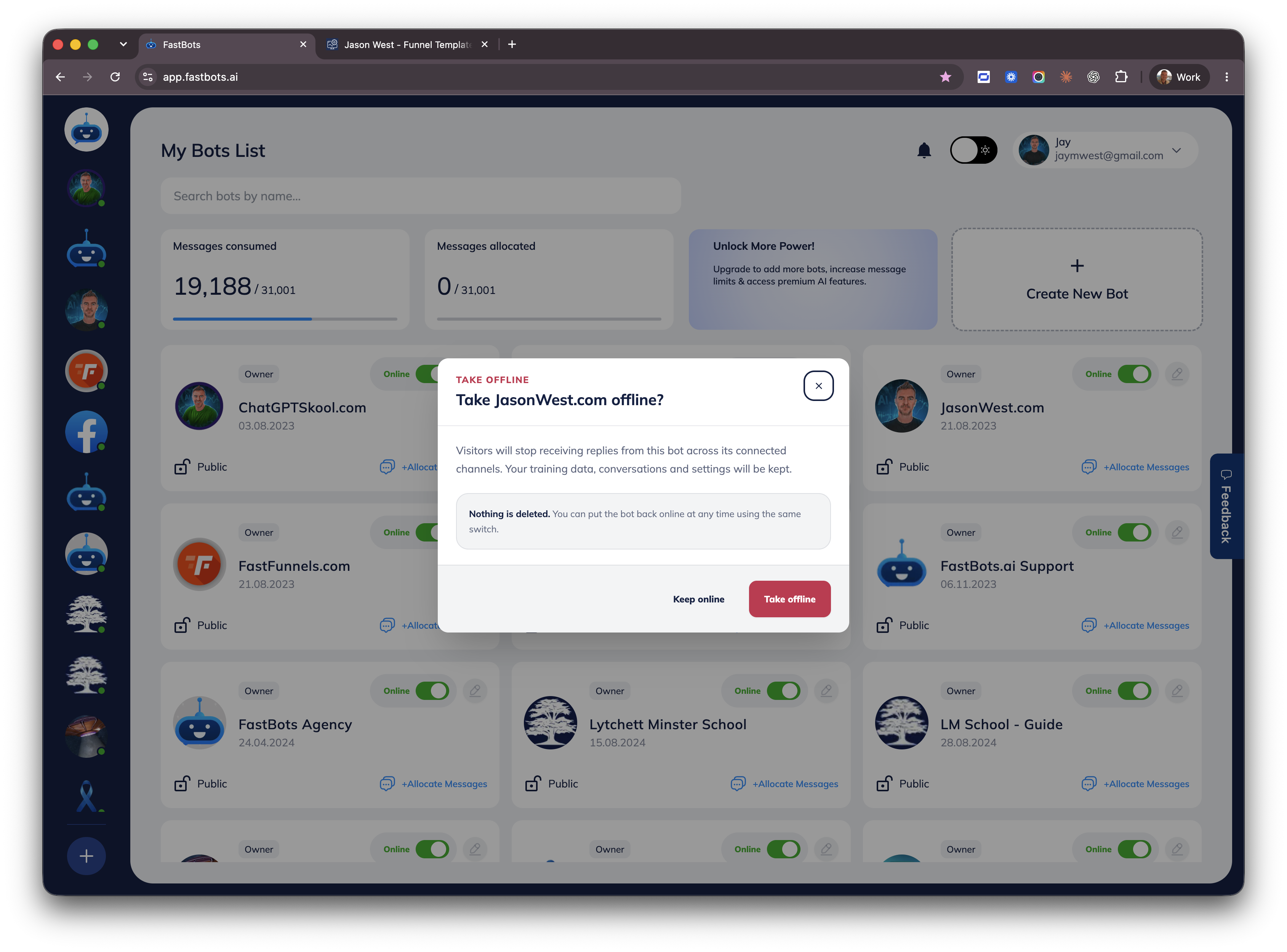
Click the green Online switch. FastBots shows exactly what will happen. Select Take offline to stop replies while keeping the bot's training data, conversations and settings.
While the bot is offline, visitors see a Leave a Message form instead of AI replies. Their name, email address and message are saved in the chatbot's Leads or Contacts area so your team can follow up.
To bring the chatbot back, return to My Bots List and click its grey Offline switch. FastBots immediately changes it to Online and resumes normal AI conversations.
Frequently Asked Questions
- Does taking a chatbot offline delete anything?
No. Its training data, conversations and settings are kept. You can switch it back online at any time.
- Where do messages sent while the bot is offline go?
The visitor's name, email address and message are saved in that chatbot's Leads or Contacts area for follow-up.