FastBots Telegram Integration
This training guide offers a step-by-step process for integrating Fastbots with the Telegram Botfather bot. Once the chatbot is connected to the Botfather bot, it will automatically begin responding to inquiries, enhancing customer engagement and support.
Navigate to https://web.telegram.org/k/
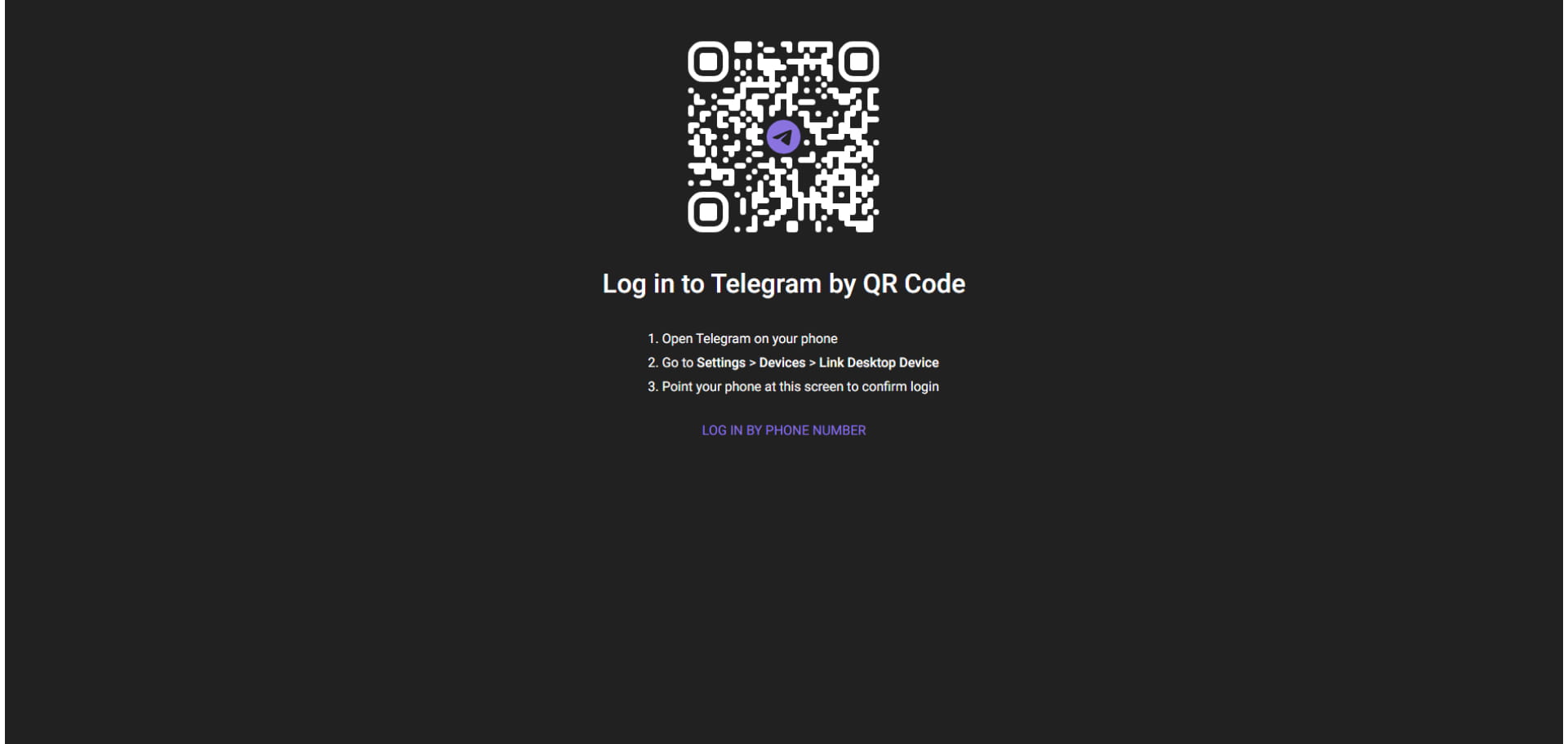
Log in to the TelegramAccount by QR code or Phone Number
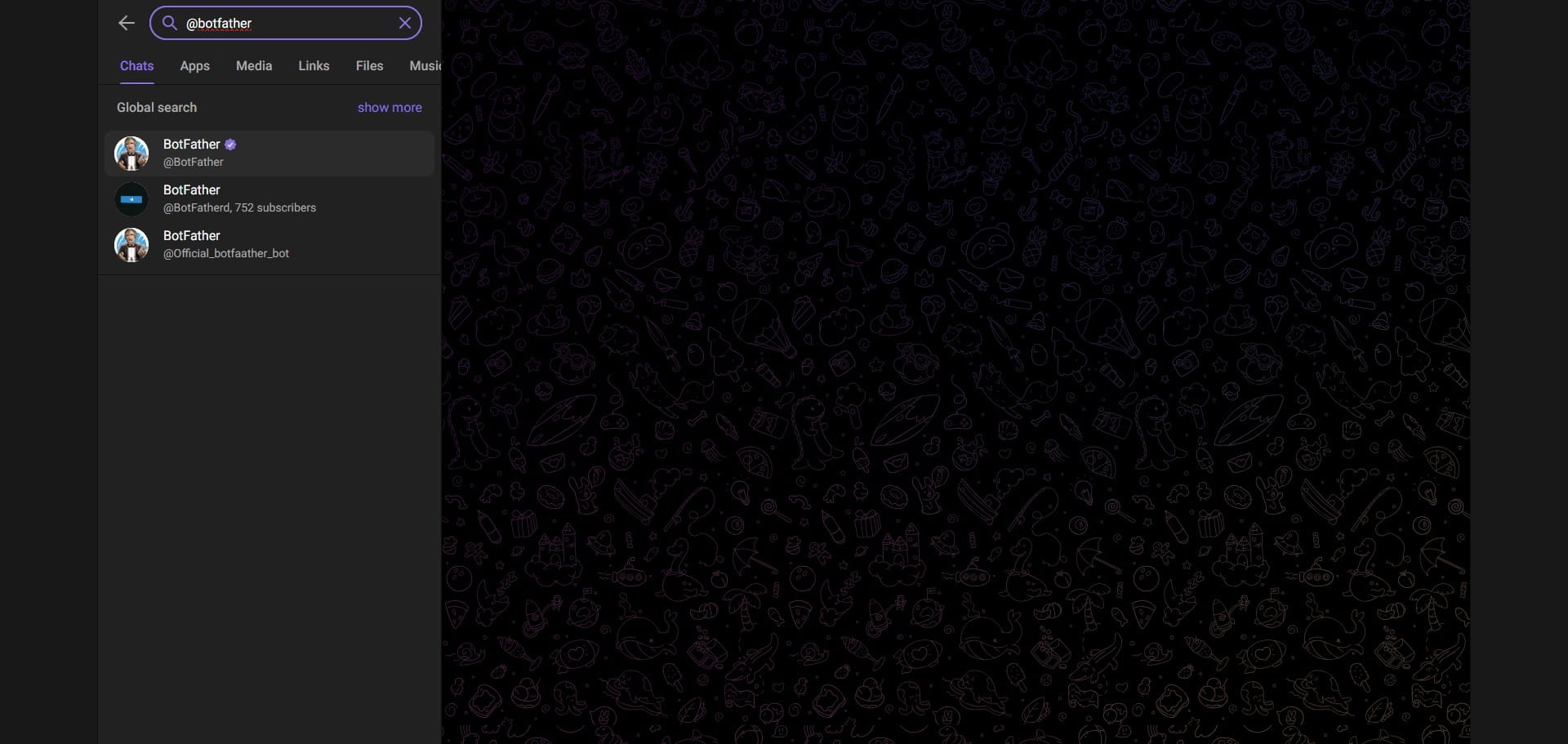
Search for @BotFather in the Search Bar.

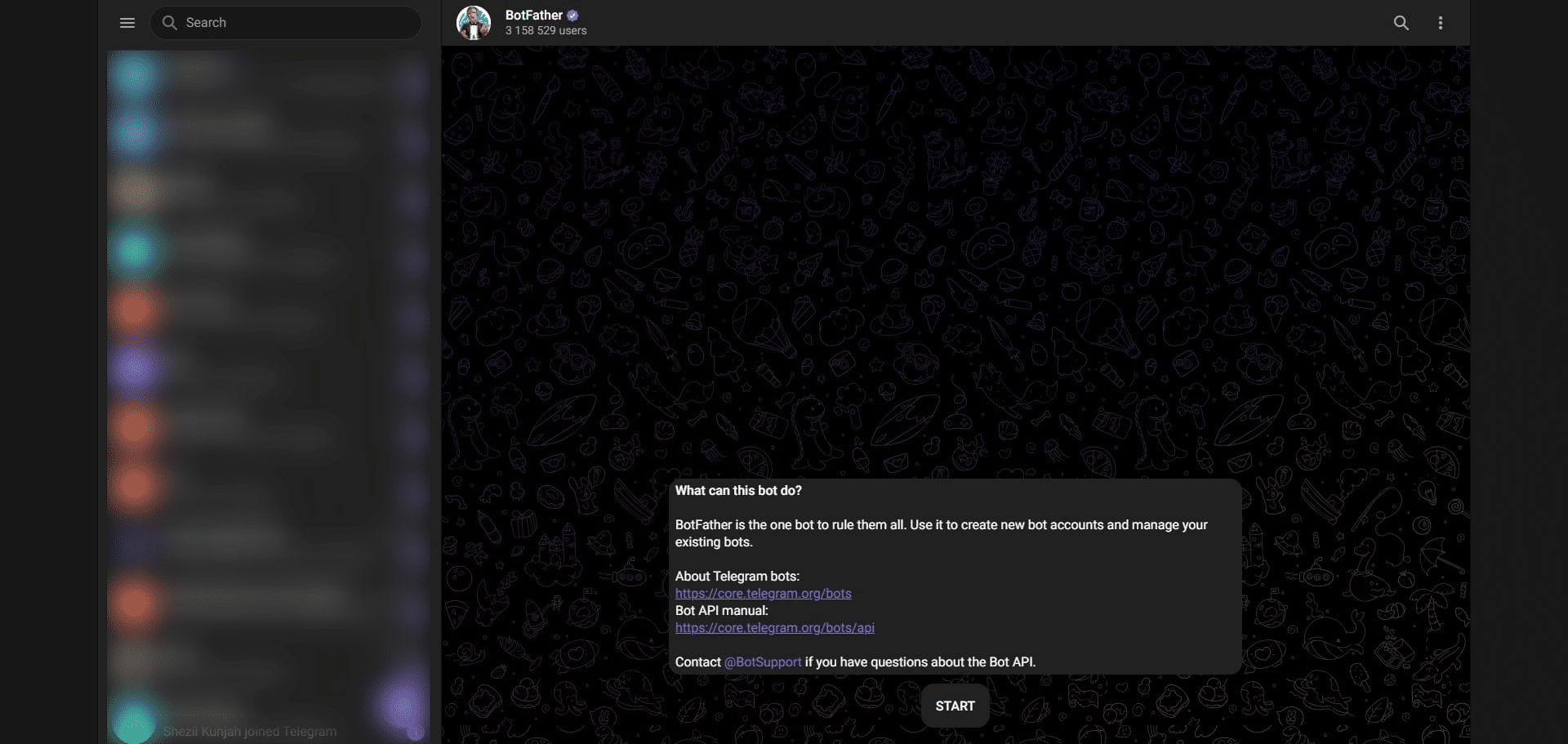
Click on the "Start" button to initiate a conversation
Create a New Bot by typing the "/newbot" command
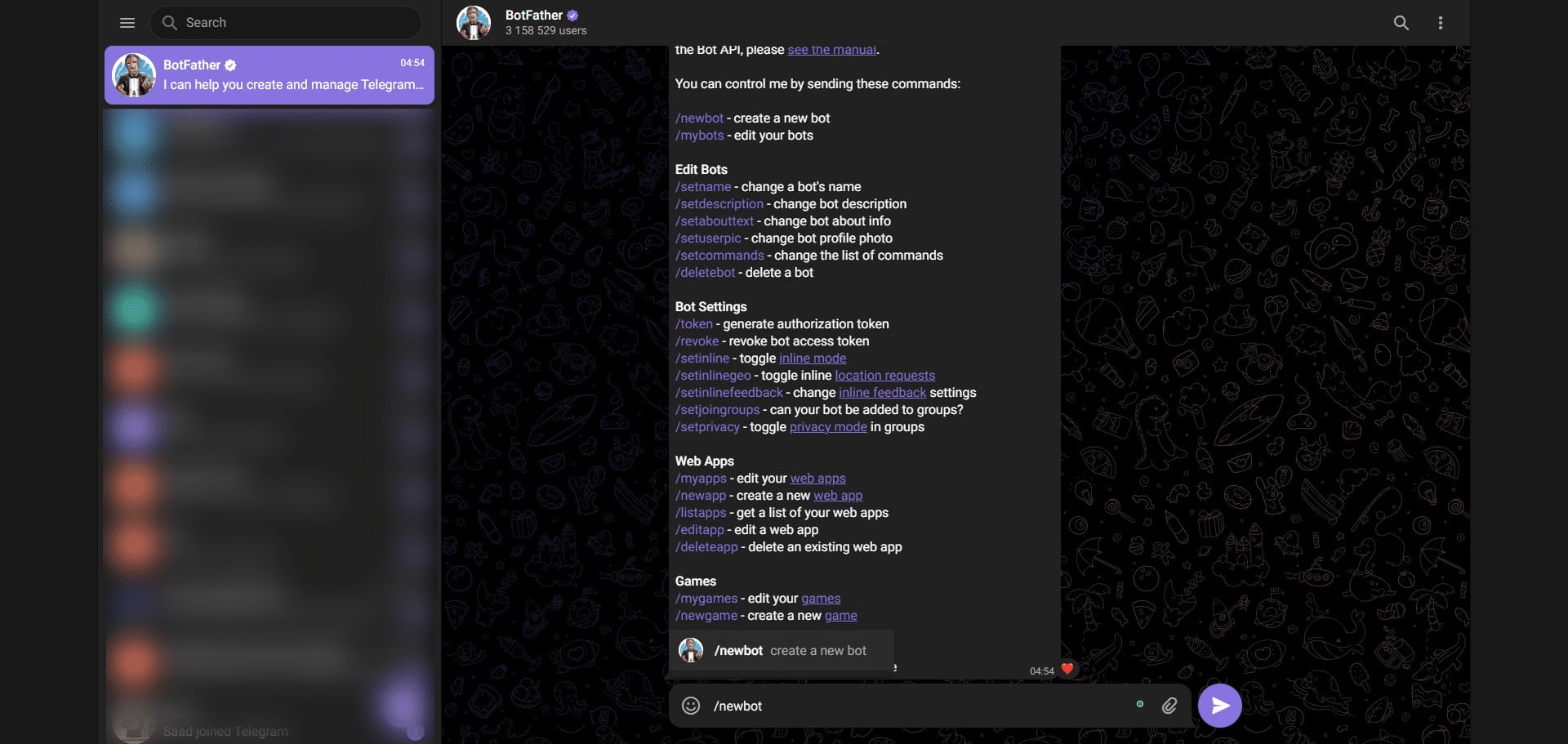
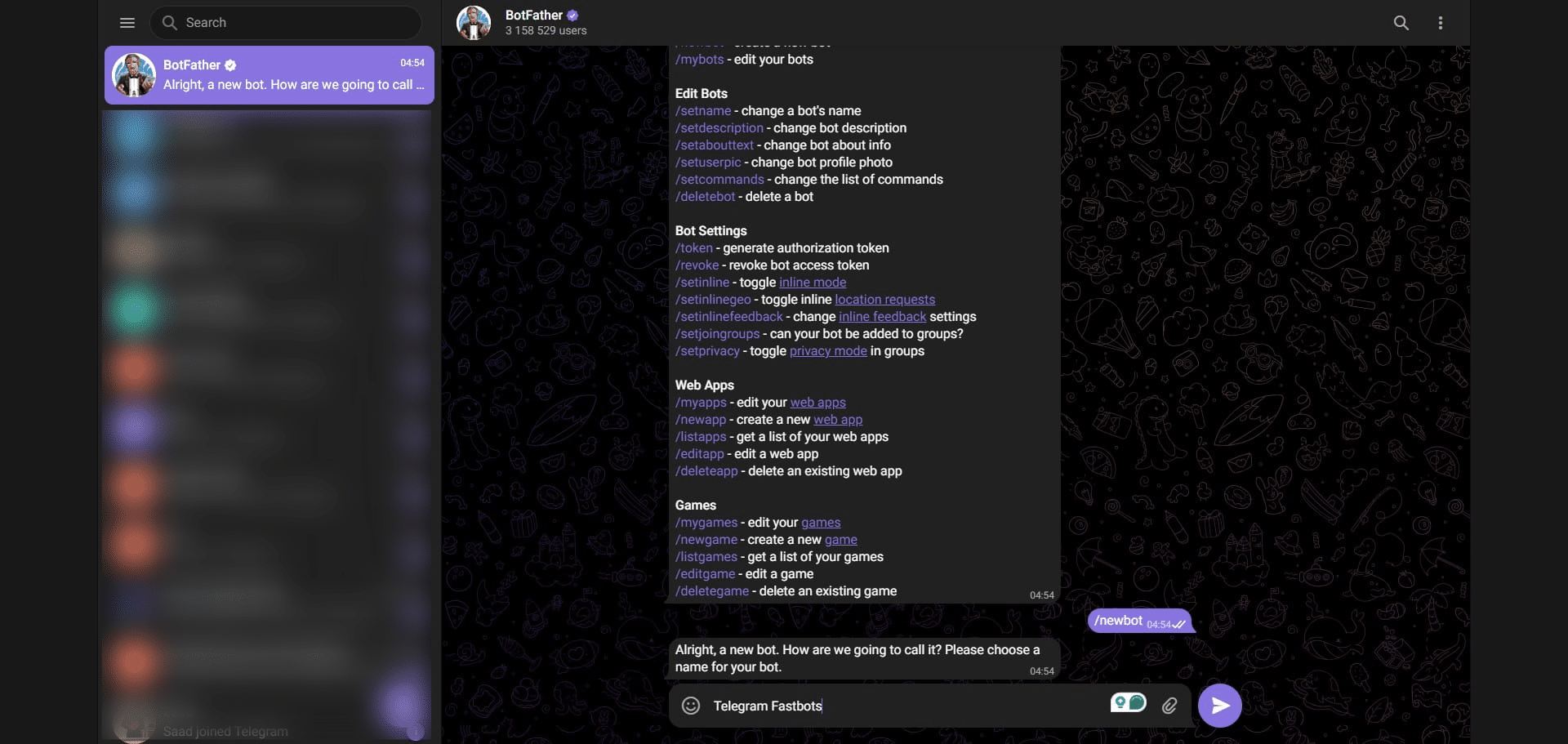
Choose a Name for your Bot
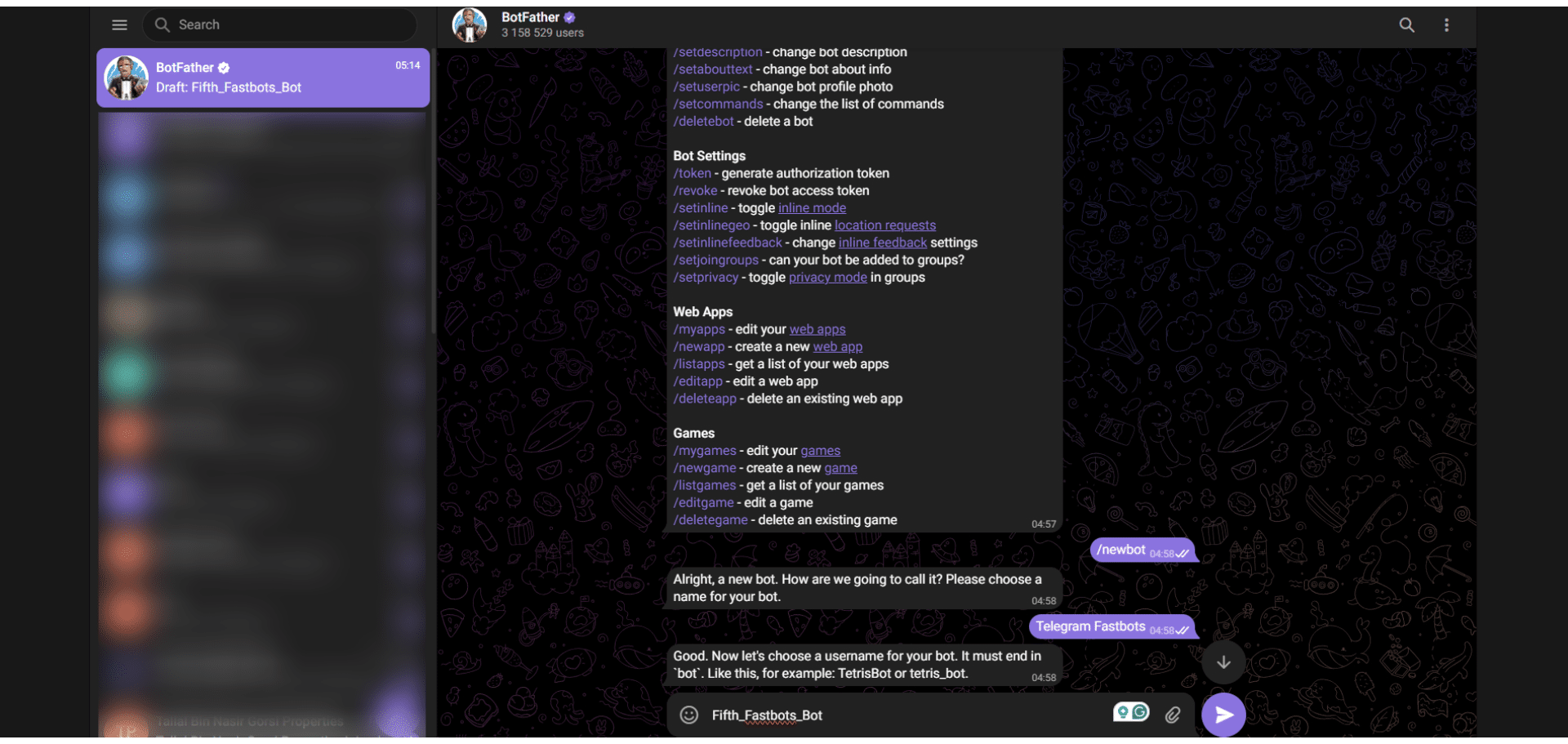
Set a unique Username that ends with the word Bot.
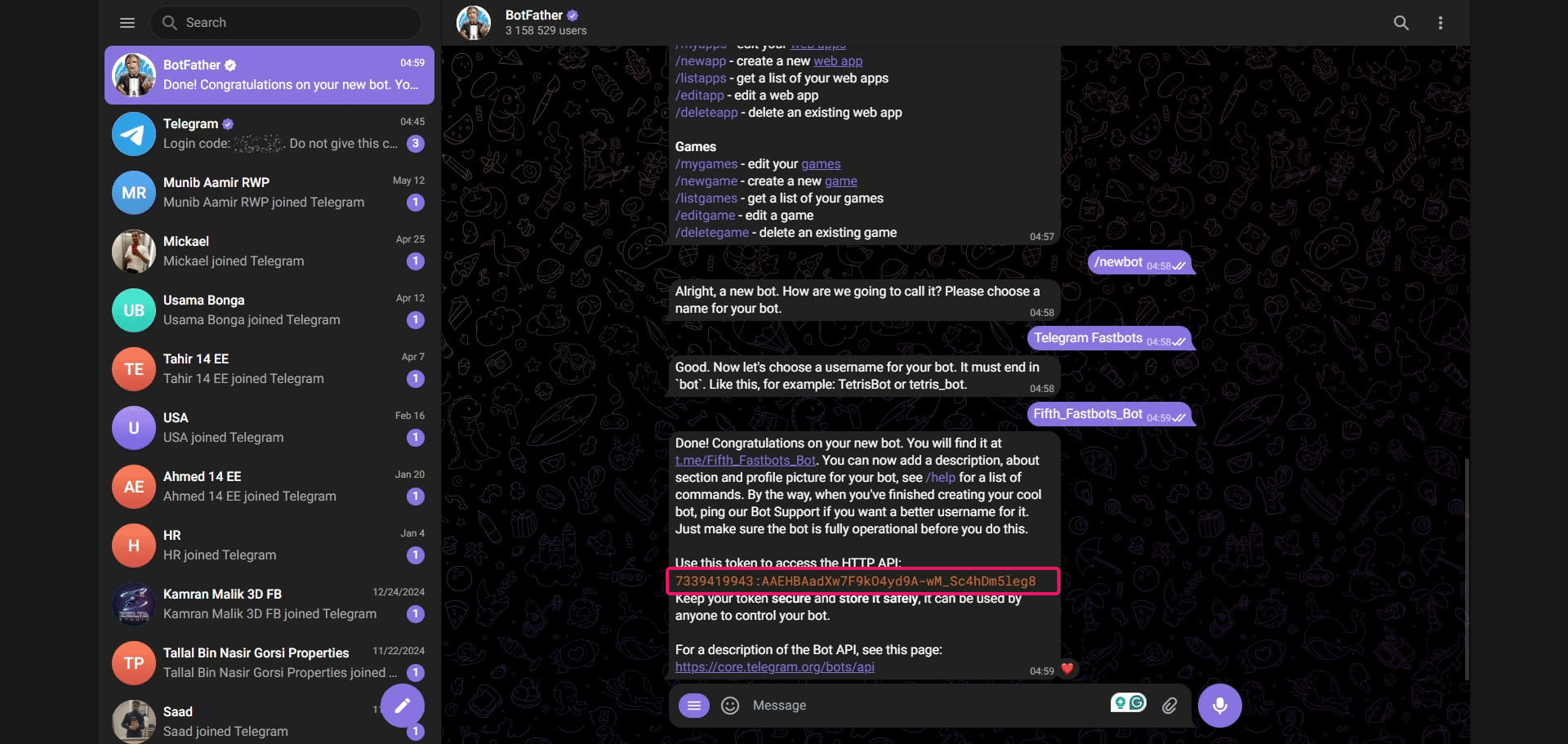
Copy API Token.
Navigate to https://app.fastbots.ai/ and open the chatbot you want to connect to your Telegram account.
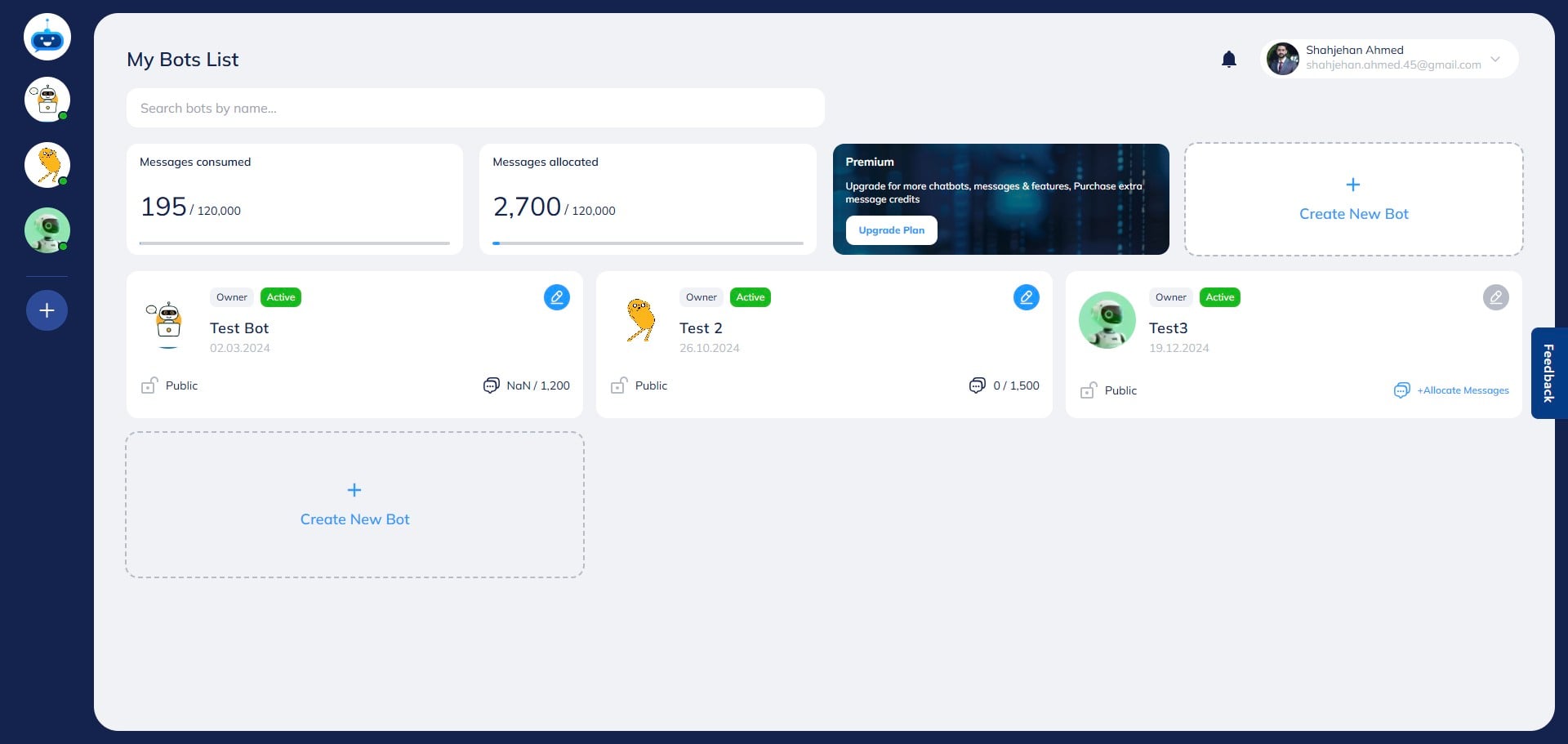
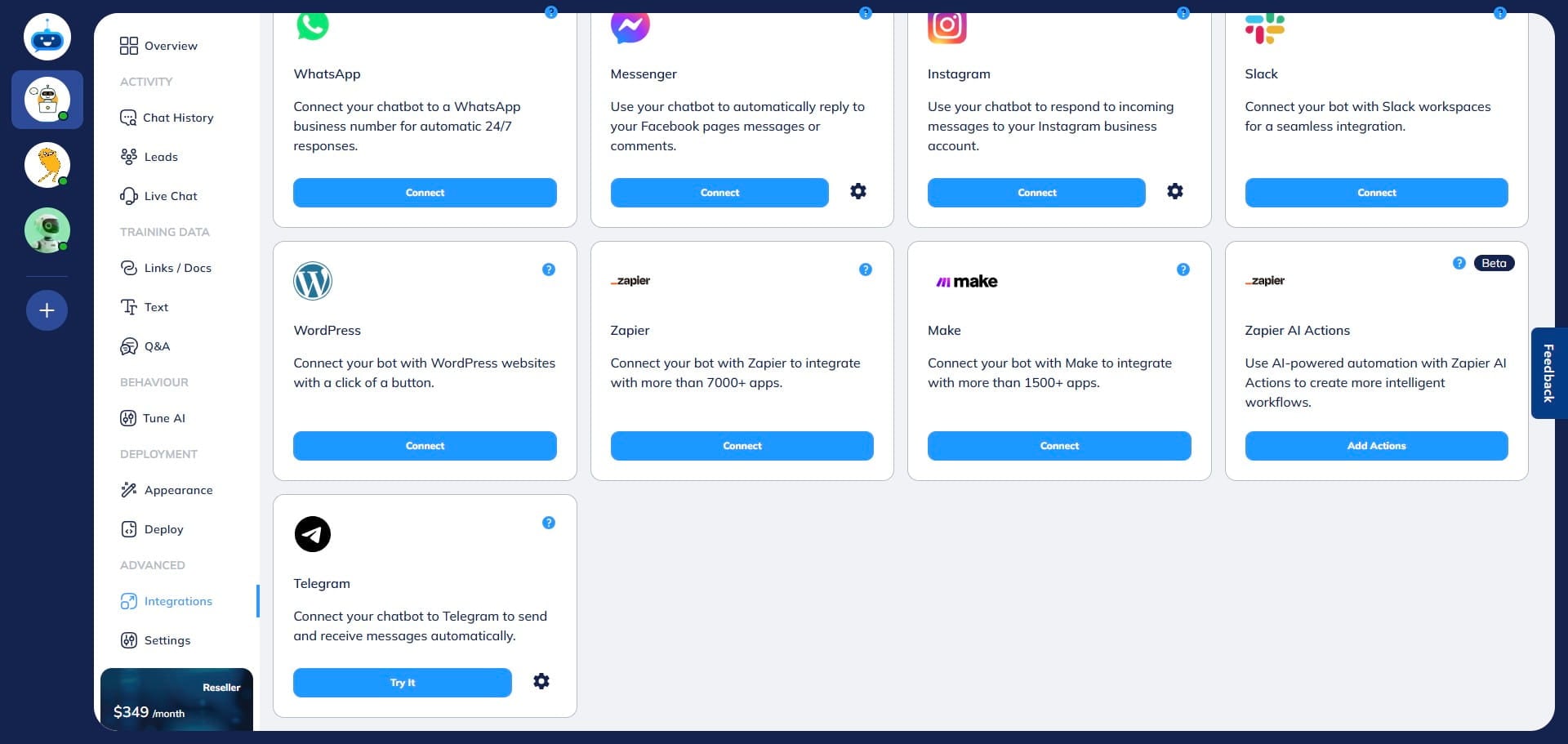
Click on "Integrations" to open this page.
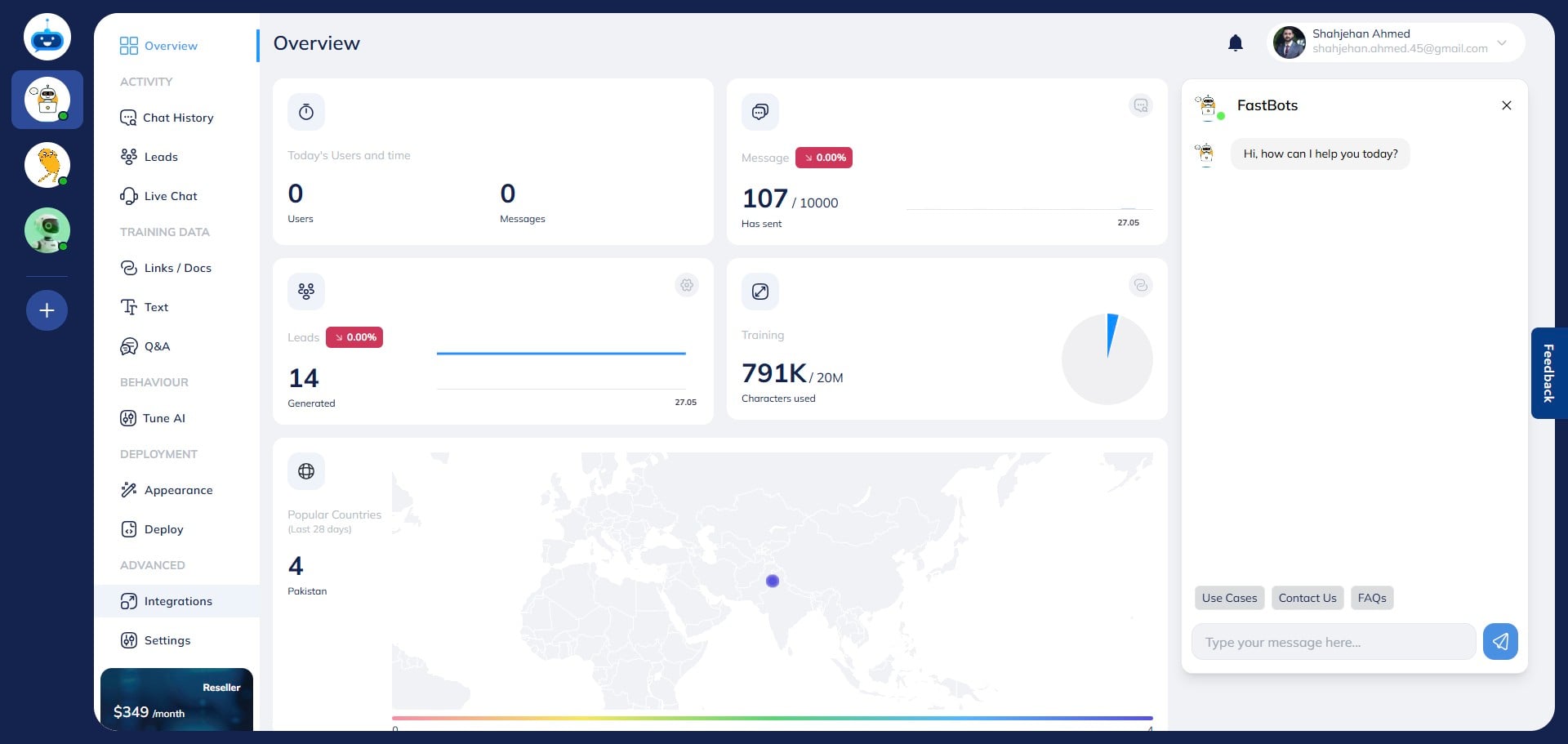
Click on the "Connect" button under the Telegram option. It will open a new pop-up window.
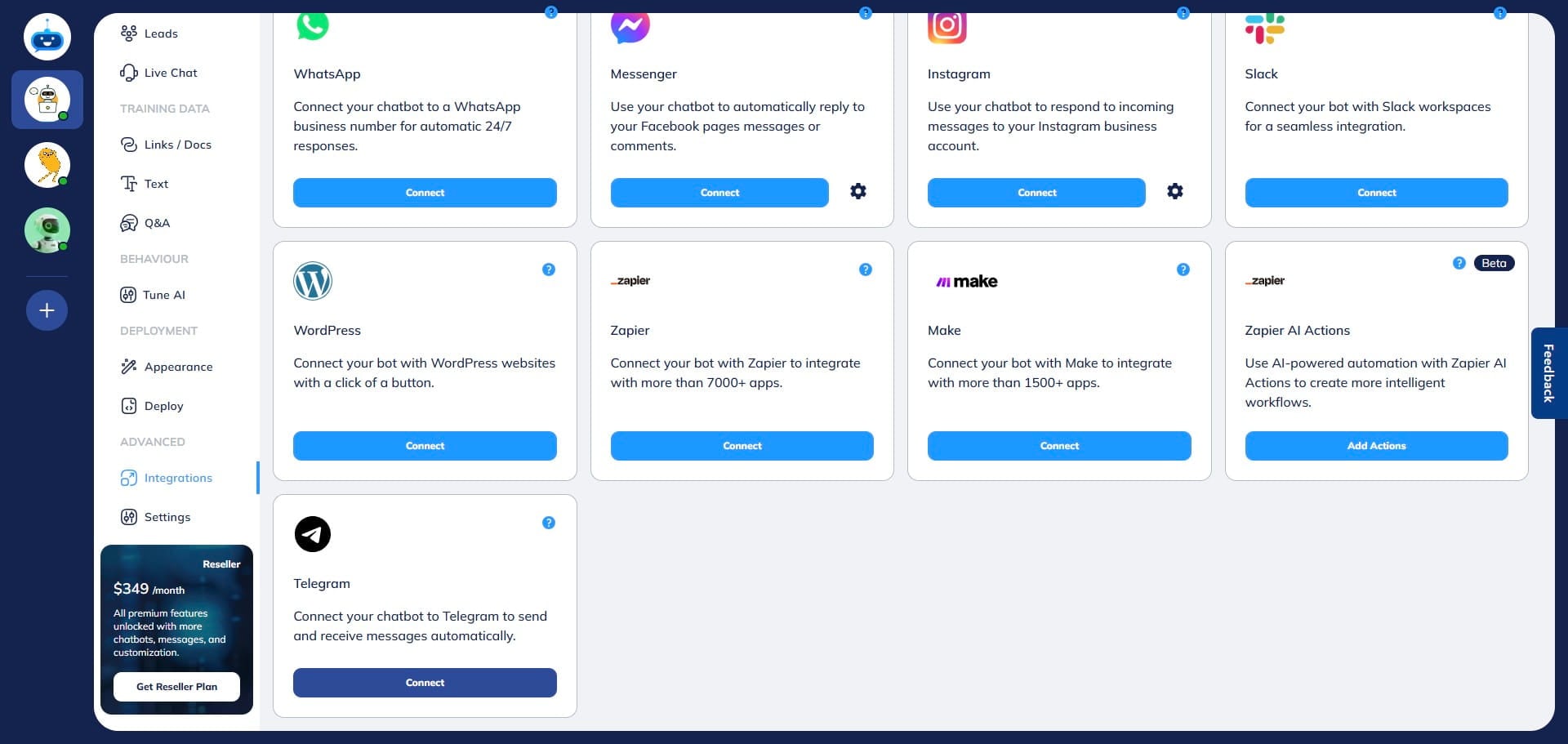
Enter the Token API here which is copied in step 8.
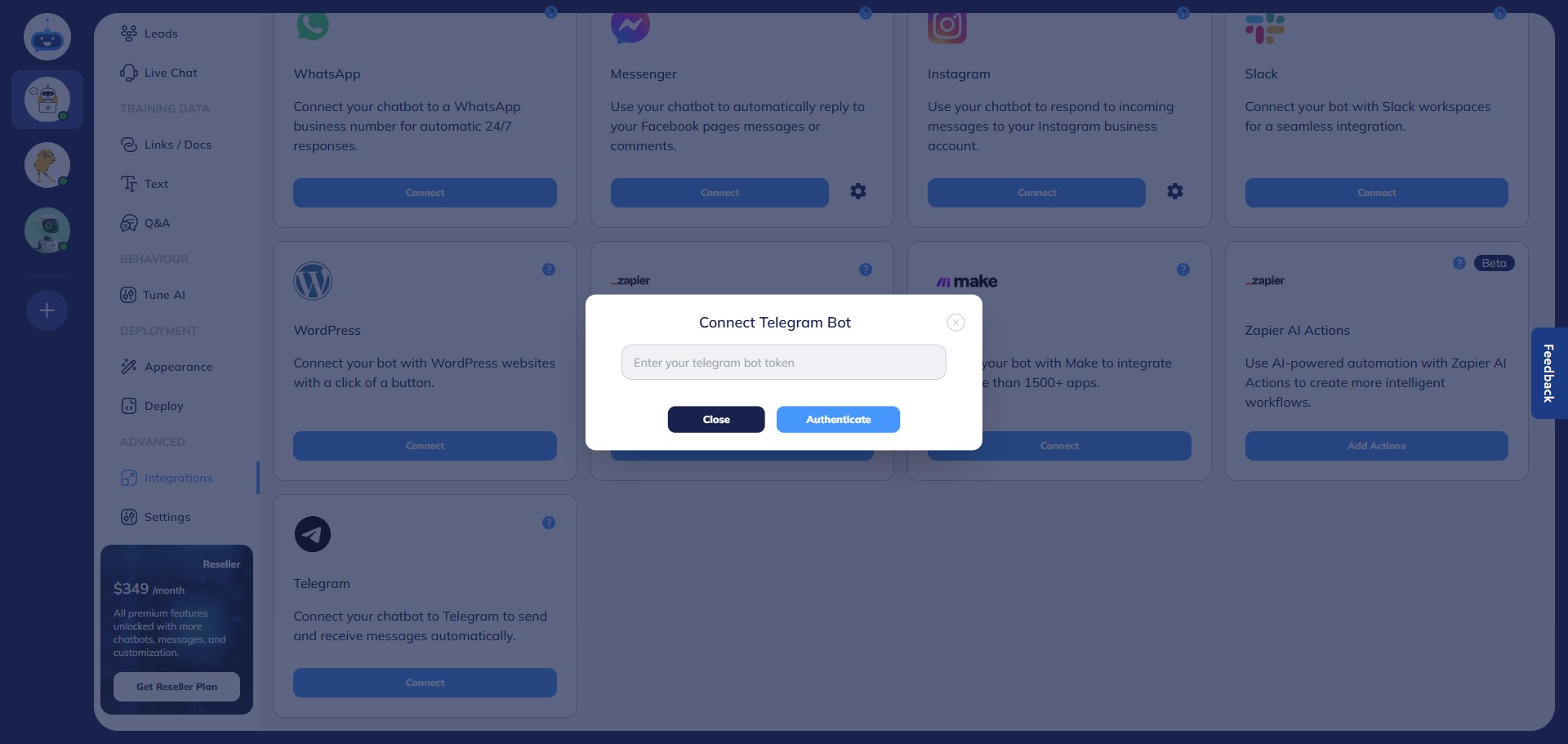
After adding the Token Code, click on "Authenticate"
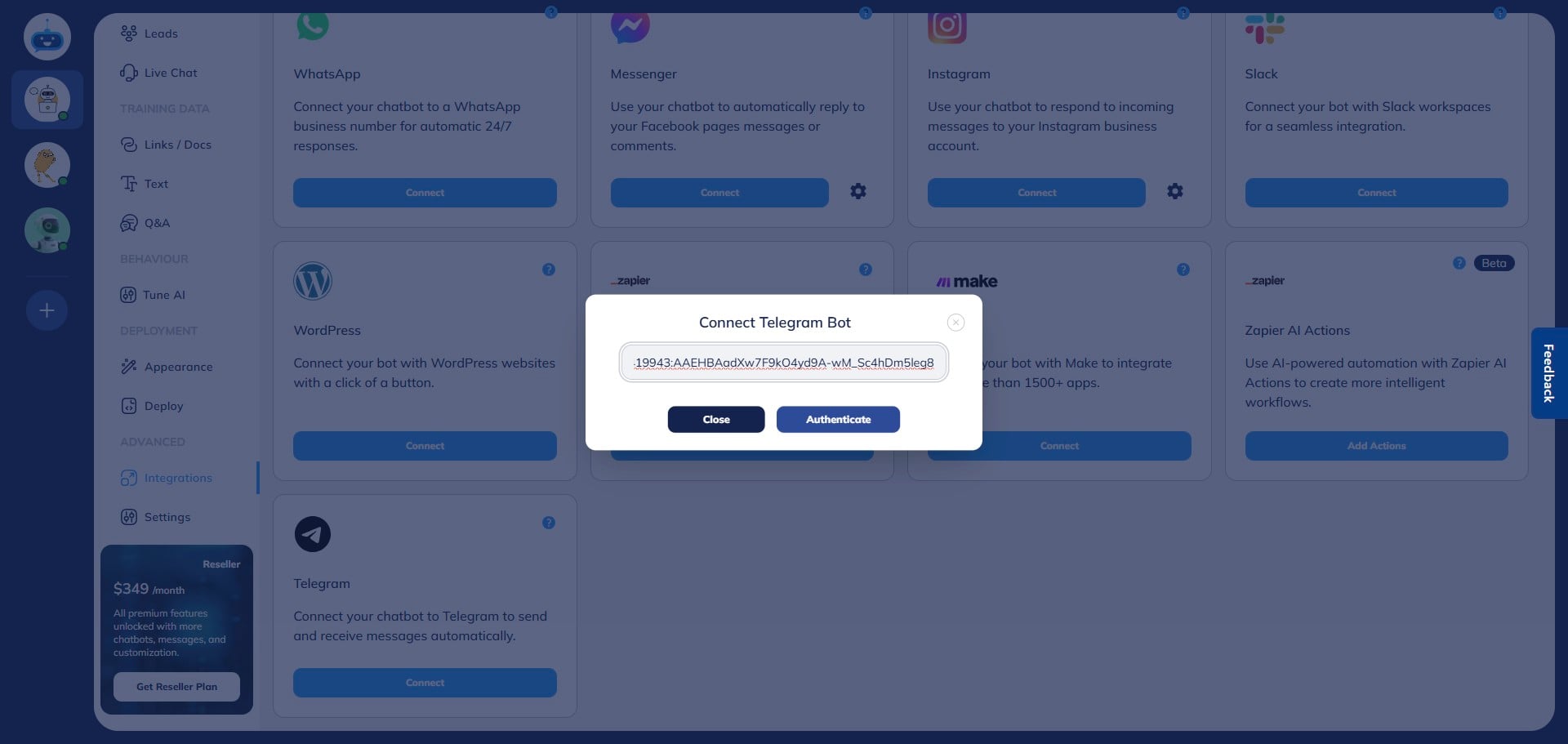
The system will verify it and authenticate it.
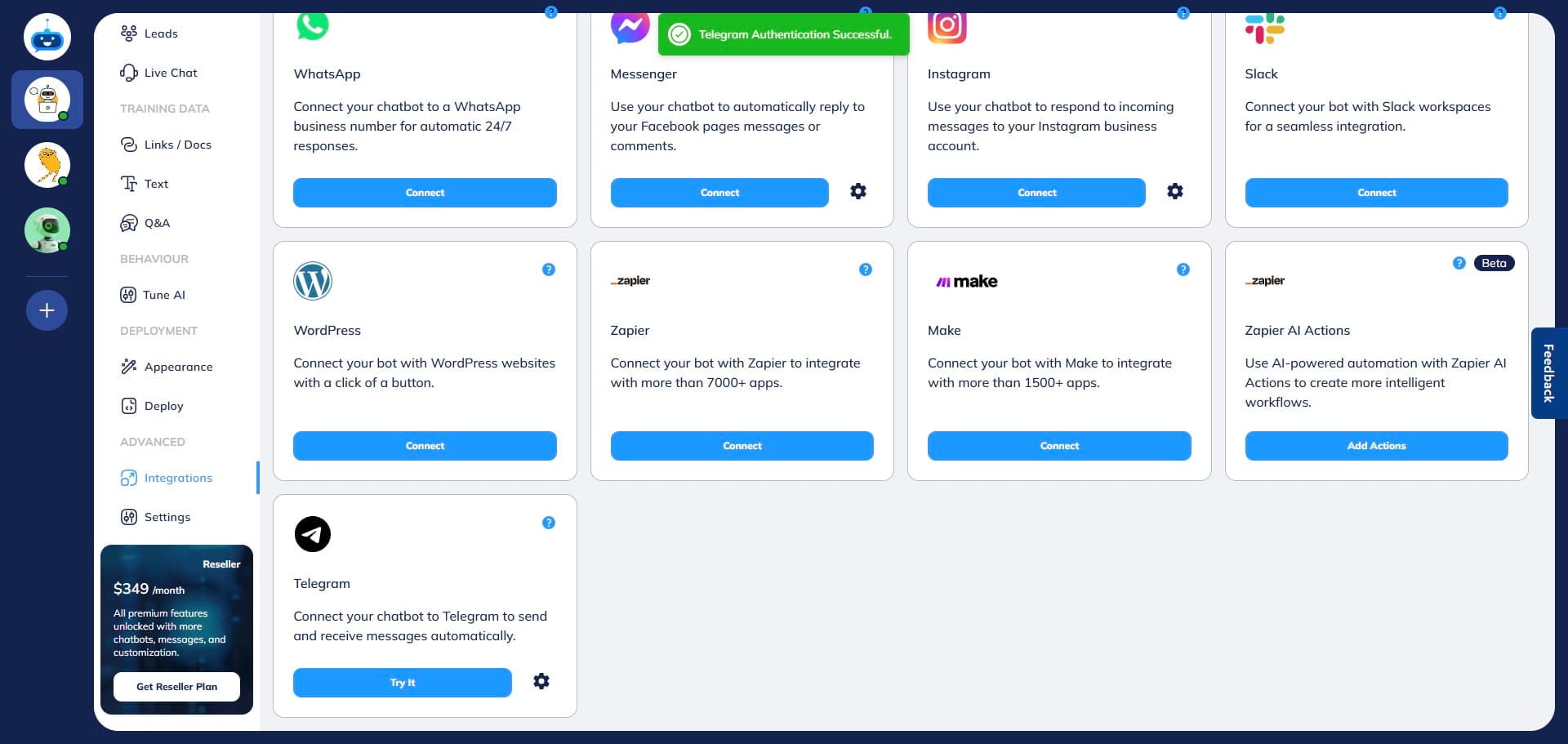
Click on the "Try it" button to start a test conversation on Telegram.
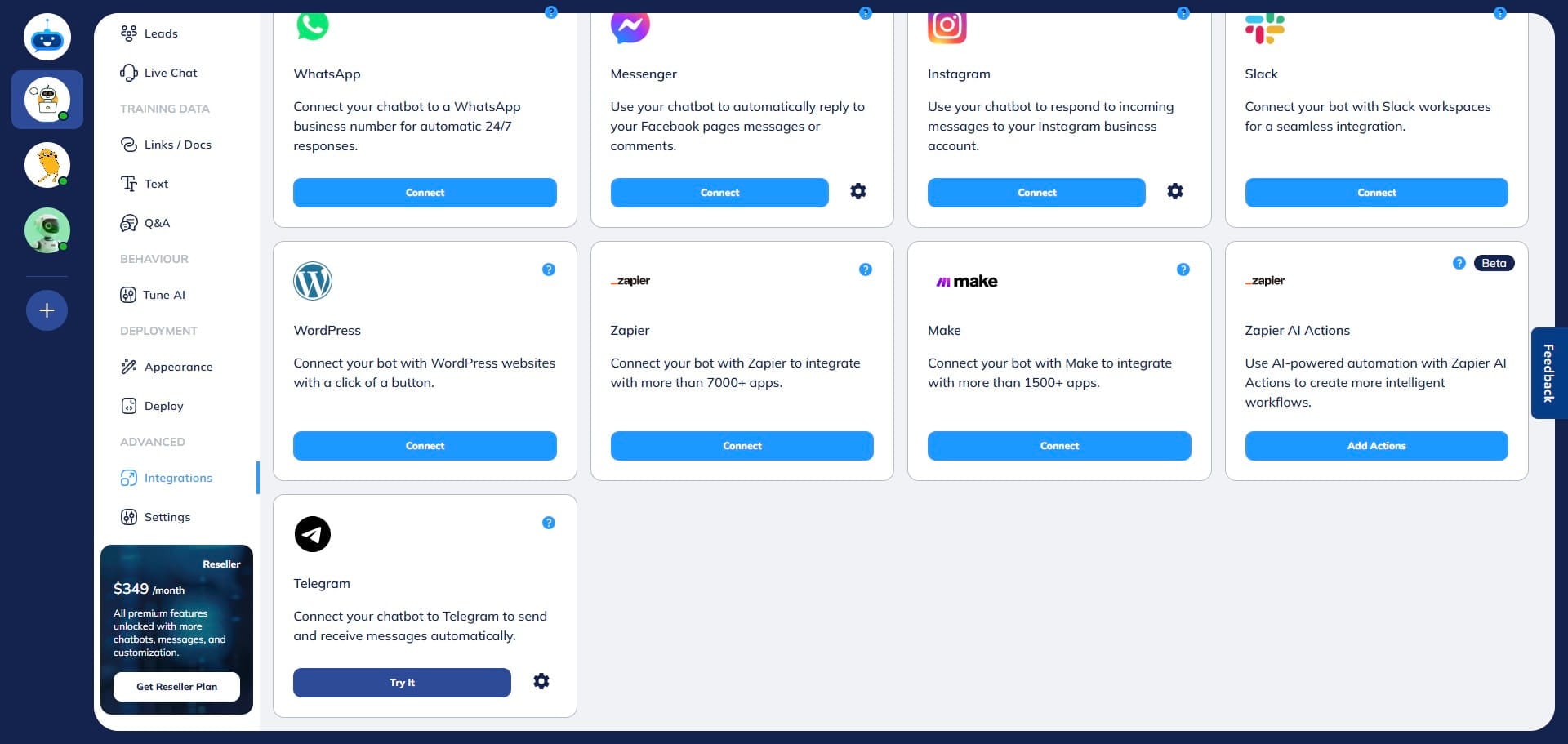
Click on "Open in Web"
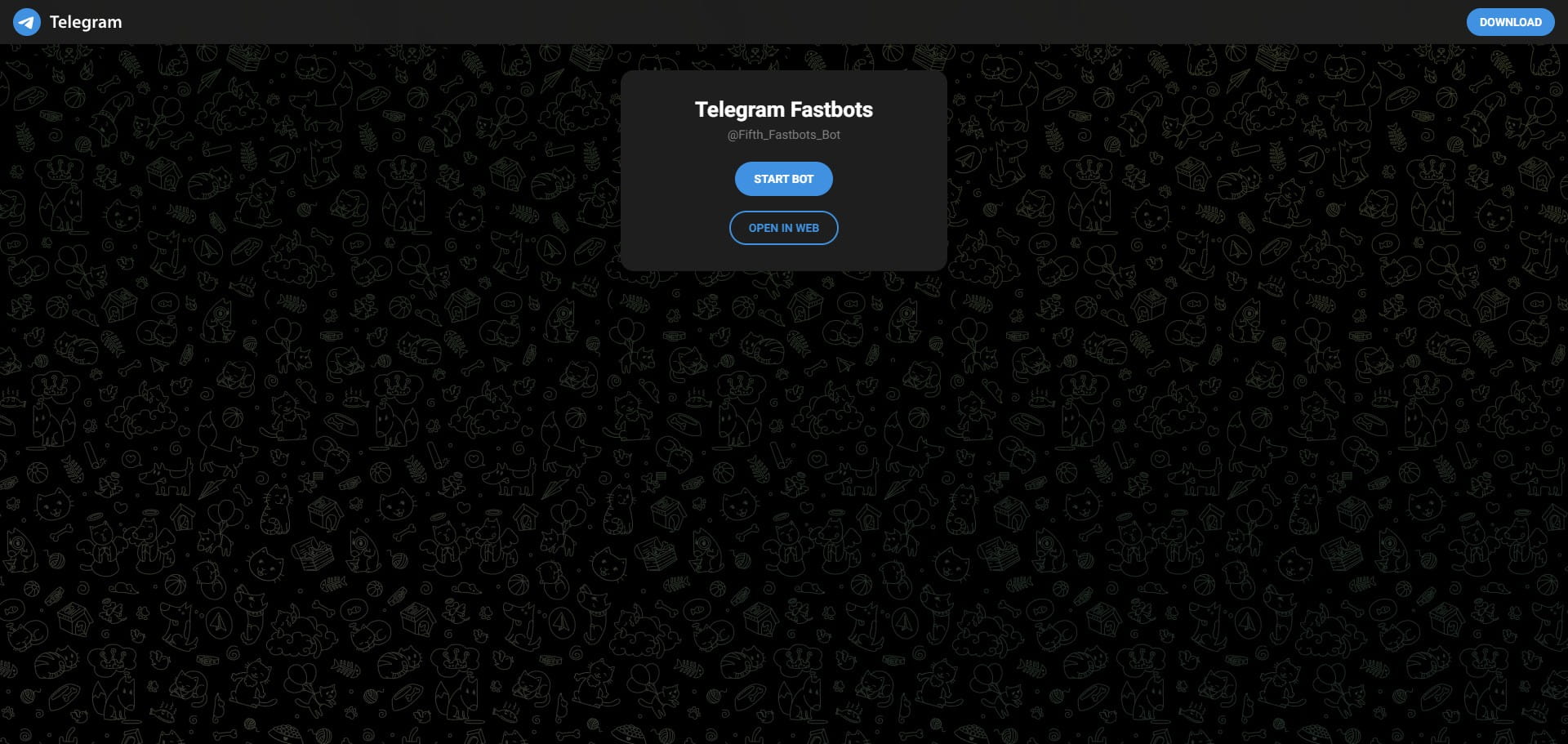
Click on the "Start" button to start the chat.
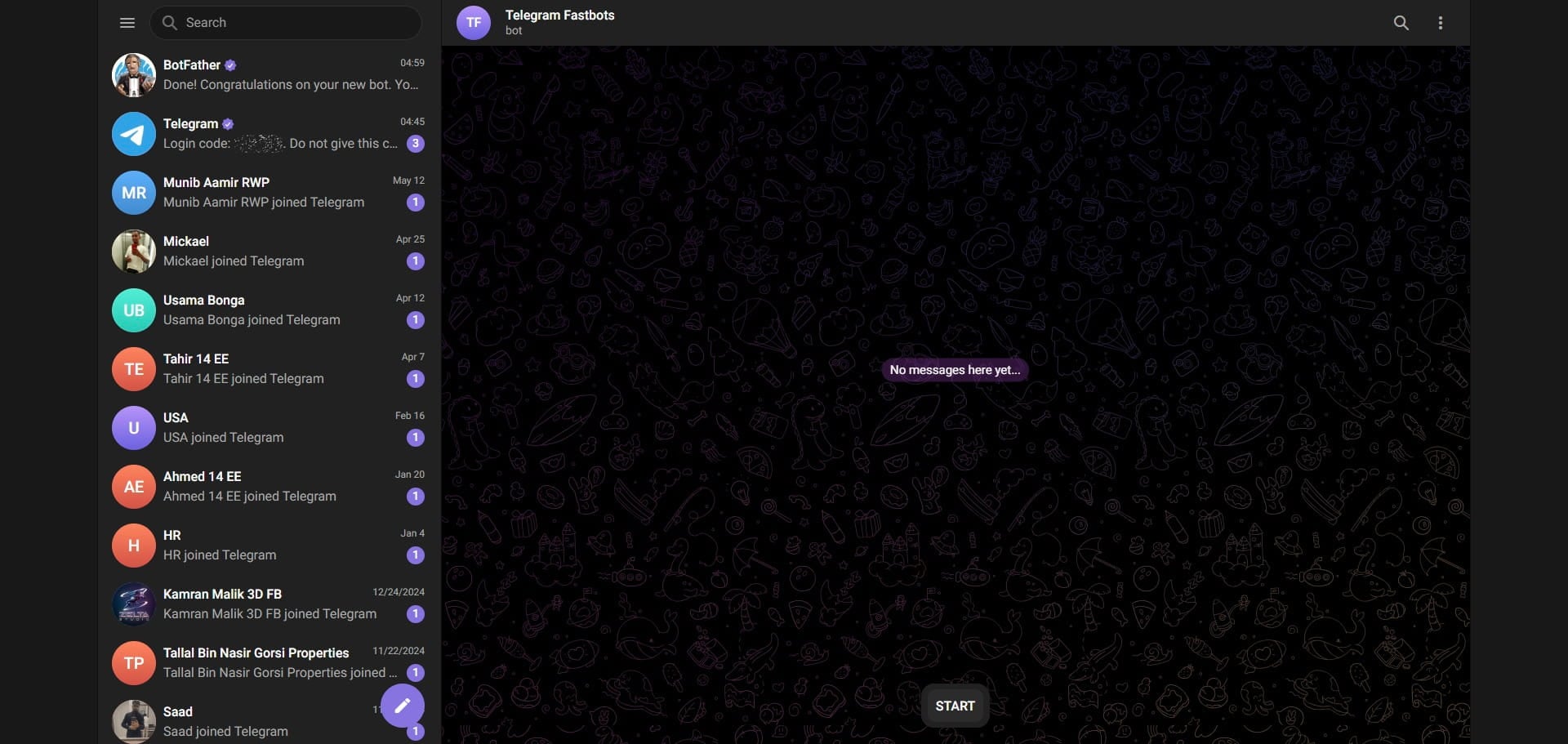
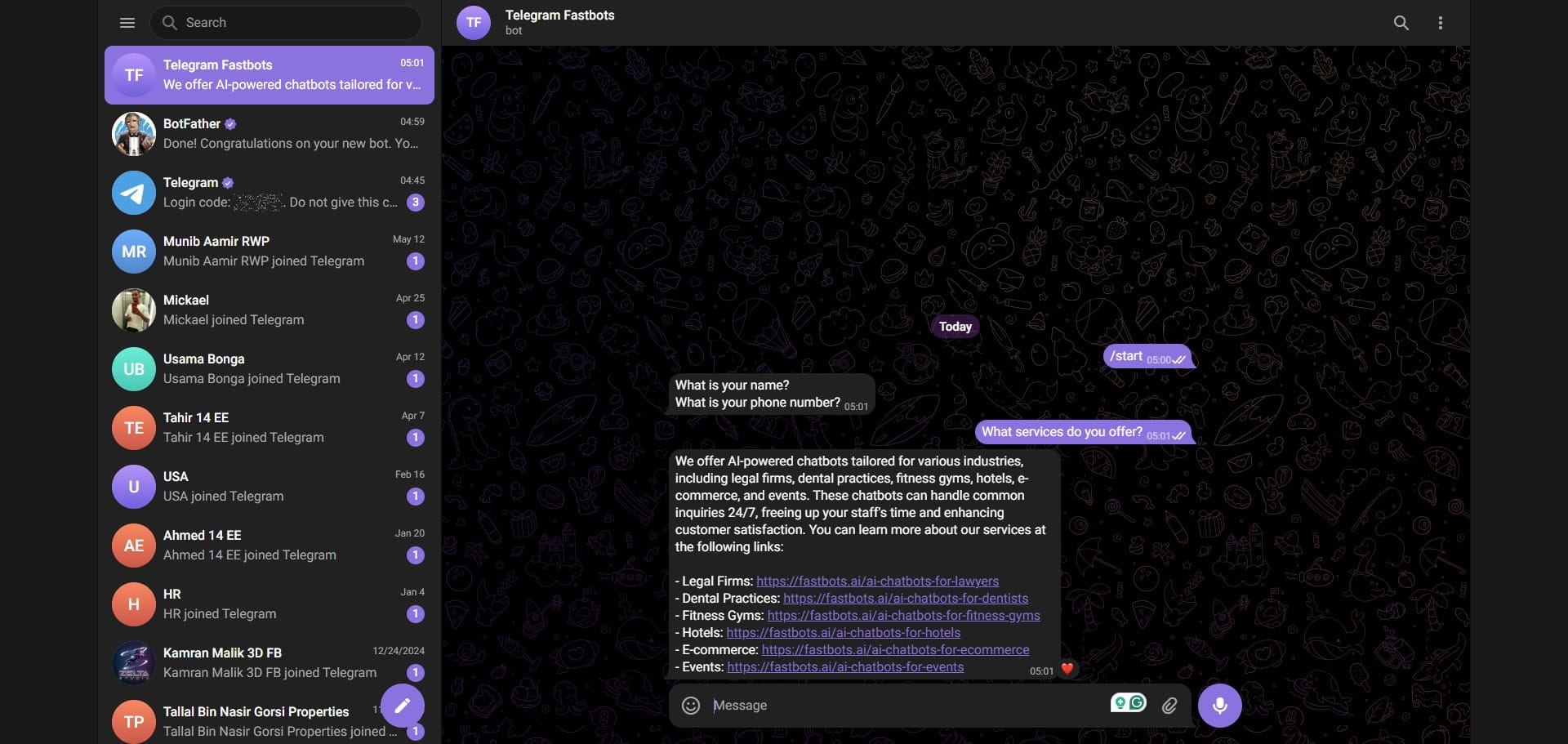
Now, you can send message to your Telegram phone number and the chatbot will respond to all messages.
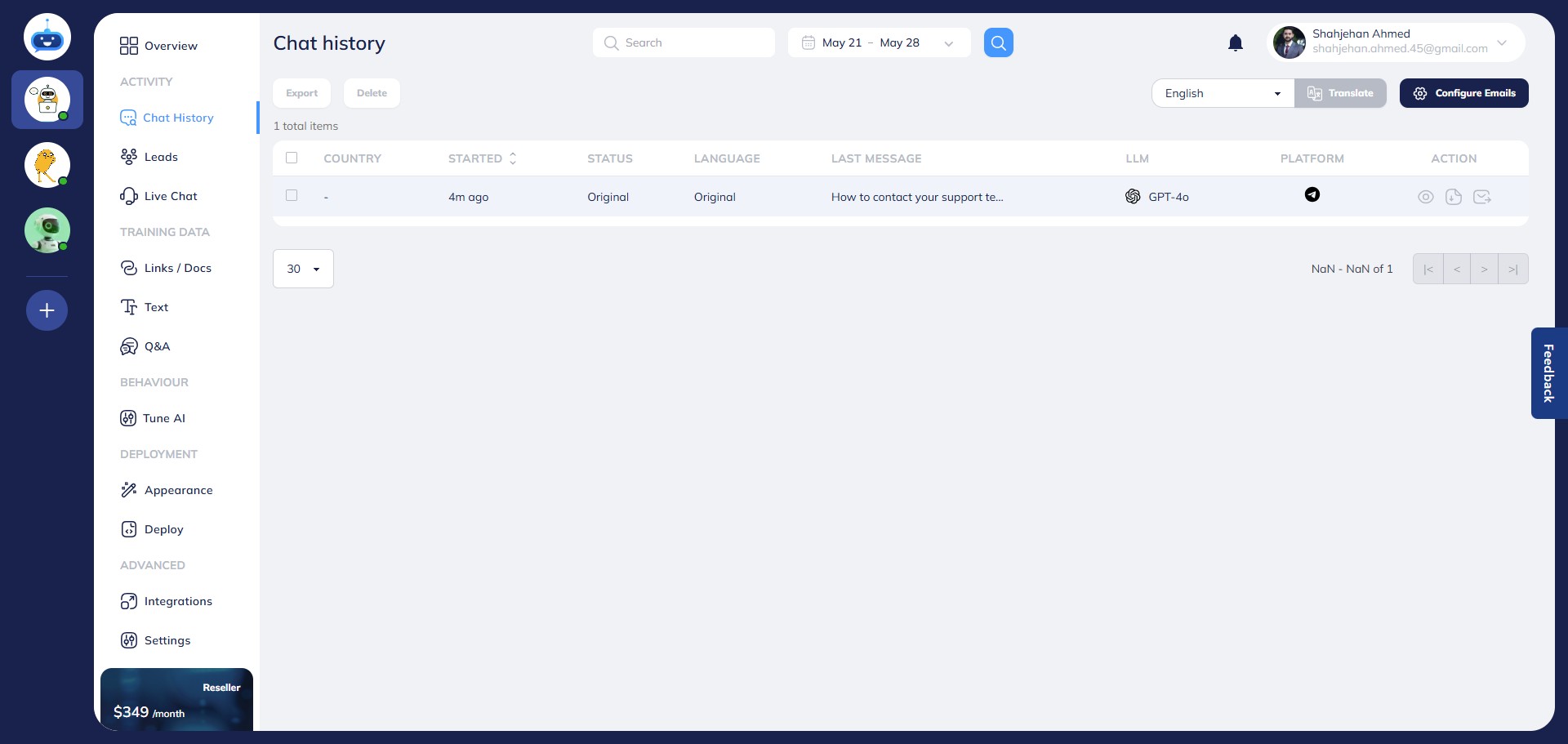
You can check all the conversations in your chatbot on the “chat history” page.
If you want to update the bot token and connect a different Telegram account to the chatbot, click on the "Settings" icon on the integration page.
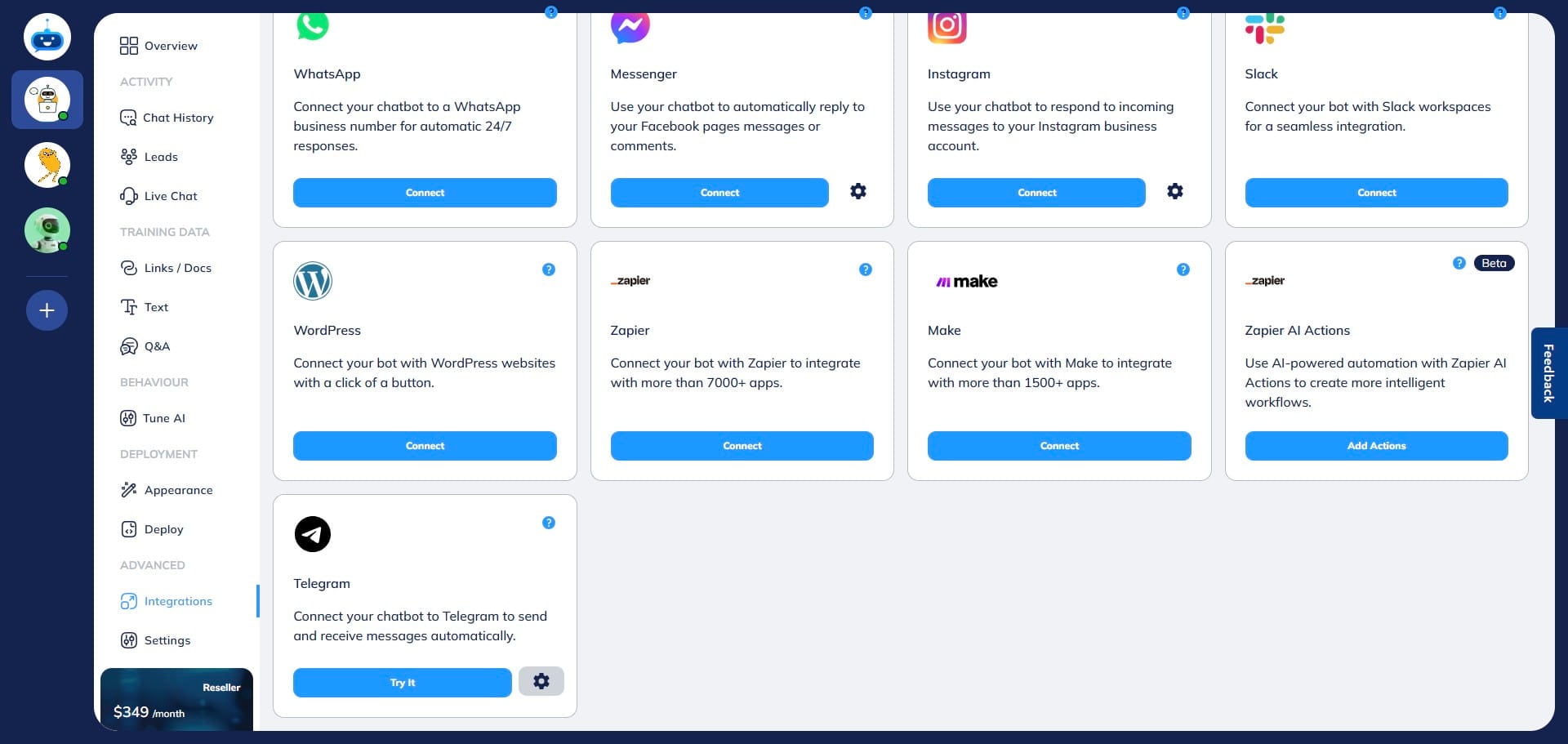
Update the New Token in place of the existing token.
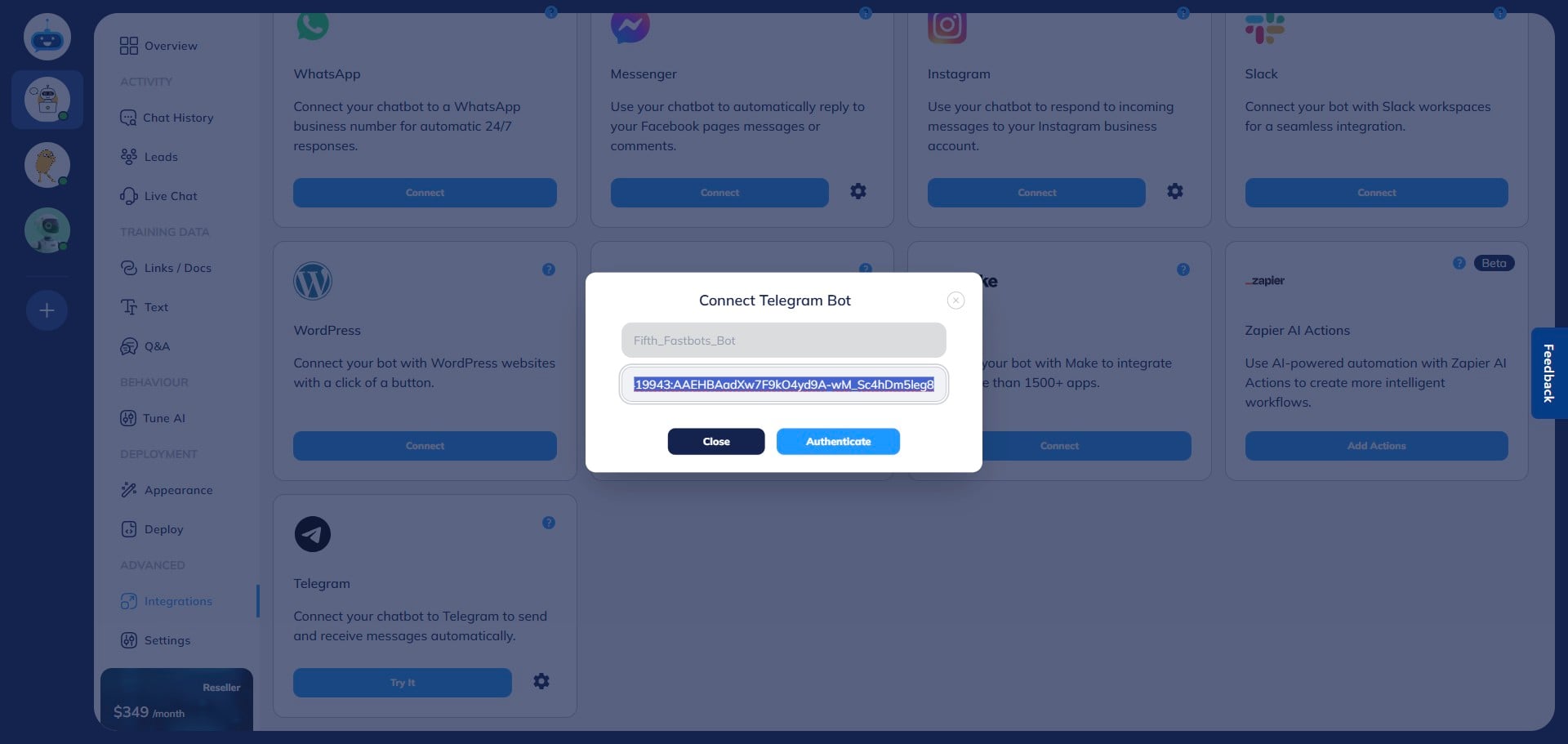
After adding the token, click on the "Authenticate" button.
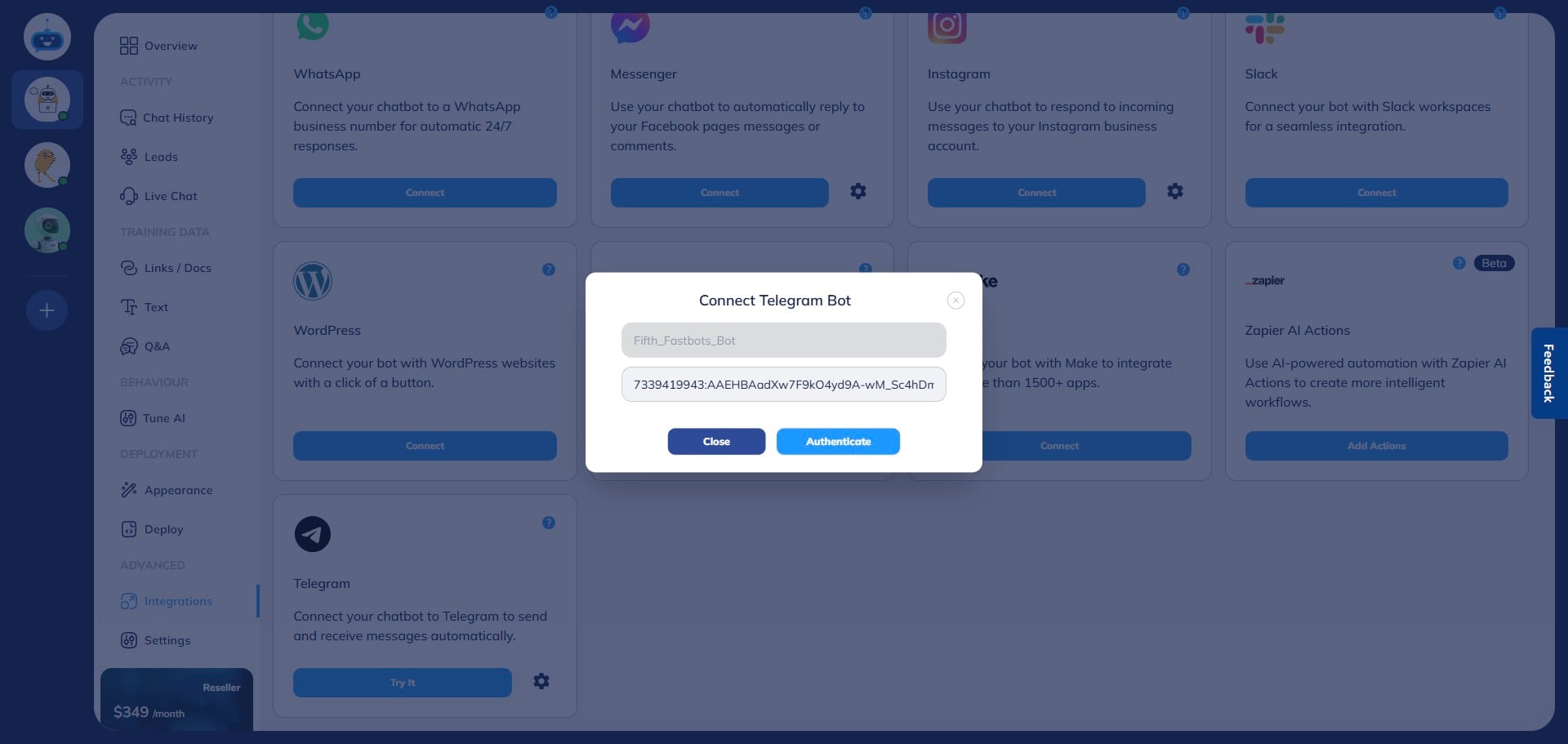
Done 🚀 You have successfully integrated your FastBots with Telegram BotFather Bot.