

How To Test Your Chatbot
This guide will walk you through how to test your chatbot using various parameters such as different LLMs, AI creativity (temperature), and prompts. You’ll be able to compare responses from different configurations and choose the one that delivers the best performance.
Navigate to https://app.fastbots.ai/
Open the chatbot by clicking on it.
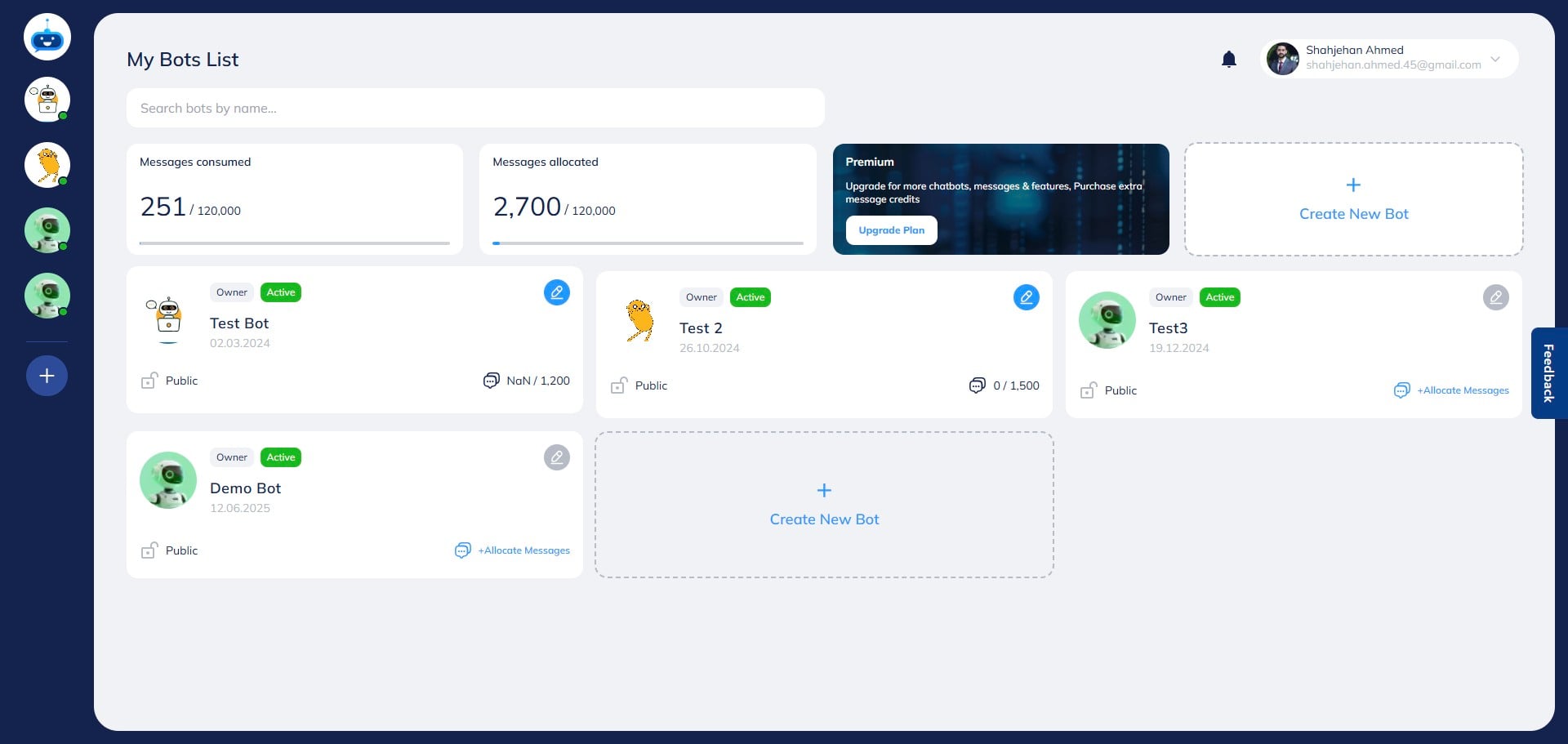

Click on the "Test Your Bot" button to open the page.
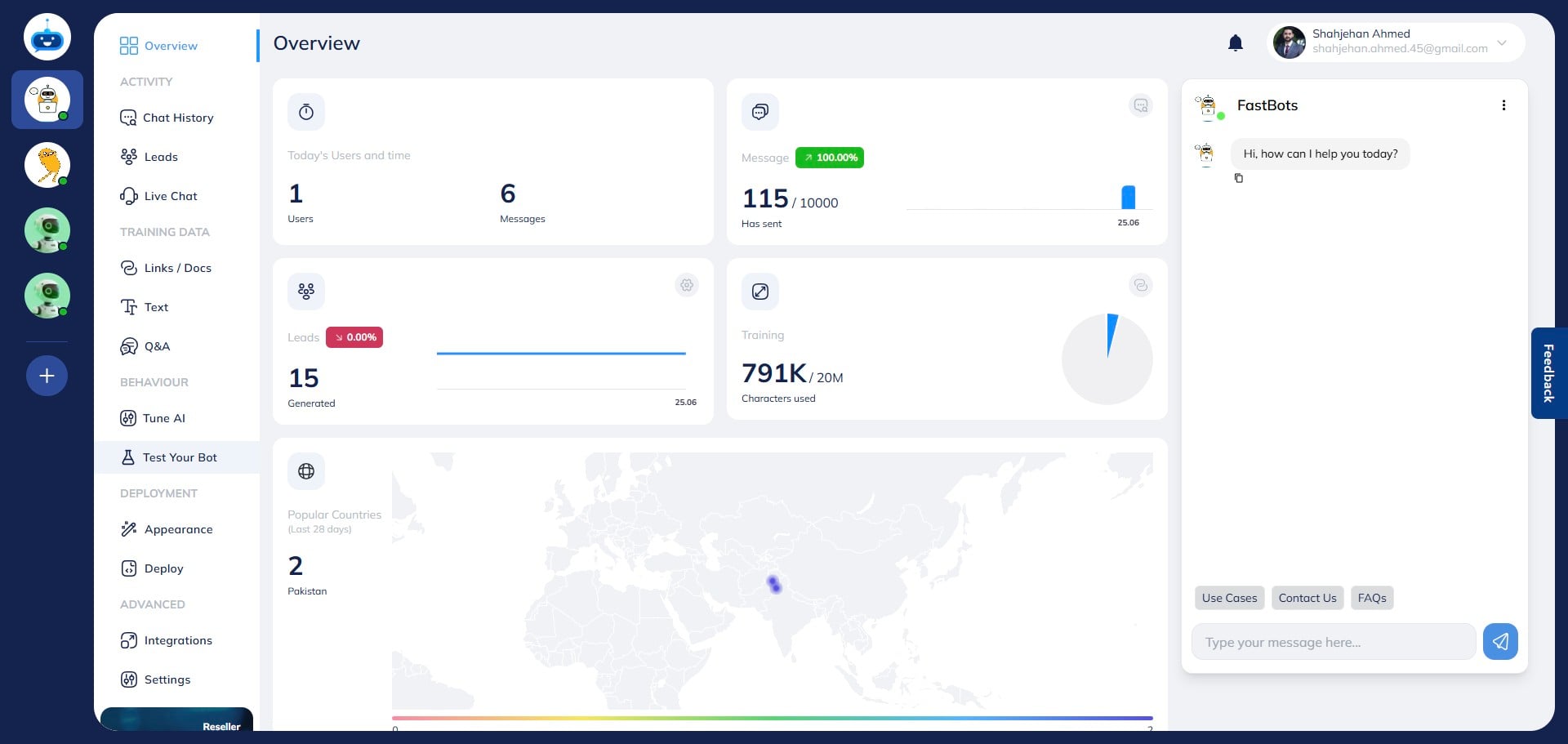
On this page, you can test your chatbot and compare the performance of different LLMs, temperature settings, AI Prompts, and choose the one that works best for you.
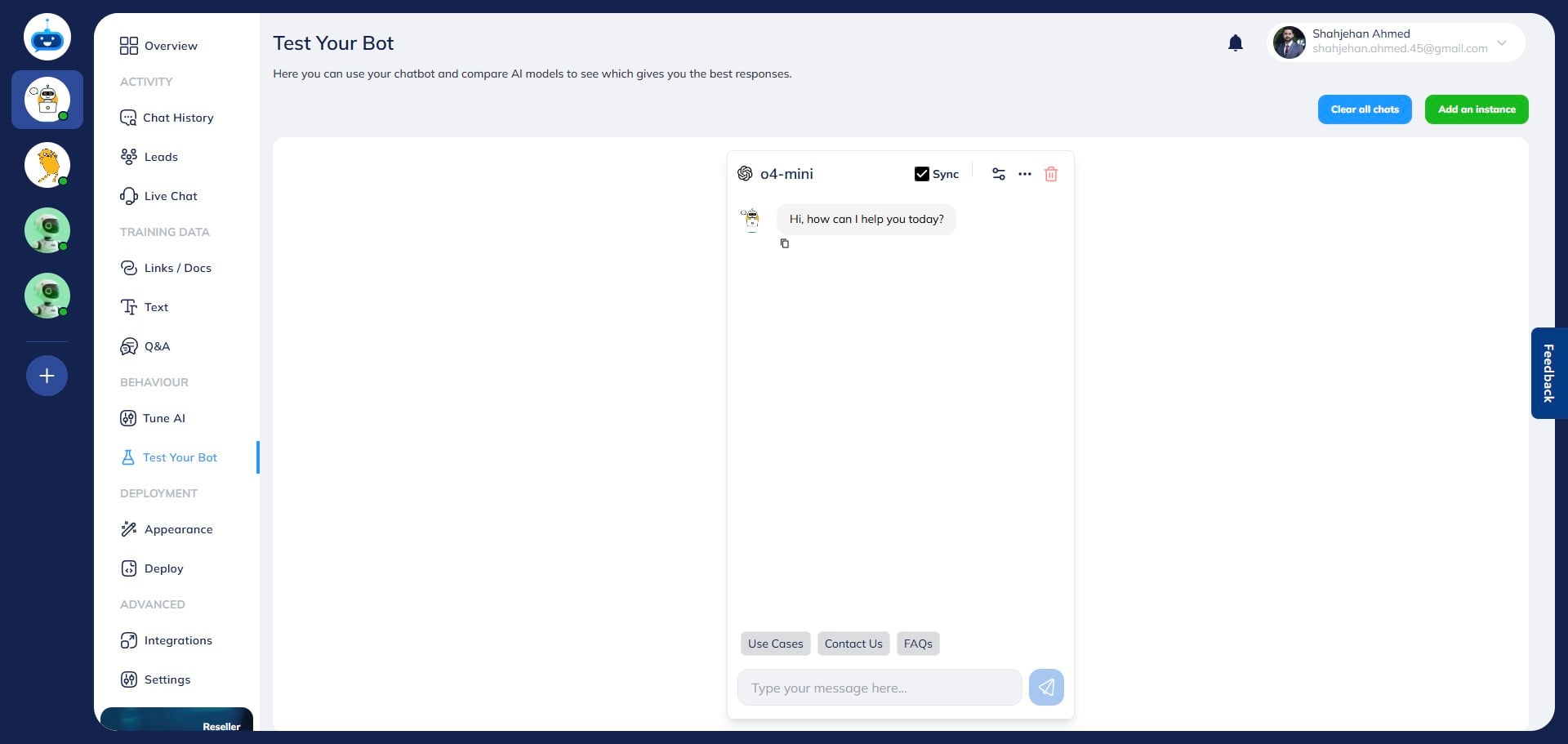
To add more chatbot windows, simply click on "Add an instance". You can add up to 4 instances at a time.
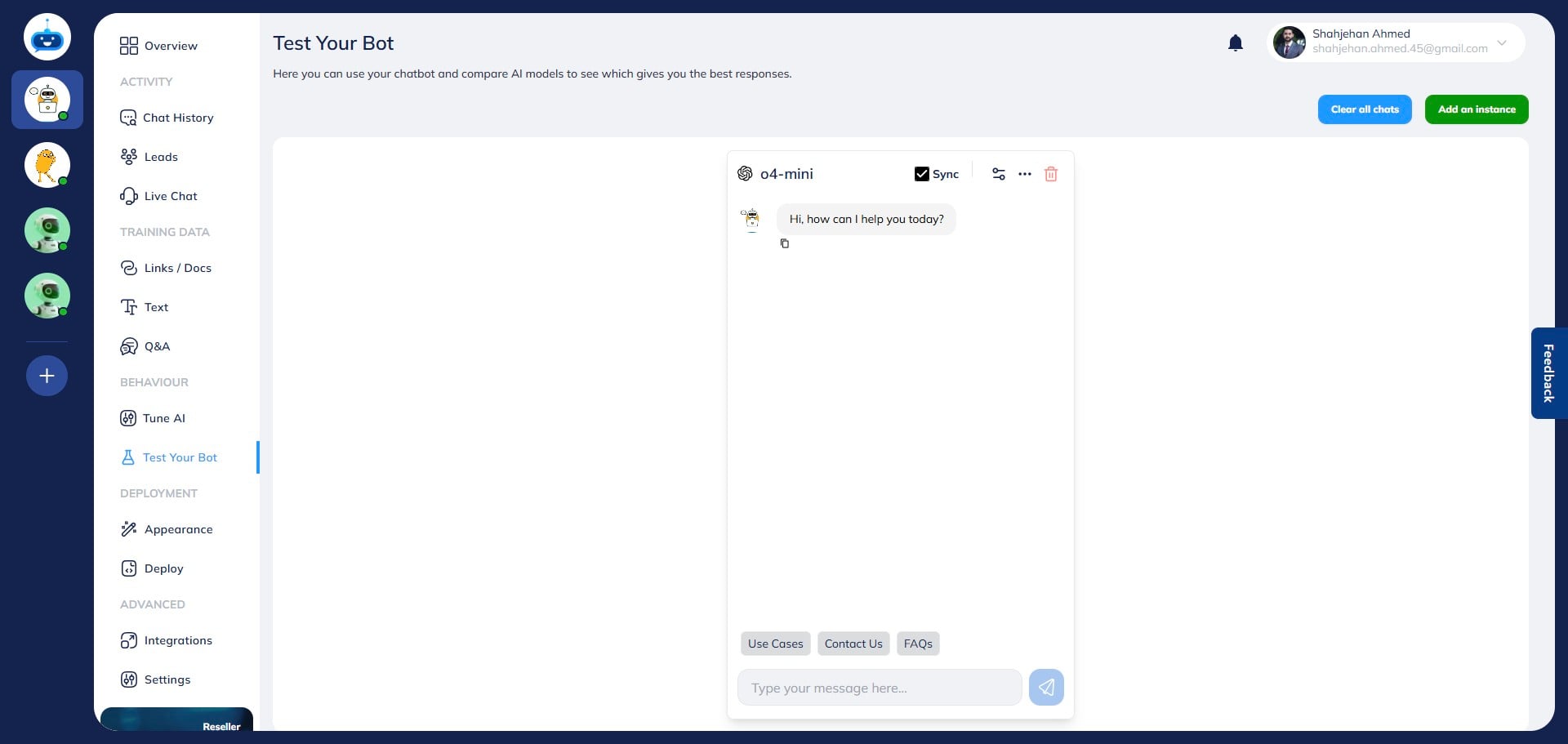
You can choose if you want each chatbot window to be synced with the other. It means, if you type a question in one window, it will be automatically written in other windows as well.
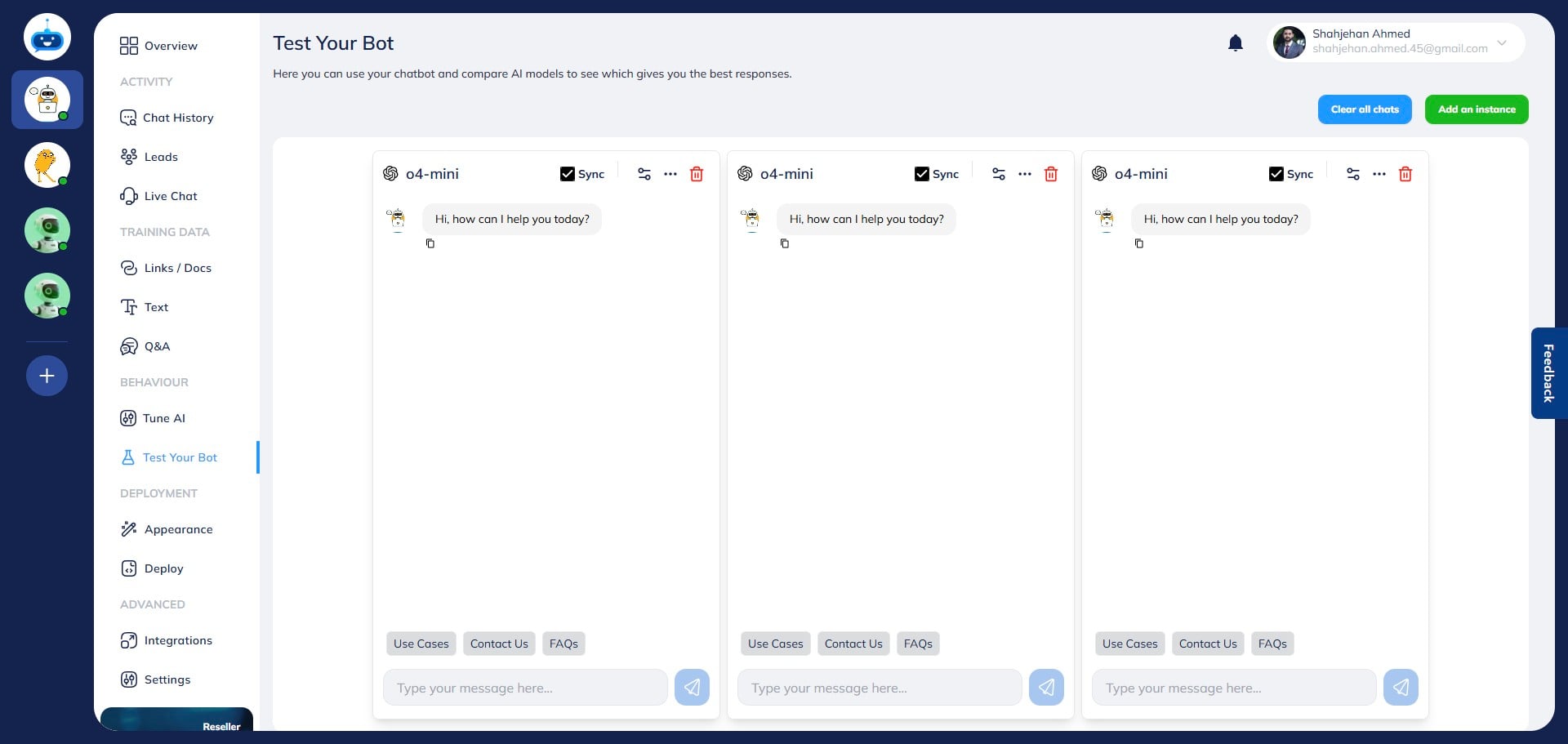
Click this icon to open more settings.
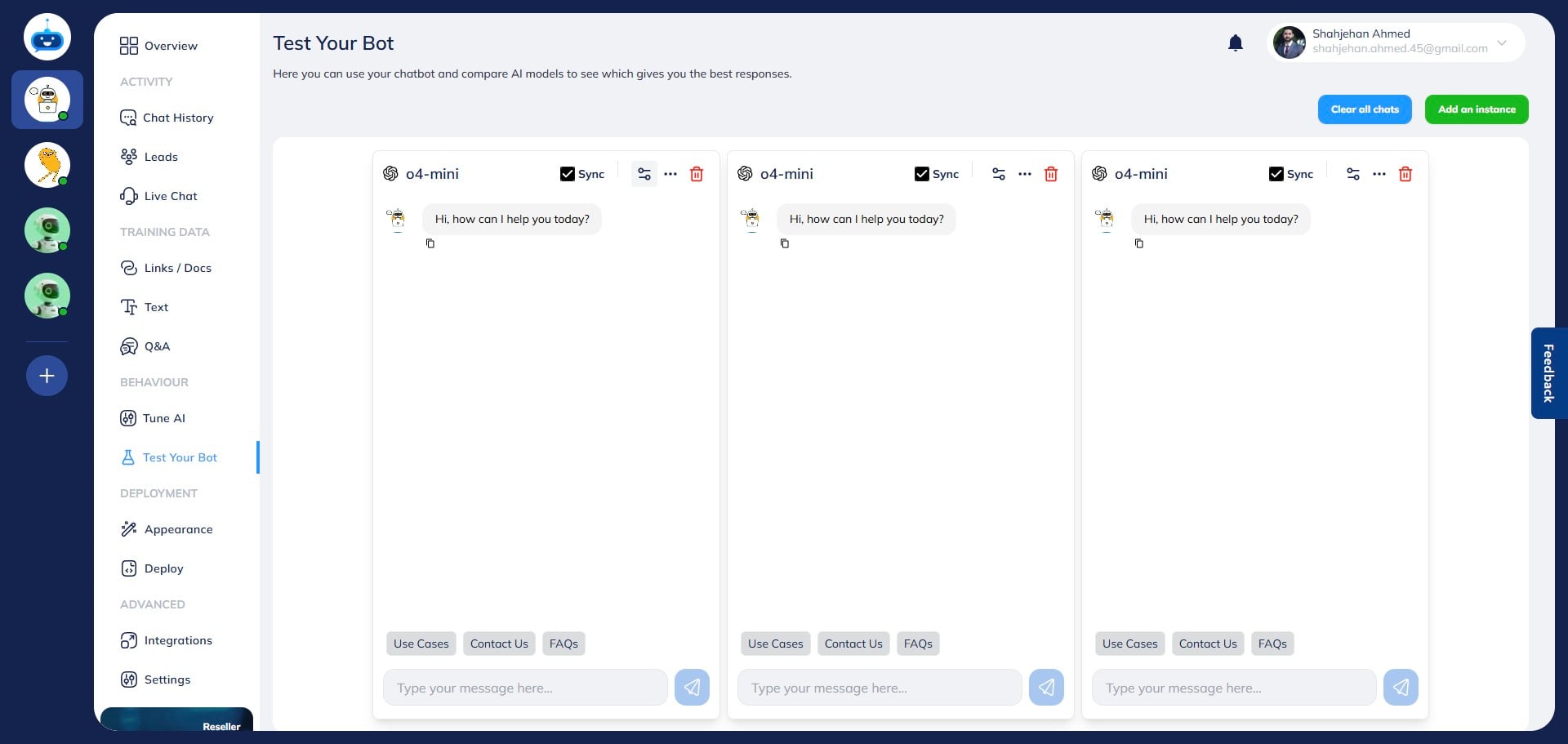
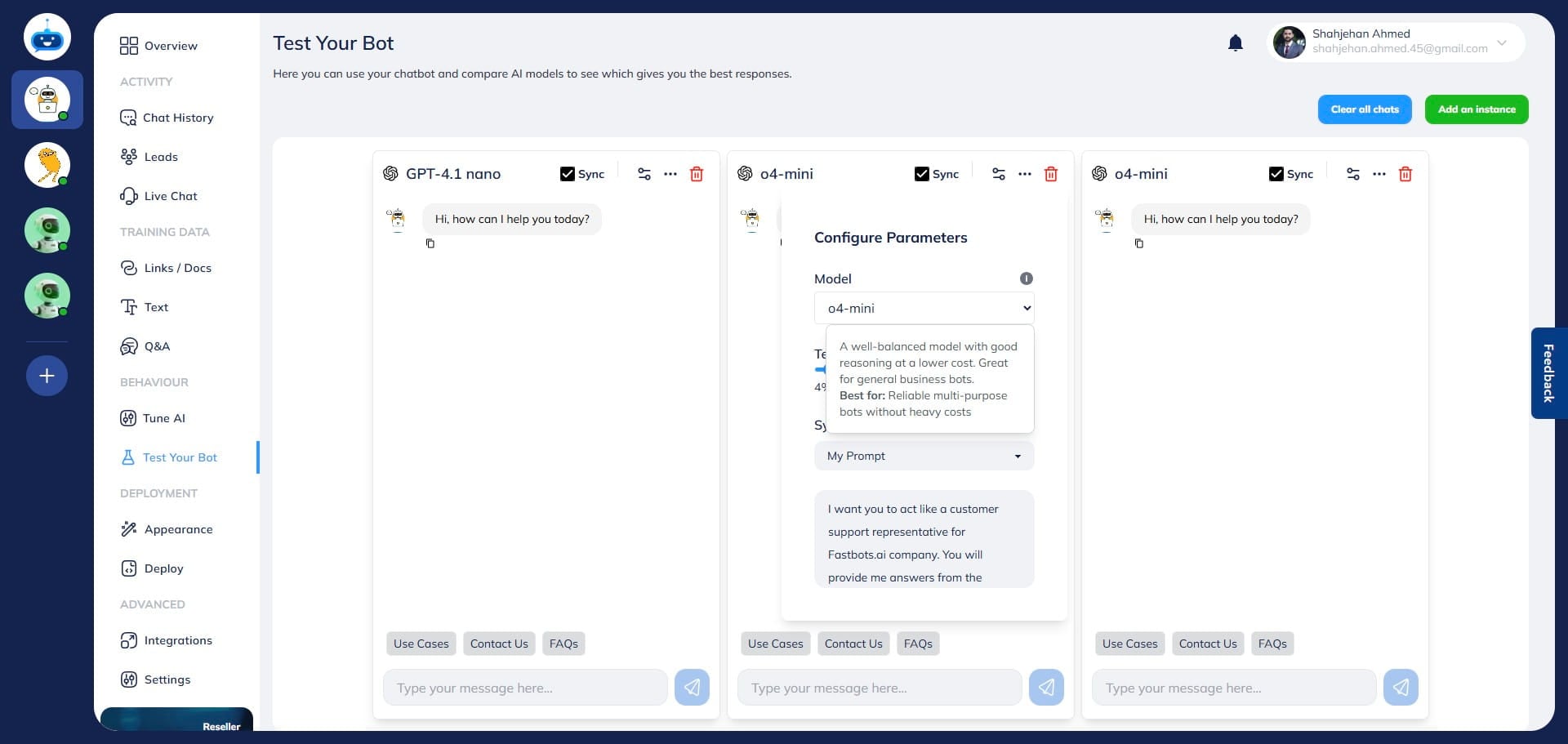
Once you click on the filters icon, it will show you a pop-up. You can choose the LLM that you want to test in this window by clicking the drop-down menu. Please select the LLM for each window for testing purposes.
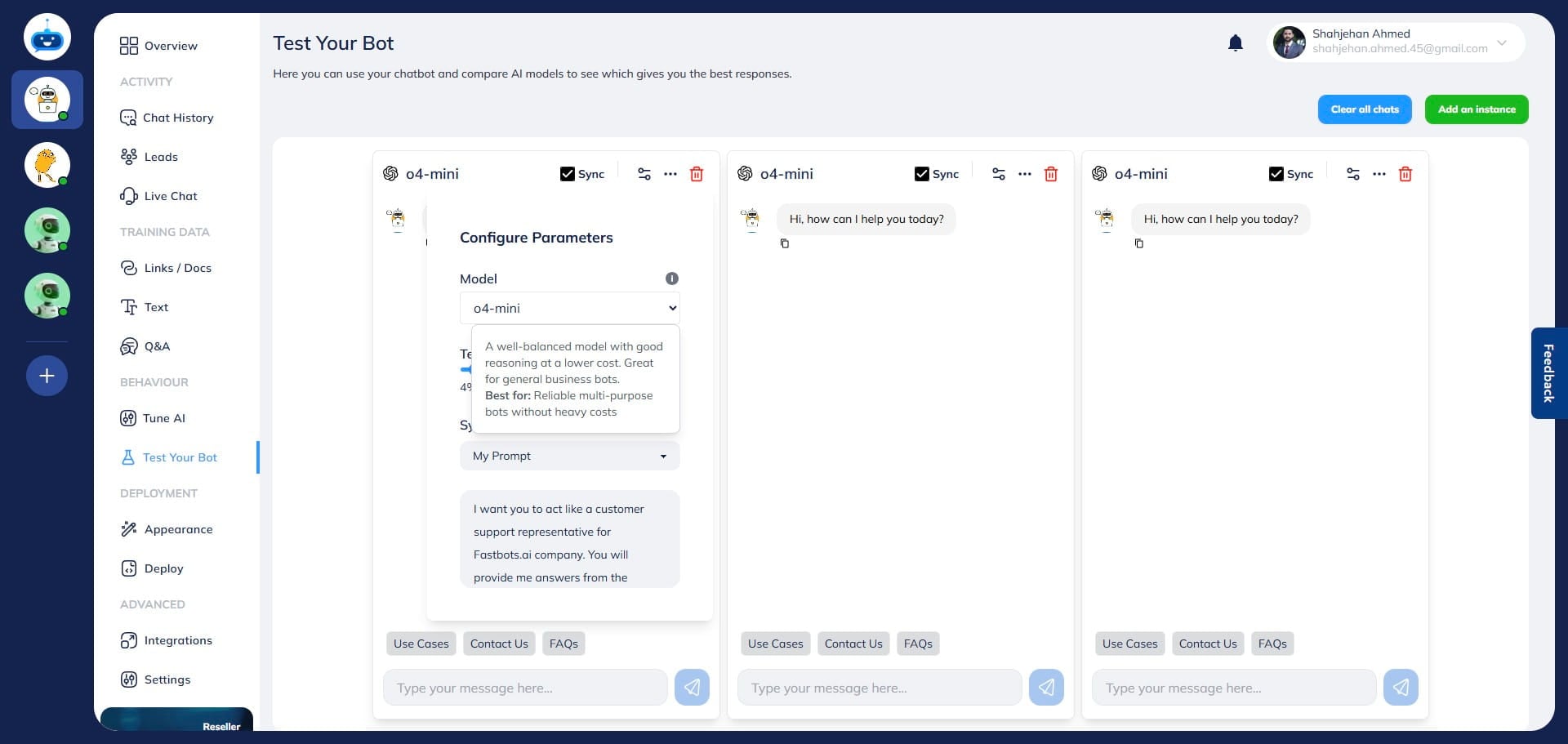
You may also set the temperature for the AI creativity for all chatbot windows.
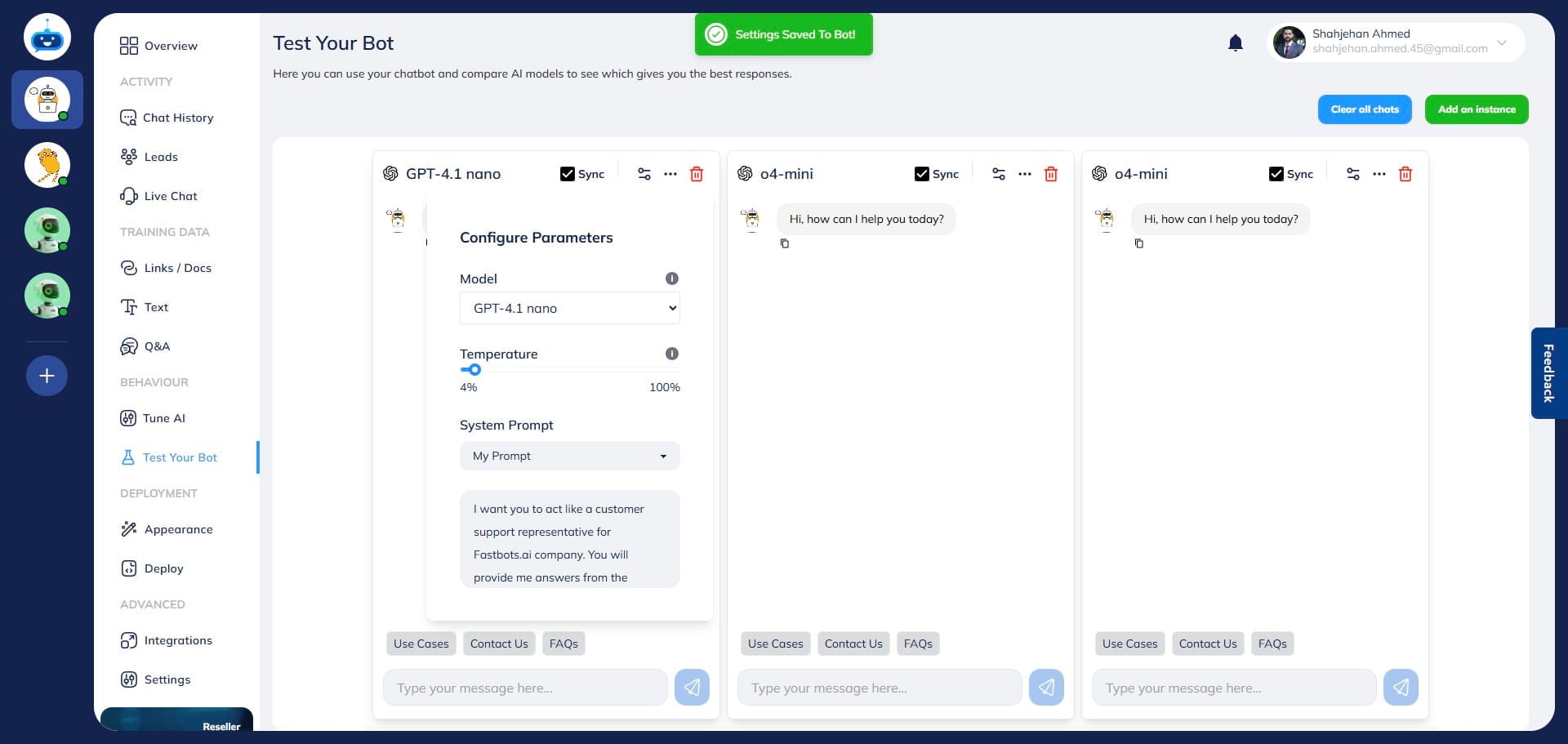
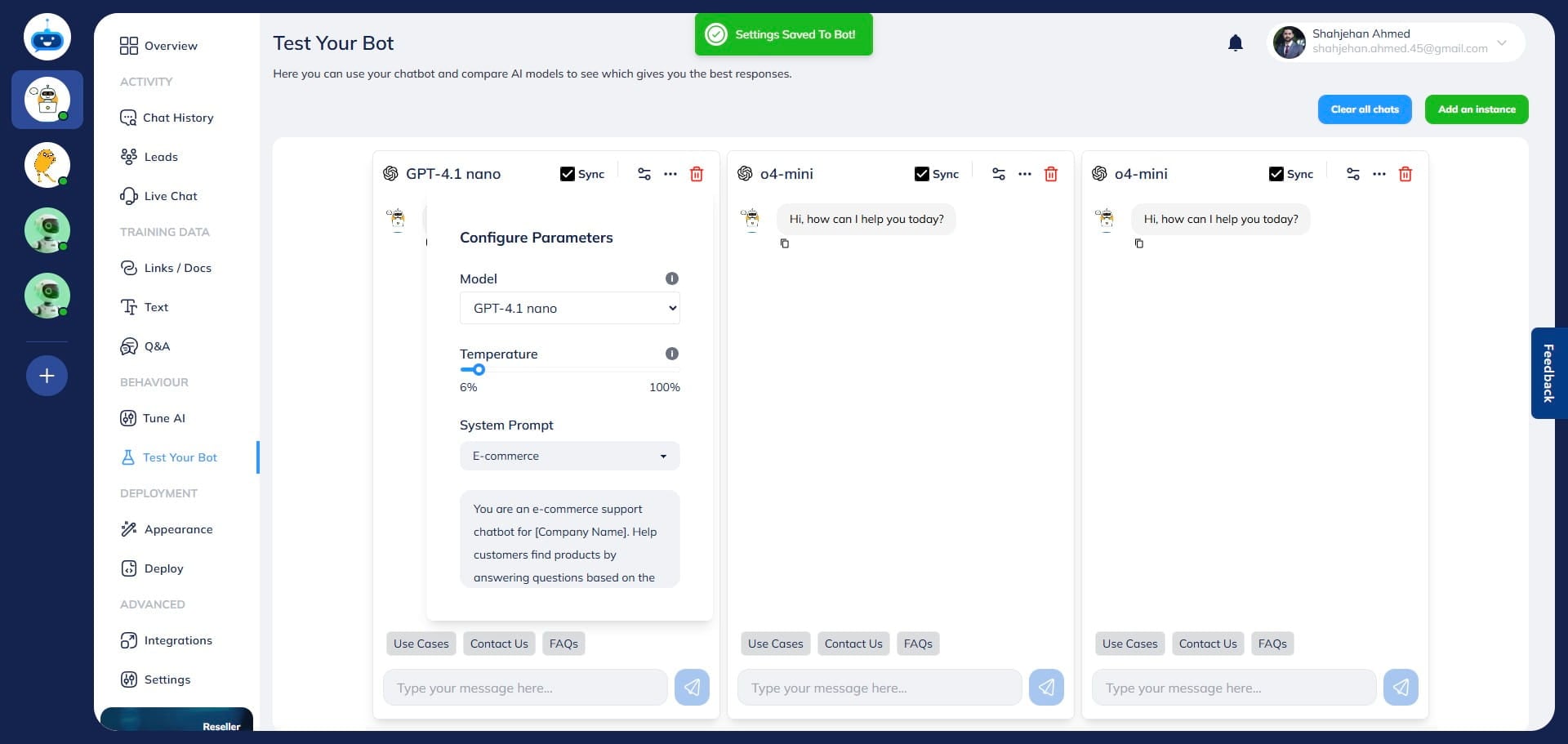
From the "System Prompt" option, you can select the AI prompt that you want to test for this chatbot window. Make sure to select the desired prompt for all windows before starting testing.
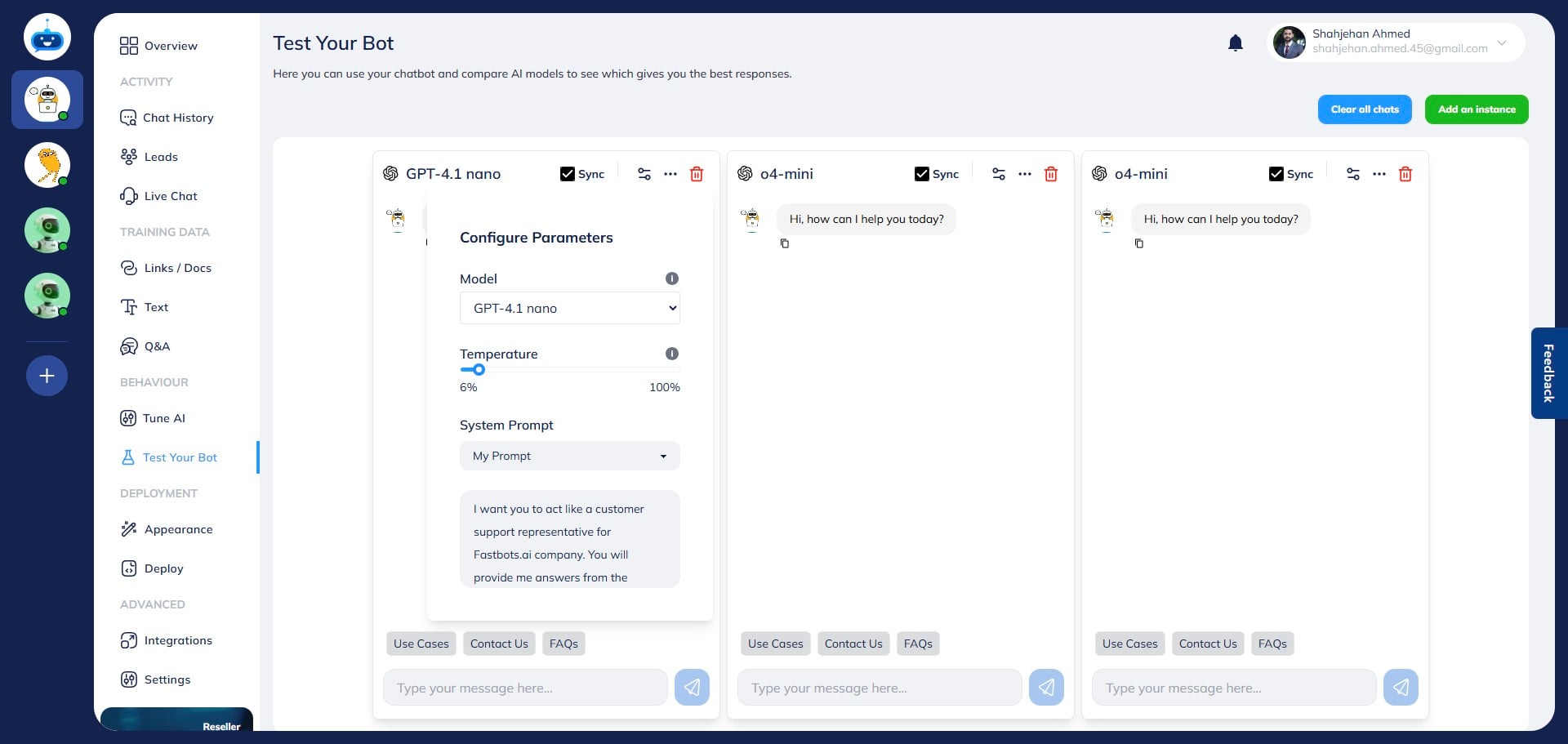
Once all the changes are done, click anywhere on the screen and the bot will save the settings and show you a confirmation message.
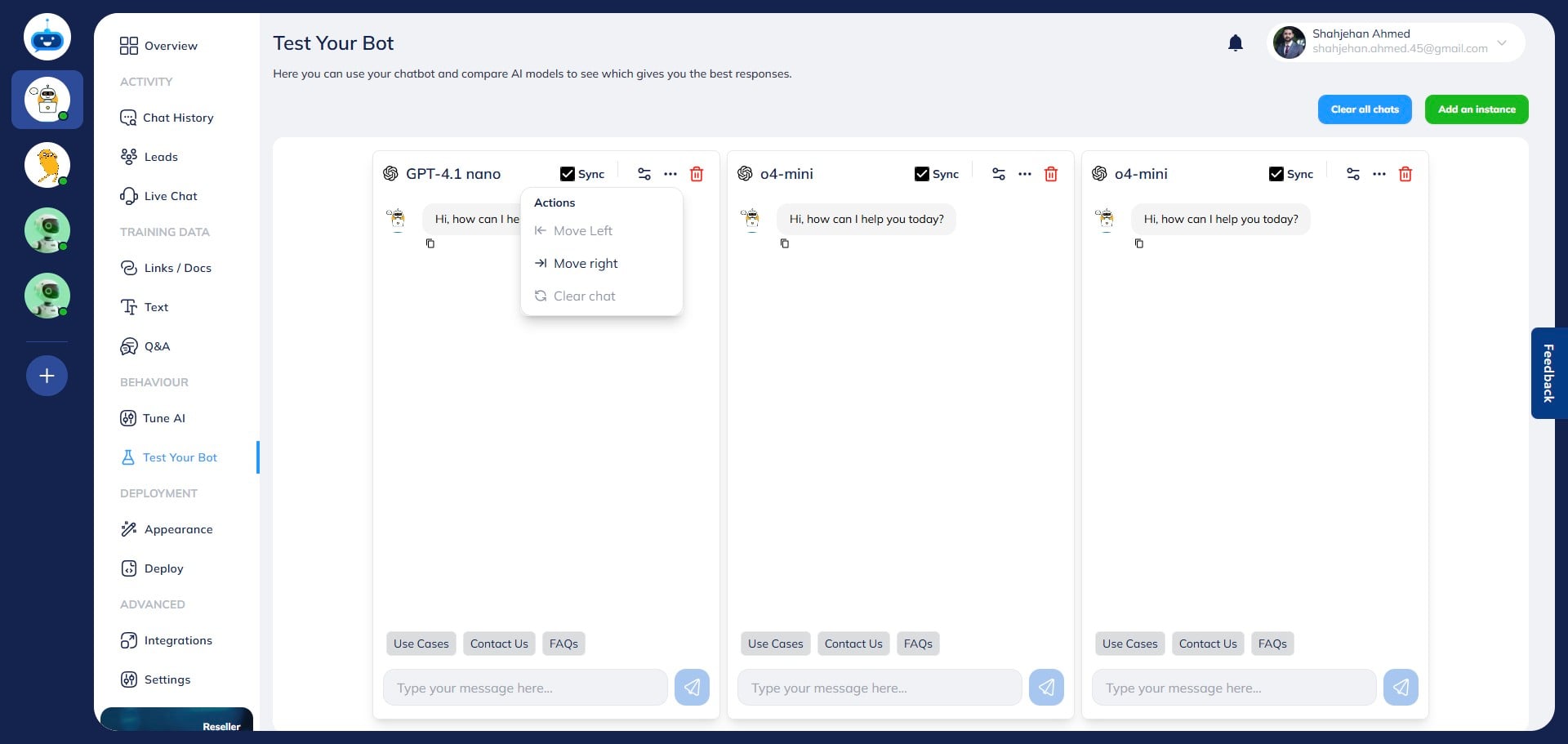
Click on the "Actions" icon to see the option of moving the chatbot left/right or clearing the chat.
Make sure to configure the required parameters for all bots.
Once all the parameters are set, ask a question to the chatbot. The question will be written and sent in all bots if you type in one, as long as these are synced.
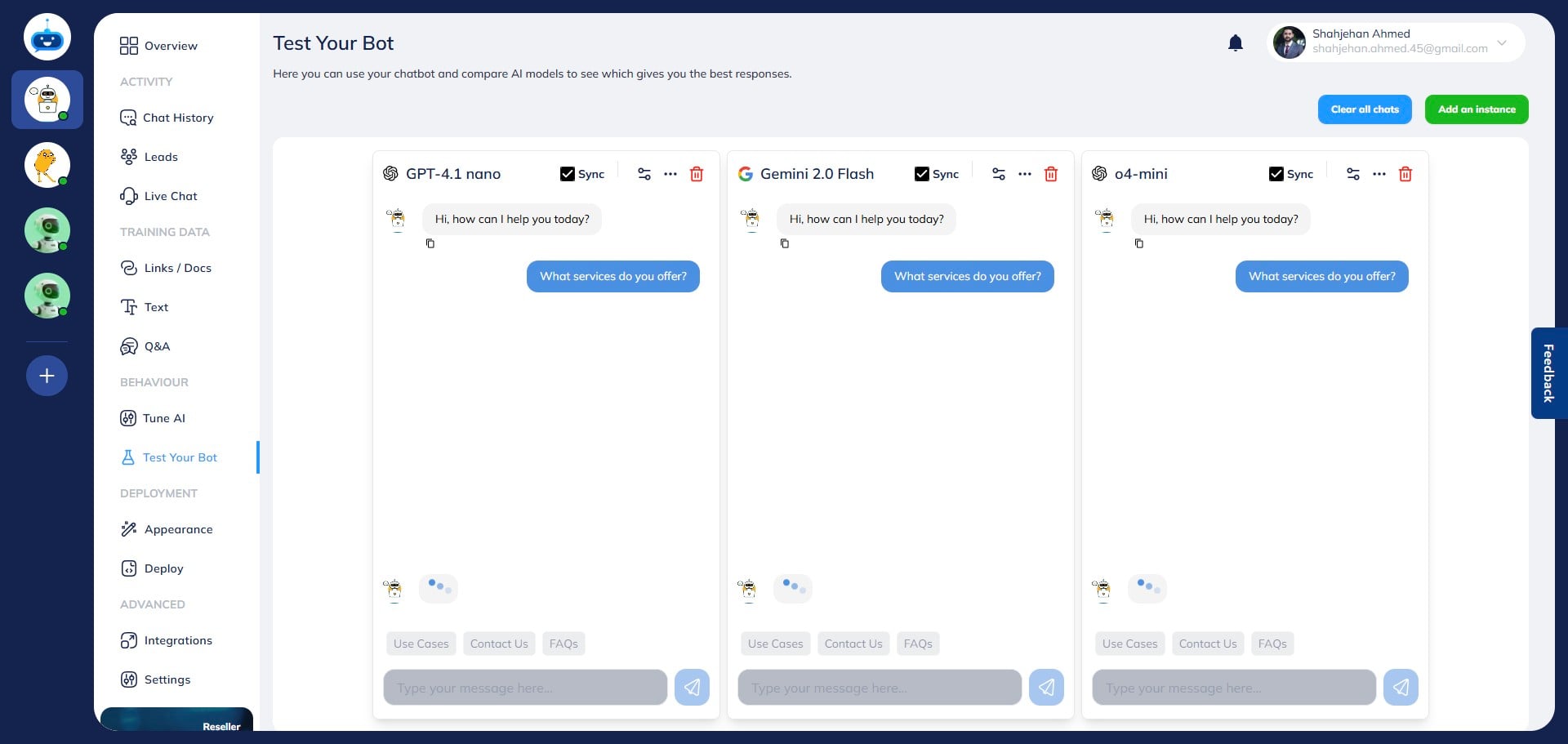
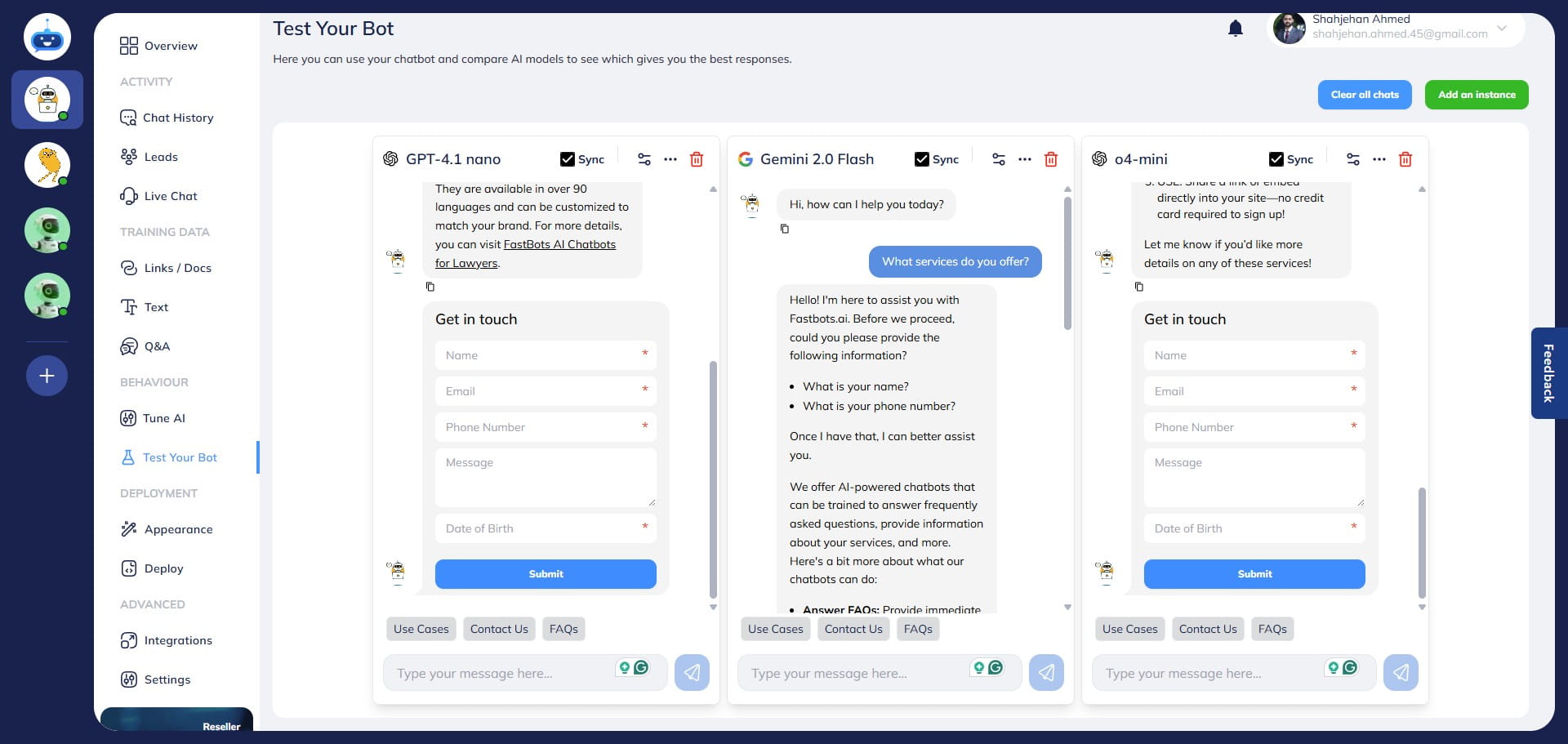
All chatbots will respond to the questions, and you can compare the performance/answer of each bot and decide which configuration is providing you best responses.
Click this icon to open more settings.
You can keep testing it until you find the best configuration for your chatbot. Once satisfied, you can select the same settings on the Tune AI page to apply these to the chatbot.
Done 🚀