

How To Allocate Message Credits To Individual Bots
This guide will walk you through the process of allocating message credits to different chatbots in your account. Properly distributing message credits helps you manage your monthly limit more effectively across multiple chatbots.
Navigate to https://app.fastbots.ai/?/allocateBotCredits
Click on the "+ Allocate Messages" button
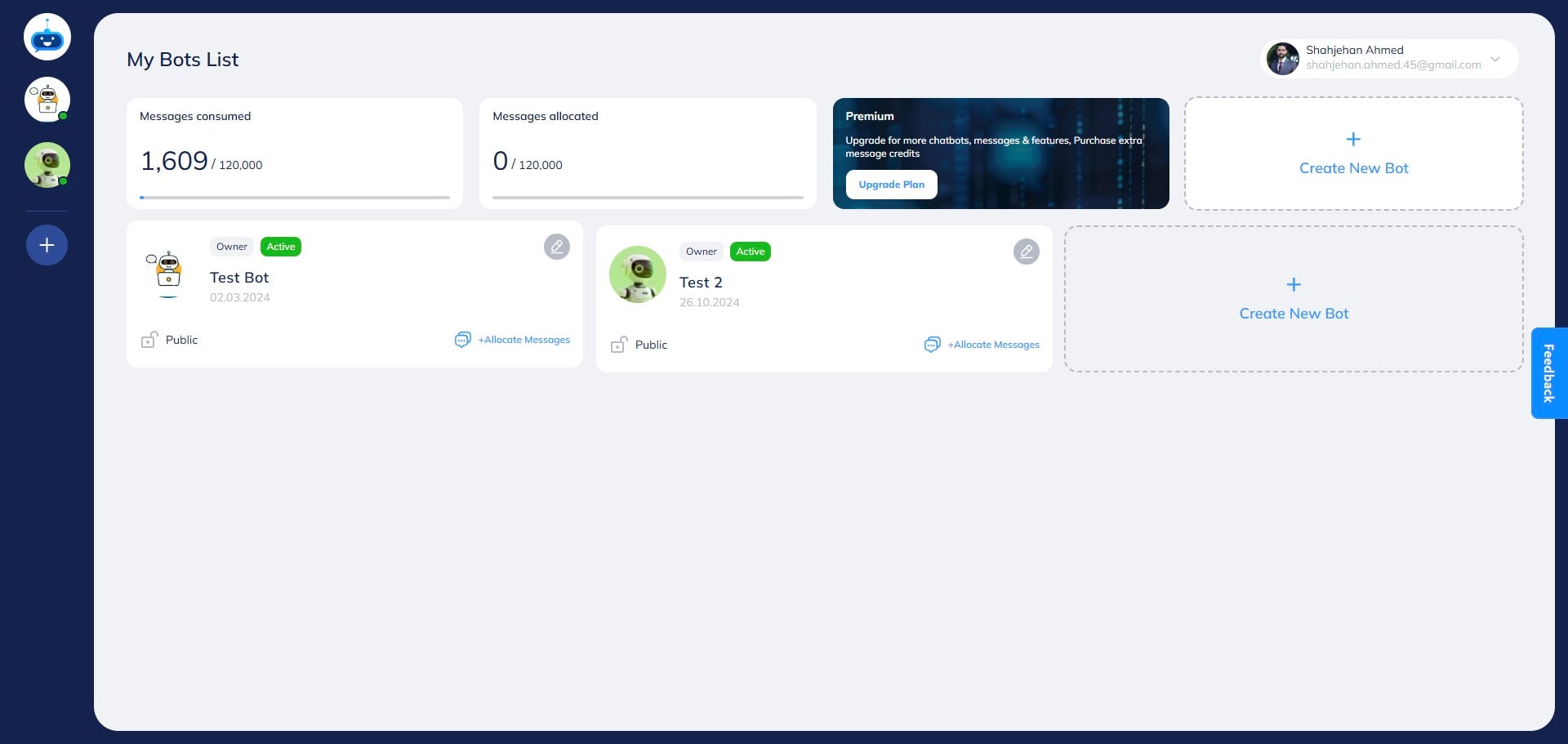

On this page, you can see the Total Allocated credits, Total Consumed, Maximum Allowed For This Bot, and Current allocated message credits.
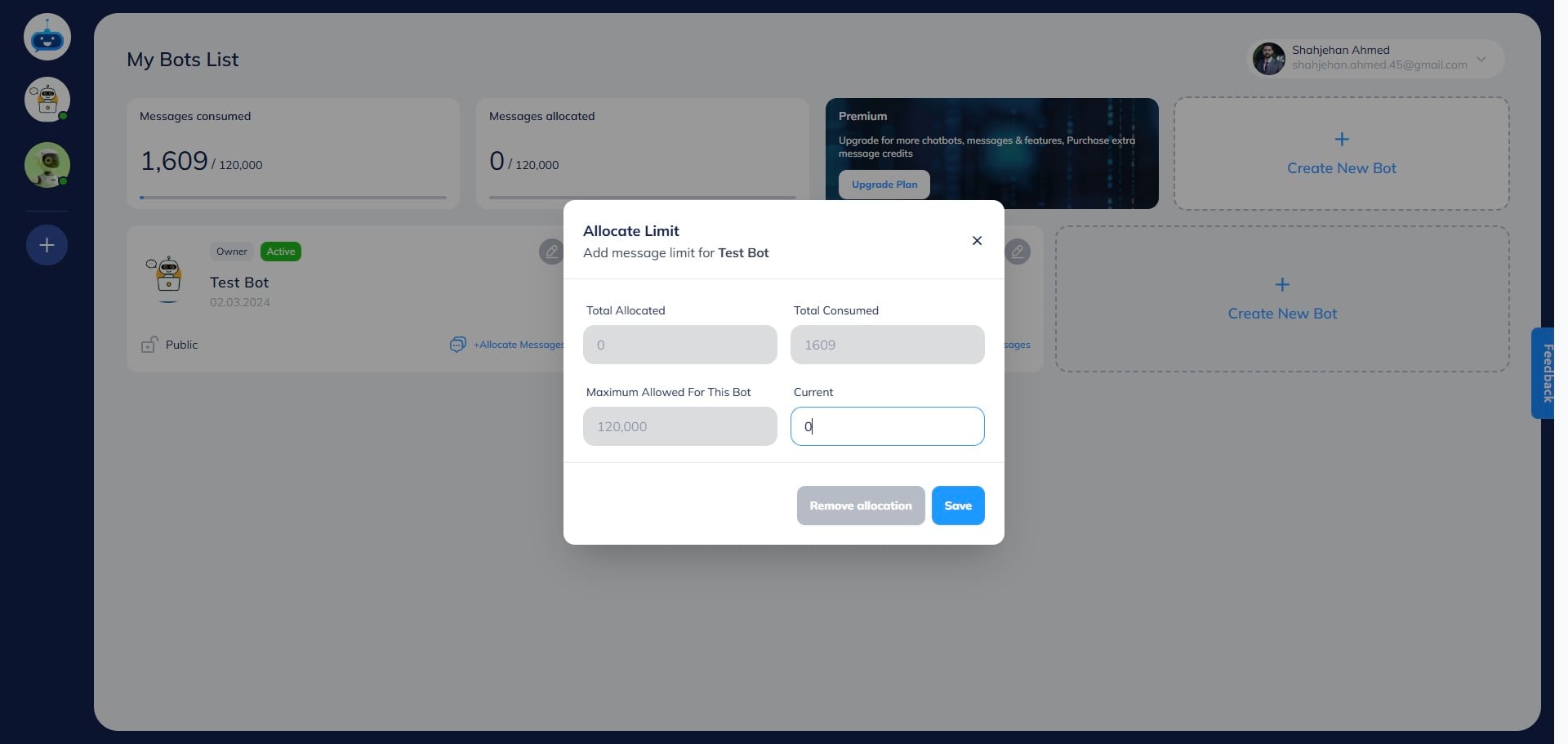
Enter the number of message credits you want to allocate to this specific chatbot under the "Current" cell.
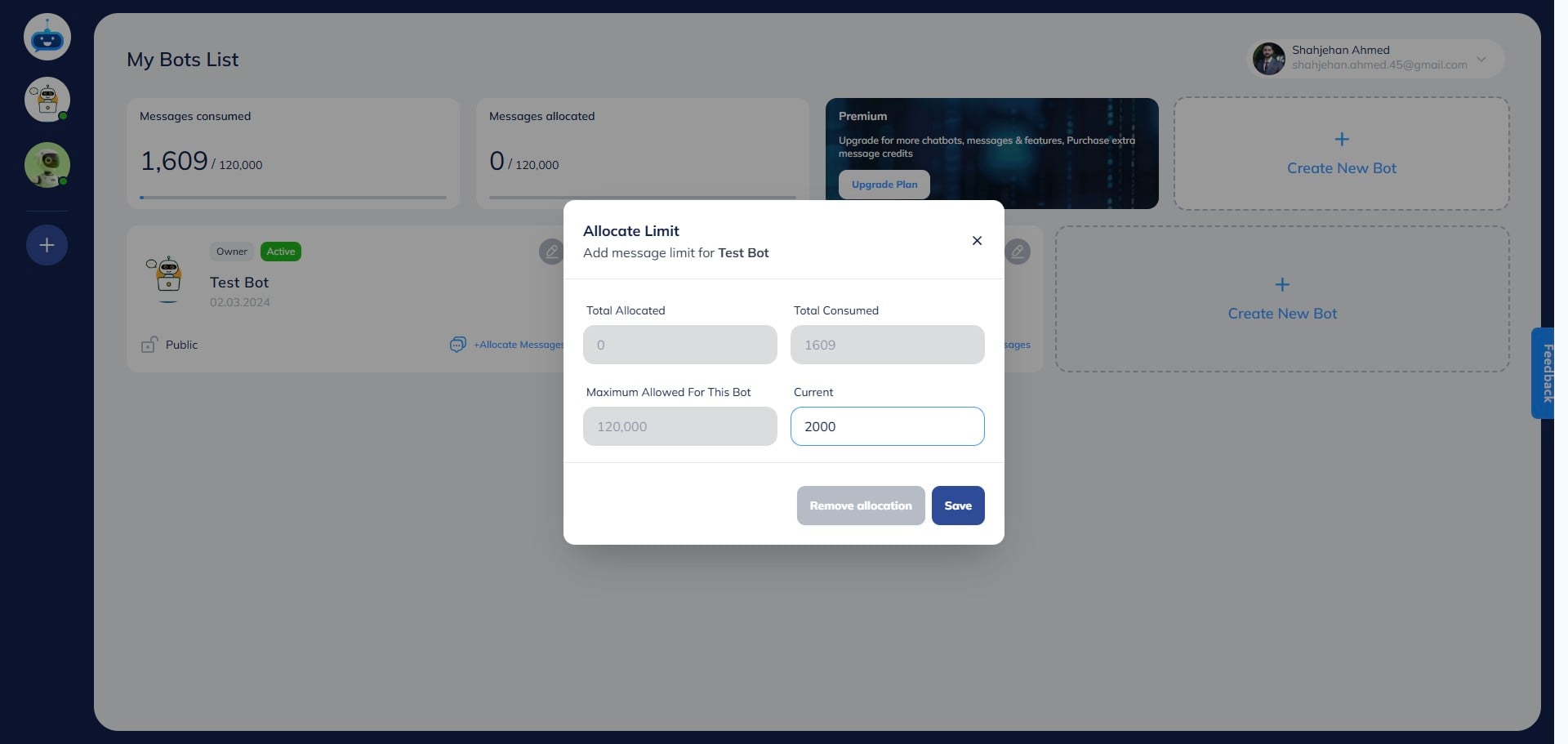
Click on the "Save" button.
You have allocated the message credits to your chatbot. The chatbot will stop working after it has consumed the allocated message credits so you have to keep an eye on it and increase the limit once it has consumed all the allocated message credits.
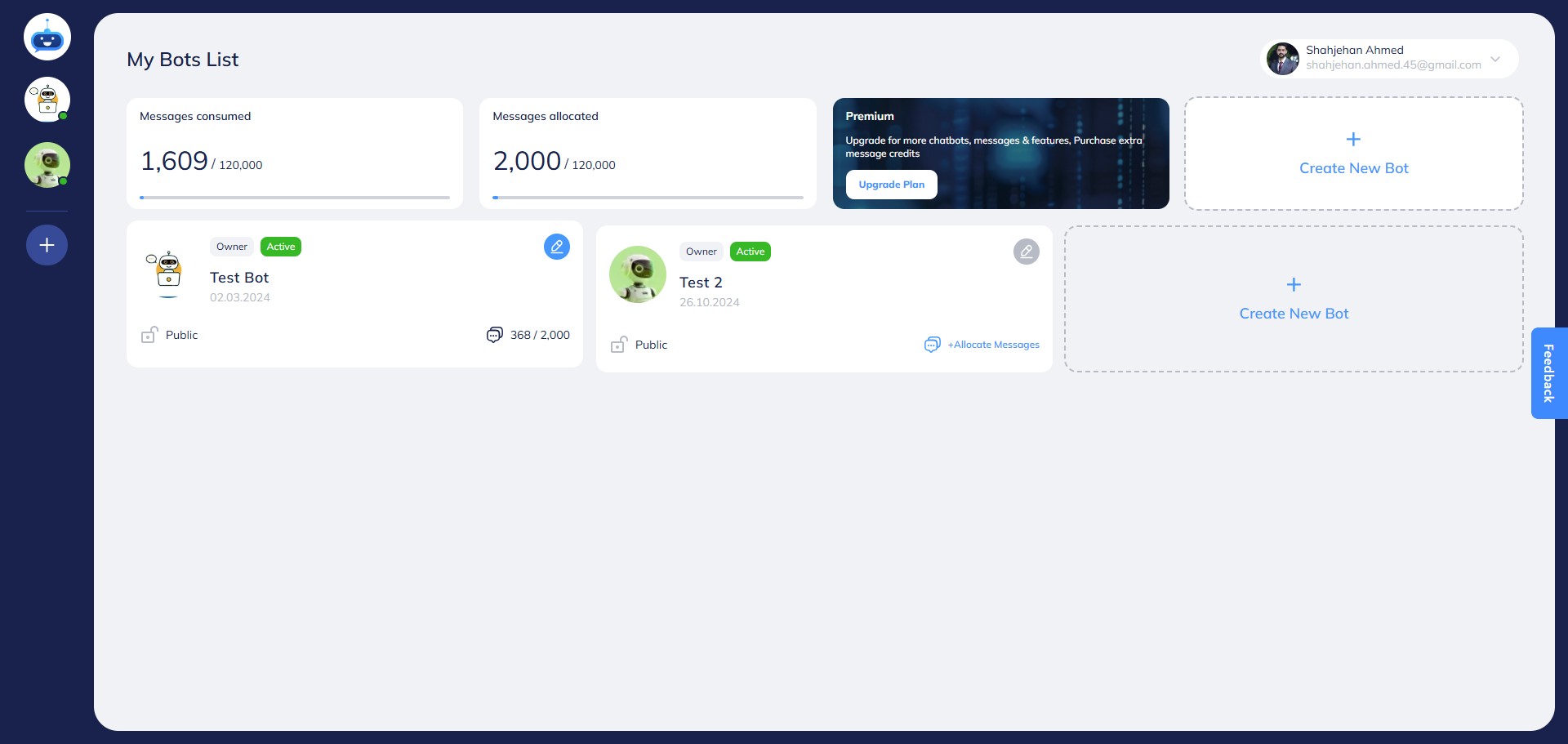
If you want to change or remove the allocated message credits, click on the Edit icon.
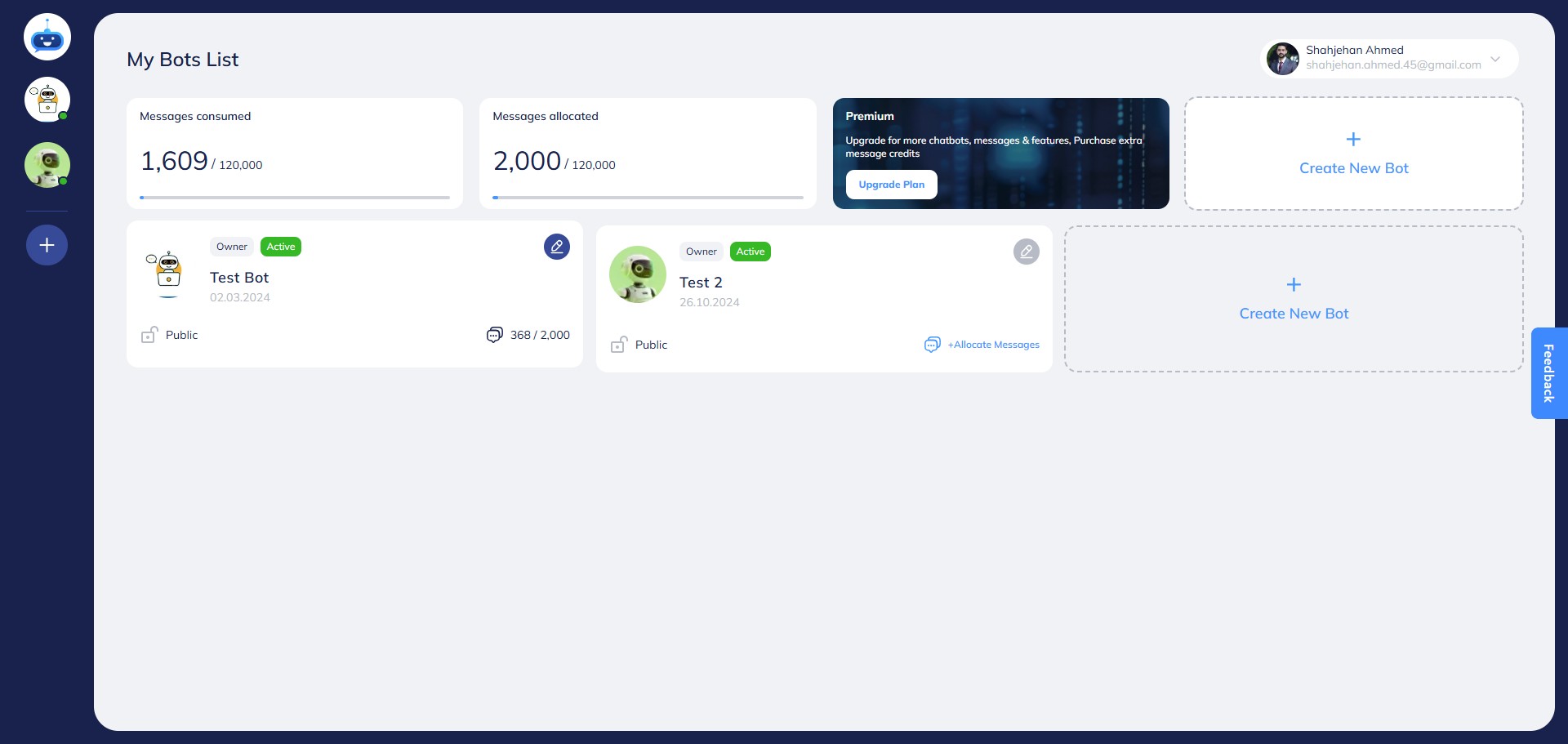
You can either change the limit or click on "Remove Allocation"
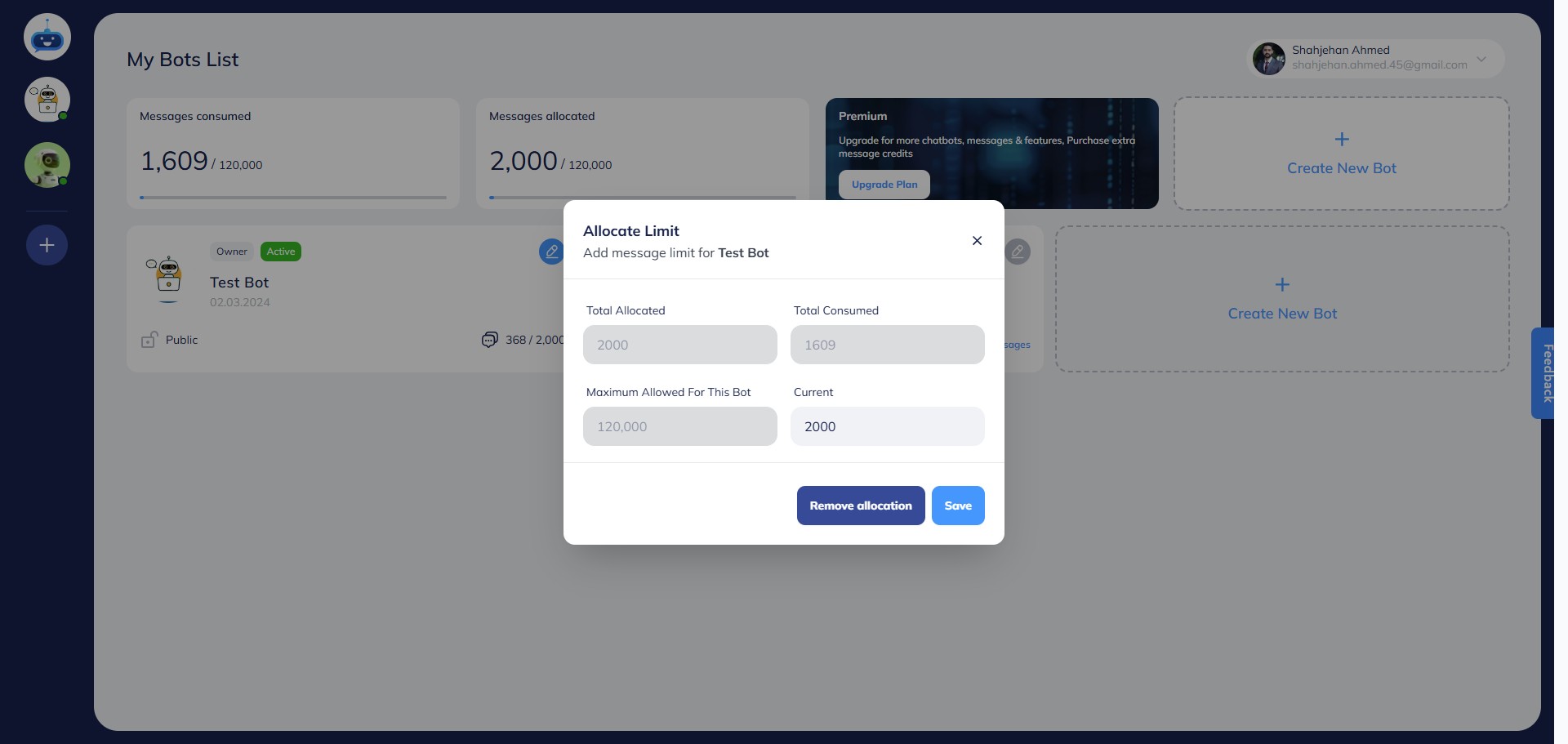
After changing the settings, click on the "Save" button.
Done 🚀 Voice message credits Voice conversations use 50 message credits per minute, calculated by the second. Voice tests and speaking-style previews use the same rate. A two-minute voice session uses 100 credits. Manage usage in Deployment → Chat Widget → Advanced Voice Settings using Maximum Call Length and Daily Calls per Visitor. See the Chat Widget and Voice guide.
.](https://assets.guidejar.com/uploads/82fa10e7-bd98-4ba3-bd5a-3c1d5d7eb9dc/EWaUlLbQzcRPZ6mZqBZ6GyhoWZy2/ce52a18b-9c7b-4438-ba69-dd5b3667318b/1733323435369.jpeg)