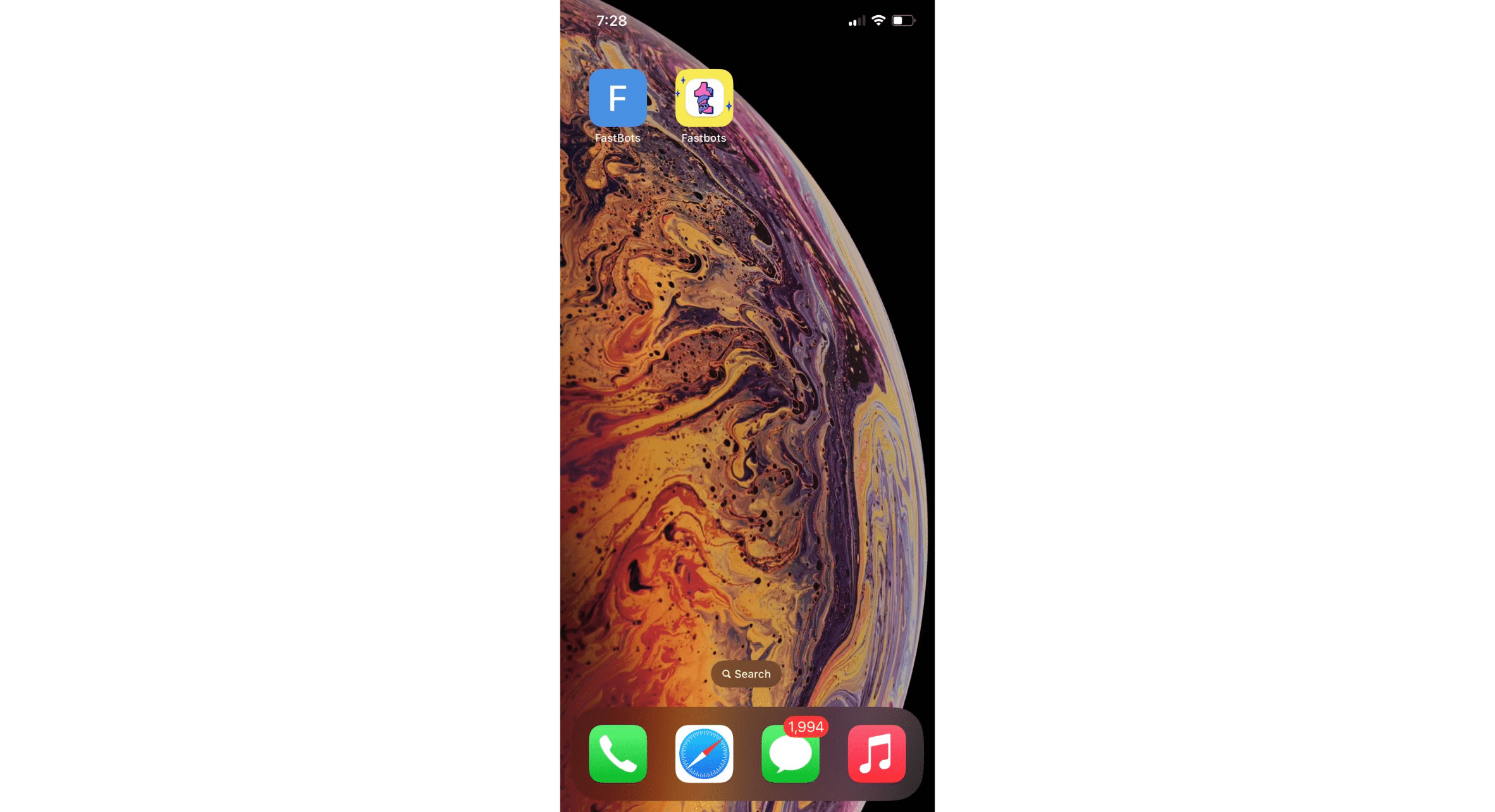
How To Add a Chatbot To a Mobile Phone Home Screen (iPhone)
This tutorial will guide you through the process of adding the chatbot widget to your iPhone home screen, providing you with easy access and a more convenient user experience.
Open your chatbot.
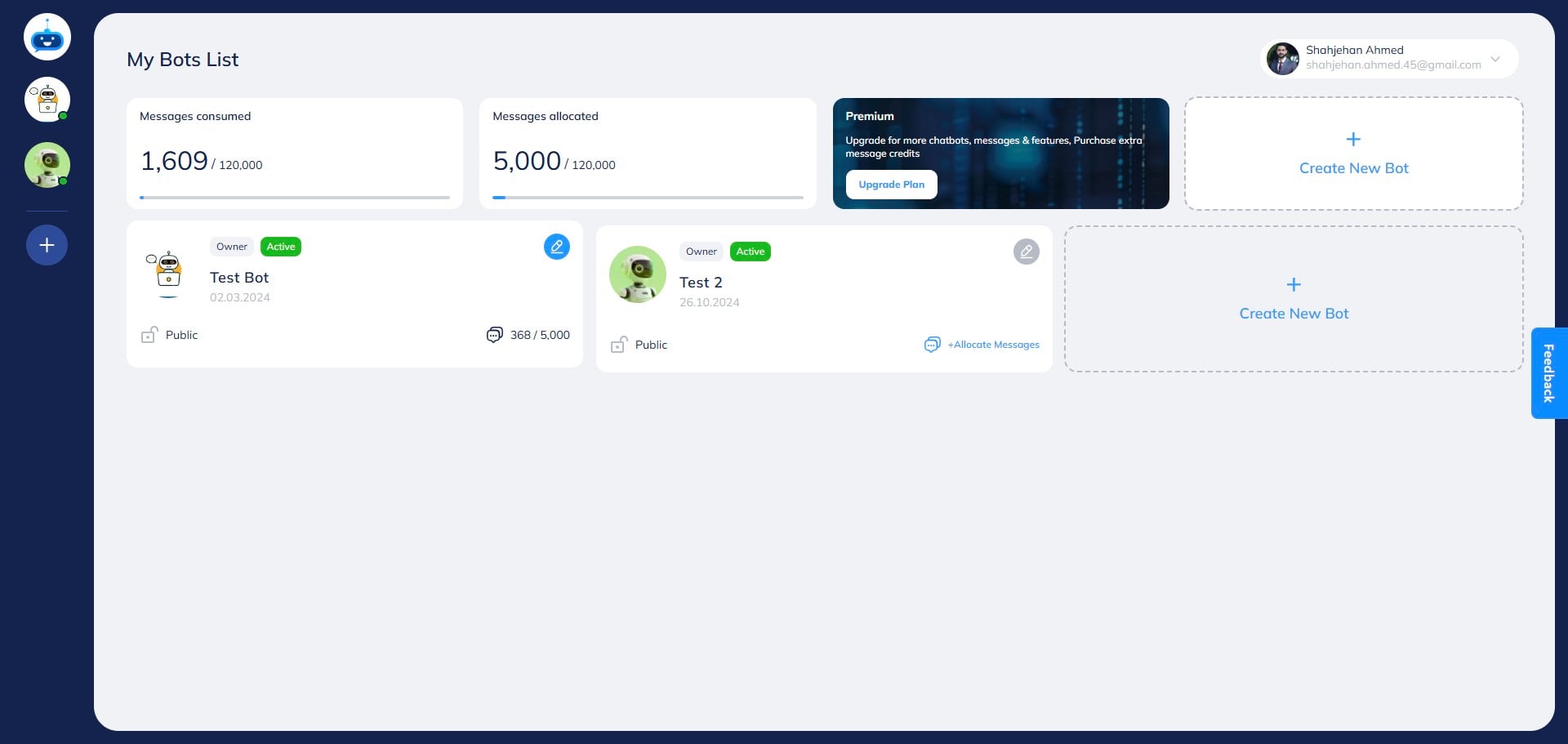

Click on "Deploy" to open this page.
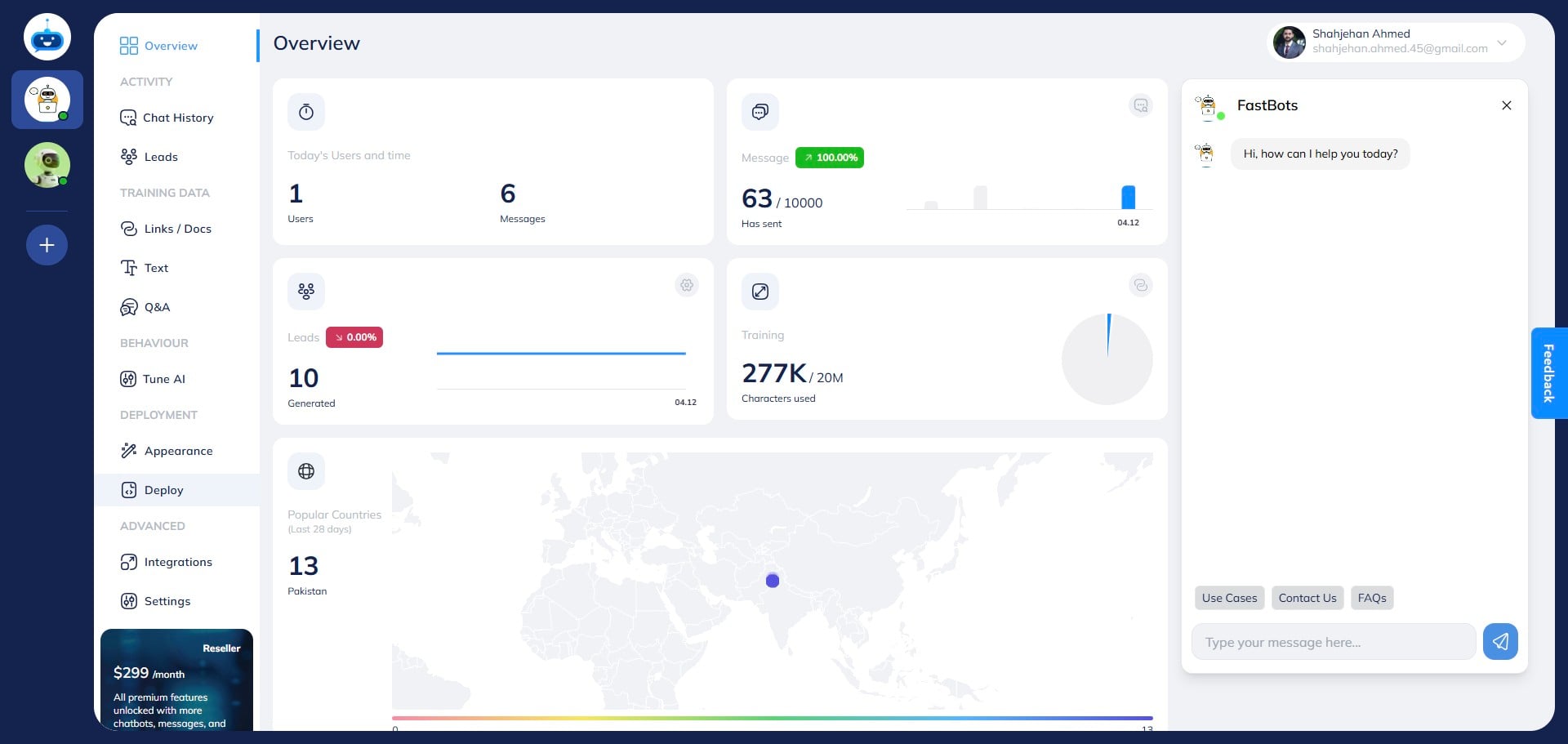
Copy the "Direct Link" of your chatbot by clicking on this icon.
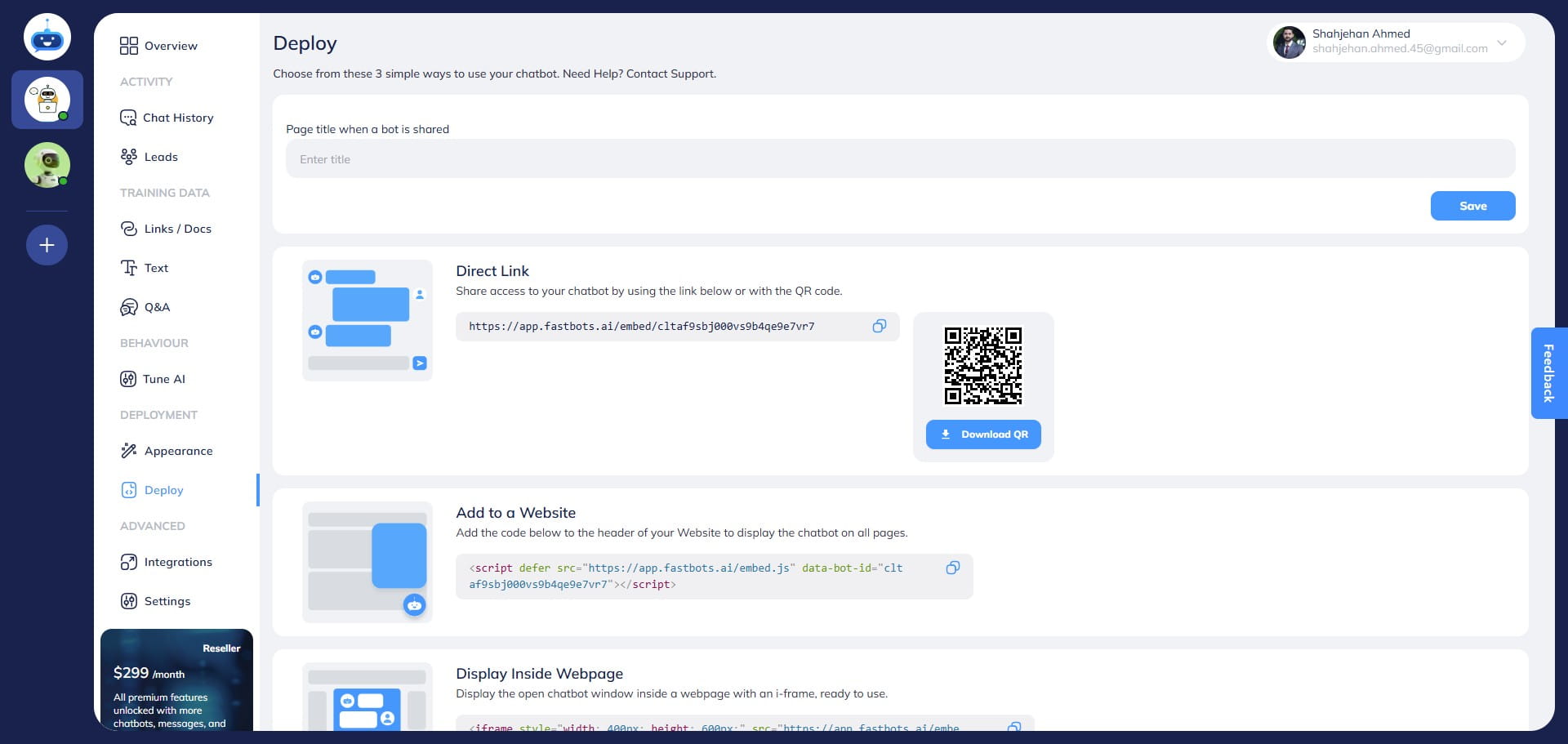
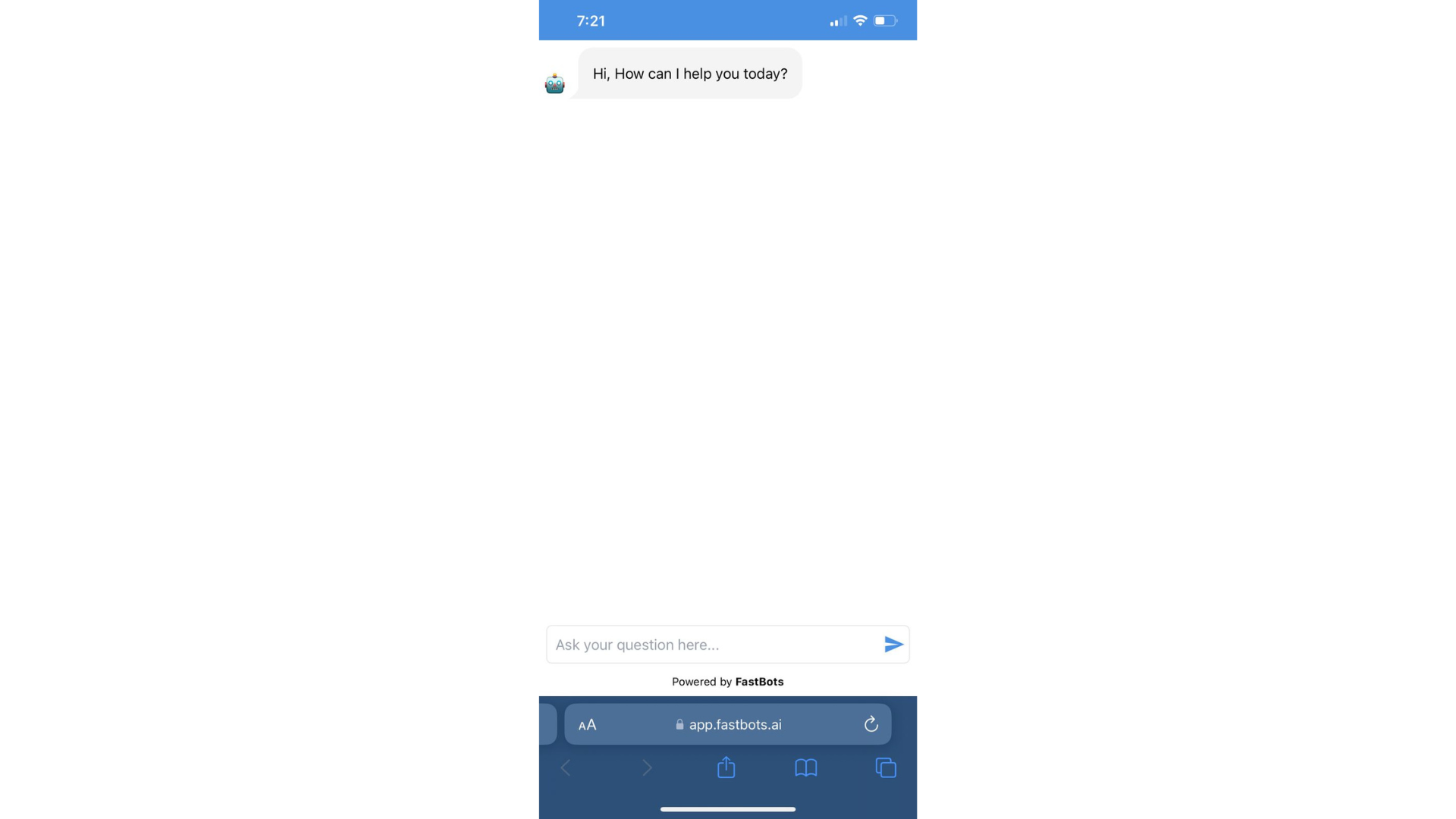
Open the copied URL in the Safari browser on your iPhone and click on the "Share" icon.
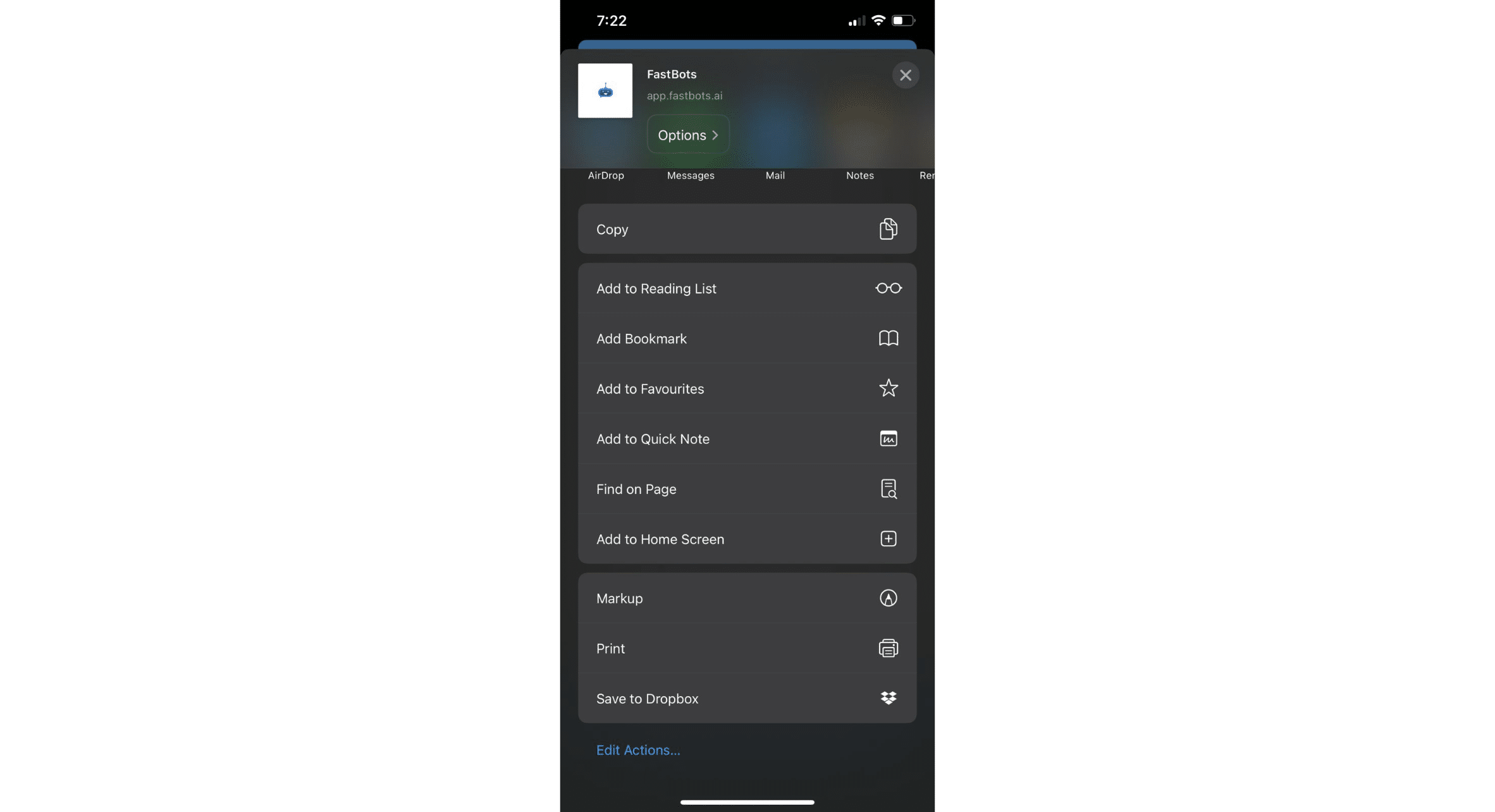
Click on "Add to Home Screen" button.
Click on "ADD" button to confirm.
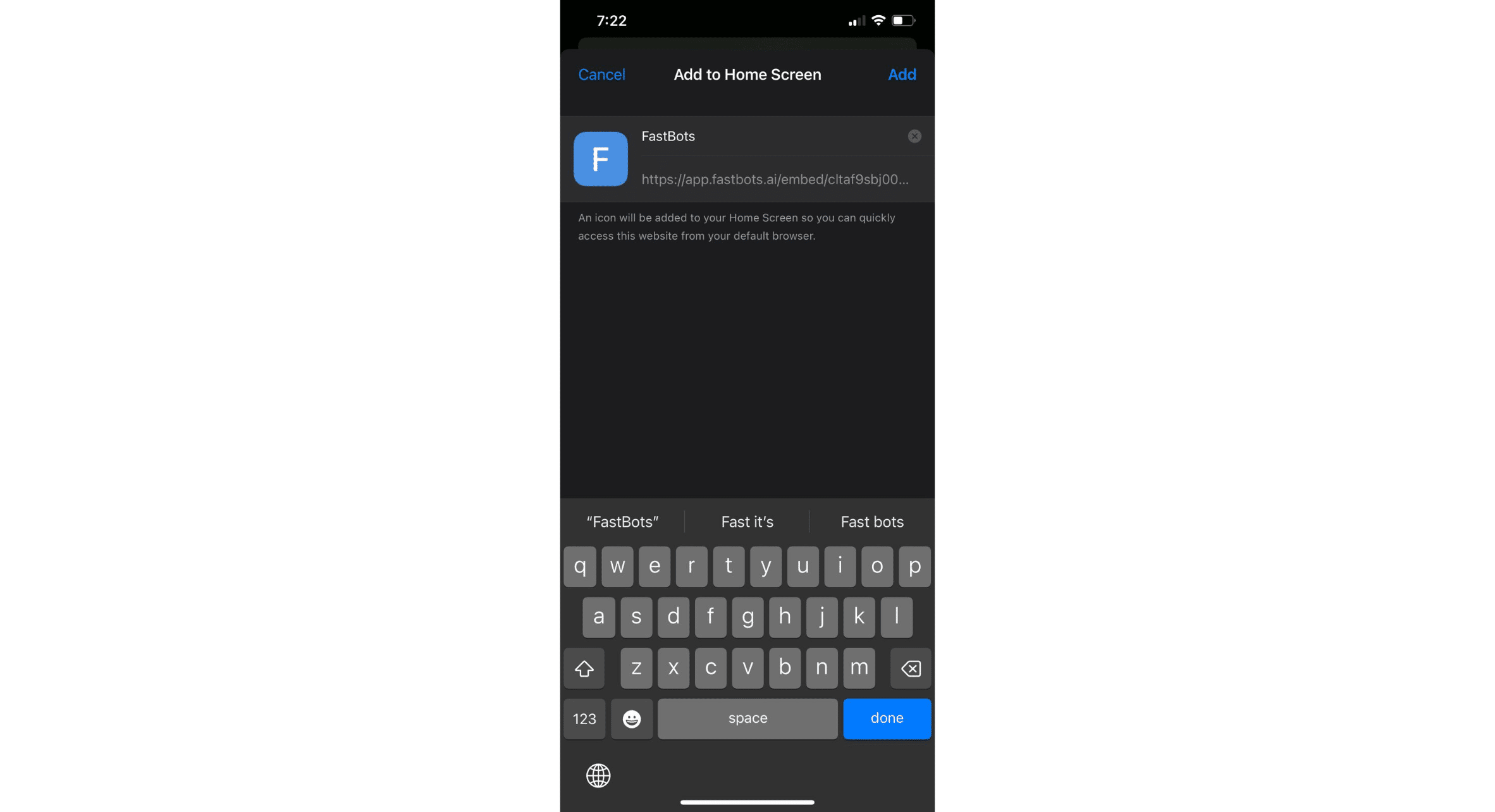
Clicking "ADD" will save the Share Your Bot URL on your mobile phone home screen as an app. You can click on it whenever you want to interact with the bot and it will open the chatbot in a safari tab.
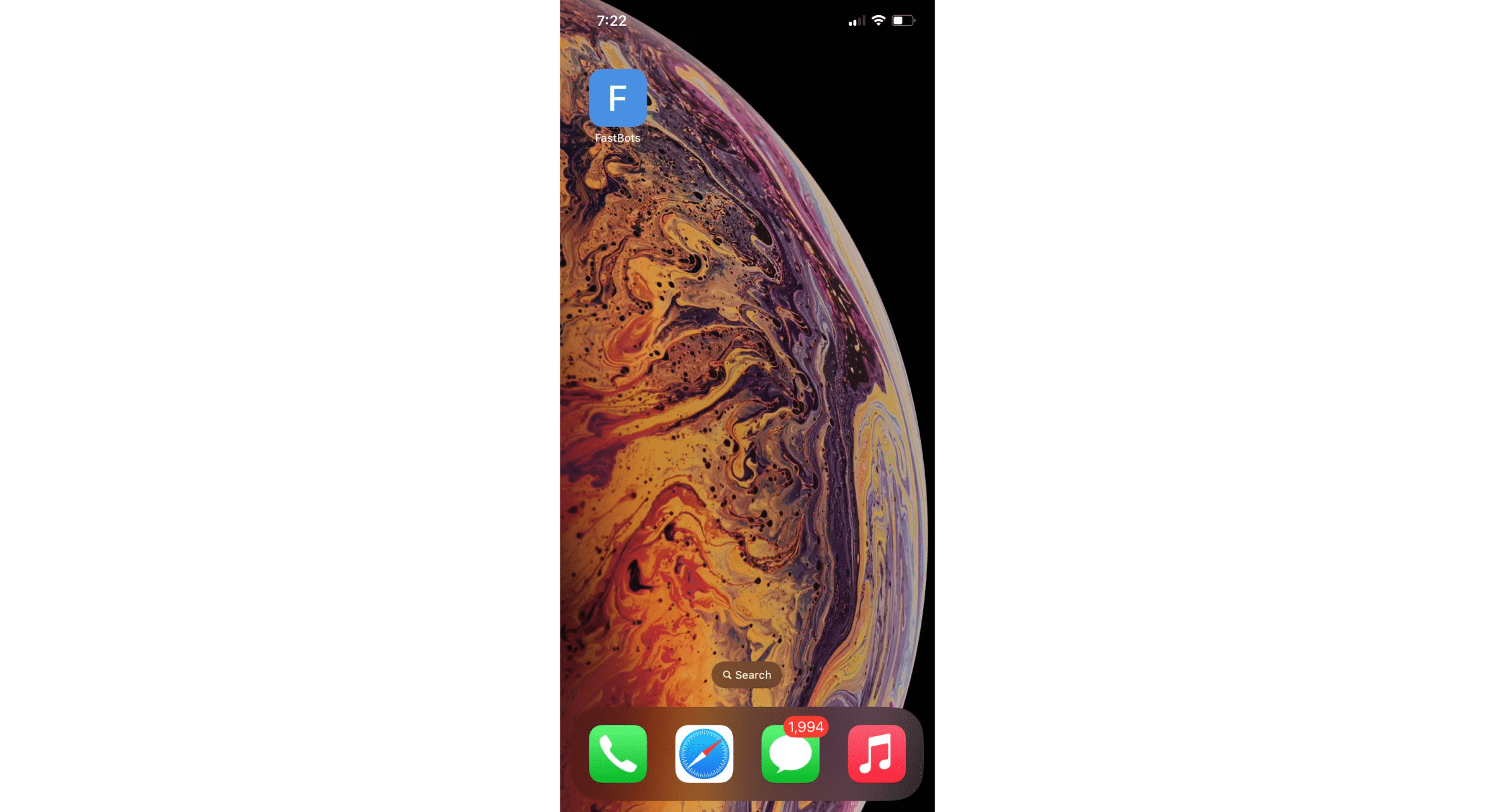
If you want to customize the home screen app icon and want to upload your logo and your chatbot name instead of Fastbot's, please follow the steps given below.
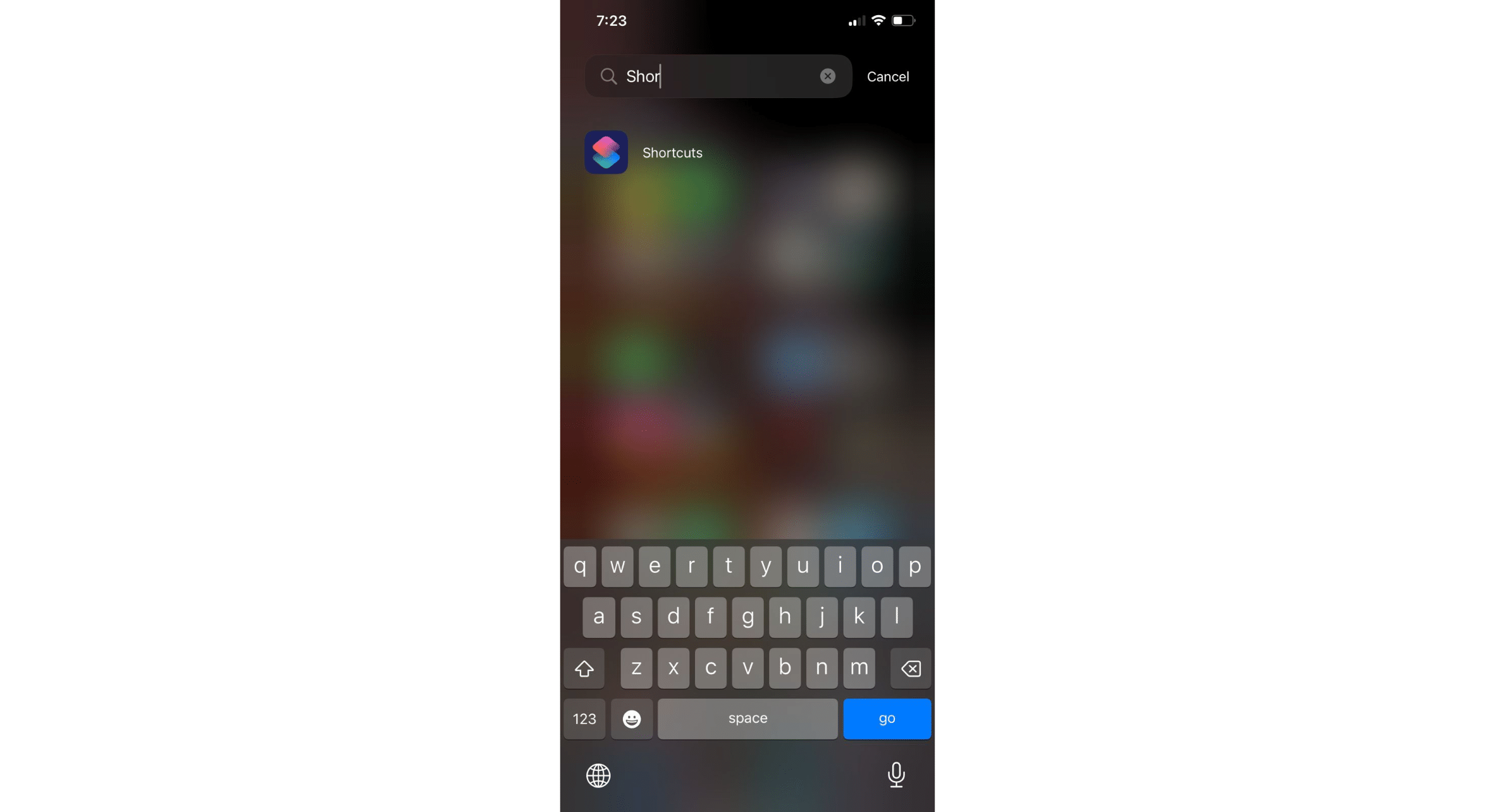
Go to Apps and search for the Shortcut app. Open the Shortcut app.
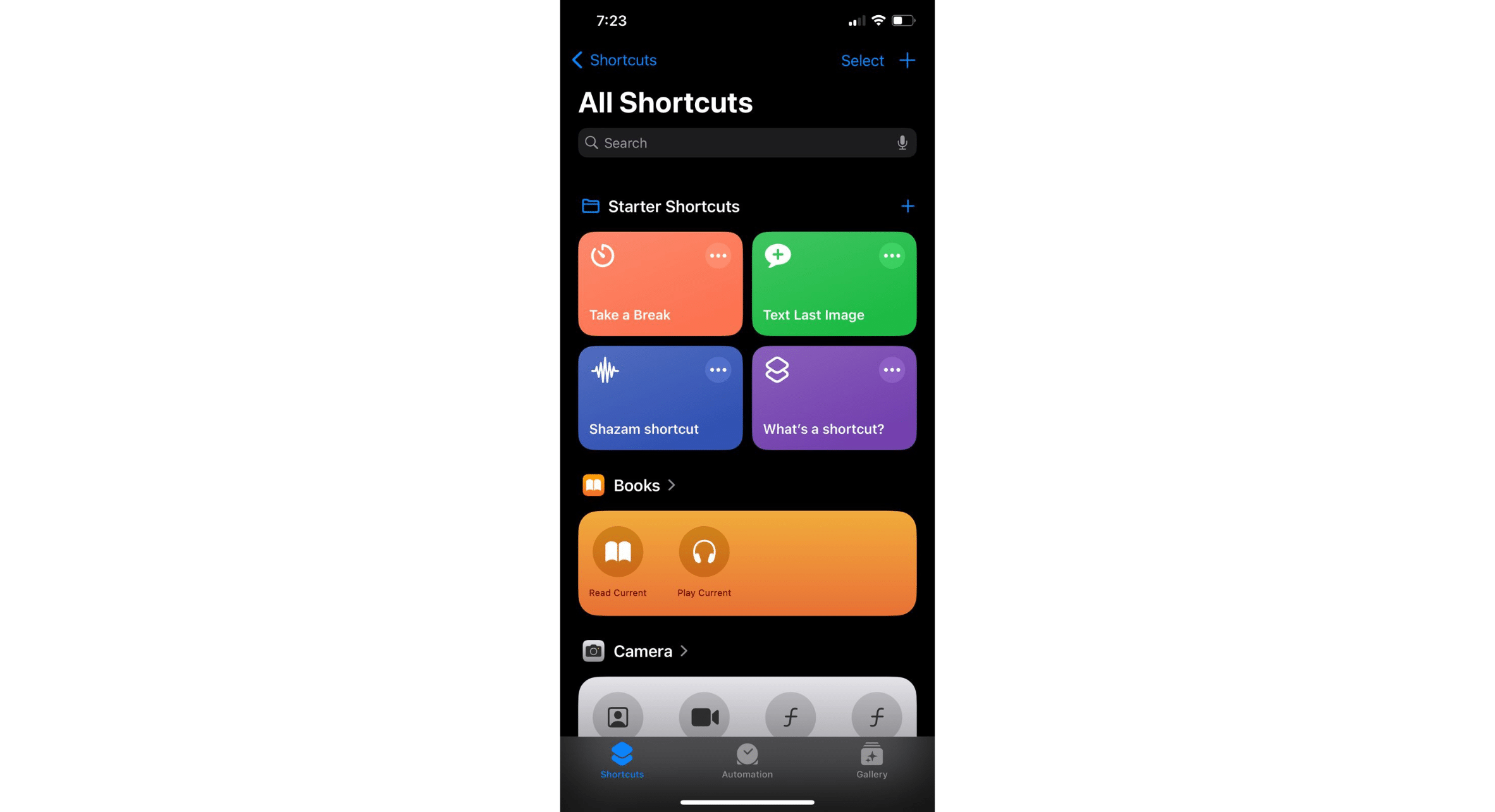
Click on "+" icon
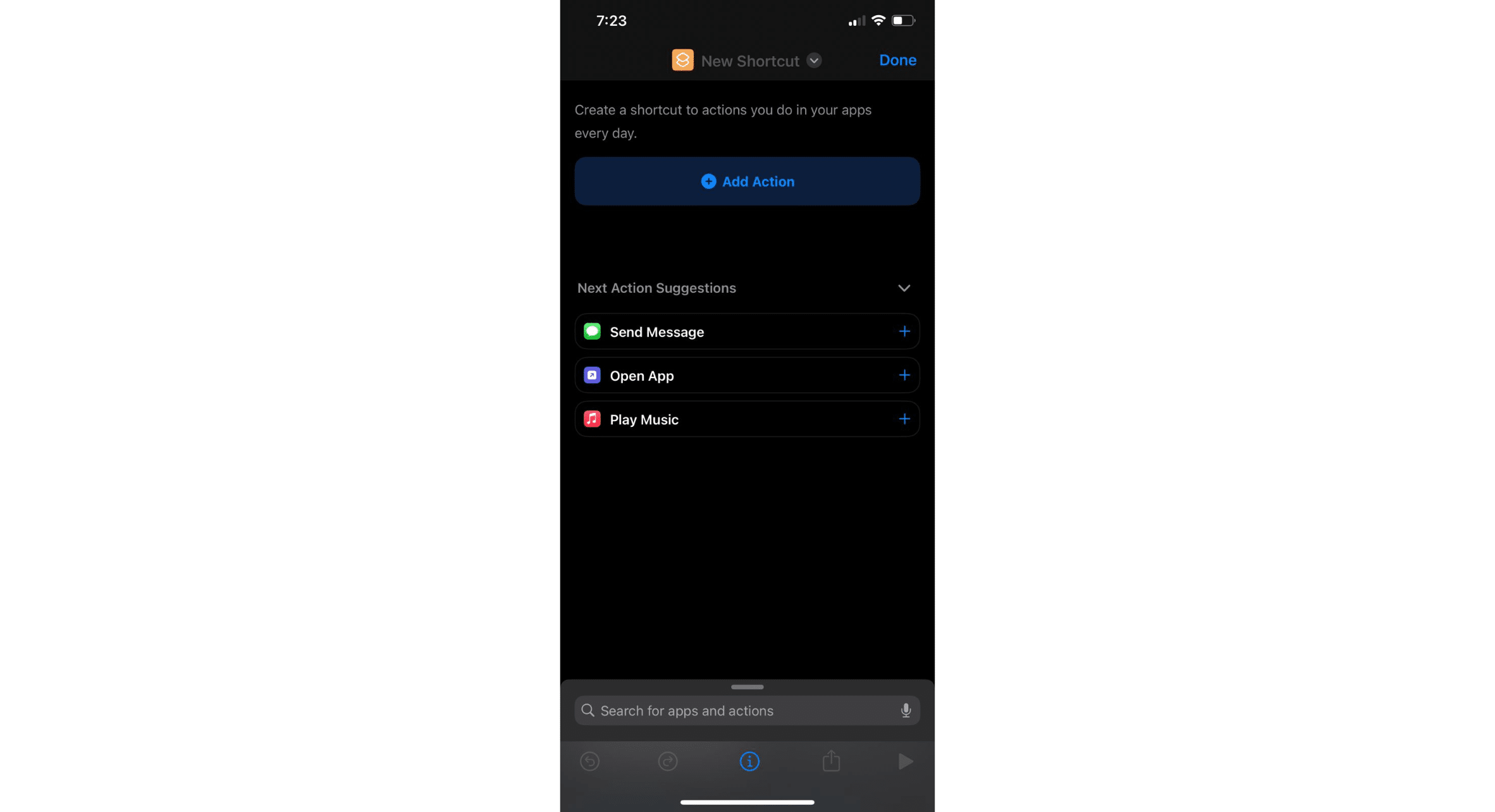
Click on "Add Action" button.
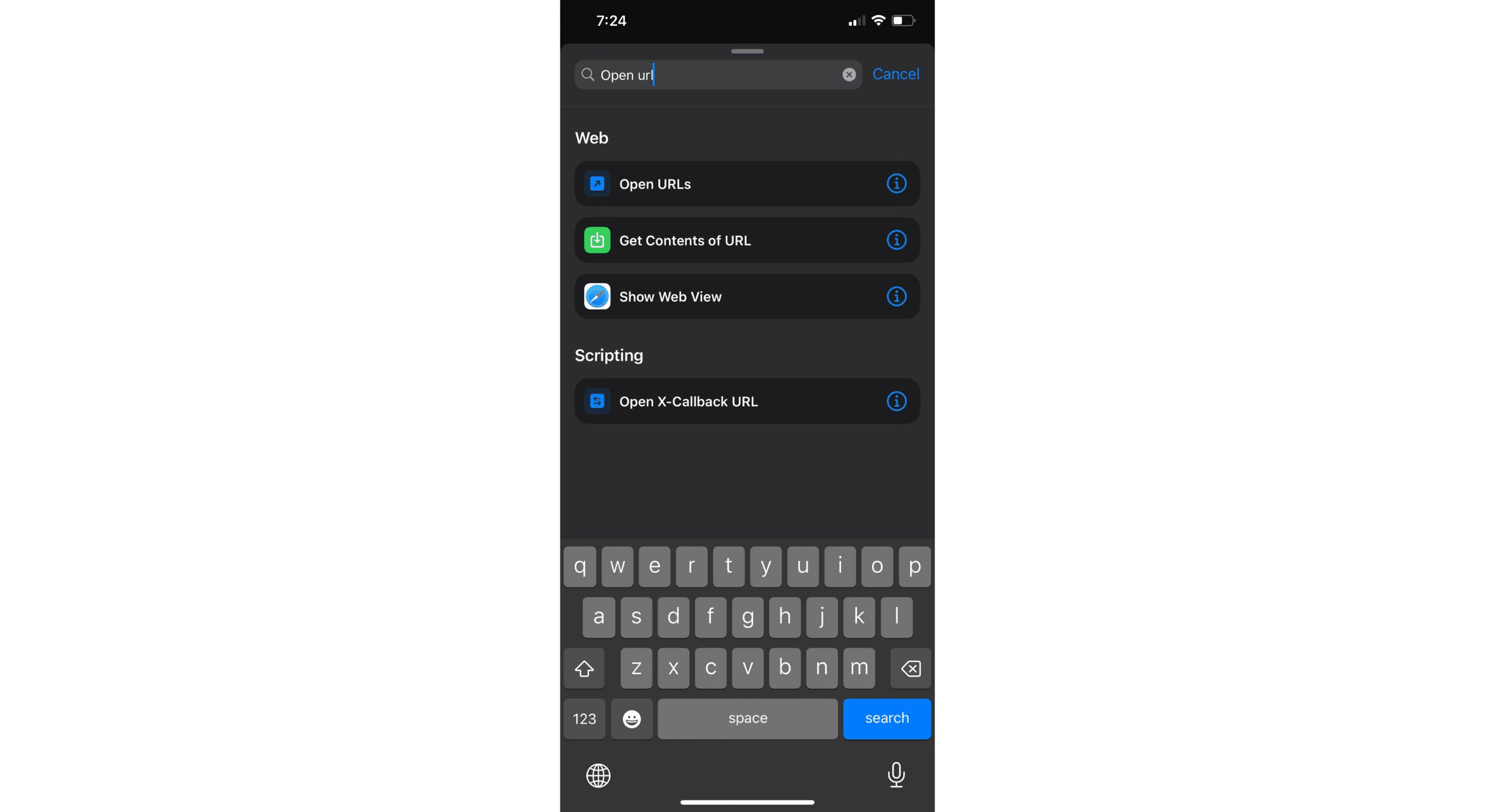
In the search bar, type "Open URL"
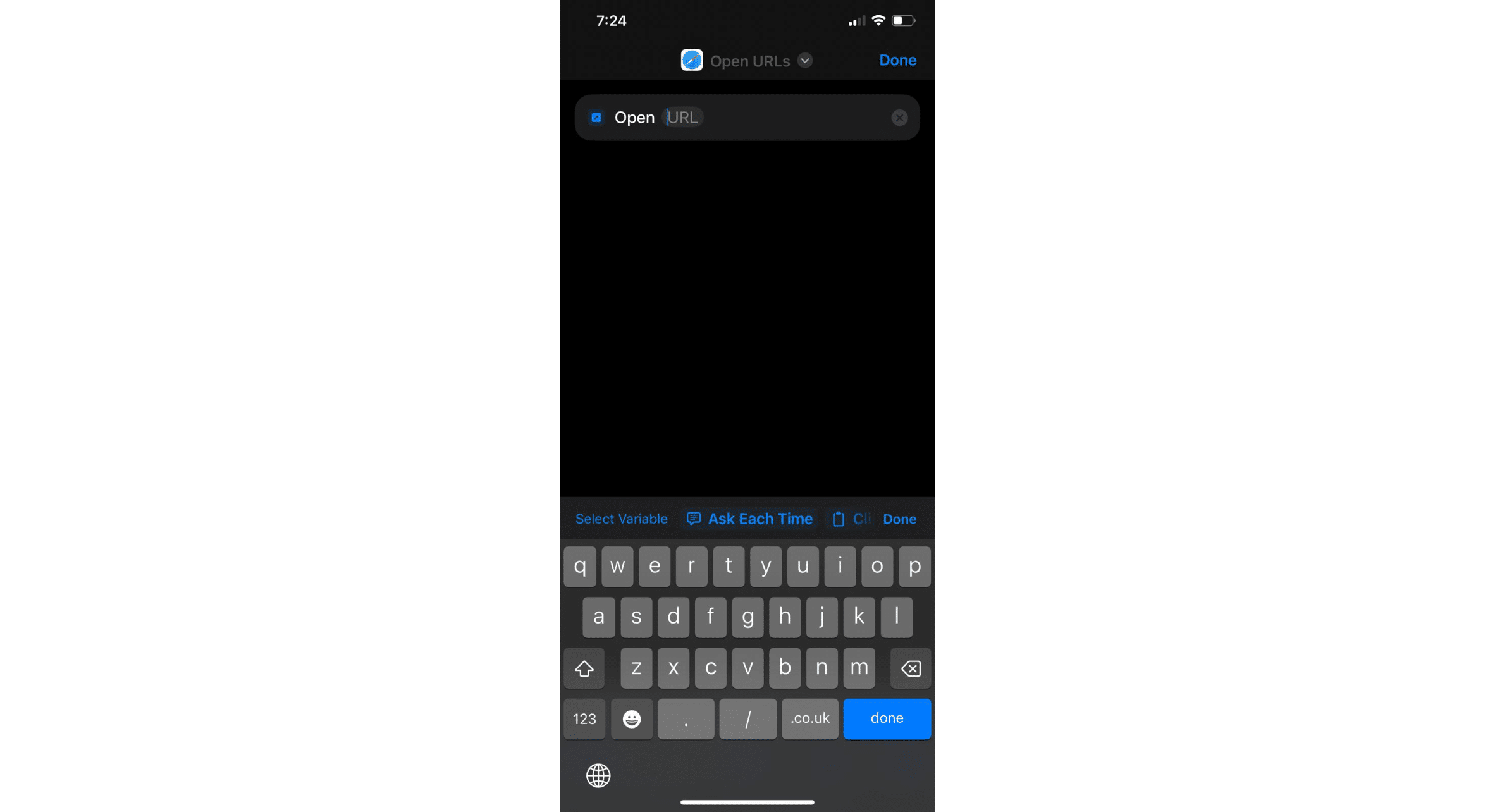
Paste the "Share Your Bot" URL here and click on "Done"
You can remove the "New Shortcut" text and add the text of your choice. It will be the name of the shortcut on your home screen.
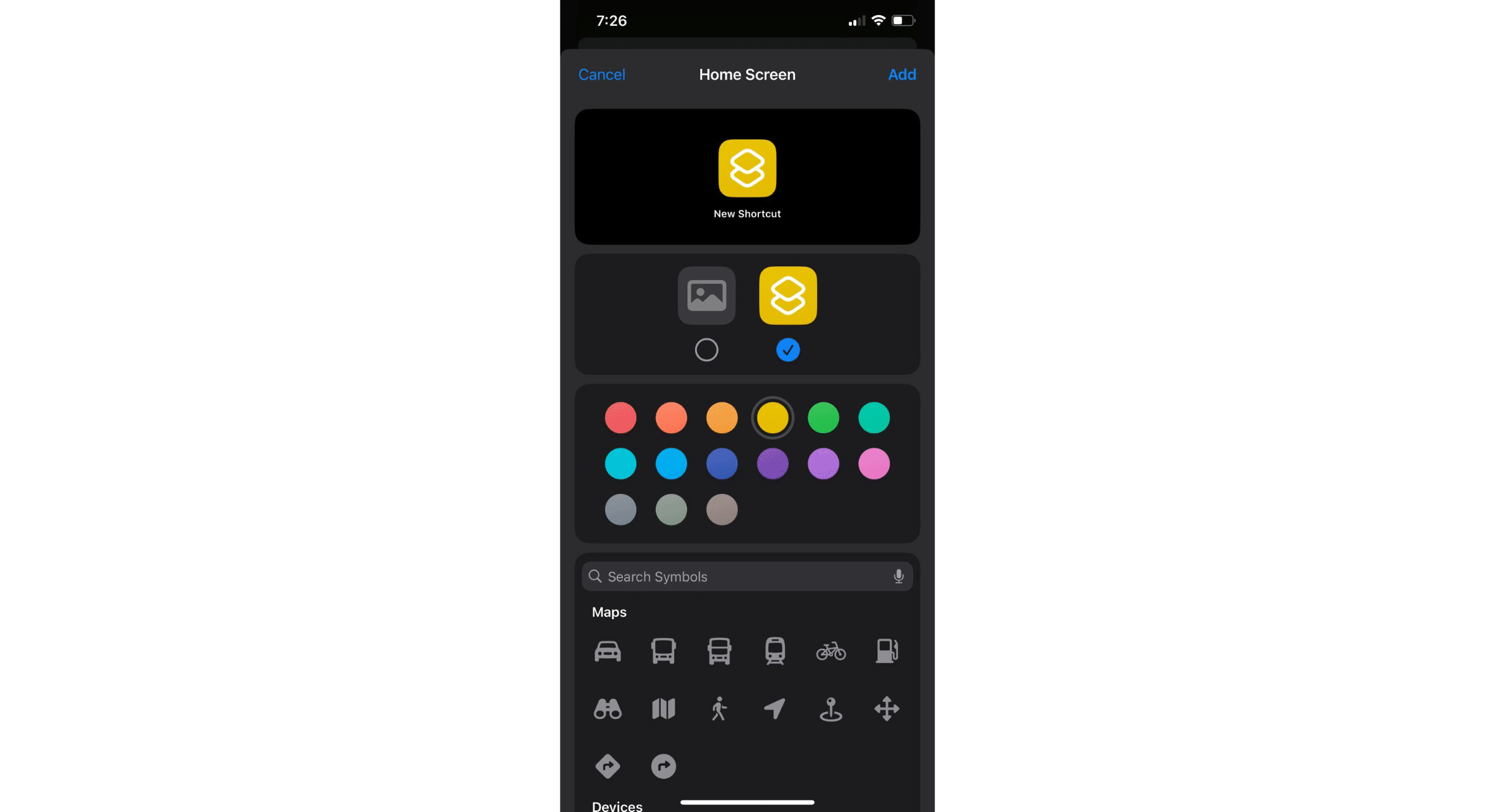
After selecting the name, click on the "Photo" icon to upload a photo of your choice as shortcut icon.
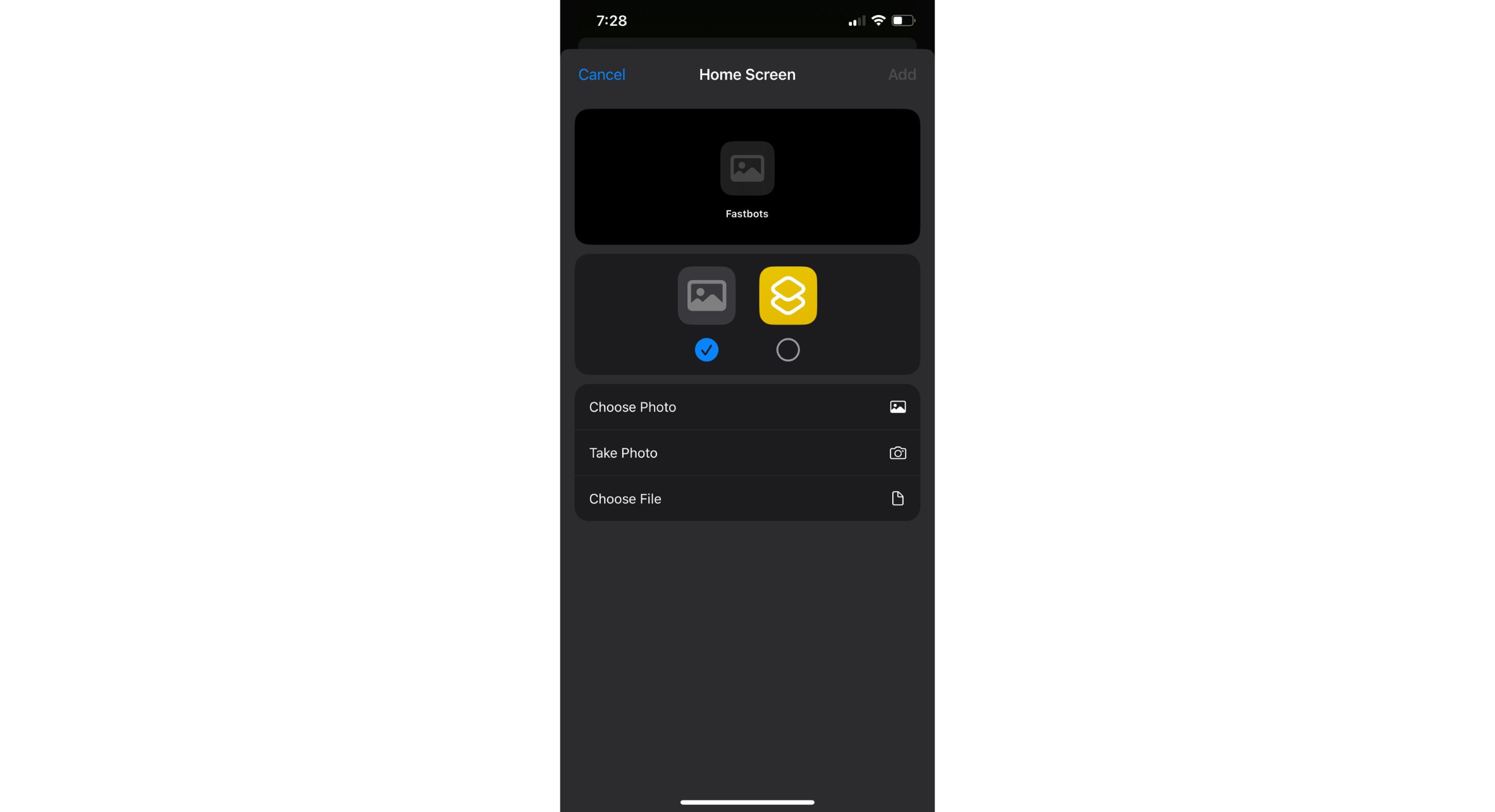
After uploading the picture, click on "Add" to save the shortcut.
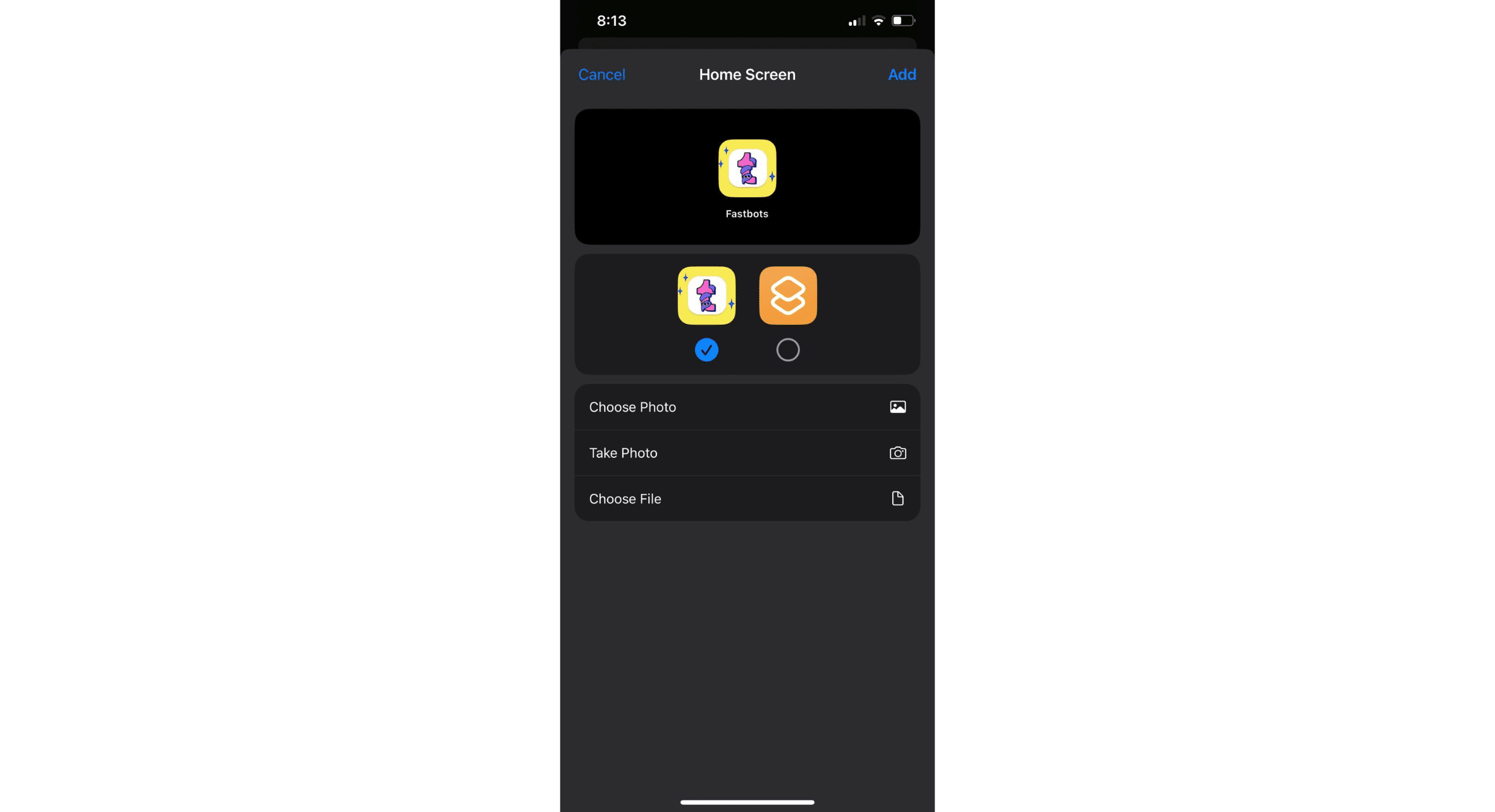
Clicking on "Add" will save the shortcut on the home screen of your iPhone.