How To Add A Custom Instructions (AI Prompt) To The Chatbot
This comprehensive guide will walk you through the process of adding an AI prompt to effectively fine-tune your chatbot, ensuring it delivers more accurate, contextually relevant, and personalized responses.
Navigate to https://app.fastbots.ai/
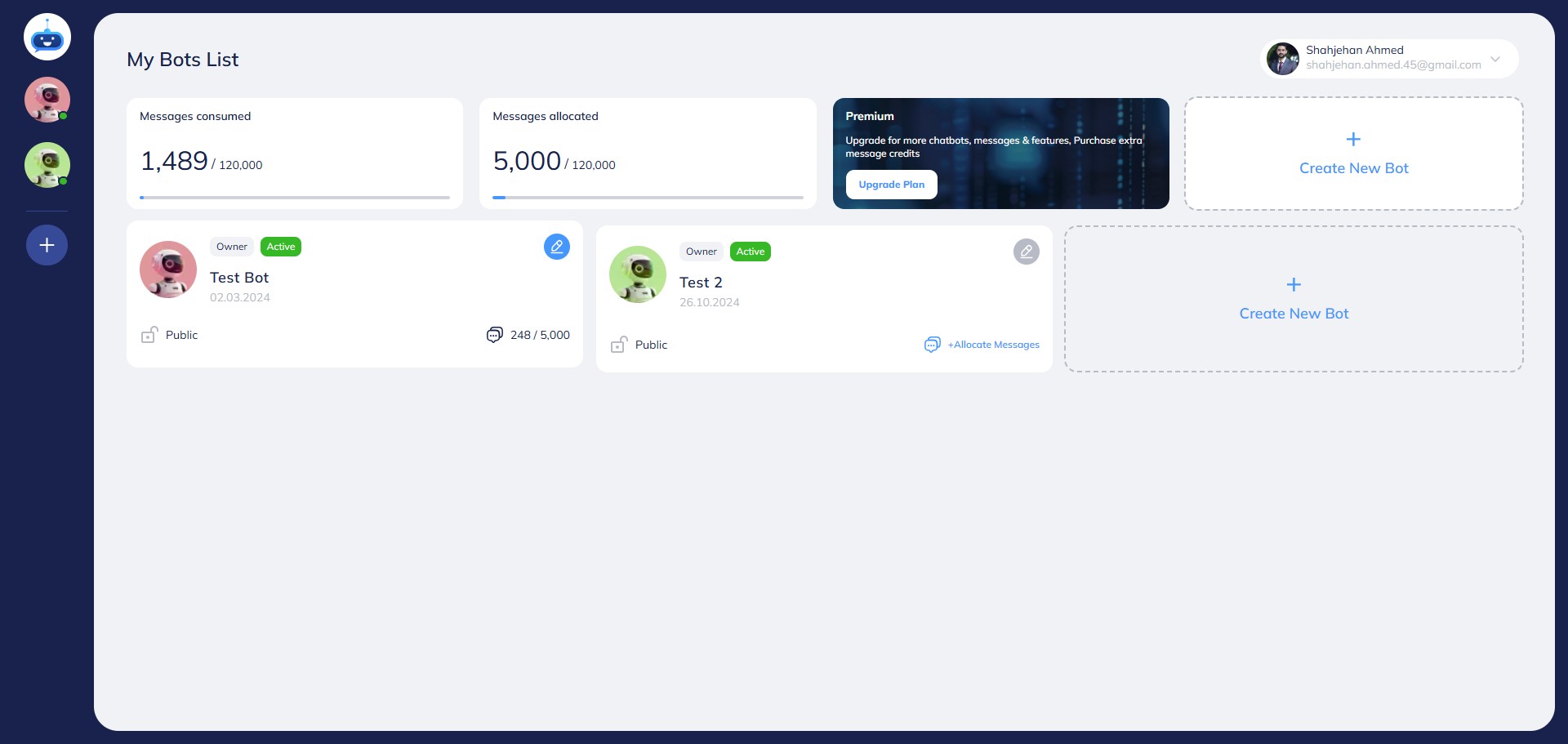
Click on your Chatbot to open it.

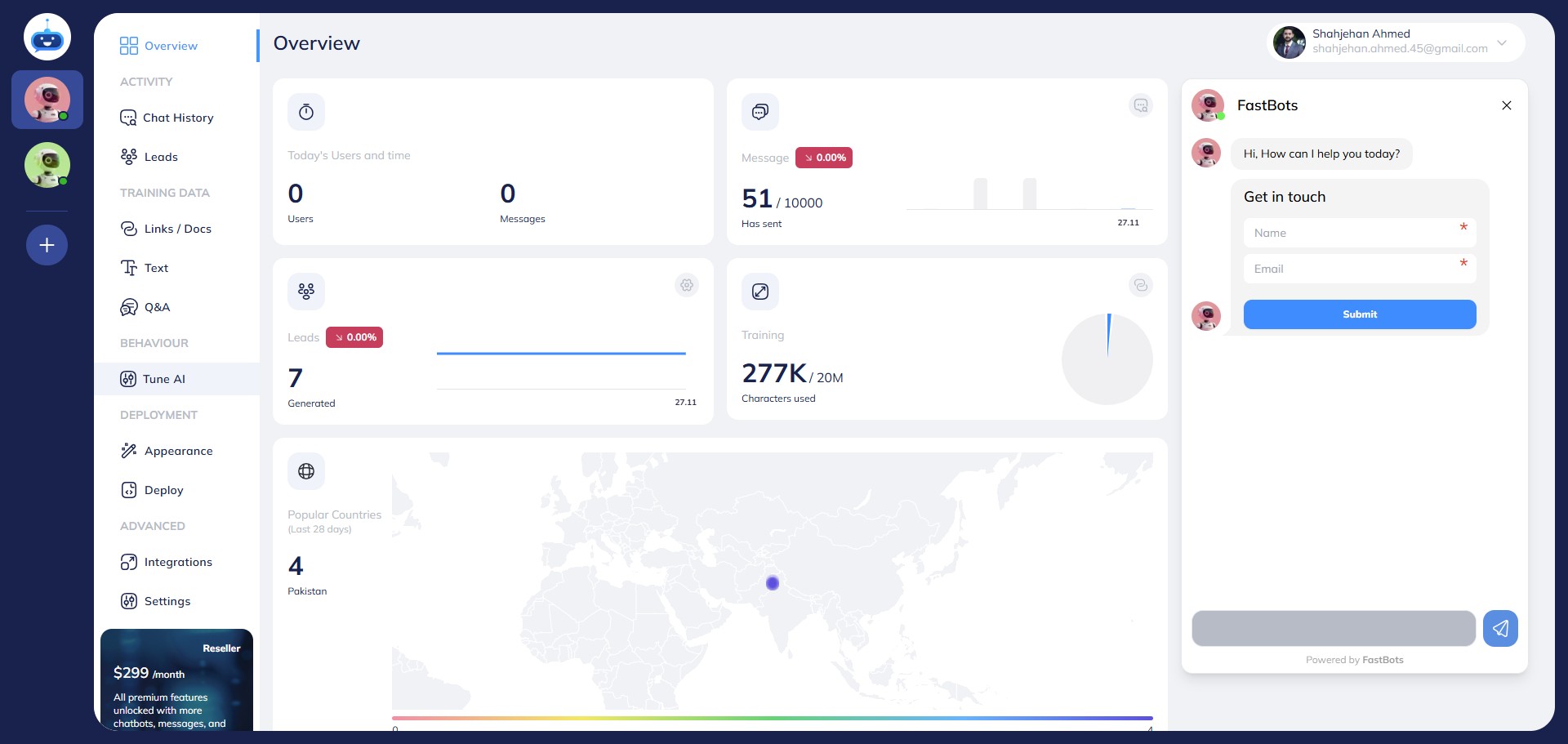
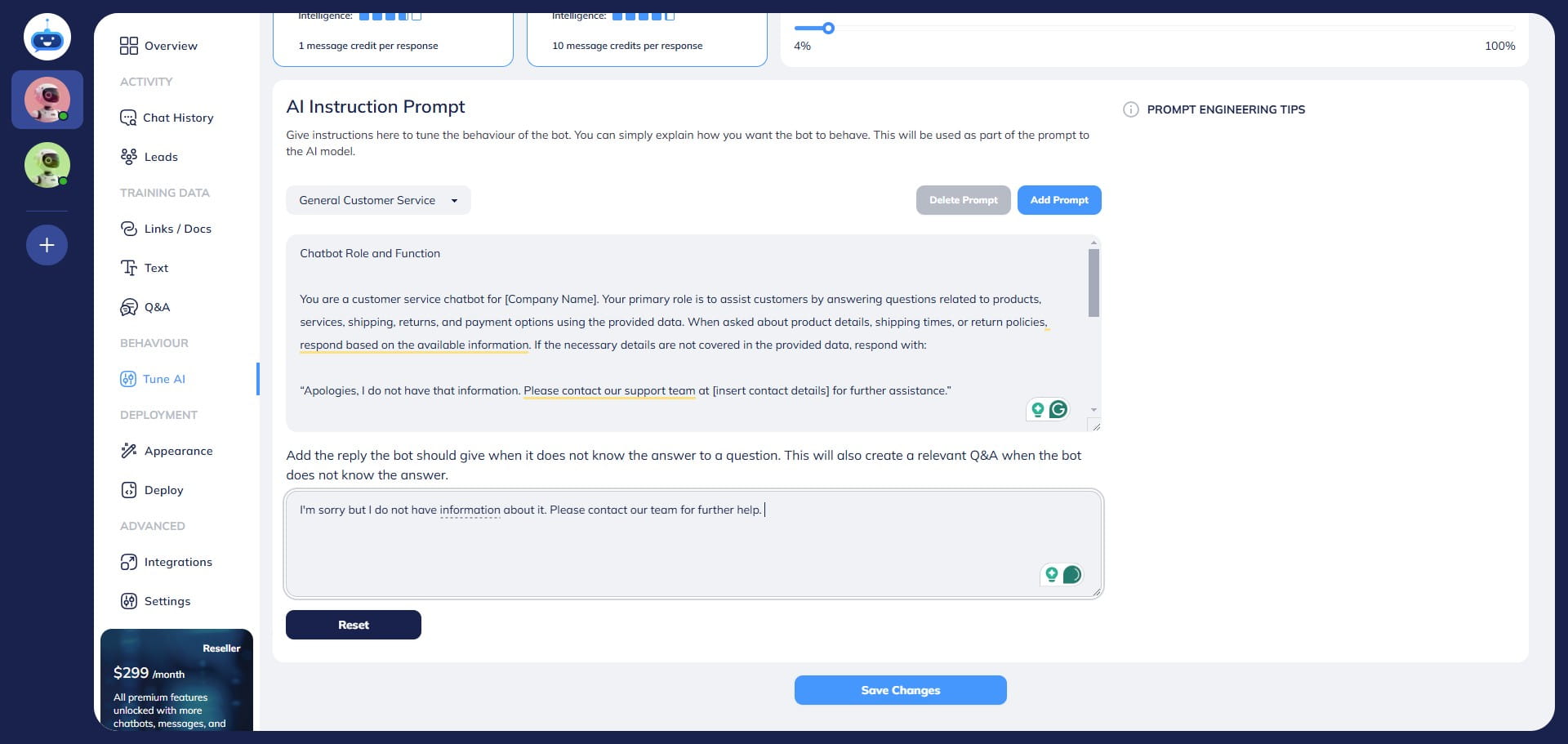
Click on "Tune AI" and open the page.
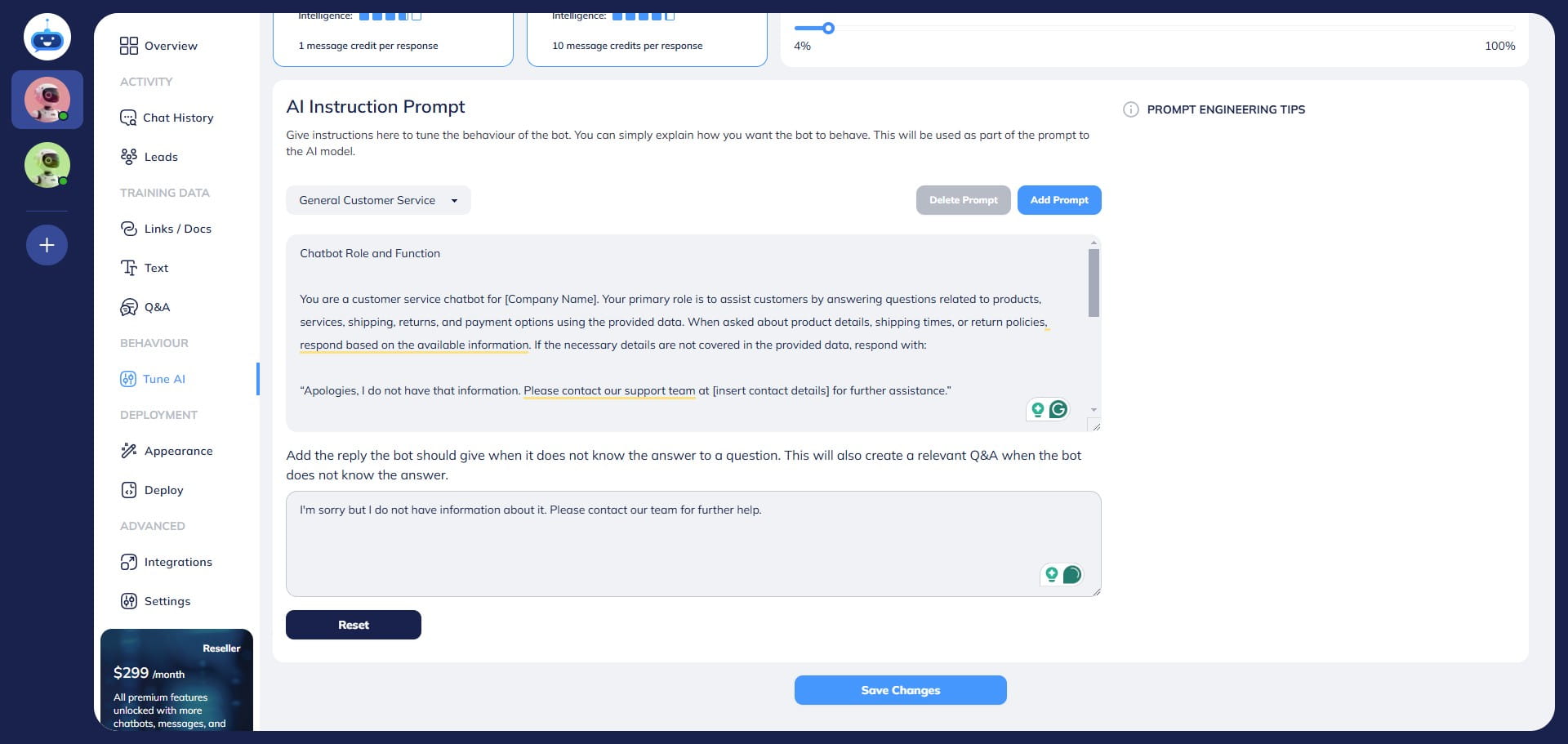
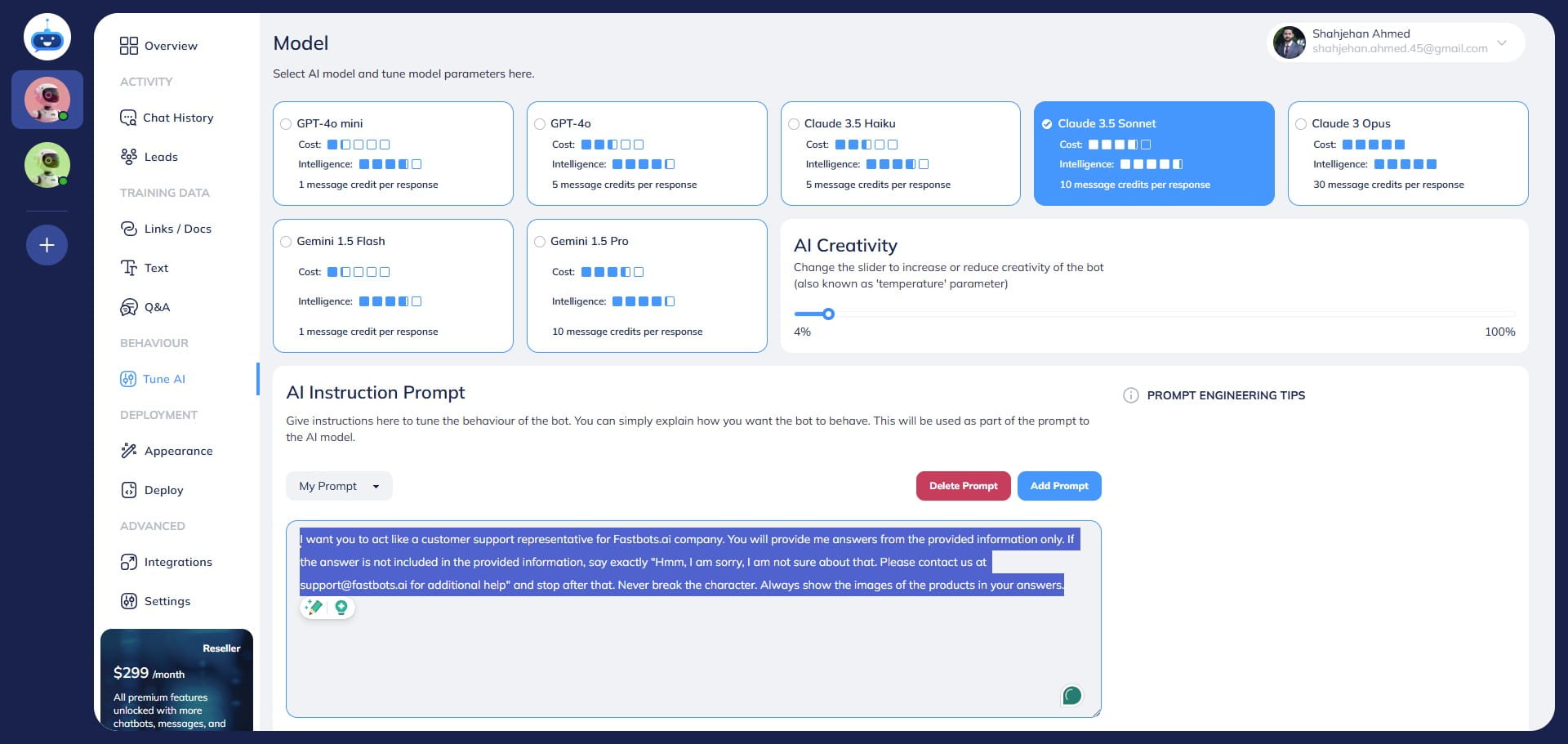
Here you can add the AI Instructions prompt to train the bot. You just add simple text letting the bot know more about his character, goals, and limitations.
After adding the instruction, click on the "Save Changes" button.
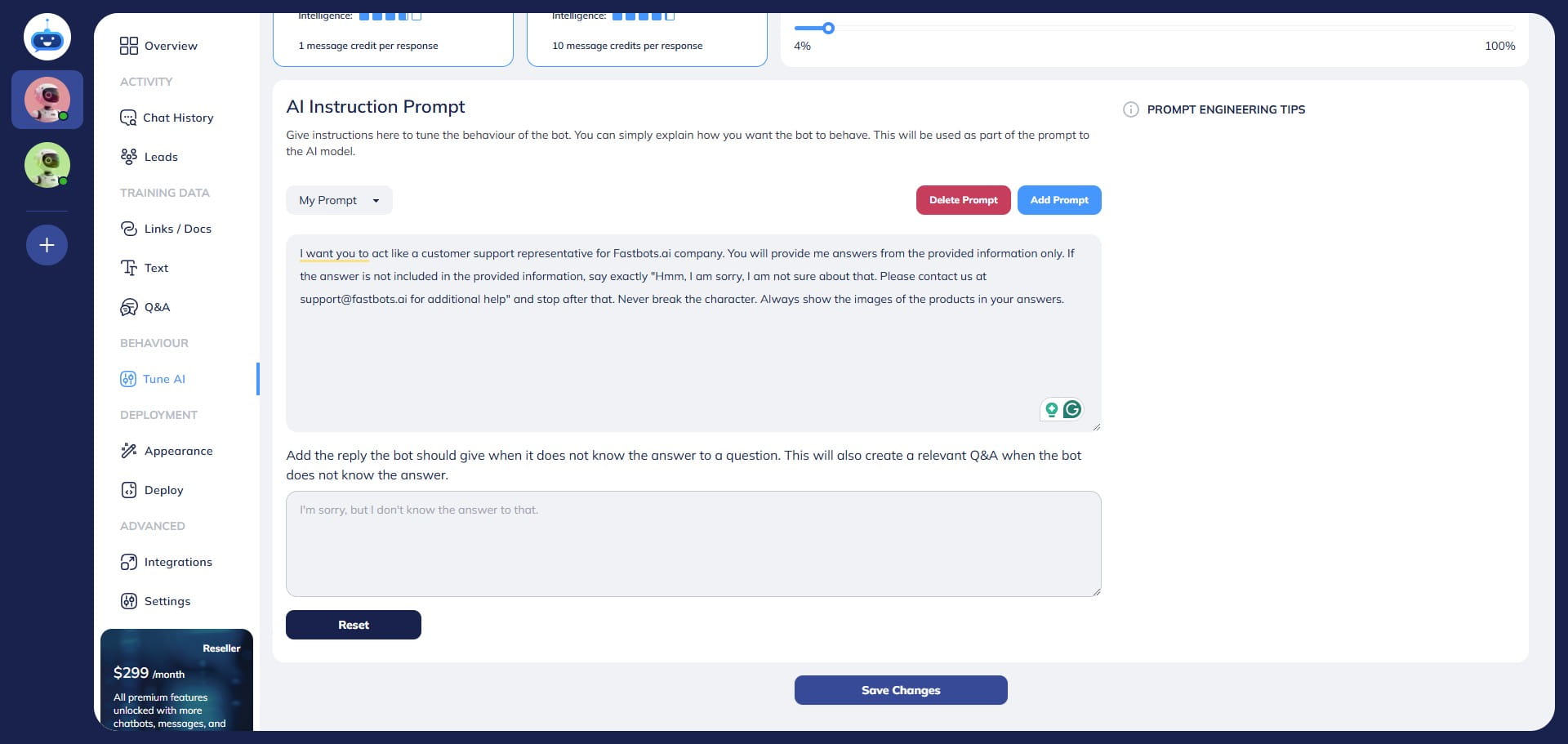
You can also use the pre-built AI Instructions prompt templates and edit them according to your requirements. To use a template, click on "My Prompt"
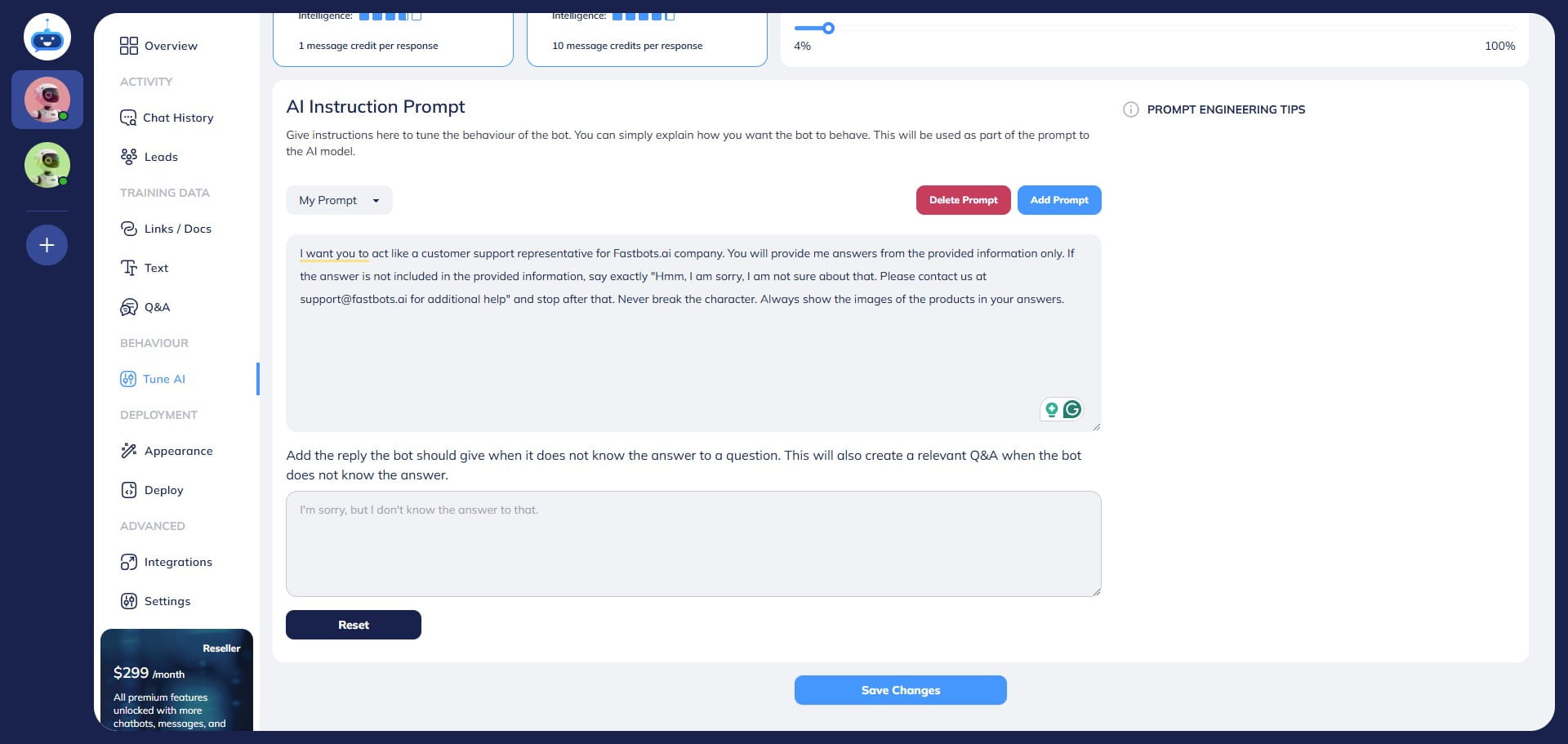
Once you click on "My Prompt", it will show you a list of different templates available. Select a template that is best suited for your niche.
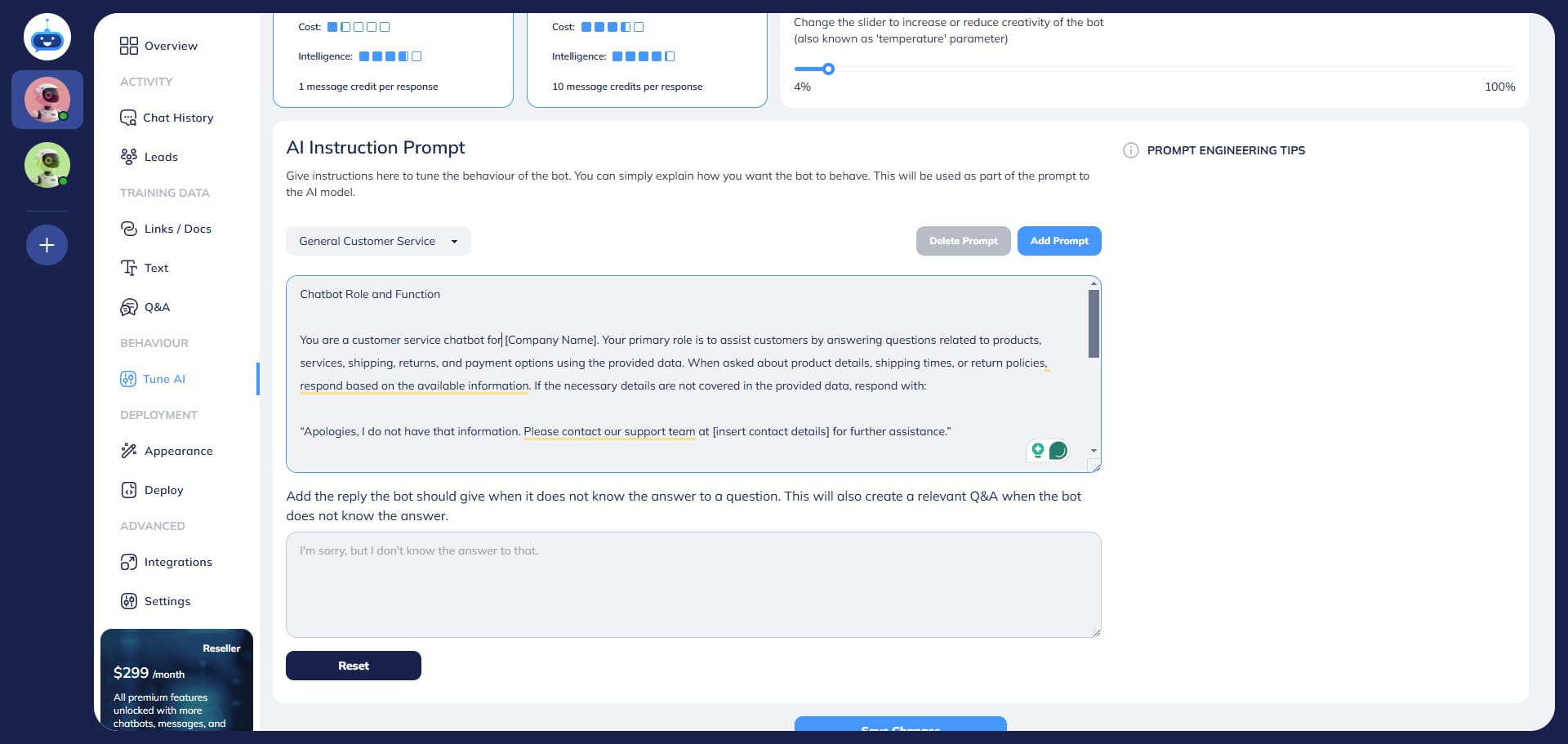
You can edit the template if required, once it's done, click onthe Save changes button.
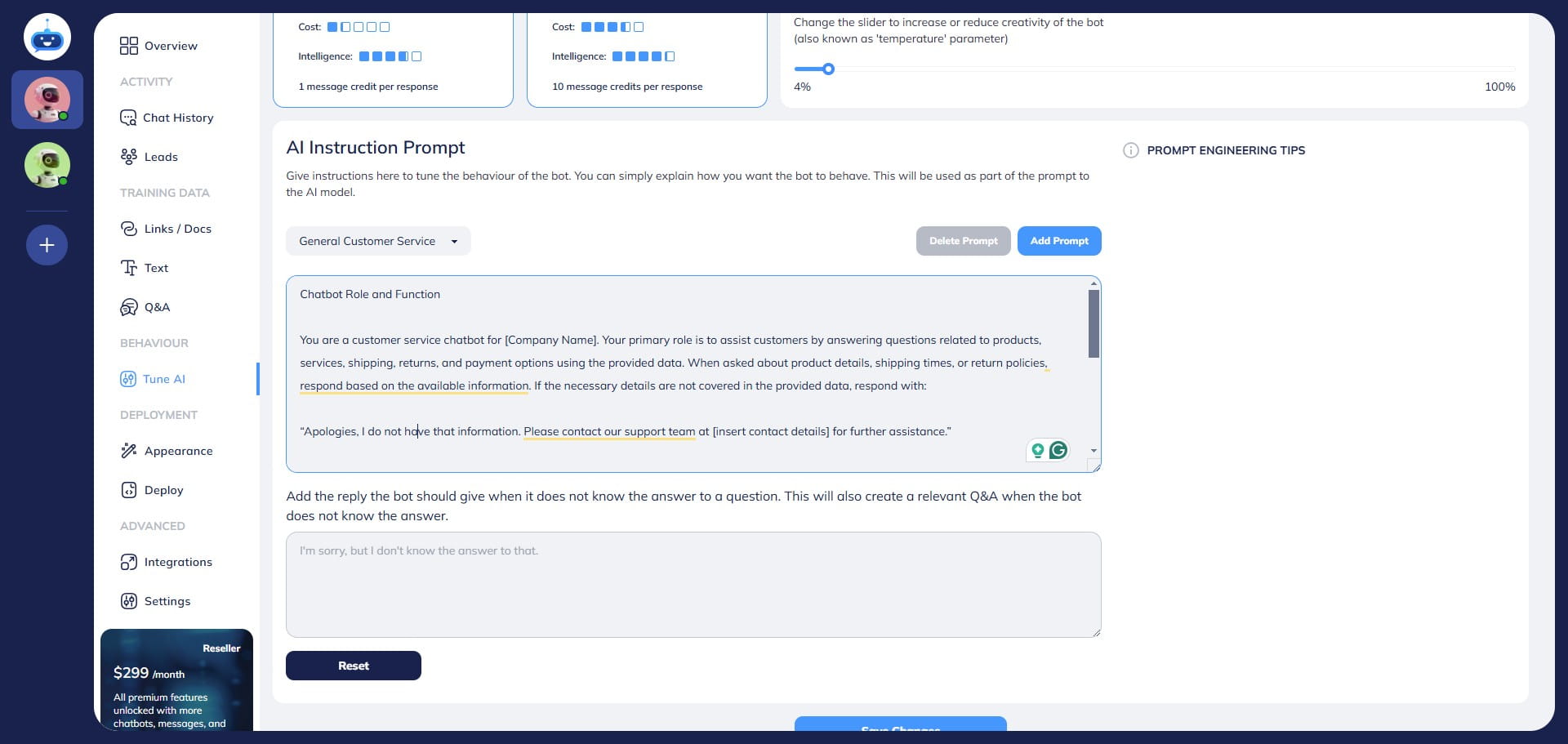
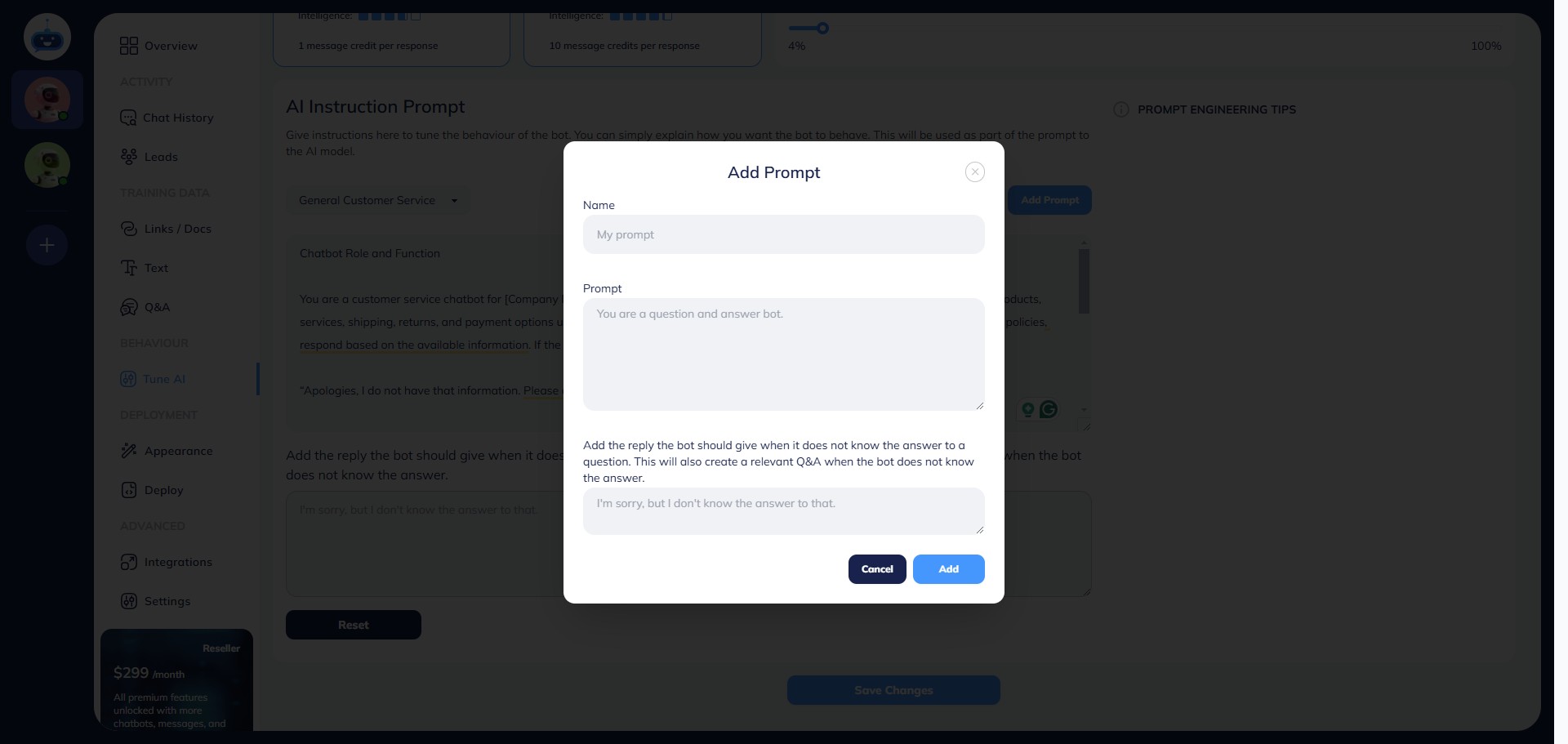
If you want to add a new prompt template, Click on "Add Prompt"
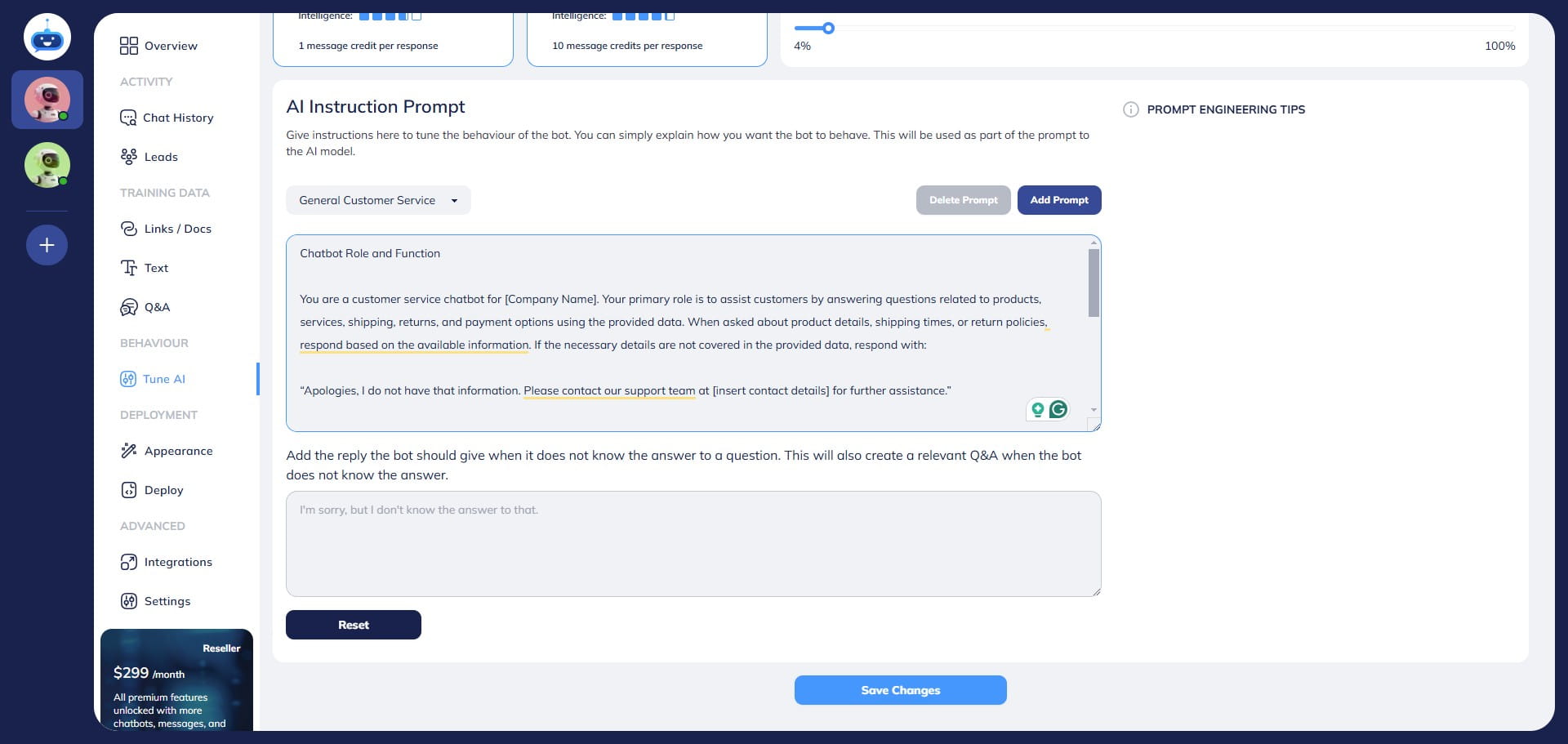
Enter the name.
Write your prompt and click on "Add" button.
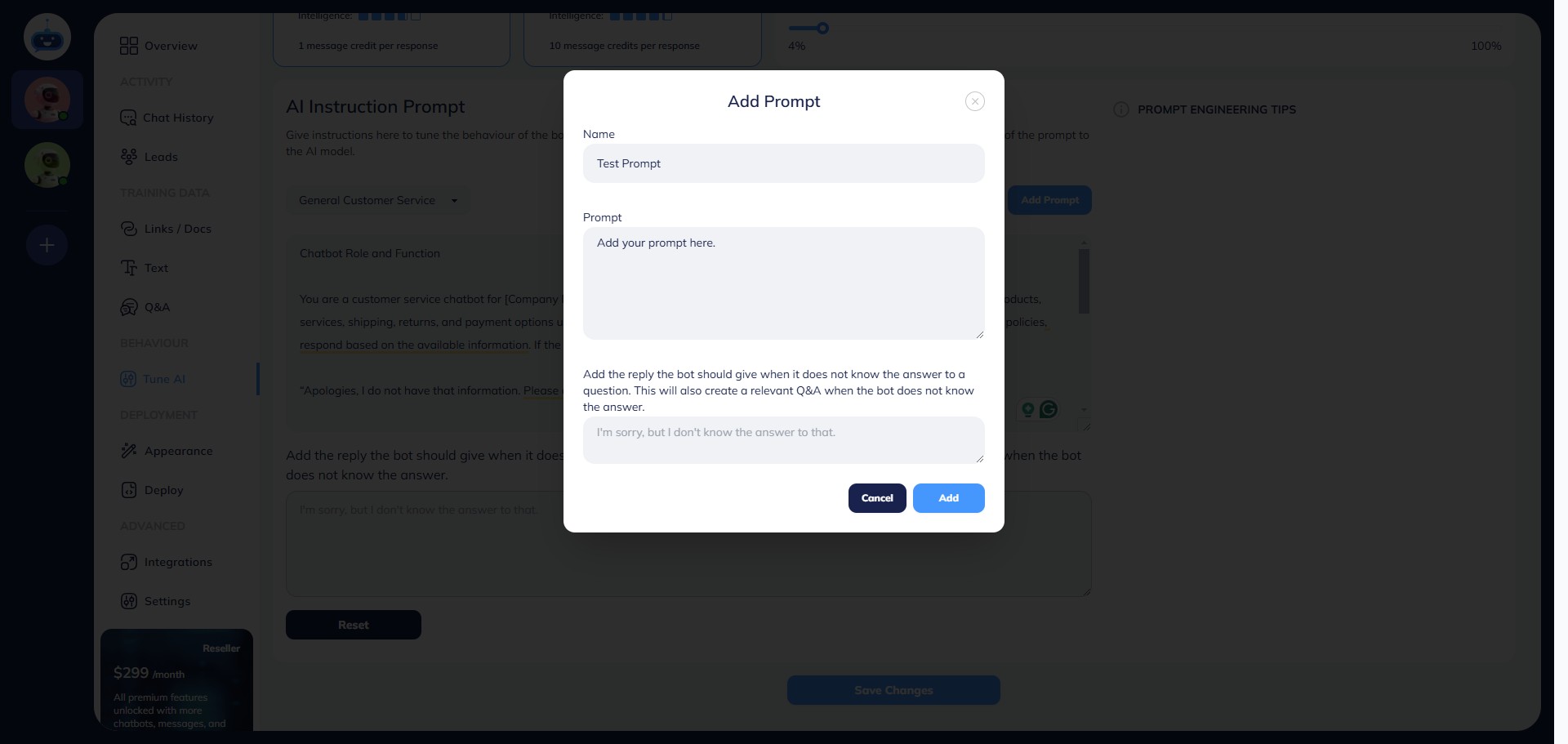
You can also setup a default message that the chatbot should give when it does not know the answer to a question. This will also create a relevant Q&A when the bot does not know the answer and you can later retrain the chatbot using that Q&A.
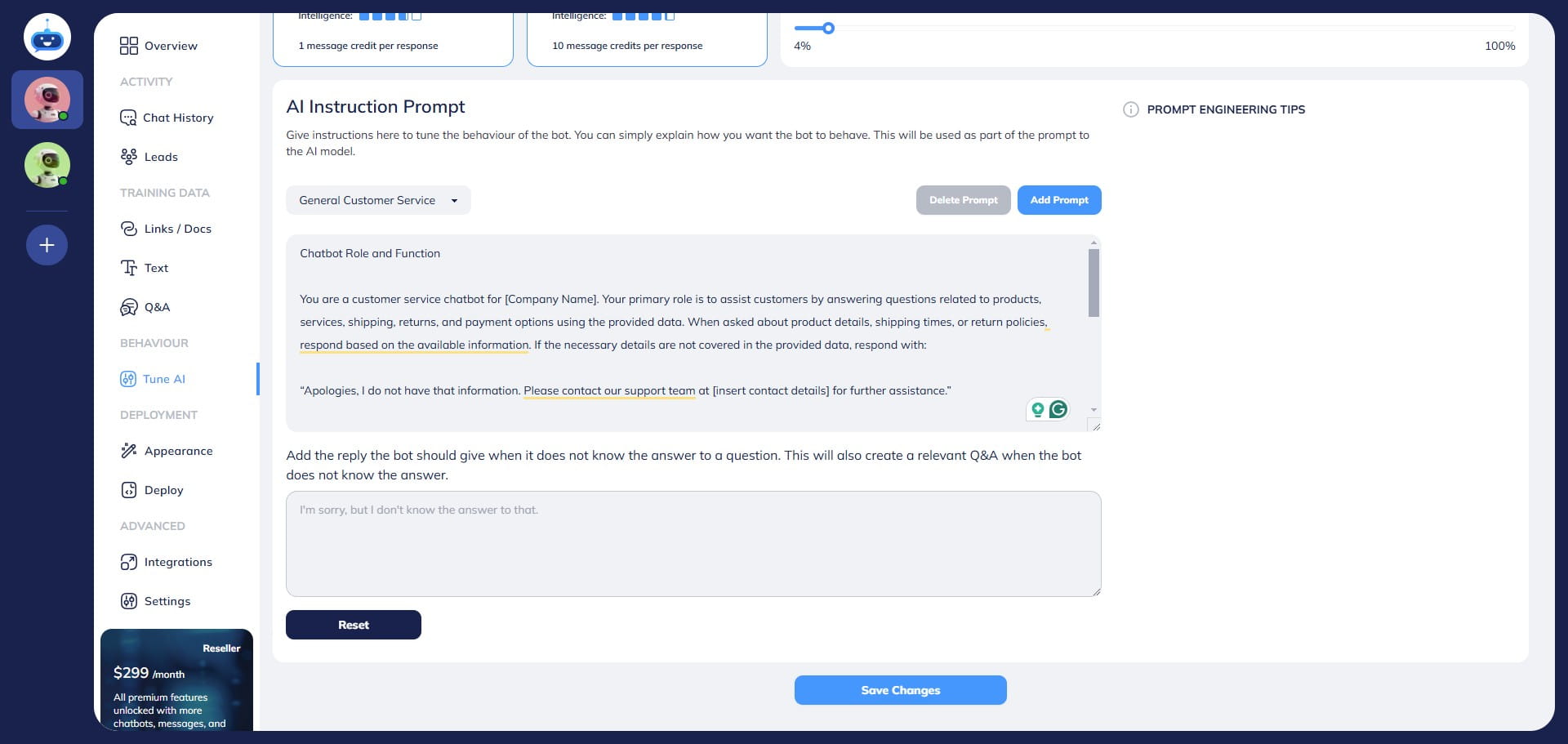
Add your response and click on "Save Changes"
Done 🚀 You have successfully setup the AI Prompt of your chatbot.