

How to Collect Leads with Forms in Text and Voice Chats
Configure a lead form before a conversation or offer it during a voice call. Choose fields, customise the form, test it and review captured details in Contacts.
Open your chatbot’s lead form settings. Go to Deployment → Chat Widget → Lead Collection → Lead Form. This guide covers a form that visitors fill in. To have the bot ask for details aloud, use Collect Details by Voice.
.](https://assets.guidejar.com/uploads/gXM1TsEJ7ZqZDBGrJZC2/lIb8emhxYeXedUErYKM3uPlaFUX2/91ddece1-e24e-470d-8c6f-59aa7b7dcab9/1790331816507.png)
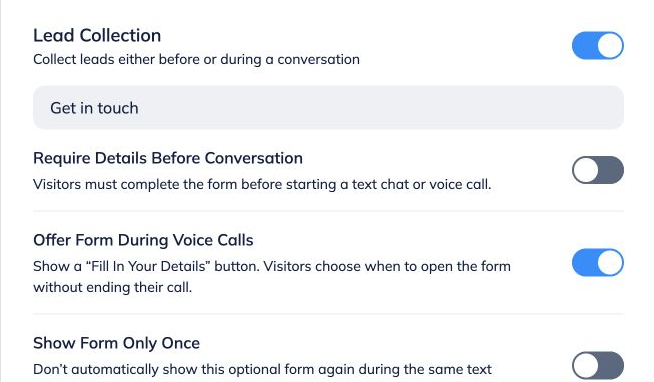
Enable Lead Collection and name your form. Turn on Lead Collection and enter a short title, such as “Get in touch”. Choose Text and Voice or Voice Only in Conversation Options if you also want voice calls.
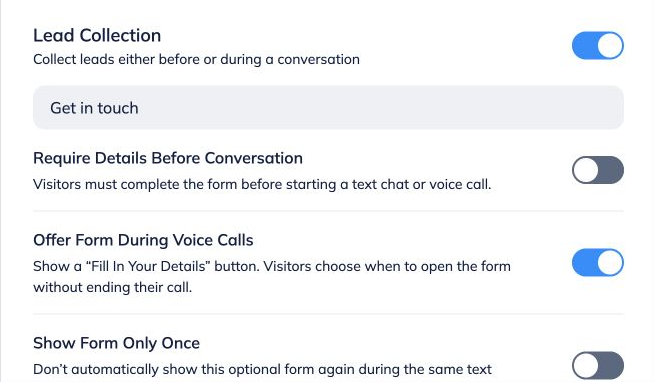
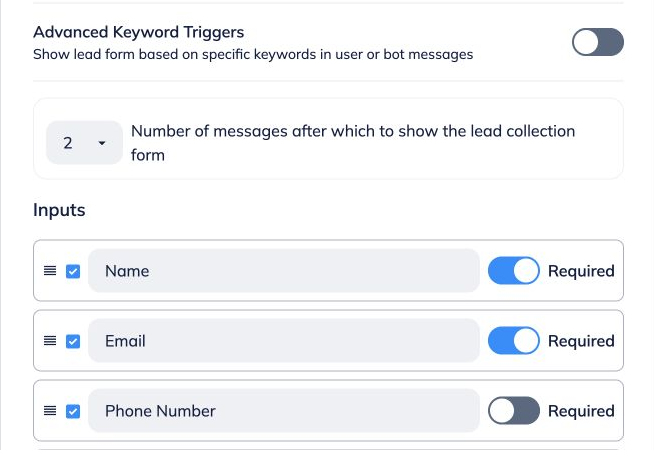
Choose when visitors see the form. Before a conversation: Require Details Before Conversation makes visitors complete the form before a text chat or voice call. During a voice call: Offer Form During Voice Calls adds a Fill In Your Details button. Visitors can open it without ending the call. During text chat: use the message count or Advanced Keyword Triggers. Show Form Only Once prevents the optional form appearing automatically again in the same text conversation. These triggers do not make the bot ask questions aloud.
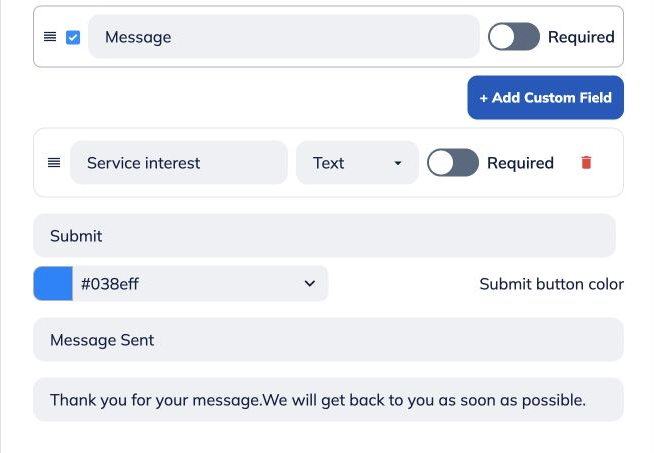
Choose the form inputs. Select Name, Email, Phone Number and Message as needed. Edit the placeholder text, turn on Required for mandatory fields and drag the handles to change the order.
Add any custom fields. Click Add Custom Field, enter a label and select the field type. You can add up to four custom fields. These fields are shared with AI Contact Enrichment, so the same information can be collected by a form, AI, or both. Check the AI collection toggle on the enrichment tab separately.
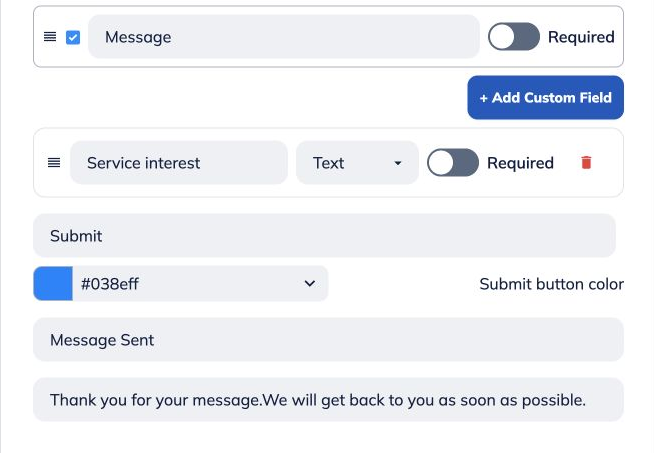
Customise the form’s response. Edit Submit Button Text, its colour, Thank You Message Title and Thank You Message Body. These are the form’s written messages, separate from the spoken voice welcome.
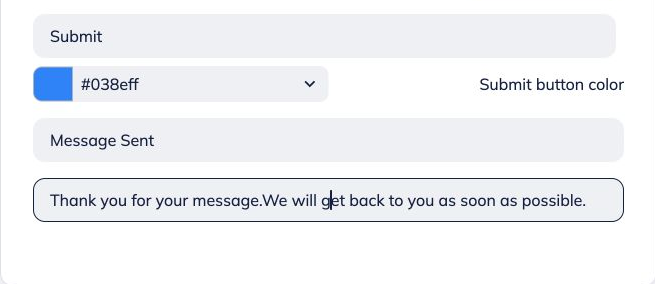
Preview, save and test. Use Preview Lead Form to review the layout. Add your policy link under Privacy Policy if needed, then click Save Changes. Test a form submission through your published widget or shared link using test details. Check both text and voice entry points that you have enabled. Voice tests use message credits.
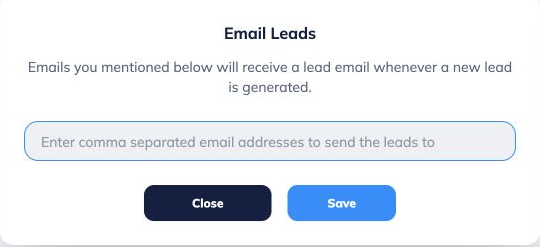
Set up lead email notifications. Open Contacts → Configure Emails. Enter recipient addresses separated by commas and click Save. Submit a test lead and check the intended inbox.
Review the captured lead in Contacts. Find and open the contact, check the submitted values and review its conversation context. Use Export when you need a copy of your contact list. Continue with the Contacts CRM and AI Enrichment guide for managing follow-ups.
 for managing follow-ups.](https://assets.guidejar.com/uploads/gXM1TsEJ7ZqZDBGrJZC2/lIb8emhxYeXedUErYKM3uPlaFUX2/3c0fa60f-9aa2-463b-887a-90841fe5c159/1790343175641.png)