How To Use FastBots Contacts CRM and AI Enrichment
Manage leads collected through forms, text chats and voice conversations. Review contact records, organise follow-ups, configure notifications and export your contacts.
Collect leads by form or through conversation. A Lead Form lets visitors enter their details. AI Contact Enrichment captures details shared in conversation. With voice enabled, Collect Details by Voice lets the bot ask for the fields you select. Use this guide to organise and review the resulting records in Contacts.
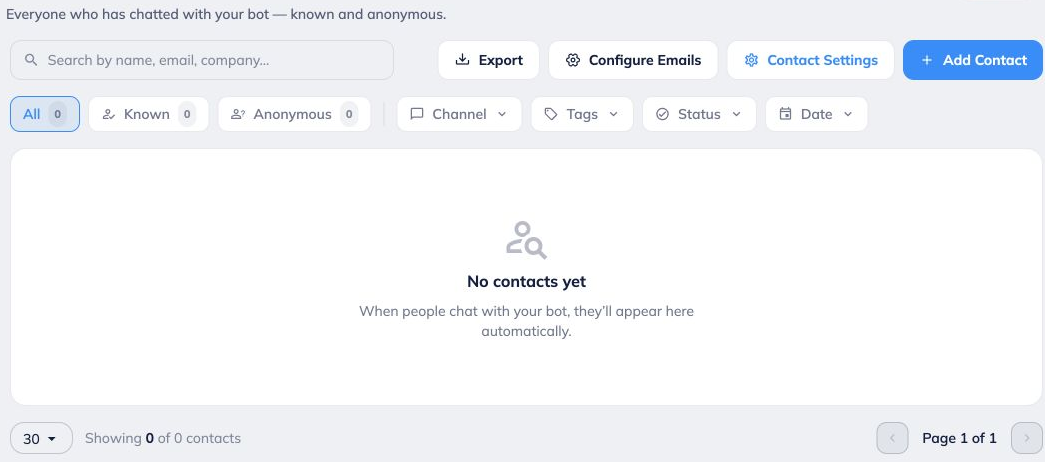
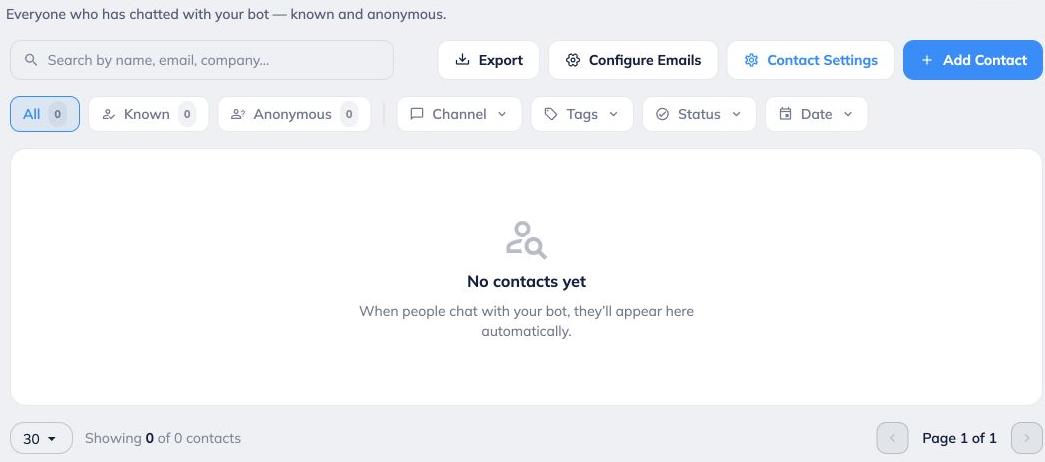
Open Contacts for your chatbot. Sign in to FastBots, choose your bot and select Contacts in the left menu. This is where you review known and anonymous visitors and the details collected about them.
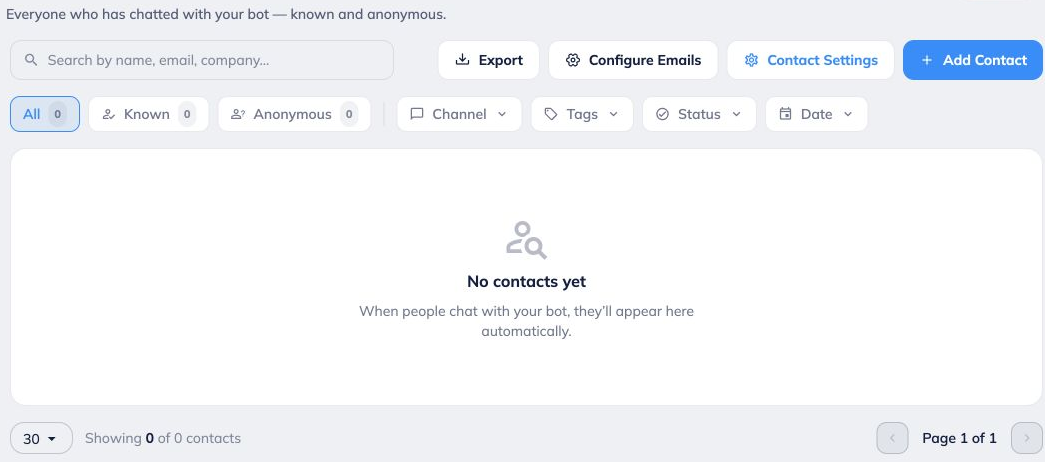
Find the contacts you need. Search by name, email or company. Use All, Known and Anonymous, then narrow the results with Channel, Tags, Status or Date.
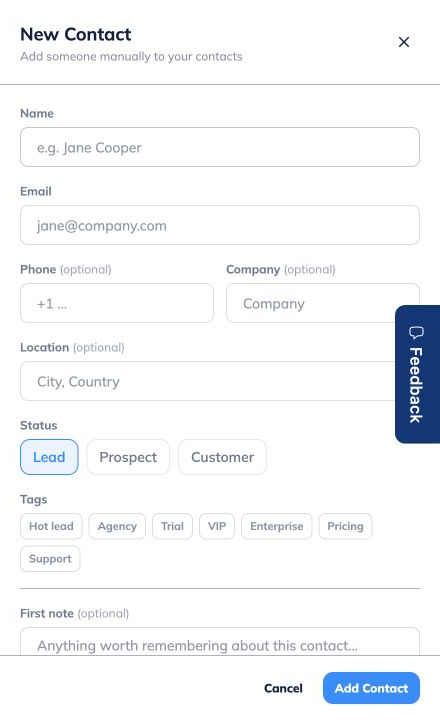
Add a contact manually when needed. Click Add Contact, enter the details, choose a status and tags, and add an optional first note. Click Add Contact to save the record.
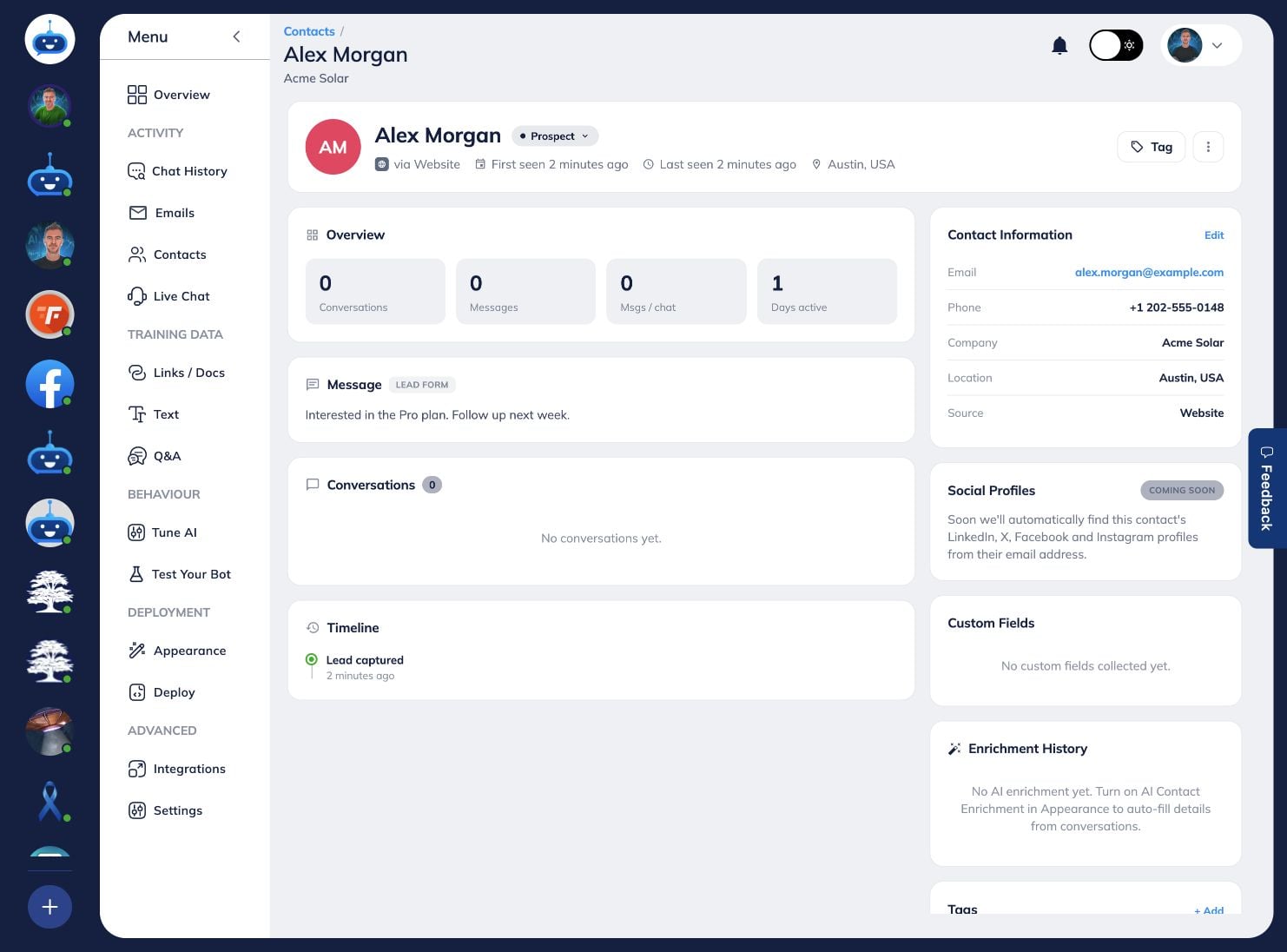
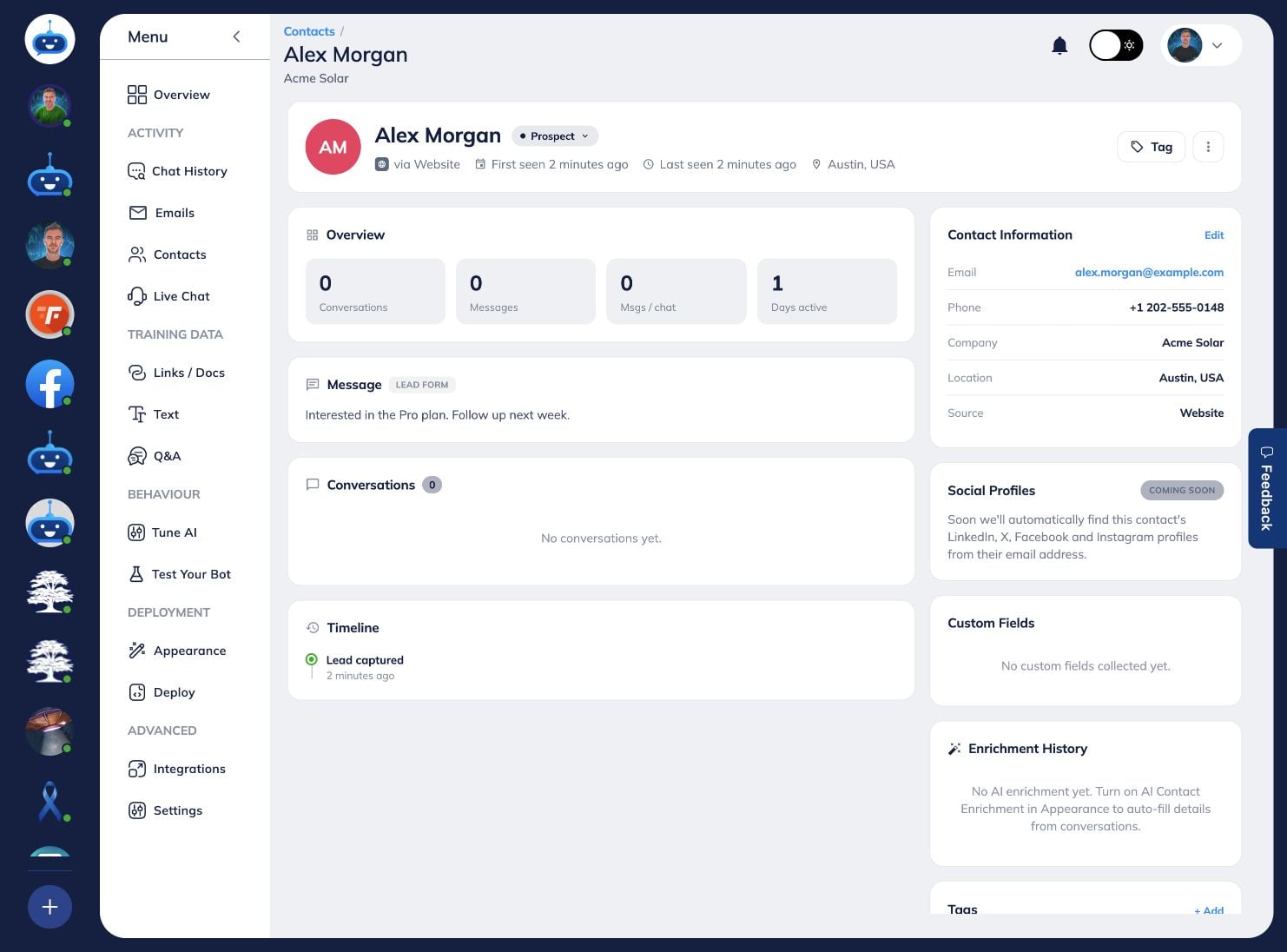
Open a contact to review its profile. Select a contact from the list. Review its details and available conversation history before following up. A blank field does not mean the visitor was asked for it or agreed to share it.
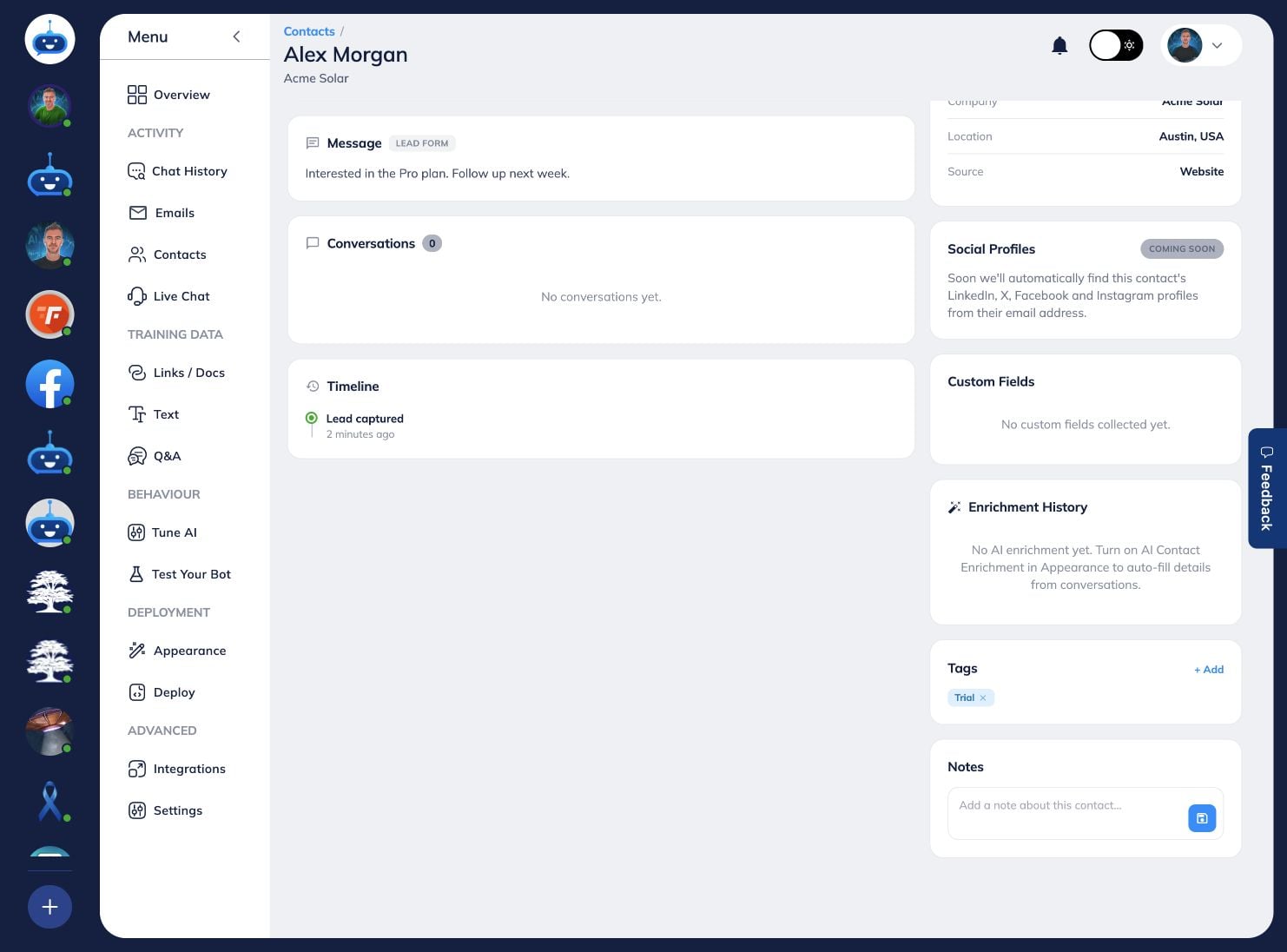
Organise your follow-up. Use the contact’s status, tags and notes to record what your team needs to do next. Check captured names, email addresses and phone numbers before using them.
Export the contacts you need. Apply the relevant search and filters, then select Export. Review the downloaded file before importing it into another tool.
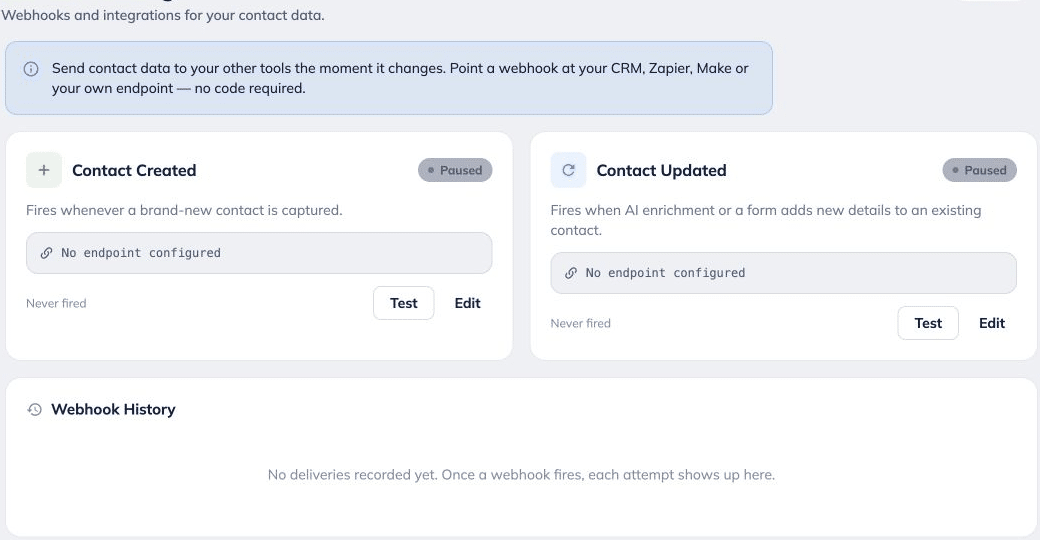
Connect contact updates to your other tools. Open Contact Settings to review the contact-created and contact-updated webhook options. Configure your destination there when you want contact changes sent to another system.
Enable AI Contact Enrichment. Open Deployment → Chat Widget → Lead Collection → AI Contact Enrichment. Turn it on if available on your account. This captures details shared in natural conversation without requiring a form.
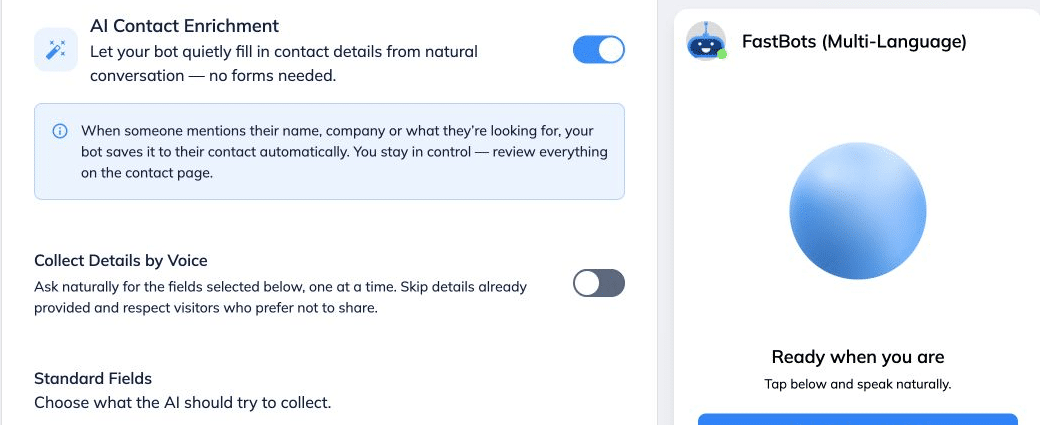
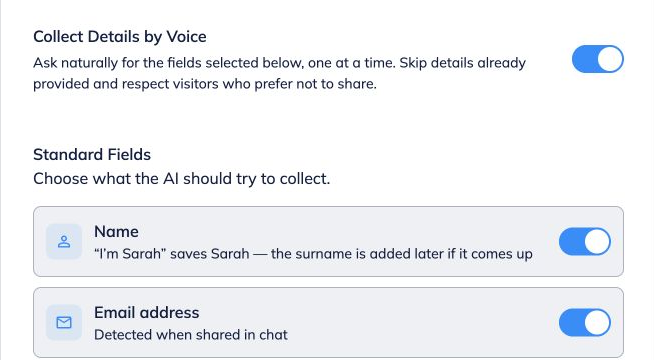
Choose the details to collect by voice. Enable voice in Conversation Options, then turn on Collect Details by Voice. Select the standard fields you need. The bot asks one at a time, skips details already supplied and respects visitors who decline. See the Chat Widget and voice guide for the complete setup.
 for the complete setup.](https://assets.guidejar.com/uploads/TnhYGVIAekgGyOF8EiqS/lIb8emhxYeXedUErYKM3uPlaFUX2/b9f10452-0064-4fea-bcd2-6622da67b506/1790343111036.png)
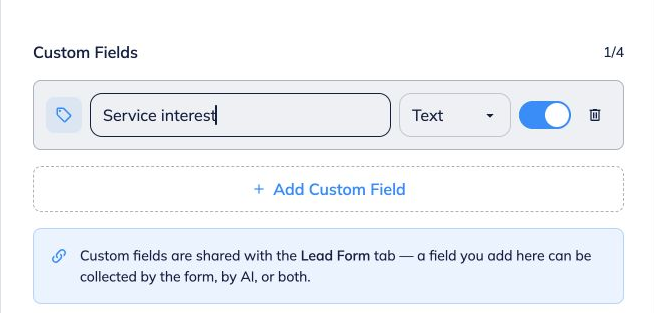
Add custom fields and save. Add up to four custom fields, such as Service interest. Choose the field type and enable AI collection for the fields you want filled from conversation. Custom fields are shared with the Lead Form tab and can be collected by the form, AI, or both. Click Save Changes.
Check details collected from voice transcripts. AI Contact Enrichment reads the visitor’s transcribed messages and fills the selected fields. It can create a contact with Lead status or update a matching contact. FastBots stores the transcript, not an audio recording. Processing happens in the normal background enrichment cycle, so details may not appear as soon as the call ends. Return to Contacts and review the values and Enrichment History. A field remains blank if the visitor has not supplied usable information.
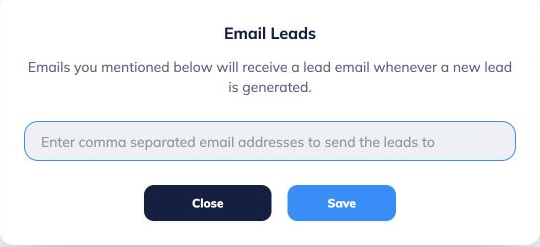
Configure lead notifications. In Contacts, click Configure Emails. Enter the recipient addresses, separated by commas, and click Save. Use a test lead to confirm that your intended inbox receives the notification.