

How to Install FastBots on a Website Built With ClickFunnels
Follow these simple steps to install your chatbot on a site built with ClickFunnels.
How to Get Your FastBots Chatbot Code
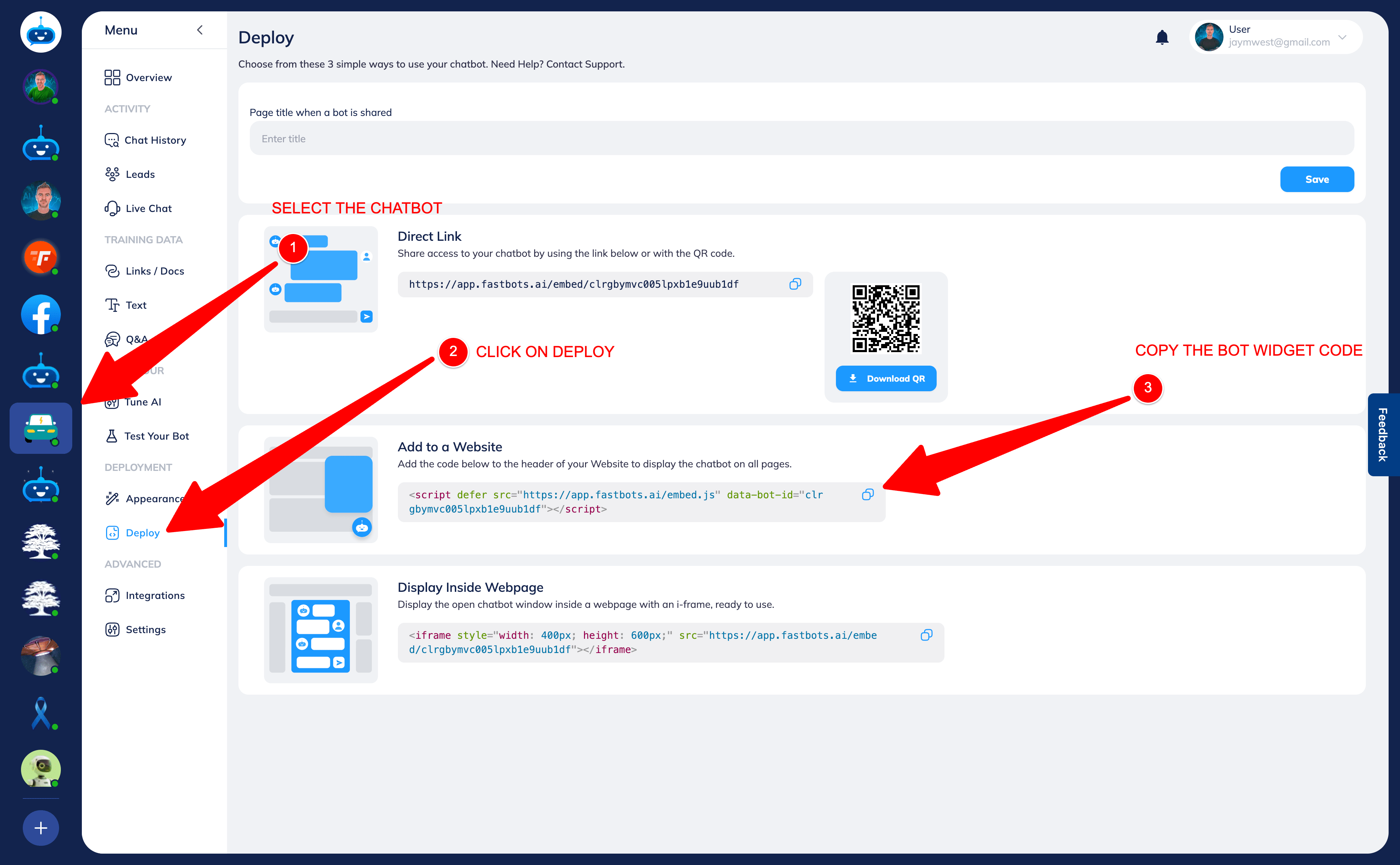
Before installing your chatbot on any platform, you’ll need your widget code.
Log in to FastBots.
Select the chatbot you want to install.
Click Deploy in the left-hand menu.
Scroll to Add to a Website.
Copy the script code using the copy icon.
You’ll paste this code into your website builder so the chatbot appears across all pages.
ClickFunnels (Classic)
Step 1 — Add the script to your funnel
- Log in to your ClickFunnels account.
- Open the funnel you want to install FastBots on.
- Select a Funnel Step.
- Click Settings in the top menu.
- Choose Tracking Code.
- In the Header section, paste your FastBots script code.
- Click Save.
ClickFunnels 2.0
Step 1 — Add the script site-wide
- Log in to ClickFunnels 2.0.
- In the left-hand menu, go to Site.
- Click Settings.
- Scroll to the Custom Code section.
- Paste your FastBots script code into the Header field.
- Click Save.
Step 2 — Confirm installation
Visit your live funnel or site and refresh the page — your FastBots chatbot should now appear across all ClickFunnels pages. Enable and test voice In FastBots, open Deployment → Chat Widget → Conversation Options. Choose Text and Voice or Voice Only, configure your voice settings and select Save Changes. After installation, open your website or shared chatbot link as a visitor. Start a voice conversation, allow microphone access and check that you can hear a reply. If you enabled text fallback, check Type instead too. Voice tests consume message credits. See the Chat Widget and Voice guide for the full setup. The setup wizard still creates a text chatbot; voice is enabled afterwards.